How to fix
Xbox app error code 0x89235113
on Windows
Resolve Xbox app error code 0x89235113 on Windows 10/11 quickly and effectively. Get back to gaming with expert-tested solutions and zero traces left.


What causes How to fix Xbox app error code 0x89235113 in Windows?
- Network configuration issues
- Corrupt sign-in credentials stored in Windows
- Problems with Xbox Live services
- Issues with the app's system files
- Misconfiguration in key services managing Xbox Live and Microsoft accounts
Repairs Windows system files, removes malware, and restores a clean OS state — without reinstalling.
I've been getting the error code 0x89235113 each time I try to log in to the Xbox app. I don't know how to fix it or where to even start. I can't play games I've god on Xbox app because of this, so please help me to figure this out.
Xbox app error 0x89235113 is a sign-in error that commonly occurs on Windows when users try to log into their Xbox app or access Xbox Live services. Users frequently report that they are unable to sign in despite having active accounts, and in some cases, the app gets stuck in a sign-in loop. This issue can be particularly frustrating for gamers or those looking to access Xbox Game Pass, as it prevents them from connecting to their gaming profiles or launching games.
This error usually stems from network configuration issues or corrupt sign-in credentials stored in Windows. Often, it occurs after a Windows update or changes to network settings. Additionally, problems with the Xbox Live services themselves or with the app's system files may also lead to this error. Another cause might be a misconfiguration in key services that manage Xbox Live and Microsoft accounts, causing conflicts during login attempts.
To resolve Xbox app error 0x89235113, users can try resetting their network settings, clearing credentials from Windows Credential Manager, or updating the Xbox app. Additionally, running the Windows Store Apps Troubleshooter can help detect and fix any underlying app issues. If these steps fail, reinstalling the Xbox app or adjusting specific services related to Xbox Live and Microsoft accounts may be necessary.
For a more convenient and automated approach, using a reliable [d1] repair tool can help address any underlying system issues, ensuring the Xbox app works without further errors.

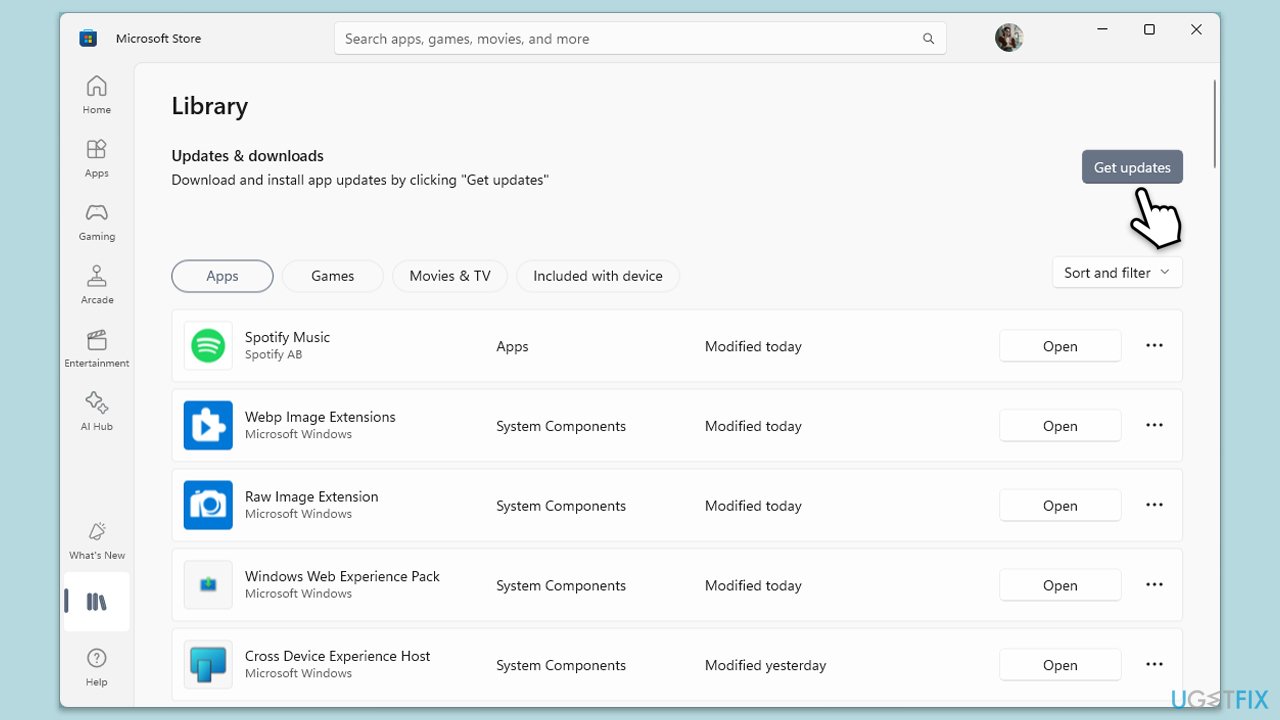
Fix 1. Update Xbox app
- Open Microsoft Store.
- Click on Library.
- If updates are pending, click Update all.
- Otherwise, click Get updates.
- You can also update the app individually.
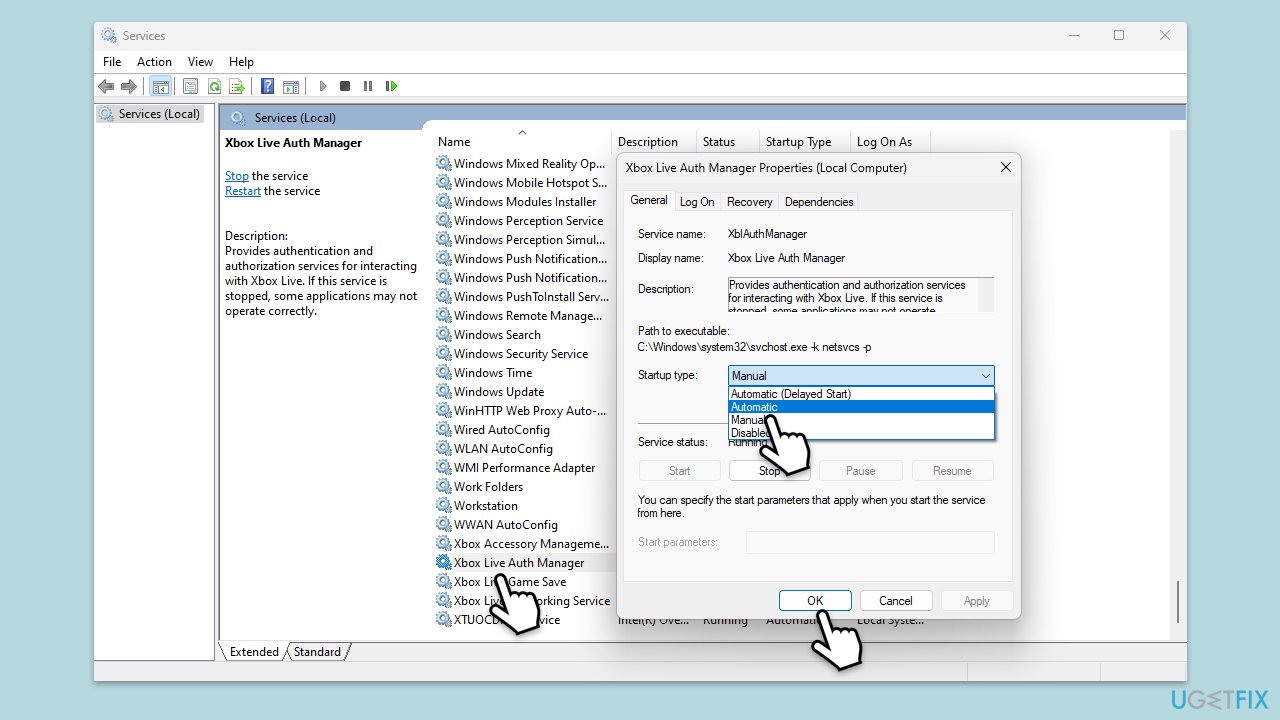
Fix 2. Chick Xbox-related services
- Type Services in Windows search and hit Enter.
- Scroll down to find Gaming Services.
- Right-click on it and select Restart.
- If it is grayed out, double-click the service to open its Properties.
- Under Startup type, select Automatic from the drop-down menu.
- Click Start, Apply, and OK.
- Repeat this process with the following services:
Windows Update
Microsoft Store Install Service
Xbox Live Auth Manager
Xbox Live Game Save
Xbox Live Networking Service.
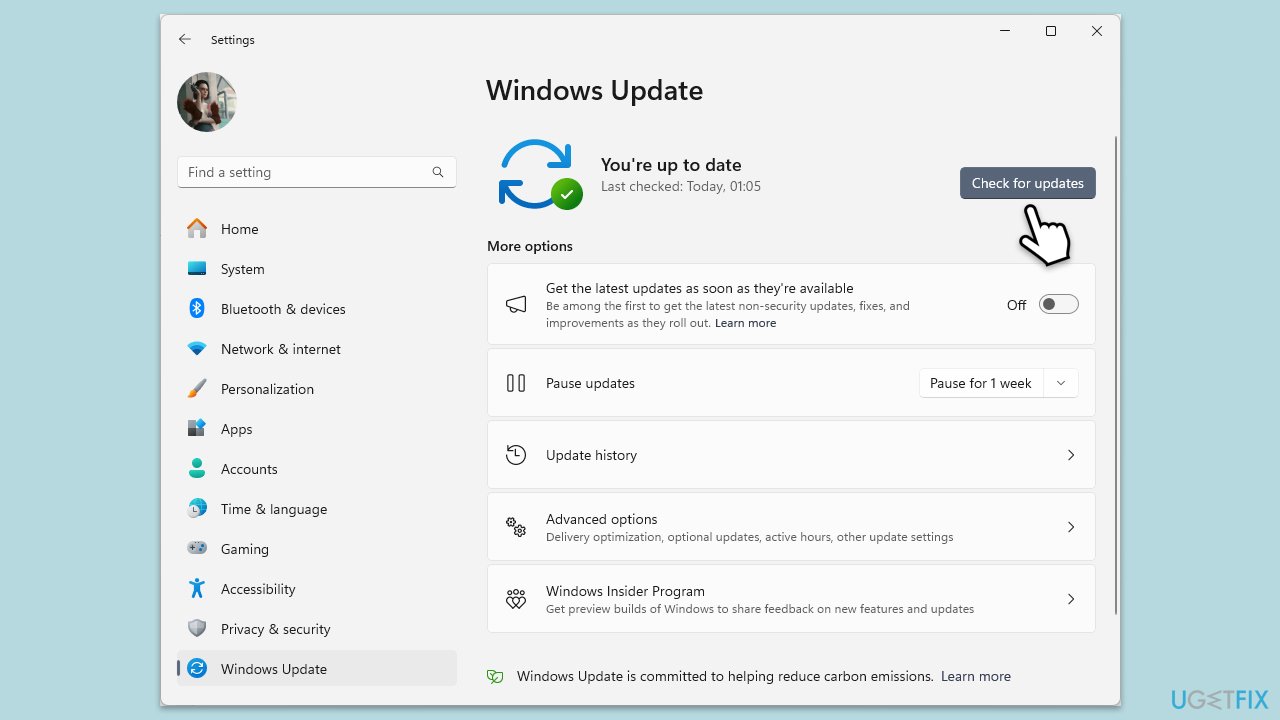
Fix 3. Update Windows
- Right-click on Start and select Settings.
- Go to Update & Security/Windows Update (depending on Windows version).
- If updates are pending, click Install updates.
- Otherwise, click Check for updates and wait.
- If there are optional updates available, install them as well.
- Restart your system to implement the changes.
Fix 4. Repair or reset Store, Xbox Live and Xbox apps
- Right-click on Start and select Apps & Features/Installed apps.
- Scroll down to find Microsoft Store and click Advanced options.
- Scroll down again and click Terminate and Repair.
- If that does not work, try using Reset.
- Repeat this process with the Xbox app and Xbox Live as necessary.

Fix 5. Check Xbox Live service status
The error may be due to outages or issues with Xbox Live services. Checking the service status can help identify if the problem is server-side.
- Visit the Xbox Live Service Status page.
- Check if any services are experiencing outages or issues.
- If there are outages, you may need to wait for them to be resolved.
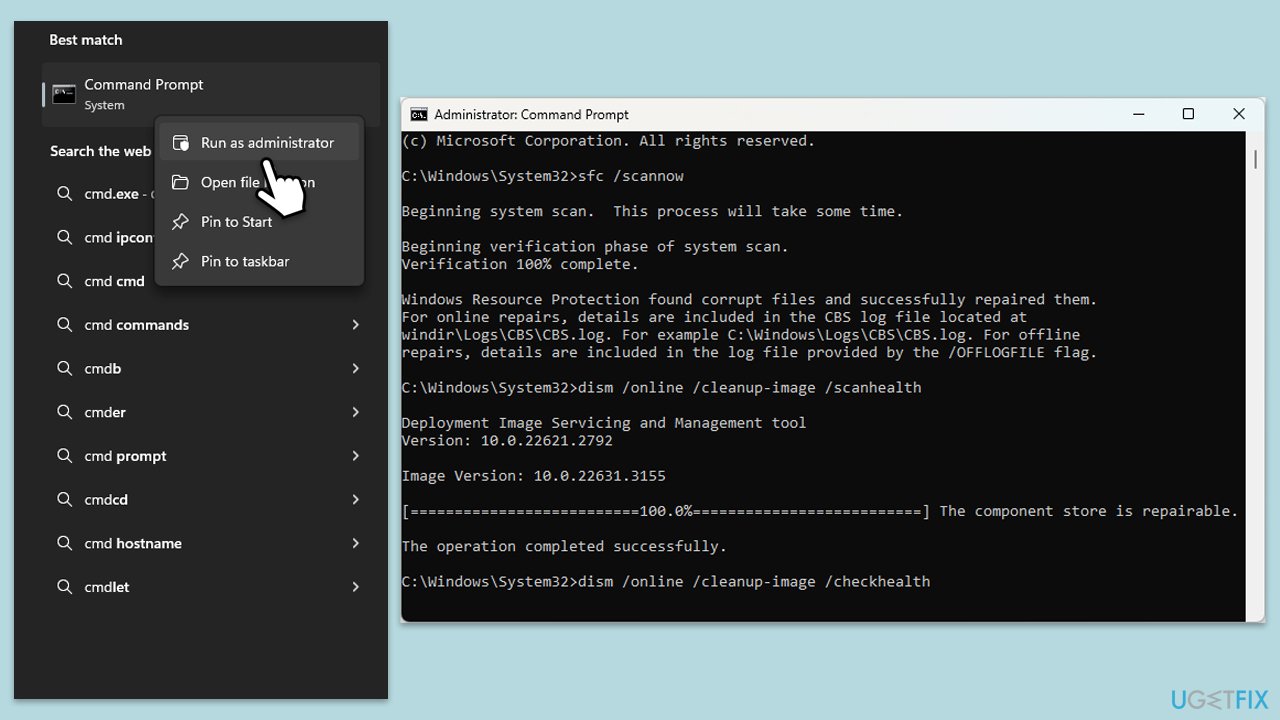
Fix 6. Run SFC and DISM to repair corrupted files
- Type in cmd in Windows search.
- Right-click on Command Prompt and select Run as administrator.
- When User Account Control shows up, click Yes.
- In the Command Prompt window, paste the following command and hit Enter:
sfc /scannow - Next, use the following commands, pressing Enter each time:
Dism /Online /Cleanup-Image /CheckHealth
Dism /Online /Cleanup-Image /ScanHealth
Dism /Online /Cleanup-Image /RestoreHealth
(Note: if you get an error executing this last command, add /Source:C:\RepairSource\Windows /LimitAccess to it and try again). - Reboot your computer.
Fix 7. Log in with the correct Microsoft account
Some users said they managed to fix the 0x89235113 error by logging into Xbox and Game Bar/Xbox Live services.
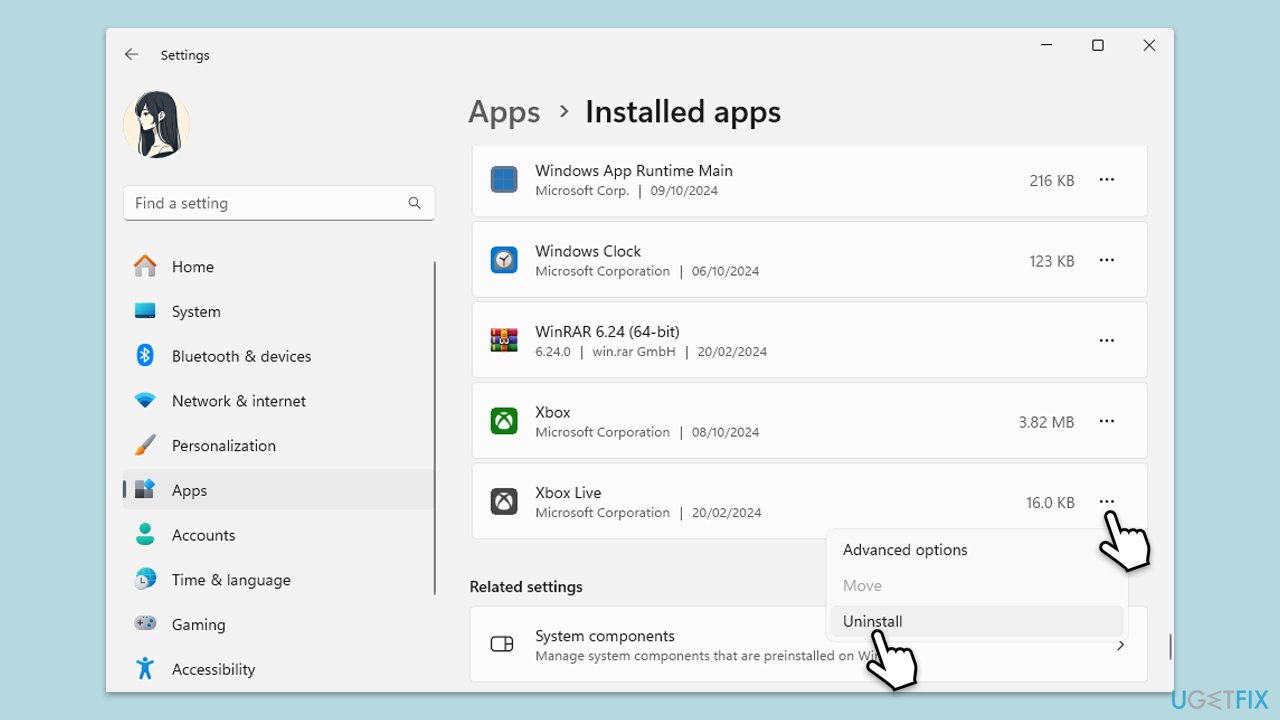
- Right-click on Start and pick Apps & Features/Installed apps.
- Scroll down to find the Xbox app and uninstall it.
- Find Xbox Live and uninstall it as well.
- Reboot your PC.
- After restarting, open your browser and navigate to Microsoft Store (or use the built-in app).
Fix 8. Reregister all Store apps via PowerShell
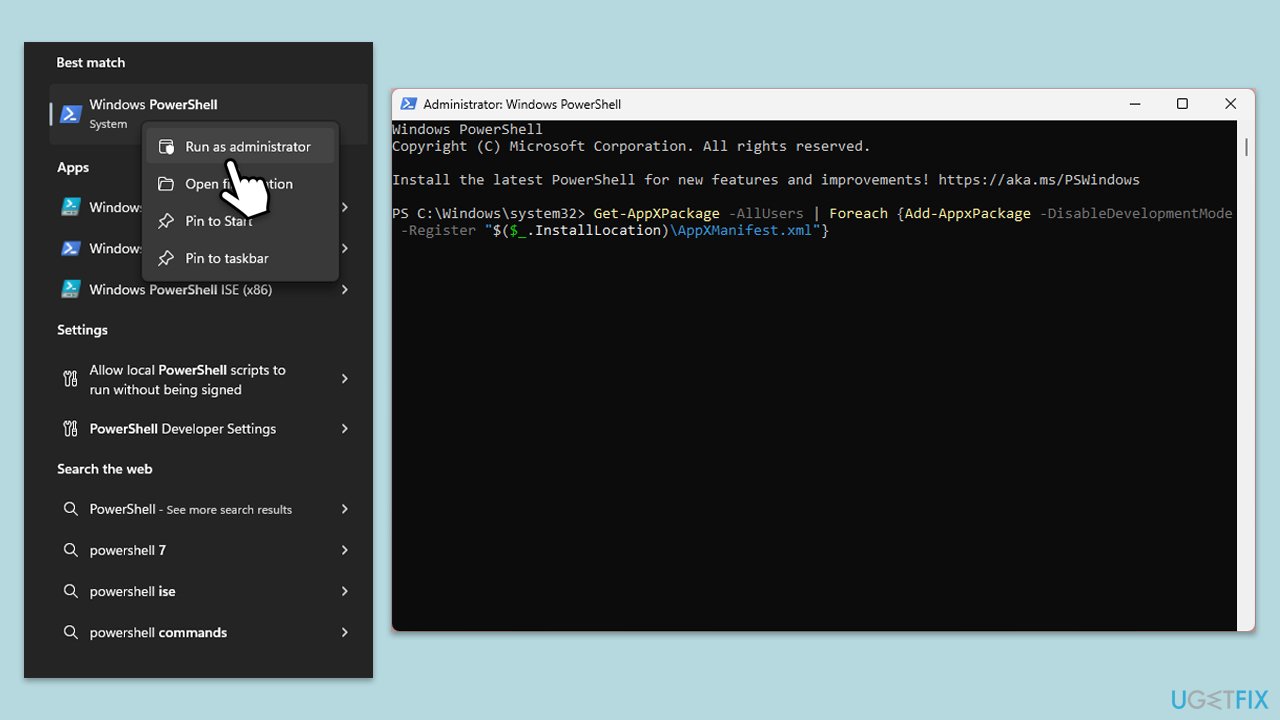
- Type PowerShell in Windows search.
- Right-click on the result and select Run as administrator.
- When UAC shows up, click Yes.
- Use the following command and press Enter:
Get-AppXPackage *WindowsStore* -AllUsers | Foreach {Add-AppxPackage -DisableDevelopmentMode -Register "$($_.InstallLocation)\AppXManifest.xml"} - When done, restart your machine.
Bottom line
To resolve Xbox app error 0x89235113, users can try updating the Xbox app, resetting their network settings, clearing credentials from Windows Credential Manager, or running the Windows Store Apps Troubleshooter. If these steps fail, reinstalling the Xbox app or adjusting specific services related to Xbox Live and Microsoft accounts may be necessary.
Frequently asked questions
Start by checking your internet connection and ensuring that Xbox services are running properly. Then, try restarting the Xbox app and your Windows 10 device.
Yes, keeping Windows 11 updated can fix compatibility issues that may cause error code 0x89235113. Check for updates in Settings under 'Windows Update' and install any available updates.
Yes, you can reset the Xbox app by going to Settings > Apps > Apps & features, selecting the Xbox app, and clicking on 'Advanced options' to find the reset option.




Report an issue
What's wrong with this guide? We review every report and update or remove content.
Report received — thank you. We'll review and fix it.
You need a free account to submit a report.
Be the first to comment