How to fix
Laptop battery not charging after recent Windows update
on Windows
Resolve your laptop battery charging issues after a recent Windows update with expert-tested solutions. Get back to work quickly, fixed in minutes!

What causes How to fix laptop battery not charging after recent Windows update?
- Outdated battery drivers
- Corrupted battery drivers
- Faulty Power Plan settings
- BIOS configuration issues
- Hardware damage to charging cable or battery
Repairs Windows system files, removes malware, and restores a clean OS state — without reinstalling.
After I updated Windows recently, my laptop battery stopped charging. When I plug it in, the icon shows that it should be charging but the truth is that it remains on 0% regardless of how long I leave it connected to the plug. Is there something I can do because this is making my laptop's portability (which is really important to me) rather useless?
People have been complaining about an issue where laptop batteries are failing to charge since the recent Windows update. The icon indicating the battery may say that the laptop is charging, but the percentage level doesn't budge an inch; hence, the device fails to charge appropriately. Usually, this problem arises right after the installation of a cumulative update, which has happened in both Windows 10 and 11.
The primary causes of this issue vary. Some of the users say this may be because of very outdated or corrupted battery drivers. Others say that this might also be due to a faulty setting in the Power Plan, but even an update from time to time causes conflicts that prevent the battery from charging correctly.
It might also, in very rare cases, involve actual hardware damage like the charging cable or the battery itself. Some users also reported that the update screwed up something in the BIOS configuration or power management settings that could interfere with charging.
The solution might come from updating or reinstalling the battery driver, resetting power management settings, or running the Windows battery troubleshooter. In worse scenarios, it might be possible to help restore normal charging by rolling back the update or updating the BIOS.
Also, for immediate and complete troubleshooting, one may safely use a trusted [d1] repair tool, which can automatically locate and correct some operating system issues that may contribute to bad battery charging after a Windows update.
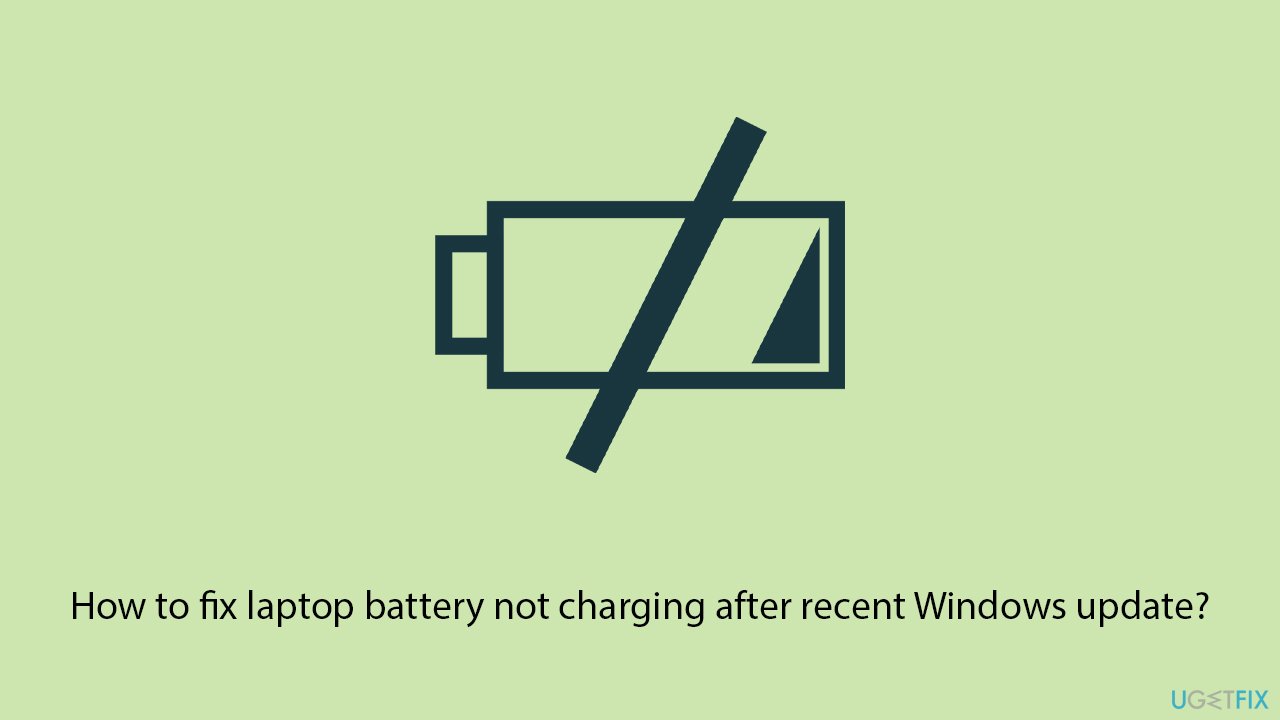
Fix 1. Run the power troubleshooter
The built-in power troubleshooter can help detect and fix battery-related issues that occur after a Windows update.
- Type troubleshoot in Windows search and hit Enter.
- Click Additional troubleshooters/Other troubleshooters.
- Find Power.
- Click on it, and select Run the troubleshooter/Run.
- Wait for the scan to be completed and apply the suggested fixes.
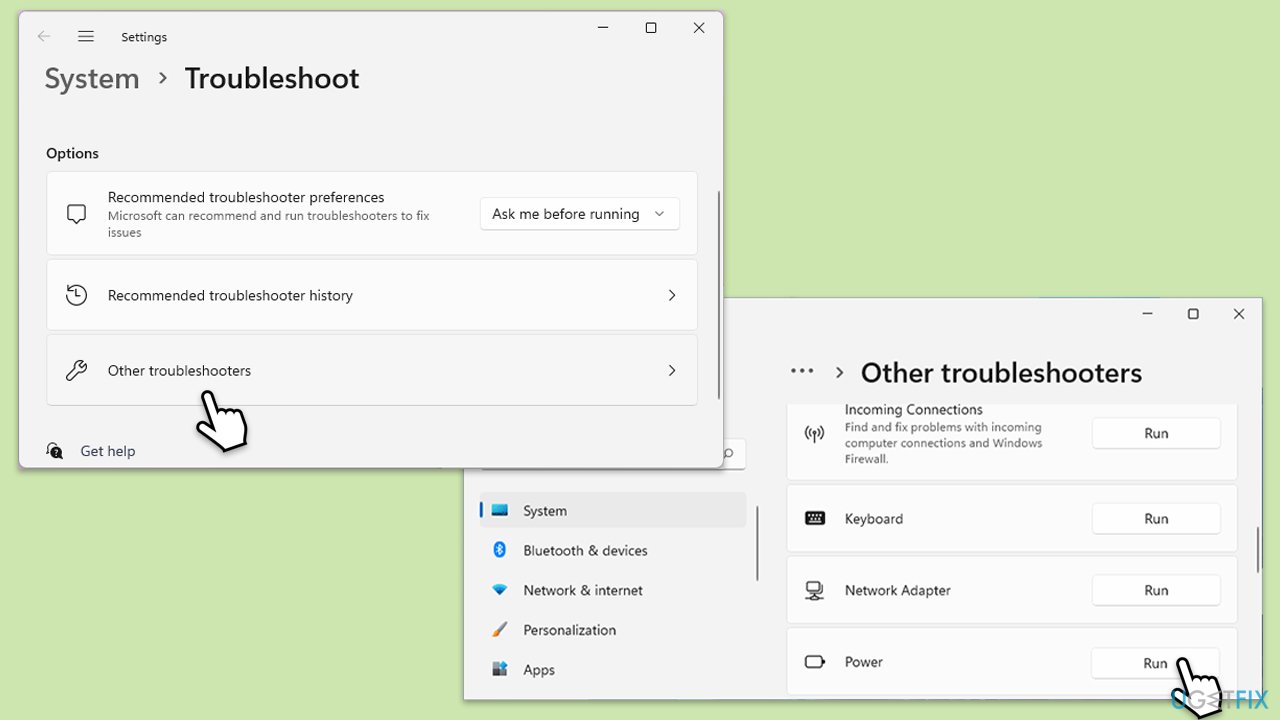
Fix 2. Update the battery drivers
Outdated or corrupted drivers may cause the laptop battery to stop charging after an update. Updating these drivers ensures compatibility with the new Windows version.
- Right-click on Start and pick Device Manager.
- Expand the Batteries section.
- Right-click Microsoft ACPI-Compliant Control Method Battery and select Update driver.
- Choose Search automatically for drivers and install any updates.
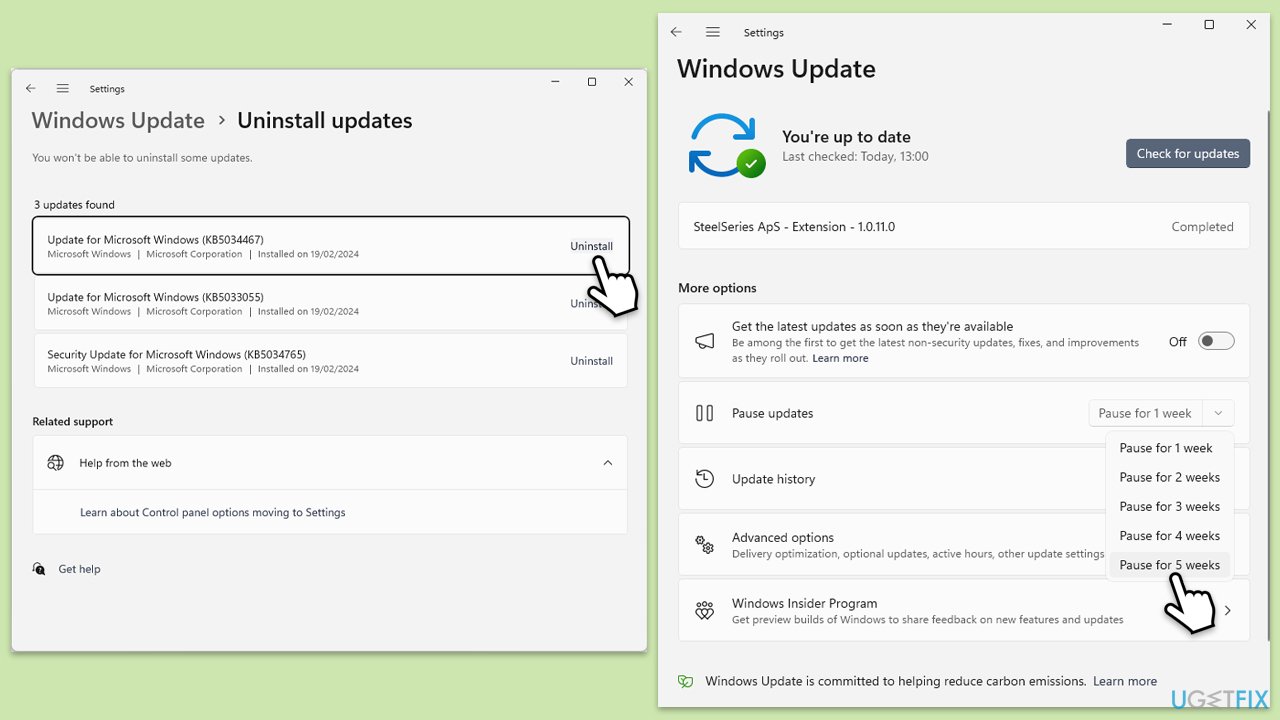
Fix 3. Roll back the Windows update
If the issue started after a recent update, rolling back to a previous version may resolve the problem.
- Type Control Panel in Windows search and press Enter.
- Select Programs > Uninstall a program.
- Click on View installed updates on the left side of the window.
- Uninstall the most recent update.
- Proceed with on-screen instructions.
- Don't forget to pause the update.
Fix 4. Reset power plans
Custom or corrupted power plans can cause charging problems. Resetting the power plan can help restore normal charging behavior.
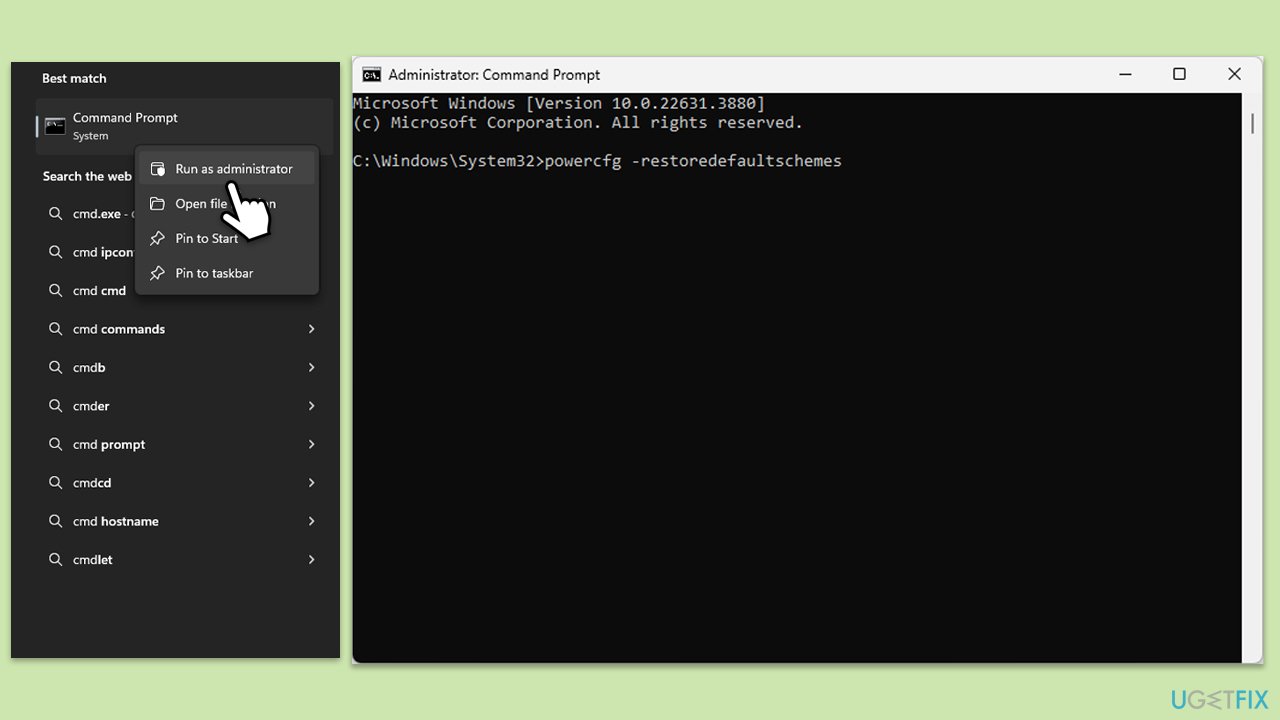
- Type cmd in Windows search.
- Right-click on Command Prompt and select Run as administrator.
- User Account Control will ask you whether you want to make changes - click Yes.
- When the new window opens, copy and paste the following command:
powercfg –restoredefaultschemes - Press Enter and close down Command Prompt.
Fix 5. Check the charging cable and port
Physical damage to the charging cable or port could be the cause of the issue. Make sure the charging cable is properly connected and not damaged.
- Inspect the charging cable and port for visible damage.
- Try using a different charger or testing the charger with another device to rule out hardware issues.
Fix 6. Update the BIOS
An outdated or misconfigured BIOS can interfere with battery charging, especially after a Windows update. Updating the BIOS can help resolve compatibility issues.
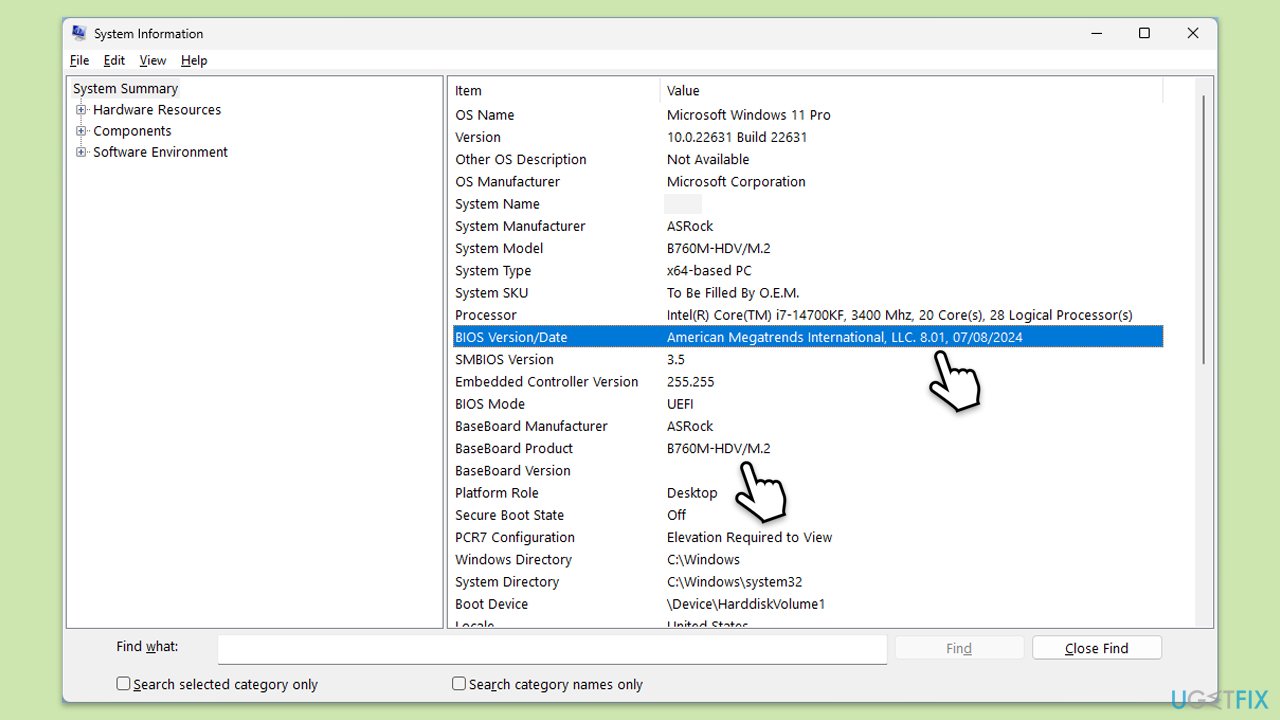
- Visit the manufacturer's website and download your specific model's latest BIOS update file (you can check which BIOS you are using by typing System information in Windows search and checking the BIOS Version/Date and BaseBoard Product entries there).
- Extract the BIOS update files and read any provided instructions or documentation.
- Create a bootable USB drive with the BIOS update files, if required.
- Update the BIOS using the manufacturer's recommended method, which may be through a built-in utility or booting from a USB drive.
- Restart your computer to complete the process.
Fix 7. Perform a battery reset
A battery reset can help recalibrate the battery and restore normal charging behavior.
- Shut down the laptop and disconnect it from the charger.
- If possible, remove the battery from the laptop.
- Press and hold the power button for 15-20 seconds.
- Reinsert the battery and reconnect the charger, then power the laptop back on.
Fix 8. Reinstall the battery driver
If updating the driver doesn't help, reinstalling it can fix any lingering issues.
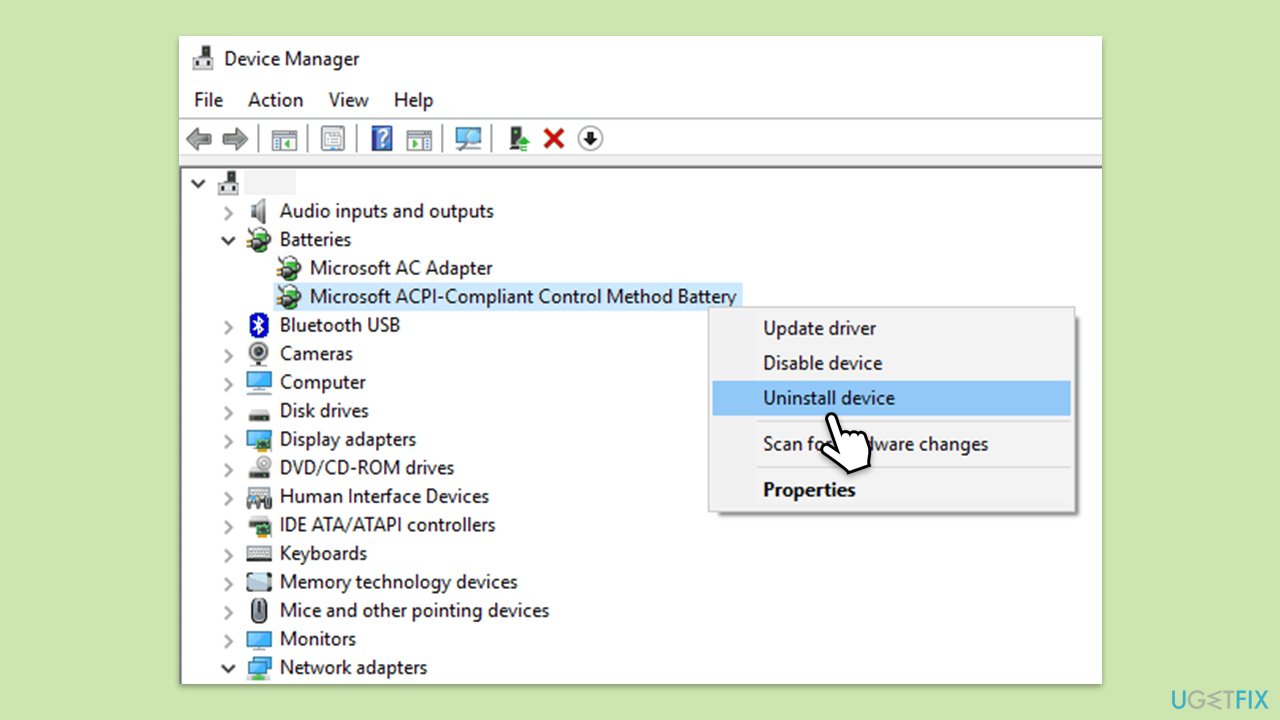
- Right-click on Start and select Device Manager.
- Expand Batteries.
- Right-click Microsoft ACPI-Compliant Control Method Battery and choose Uninstall device.
- Restart your computer to allow Windows to reinstall the driver automatically
Bottom line
To address the battery charging issue, you can try updating or reinstalling the battery driver, resetting power management settings, or running the Windows battery troubleshooter. If these solutions do not work, consider rolling back the recent Windows update or updating the BIOS. If the problem persists, using a trusted repair tool may help identify and fix underlying operating system issues.
Frequently asked questions
This issue may occur due to compatibility problems introduced by the update, which can affect power management settings in Windows 10 or Windows 11.
You can reset the battery drivers by going to Device Manager, expanding the 'Batteries' section, right-clicking on 'Microsoft ACPI-Compliant Control Method Battery', and selecting 'Uninstall device' before restarting your laptop.
Yes, check the power settings under 'Control Panel' to ensure that the battery saver mode isn't restricting charging, and verify that the 'Fast Startup' option is disabled as it can sometimes interfere with battery charging.




Report an issue
What's wrong with this guide? We review every report and update or remove content.
Report received — thank you. We'll review and fix it.
You need a free account to submit a report.
Be the first to comment