How to fix
VIDEO_DRIVER_DEBUG_REPORT_REQUEST BSOD error
on Windows
Resolve the VIDEO_DRIVER_DEBUG_REPORT_REQUEST BSOD error on Windows 10 and 11 effortlessly. Follow expert-tested solutions for a quick fix!

What causes How to fix VIDEO_DRIVER_DEBUG_REPORT_REQUEST BSOD error in Windows?
- Corrupted graphics drivers
- Out-of-date graphics drivers
- Problematic system updates
- Recently installed software
- Hardware malfunction of the graphics card
Repairs Windows system files, removes malware, and restores a clean OS state — without reinstalling.
Hi. Yesterday my PC crashed suddenly. After it rebooted, everything worked fine again... until like 30mins later. The error code reported is VIDEO_DRIVER_DEBUG_REPORT_REQUEST.
The blue screen crash, or what is commonly referred to as Blue Screen of Death, is one of the problems with which Windows users are confronted. In fact, such a crash happens when an operating system detects any sort of critical problem that may seriously harm the computer.
In order to save the computer from further damage, Windows simply shuts down the system and shows a blue screen with some error message on it. A typical error message could also include something like a code that leads to identifying the cause of the crash. These error blue screens are really irritating; however, they play a major role in saving your system from further damage.
A relatively uncommon crash that users face is VIDEO_DRIVER_DEBUG_REPORT_REQUEST BSOD. This specific error indicates that your video or graphics driver has an issue. The system will experience this error when it realizes something is wrong with how the video driver is processing directives or requests. In other words, the driver is malfunctioning, or the software fails to respond under circumstances, thereby stopping the system to avert possible problems.
The VIDEO_DRIVER_DEBUG_REPORT_REQUEST bug check most frequently results from one or more of the following: corrupted or out-of-date graphics drivers, problematic system updates, or recently installed software. This may also be due to a hardware malfunction of the graphics card.
Sometimes, something as mundane as your video driver simply being buggy or failing to properly converse with the system - an unexpected crash, if you will - can cause the VIDEO_DRIVER_DEBUG_REPORT_REQUEST BSOD.
This can be done in any number of ways: updating graphics drivers, rolling back recent updates, or even looking for hardware issues. Aside from this, a tool such as [d1] repair could assist in understanding which system-related problems may be the underlying cause of an error.
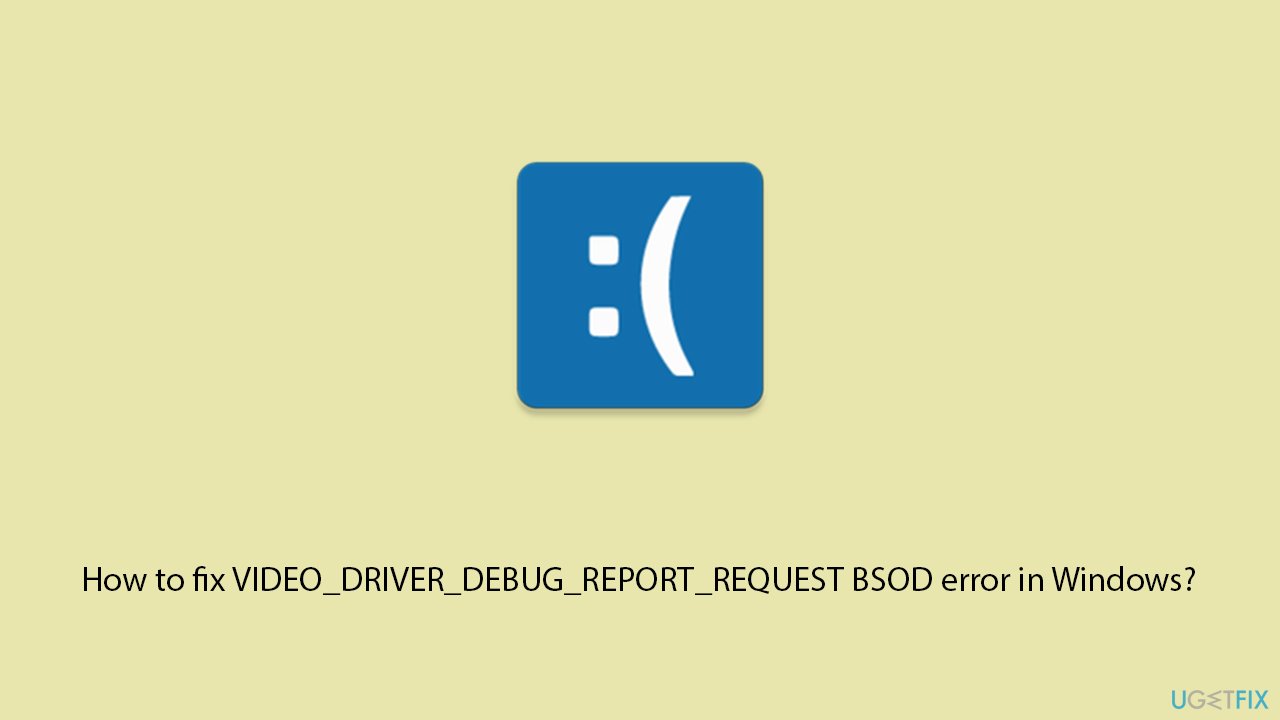
Solution 1. Update graphics drivers
- Right-click on the Start button and select Device Manager from the menu.
- Expand the Display adapters section.
- Right-click on your device and select Update driver.
- Pick Search automatically for drivers.
- If updates are found, allow them to install.
- Restart your computer after updating all necessary drivers.
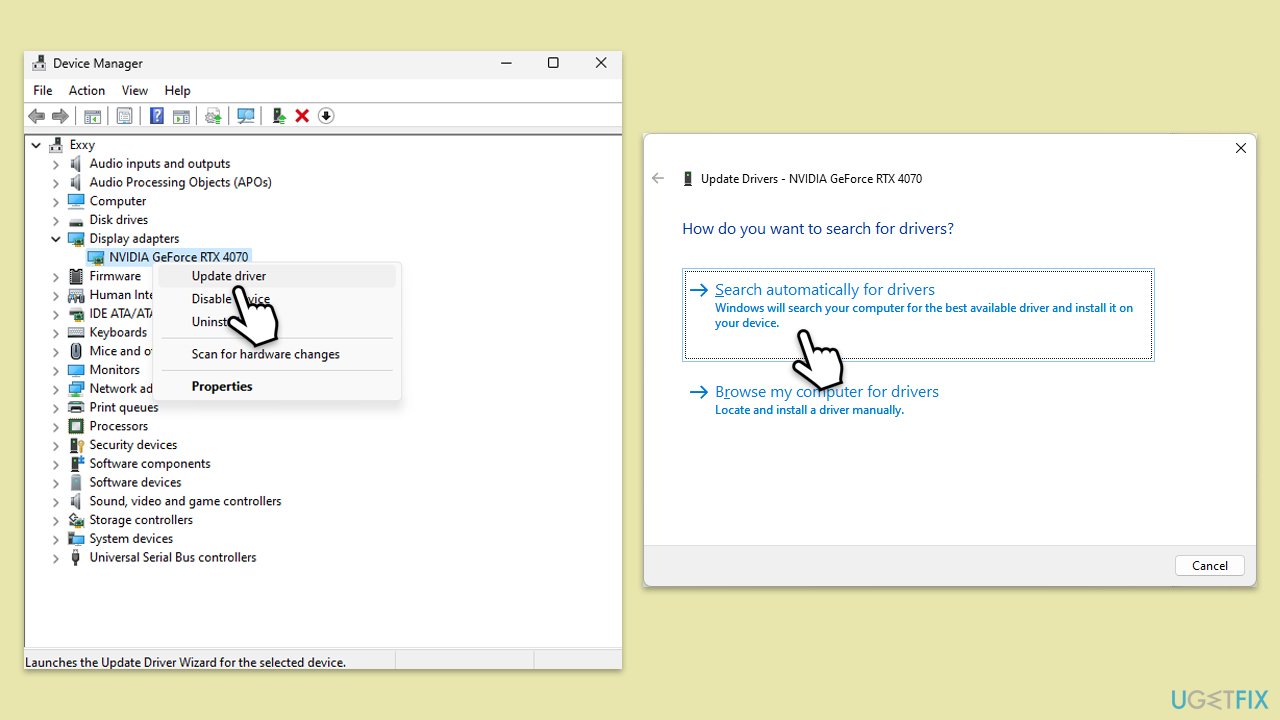
Solution 2. Roll back the graphics driver
- Right-click on the Start button and select Device Manager from the menu.
- Expand the Display adapters section.
- Right-click on your graphics card and select Properties.
- Go to the Driver tab at the top.
- Here, you will see an option to Roll Back Driver.
- Click it and follow the on-screen instructions to finish the process.
Solution 3. Reinstall the graphics driver
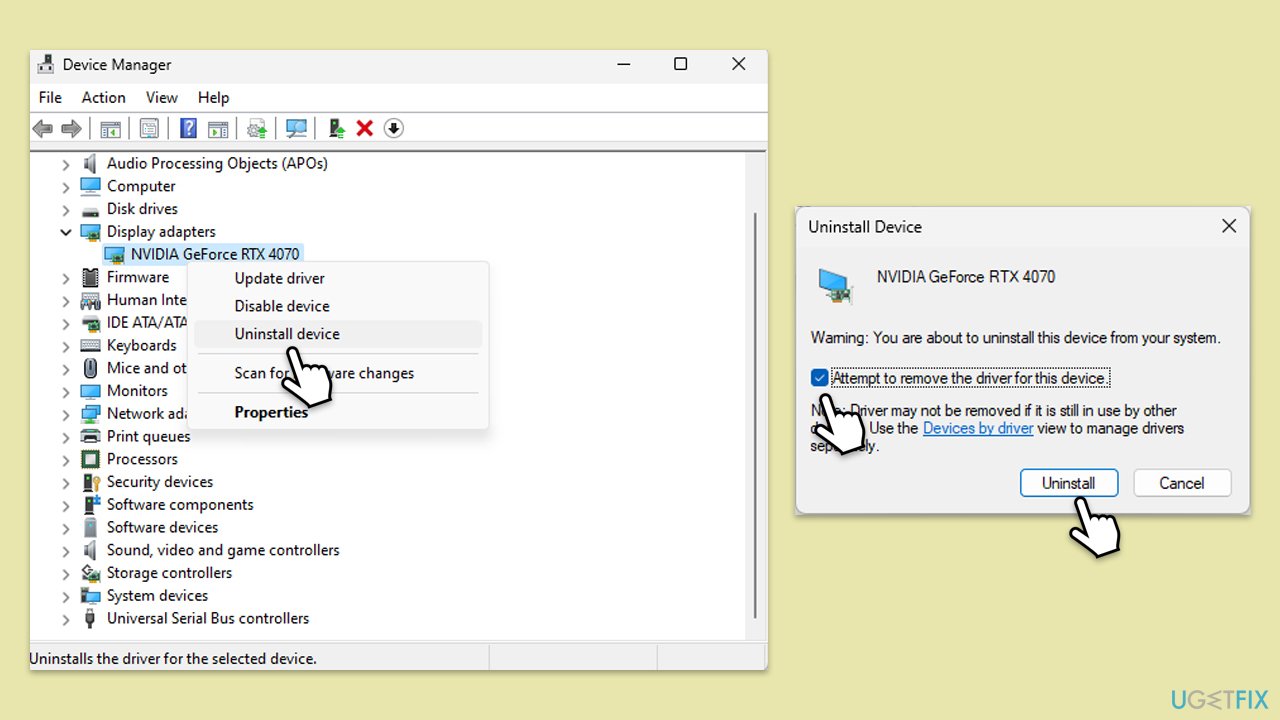
- Open Device Manager.
- Expand the Display adapters section.
- Right-click on your GPU and select Uninstall device.
- Confirm driver removal.
- Restart your computer.
- Upon reboot, Windows will automatically reinstall the AHCI driver.
- If not, you can download the driver manually or employ automatic tools like [rev id="DriverFix"].
Solution 4. Check for Windows updates
- In Windows search, type Updates and press Enter.
- Click Check for updates/Install all and wait till Windows installs update.
- Make sure you also install all optional updates if such are available.
- To implement the changes, reboot your system.
Solution 5. Disable Fast Startup
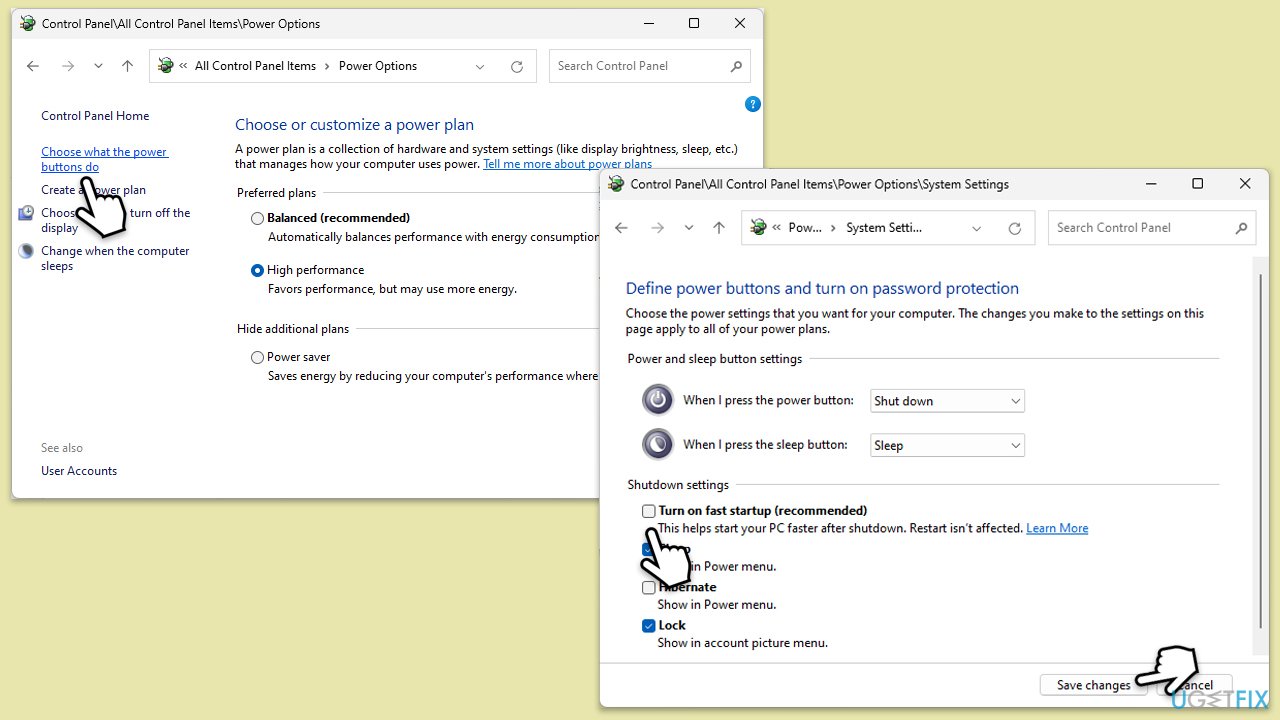
- Type Control Panel in Windows search and hit Enter.
- Select Small icons view and pick Power options.
- On the left side of the window, select Choose what the power buttons do
- Pick the Change settings that are currently unavailable option at the top
- Remove the tick from the Turn on fast startup (recommended) option and select Save changes.
Solution 6. Repair corrupted files
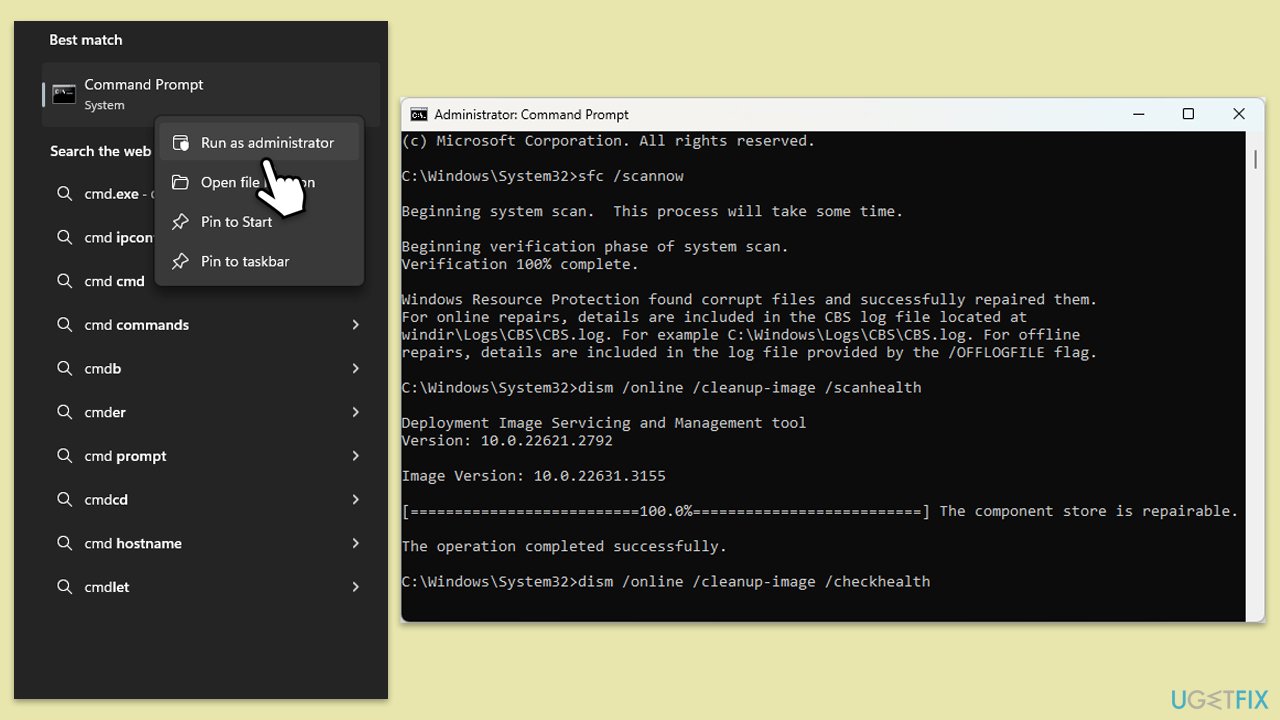
- Type cmd in Windows search.
- Right-click on Command Prompt and select Run as administrator.
- When the User Account Control window shows up, click Yes.
- Copy and paste the following command, pressing Enter after:
sfc /scannow - Wait till the scan is finished. If Windows finds system file integrity violations, it will attempt to fix them. After this, use the set of the following commands, pressing Enter each time:
DISM /Online /Cleanup-Image /CheckHealth
DISM /Online /Cleanup-Image /ScanHealth
DISM /Online /Cleanup-Image /RestoreHealth - (Note: if you get an error executing this last command, add /Source:C:\RepairSource\Windows /LimitAccess to it and try again).
- Close down the Command Prompt and restart your computer.
Solution 7. Check memory (RAM)
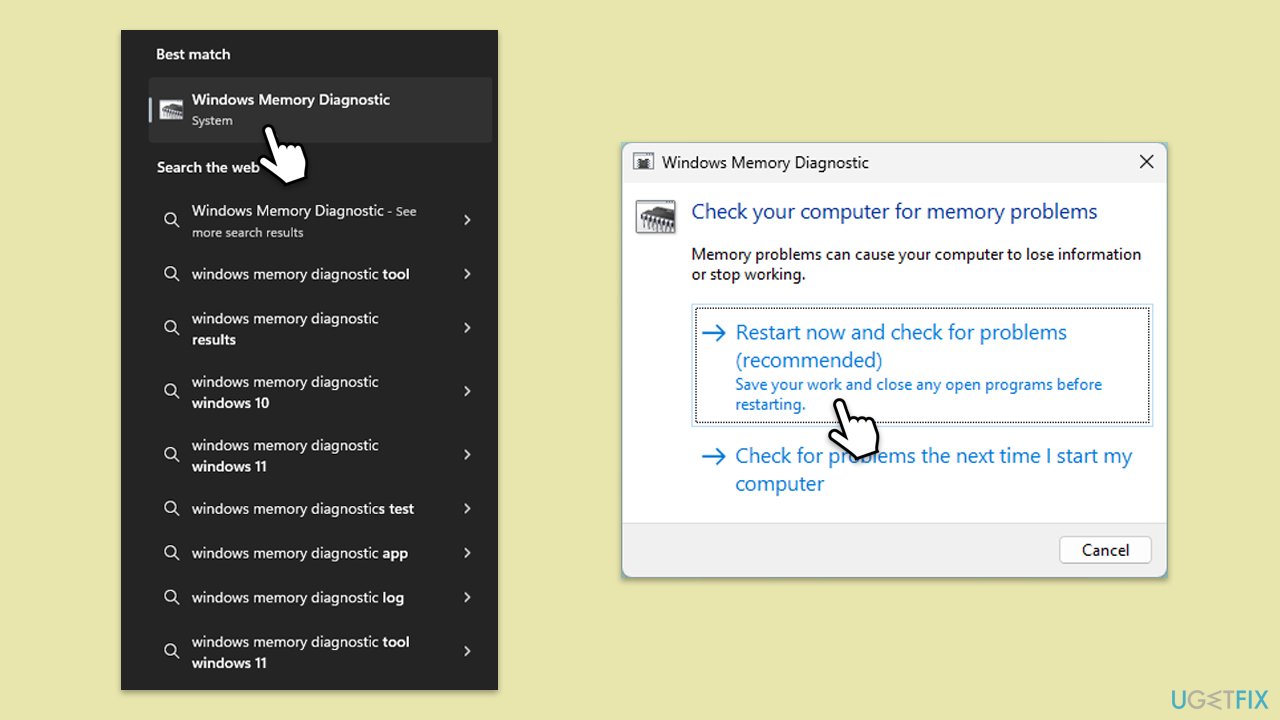
- Type Memory in Windows search and select Windows Memory Diagnostic result.
- Choose Restart now and check for problems (recommended).
- Let the tool run and complete the memory check.
- Review the results for any errors.
Solution 8. Check disk for errors
- Open Command Prompt as administrator.
- In the new window, type in the following command and press Enter after:
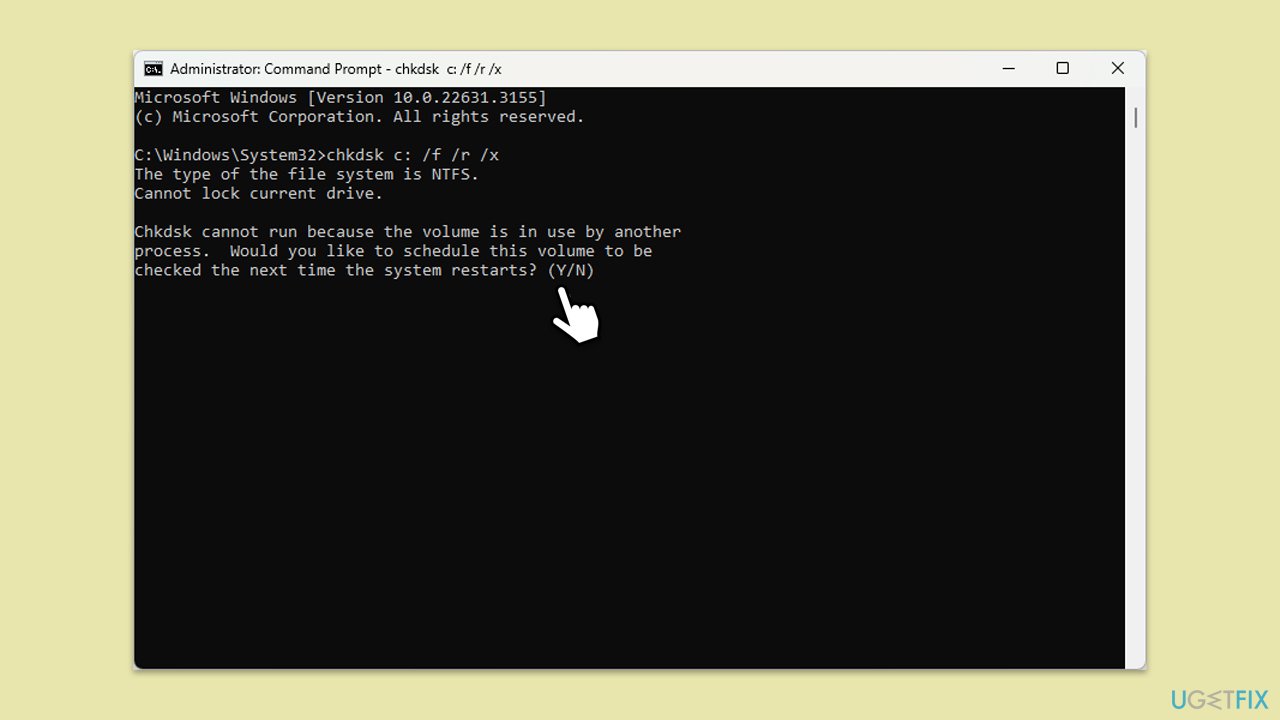
chkdsk c: /f
(Note: use chkdsk c: /f /r /x command if you are using SSD as your primary partition) - If you receive an error, type in Y, close down Command Prompt and restart your system.
- Restart your computer to allow the disk check to run during boot. This may take some time depending on the size of your disk and the number of errors found.
- Once the scan is complete and your system restarts, check if the VIDEO_DRIVER_DEBUG_REPORT_REQUEST BSOD error is resolved.
Bottom line
To fix the VIDEO_DRIVER_DEBUG_REPORT_REQUEST BSOD error, you can update your graphics drivers, roll back recent updates, or check for hardware issues. If these solutions do not resolve the problem, consider using a repair tool to identify underlying system-related issues.
Frequently asked questions
This BSOD error is typically caused by outdated or incompatible graphics drivers that fail to communicate correctly with the operating system.
You can update your graphics drivers by visiting the manufacturer's website or using Device Manager in Windows 10 or Windows 11 to search for updates automatically.
If updating drivers doesn't help, you can try rolling back to a previous driver version or performing a system restore to revert your Windows 10 or Windows 11 installation to a point before the error occurred.




Report an issue
What's wrong with this guide? We review every report and update or remove content.
Report received — thank you. We'll review and fix it.
You need a free account to submit a report.
Be the first to comment