How to fix
Error code: 140 in Space Marine 2
on Windows
Resolve error code 140 in Space Marine 2 effortlessly on Windows 10 or 11. Expert-tested solutions for a seamless gaming experience, fixed in minutes.

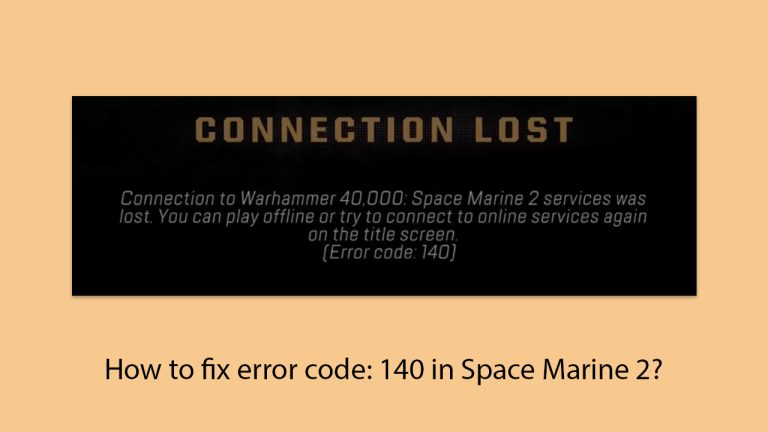
What causes How to fix error code: 140 in Space Marine 2?
- Poor or unstable internet
- Incorrect time and date
- Overloaded servers
- Problems within the game files
- Firewall or antivirus settings hindering connections
Repairs Windows system files, removes malware, and restores a clean OS state — without reinstalling.
I was trying to join a multiplayer session in Warhammer 40K: Space Marine 2 but the connection somehow failed and I got error code 140. I play on Windows 11 and Steam. Any tips would be appreciated.
Warhammer 40k: Space Marine 2 is one of the most anticipated action-packed games, building off the success of its predecessor, Space Marine. Releasing many years after its original and well within the lifetime of its sequel fans for Warhammer 40k, this game will blow the doors wide with its intense combat and immersive storyline involving one of the most recognizable members of the Space Marines.
In this grim, harsh future, players take on the role of a highly trained Space Marine and face off against hordes in vicious, third-person combat. Upon release, it had received widespread acclaim in most aspects: graphical, in terms of the mechanics of play, and loyalty to Warhammer 40k's deep lore.
Similar to many video games just coming out, Space Marine 2 has some technical issues. Among them, the error code: 140 has been reported by gamers, thus frustrating the gamer and not allowing them to enjoy the game. It usually occurs when trying to launch a video game or connecting to its online service, preventing gamers from entering particular options or even playing the game in question.
People online complain that this is an error in the connection or servers. For some gamers, this error occurs in multiplayer mode, while for others, it shows up right from the very start of the game. Error code: 140 may occur due to various reasons involving poor or unstable internet, incorrect time and date, as well as overloaded servers and problems within the game files themselves. Sometimes this might be caused by firewall or antivirus settings hindering some necessary connections.
Possible ways to fix the error code 140 for Space Marine 2: check the integrity of the game files, alter network settings, or turn off interfering security applications. At worst, you may have to reinstall the game or check for updates.
Using a trusted [d1] repair tool will help users who wish to use more automation in finding deeper system issue detection and resolution for error code: 140 in Space Marine 2.
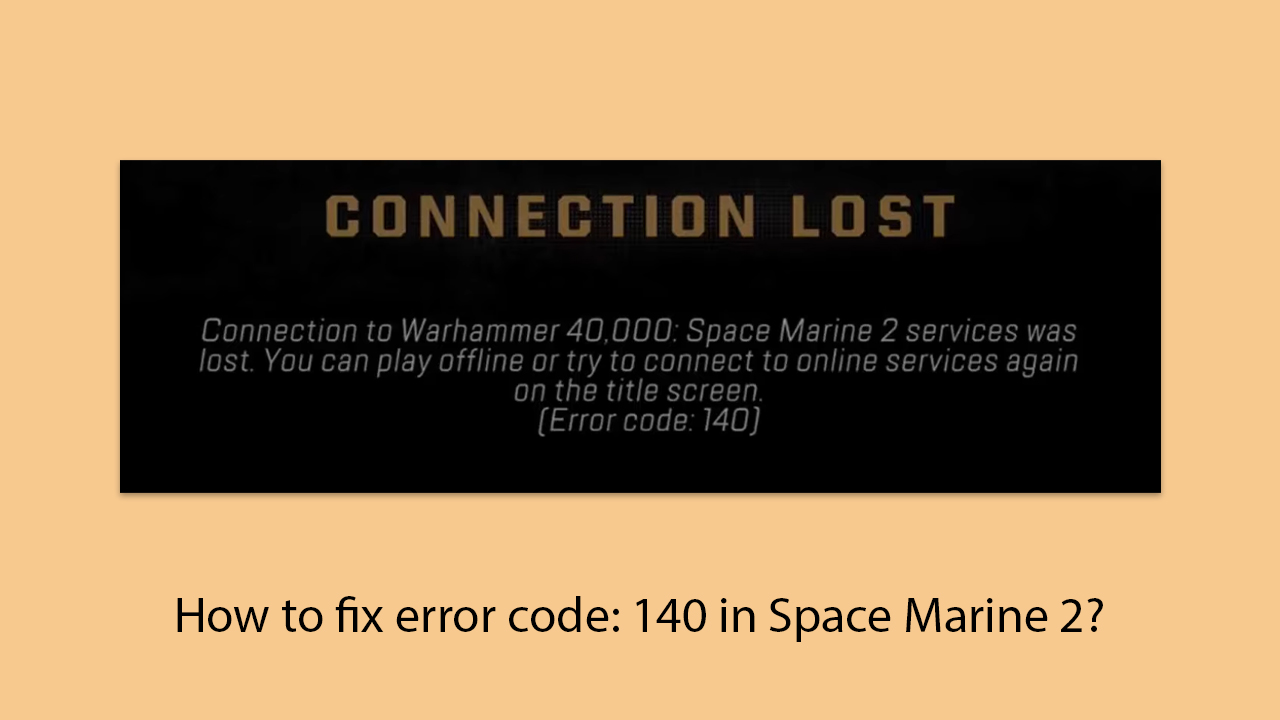
Fix 1. Verify integrity of game files
Corrupted or missing game files can cause error code: 140 in Space Marine 2. Verifying the integrity of the game files ensures that all files are correctly installed and repairs any that are damaged.
- Open Steam and go to your Library.
- Right-click on Warhammer 40k: Space Marine 2 and select Properties.
- Click the Installed Files tab, then select Verify integrity of game files.
- Wait for the process to complete, then relaunch the game.
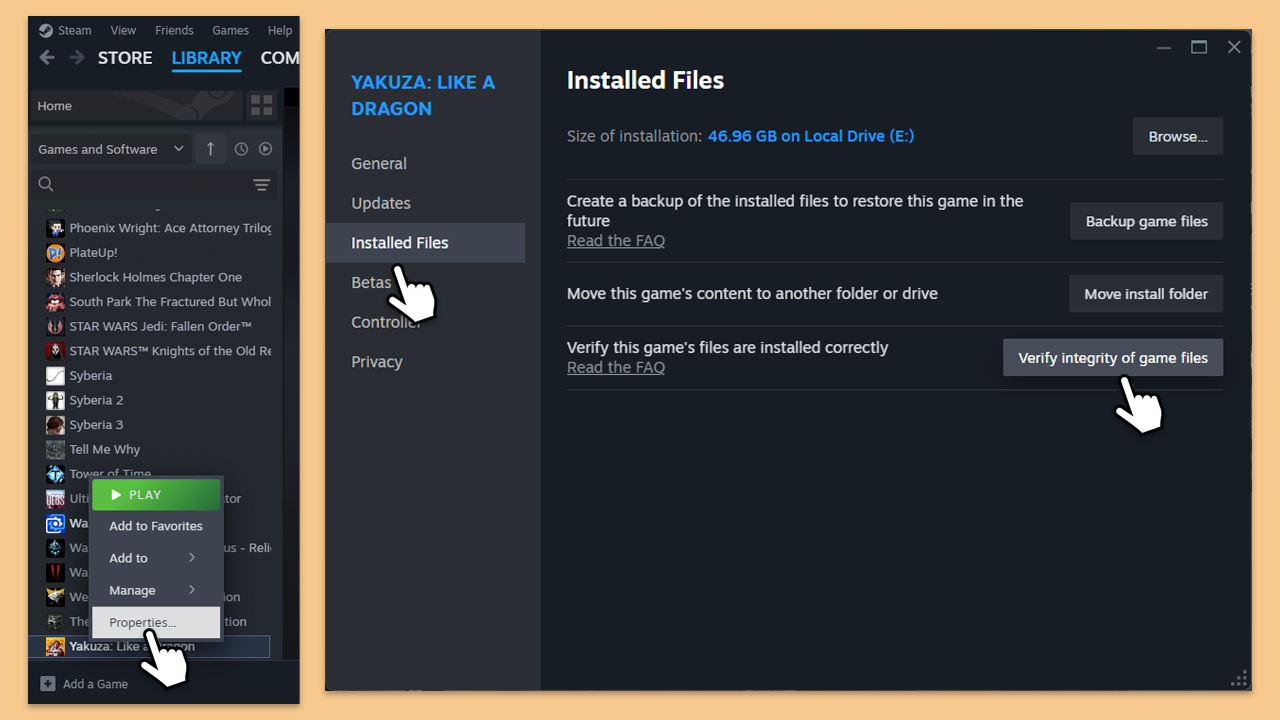
Fix 2. Set time and date settings to automatic
Incorrect time and date settings can interfere with the game's connection to servers, leading to errors like error code: 140. Ensuring these settings are automatic allows the system to sync with online services correctly.
- Type in Control Panel in Windows search and press Enter.
- Go to Clock and Region and click on Date and Time.
- Pick the Internet Time tab and select Change Settings.
- Make sure that the Synchronize with an Internet time server box is ticked.
- Click Update now and OK.
Fix 3. Disable third-party antivirus
Certain antivirus software from outside sources might prevent important game connections, causing errors while playing. Switching off the antivirus for a short time helps determine if it is the source of the issue.
- Open your antivirus program.
- Navigate to the settings menu and locate the option to disable or turn off protection temporarily.
- Disable the antivirus and launch Space Marine 2 to see if the issue persists.
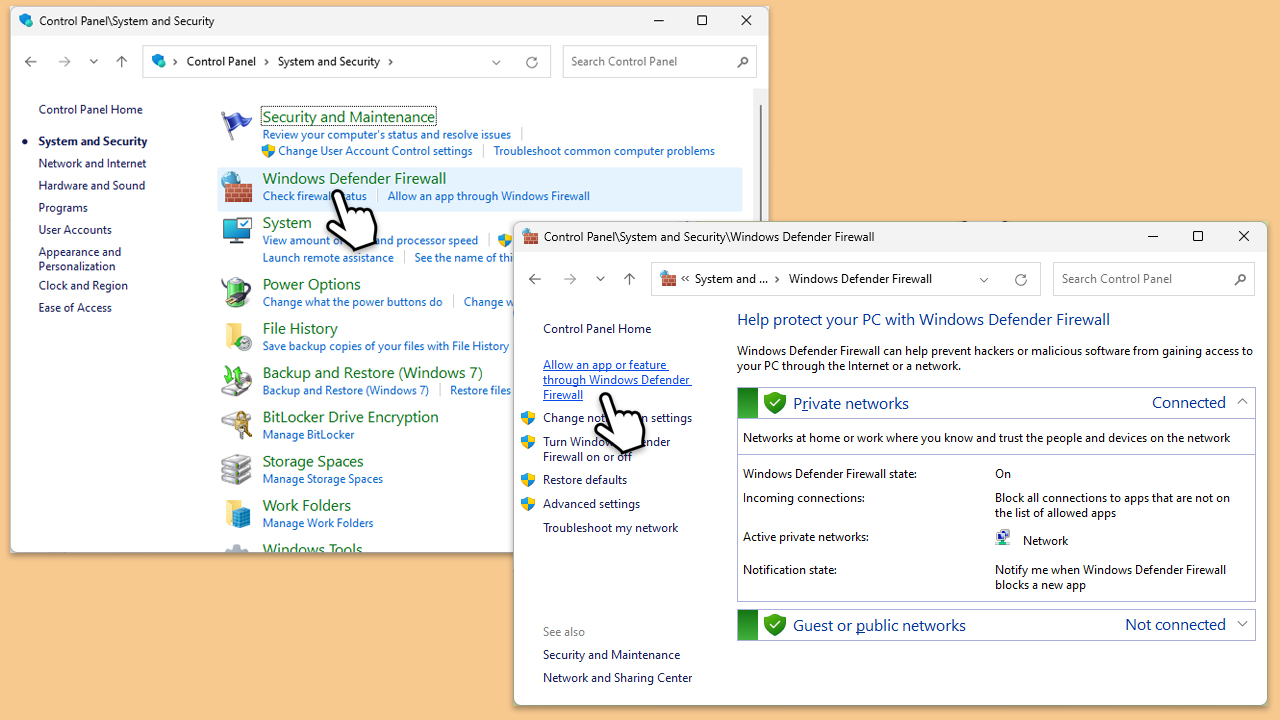
Fix 4. Allow Space Marine 2 through Firewall
The Windows firewall can block the game from accessing the internet properly. Adding Space Marine 2 as an exception allows it to communicate with game servers without restrictions.
- Open the Control Panel and navigate to System and Security > Windows Defender Firewall.
- Select Allow an app or feature through Windows Defender Firewall.
- Click Change settings and enter your administrator password if prompted.
- Find in the list or click Add another app if it's missing.
- Check both the Private and Public network boxes, then click OK.
Fix 5. Check server status on X
Error code: 140 often arises due to server problems or system maintenance. Looking at the server status online helps find out if the trouble comes from the game's side.
- Visit the server status page for Warhammer 40k: Space Marine 2 or follow the developers on X (formerly Twitter) for updates.
- Wait for servers to come back online if there are outages, then try reconnecting to the game.
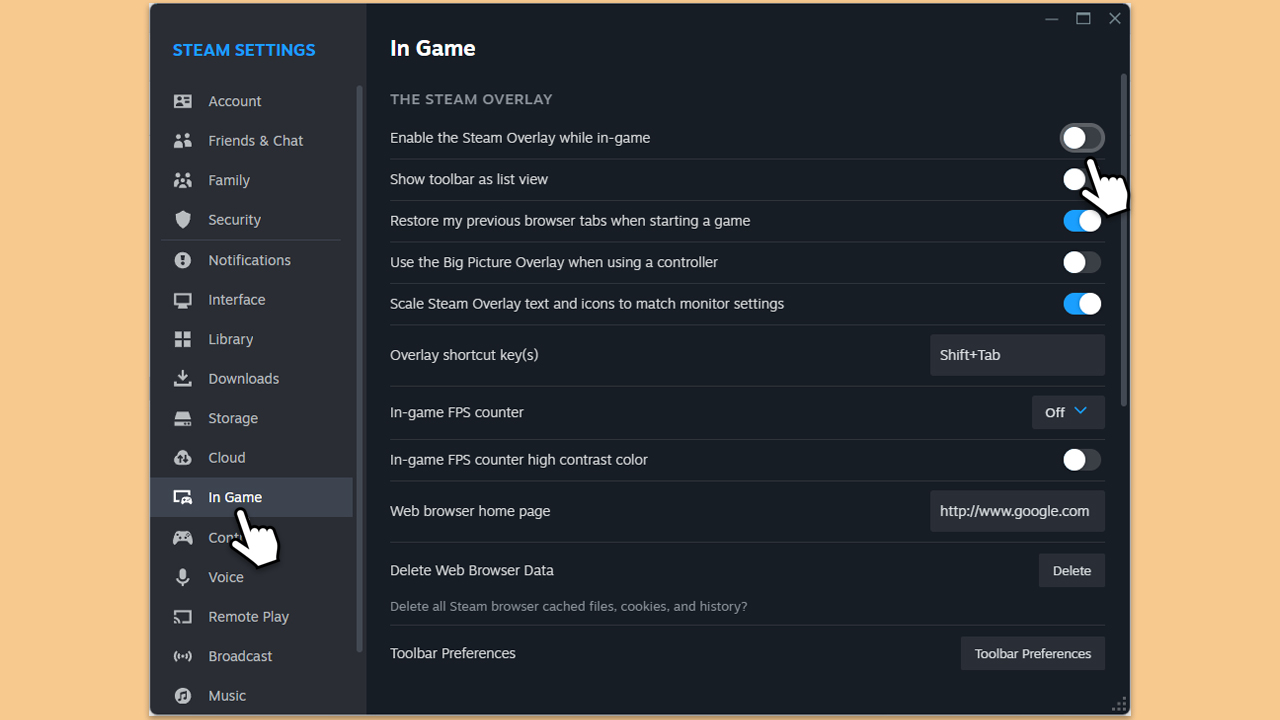
Fix 6. Disable Steam overlay
The Steam overlay can sometimes cause conflicts with games, especially when trying to connect to online servers.
- Open Steam and go to your Library.
- Right-click on Warhammer 40k: Space Marine 2 and select Properties.
- Under the General tab, uncheck Enable the Steam Overlay while in-game.
- Close the window and relaunch the game to see if the error is resolved.
Bottom line
To fix error code 140 in Space Marine 2, you can check the integrity of the game files, alter network settings, or turn off interfering security applications. If these solutions do not resolve the issue, consider reinstalling the game or checking for updates.
Frequently asked questions
Error code 140 typically indicates a connection issue or a problem with game files that prevents Space Marine 2 from launching properly on Windows systems.
To verify the integrity of game files in Steam, right-click on Space Marine 2 in your library, select 'Properties', go to the 'Local Files' tab, and click 'Verify Integrity of Game Files'.
Yes, network settings, firewall configurations, or outdated network drivers on Windows 10 or Windows 11 can trigger error code 140, so ensure your drivers are updated and your firewall allows the game.




Report an issue
What's wrong with this guide? We review every report and update or remove content.
Report received — thank you. We'll review and fix it.
You need a free account to submit a report.
Be the first to comment