How to fix
Xbox app error “Content failed to load”
on Windows
Resolve the Xbox app "Content failed to load" error on Windows 10 or 11 easily. Follow our expert-tested tips and get gaming again in minutes!


What causes How to fix Xbox app error “Content failed to load” in Windows?
- Server-side issues on Microsoft's end
- Temporary outages
- Connectivity problems
- Outdated software
- Corrupted files within the Xbox app
- Wrong settings or permissions in Windows
Repairs Windows system files, removes malware, and restores a clean OS state — without reinstalling.
Some of the games I own on the Xbox app are not accessible for some reason. Instead of the "Install button" it says "Content failed to load," which obviously stops me from downloading these games. How can I fix this?
The Xbox app plays into Microsoft's overall vision for gaming. It serves as a control center to access your games, connect with friends, and utilize benefits like Xbox Game Pass. On Windows, the app lets you dive into your gaming library, track achievements, and connect with an active gaming community.
This is further integrated with Microsoft's platforms to enhance the user experience by easily switching from one device to another and picking up where one left off. Sometimes, problems occur that disrupt this supposed seamless experience the Xbox app was designed for, and one common issue is that of "Content failed to load."
The "Content failed to load" error normally occurs while trying to access your game library or other features of the app. When this happens, parts of the application might not show up properly: game listings are missing, tabs refuse to answer, or there's no way to access installed games. This will be very irritating since it creates one condition where the primary functions of the app can't be taken to their fullest potential, and one just can't start anything, let alone navigate to newly available games via the Xbox Game Pass catalog.
This error could be based on a number of reasons. It could be related to server-side issues on Microsoft's end, such as temporary outages or connectivity problems, that prevent the app from talking to the Xbox servers.
Local issues on your system include software being outdated, a problem with your internet connection, or corrupted files within the Xbox app. Sometimes, a wrong setting or permission in Windows may lead to not loading the content in an application correctly.
Following are a few ways you could perform basic troubleshooting to resolve the "Content failed to load" error: update the app and Windows, check your internet connection, or reset the app's cache. Further instructions will be enunciated below. You can use the [d1] PC repair tool to fix any underlying Windows issues contributing to this error automatically.

Fix 1. Reset Windows Store cache
This solution works by clearing out any temporary files or cached data that might be interfering with the proper functioning of the Xbox app. Sometimes, corrupt or outdated cache data can prevent the app from loading content properly.
- Press Win+R to open the Run dialog box.
- Type wsreset.exe and hit Enter.
- A blank Command Prompt window will appear. Wait for it to close.
- After this, the Store should open automatically. If the error persists, restart your computer.

Fix 2. Use Microsoft Store instead [workaround]
If the Xbox app continues to encounter issues, using the Microsoft Store can serve as a temporary workaround to access the Xbox Game Pass and related services until the problem with the Xbox app is resolved.
- Open the Microsoft Store from the Start menu.
- In the search bar, type in the game you were trying to install in the Xbox app.
- Install the game in question.
- Locate and launch these games from the Microsoft Store interface.
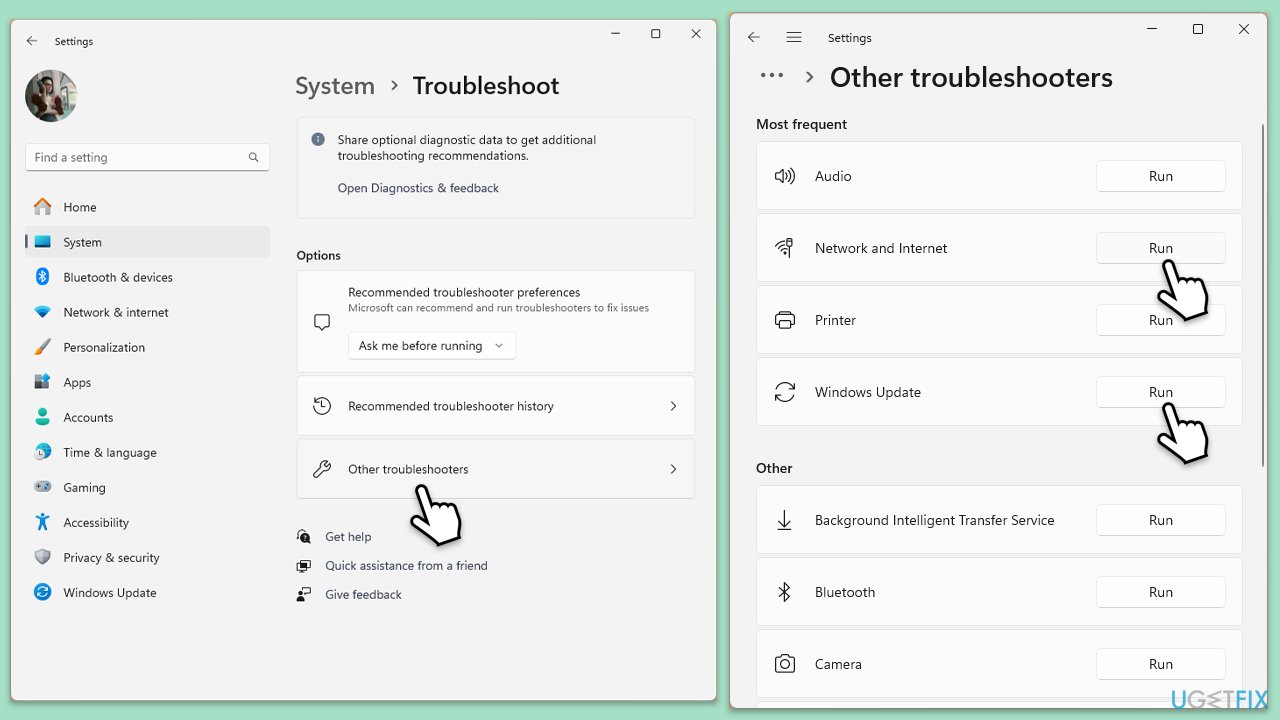
Fix 3. Run relevant troubleshooters
Windows includes built-in troubleshooters that can automatically detect and fix common problems with apps and services, including the Xbox app and Microsoft Store.
- Type Troubleshoot in Windows search and press Enter.
- On the right side of the window, click Additional troubleshooters/Other troubleshooters.
- Scroll down and select Windows Store apps.
- Click Run the troubleshooter/Run.
- Wait for the troubleshooter to finish.
- Repeat this process with Network & Internet, as well as Windows Update troubleshooters.
- Restart your system once done.
Fix 4. Repair corrupted system files
Corrupted system files can cause issues across many Windows apps, including the Xbox app. Running system file scans can help detect and repair these corruptions.
- Type cmd in Windows search.
- Right-click on Command Prompt and pick Run as administrator.
- When UAC asks you whether you want to make changes, agree by pressing Yes.
- Next, copy and paste the following commands, pressing Enter each time:
sfc /scannow
DISM /Online /Cleanup-Image /CheckHealth
DISM /Online /Cleanup-Image /ScanHealth
DISM /Online /Cleanup-Image /RestoreHealth
(Note: if you get an error executing the last command, add /Source:C:\RepairSource\Windows /LimitAccess to it and try again.) - Restart your computer.

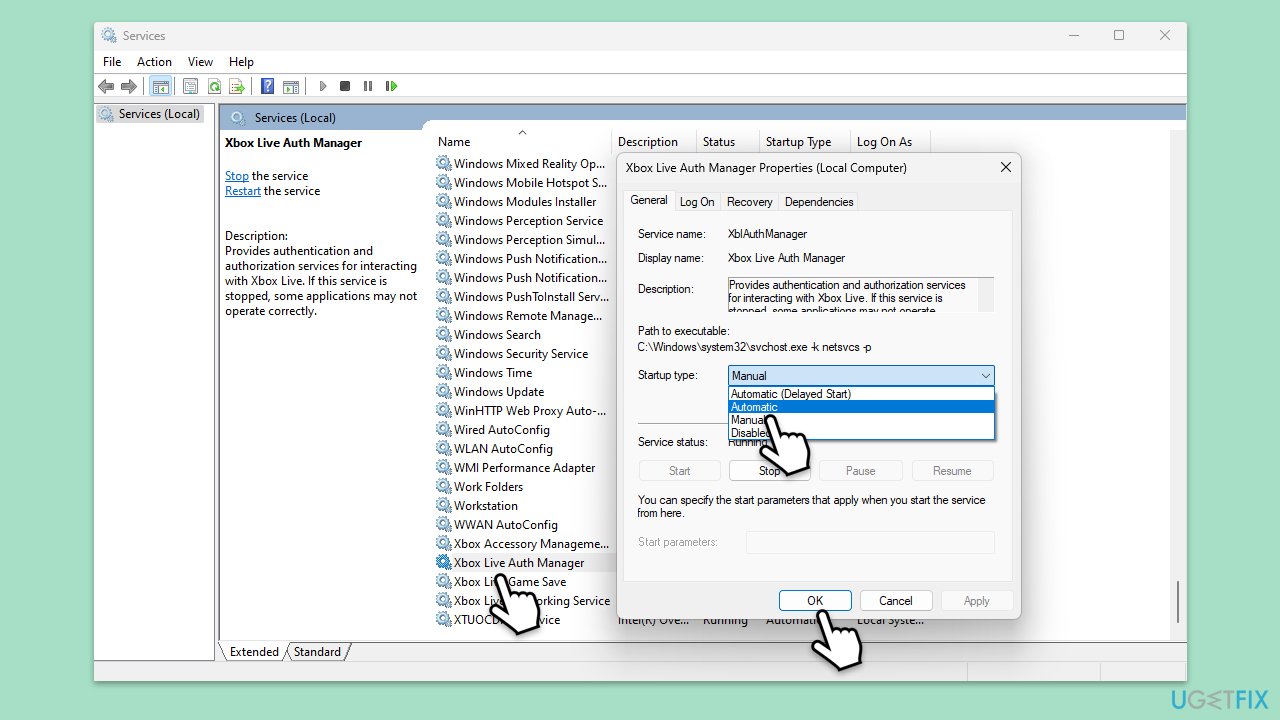
Fix 5. Enable relevant services
Some required services may be disabled or malfunctioning, which can cause errors in the Xbox app. Ensuring that these services are running properly can resolve the issue.
- Type Services in Windows search and hit Enter.
- Scroll down to find Gaming Services.
- Right-click on it and select Restart.
- If it is grayed out, double-click the service to open its Properties.
- Under Startup type, select Automatic from the drop-down menu.
- Click Start, Apply, and OK.
- Repeat this process with the following services:
Windows Update
Microsoft Store Install Service
Xbox Live Auth Manager
Xbox Live Game Save
Xbox Live Networking Service
Gaming Services.
Fix 6. Repair or reset Xbox app, Microsoft Store, and Gaming Services
When apps become corrupted or misconfigured, repairing or resetting them can resolve a variety of issues, including loading problems.
- Right-click on Start and pick Apps & Features/Installed apps.
- Scroll down to locate the Xbox app and click Advanced options.
- Click Terminate and Repair.
- If that does not help, try the Reset option instead.
- Repeat the same with the Microsoft Store and Gaming Services.

Fix 7. Reinstall Gaming Services in PowerShell
If Gaming Services are malfunctioning, reinstalling them via PowerShell can refresh their configuration and resolve the error.
- Ensure the Microsoft Store and Xbox App are closed.
- Type PowerShell in Windows search.
- Right-click on the result and select Run as administrator.
- When User Account Control shows up, click Yes.
- In the new window, copy and paste the following commands and hit Enter:
get-appxpackage Microsoft.GamingServices | remove-Appxpackage –allusers
Remove-Item -Path "HKLM:\System\CurrentControlSet\Services\GamingServices" -recurse
Remove-Item -Path "HKLM:\System\CurrentControlSet\Services\GamingServicesNet" -recurse - Close down PowerShell and restart your system.
- Next, install Gaming Services from the Microsoft Store.

Fix 8. Re-register all Windows apps
Re-registering all Windows apps, including the Xbox app, can resolve problems caused by registration issues or corrupt app configurations.
- Open PowerShell as administrator.
- Use the following command and press Enter:
Get-AppXPackage *WindowsStore* -AllUsers | Foreach {Add-AppxPackage -DisableDevelopmentMode -Register "$($_.InstallLocation)\AppXManifest.xml"} - Wait for the command to complete and restart your device.

Bottom line
To resolve the 'Content failed to load' error, you can try updating the Xbox app and Windows, checking your internet connection, or resetting the app's cache. If these fixes do not work, consider seeking further assistance or checking for additional troubleshooting steps.
Frequently asked questions
Try clearing the Xbox app cache by navigating to Settings > Apps > Xbox app, then select 'Advanced options' and click on 'Reset'. This can resolve issues with loading content.
If resetting doesn't help, ensure your Windows 11 is up to date and consider reinstalling the Xbox app from the Microsoft Store to fix potential corruption.
Yes, check your internet connection and try switching to a wired connection or restarting your router, as unstable connections often contribute to this error.




Report an issue
What's wrong with this guide? We review every report and update or remove content.
Report received — thank you. We'll review and fix it.
You need a free account to submit a report.
Be the first to comment