How to fix
Xbox app error 0x87e50028 when launching games
on Windows
Resolve Xbox app error 0x87e50028 on Windows 10/11 with our expert-tested solutions. Get back to gaming without hassle! Fixed in minutes.


What causes How to fix Xbox app error 0x87e50028 when launching games in Windows?
- File system errors
- Corrupted game files
- Permissions issues
- Conflicts between the Windows Store and the game’s installation location
- Disabled or improperly running system services
- Outdated drivers or low disk space
Repairs Windows system files, removes malware, and restores a clean OS state — without reinstalling.
I recently got Game Pass and the first game I tried to play was Starfield. Unfortunately, I instantly got a pop-up message saying that the game was not supported, followed by "Something went wrong launching your game. Error code: (0x87e50028). What does that mean and how do I get rid of it?
Xbox app error 0x87e50028 is a recurring issue that many Windows users face when trying to launch games like Forza Horizon 5 or Fallout 4. This error typically prevents the game from starting, and users report it may be caused by several factors, including file system errors, corrupted game files, or permissions issues.
Some have found that the game fails to launch due to conflicts between the Windows Store and the game’s installation location, especially if installed on external drives or non-default directories.
Many users experiencing this issue have suggested that it can also be linked to Xbox app configuration errors or outdated system components. The error may surface after a Windows update or app installation, where the necessary game files become corrupted or are moved to inaccessible directories.
Sometimes, the issue appears when system services required for game launching are disabled or not running properly. Additionally, poor system performance due to outdated drivers or low disk space can trigger this error.
To fix error 0x87e50028, users can attempt several solutions, including verifying game file integrity, moving the game to another installation directory, or resetting both the Xbox app and Windows Store.
Ensuring that Windows updates are installed and drivers are up to date may also address the underlying issues. In persistent cases, reinstalling the game or running a full system check for file system errors might help resolve the issue.
For those seeking a faster and more automated approach, using a reliable [d1] repair tool can diagnose and fix the deeper system errors that might be causing the game to fail to launch.

Fix 1. Verify game file integrity
Corrupted or missing game files can trigger error 0x87e50028. Verifying the integrity of these files ensures that they are intact and properly installed.
- Open the Xbox app and go to My Library.
- Right-click on the game and select Manage.
- Go to the Files section.
- Choose Verify files to scan for corrupted files and wait for the scan to complete.

Fix 2. Update Windows
Outdated system components can lead to errors. Keeping everything up to date can resolve compatibility issues.
- Type Updates in Windows search and press Enter.
- Here, click Install updates or Check for updates.
- Wait till Windows downloads and installs all the files.
- If optional updates are available, install them as well.
- Reboot your system.

Fix 3. Reinstall the game
If the game’s installation is corrupted or incomplete, reinstalling it can fix the problem.
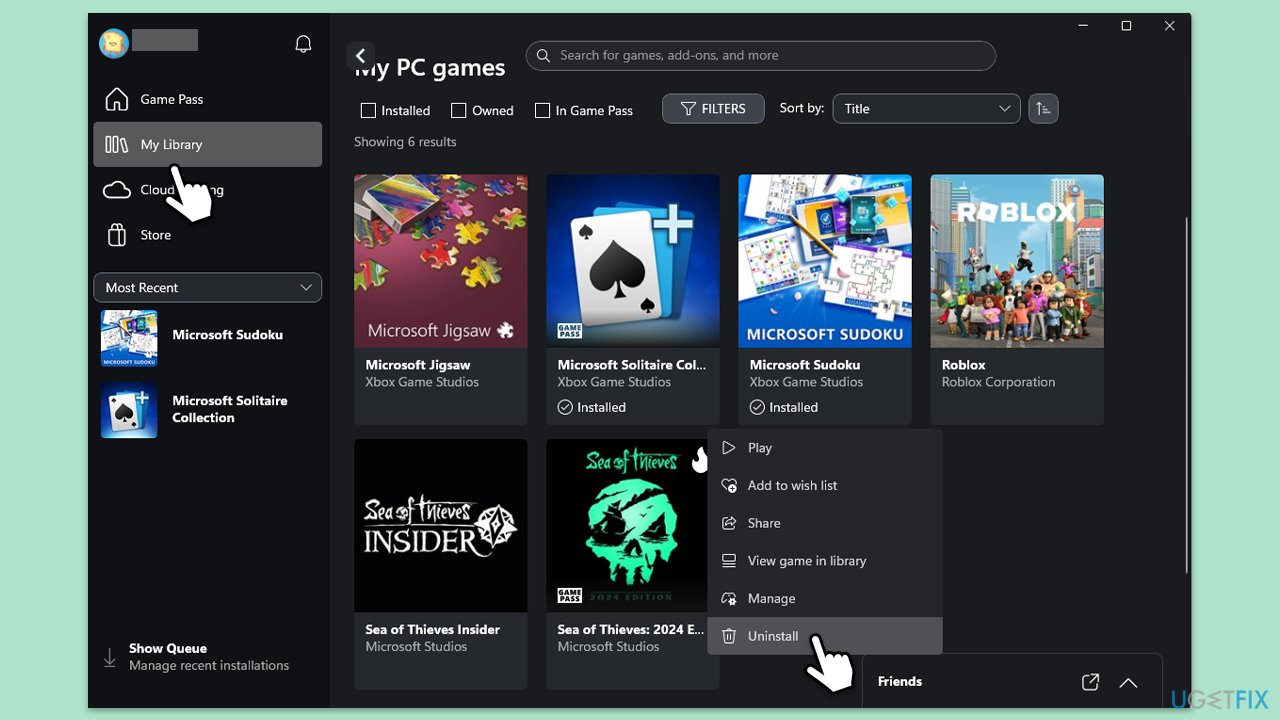
- Open the Xbox app and go to My Library.
- Right-click on the game, select Uninstall and confirm.
- Once uninstalled, reinstall the game and try launching it again.
Fix 4. Repair or reset the Xbox app, Microsoft Store and Xbox Live
Sometimes, resetting the Xbox app. Xbox Live and Microsoft Store can help resolve configuration issues that lead to error 0x87e50028.
- Right-click on Start and select Apps & Features/Installed apps.
- Scroll down to find Xbox app and click Advanced options.
- Scroll down again and click Terminate and Repair.
- If that does not work, try using Reset.
- Repeat this process with Microsoft Store and Xbox Live as necessary.

Fix 5. Move the game to another drive
If the game is installed on an external drive or a non-default location, moving it to the primary drive can solve the error.
- Uninstall the game in question.
- Open the Xbox app.
- Click on your Profile picture and select Settings.
- Select Install options on the left.
- Under Change where this app installs games by default, select another drive (and pick a folder if needed).
- Try installing the game again.
Fix 6. Check for file system errors using CHKDSK
File system errors can block games from launching properly. Running CHKDSK helps repair drive issues.
- Type cmd in Windows search.
- Right-click on Command Prompt and select Run as administrator.
- User Account Control will ask whether you want to make changes - click Yes.
- When User Account Control asks you whether you want to allow changes, click Yes.
- In the new window, type in the following command and press Enter after:
chkdsk c: /f
(Note: use chkdsk c: /f /r /x command if you are using SSD as your primary partition) - If you receive an error, type in Y, close down Command Prompt and restart your system.
- Wait until the scan is finished - you can find the results in the Event Viewer.

Fix 7. Ensure Xbox services are running
Xbox services need to be running in the background for games to launch. Verifying and restarting these services can help.
- Type Services in Windows search and hit Enter.
- Scroll down to find Gaming Services.
- Right-click on it and select Restart.
- If it is grayed out, double-click the service to open its Properties.
- Under Startup type, select Automatic from the drop-down menu.
- Click Start, Apply, and OK.
- Repeat this process for Xbox Live Auth Manager, Xbox Live Game Save, and Xbox Live Networking Service.

Fix 8. Reinstall Gaming Services
Gaming Services may become corrupted, preventing games from launching through the Xbox app.
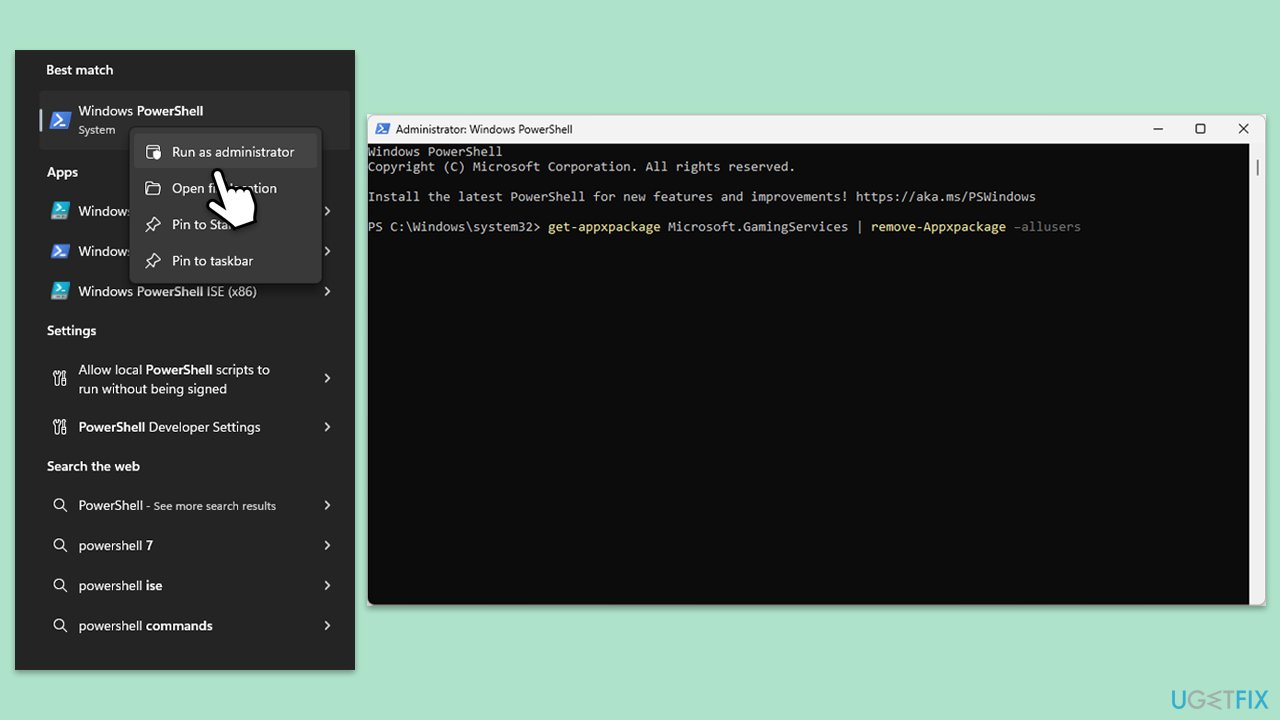
- Type PowerShell in Windows search.
- Right-click on the result and select Run as administrator.
- When User Account Control shows up, click Yes.
- In the new window, copy and paste the following commands and hit Enter:
get-appxpackage Microsoft.GamingServices | remove-Appxpackage –allusers
Remove-Item -Path "HKLM:\System\CurrentControlSet\Services\GamingServices" -recurse
Remove-Item -Path "HKLM:\System\CurrentControlSet\Services\GamingServicesNet" -recurse - Close down PowerShell and restart your system.
- Next, install Gaming Services from the Microsoft Store.
Bottom line
To fix error 0x87e50028, users can verify game file integrity, move the game to another installation directory, or reset both the Xbox app and Windows Store. Additionally, ensuring Windows updates and drivers are up to date may resolve the issue. If these solutions do not work, consider reinstalling the game or using a repair tool to diagnose deeper system errors.
Frequently asked questions
Error 0x87e50028 typically indicates a problem with the Xbox app or the game installation, often related to account authentication or game permissions.
To resolve this error, try resetting the Xbox app through Settings > Apps > Apps & features, then select Xbox and click 'Advanced options' to reset it.
Yes, uninstall the Xbox app from Settings, then reinstall it from the Microsoft Store to fix potential corruption issues that may lead to error 0x87e50028.




Report an issue
What's wrong with this guide? We review every report and update or remove content.
Report received — thank you. We'll review and fix it.
You need a free account to submit a report.
Be the first to comment