How to fix
KB5044400 fails to install
on Windows
Resolve the KB5044400 installation error in Windows 11 quickly and effectively. Get expert-tested solutions guaranteed to fix the issue in minutes!

What causes How to fix KB5044400 fails to install in Windows 11?
- Network instability
- Corrupted system files
- Conflicts with other software
- Corrupted Windows Update components
- Insufficient disk space
Repairs Windows system files, removes malware, and restores a clean OS state — without reinstalling.
Can you help me with KB5044400 failing to install? It's a Preview build, and I was looking forward to it but I can no longer do that. Restarting the PC or running a troubleshooter did not help, so I wander if there's anything else I can do.
KB5044400 is a preview update for Windows 11, specifically released in October 2024 for Insiders in the Dev Channel. This update, tied to build 26120.2130, introduces several improvements and fixes, including a new Gamepad keyboard layout for easier navigation with an Xbox controller and updates to the Narrator tool that now automatically reads email content in the new Outlook app. The update also fixes several issues, such as problems with clipboard history and taskbar window cycling, among others.
However, some users say that KB5044400 fails to install. This failure could be due to a number of reasons, including network instability, corrupted system files, or conflicts with other software. In some cases, Windows Insider builds tend to encounter issues during installation due to ongoing changes in the Dev Channel, which could result in bugs or missing dependencies that halt the update process.
Additionally, known issues with the KB5044400 update itself may contribute to the installation failure. For example, there are reports of taskbar crashes and Start menu malfunctions related to this build, which might interfere with the update's smooth installation. Corrupted Windows Update components or insufficient disk space are also common culprits for failed updates.
To fix KB5044400 failing to install, users might need to check their system for any lingering files from failed installations, ensure enough storage space is available, or temporarily disable third-party software that may be interfering. Additionally, using tools like [d1] repair can help address underlying system issues that might be blocking the update from installing properly.

Fix 1. Perform Disk Cleanup
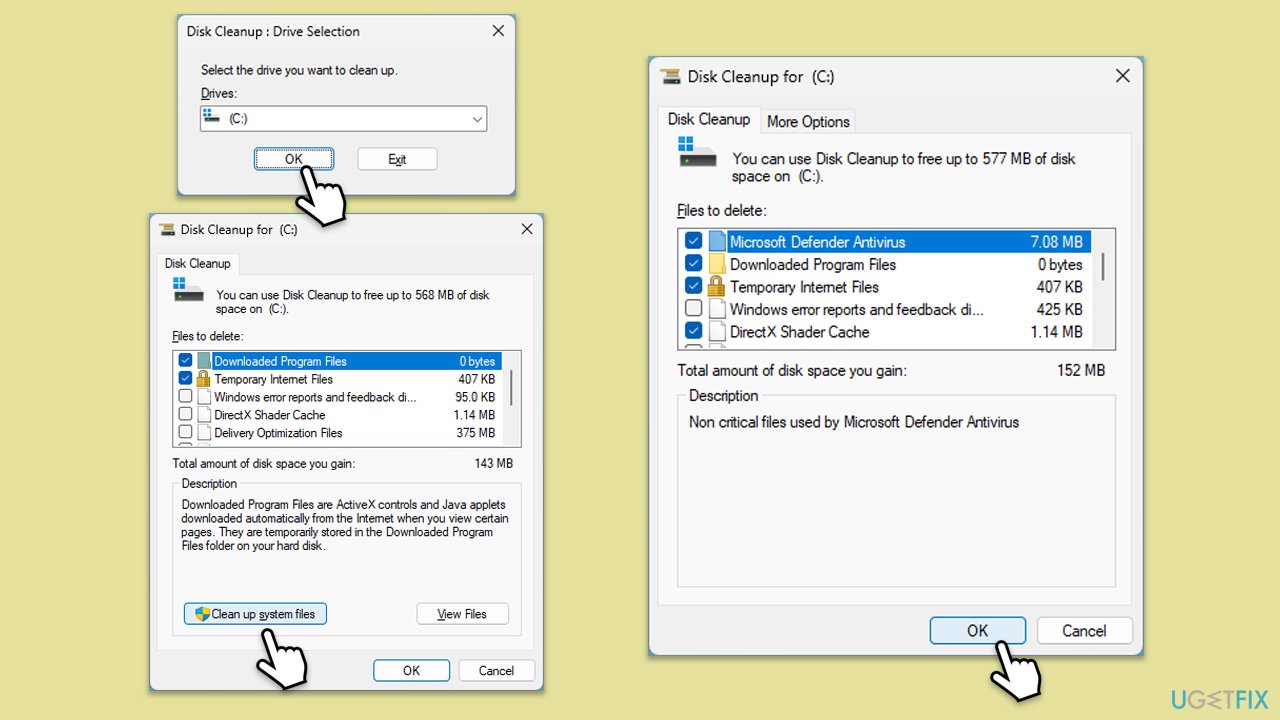
Temporary files, old system files, and some other data that is no longer useful will waste part of the disk space and may block the installation of the KB5044400 update. It would be quite important to clean up your disk to free some space and improve the performance of the system.
- Type Disk Cleanup in Windows search and hit Enter.
- If your Windows is installed on drive C, pick it from the list (it should be by default) and press OK.
- Click Clean up system files.
- Select your main disk again and click OK.
- Here, select the largest portions of the data used - these typically include Temporary Internet Files, Windows Update, Temporary Files, Recycle Bin, Delivery Optimization Files, and others.
- Click OK - the process should be finished shortly.
Fix 2. Run Network & internet troubleshooter
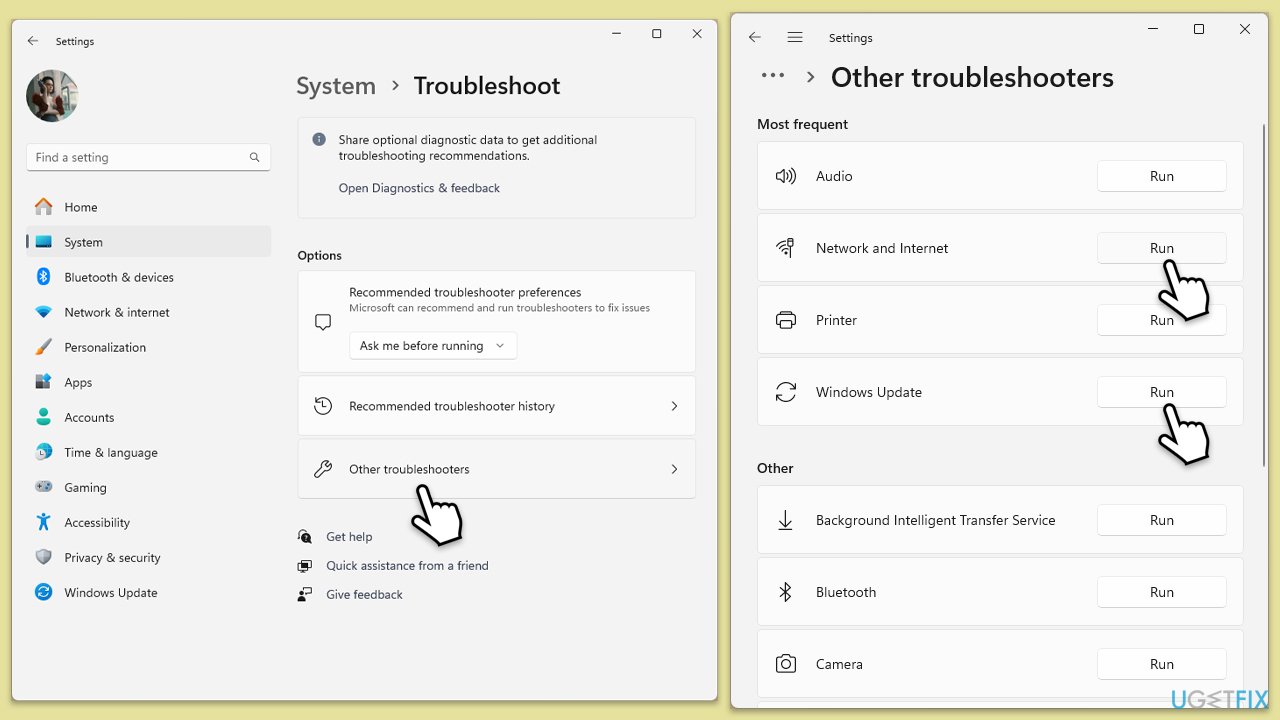
If a network issue is causing the update to fail, running the built-in troubleshooter can help identify and fix the problem.
- Type Troubleshoot in Windows search and hit Enter.
- Select Other troubleshooters.
- Find Network & Internet from the list and select Run.
- Repeat this with a Windows Update troubleshooter.
- Wait till the scan is finished - you will be provided with potential causes so you can proceed with fixes.
Fix 3. Perform SFC and DISM scans
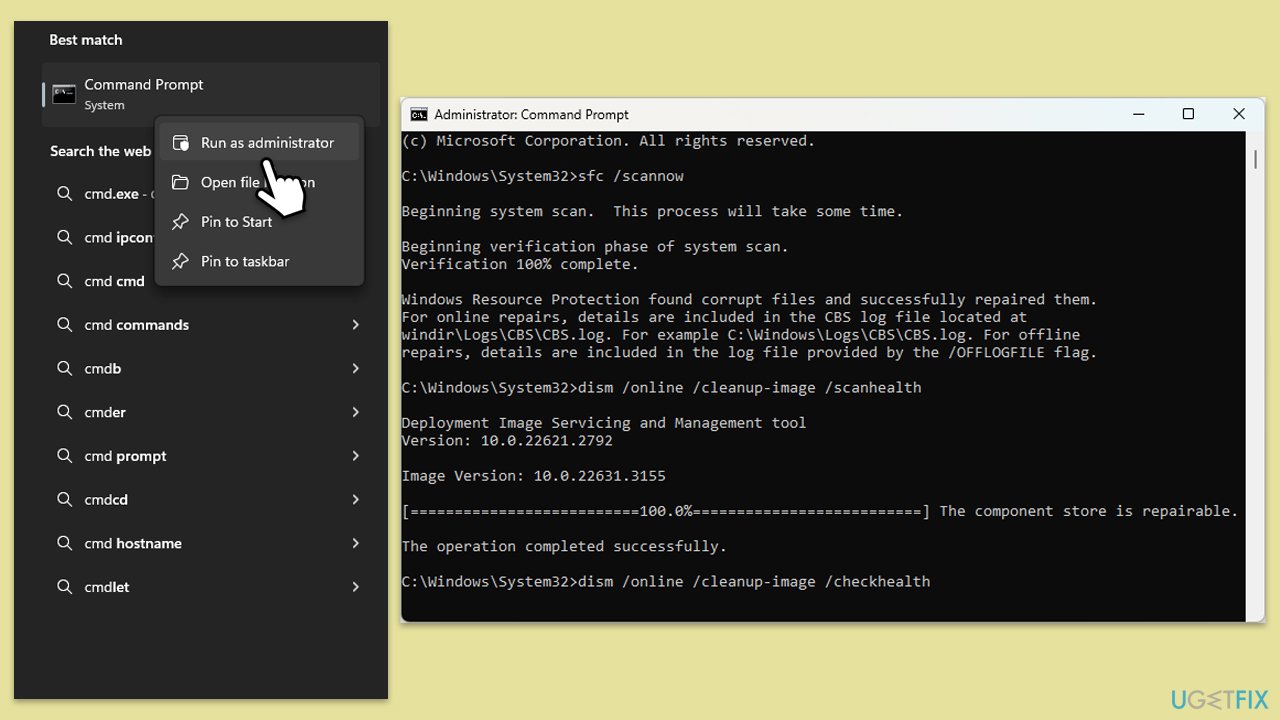
System file corruption can prevent updates from installing. Running the SFC and DISM commands can scan and repair corrupted files, allowing the update to proceed.
- Type cmd in Windows search.
- Right-click on Command Prompt and pick Run as administrator.
- Click Yes when prompted by User Account Control.
- Then, copy and paste the following command, pressing Enter after:
sfc /scannow - Wait till the scan is finished. If Windows finds system file integrity violations, it will attempt to fix them. After this, use the set of the following commands, pressing Enter each time:
DISM /Online /Cleanup-Image /CheckHealth
DISM /Online /Cleanup-Image /ScanHealth
DISM /Online /Cleanup-Image /RestoreHealth - (Note: if you get an error executing this last command, add /Source:C:\RepairSource\Windows /LimitAccess to it and try again).
- Close down the Command Prompt and restart your computer.
Fix 4. Reset Windows Update Components
When the Windows Update components are damaged or not running correctly, restarting these may solve update problems.
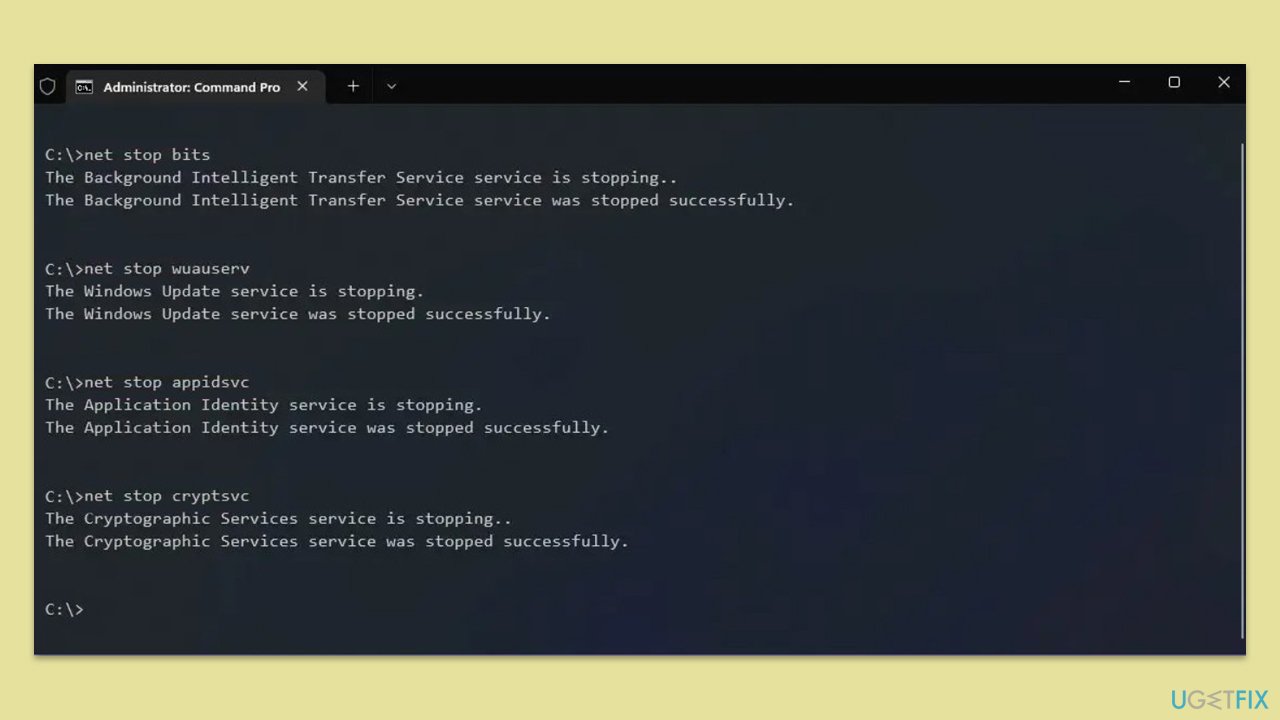
- Open Command Prompt as administrator.
- Stop the Windows Update-related services by running the following commands one at a time, pressing Enter after each one:
net stop wuauserv
net stop cryptSvc
net stop bits
net stop msiserver - Rename the SoftwareDistribution and Catroot2 folders by running the following commands:
ren C:\Windows\SoftwareDistribution SoftwareDistribution.old
ren C:\Windows\System32\catroot2 Catroot2.old
Note: If your Windows installation is not on the C drive, replace "C" with the appropriate drive letter. - Restart the Windows Update-related services by running the following commands:
net start wuauserv
net start cryptSvc
net start bits
net start msiserver - Reboot your system.
Fix 5. Run Clean Boot
Third-party applications and services running in the background may interfere with Windows updates. Running a clean boot can help isolate and resolve these conflicts.
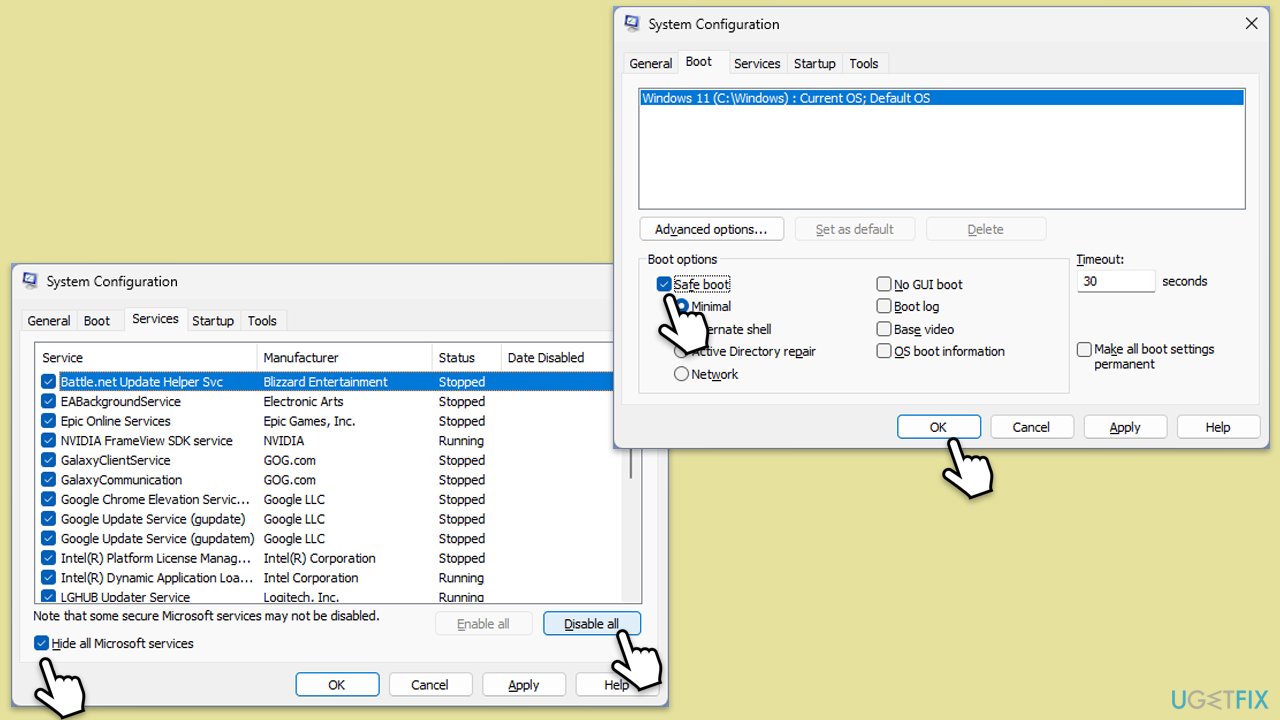
- Type msconfig inWindows Search and press Enter to open the System Configuration window.
- Click on the Services tab and check the Hide all Microsoft Services box.
- Click Disable all to disable non-Microsoft services, then click the Startup tab.
- Open the Task Manager, disable all startup items, and close the Task Manager.
- Go to the Boot tab and mark the Safe boot option.
- Click OK on the System Configuration window and restart your computer.
- Try installing the update again.
Fix 6. Use Media Creation Tool
Media Creation Tool allows you to upgrade your system manually, which can resolve stubborn update issues.
- Visit the official Microsoft website and download Windows 11 installation media.
- Double-click the installer, select Yes when UAC shows up, and agree to the terms.
- Select the ISO file and click Next, then follow the instructions to finish the process.
- Open the location of the ISO, right-click on it, and select Mount.
- Launch the installer.
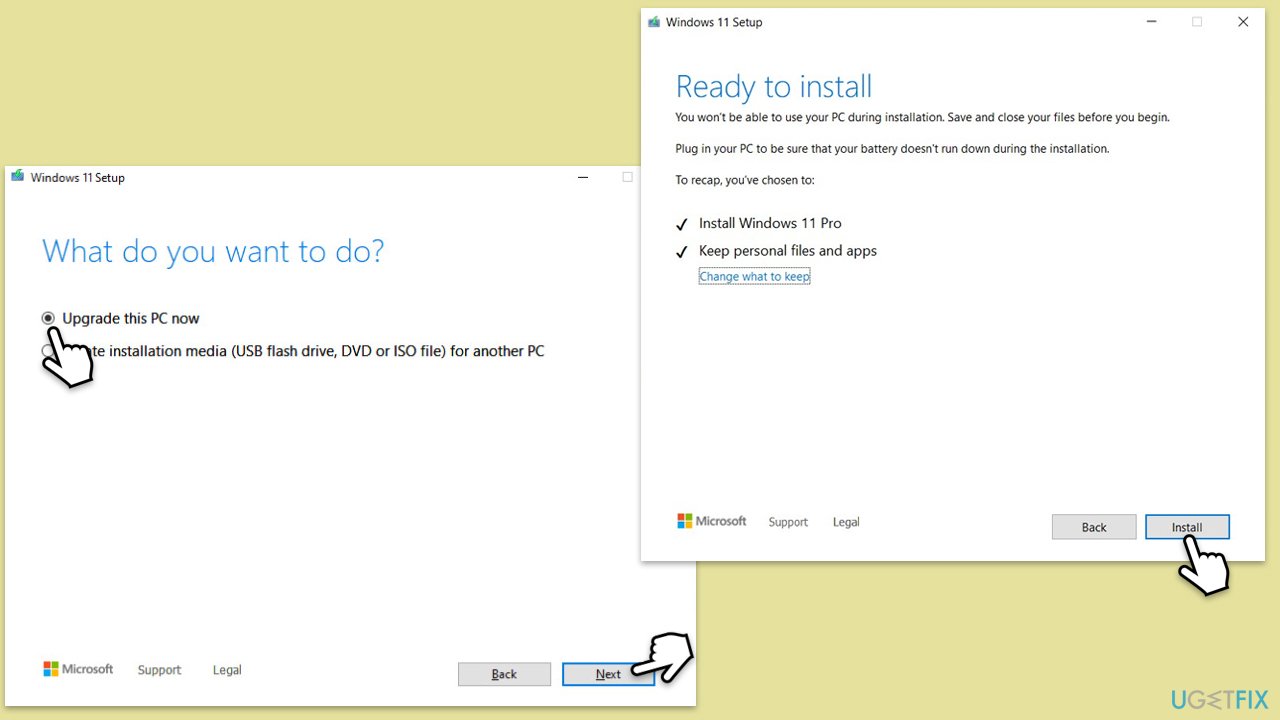
- Select Upgrade this PC now and click Next.
- Windows will start downloading the needed files.
- Agree to the terms once again and click Next.
- Before installing, ensure you are happy with your choices (otherwise, you can click the Change what to keep option).
- Finally, click Install to begin the upgrade process.
Bottom line
To fix the installation failure of KB5044400, users should perform Disk Cleanup to remove temporary files and ensure sufficient storage space. Additionally, checking for lingering files from failed installations and temporarily disabling third-party software may help. If these solutions do not work, consider using repair tools to address underlying system issues.
Frequently asked questions
Try running the Windows Update Troubleshooter, which can automatically identify and fix issues related to updates. You can access it by going to Settings > Update & Security > Troubleshoot > Additional troubleshooters.
Yes, you can manually download the KB5044400 update from the Microsoft Update Catalog website and install it by following the provided instructions. Make sure to choose the correct version for your system architecture.
Common reasons include insufficient disk space, corrupted system files, or conflicting software. Ensure your system is updated and free of errors by running a system file check with the command 'sfc /scannow' in the Command Prompt.




Report an issue
What's wrong with this guide? We review every report and update or remove content.
Report received — thank you. We'll review and fix it.
You need a free account to submit a report.
Be the first to comment