How to fix
Microsoft Teams error 0xCAA82EE7
on Windows
Resolve Microsoft Teams error 0xCAA82EE7 on Windows 10 and 11 swiftly with our expert-tested solutions, ensuring smooth communication. Fixed in minutes!

What causes How to fix Microsoft Teams error 0xCAA82EE7 in Windows?
- Network connectivity issues
- Incorrect DNS settings
- Firewall or proxy restrictions
- Wrong date and time settings
- Unstable internet connectivity
Repairs Windows system files, removes malware, and restores a clean OS state — without reinstalling.
I can't seem to log in using the Teams desktop application in Windows - I receive an error code 0xCAA82EE7. This is the first time I'm dealing with something like that, as I was using it for years without any issues. Could you give some advice?
Microsoft Teams is a collaboration and communication tool that keeps users connected with teammates, enables the sharing of files, and has real-time chats. The powerful platform has grown in usage, largely sparked by remote work and virtual teams. From corporate environments to home offices, Microsoft Teams has become an essential tool for many businesses all over the world.
Error code 0xCAA82EE7 usually means problems with network connectivity, or it has an issue with DNS configuration. This error generally implies that Teams can't reach the Microsoft servers due to wrong network settings, restrictions through a firewall, or other temporary DNS failures. It has been observed by users that sometimes, when the network settings are altered, there is an update on the system, or the ISP has faults.
It may occur due to incorrect DNS settings, too restrictive settings in the firewall or proxy settings, or unstable internet connectivity. Sometimes this may also be caused when the date and time are wrongly set on the system, interfering with secure connections and verification with the server.
The basic troubleshooting steps for Microsoft Teams Error 0xCAA82EE7 include checking whether your network is working fine, changing DNS settings, and ensuring that no firewall or proxy settings are blocking Teams. Resetting the Network Configuration and going as far as reinstalling Microsoft Teams come into play with advanced troubleshooting solutions.
The process can be fully automated using the [d1] PC repair tool for searching and resolving underlying Windows and network problems causing this error. This tool will detect the common issues and resolve them efficiently.
Fix 1. Check your internet connection
A stable internet connection is essential for Microsoft Teams to connect to its servers. Ensuring your network is reliable can prevent errors like 0xCAA82EE7.
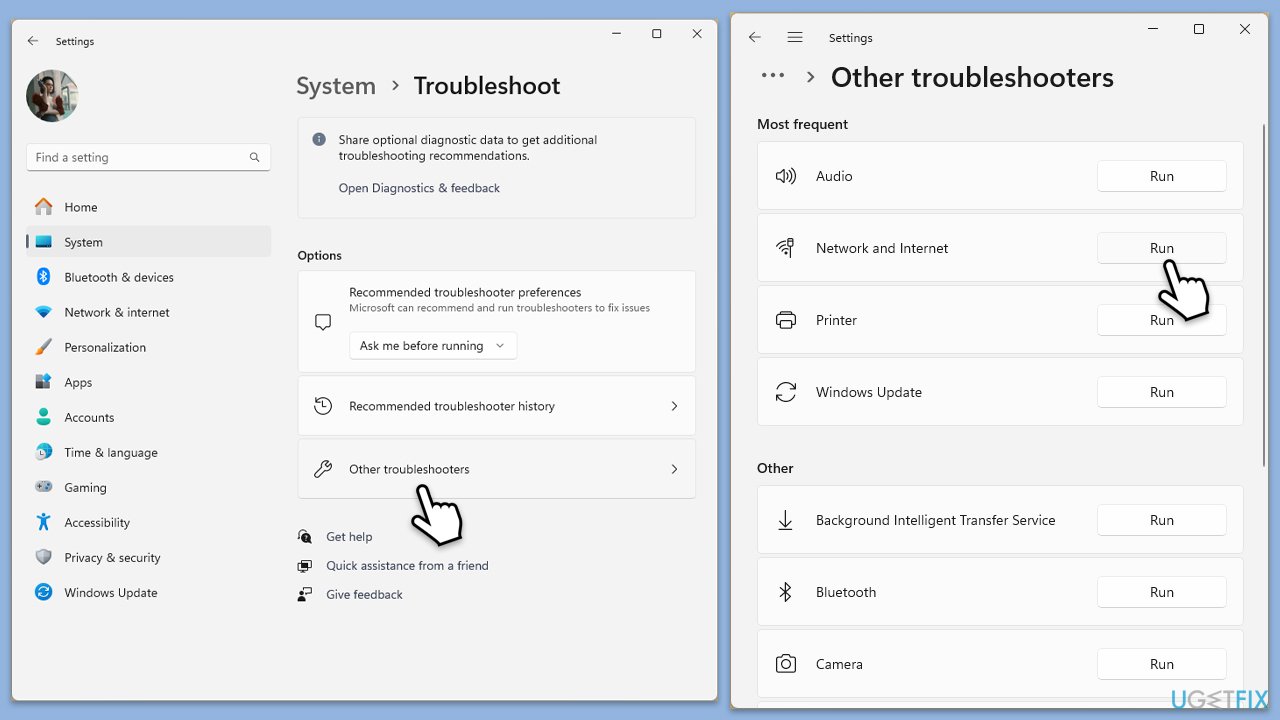
Windows 11
- Type Troubleshoot in Windows search and hit Enter.
- Select Other troubleshooters.
- Locate Network & Internet troubleshooter from the list and click Run.
- Wait till the process is finished and apply the recommended fixes.
- Reboot your computer.
Windows 10
- Right-click on Start and pick Settings.
- Go to the Network & Internet section.
- On the right side, find the Advanced network settings section.
- Click Network troubleshooter and wait.
- The fixes will be automatically applied.
Fix 2. Verify date and time settings
Incorrect date and time settings can interfere with Microsoft Teams' ability to establish a secure connection.
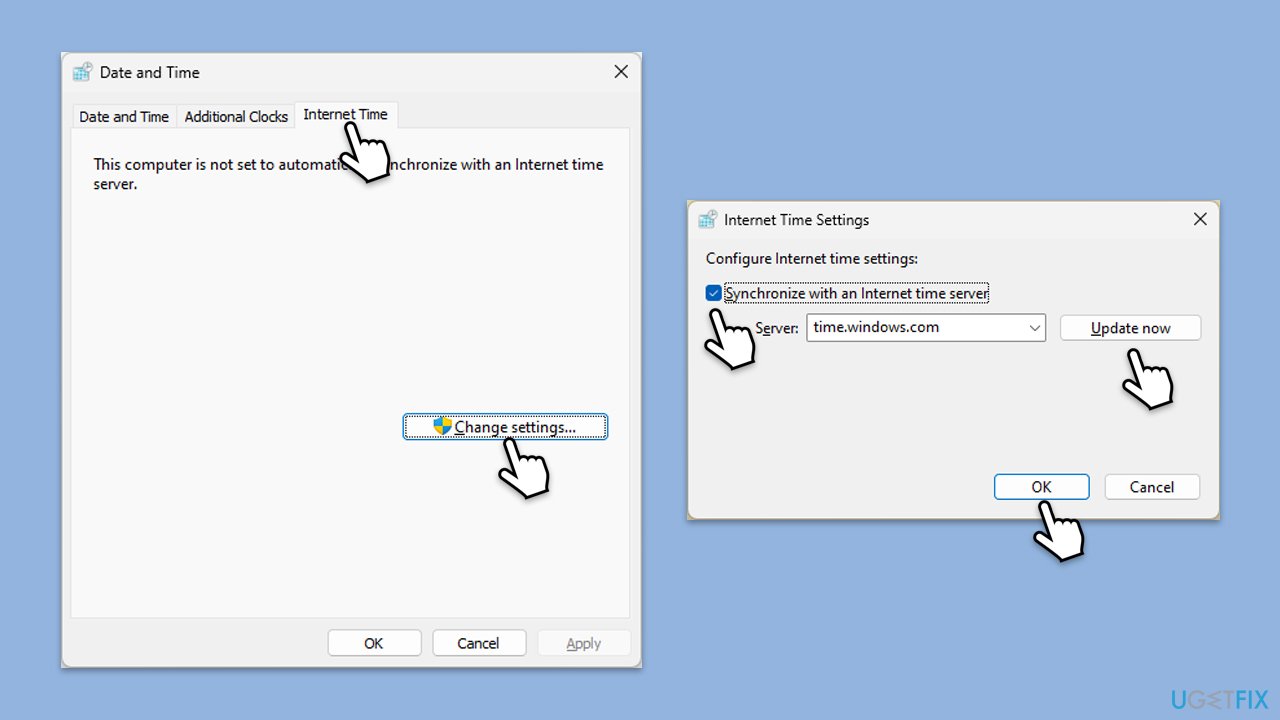
- Type in Control Panel in Windows search and press Enter.
- Go to Clock and Region and click on Date and Time.
- Pick the Internet Time tab and select Change Settings.
- Make sure that the Synchronize with an Internet time server box is ticked.
- Click Update now and OK.
Fix 3. Adjust DNS settings
Misconfigured DNS settings can block Microsoft Teams from accessing its servers. Switching to a more reliable DNS server may resolve this.
Windows 11
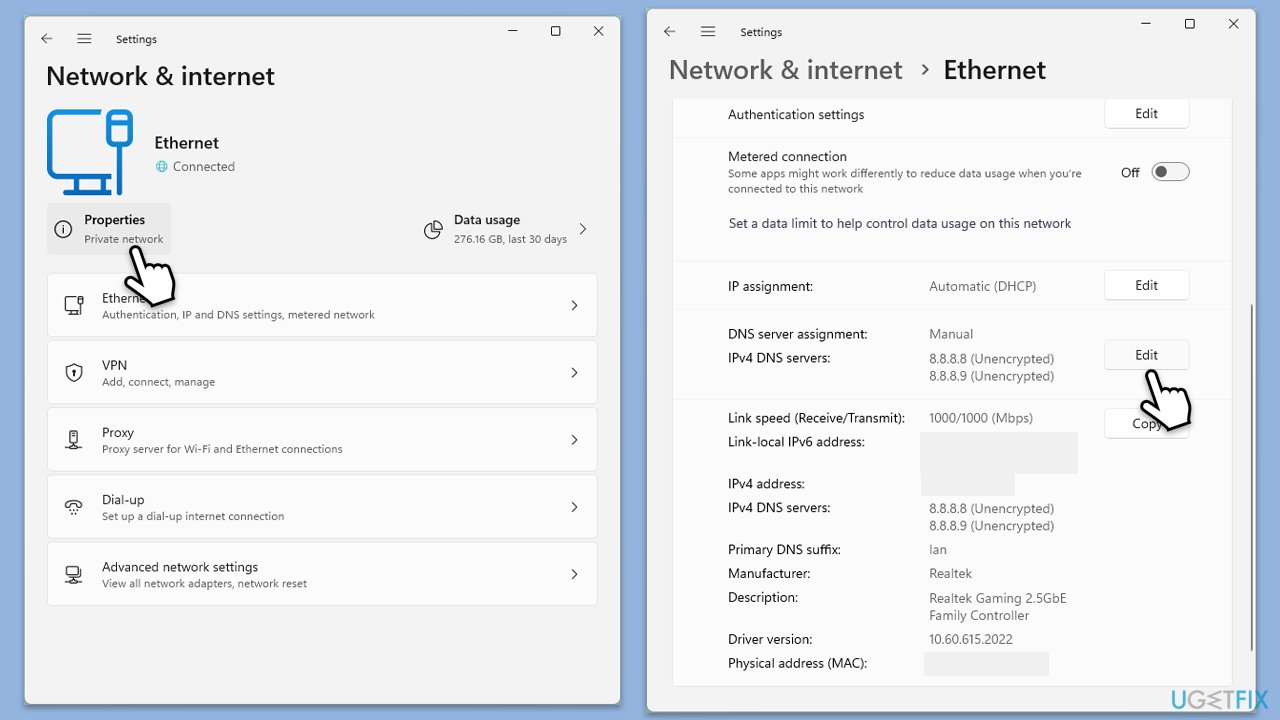
- Right-click on Start and select Network connections.
- Under your connection, click Properties.
- Find the DNS server assignment section and click Edit.
- Set your DNS to Google's:
Preferred DNS: 8.8.8.8
Alternate DNS: 8.8.4.4 - Click Save.
Windows 10
- Right-click on Start and select Settings.
- Go to Network and Internet section.
- Click on Change adapter options.
- Right-click on your internet connection and pick Properties.
- Select Internet Protocol Version 4 (TCP/IPv4) once and go to Properties or select Edit next to the DNS settings.
- Select Use the following DNS server addresses option and set your DNS to Google's:
Preferred DNS server: 8.8.8.8
Alternate DNS server: 8.8.4.4 - Click OK.
Fix 4. Clear Microsoft Teams cache
Clearing the cache can help fix issues with login and connectivity by removing corrupted data.
- Close down Microsoft Teams.
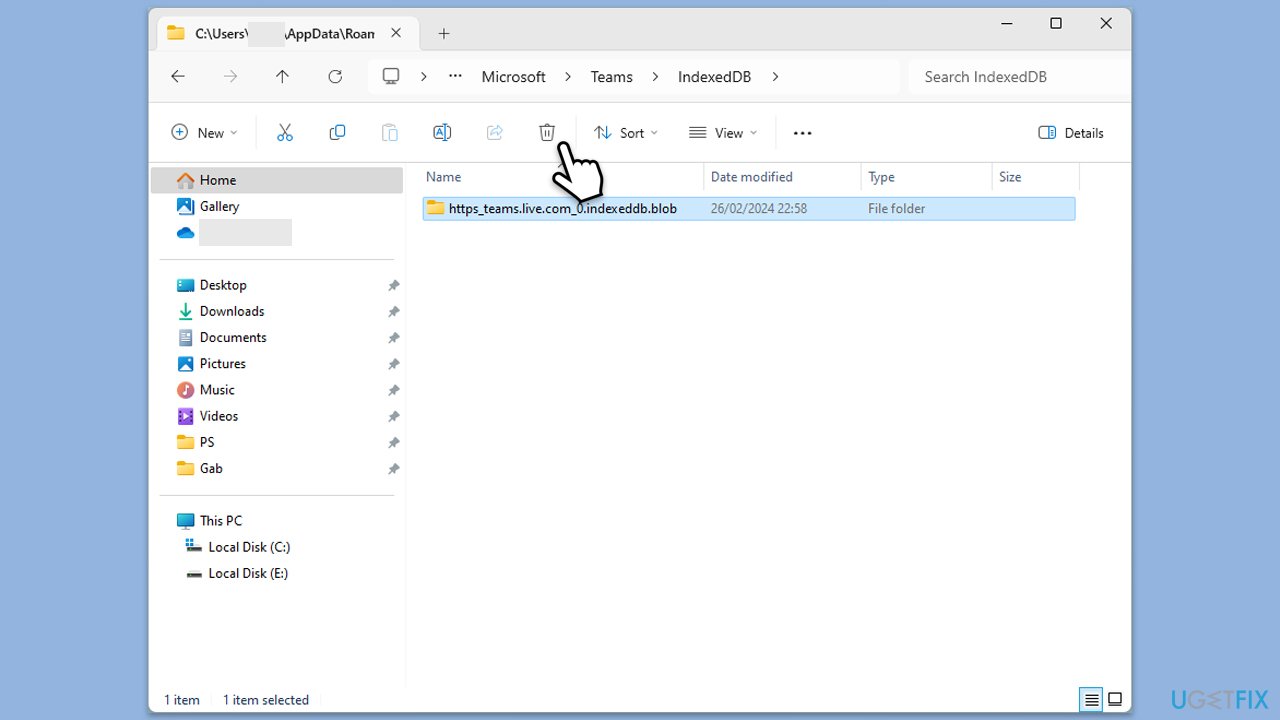
- Press Win + E to open File Explorer.
- Ensure Hidden files are visible.
- In the address bar, type in %appdata%\Microsoft\teams and press Enter.
- Delete the contents of the following folders:
%appdata%\Microsoft\teams\application cache\cache
%appdata%\Microsoft\teams\blob_storage
%appdata%\Microsoft\teams\Cache
%appdata%\Microsoft\teams\databases
%appdata%\Microsoft\teams\GPUcache
%appdata%\Microsoft\teams\IndexedDB
%appdata%\Microsoft\teams\Local Storage %appdata%\Microsoft\teams\tmp - Make sure you empty the Recycle Bin (or use Shift + Del combination to delete these files).
- Restart your computer.
Fix 5. Check proxy settings
Proxy servers can sometimes interfere with Microsoft Teams' connection. Ensure that proxy settings are not disrupting connectivity.
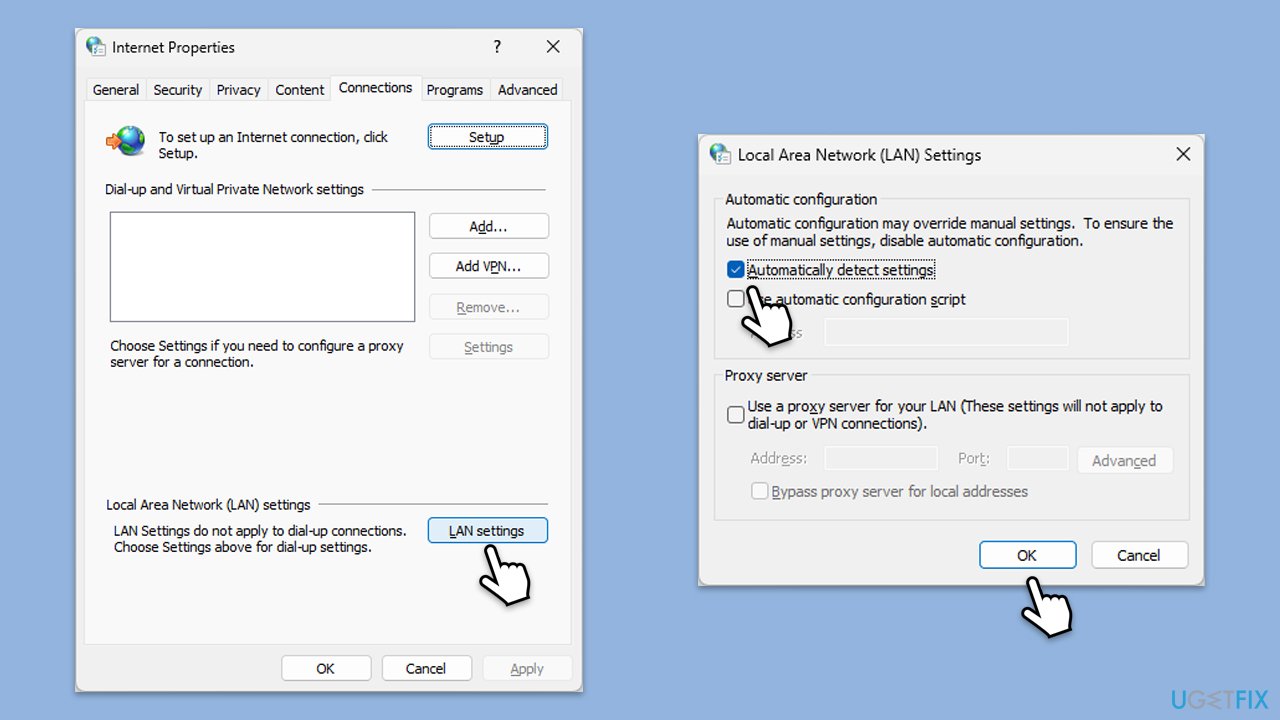
- Type inetcpl.cpl in Windows search and press Enter.
- Go to the Connections tab and click on LAN settings.
- Ensure the option for using a proxy server is unchecked.
Fix 6. Reset network configuration
Resetting the network configuration can clear network-related issues that may prevent Teams from connecting.
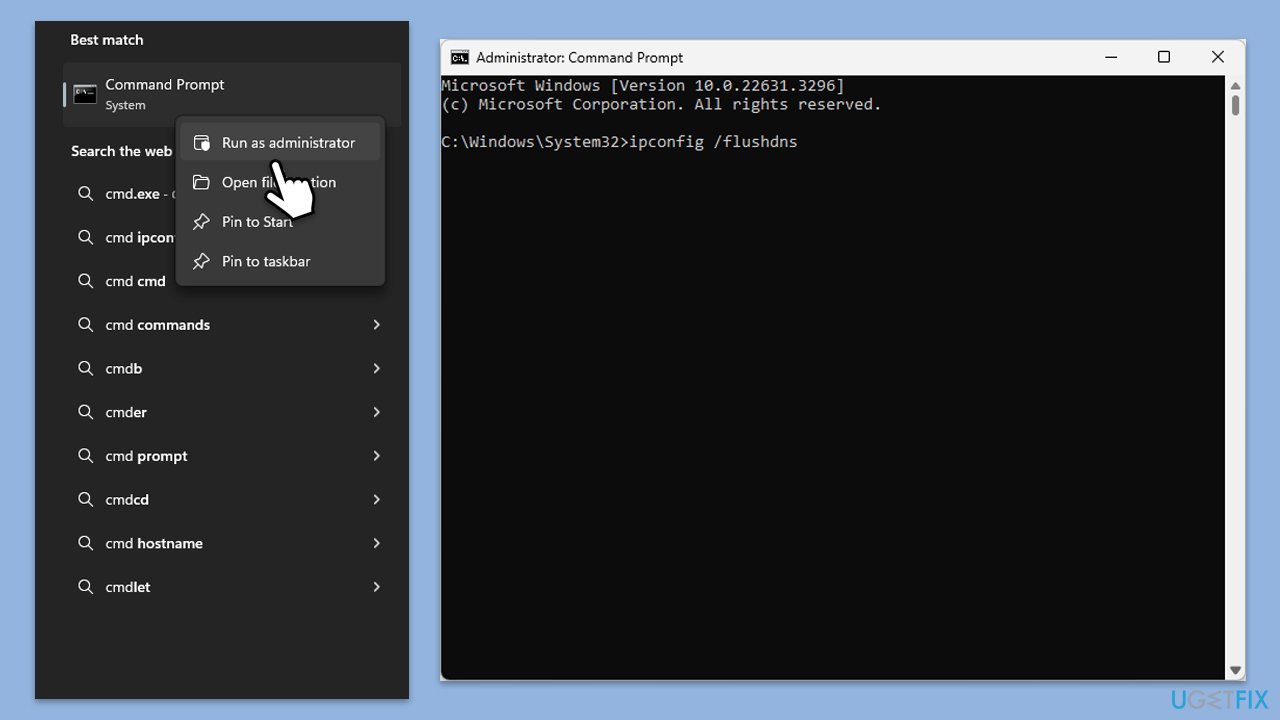
- Type cmd in Windows search.
- Right-click on Command Prompt result and pick Run as administrator.
- In the new window, copy and paste the following commands, pressing Enter after each:
ipconfig /flushdns
ipconfig /registerdns
ipconfig /release
ipconfig /renew
netsh winsock reset - Wait for each of the commands to be executed.
- Close down Command Prompt.
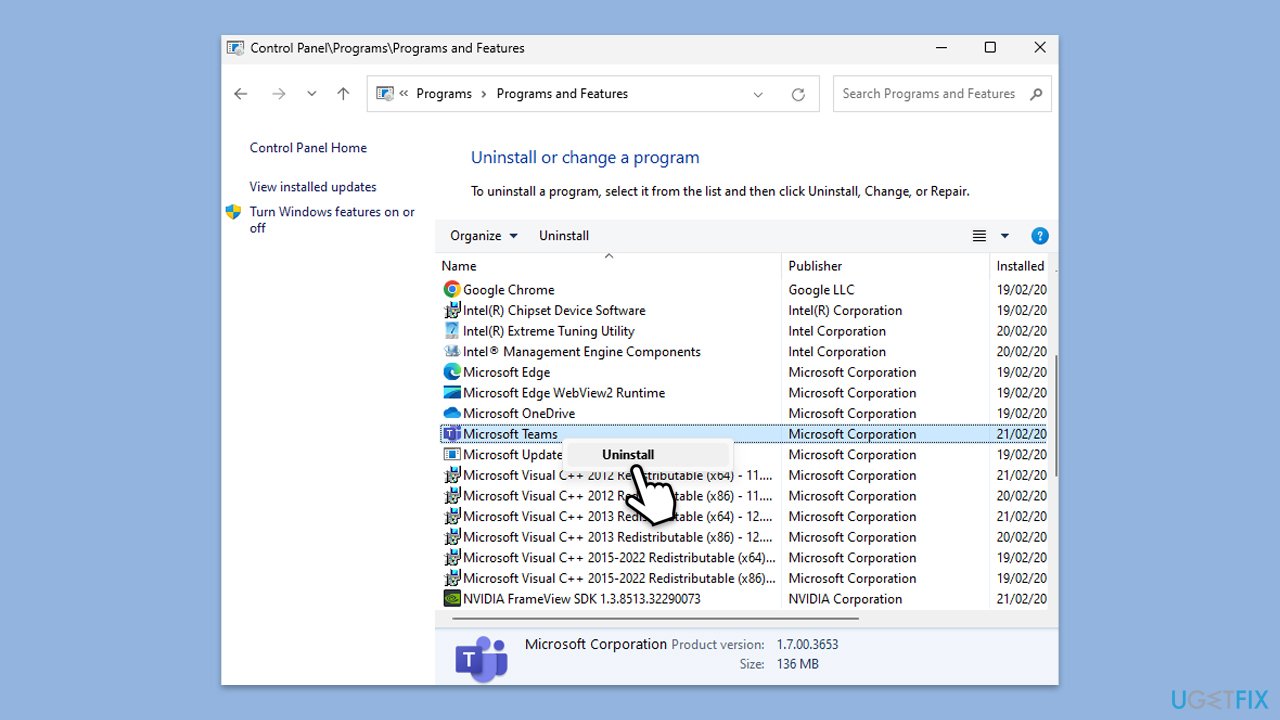
Fix 7. Reinstall Microsoft Teams
If the issue persists, reinstalling Teams can fix corrupted installation files.
- Type Control Panel in Windows search and press Enter.
- Go to Programs > Uninstall a program.
- Find Microsoft Teams, right-click, and select Uninstall.
- Follow the prompts to remove the app.
- Once done, press Win + E to open File Explorer.
- In the View tab at the top of the window, enable Hidden Files.
- Go to C:\Program Files\WindowsApps location.
- Scroll down to find the Microsoft Teams folder and delete it (alternatively, you can rename it).
- Now type %AppData% in Windows search and press Enter.
- Delete the Teams folder here.
- Finally, restart your system and reinstall the app.
Bottom line
To fix the Microsoft Teams error 0xCAA82EE7, check your internet connection, change your DNS settings, and ensure that firewall or proxy settings are not blocking Teams. If these steps do not resolve the issue, consider resetting your network configuration or reinstalling Microsoft Teams.
Frequently asked questions
The error 0xCAA82EE7 typically occurs due to issues with network connectivity, outdated Teams application, or corrupted cache files on Windows 10 and Windows 11.
To clear the cache, close Microsoft Teams, navigate to %appdata%/Microsoft/Teams in File Explorer, and delete all files in the folder before restarting the application.
Yes, uninstalling and then reinstalling Microsoft Teams can resolve the error, especially if the application files are corrupted on your Windows 10 or Windows 11 system.




Report an issue
What's wrong with this guide? We review every report and update or remove content.
Report received — thank you. We'll review and fix it.
You need a free account to submit a report.
Be the first to comment