How to fix
Netsh.exe application error
on Windows
Resolve the Netsh.exe application error on Windows 10 and 11 easily. Follow our expert-tested tips for a quick fix and smooth performance. Updated 2025.


What causes How to fix Netsh.exe application error in Windows?
- Corrupted DLL files
- Incomplete Windows updates
- Misconfigured system settings
- Interference from background processes
- Issues with the Quick Share app
Repairs Windows system files, removes malware, and restores a clean OS state — without reinstalling.
I am facing a weird issue where I get Netsh.exe - Application error when I'm shutting down or launching Windows. It does not affect anything and does not interrupt startup/shutdown. However, I imagine there is still something wrong, as it wouldn't be popping up otherwise.
Application errors in Windows can occur when certain programs or processes fail to start or execute correctly. These errors can disrupt the system, trigger error messages, and affect overall functionality. They are often accompanied by specific error codes that help identify the root cause, which may include compatibility problems, corrupted files, or conflicts between software and system components.
Netsh.exe application error is one of the most commonly reported errors; it usually occurs at shutdown or boot up of Windows and comes with error code 0xc0000142.
Netsh.exe, also known as Network Shell, is a command-line utility for the management and configuration of network settings within Windows. It is quite essential to troubleshoot network issues and configure networks.
However, the Netsh.exe application error with code 0xc0000142 indicates that the system encounters a problem when initializing this utility. Users often report this error appearing when starting up or shutting down Windows, which can suggest that essential system components fail to load or close properly during these processes.
This issue can be linked to corrupted DLL files, incomplete Windows updates, or misconfigured system settings. It was also determined that the Quick Share app was responsible, and repairing, resetting, or updating it would resolve any issues.
Online discussions reveal that the error might occur after recent Windows updates or when certain background processes interfere with the operation of Netsh.exe. Issues with corrupted or missing system files are also common contributors, particularly those related to network services. The error can impact a user’s ability to configure network settings or manage connections effectively.
Solutions to the Netsh.exe application error with code 0xc0000142 range from simple troubleshooting - system scans and checking for updates - to some complex techniques involving re-registering DLL files or repairing/resetting the Quick Share app. For automated and comprehensive problem-solving, [d1] PC repair tool can help diagnose and fix underlying system issues effectively.

Fix 1. Repair or reset Quick Share (if applicable)
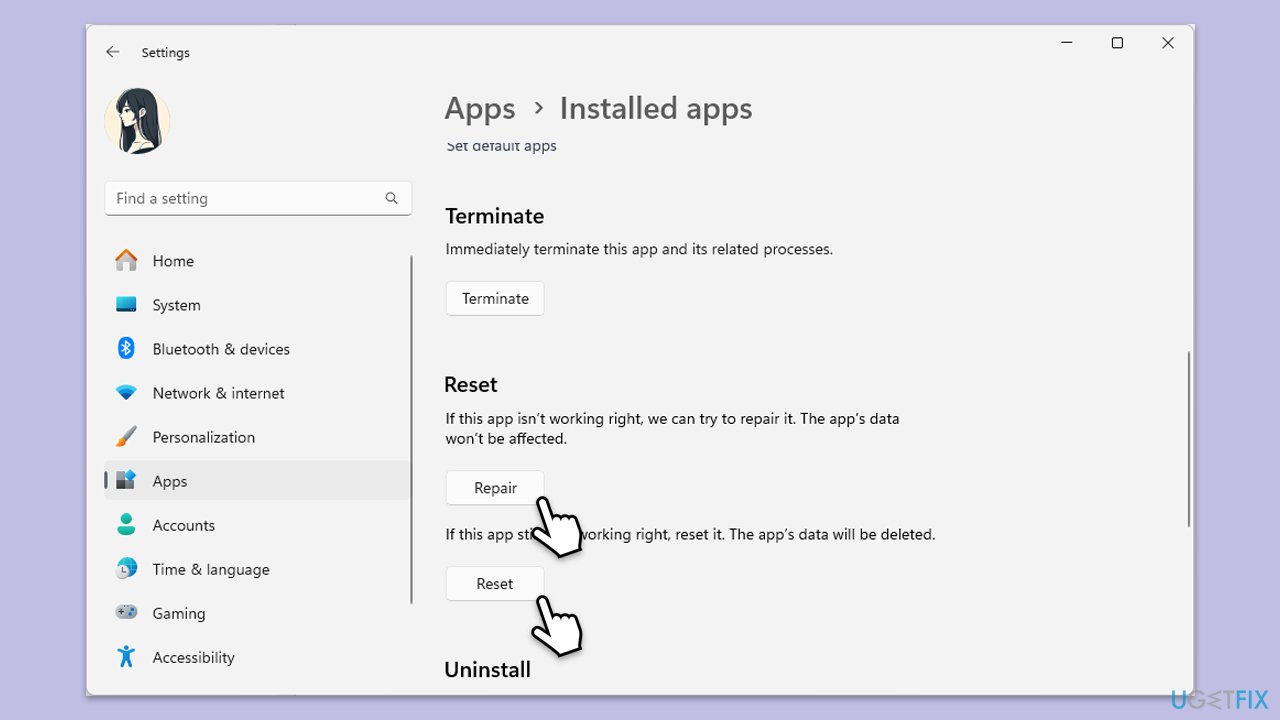
Repairing or resetting the Quick Share app can address issues related to corrupted files or misconfigured settings, which may help resolve the Netsh.exe application error.
- Right-click on Start and pick Apps and Features/Installed apps.
- Scroll down and find Quick Share, then click on Advanced options.
- First, click Repair and wait for the process to complete.
- If the issue persists, click Reset and confirm when prompted.
- Restart your computer and check if the error is resolved.
Fix 2. Update Quick Share (if applicable)
An outdated version of Quick Share may lead to conflicts with system processes. Updating it can help ensure compatibility with Windows.
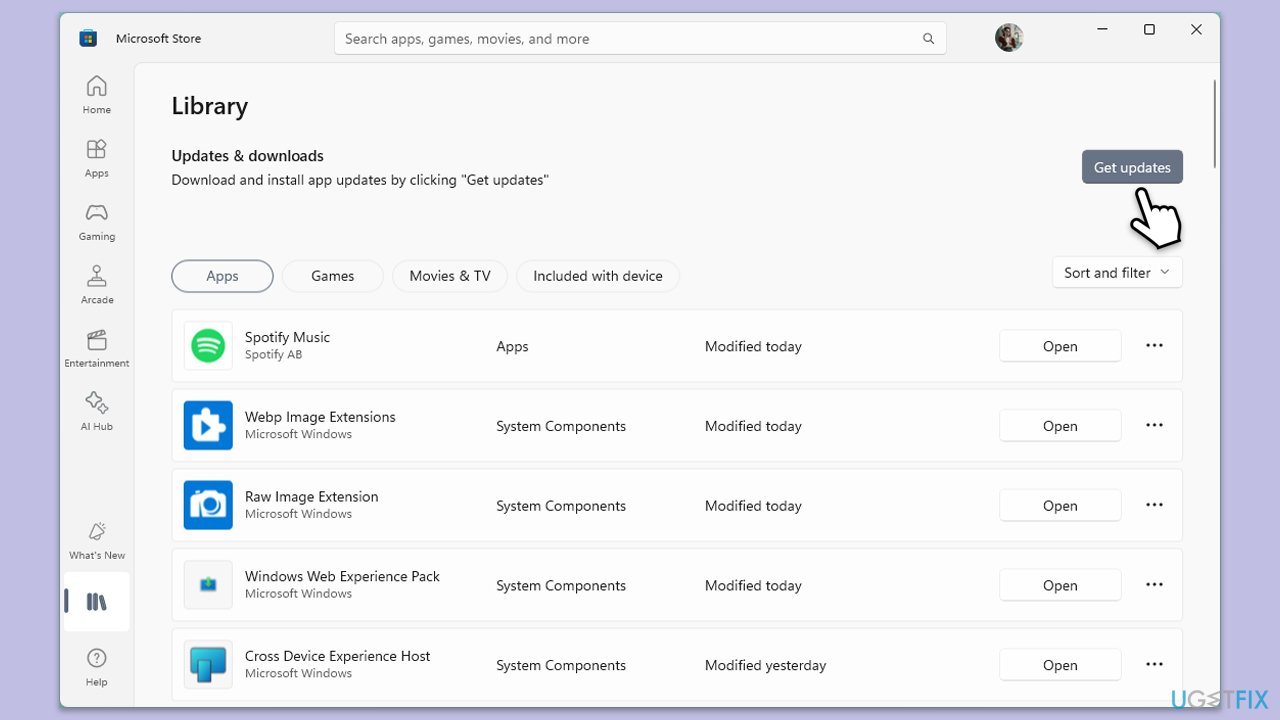
- Open Microsoft Store and click on Library in the bottom-left corner.
- Locate Quick Share and select Update if an update is available.
- You can also click Get updates to update all apps.
- Restart your computer after the update completes.
Fix 3. Run System File Checker (SFC) and DISM
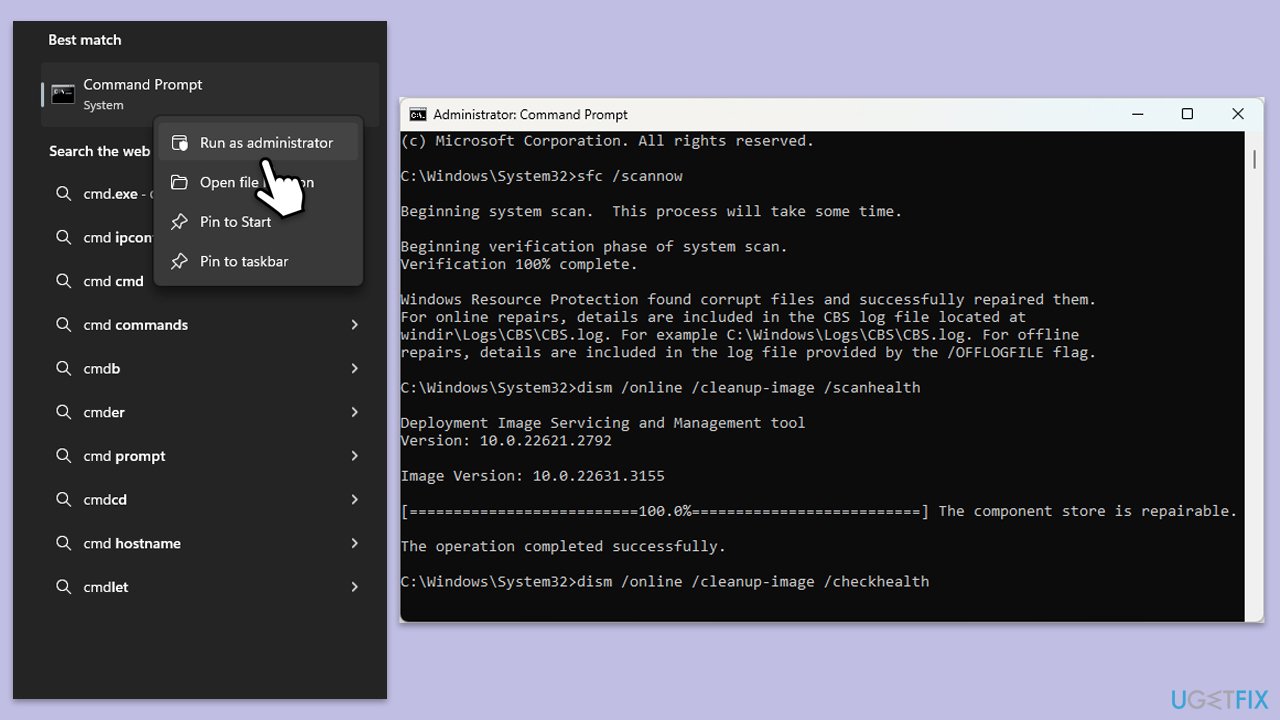
Running SFC and DISM scans together can help repair corrupted or missing system files and restore the system image, which can be beneficial in fixing application errors.
- Type cmd in Windows search.
- Right-click on Command Prompt and pick Run as administrator.
- When User Account Control asks you whether you want to allow changes, click Yes.
- Copy and paste the following command, pressing Enter after:
sfc /scannow - Wait till the scan is finished. If Windows finds system file integrity violations, it will attempt to fix them. After this, use the set of the following commands, pressing Enter each time:
DISM /Online /Cleanup-Image /CheckHealth
DISM /Online /Cleanup-Image /ScanHealth
DISM /Online /Cleanup-Image /RestoreHealth - (Note: if you get an error executing this last command, add /Source:C:\RepairSource\Windows /LimitAccess to it and try again).
- Close down the Command Prompt and restart your computer.
Fix 4. Check for Windows updates
Keeping Windows up-to-date can resolve compatibility issues that may be causing application errors.
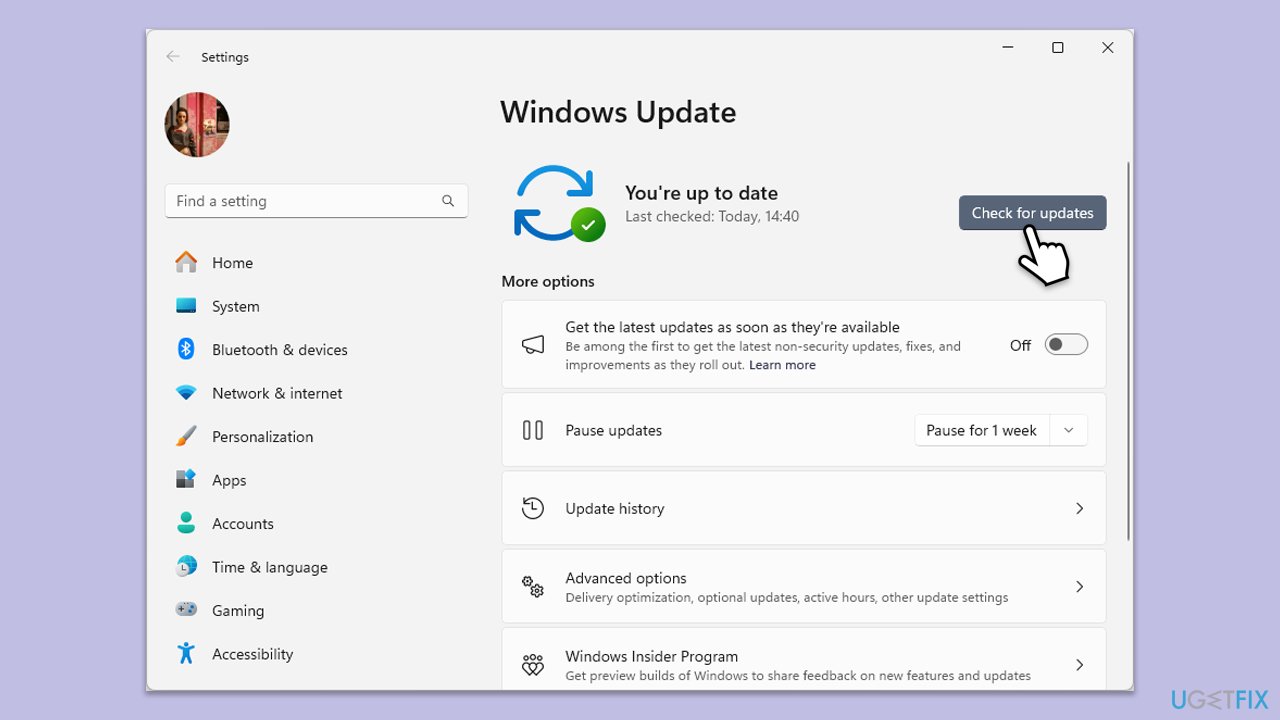
- Type Updates in Windows search and press Enter.
- In the new window, click Check for updates.
- Wait till all the necessary files are downloaded and installed.
- If optional updates are available, install them as well.
- When done, reboot your system to apply updates.
Fix 5. Disable unnecessary startup programs
Background programs that launch at startup can interfere with system processes. Disabling them can help reduce conflicts.
- Press Ctrl + Shift + Esc to open Task Manager.
- Go to the Startup tab.
- Right-click on any non-essential programs and select Disable.
- Restart your computer and check for the Netsh.exe error.
Fix 6. Re-register essential DLL files
Corrupt or missing DLL files can contribute to the Netsh.exe application error. Re-registering these files may help restore functionality.
- Open Command Prompt as administrator.
- Type in the following commands and press Enter after each:
regsvr32 /u netutils.dll
regsvr32 netutils.dll - Close down everything and restart your computer.

Bottom line
To fix the Netsh.exe application error, users can perform system scans, check for updates, re-register DLL files, or repair/reset the Quick Share app. If these solutions do not resolve the issue, consider using a PC repair tool for automated diagnostics and fixes.
Frequently asked questions
The Netsh.exe application error can be caused by corrupted system files, outdated drivers, or issues with the Windows networking components.
You can use the System File Checker tool by running 'sfc /scannow' in the Command Prompt with administrative privileges to repair corrupted system files.
Yes, you can reset the TCP/IP stack by executing the command 'netsh int ip reset' in an elevated Command Prompt.




Report an issue
What's wrong with this guide? We review every report and update or remove content.
Report received — thank you. We'll review and fix it.
You need a free account to submit a report.
Be the first to comment