How to fix
Teams error “There was a problem reaching this app”
on Windows
Resolve the "There was a problem reaching this app" error in Teams on Windows 10 or 11 quickly and efficiently. Expert-tested solutions await you!


What causes How to fix Teams error “There was a problem reaching this app” in Windows?
- Network connectivity issues
- Cache files and corrupted data
- Conflicts with system settings
- Interference from other applications
- Outdated versions of Teams or Windows
Repairs Windows system files, removes malware, and restores a clean OS state — without reinstalling.
Hello, I have a question about Microsoft Teams. Whenever I try to open any files that are sent through it (or if I send something), I always get the "There was a problem reaching this app" error. What can I do to solve this?
Microsoft Teams are widely applied for professional and educational purposes, serving as an essential means of communication and collaboration. Being one of the Microsoft 365 suite applications, it works perfectly with other Microsoft products, offering features that will help users communicate through chats, video calls, and file sharing.
However, no app is completely problem-free. A general complaint found with Teams is the "There was a problem reaching this app" error message when trying to use Teams or major features within it.
The "There was a problem reaching this app" error occurs when Teams fails to load appropriately or simply cannot connect to the required services. It could also happen when opening Teams, joining meetings, interacting with shared files, or accessing particular app integrations within Teams.
This could be due to several reasons, which include problems in network connectivity that will prevent Teams from communicating with Microsoft's servers. Also, it could relate to problems with cache files and corrupted data from the application which stop the app from starting correctly.
In other instances, potential conflicts with system settings, or interference with other apps - e.g., security applications - make Teams act contrary to expectations. Old operating versions of Teams or Windows can further lead to compatibility issues that cause this error.
To fix the "There was a problem reaching this app" error, various troubleshooting steps might be required for you: from basic checks like refreshing your network connection and updating Teams to more in-depth methods of clearing cache files and reconfiguring system settings.
Below are the manual instructions, starting from simpler solutions to more advanced ones. If you want to make the process of finding and fixing underlying Windows problems easier, then your best option is to run the [d1] repair tool which automatically fixes system errors and boosts application performance.

Fix 1. Check your internet connection
A stable and reliable internet connection is crucial for Microsoft Teams to function properly.
Windows 11
- Type Troubleshoot in Windows search and hit Enter.
- Select Other troubleshooters.
- Locate Network & Internet troubleshooter from the list and click Run.
- Wait till the process is finished and apply the recommended fixes.
- Restart your computer.
- Repeat with Windows Store apps troubleshooter.
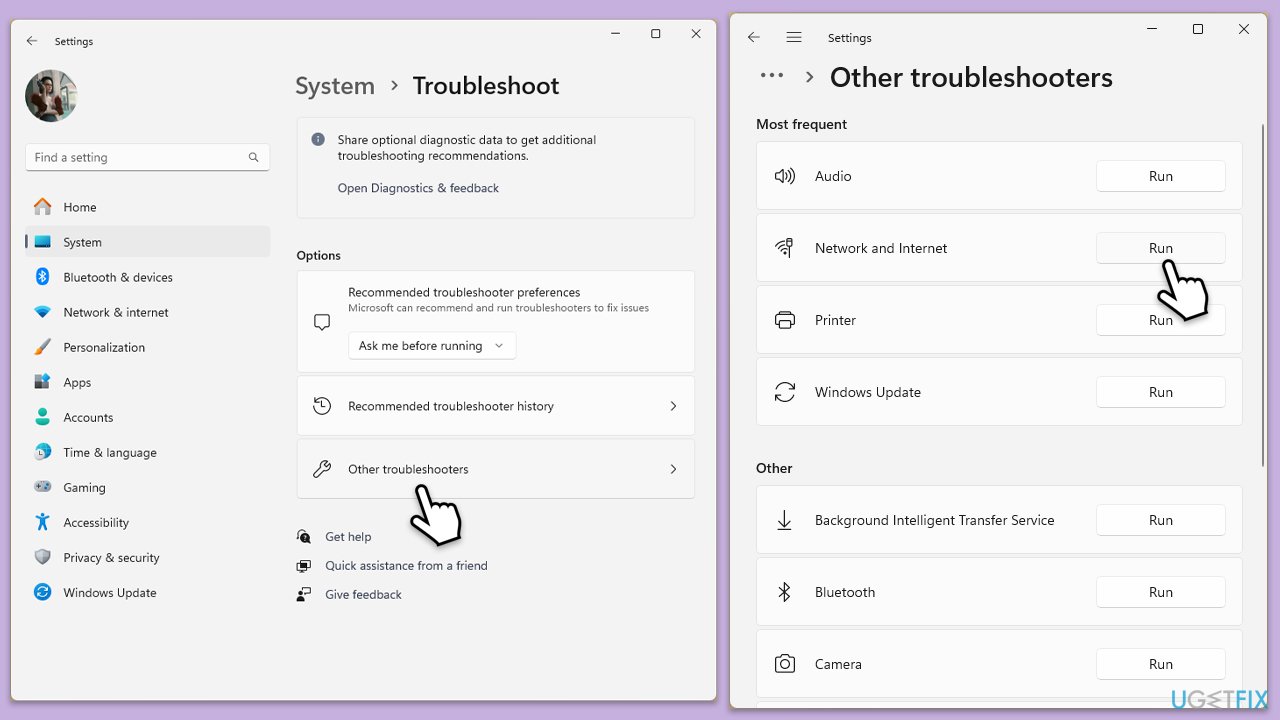
Run Network troubleshooter in Windows 10
- Right-click on Start and pick Settings.
- Go to the Network & Internet section.
- On the right side, find the Advanced network settings section.
- Click Network troubleshooter and wait.
- The fixes will be automatically applied.
Fix 2. Clear Teams cache
Clearing the cache can help resolve issues caused by corrupted data stored by the app.
- Press Win + E to open File Explorer.
- Ensure Hidden files are visible.
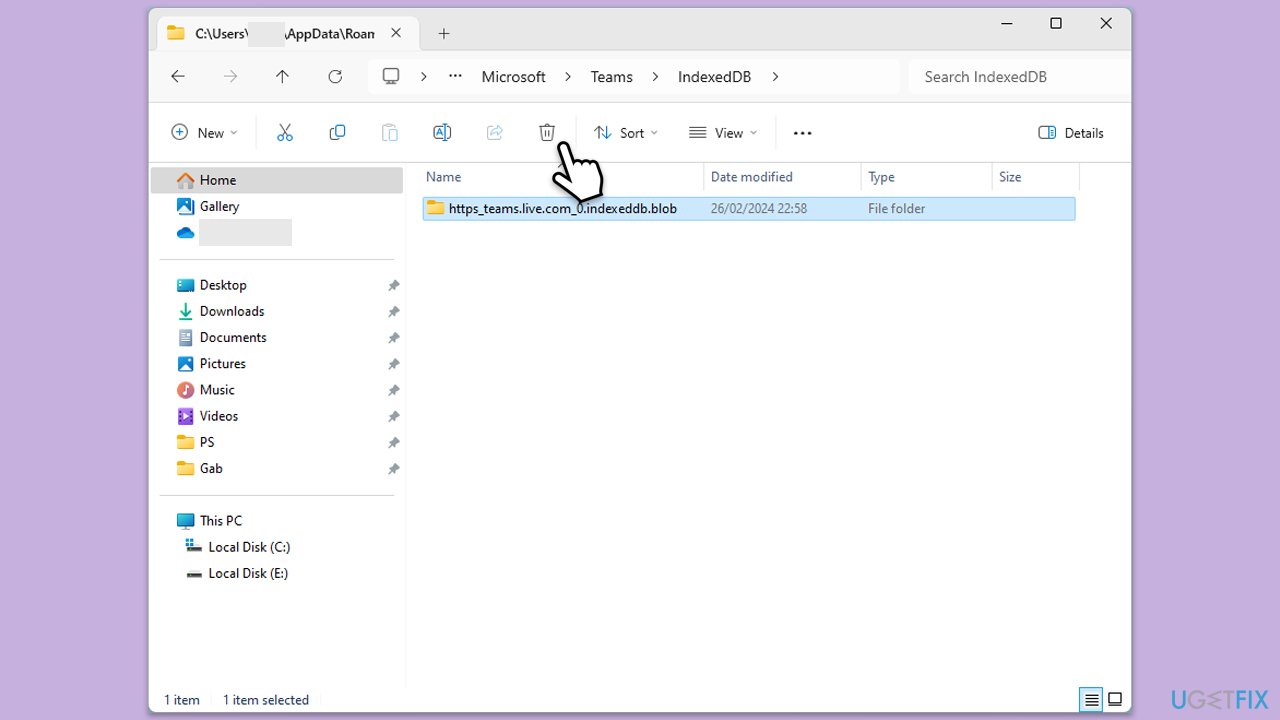
- In the address bar, type in %appdata%\Microsoft\teams and press Enter.
- Delete the contents of the following folders:
%appdata%\Microsoft\teams\application cache\cache
%appdata%\Microsoft\teams\blob_storage
%appdata%\Microsoft\teams\Cache
%appdata%\Microsoft\teams\databases
%appdata%\Microsoft\teams\GPUcache
%appdata%\Microsoft\teams\IndexedDB
%appdata%\Microsoft\teams\Local Storage %appdata%\Microsoft\teams\tmp - Make sure you empty the Recycle Bin (or use Shift + Del combination to delete these files).
- Restart your system.
Fix 3. Update Microsoft Teams
Running an outdated version of Teams can cause compatibility issues that trigger errors.
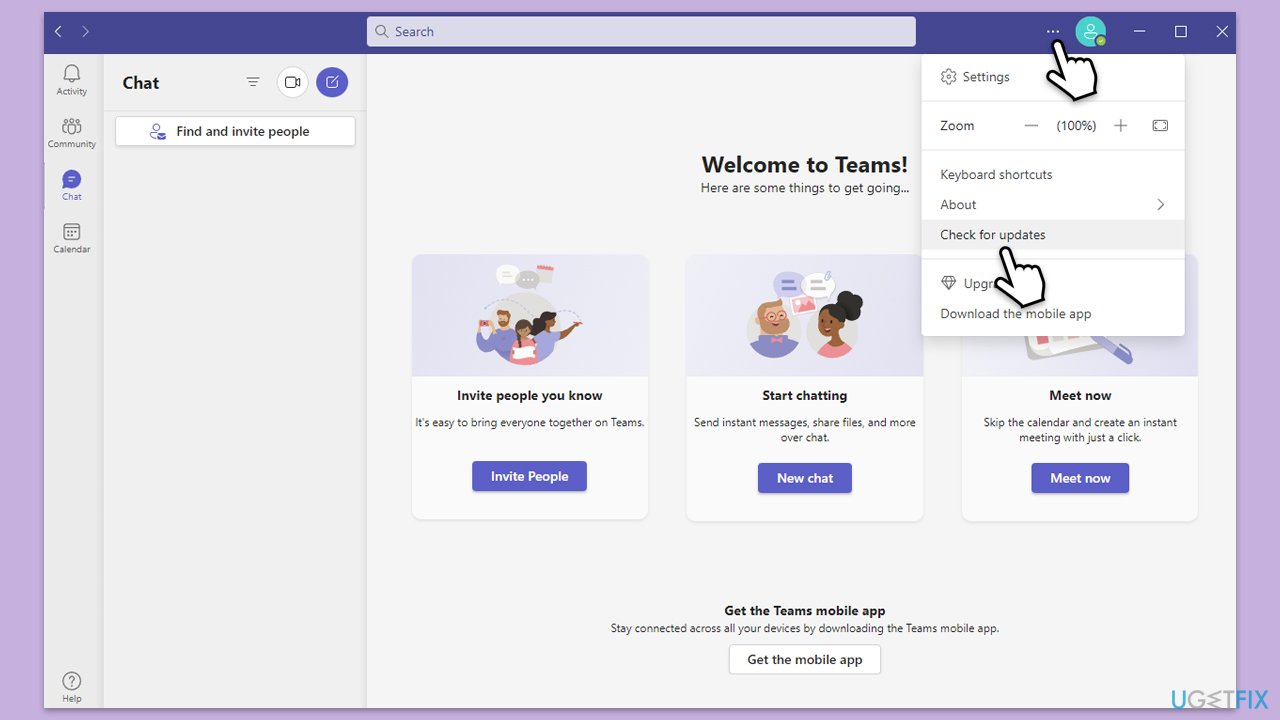
- Open Microsoft Teams.
- Click on the Settings and more button at the top-right corner.
- Select Check for updates.
- Teams will automatically download and install any available updates.
- Restart Teams after the update is completed.
Fix 4. Update Windows
Ensuring that Windows is up to date can fix compatibility and performance issues.
- Type Updates in Windows search and hit Enter.
- If updates are available, click Install updates.
- Otherwise, click Check for updates.
- If optional updates are available, install them as well.
- When all the update processes are complete, restart your computer.

Fix 5. Reinstall Microsoft Teams
Reinstalling Teams can help resolve issues related to corrupted files or misconfigurations.
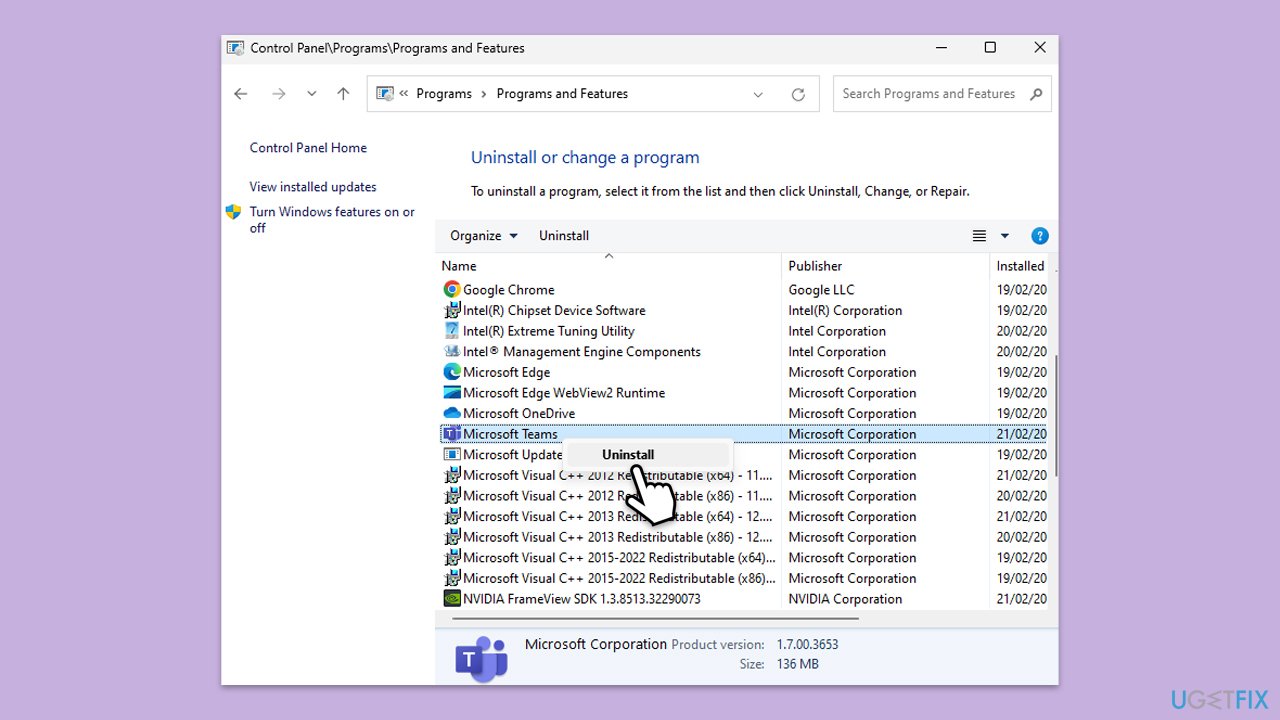
- Type Control Panel in Windows search and press Enter.
- Go to Programs > Uninstall a program.
- Find Microsoft Teams, right-click, and select Uninstall.
- Follow the prompts to remove the app.
- Once done, press Win + E to open File Explorer.
- In the View tab at the top of the window, enable Hidden Files.
- Go to C:\Program Files\WindowsApps location.
- Scroll down to find the Microsoft Teams folder and delete it (alternatively, you can rename it).
- Now type %AppData% in Windows search and press Enter.
- Delete the Teams folder here.
- Finally, restart your system and reinstall the app.
Fix 6. Address corrupted files
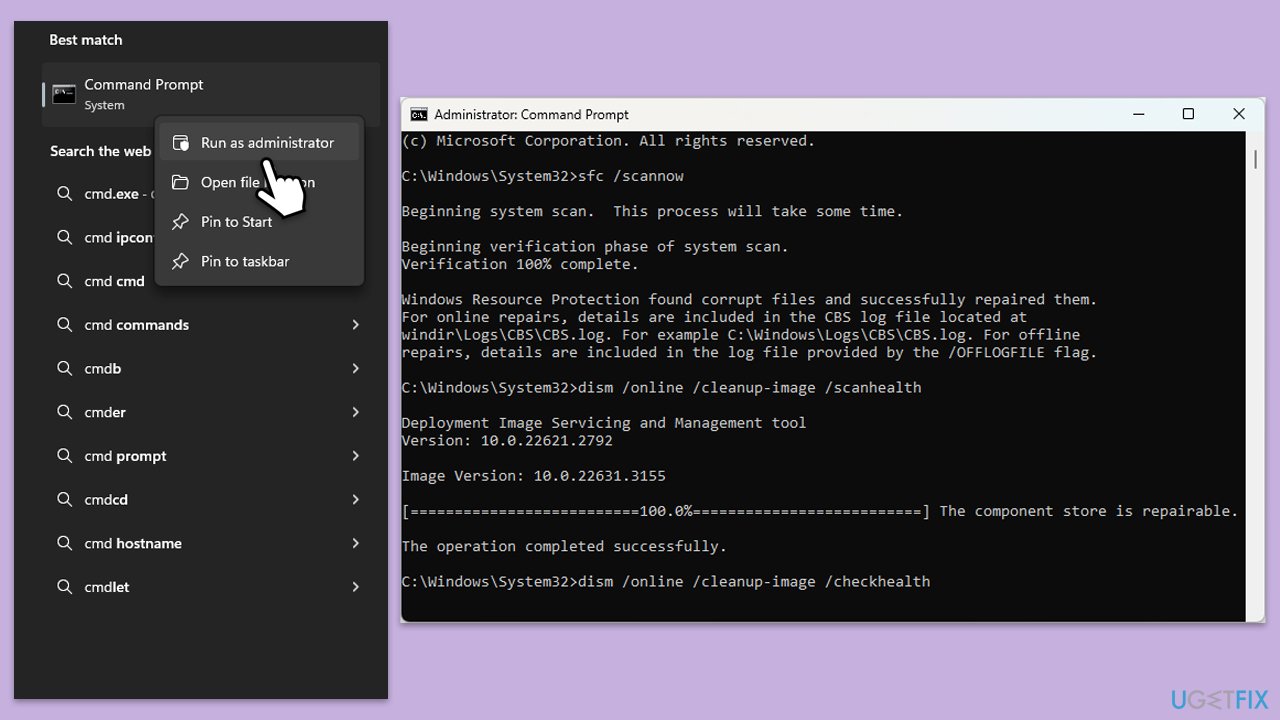
Corrupted system files can interfere with application performance. Running SFC and DISM scans can identify and fix these issues.
- Type cmd in Windows search.
- Right-click on Command Prompt and pick Run as administrator.
- User Account Control window will show up - click Yes when prompted.
- Then, copy and paste the following command, pressing Enter after:
sfc /scannow - Wait till the scan is finished. If Windows finds system file integrity violations, it will attempt to fix them. After this, use the set of the following commands, pressing Enter each time:
DISM /Online /Cleanup-Image /CheckHealth
DISM /Online /Cleanup-Image /ScanHealth
DISM /Online /Cleanup-Image /RestoreHealth - (Note: if you get an error executing this last command, add /Source:C:\RepairSource\Windows /LimitAccess to it and try again).
- Close down the Command Prompt and restart your system.
Fix 7. Run Clean Boot
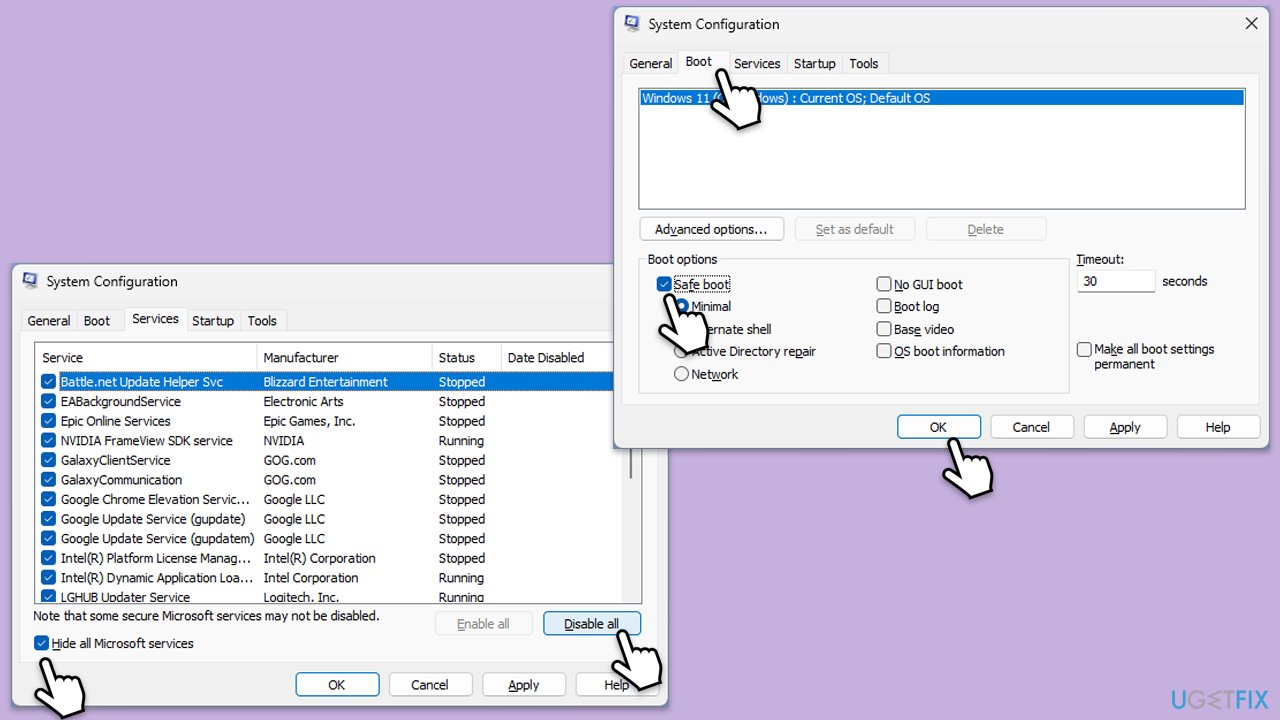
To identify software that could be causing Teams error "There was a problem reaching this app," run Windows in Clean Boot state.
- Type msconfig in Windows Search and press Enter.
- Click on the Services tab and check the Hide all Microsoft Services box.
- Click Disable all to disable non-Microsoft services, then click the Startup tab.
- Open the Task Manager, disable all startup items, and close the Task Manager.
- Go to the Boot tab and mark the Safe boot option.
- Click OK on the System Configuration window and restart your computer.
- Check if the error persists.
- Enable half of the disabled services in System Configuration.
- Restart your PC and check again.
- Repeat enabling services in smaller groups until the issue reappears.
- Once found, keep the problematic service disabled or consider updating it.
Bottom line
To fix the error, you can refresh your network connection, update Teams, clear cache files, and reconfigure system settings. If these steps do not resolve the issue, consider running a repair tool to automatically fix system errors and improve application performance.
Frequently asked questions
Try clearing the Teams cache by navigating to %appdata%\Microsoft\Teams and deleting the contents of the Cache folder. This can resolve many connectivity issues.
Make sure that your Windows 11 is updated to the latest version, as updates often include fixes for app compatibility issues.
Yes, check your firewall and antivirus settings to ensure that they are not blocking Teams, as this can prevent the app from reaching the necessary servers.




Report an issue
What's wrong with this guide? We review every report and update or remove content.
Report received — thank you. We'll review and fix it.
You need a free account to submit a report.
Be the first to comment