How to fix
Windows update error code (-2147024864)
on Windows
Resolve the Windows update error code (-2147024864) swiftly with expert tips. Achieve a seamless update experience on Windows 10 and 11, fixed in minutes.


What causes How to fix Windows update error code (-2147024864)?
- Files cannot be accessed properly
- Conflicts in the system directories
- File required for the process is used by another process
- Permissions have become restrictive
- Network-related issues
- Disrupted connection to Microsoft's update servers
Repairs Windows system files, removes malware, and restores a clean OS state — without reinstalling.
I've been trying to update Windows for over a week now and I still can't do it. This is a protection definition update so I'd say it should be important. The error code I'm getting is -2147024864, with the message "Protection definition update failed."
Protection Definition updates are critical to keeping Windows systems secure, as they update the virus definitions and security intelligence needed to fortify Windows Defender and other Microsoft security tools. These updates ensure that your system is protected against newly emerging threats, maintaining robust security defenses against malware and other potential intrusions.
Generally streamlined and routine, some complications occur when users try to install these updates. A complication like the Windows update error code (-2147024864) disrupts the installation process for such paramount updates.
The error code (-2147024864) usually occurs because specific system-related hurdles are acting against the installation's progression as expected. This error can occur when any files cannot be accessed properly or in cases of conflicts in the system directories required for the update. For instance, when a file required for this process is currently used by another process, or if permissions have become restrictive, the update might fail and hence lead to this code.
Network-related issues, including a disrupted connection or an inability to reach Microsoft's update servers, can also cause this error to appear. This makes the error even more complex to identify and fix without additional context.
Fixing error code (-2147024864) often requires dealing with possible file permissions issues, checking for processes that may conflict with the installation process, or purging residual update cache files that might interfere.
Steps for network troubleshooting may also include verifying connectivity and checking if there is a firewall or proxy configuration. All of these factors should be addressed to remove any barriers to the completion of Protection Definition updates. You will find all the manual instructions needed to implement those solutions in the subsequent section of this article.
To fix any underlying problems with Windows automatically, users can apply the [d1] PC repair tool, which will make the process easier and faster.

Fix 1. Try Disk Cleanup
- Type Disk Cleanup in Windows search and hit Enter.
- If your Windows is installed on drive C, pick it from the list (it should be by default) and press OK.
- Click Clean up system files.
- Select your main disk again and click OK.
- Here, select the largest portions of the data used - these typically include Temporary Internet Files, Windows Update, Temporary Files, Recycle Bin, Delivery Optimization Files, and others.
- Click OK - the process should be finished shortly.

Fix 2. Run the troubleshooters
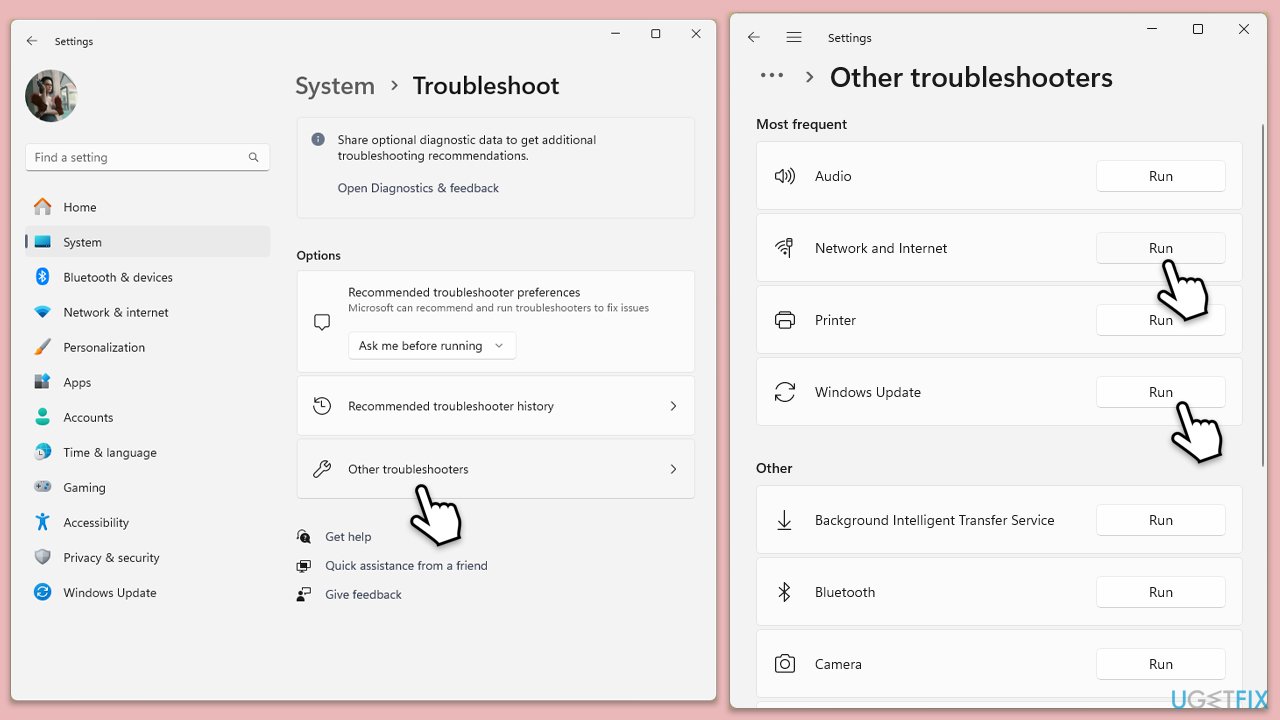
- Type Troubleshoot in Windows search and hit Enter.
- Select Additional troubleshooters/Other troubleshooters.
- Find Windows Update from the list and click Run the troubleshooter/Run.
- The troubleshooter will automatically scan your system for potential problems and display any issues it finds.
- If the troubleshooter finds any issues, it will provide recommended solutions.
- Repeat this process with Network & internet troubleshooter.
Fix 3. Disable security app and firewall
- Disable your antivirus software from its main dashboard, usually accessible via the system tray icon.
- Press Win + S and type "firewall." Select Windows Defender Firewall.
- Click on Turn Windows Defender Firewall on or off.
- Select Turn off Windows Defender Firewall for both private and public network settings.
- Try updating again.

Fix 4. Check file permissions for system folders
Incorrect file permissions may block the update process, so ensuring proper access to system files is important.
- Type in cmd in Windows search.
- Right-click on Command Prompt and select Run as administrator.
- User Account Control will ask you whether you want to allow to make changes to the system - click Yes.
- In the command prompt, type the following and press Enter:
icacls C:\Windows\System32\*.* /T /Q /C /RESET - Close the Command Prompt and try the update again.

Fix 5. Reset Windows update components
- Open Command Prompt as administrator.
- Stop the Windows Update-related services by running the following commands one at a time, pressing Enter after each one:
net stop wuauserv
net stop cryptSvc
net stop bits
net stop msiserver - Rename the SoftwareDistribution and Catroot2 folders by running the following commands:
ren C:\Windows\SoftwareDistribution SoftwareDistribution.old
ren C:\Windows\System32\catroot2 Catroot2.old
Note: If your Windows installation is not on the C drive, replace "C" with the appropriate drive letter. - Restart the Windows Update-related services by running the following commands:
net start wuauserv
net start cryptSvc
net start bits
net start msiserver - Reboot your system.

Fix 6. Check services
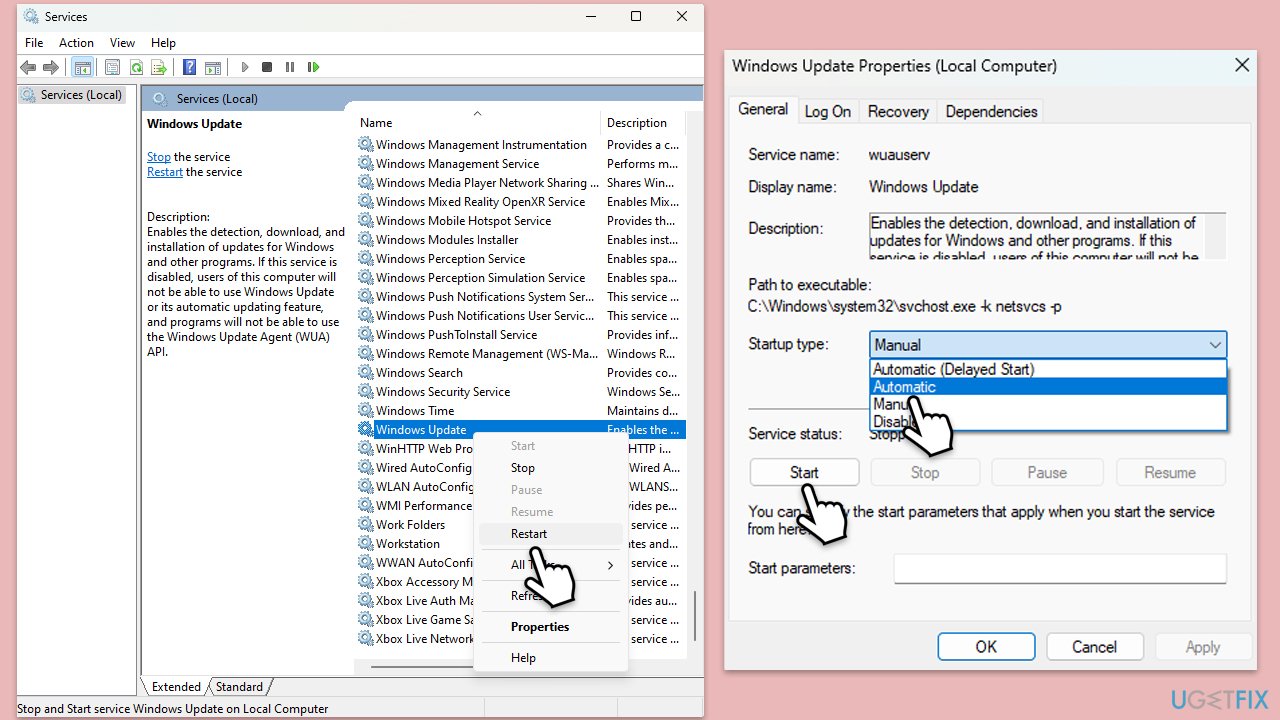
- Type in Services in Windows search and hit Enter.
- Scroll down a bit to find Background Intelligent Transfer Service (BITS).
- If it is already running, right-click and select Restart.
- If the service is not running, double-click it, pick Automatic under the Startup type drop-down menu.
- Click Start, Apply, and OK.
- Repeat this process for Windows Update and Cryptographic services.
Fix 7. Use Media Creation Tool
The Media Creation Tool can repair issues in the OS and bring your system to the latest version.
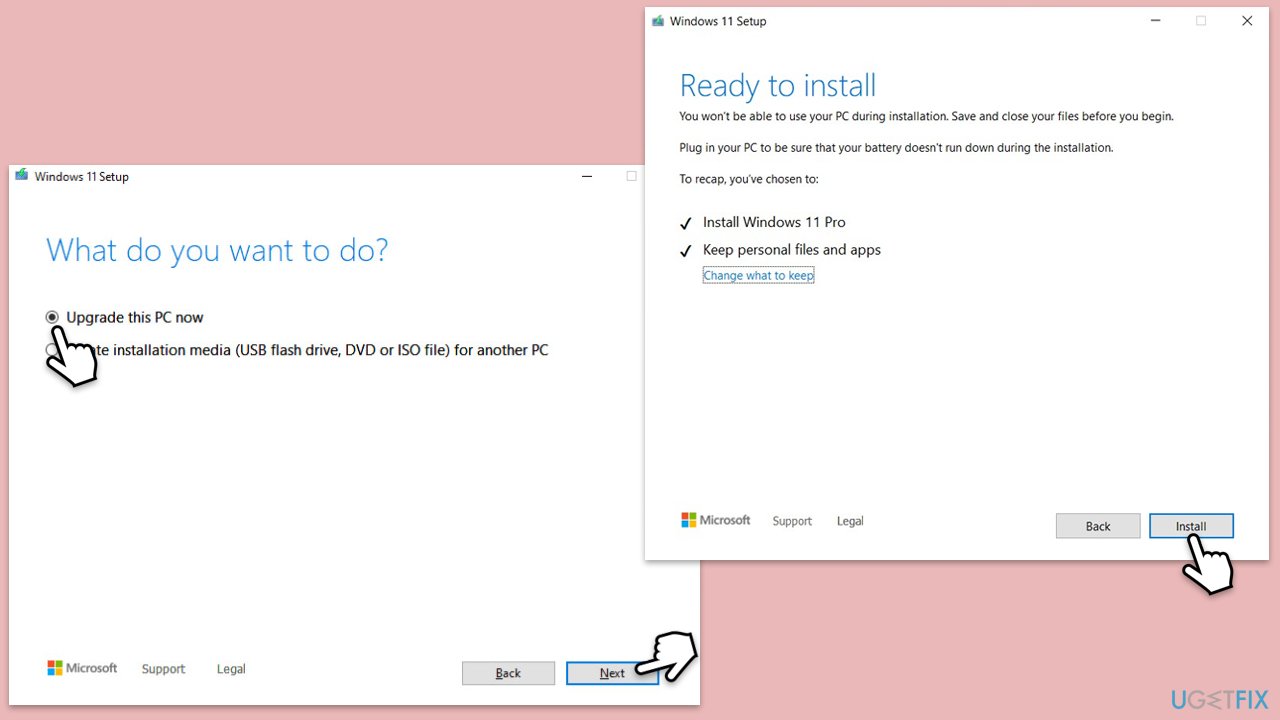
- Visit the official Microsoft website and download Windows 10 installation media (Windows 11 version).
- Double-click the installer, select Yes when UAC shows up, and agree to the terms.
- Select Upgrade this PC now and click Next.
- Windows will start downloading the needed files.
- Agree to the terms once again and click Next.
- Before installing, make sure that you are happy with your choices (otherwise, you can click Change what to keep option).
- Finally, click Install to begin the upgrade process.
Bottom line
To fix the Windows update error code (-2147024864), users should address file permissions issues, check for conflicting processes, and purge residual update cache files. Additionally, network troubleshooting steps such as verifying connectivity and checking firewall or proxy configurations should be taken. If none of these solutions work, consider using a PC repair tool for automatic fixes.
Frequently asked questions
This error code typically indicates a problem with the Windows update process, often related to corrupted system files or misconfigured settings in Windows 10 or Windows 11.
To fix this error, you can run the Windows Update Troubleshooter and ensure that all system files are intact using the SFC /scannow command in the Command Prompt.
Yes, make sure that the Windows Update service is running, as a disabled or stopped service can lead to this error code on Windows 11.




Report an issue
What's wrong with this guide? We review every report and update or remove content.
Report received — thank you. We'll review and fix it.
You need a free account to submit a report.
Be the first to comment