How to fix
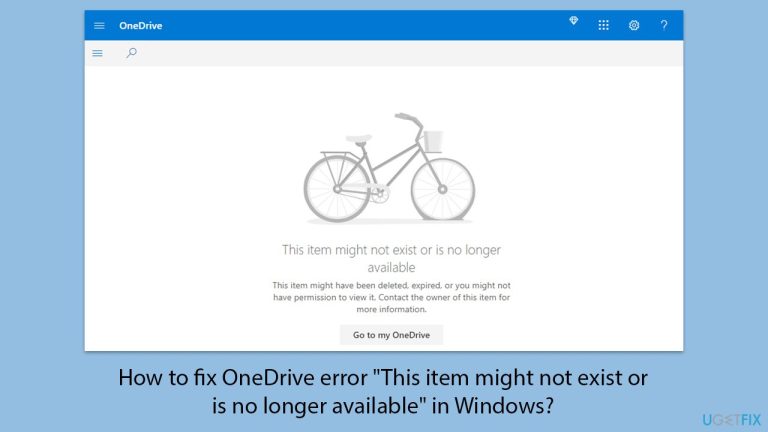
OneDrive error “This item might not exist or is no longer available”
on Windows
Resolve the OneDrive error "This item might not exist" on Windows 10 or 11 with our expert-tested solutions. Fixed in minutes for seamless access!

What causes How to fix OneDrive error “This item might not exist or is no longer available” in Windows?
- File moved, deleted, or renamed by someone with shared access
- OneDrive app synchronization error
- Faulty network connection
- Permission-related changes
- OneDrive app glitches or corrupted cache
Repairs Windows system files, removes malware, and restores a clean OS state — without reinstalling.
Hi, so I created a link to share a few files from OneDrive with the other two users (I also gave them sufficient permissions). However, when they try to access these files, they get the "This item might not exist or is no longer available" error message instead. What am I doing wrong and is there any way of fixing this?
While it may be expected that the OneDrive cloud storage service will deliver a seamless experience for file access and management, errors may raise their heads from time to time. One of the more puzzling errors for users is when the error message "This item might not exist or is no longer available" shows up unexpectedly when trying to access a particular file or folder.
This error not only limits access to important data but can leave users wondering why the content seems to have vanished or become unavailable. Understanding why this issue arises can provide clarity on how to approach potential solutions.
This is actually the "This item might not exist or is no longer available" error, which might surface for various reasons. Sometimes, it may be as simple as someone with shared access moving, deleting, or renaming the file.
Sometimes, this is because of an error associated with OneDrive app synchronization when, for some reason, a file's local copy is shown to be missing or is not accessible. The network may be faulty, where there isn't a good or proper connection, which ultimately disrupts OneDrive's ability to reflect changes in real time.
Another potential cause is permission-related changes, particularly when dealing with shared files. If permissions have been modified by an administrator or the person who owns the file, you might see this message when trying to access content you once had permission to view or edit. In some instances, the error could also occur due to OneDrive app glitches, corrupted cache, or even problems with the underlying Windows system that hosts the app.
For users encountering this problem, initial troubleshooting steps often focus on confirming whether the item truly exists on OneDrive’s web version and if changes in permissions or file location have occurred. Synchronization conflicts should also be investigated to ensure that local OneDrive folders reflect what’s available on the cloud. Sometimes, refreshing the app, checking for updates, or even resetting OneDrive can restore proper access.
As dealing with OneDrive errors can be complex, exploring automated repair tools may offer an efficient way to fix system and app-related issues. The [d1] repair tool, for example, can help identify and resolve corrupted files, enhance system stability, and improve overall app performance. Manual instructions for resolving the "This item might not exist or is no longer available" error will be provided below.

Fix 1. Verify your OneDrive connection
Connectivity issues can cause OneDrive to think your files are unavailable. Ensuring a stable connection may quickly resolve the problem.
- Confirm you have a stable internet connection.
- Restart your router or switch to a more reliable network.
- Sign out and back in to your OneDrive account.
Fix 2. Check file or folder permissions
Incorrect permissions can make OneDrive files appear as if they do not exist.
- Navigate to the file in question on your OneDrive.
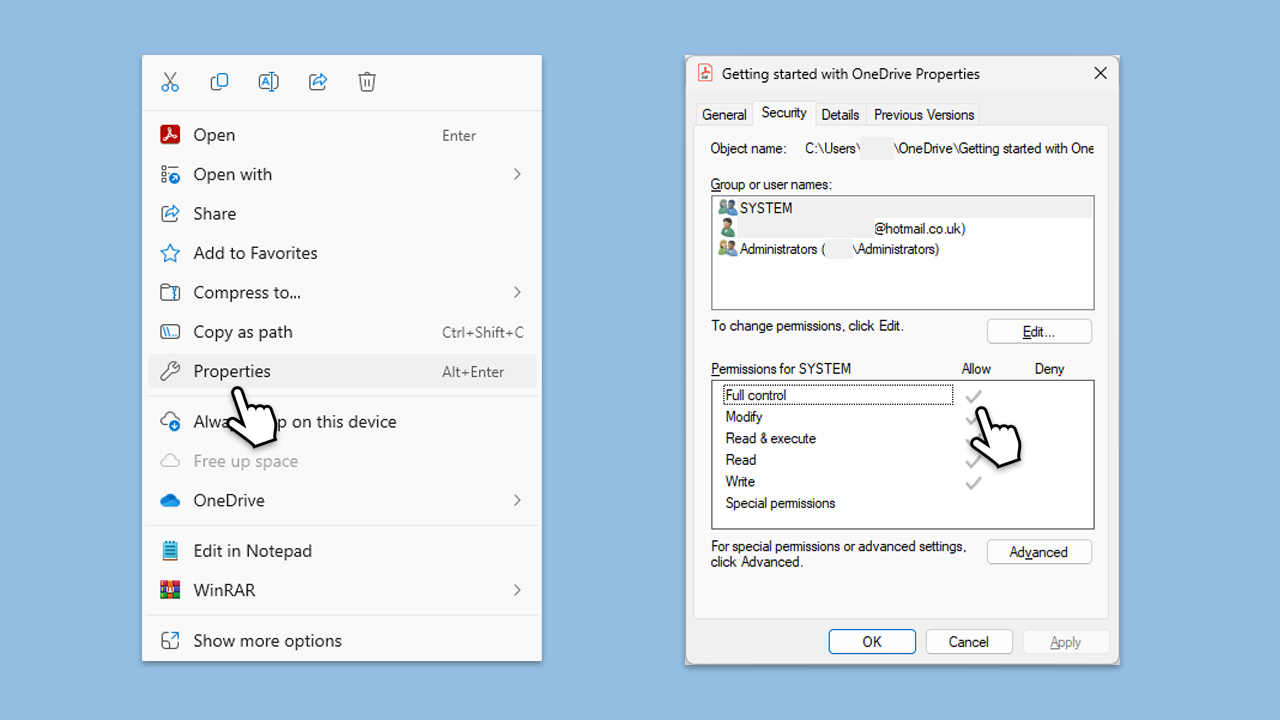
- Right-click the file and select Properties.
- Go to the Security tab and ensure that your user account has full control.
- Click Edit and adjust the permissions as required.
Fix 3. Refresh OneDrive sync
Refreshing the sync between local files and cloud storage can fix display errors.
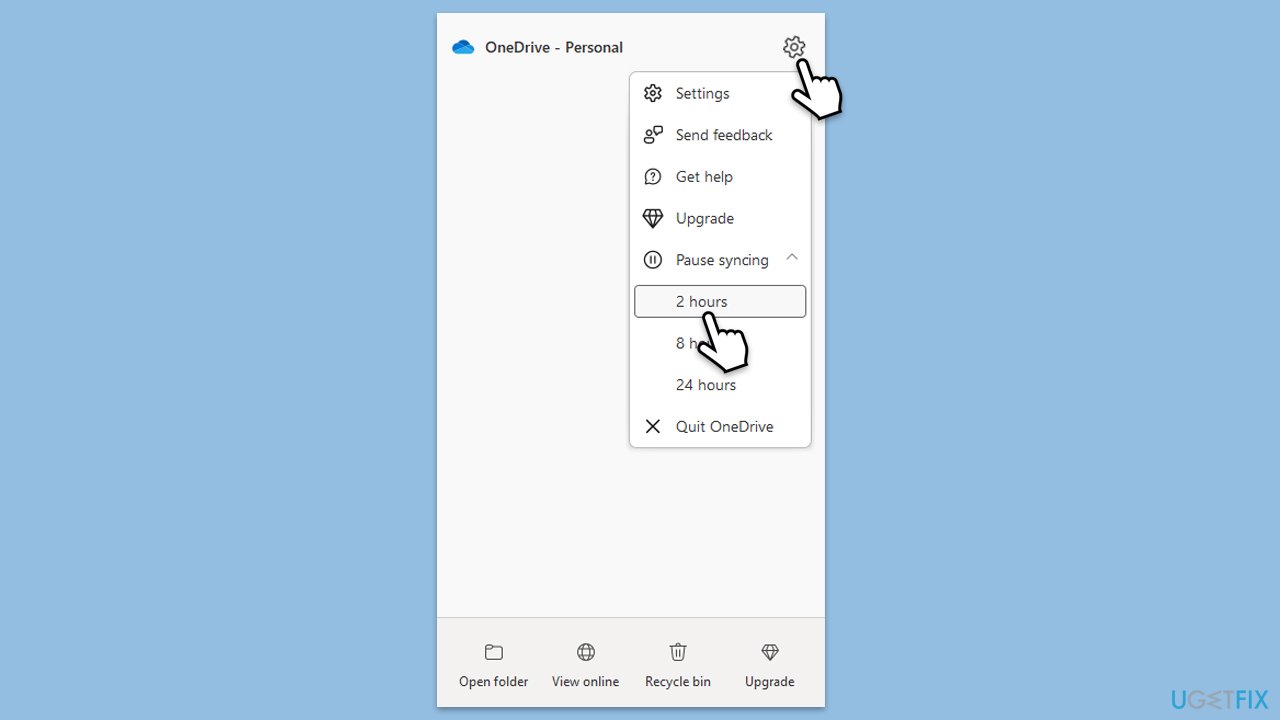
- Right-click the OneDrive cloud icon in the system tray.
- Select Pause syncing and choose a time interval.
- Wait a few moments, then right-click the icon again and select Resume syncing.
Fix 4. Ensure the file still exists in the cloud
Sometimes files may be deleted or moved without user knowledge.
- Log in to your OneDrive account through a web browser.
- Navigate to the folder where the file was stored.
- Use the search function to confirm whether the item is still present.
Fix 5. Re-link your OneDrive account
Reconnecting your account can re-establish syncing and fix visibility issues.
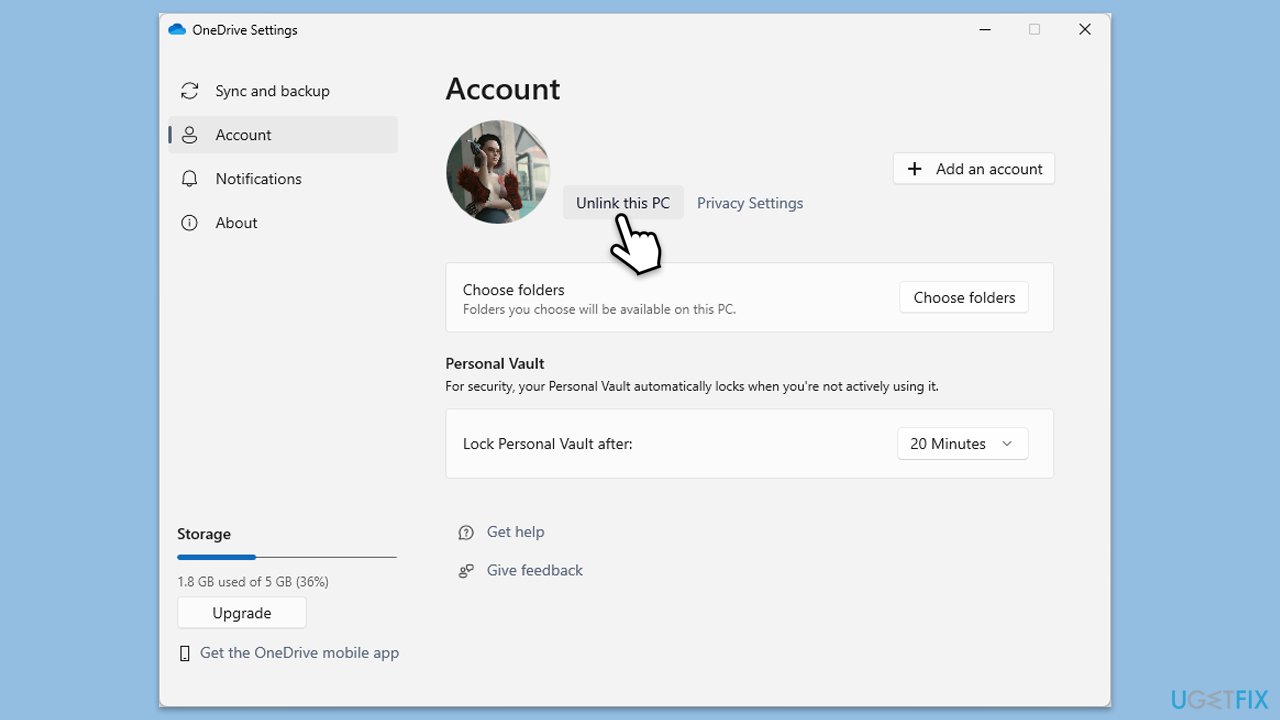
- Right-click the OneDrive icon in the taskbar.
- Select Settings.
- Go to the Account tab.
- Click Unlink this PC.
- Sign in again with your Microsoft account.
Fix 6. Use OneDrive’s Restore feature
For recent deletions or changes, restoring from a previous state can help.
- Visit the OneDrive website and click the Recycle Bin.
- If the missing file/folder is there, select it and choose Restore.
- Alternatively, use the Version History feature for file recovery.
Fix 7. Reset OneDrive
Try resetting the app and see if that helps.
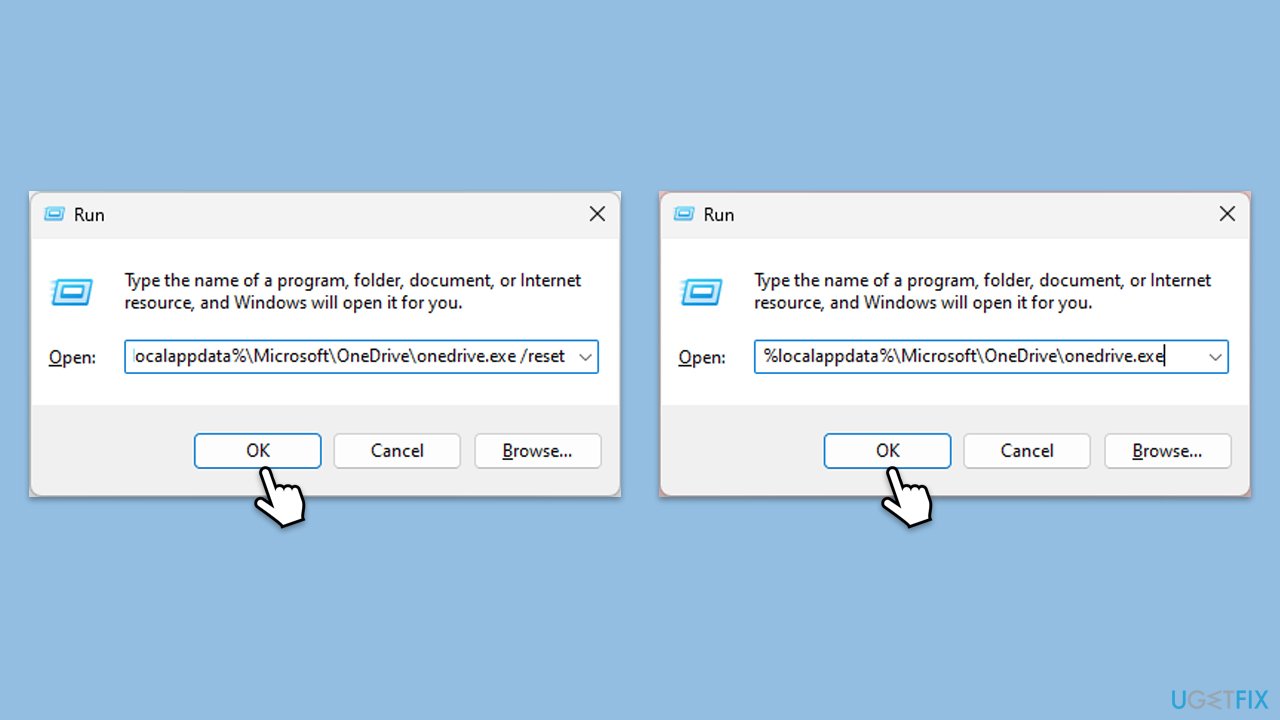
- Press Win + R on your keyboard.
- When the Run window opens, copy and paste the following text into it:
%localappdata%\Microsoft\OneDrive\onedrive.exe /reset
(Note: you might get an error here. In that case, use %programfiles(x86)%\Microsoft OneDrive\onedrive.exe /reset or C:\Program Files (x86)\Microsoft OneDrive\onedrive.exe /reset instead) - Press Enter or click OK.
- After this command is executed, the app should be reset, and OneDrive should open.
- If it doesn't, wait a few minutes, then open the Run window again and use the following command:
%localappdata%\Microsoft\OneDrive\onedrive.exe - Press Enter.
Bottom line
To resolve the error, check if the item exists on OneDrive's web version, ensure your network connection is stable, and verify permissions. If the issue persists, consider clearing the OneDrive cache or reinstalling the app. If none of these solutions work, further investigation may be needed.
Frequently asked questions
Try resetting your OneDrive app by right-clicking the OneDrive cloud icon in the taskbar, selecting 'Settings', and then choosing 'Unlink this PC'. After unlinking, sign in again to refresh your files.
Check your Recycle Bin to see if the file was accidentally deleted, and if it is not there, use the OneDrive website to restore deleted files within the last 30 days.
Ensure that your Windows 10 or Windows 11 system is fully updated and check the internet connection; then, try pausing and resuming syncing in the OneDrive settings.




Report an issue
What's wrong with this guide? We review every report and update or remove content.
Report received — thank you. We'll review and fix it.
You need a free account to submit a report.
Be the first to comment