How to fix
“No available camera input” error
on Windows
Resolve the "No available camera input" error on Windows 10 and Windows 11 with expert-tested solutions that fix the issue quickly, zero traces left.


What causes How to fix “No available camera input” error in Windows?
- System permissions
- Driver issues
- Hardware-related problems
- Privacy settings
- Antivirus interference
Repairs Windows system files, removes malware, and restores a clean OS state — without reinstalling.
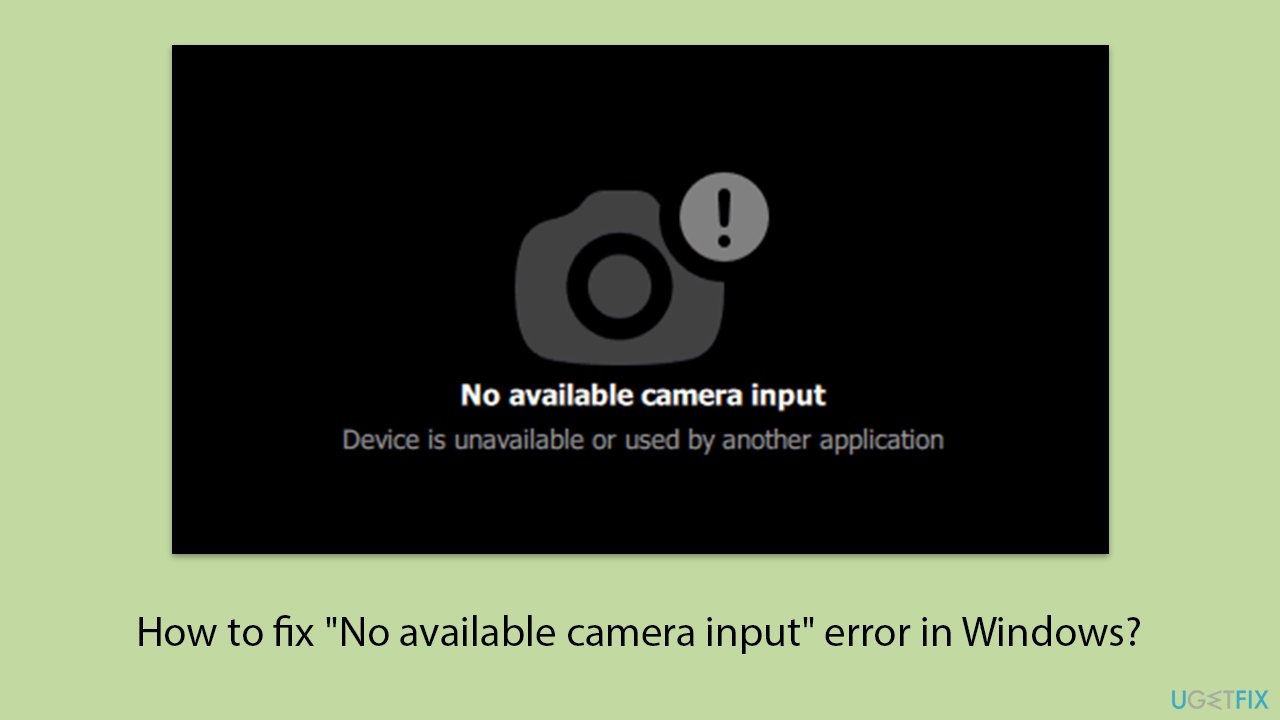
Hello. Could you help me to fix my PC camera? I can't use it at all because when I try, I keep getting the following message: "No available camera input" This is strange because it worked just fine just a few days ago.
When you receive the message "No available camera input" while trying to use your camera in Windows, normally this simply means that the operating system or application does not have access to the camera. This error can disrupt tasks that involve video calls or taking photos; hence, this is an inconvenience. Common root causes involve system permissions, driver issues, or hardware-related problems.
One of the more well-known reasons has to do with privacy settings. There are controls in Windows that can enable or restrict access to the camera for apps, and if permissions are not enabled, then the operating system might block the camera. The camera might also be disabled in Device Manager, either deliberately or as a result of some system error.
In this case, the camera will not work properly if drivers are outdated or corrupted; sometimes, antivirus and third-party software can block camera access for security reasons. Much less frequently, there is physical damage to the camera hardware, such as faulty connections.
The "No available camera input" error can be overcome by the camera's privacy settings - checking and allowing access to the relevant apps. It would also ensure that the device is enabled in the Device Manager. Another major step will involve updating the camera driver, as there is a possibility of incompatibility due to the use of obsolete software.
If antivirus interference is the issue, then temporary disablement or changing of antivirus settings may resolve the camera problem. Further troubleshooting in hardware can be required if the camera is still malfunctioning. If, even after this process, the problem is not solved, the usage of [d1] repair can be efficient.
Fix 1. Check camera privacy settings
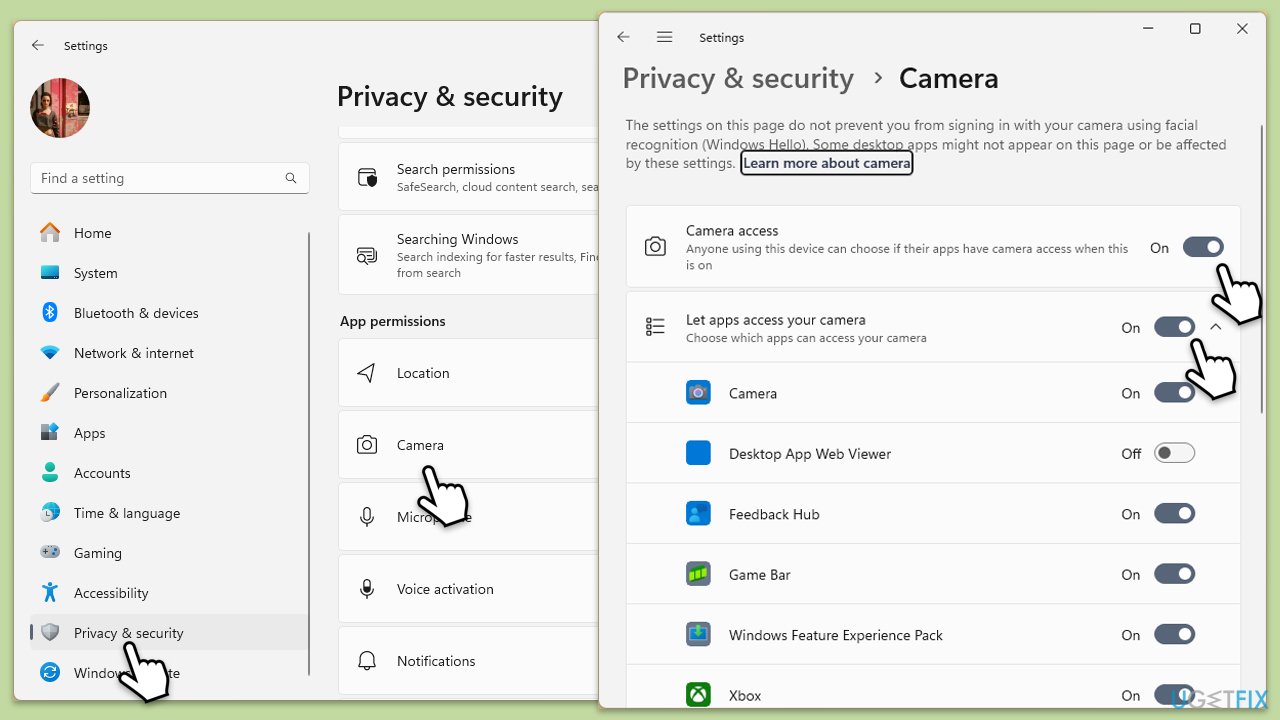
Windows privacy settings can restrict camera access for certain apps or the entire system. Adjusting these settings ensures the camera is not blocked from functioning, potentially solving the "No available camera input" issue.
- Right-click on Start and pick Settings.
- Select Privacy & security/Privacy section.
- Scroll down to the App permissions section and click on Camera or pick Camera on the right on Windows 10.
- Make sure the option Let apps access your camera is turned on.
- Check the list of apps below and ensure the necessary apps have permission to use the camera.
Fix 2. Restart your device
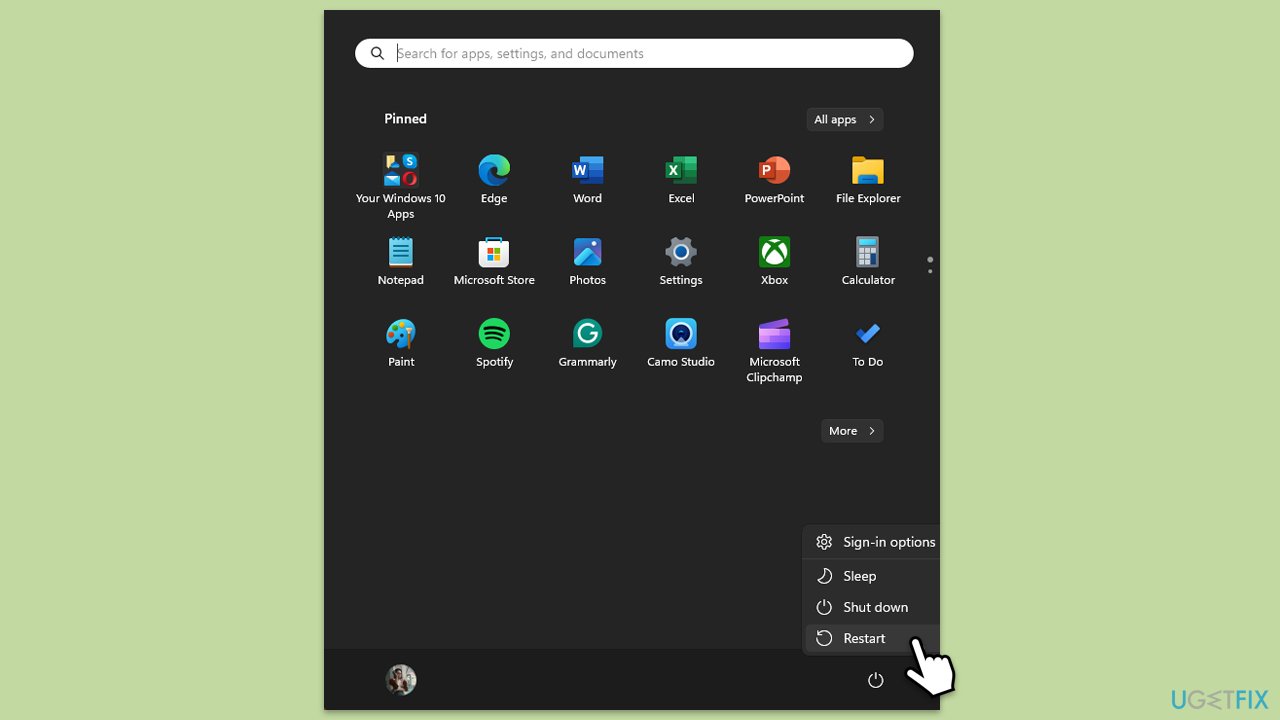
Temporary glitches in the system can cause the camera to behave unexpectedly. Restarting clears these glitches and resets hardware connections.
- Close all applications.
- Click on the Start menu.
- Select Restart.
- Wait for your computer to restart.
Fix 3. Ensure the camera is not physically blocked
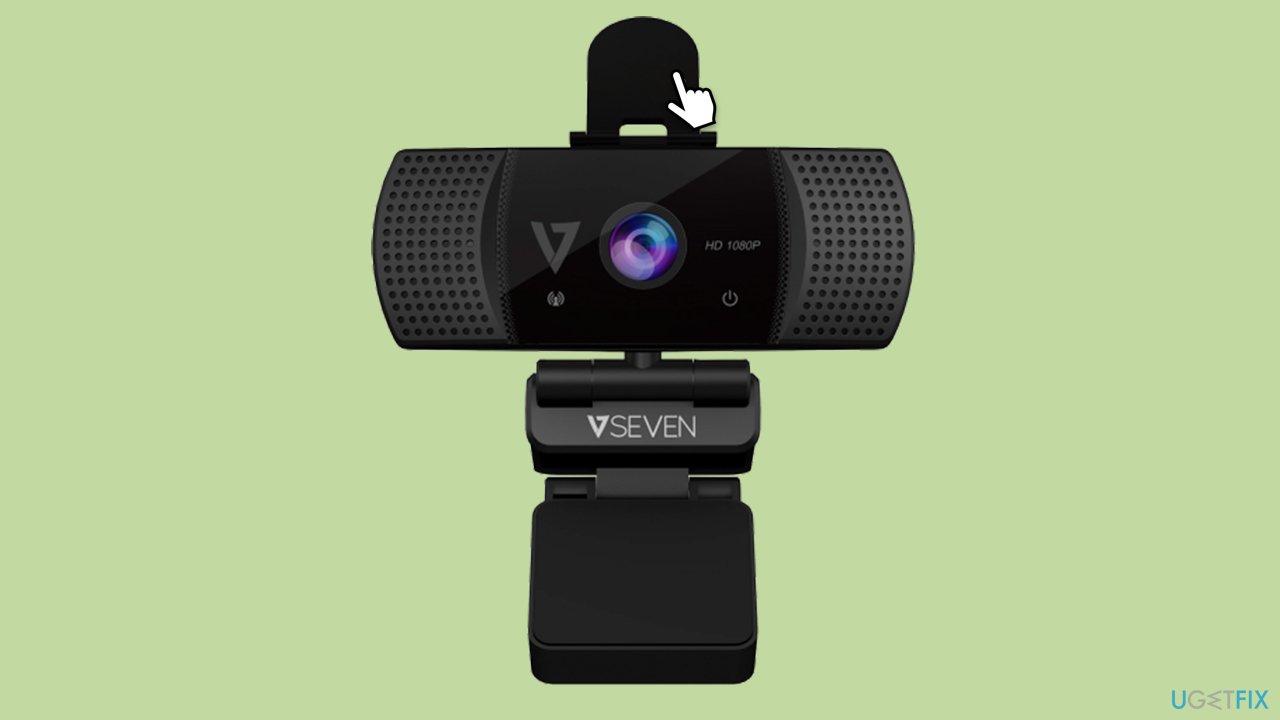
Some laptops or external cameras have physical shutters or covers that block the lens.
- Check the camera lens for any physical blockages - many cameras have physical privacy covers.
- Open or remove any shutter or cover to allow the camera to capture images.
- Additionally, some cameras (especially on laptops) have a physical switch that might be difficult to find.
- After these checks, test the camera to confirm it works.
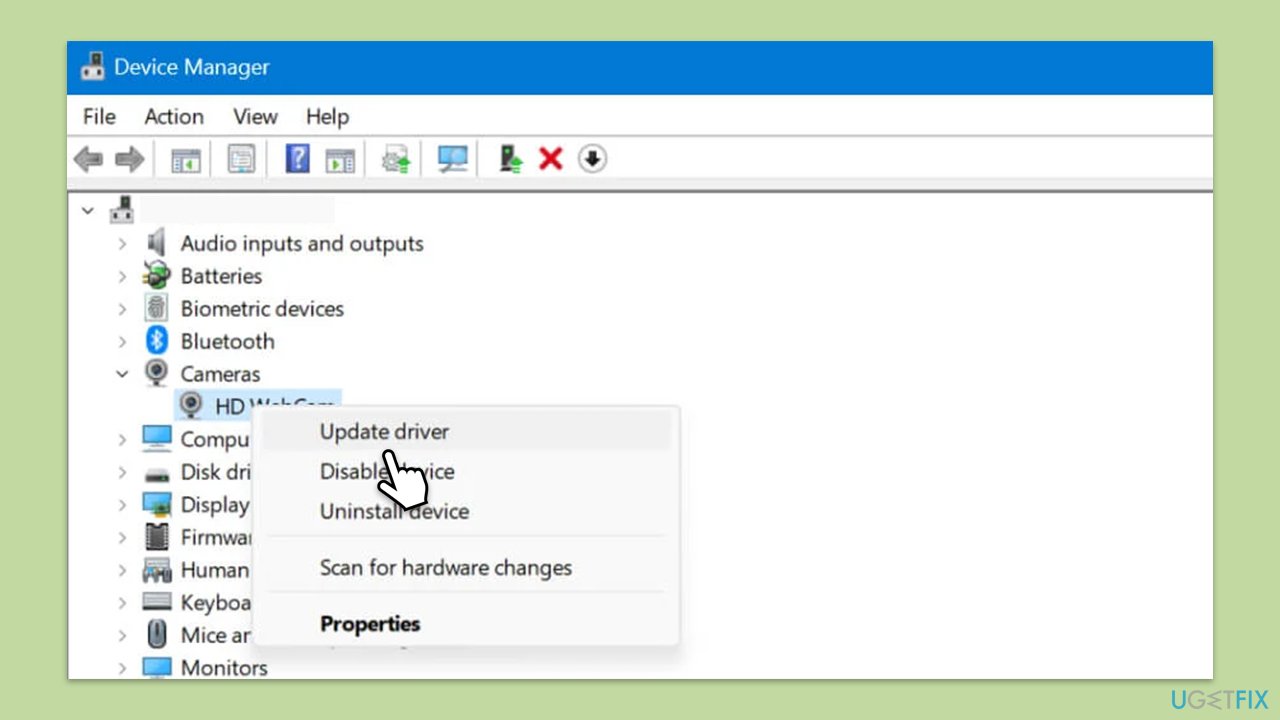
Fix 4. Update the camera driver
Outdated or corrupted drivers often lead to errors in hardware functionality, including the camera. Updating the driver can resolve compatibility issues.
- Right-click on Start and pick Device Manager.
- Locate your camera: expand Imaging devices, Cameras, or Camera, Sound, video and game controllers section (the location depends on your Windows version).
- Right-click on your camera and pick Update device.
- Select Search automatically for drivers and follow the prompts.
- Once done, reboot your PC.
- As an alternative, you can always rely on automatic driver update software, such as [rev id="DriverFix"].
Fix 5. Check for Windows updates
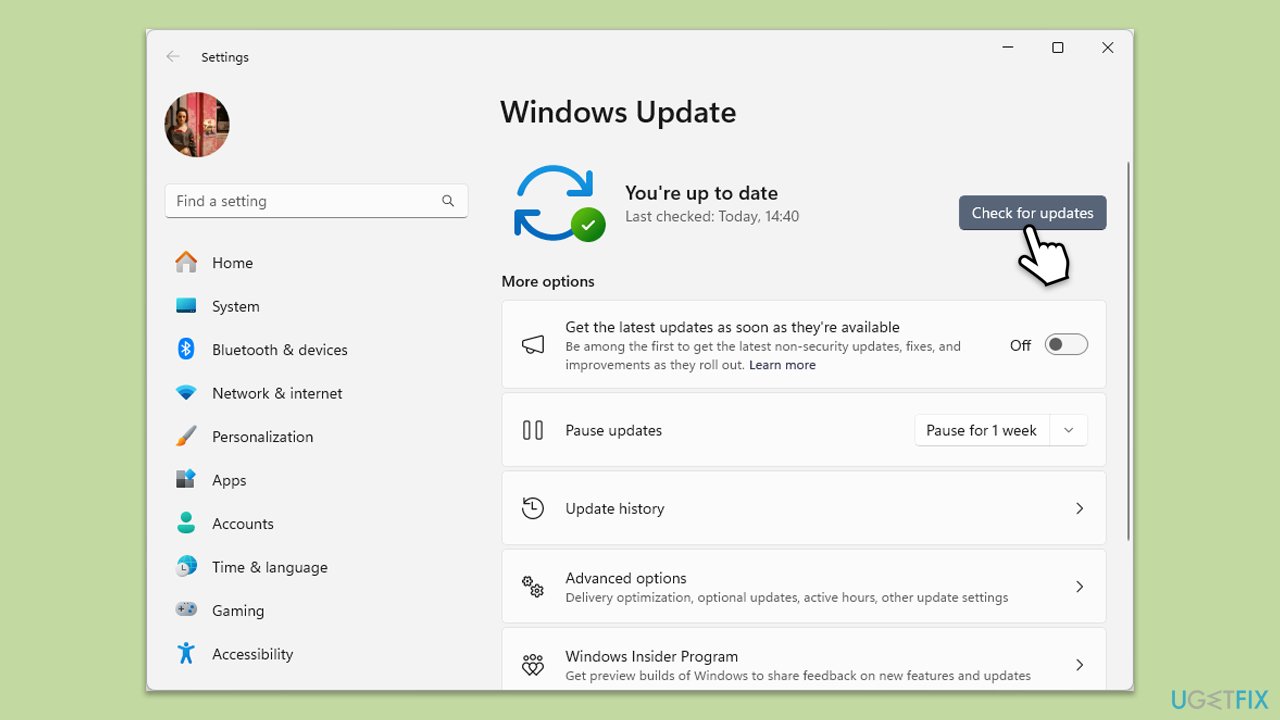
System updates often include bug fixes and driver updates necessary for hardware like cameras to work correctly.
- In Windows search, type Updates and hit Enter.
- In the new window, click Check for updates/Install all and wait till everything is installed.
- Make sure you also install any available optional updates.
- When done, restart your device to implement the changes.
Fix 6. Try Clean Boot
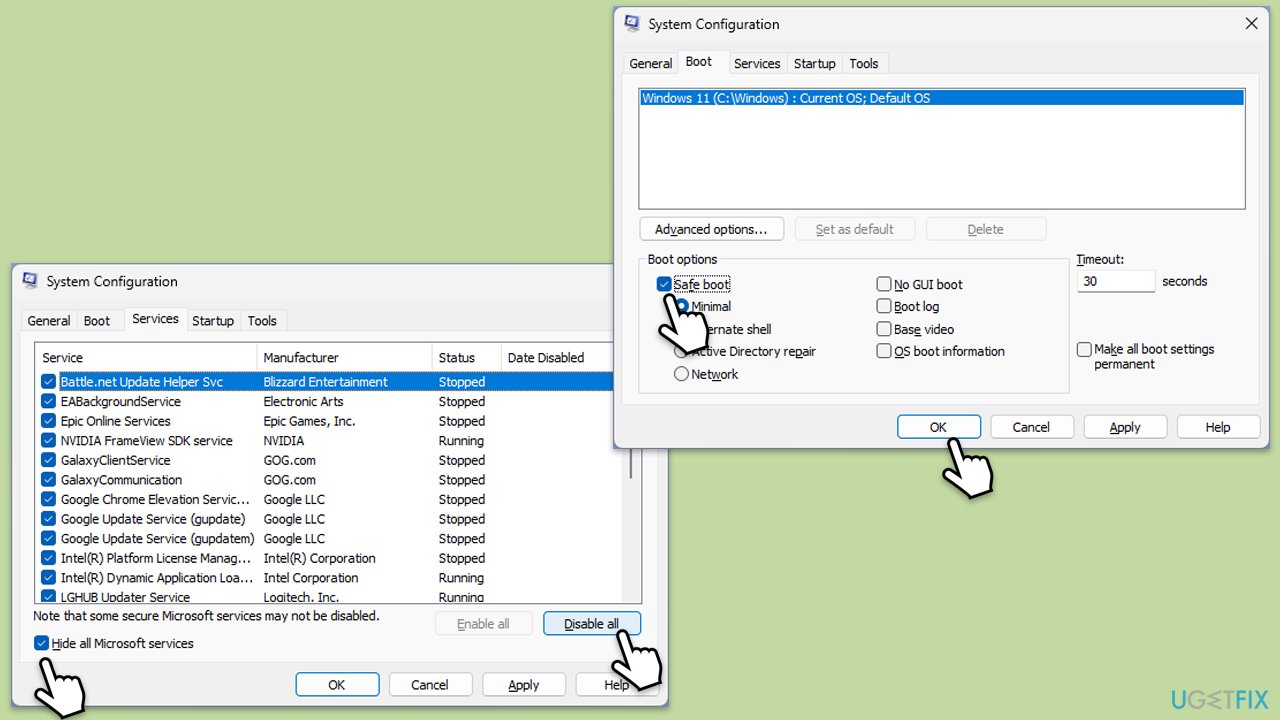
Sometimes, other applications might be using the camera in the background, causing a conflict.
- Type msconfig in Windows search and press Enter.
- Go to the Services tab.
- Mark Hide all Microsoft services and select Disable all.
- Go to the Startup tab and click Open Task Manager.
- In the Task Manager, right-click on each of the items and select Disable, then close the Task Manager.
- Go to the Boot tab, and tick Safe Boot.
- Click Apply and OK, and restart your PC.
- To find out which app(s) is causing conflicts, enable each of the processes (or you can do it in groups), restart, and see if the problem persists. Repeat until you find the faulty app, then either update or uninstall it.
Fix 7. Reinstall the camera driver
If the camera driver is corrupted, reinstalling it can restore proper functionality.
- Open Device Manager and locate your camera.
- Right-click on your camera and pick Properties.
- Go to the Driver tab and pick the Uninstall Device option at the bottom.
- When prompted, mark the Delete the driver software for this device checkbox and click Uninstall.
- Restart your computer.
- Reinstall the newest driver for your camera.
Fix 8. Reset your app or camera settings
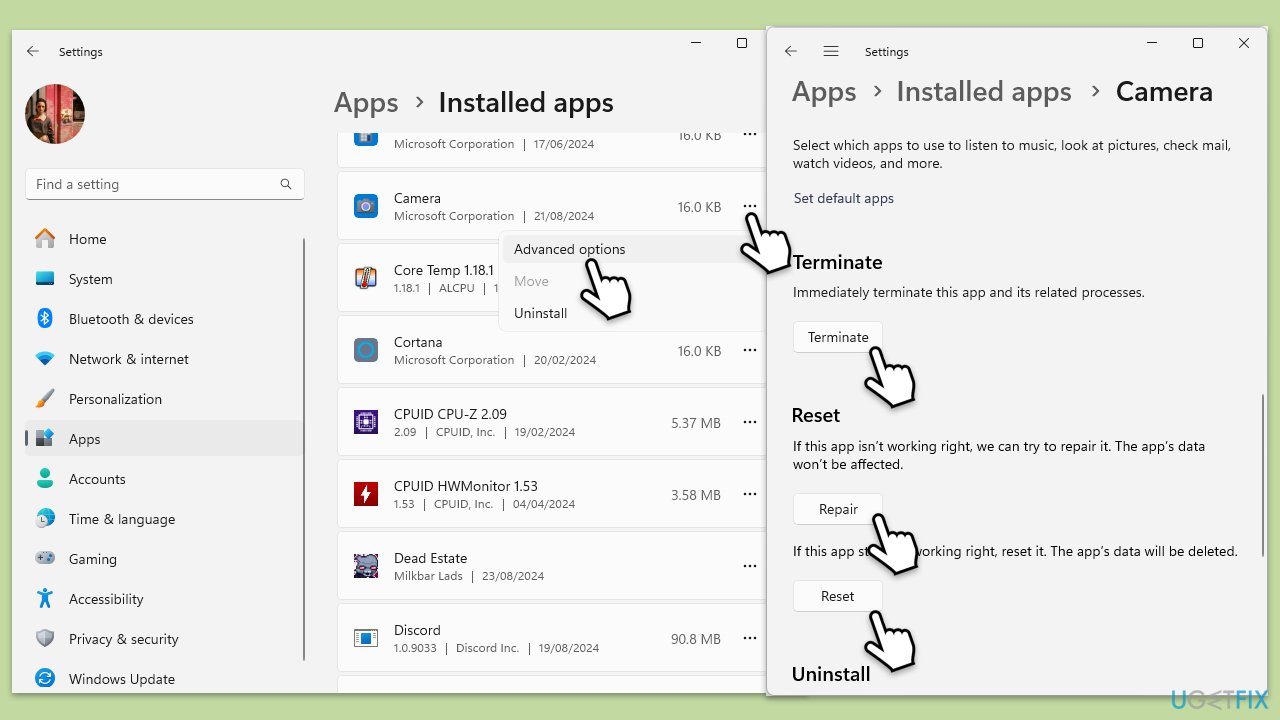
Incorrect settings within the app or Windows camera configuration can block access. Resetting these can fix the issue.
- Right-click on Start and pick Apps and Features/Installed apps.
- Scroll down to find the Camera app.
- Click on it once and pick Advanced options.
- Scroll down until you find the Terminate button - click it.
- Click Repair first.
- If that doesn't help, use Reset.
Bottom line
To fix the "No available camera input" error, check and adjust the camera privacy settings, ensure the camera is enabled in Device Manager, and update the camera driver. If the issue persists, consider temporarily disabling antivirus software or further troubleshooting hardware. If none of these solutions work, using repair options may be necessary.
Frequently asked questions
First, check if your camera is enabled in the Device Manager. If it's disabled, right-click on the camera device and select 'Enable device'.
You can update your camera drivers by going to Device Manager, right-clicking on the camera device, and selecting 'Update driver'. Follow the prompts to search automatically for updated driver software.
Yes, you can troubleshoot camera settings by going to Settings > Privacy > Camera and ensuring that camera access is allowed for your apps.




Report an issue
What's wrong with this guide? We review every report and update or remove content.
Report received — thank you. We'll review and fix it.
You need a free account to submit a report.
Be the first to comment