How to fix
OneNote error “You’re out of disk space”
on Windows
Resolve the OneNote "You're out of disk space" error on Windows 10 and 11 effortlessly. Our expert-tested solutions ensure your files are accessible again!

What causes How to fix OneNote error “You’re out of disk space” in Windows?
- Local or cloud storage drive is full
- Corrupted cache data
- Problems related to OneNote's sync process
- Misconfiguration of the system
- Outdated software
Repairs Windows system files, removes malware, and restores a clean OS state — without reinstalling.
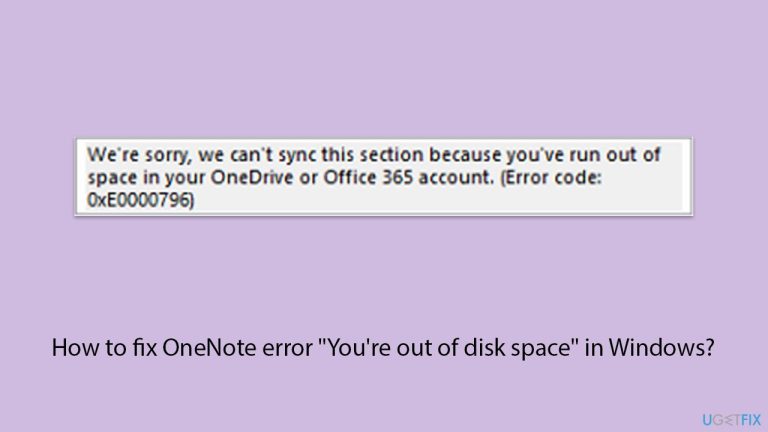
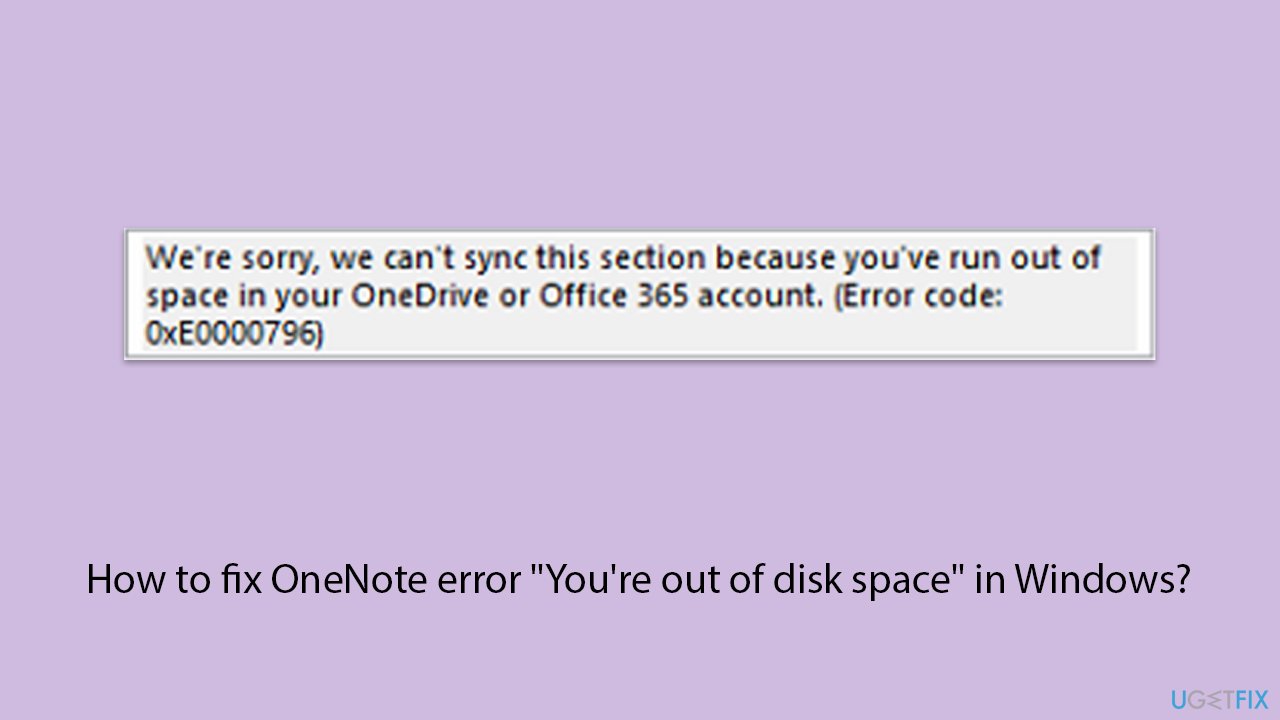
When I tried opening a shared OneNote workbook, I got the message "You're out of disk space. Try deleting files to make room." Why is this happening? I have plenty of room on my drive. I am also using Windows 10 Home if that helps.
OneNote is a great note-taking tool; however, the "You're out of disk space" error can be quite frustrating. It mostly occurs while trying to save, sync, or open notebooks and leaves the user unable to move further in their process. Often, this notification is confusing - it looks like there is free storage available on your device or through your cloud service.
Heavy users of OneNote will likely find this error frustrating, as it pops up at the most inopportune moment without any warnings at all. The "You're out of disk space" issue can occur whether one is working offline or online, and it often affects both local storage and notebooks stored in the cloud. These kinds of interruptions can slow down productivity and raise questions about data integrity.
They can also try to solve the issue by combining checks on the device's storage settings and addressing synchronization issues within OneNote. The other possible solutions might include removing unimportant files, having enough space in cloud storage, or repairing the application. The temporary files and cache data saved by OneNote also take up space and can show this error.
In some cases, the "You're out of disk space" error can occur due to underlying system problems or old software, causing OneNote to misread the available storage space. For example, your computer may wrongly report full storage due to system errors, or access by OneNote to cloud storage might be interrupted. It is important to find out and remove the root cause to permanently fix the problem.
These error messages usually mean that the local or cloud storage drive is full, there is corrupted cache data or problems related to OneNote's sync process. The You're out of disk space error can also be caused by misconfiguration of the system or outdated software. Those who experience chronic problems with their storage or errors in synchronizing can use [d1] repair to fix underlying issues in Windows.
Fix 1. Check the space you have in OneDrive
This solution works because OneNote relies on cloud storage for syncing and backing up your notebooks. If your OneDrive storage is full, OneNote will not be able to sync and save data, leading to the "You're out of disk space" error.
- Open OneDrive on your device.
- Check the available storage space.
- If your storage is full, consider upgrading to a larger plan or deleting unnecessary files.
- Once you have more space available, try syncing OneNote again.
Fix 2. Clear OneNote cache files
Cache files can accumulate over time, consuming storage space and causing issues with syncing and saving. Clearing the cache helps free up space and can resolve temporary glitches that lead to the error.
- Close OneNote completely.
- Navigate to the following location:
C:\Users\YourUsername\AppData\Local\Microsoft\OneNote\16.0\cache (replace with your username and OneNote version). - Delete all files in this folder.
- Restart OneNote and try syncing again.
Fix 3. Verify local storage on your device
This step addresses the possibility that your device's local storage is full, preventing OneNote from saving or syncing data. Checking the available space on your device helps ensure that there’s sufficient room for OneNote's operation.
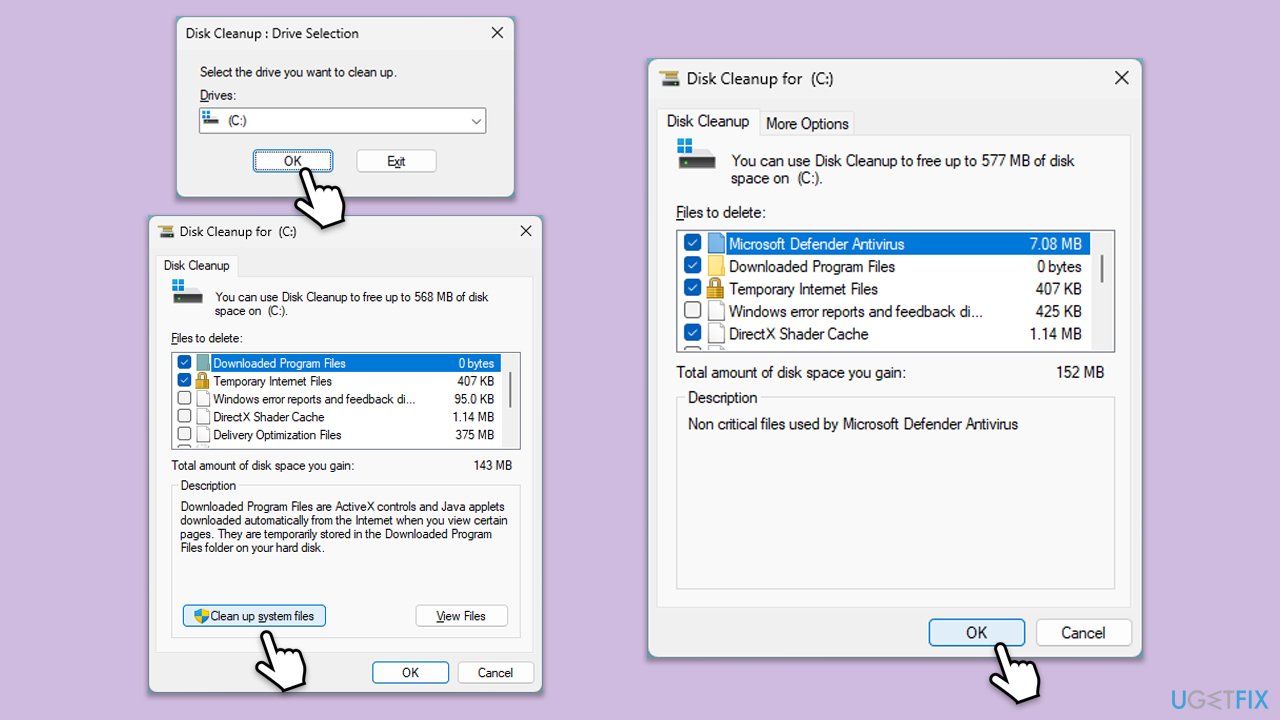
- Type Disk Cleanup in Windows search and hit Enter.
- If your Windows is installed on drive C, pick it from the list (it should be by default) and press OK.
- Click Clean up system files.
- Select your main disk again and click OK.
- Here, select the largest portions of the data used - these typically include Temporary Internet Files, Windows Update, Temporary Files, Recycle Bin, Delivery Optimization Files, and others.
- Click OK - the process should be finished shortly.
Fix 4. Check for Windows updates
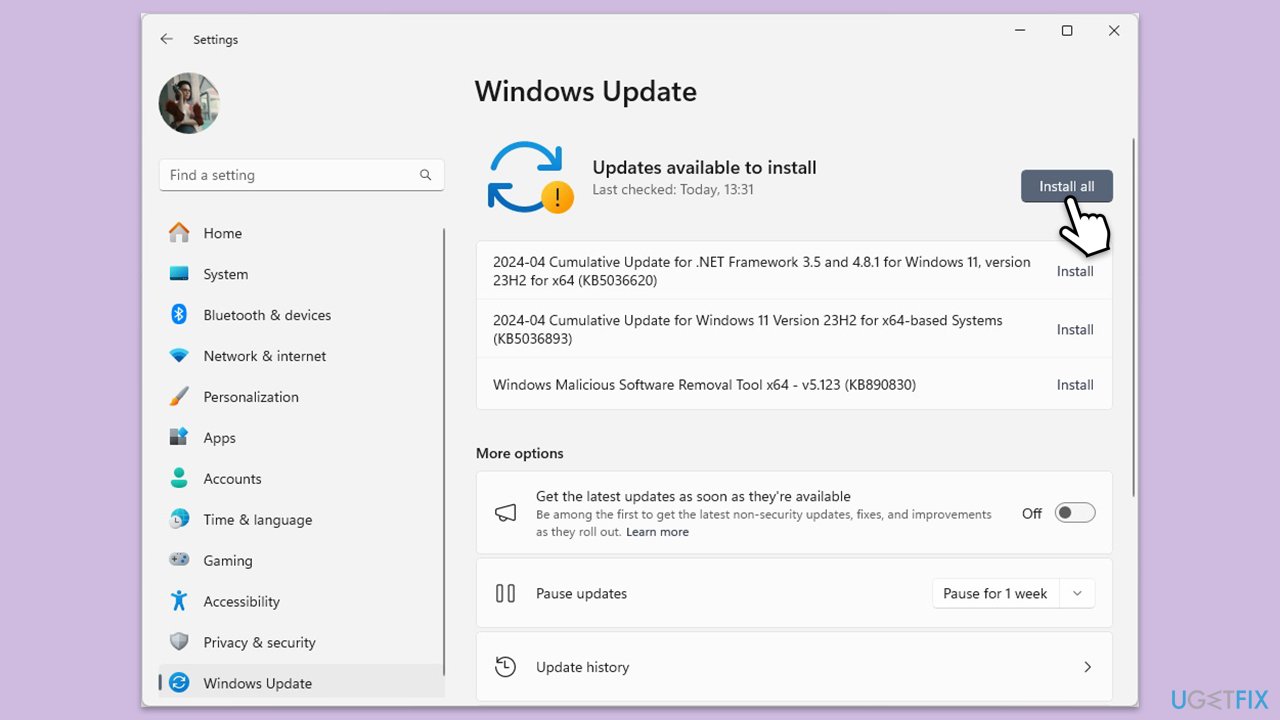
Sometimes, outdated system files or drivers can cause issues with applications, including OneNote. Installing the latest Windows updates can resolve compatibility issues that might trigger the "You're out of disk space" error.
- Type Updates in Windows search and press Enter.
- Here, click the Check for updates or Install all button.
- Wait till all the available updates are installed - make sure optional updates are installed as well.
- Once done, restart your system.
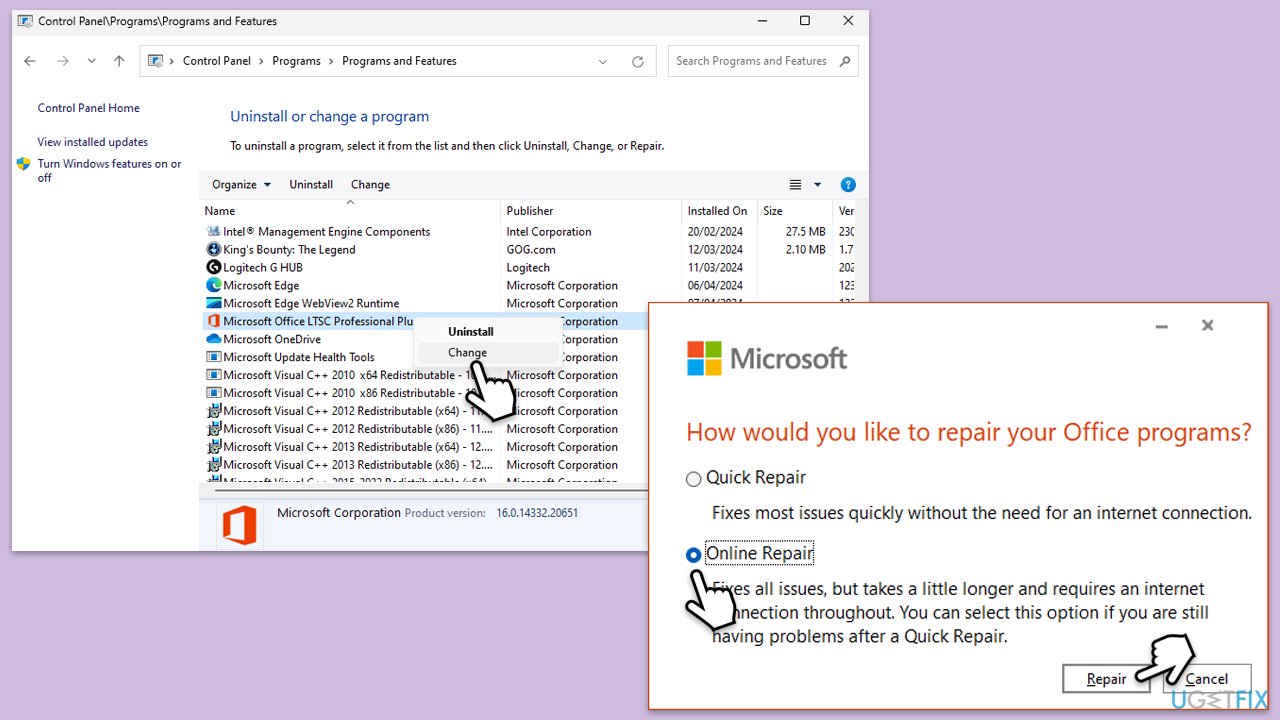
Fix 5. Repair or reinstall OneNote
Reset OneNote will delete all app data, which includes cache files and application settings. It sets OneNote to its default state. This can be helpful if no other solution has worked and the error of not having enough disk space still appears. Finally, reinstalling the app could be an option, too.
- Type Control Panel in Windows search and press Enter.
- Select Programs and Features.
- Find Microsoft Office in the list, right-click, and choose Online repair.
- Follow the on-screen instructions to complete the repair process.
- If repairing doesn’t work, uninstall OneNote, then reinstall it from the Microsoft Store.
- Restart your device and check if the error is resolved.
Fix 6. Repair corrupted files
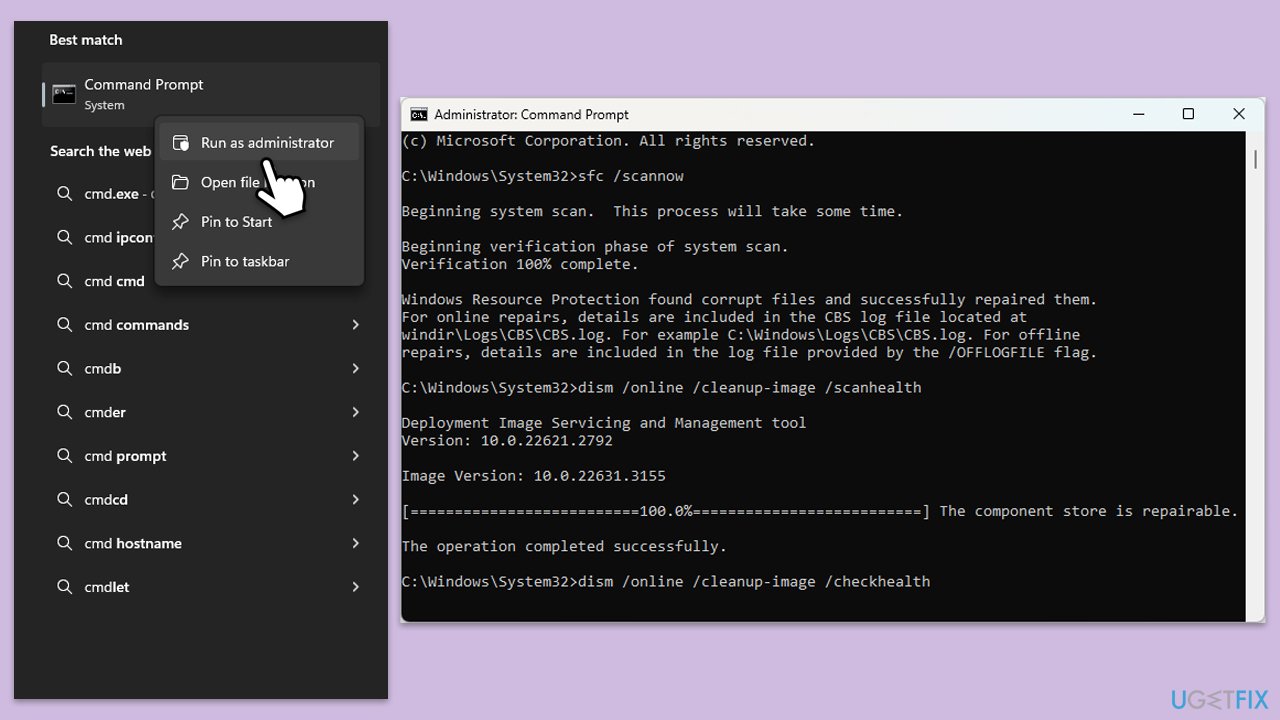
Running SFC and DISM scans can fix corrupted system files that might be causing issues with OneNote or your computer’s storage. These tools help to repair damaged files that could be preventing OneNote from functioning properly.
- Type cmd in Windows search.
- Right-click on Command Prompt and pick Run as administrator.
- The User Account Control window will ask whether you want to allow changes - click Yes.
- In the Command Prompt window, paste the following command and hit Enter:
sfc /scannow - Once the scan is complete, use the following commands and press Enter after each:
Dism /Online /Cleanup-Image /CheckHealth
Dism /Online /Cleanup-Image /ScanHealth
Dism /Online /Cleanup-Image /RestoreHealth - (Note: if you get an error executing this last command, add /Source:C:\RepairSource\Windows /LimitAccess to it and try again).
- Restart your computer.
Bottom line
To fix the OneNote error, try removing unimportant files, ensuring enough space in cloud storage, and repairing the application. Additionally, check your device's storage settings and address any synchronization issues within OneNote. If none of these solutions work, consider investigating underlying system problems.
Frequently asked questions
First, check your available disk space by going to Settings > System > Storage. If your disk is nearly full, consider deleting unnecessary files or using a disk cleanup tool to free up space.
Yes, clearing the OneNote cache can help resolve the error; you can do this by navigating to the OneNote cache folder and deleting the contents. Make sure to close OneNote before performing this action.
To prevent this error, regularly manage your disk space by uninstalling unused applications and regularly backing up and deleting old notes. Additionally, consider upgrading your storage if needed.




Report an issue
What's wrong with this guide? We review every report and update or remove content.
Report received — thank you. We'll review and fix it.
You need a free account to submit a report.
Be the first to comment