How to fix
Facebook Messenger always opening Microsoft Store
on Windows
Resolve the issue of Facebook Messenger opening the Microsoft Store on Windows 10 and 11. Quick fixes and expert-tested solutions await you!

![[Fix] Facebook Messenger always opening Microsoft Store](https://ugetfix.com/wp-content/uploads/articles/askit/fix-facebook-messenger-always-opening-microsoft-store_en-768x432.jpg)
What causes [Fix] Facebook Messenger always opening Microsoft Store?
- Corrupted app files
- Outdated versions of the app
- Outdated versions of Windows
- Problems with Microsoft Store
- Issues with app registration on Windows
Repairs Windows system files, removes malware, and restores a clean OS state — without reinstalling.
I used Facebook Messenger for Windows from the Microsoft Store, but suddenly it stopped working. Now, opening the app just redirects me to its Microsoft Store page. It shows as installed, but clicking "Open" repeats the cycle. Strangely, this only happens with Facebook Messenger.
If you are experiencing problems with Facebook Messenger, where it always opens Microsoft Store instead, know that you are not alone. Many users have complained about the problem where clicking on the Messenger app takes them directly to the Microsoft Store rather than opening the app or the Messenger interface. The most inconvenient thing, especially for those whose communication depends on the app.
Causes
Messenger always opening up Microsoft Store issue can stem from several factors, including corrupted app files, outdated versions of the app or Windows, problems with Microsoft Store itself, or issues with app registration on Windows. These factors can prevent the Messenger app from launching properly, redirecting users to the Store instead.
Troubleshooting suggestions
- Clear store cache. Sometimes, Microsoft Store cache gets corrupted, preventing apps from working as expected. Clearing the cache can resolve this issue, allowing Messenger to open correctly.
- Install updates. Ensuring that both Windows and Messenger are up to date is crucial. Outdated versions can cause compatibility issues, leading to this behavior.
- Re-register apps. Re-registering all Windows apps can fix registration issues that might prevent Messenger from functioning. This involves reactivating all apps in Windows, including Messenger.
- Reinstall Microsoft Store and Messenger. If none of the above steps work, reinstalling both the Microsoft Store and Messenger app may be necessary. This helps ensure that the apps are correctly installed and not corrupted.
We will provide numerous solutions below, although it is also worth checking out a utility like [d1] repair, which can automatically fix underlying problems with Windows, potentially fixing Microsoft Store opening instead of Facebook Messenger.
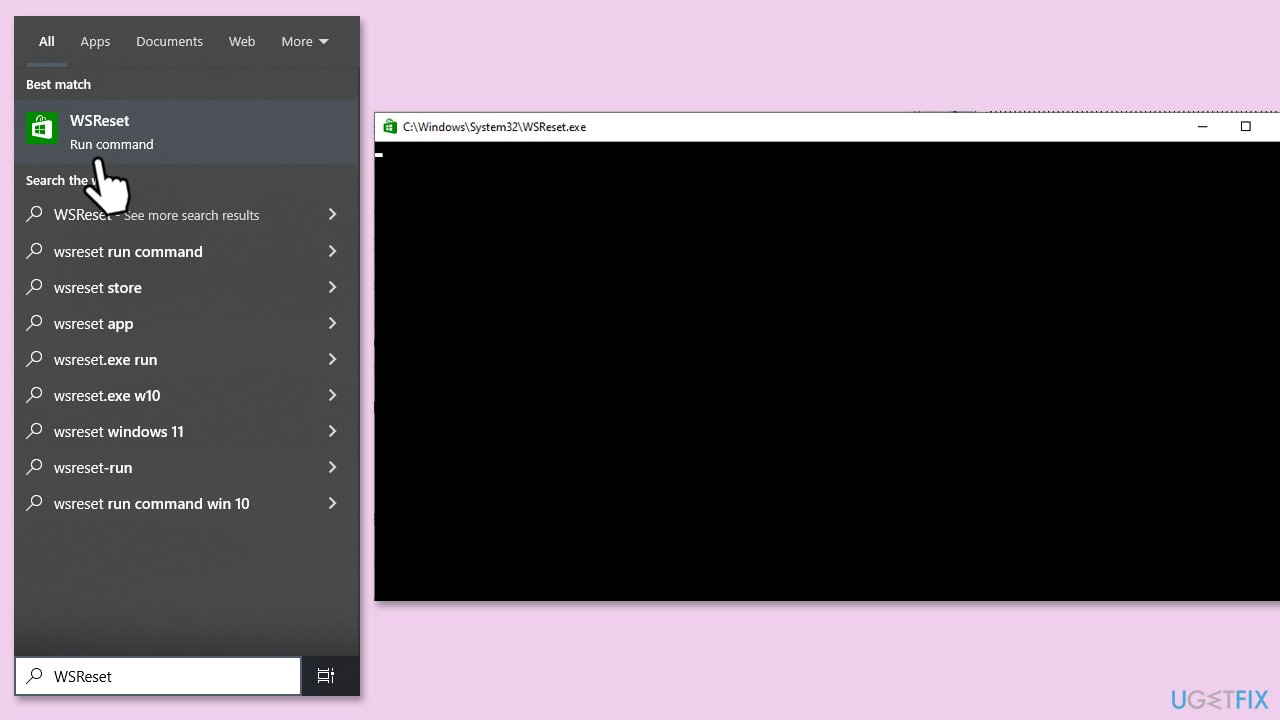
Fix 1. Clear Microsoft Store cache
Bugs in Microsoft Store cache could make Windows and some third-party apps to misbehave.
- Type WSReset.exe in the Windows search bar and hit Enter.
- Wait for a black pop-up window to show up – do not close it.
- After this window closes, the Windows Store will reopen.
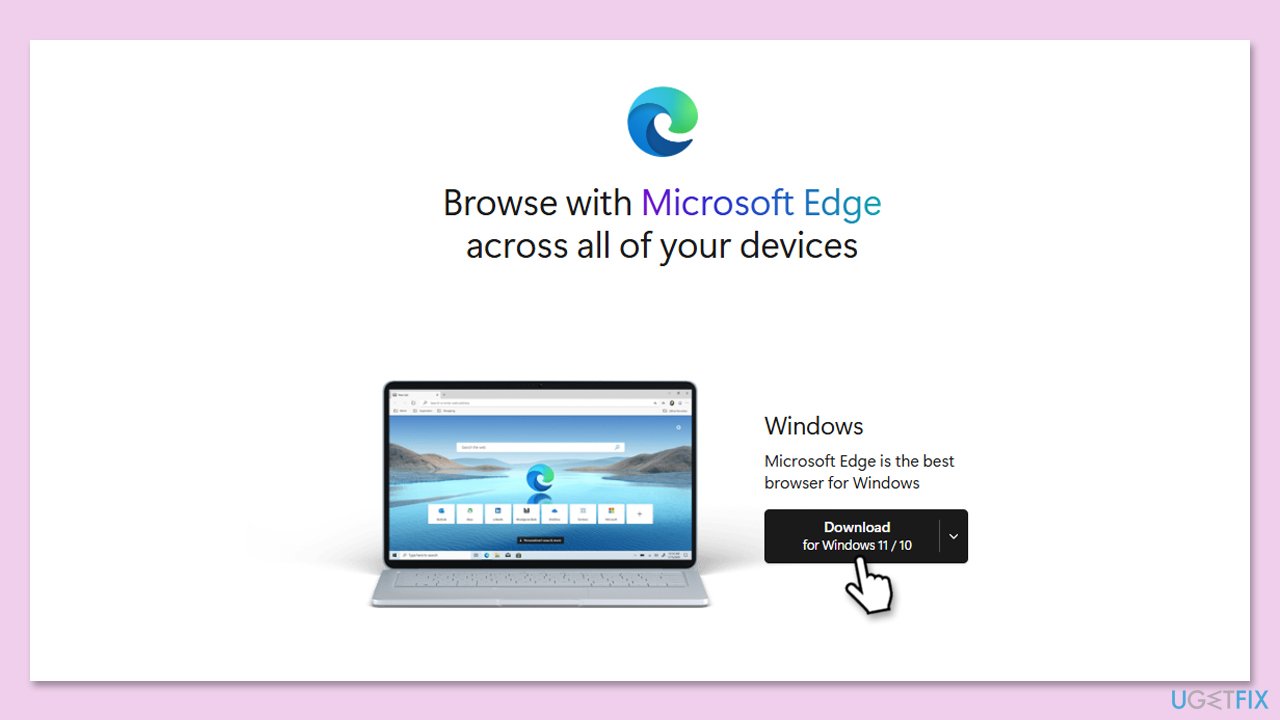
Fix 2. Ensure Microsoft Edge is installed
Those who have previously uninstalled Microsoft Edge from their systems might face the issue. To resolve it, download and install the browser from the official Microsoft Store.
- Open a browser of your choice.
- Navigate to the official Microsoft site for Edge.
- Download and install Microsoft Edge for your platform.
- Once installed, restart your computer.
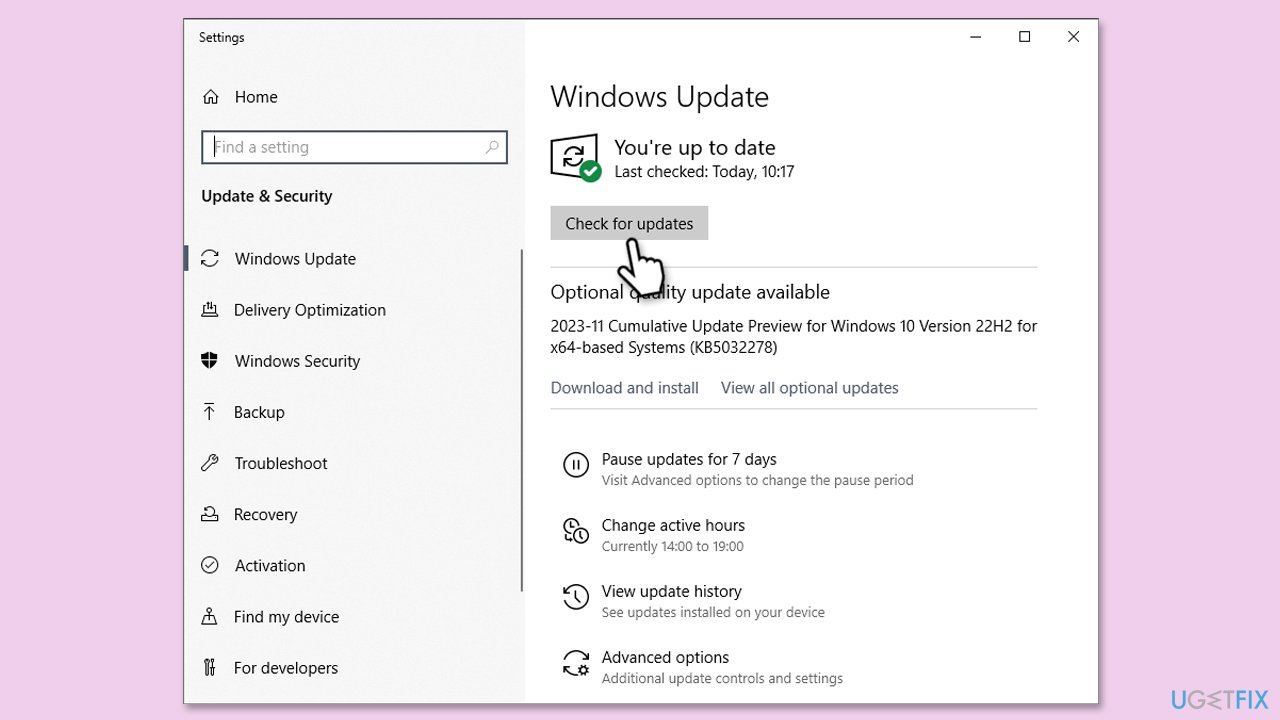
Fix 3. Install all Windows updates
Ensure that your system is fully updated, as this can iron out bugs that could affect third-party ads.
- Type Updates in Windows search and press Enter.
- Here, click Check for updates or Install updates (if available).
- Wait till Windows downloads and installs all the necessary files.
- If optional updates are available, install them as well.
- Reboot your system to implement the changes.
Fix 4. Re-register all Store apps
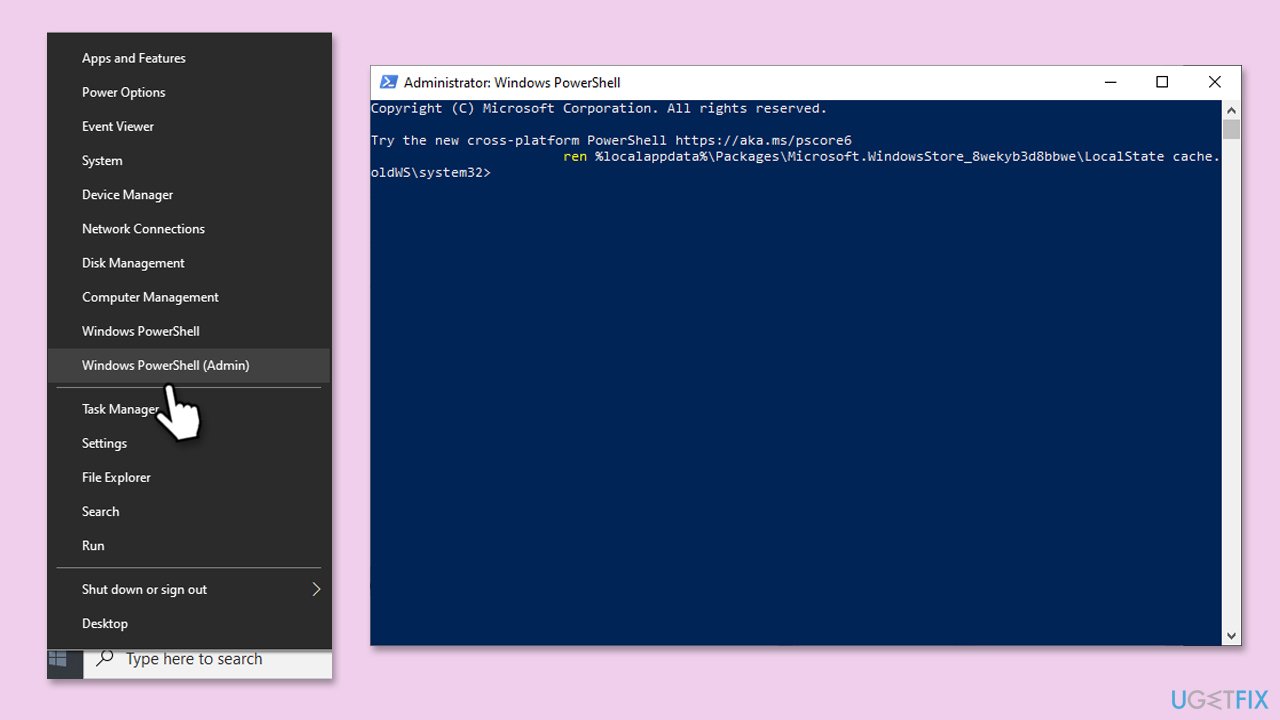
- Type PowerShell in Windows search.
- Right-click on PowerShell and select Run as administrator.
- When UAC shows up, click Yes.
- Type in the following and press Enter:
ren %localappdata%\Packages\Microsoft.WindowsStore_8wekyb3d8bbwe\LocalState cache.old - Then type the following and press Enter:
powershell -ExecutionPolicy Unrestricted
Get-AppXPackage -AllUsers | Foreach {Add-AppxPackage -DisableDevelopmentMode -Register "$($_.InstallLocation)\AppXManifest.xml"} - Restart your system.
Fix 5. Reset Facebook Messenger
Before reinstalling the app, try resetting it instead.
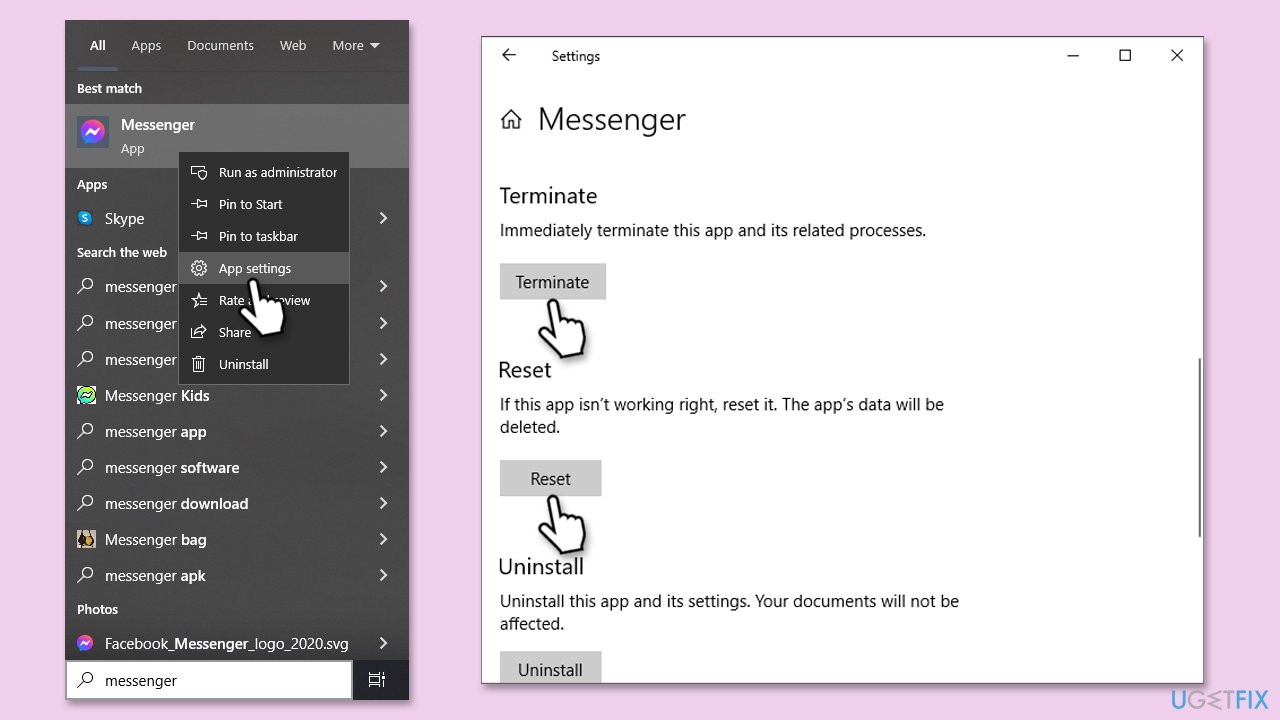
- Type Messenger in Windows search.
- Right-click on Facebook Messenger and select App settings.
- Scroll down and click Terminate.
- Finally, click Reset.
- Restart your computer and check if the app works fine again.
Fix 6. Reinstall Messenger
- Right-click on Start and pick Apps and Features or Installed apps.
- Scroll down to find Facebook Messenger on the list.
- Select it or click three dots and click Uninstall.
- Confirm any prompts and finish the uninstallation process.
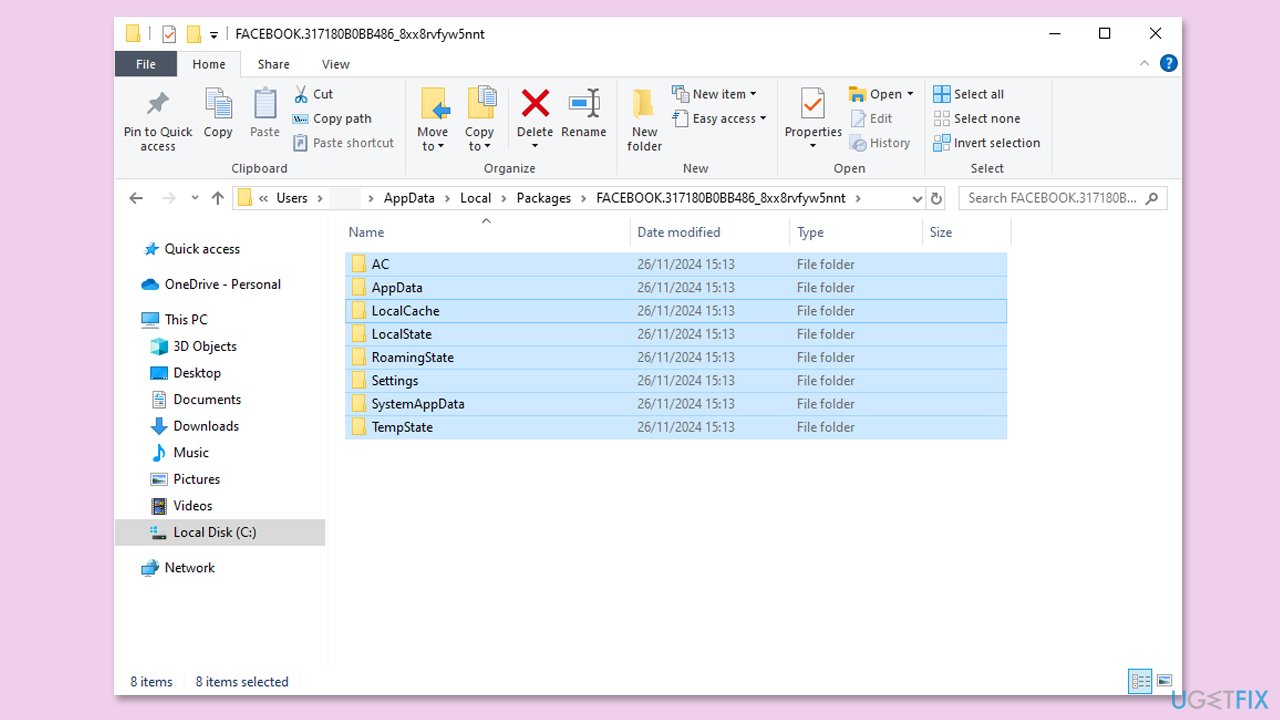
- Press Win + E to open File Explorer and navigate to the following location:
C:\Users\USERNAME\AppData\Local\Packages - Find the following folder from the list:
FACEBOOK.317180B0BB486_8xx8rvfyw5nnt - Access it and delete all contents by pressing Ctrl + A and then Shift + Delete.
- Restart your system and reinstall Facebook Messenger app.
Fix 7. Reinstall Microsoft Store
Since you can't uninstall Microsoft Store just like any other app, you can do it through PowerShell commands instead.
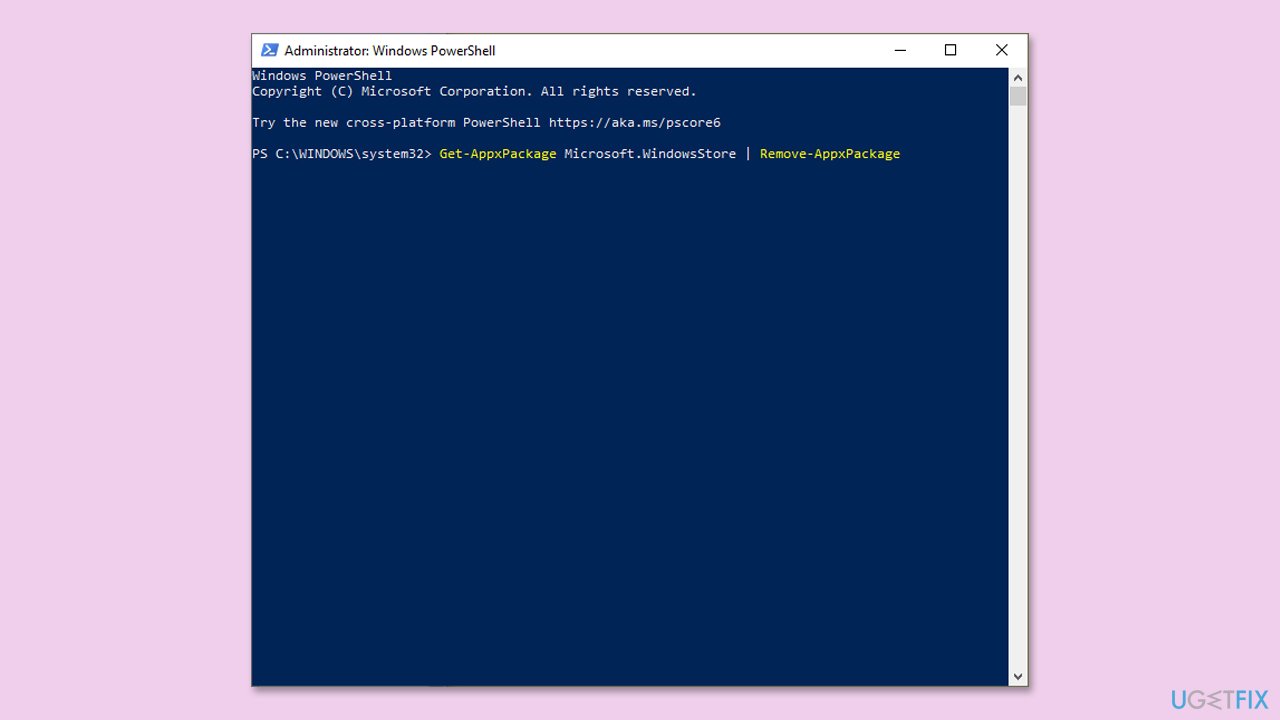
- Open PowerShell as administrator (explained in Fix 3).
- Type the following command and press Enter:
Get-AppxPackage WindowsStore | Remove-AppxPackage - Then use the following command to reinstall the Store:
Get-AppxPackage -allusers WindowsStore | Foreach {Add-AppxPackage -DisableDevelopmentMode -Register "$($_.InstallLocation)\AppXManifest.xml"} - Restart your computer.
Bottom line
To resolve the issue of Facebook Messenger always opening the Microsoft Store, you can try clearing the Microsoft Store cache, ensuring both Windows and Messenger are updated, re-registering all Windows apps, or reinstalling both the Microsoft Store and Messenger app. If none of these solutions work, consider using a utility like repair to automatically fix underlying problems with Windows.
Frequently asked questions
This issue may occur due to a corrupted app installation or system settings that prioritize the Microsoft Store version of Messenger. Try resetting the app or reinstalling it to resolve the problem.
You can disable the app's automatic redirection by checking your default app settings and ensuring that the correct version of Messenger is set as default. Additionally, clearing the app cache might help.
First, ensure that your Windows 10 is updated, then try repairing or resetting the Messenger app through the Settings menu to fix any underlying issues.




Report an issue
What's wrong with this guide? We review every report and update or remove content.
Report received — thank you. We'll review and fix it.
You need a free account to submit a report.
Be the first to comment