How to fix
“We didn’t get any response from the device” Bluetooth error
on Windows
Resolve the "We didn't get any response from the device" Bluetooth error in Windows 10 or 11 quickly and effectively. Expert-tested solutions await!


What causes How to fix “We didn’t get any response from the device” Bluetooth error in Windows?
- Interference from other wireless devices or networks
- Outdated or corrupted Bluetooth drivers
- Compatibility issues with Bluetooth adapter
- Disabled Bluetooth services or Airplane Mode
- Physical hardware problems with the Bluetooth adapter or USB port
Repairs Windows system files, removes malware, and restores a clean OS state — without reinstalling.
So recently I purchased new Logitech Bluetooth headphones and I can't get them to work. When trying to connect them, I get an error message "We didn't get any response from the device. Try connecting again." Is there a way to fix this? I am using the latest version of Windows 11.
The "We didn't get any response from the device" error is one of the common problems that people experience while trying to pair or connect Bluetooth devices on Windows. It is an issue that prohibits the successful communication of a computer with the device and mostly frustrates users. It usually occurs due to software or hardware problems, and thus finding the root cause is necessary before trying to resolve the issue.
This error could mainly be brought about by interference from other wireless devices or networks that disturb the Bluetooth signal. Other common causes are outdated or corrupted Bluetooth drivers, which may not be able to communicate well with the device.
Additionally, some Bluetooth devices may not fully support the version of the Bluetooth adapter used by your Windows system, resulting in compatibility issues. System-level settings, such as Airplane Mode or disabled Bluetooth services, can also block Bluetooth connectivity. Lastly, physical hardware problems with either the Bluetooth adapter or the USB port could also contribute to the "We didn't get any response from the device" error.
To fix the "We didn't get any response from the device" error, some troubleshooting methods are required. Whereas the basic ones are restarting the device or making sure Bluetooth is enabled, advanced ones include updating Bluetooth drivers, checking for Windows updates, or even resetting the Bluetooth stack.
If the problem remains, the steps below will be manually shown to you for further solution finding. If you want a more automated method, you can use [d1] repair to try and find deeper system-level problems that may be the cause of this error.

Fix 1. Test the device on another system
Testing helps identify if the issue is with the device or your Windows setup. If it works elsewhere, the problem likely lies within your system.
- Connect your Bluetooth device to another computer or phone.
- Check if it pairs and functions correctly.
- If it does, it means that the issue is not your headphones but rather Windows system.
Fix 2. Update your Bluetooth driver
Outdated or corrupted Bluetooth drivers can prevent your device from responding. Updating ensures compatibility and may resolve the "We didn't get any response from the device" error.
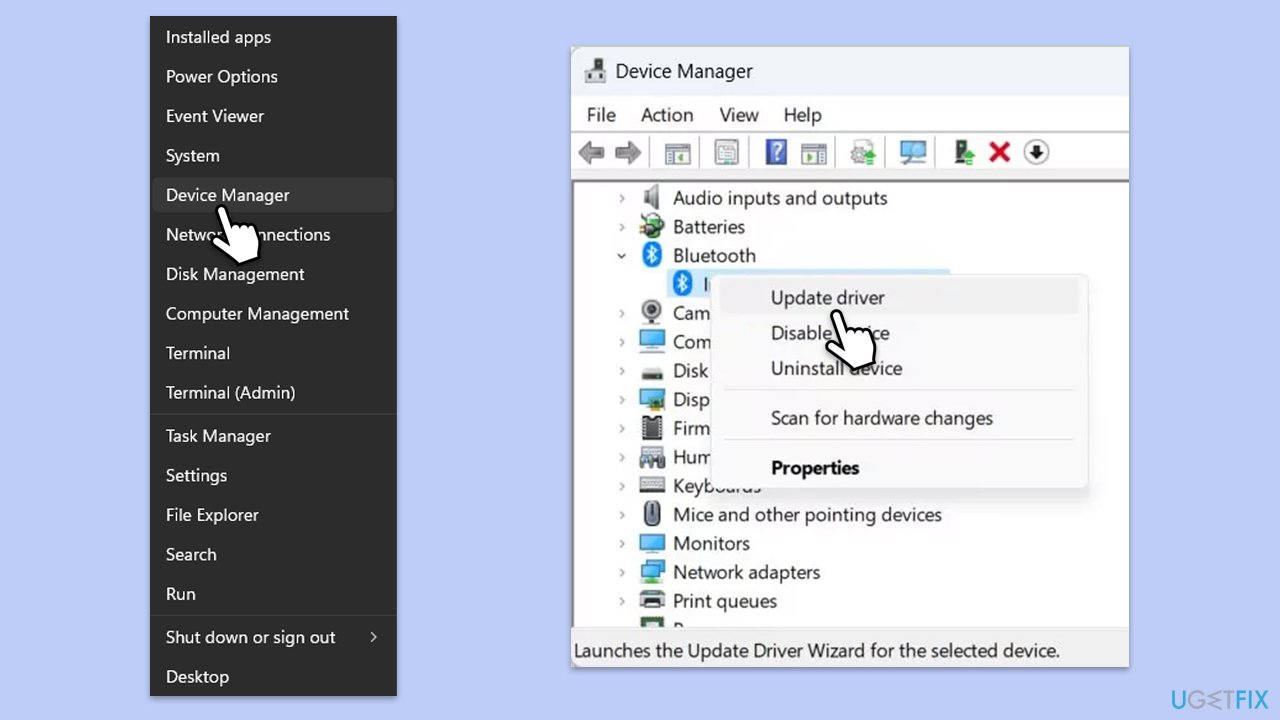
- Right-click on Start and select Device Manager.
- Look for Bluetooth in the list and expand it.
- Find your Bluetooth adapter, right-click it, and select Update driver.
- Select Search automatically for drivers and wait.
- Once the process is finished, restart your computer to implement the changes.
Fix 3. Re-pair the Bluetooth device
Refreshing the connection between the computer and the device can eliminate pairing issues.
- Right-click on Start and pick Settings.
- Navigate to Devices and select Bluetooth & other devices.
- Locate the problematic device, click on it, and select Remove device.
- Restart your computer, and then pair the device again.
Fix 4. Run Bluetooth troubleshooter
- Type Troubleshoot in Windows search and press Enter.
- Select Additional troubleshooters/Other troubleshooters, depending on your Windows version.
- Choose Bluetooth and click on Run the troubleshooter.
- Follow the on-screen prompts to allow the troubleshooter to diagnose and resolve any problems.

Fix 5. Reset the Bluetooth stack
Resetting Bluetooth configurations can clear persistent communication errors that other steps cannot resolve.
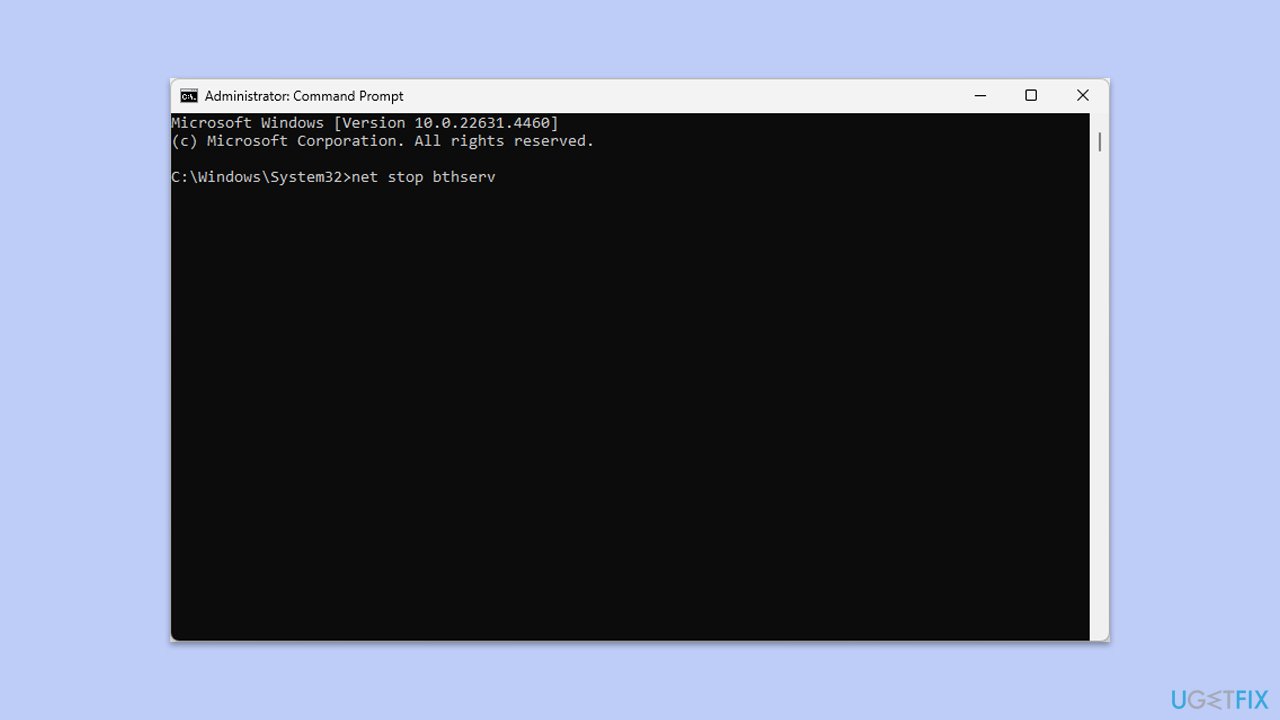
- Type cmd in Windows search.
- Right-click on Command Prompt and select Run as administrator.
- Type the following commands one at a time and press Enter after each:
- net stop bthserv
- net start bthserv
- Restart your computer after running the commands.
Fix 6. Restart Bluetooth support services
These Windows services are essential for Bluetooth functionality. Restarting them can refresh the system and resolve errors.
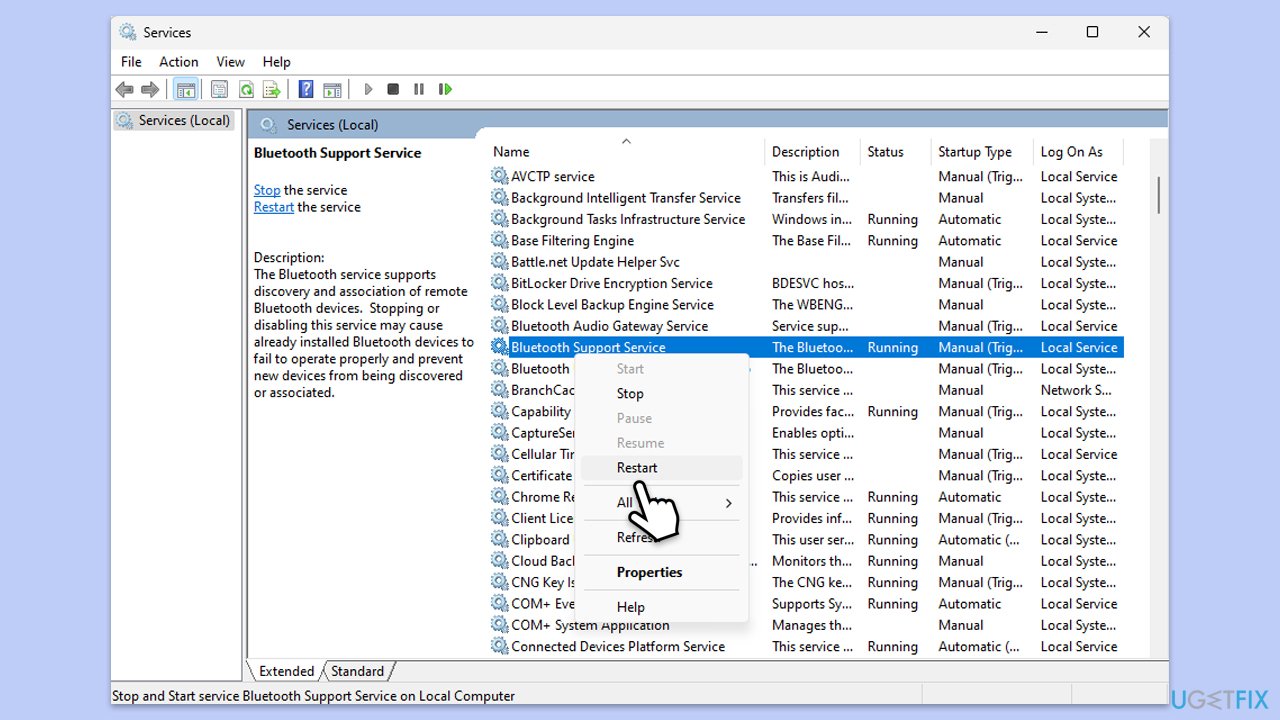
- Type Services in Windows search and press Enter.
- Locate Bluetooth Support Service from the list.
- Right-click on it, select Restart, and set its Startup type to Automatic.
- Check if the Bluetooth device responds after this step.
Bottom line
To fix the "We didn't get any response from the device" error, you can try basic troubleshooting methods like restarting the device and ensuring Bluetooth is enabled. For more advanced solutions, consider updating Bluetooth drivers, checking for Windows updates, or resetting the Bluetooth stack. If these steps do not resolve the issue, you may want to use a repair tool to identify deeper system-level problems.
Frequently asked questions
First, ensure that Bluetooth is enabled on both your Windows 10 device and the Bluetooth device you are trying to connect. You can do this by checking the Bluetooth settings in the Windows Action Center.
You can update your Bluetooth drivers by going to Device Manager, expanding the Bluetooth section, right-clicking on your Bluetooth adapter, and selecting 'Update driver' to search automatically for updated driver software.
Yes, resetting the Bluetooth settings can help; you can do this by navigating to Settings > Devices > Bluetooth & other devices, turning off Bluetooth, and then turning it back on after a few seconds.




Report an issue
What's wrong with this guide? We review every report and update or remove content.
Report received — thank you. We'll review and fix it.
You need a free account to submit a report.
Be the first to comment