How to fix
“The Computer restarted unexpectedly or encountered an unexpected error”
on Windows
Resolve the "Computer restarted unexpectedly" error in Windows 10 or 11 with expert-tested solutions for a smoother experience. Fixed in minutes!


What causes How to fix “The Computer restarted unexpectedly or encountered an unexpected error” in Windows?
- Corrupted installation files
- Power interruptions during setup
- Improperly formatted drives
- Changes to the system registry
- Errors within critical setup files
Repairs Windows system files, removes malware, and restores a clean OS state — without reinstalling.
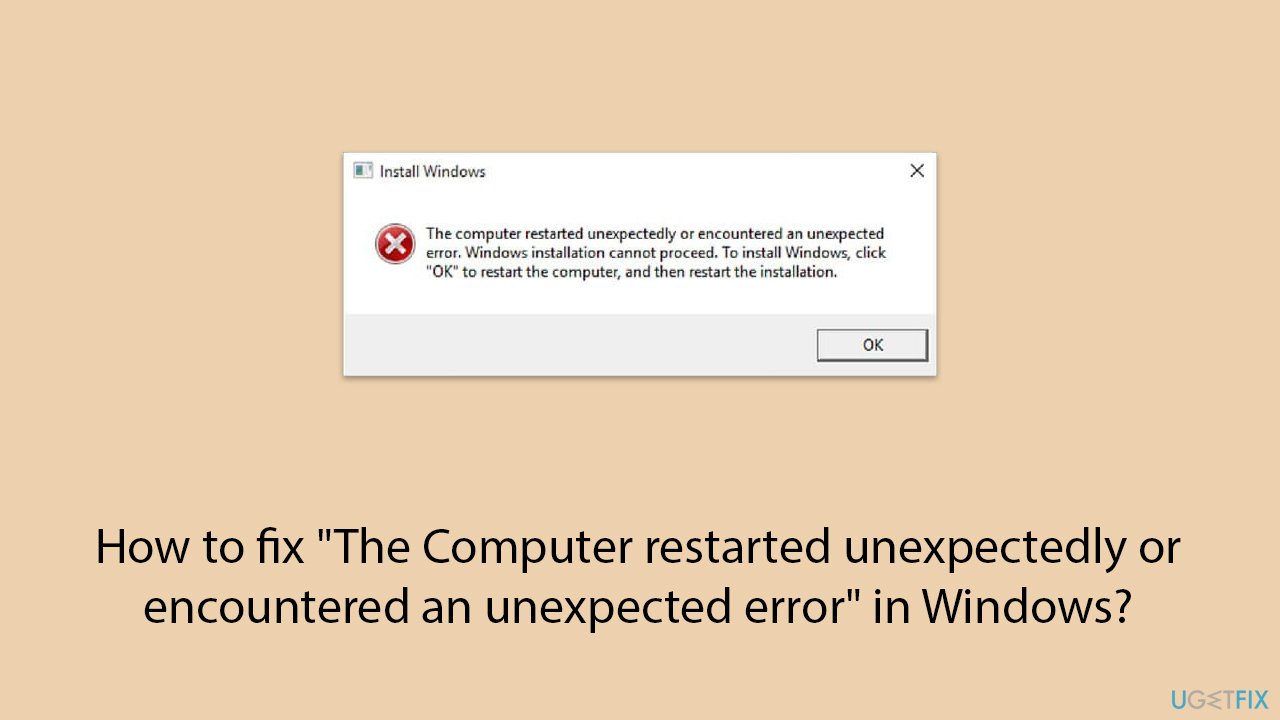
Why does my computer keep showing "The computer restarted unexpectedly or encountered an unexpected error" during installation, and how do I fix it? I have tried restarting many times, but it keeps looping to the same message. How can I resolve this?
"Computer restarted unexpectedly or encountered an unexpected error" message is an irritating message that usually pops up while installing or setting up Windows. Most of the time, the error interrupts the process, and your system ends up stuck in a loop where it continuously reboots or shows the same error. It may be encountered on any version of Windows, especially when one tries to install a fresh version of Windows or upgrades a previous version to a new one.
"Computer restarted unexpectedly or encountered an unexpected error" is commonly tied to issues within the setup process itself. These could include corrupted installation files, interruptions during the setup, or even incorrect configuration settings that the system fails to resolve on its own.
While it is not exclusive to any specific hardware or system configuration, the error usually indicates that Windows encountered a situation it couldn't automatically fix during installation.
The causes behind this error are varied, though they are generally related to the installation environment or the configuration of system files. Corrupt installation media, such as a damaged USB or ISO file, is a frequent culprit. Similarly, power interruptions or improperly formatted drives can disrupt the setup process, leading to this issue.
In some cases, changes to the system registry or errors within critical files required during setup may cause the system to restart repeatedly. These causes are often technical in nature and may not always provide clear indications of what went wrong, which makes resolving the problem a priority.
Fixing this issue typically involves addressing the underlying problems that interfere with the Windows installation or setup. This can include modifying system settings, ensuring the installation media is in good condition, or addressing registry errors that may be contributing to the problem. You will find detailed, step-by-step instructions to resolve this error in the next section of the article.
To automatically fix underlying Windows issues, consider using the [d1] PC repair tool, which can help streamline the repair process and ensure system stability.
Fix 1. Check the installation media
Faulty or corrupt installation media is one of the most common causes of this error. Ensuring the media is properly created can resolve setup interruptions.
- Insert the installation USB or DVD into another working computer.
- Verify the files on the media using File Explorer.
- Recreate the installation media using the Microsoft Media Creation Tool if needed.
- Insert the updated media into your computer and restart the installation.
Fix 2. Disconnect unnecessary peripherals
External devices can interfere with the installation process if they conflict with drivers or use excessive resources.
- Disconnect all non-essential devices such as printers, USB drives, and external hard drives.
- Restart the computer and attempt the installation again.
Fix 3. Modify the system registry
Incorrect registry entries during installation can trigger this error, so adjusting these settings may help resolve it.
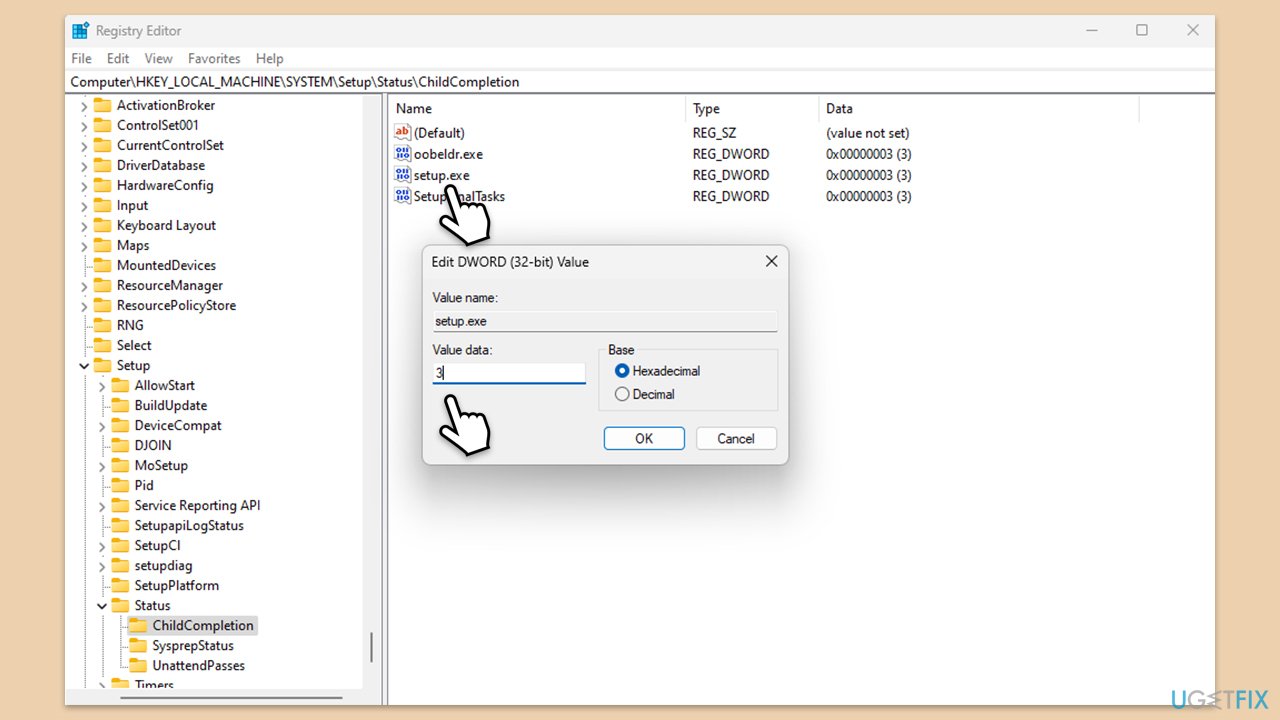
- When the error screen appears, press Shift + F10 to open the Command Prompt.
- Type regedit and press Enter to open the Registry Editor.
- Navigate to the following location:
HKEY_LOCAL_MACHINE\SYSTEM\Setup\Status\ChildCompletion - Double-click on setup.exe and set its value to 3.
- Close the Registry Editor and restart your computer.
Fix 4. Format the installation drive
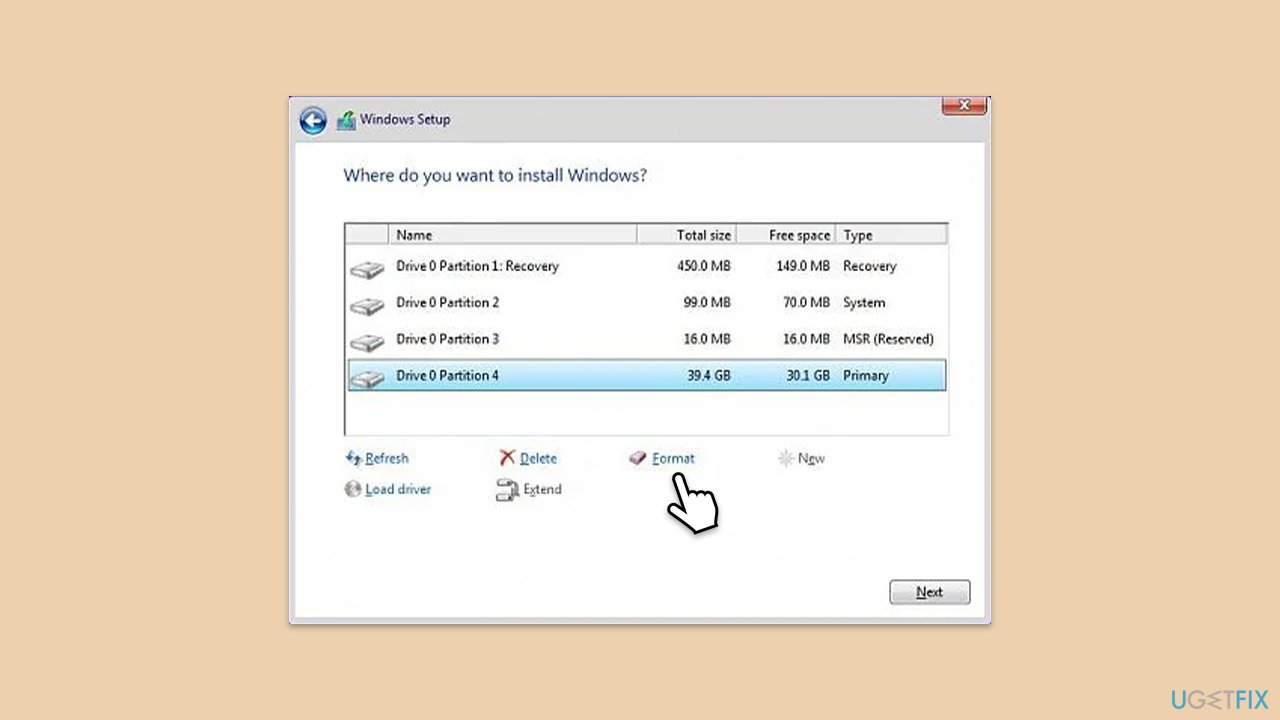
Formatting the drive ensures no corrupt files interfere with the installation process.
- Boot into the installation media and choose the Custom installation option.
- Select the target drive and click on Format.
- Proceed with the installation once formatting is complete.
Fix 5. Perform a clean installation
If previous installations failed or were interrupted, performing a clean installation can help bypass errors caused by leftover files.
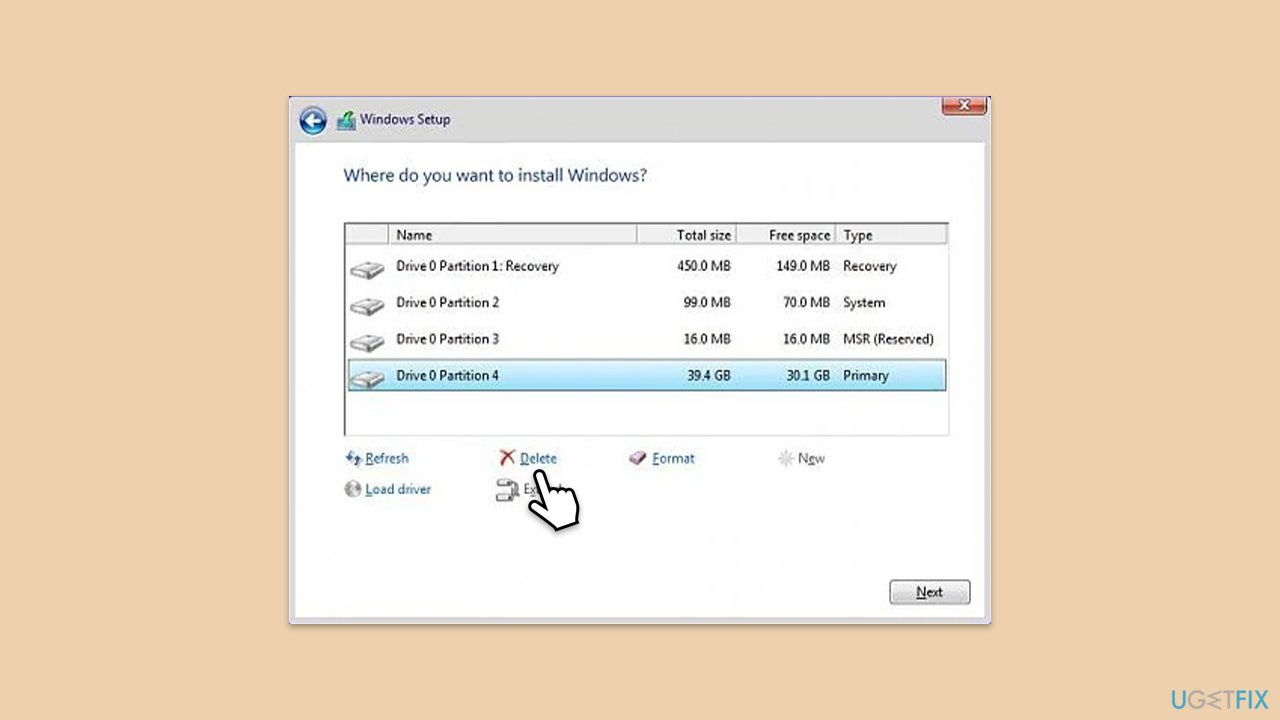
- Boot into the installation media and choose Install Now.
- When prompted, select Custom installation.
- Delete existing partitions and create a new one for the installation.
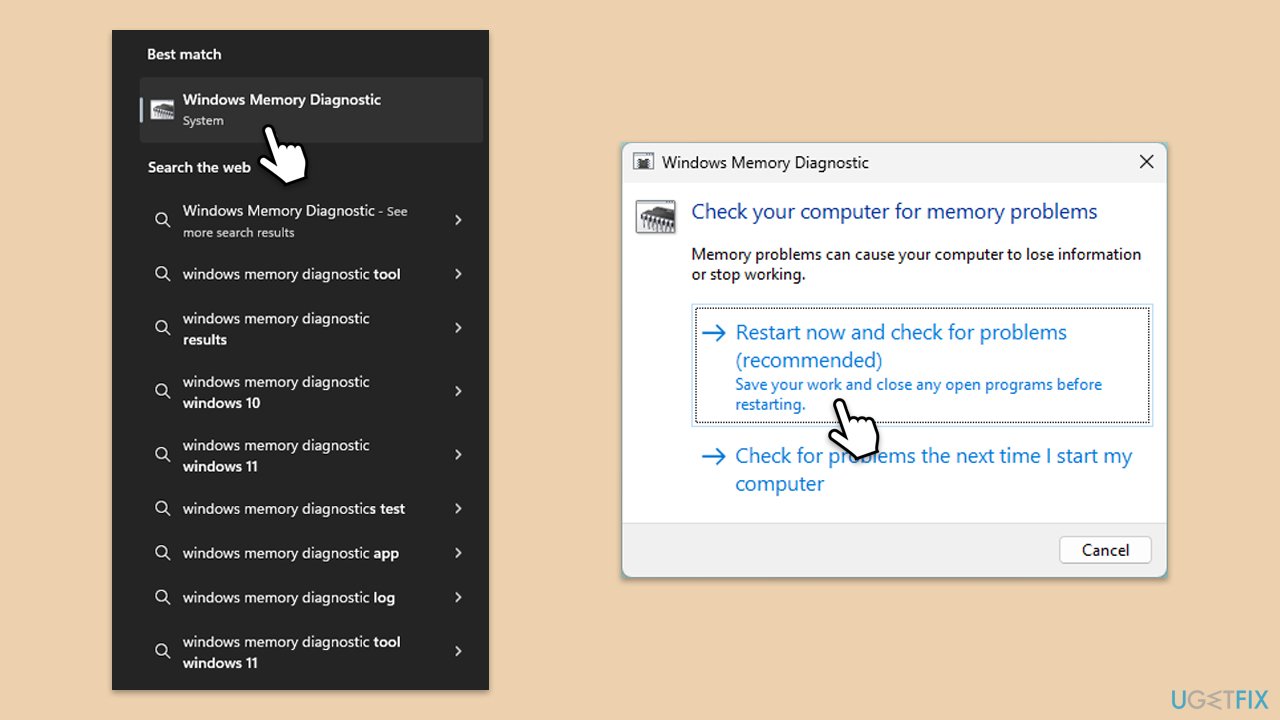
Fix 6. Run the Windows Memory Diagnostic tool
Faulty RAM can cause unexpected restarts during setup, so testing the memory for errors may help identify hardware issues.
- Type Windows Memory Diagnostic in Windows search and press Enter.
- Select Windows Memory Diagnostics result.
- Click Restart now and check for problems (recommended) (note that your PC will restart immediately).The
- A memory test will run during startup and display any detected errors - this might take a while.
- Replace or repair faulty RAM module(s) if errors are found.
Fix 7. Update your BIOS or UEFI firmware
Outdated firmware can cause compatibility issues during Windows setup. Updating it ensures the system runs smoothly with the installation process.
- Check your motherboard manufacturer's website for the latest firmware.
- Download the firmware update file and follow the provided instructions.
- Restart your computer and retry the installation.

Bottom line
To resolve the error, ensure that the installation media is in good condition, modify system settings, and address any registry errors. If these steps do not work, further troubleshooting may be necessary.
Frequently asked questions
You should boot your PC into the Windows Recovery Environment and select 'Repair your computer' to access troubleshooting options. From there, you can attempt to restore your system or repair the startup process.
Make sure your system meets the minimum requirements for Windows 11 and try performing the upgrade in Safe Mode. If the error persists, consider using the Windows Update Troubleshooter to resolve any underlying issues.
Regularly update your Windows 10 or Windows 11 system and drivers, and ensure that your hardware components are functioning properly to prevent future errors.




Report an issue
What's wrong with this guide? We review every report and update or remove content.
Report received — thank you. We'll review and fix it.
You need a free account to submit a report.
Be the first to comment