How to fix
Mic not working in Phone Link
on Windows
Resolve mic issues in Phone Link on Windows 10/11 effortlessly. Quick fixes and expert-tested solutions ensure hassle-free communication. Fixed in minutes!

What causes How to fix mic not working in Phone Link on Windows?
- Misconfigured microphone permissions for Phone Link
- Outdated audio drivers
- Incompatibilities between Phone Link and certain headsets
- Background apps using the microphone
- Incorrect input device selected in sound settings
Repairs Windows system files, removes malware, and restores a clean OS state — without reinstalling.
I use Windows 10 Home and wanted to try Phone Link. I can hear the calls and SMS are going through, however, mic is not working when I'm trying to talk. It has no problem working in other apps such as Discord, it's the Phone Link.
The microphone not working in Phone Link on Windows is a relatively common issue reported by users attempting to use the app for calls or other audio-related features. Many users describe experiencing this problem despite having functional microphones for other apps or purposes.
This issue often manifests as the microphone either not being detected by Phone Link or failing to transmit audio during calls. While the exact causes can vary, the issue commonly points to misconfigured settings or software conflicts.
Users on the various forums frequently mention problems with microphone permissions, where Phone Link may lack access to the microphone due to Windows privacy settings. Others report issues with outdated drivers or incompatibilities between Phone Link and certain Bluetooth or wired headsets. A few have highlighted problems with the app’s integration with Android devices, where the phone’s microphone might take priority or fail to sync correctly with Phone Link.
Additionally, some users mention that background apps or services may interfere with the microphone’s functionality. For example, another application actively using the microphone might block Phone Link from accessing it. Misconfigured sound settings in Windows, such as the wrong input device being selected, are also often cited as a potential cause.
Resolving these issues typically involves steps such as ensuring Phone Link has the necessary permissions, updating or reinstalling audio drivers, and selecting the correct input device in the system sound settings. For users encountering persistent microphone issues in Phone Link, using [d1] repair could help identify and resolve deeper system-level problems, restoring full functionality to the application.
Fix 1. Check microphone permissions for Phone Link
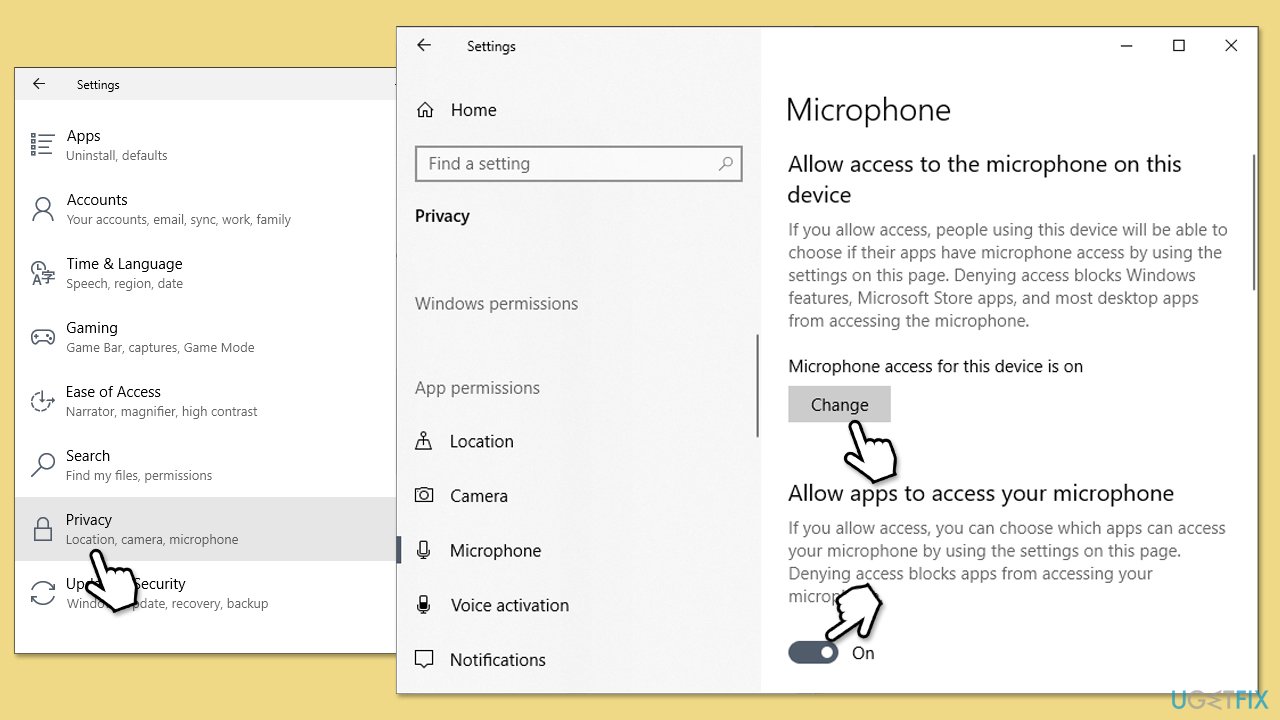
If Phone Link doesn’t have permission to access the microphone, it won’t function correctly. Ensuring the app has the necessary permissions can resolve the issue.
- Right-click on Start and pick Settings.
- Go to Privacy & Security/Privacy.
- Scroll down to App permissions and select Microphone.
- Ensure that Microphone access is enabled.
- Under Allow apps to access your microphone, ensure that the switch is turned to On position.
Fix 2. Ensure the correct input device is selected
Sometimes, the wrong microphone is selected as the input device in Windows settings. Selecting the correct one can fix the problem.
- Open Settings.
- Go to System and select Sound.
- Under Input, check that the correct microphone is selected.
- Test the microphone by speaking into it and checking if the input levels move.
Fix 3. Repair or reset Phone Link app
Restarting the app can resolve temporary glitches that may be preventing the microphone from working.
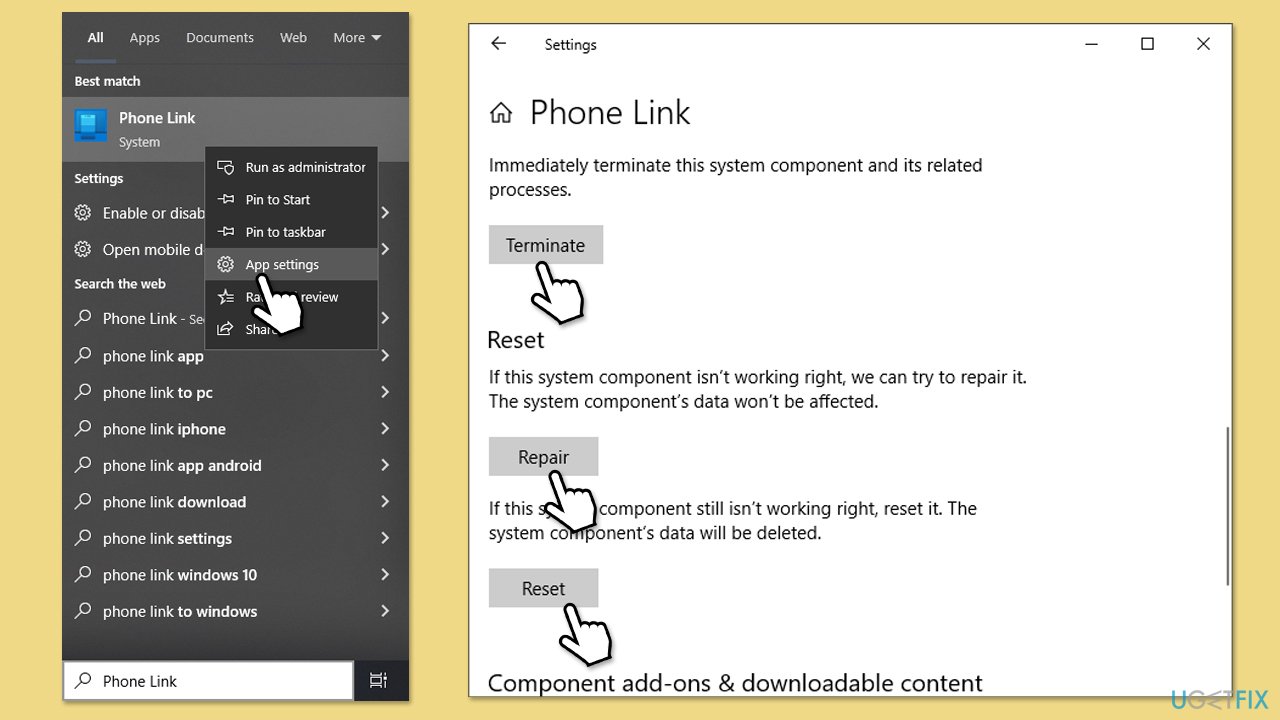
- Type Phone Link in Windows search.
- Right-click on Phone Link and select App settings.
- Scroll down and click Terminate.
- First, start with the Repair option and see if the problem is solved.
- If not, try using the Reset option instead.
Fix 4. Update audio drivers
Outdated or corrupted audio drivers can cause the microphone to stop working in certain apps, including Phone Link.
- Right-click on Start and pick Device Manager.
- Expand the Sound, video, and game controllers section.
- Right-click your audio device and select Update driver.
- Choose Search automatically for drivers.
- Follow the on-screen instructions to complete the update.
- Reboot your computer after the update is installed.
- For an easier way to update and maintain drivers, you can try an automatic updater [rev id="DriverFix"].
Fix 5. Reregister all Windows apps
If repairing the app did not work, you can try reregistering it instead.
- Type PowerShell in Windows search.
- Right-click on PowerShell and select Run as administrator.
- When User Account Control (UAC) will ask you whether you want to allow changes, click Yes.
- After PowerShell opens, type in the following command and press Enter:
Get-AppXPackage | Foreach {Add-AppxPackage -DisableDevelopmentMode -Register "$($_.InstallLocation)\AppXManifest.xml"} - Restart your PC.

Fix 6. Update Windows
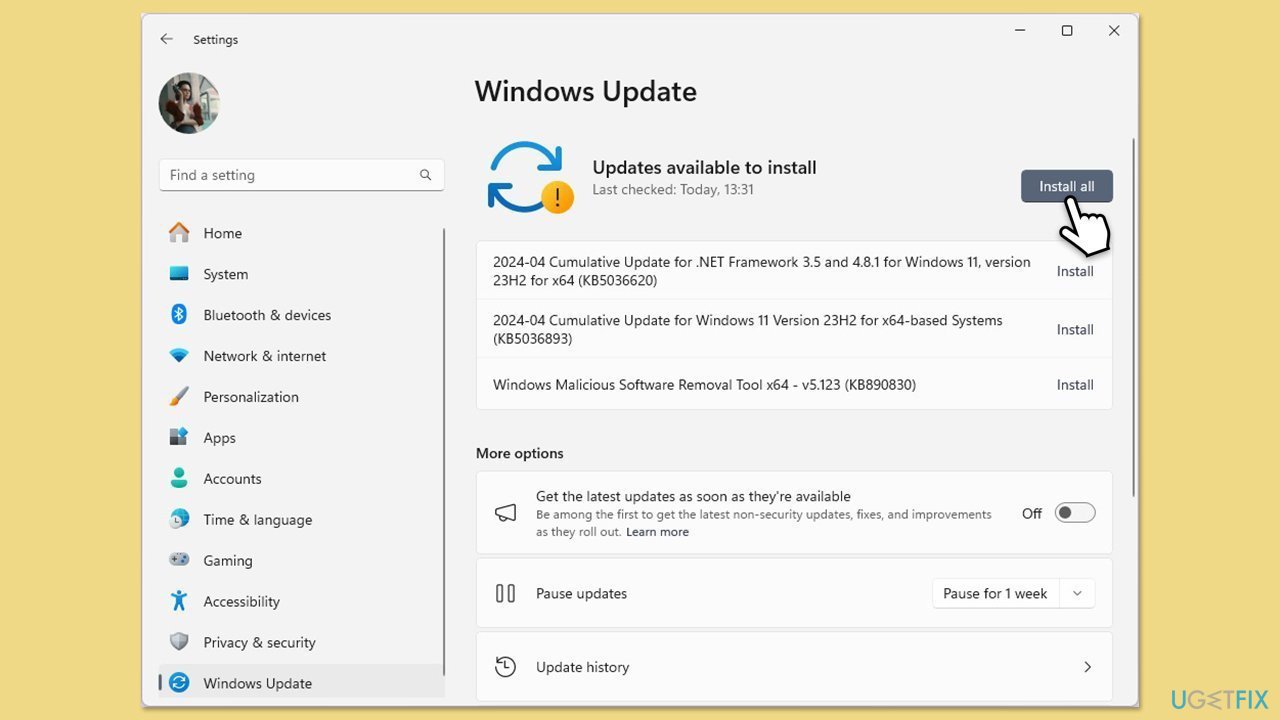
Outdated system files or bugs in the current version of Windows can cause the microphone to stop working in certain apps, including Phone Link. Keeping Windows updated ensures you have the latest fixes.
- Type Updates in Windows search and press Enter.
- When the new window opens, click Check for updates (or Install all if pending) and wait.
- If there are optional updates available, install them as well.
- After updating, restart your computer.
Fix 7. Reset sound settings
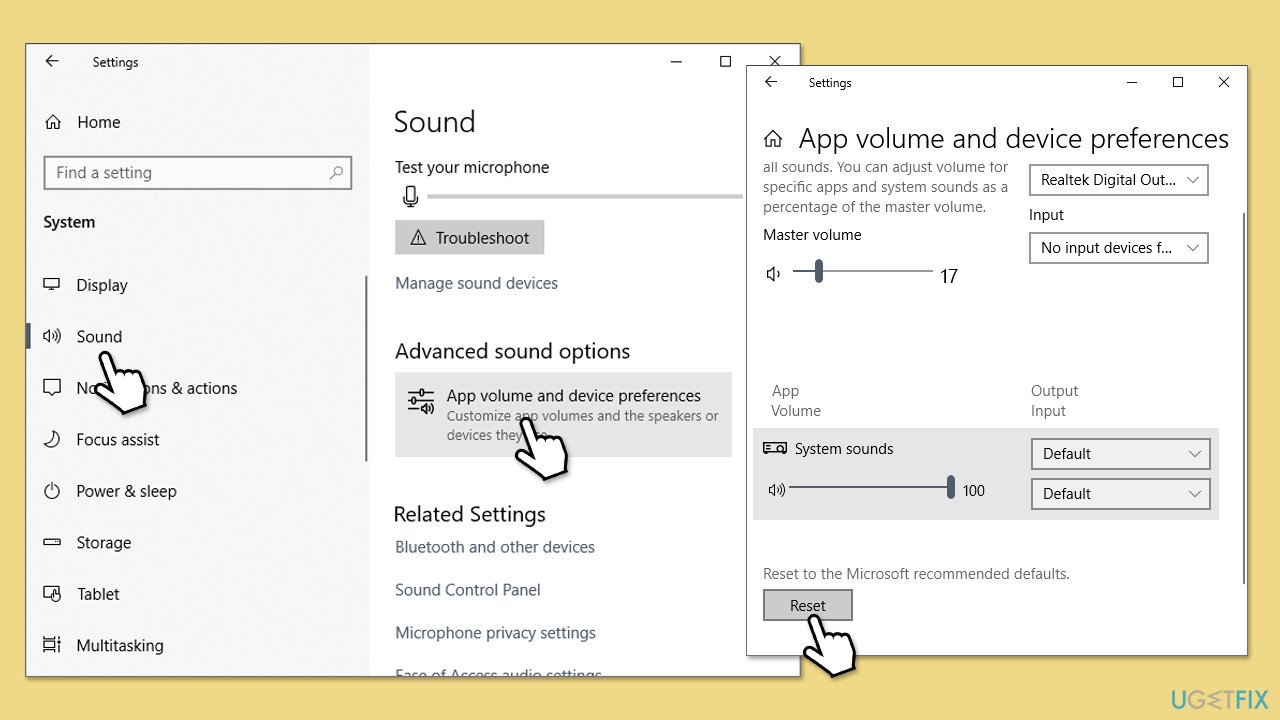
Resetting sound settings to their defaults can fix misconfigurations causing the microphone to malfunction.
- Open Settings and go to System > Sound.
- Scroll down and click on Advanced sound options.
- Scroll down and click Reset.
- Restart your computer and test the microphone again in Phone Link.
Bottom line
To fix the microphone issue in Phone Link, ensure that the app has the necessary permissions, update or reinstall audio drivers, and select the correct input device in the system sound settings. If these steps do not resolve the problem, consider using repair tools to identify deeper system-level issues.
Frequently asked questions
First, ensure that your microphone is properly connected and recognized by your system. You can check this in the Sound settings under the Input section.
Go to Settings > Privacy > Microphone and make sure that the toggle for 'Allow apps to access your microphone' is turned on, and that Phone Link has permission to use it.
Try restarting the Phone Link app, and if that doesn't work, consider reinstalling the app to reset its settings.




Report an issue
What's wrong with this guide? We review every report and update or remove content.
Report received — thank you. We'll review and fix it.
You need a free account to submit a report.
Be the first to comment