How to fix
Microsoft Teams error caa82ee2
on Windows
Resolve the Microsoft Teams error caa82ee2 on Windows 10 or 11 quickly and easily. Expert-tested solutions to get you back on track, fixed in minutes.


What causes How to fix Microsoft Teams error caa82ee2 in Windows?
- Misconfigured proxy settings
- Unstable or slow internet connections
- Issues with stored credentials in Windows
- Background applications or security software interfering with network traffic
- Outdated versions of Teams or network drivers
Repairs Windows system files, removes malware, and restores a clean OS state — without reinstalling.
As of recently, I have a problem with Teams where I can't log in at all. The message simply says "We're sorry - we've run into an issue" and the error code is caa82ee2 at the bottom. I tried several times and the result is always the same. What can I do to fix this? I need Teams for school as I'm a student.
Microsoft Teams error caa82ee2 is a connection timeout issue that prevents users from accessing the application. This error occurs when Teams fails to establish a proper connection with its servers, often resulting in an error message indicating a network issue.
The caa82ee2 error typically points to network-related problems or conflicts within system settings. Common causes include misconfigured proxy settings, unstable or slow internet connections, and issues with stored credentials in Windows.
Additionally, background applications or security software that interfere with network traffic can trigger this error. Some users report experiencing it after recent updates to Microsoft Teams or Windows, which may alter configurations or introduce compatibility issues.
Online discussions highlight that clearing cached credentials, disabling proxy settings, or ensuring a stable internet connection can often fix the caa82ee2 error for good. Others have found that reinstalling Microsoft Teams or adjusting firewall rules to allow Teams traffic is effective. It is also noted that outdated versions of Teams or network drivers can contribute to the error, so ensuring both are up-to-date is recommended.
To resolve the caa82ee2 error, users may need to verify their network settings, update related software, and address potential system conflicts. For a more streamlined and automated approach to troubleshooting, [d1] repair tool can efficiently detect and resolve the underlying issues causing this Teams error. This tool is particularly helpful for identifying system-level problems and restoring normal functionality with minimal effort.

Fix 1. Run network troubleshooter
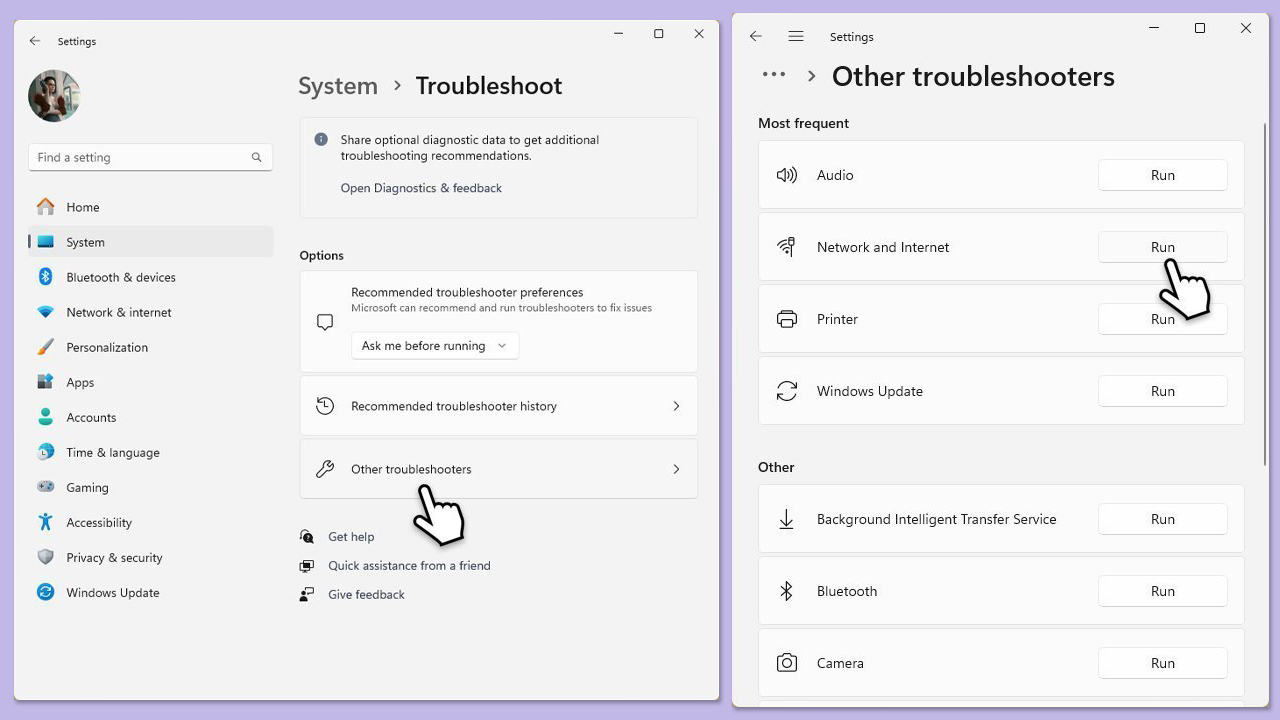
To rule out issues with your internet connection, you should run the built-in Network troubleshooter.
Windows 11
- Type Troubleshoot in Windows search and press Enter.
- Select Other troubleshooters.
- Find Network & Internet troubleshooter from the list and select Run.
- Wait till the process is finished and apply the offered fixes.
- Restart your computer.
Windows 10
- Right-click on Start and pick Settings.
- Go to Network & Internet section.
- On the right side, find the Advanced network settings section.
- Click Network troubleshooter, specify the problem, and wait till the scan is finished.
- When done, apply all the recommendations.
Fix 2. Disable proxy
Since Teams error caa82ee2 mostly occurs due to network inconsistencies, make sure you do not have a proxy enabled.
- Type inetcpl.cpl in Windows search and press Enter.
- Go to the Connections tab and click on LAN settings.
- Make sure that Automatically detect setting is checked and Use a proxy server for your LAN is unchecked.

Fix 3. Disable antivirus and allow Teams through Firewall
Check for any software that could be interfering with Teams connection.
- Open the Control Panel and navigate to System and Security > Windows Defender Firewall.
- Select Allow an app or feature through Windows Defender Firewall.
- Click Change settings and enter your administrator password if prompted.
- Find Microsoft Teams in the list and check both the Private and Public boxes.
- Click OK to save your changes.
- Temporarily disable your third-party antivirus as well as VPN and similar software and see if the issue persists.

Fix 3. Update Teams
Ensure that your Teams client is updated.
- Open Microsoft Teams.
- Click on the Settings and more button at the top-right corner.
- Select Check for updates.
- Teams will automatically download and install any available updates.
- Restart Teams after the update is completed.

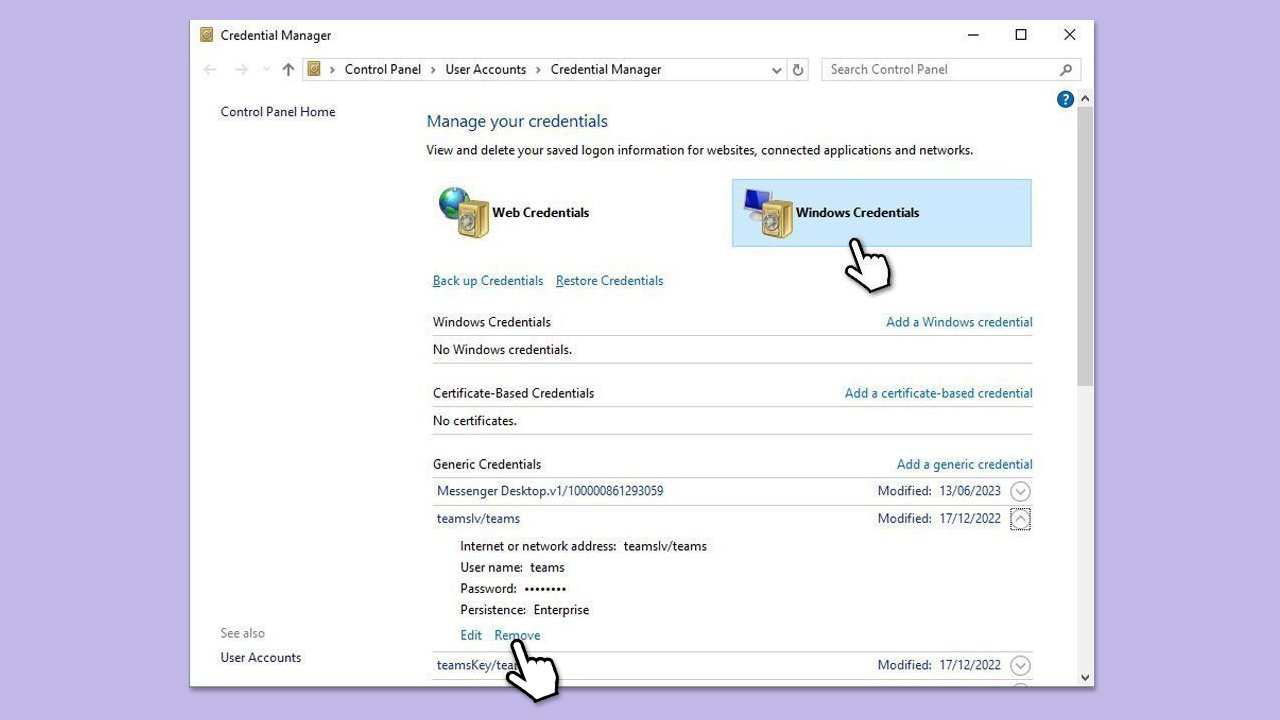
Fix 4. Clear Teams credentials
- Log off from Microsoft Teams.
- Type Credential Manager in Windows search and press Enter.
- Select Windows Credentials.
- Locate and remove any stored credentials related to Microsoft Teams.
- Restart Teams and re-enter your login details.
Fix 5. Reinstall Teams
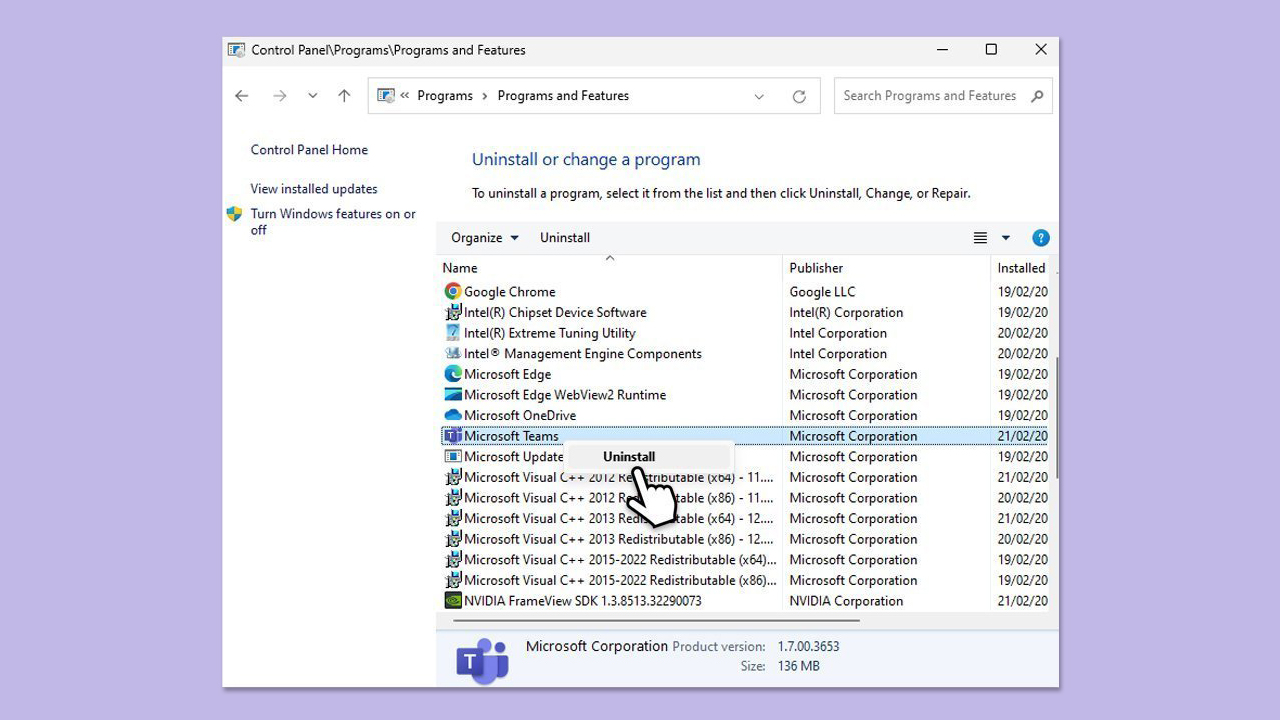
Reinstalling Teams helped some users to resolve login issues.
- Type Control Panel in Windows search and press Enter.
- Go to Programs > Uninstall a program.
- Find Microsoft Teams, right-click, and select Uninstall.
- Follow the prompts to remove the app.
- Once done, press Win + E to open File Explorer.
- In the View tab at the top of the window, enable Hidden Files.
- Go to C:\Program Files\WindowsApps location.
- Scroll down to find the Microsoft Teams folder and delete it (alternatively, you can rename it).
- Now type %AppData% in Windows search and press Enter.
- Delete the Teams folder here.
- Finally, restart your system and reinstall the app.
Fix 6. Use Google's DNS
Try alternative DNS server.
Windows 11
- Right-click on Start and select Network connections.
- Under your connection, click Properties.
- Find the DNS server assignment section and click Edit.
- Set your DNS to Google's:
Preferred DNS: 8.8.8.8
Alternate DNS: 8.8.4.4 - Click Save.

Windows 10
- Right-click on Start and select Settings.
- Go to Network and Internet section.
- Click on Network and Sharing center.
- On the left, click Change adapter settings.
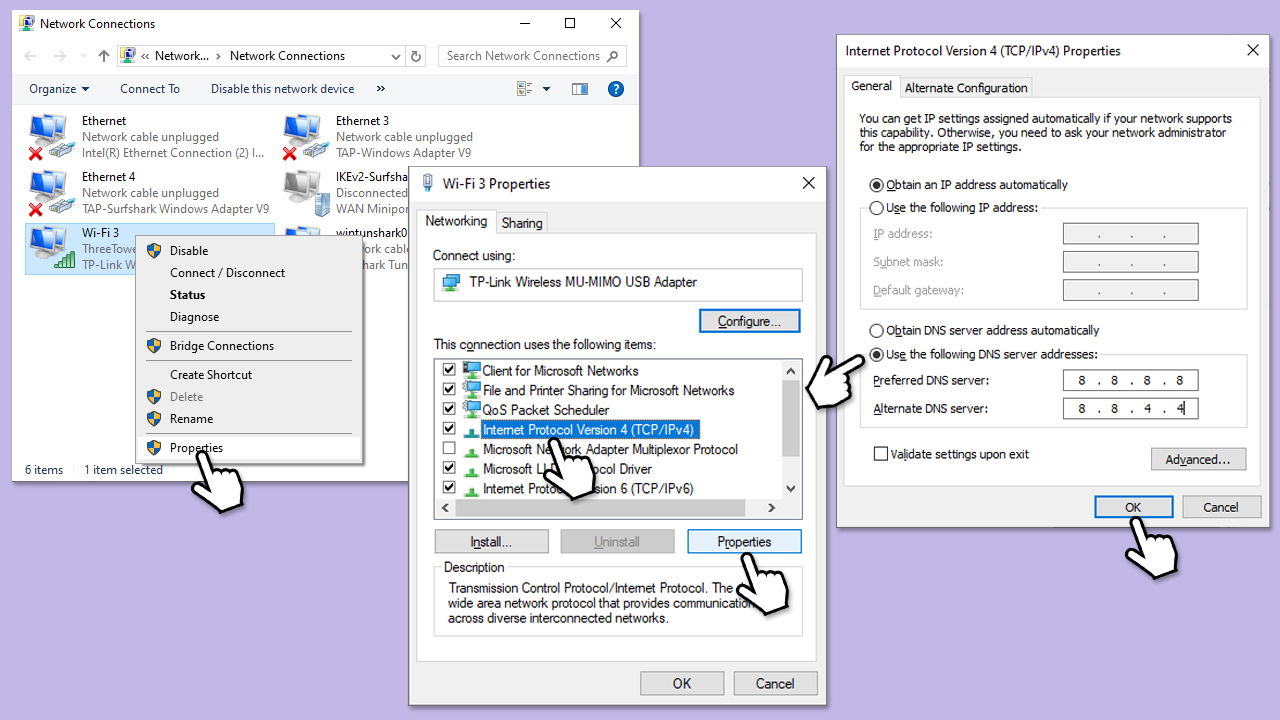
- Right-click on your internet connection (such as Ethernet or Wi-Fi) and pick Properties.
- Select Internet Protocol Version 4 (TCP/IPv4) once and go to Properties or select Edit next to the DNS settings.
- Select Use the following DNS server addresses option and set your DNS to Google's:
Preferred DNS server: 8.8.8.8
Alternate DNS server: 8.8.4.4 - Click OK.
Bottom line
To fix the caa82ee2 error, users can run the network troubleshooter, clear cached credentials, disable proxy settings, or ensure a stable internet connection. Reinstalling Microsoft Teams or adjusting firewall rules may also help. If none of these solutions work, consider using a repair tool to detect and resolve underlying issues.
Frequently asked questions
The Microsoft Teams error caa82ee2 typically indicates an issue with authentication or connectivity to the Teams service on Windows 10 or Windows 11.
To fix the caa82ee2 error, try clearing the Teams cache by deleting the contents of the 'Cache' folder located in 'C:\Users\YourUsername\AppData\Local\Microsoft\Teams'.
Yes, you can also reset Microsoft Teams by right-clicking the Teams icon in the system tray, selecting 'Quit', and then reopening the application to see if the error persists.




Report an issue
What's wrong with this guide? We review every report and update or remove content.
Report received — thank you. We'll review and fix it.
You need a free account to submit a report.
Be the first to comment