How to fix
Error Code 0x80190001
on Windows
Resolve Error Code 0x80190001 on Windows 10 and 11 quickly. Follow our expert-tested solutions for a hassle-free experience with zero traces left.


What causes How to Fix Error Code 0x80190001 on Windows?
- Windows Store service failure
- Blocked download process for updates
- Upgrade issues from Windows 7 to Windows 10
- Malware presence in the system
- Third-party antivirus interference
Repairs Windows system files, removes malware, and restores a clean OS state — without reinstalling.
First of all, I noticed that I can’t login to Windows Store due to the error code 0x80190001. Soon after that, Xbox also failed to run due to the same bug. Could someone please help?
An increasing number of threads regarding 0x80190001 error has been noticed. This bug check is not new in Windows history, but apparently it has migrated from Windows Update service to Windows Store and sometimes Xbox. Actually, the occurrence of the 0x80190001 error on Windows Store and Windows Update is related. If Windows Store service fails to work, the download process of the latest updates is blocked or temporarily limited.
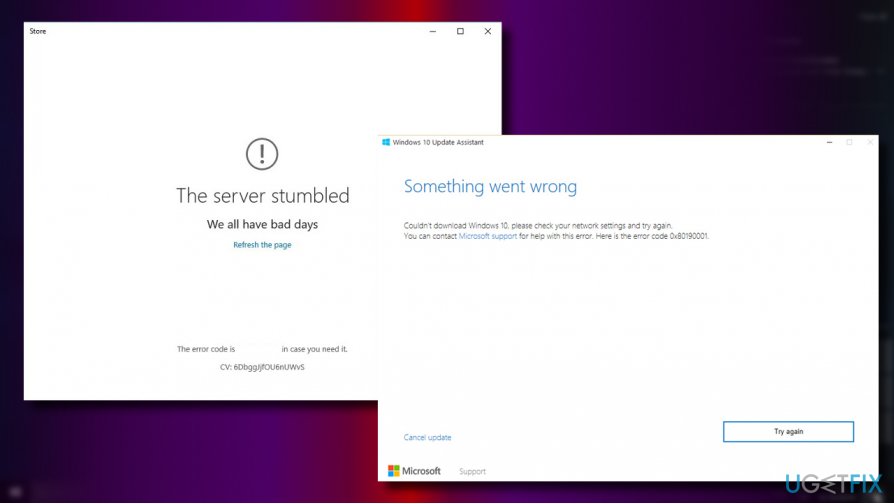
Many people encountered this bug when trying to upgrade from Windows 7 to Windows 10, but recently it started harassing Windows 10 users exceptionally. When the system searches for the latest updates, the process gets stuck and eventually returns an error code 0x80190001. The bad news is that the error hasn’t been acknowledged by Microsoft or other official vendors. The good news is that there is a couple of methods that you may apply for fixing this bug. Thus, you should:
- Scan the system for malware. Run a scan with a professional anti-malware utility. We recommend [d1].
- Run inbuilt Windows Update Troubleshooter and Windows App Troubleshooter.
- Disable third-party antivirus temporarily.
- Try Clean Boot.
If these simple steps did not help, try the following fixes:
Method 1. Use the Media Creation Tool
If you encounter the 0x80190001 error when trying to upgrade Windows 7 to Windows 10, you should try using the Media Creation Tool:
1.Navigate to the Microsoft’s Windows 10 upgrade website.
2. Click on the MediaCreationTool.exe file to download it.
3. Read the EULA and accept the terms if you want to proceed. Click Upgrade this PC.
4. Click Next and then check the Keep personal files and apps option. Otherwise, all personal information will be wiped out during the upgrade process.
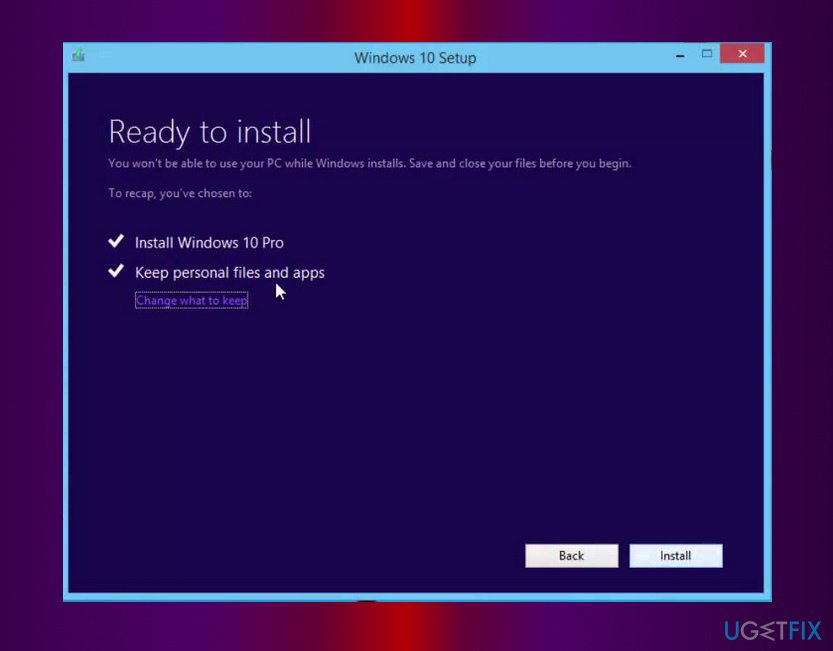
5. Finally, click Install and wait for the process to be finished.
Method 2. Download the update manually
If the error shows up during the installation of the latest Windows 10 patch or security updates, try installing the required update manually:
1. Press Windows key + I and open Update & Security section.
2. Click on Windows Update link and locate the latest Windows 10 Knowledge Base (KB). Copy it and paste in a word or notepad file to have by hand.
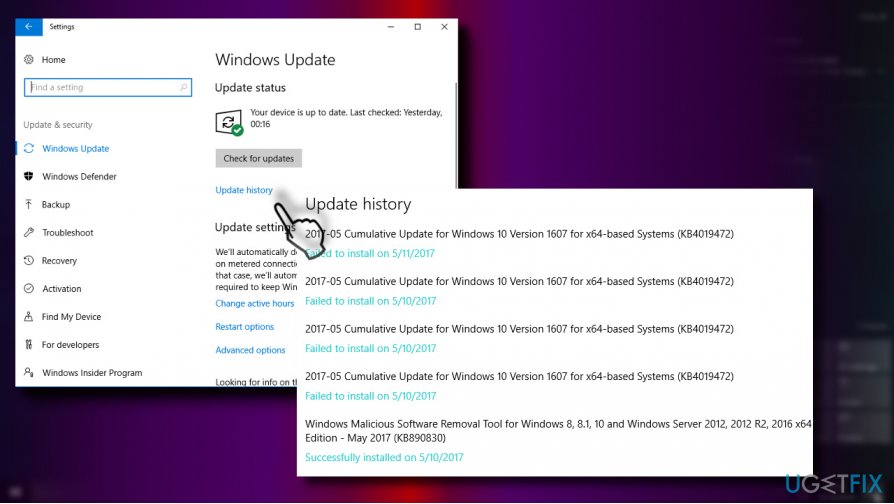
3. Then open the official Microsoft Update Catalog and type in or paste the KB code into the search box and hit Enter.
4. Click on the KB’s download link, wait for the item to be downloaded and save it to the selected location on your computer.
5. Open the downloaded patch to start the update process.
Method 3. Run DISM and SFC commands via Command Prompt
1. Right-click on Windows key and select Command Prompt (Admin).
2. If required, type in the administrator password and click Yes.
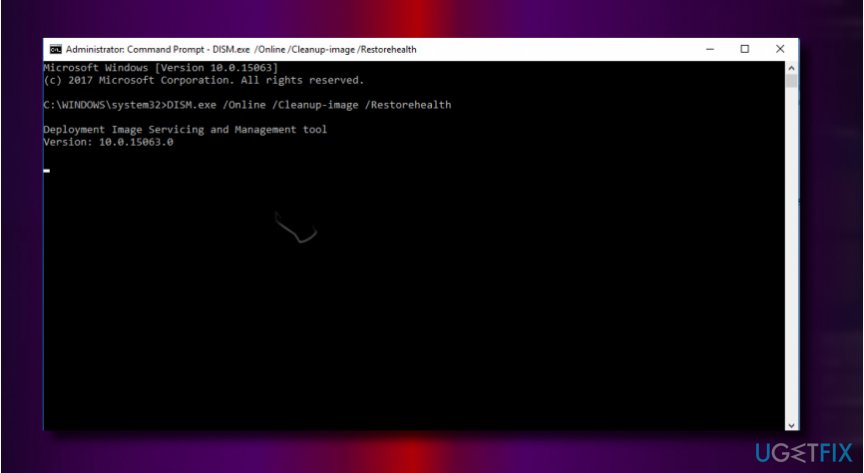
3. Once the Command Prompt log opens, copy and paste the following commands into it. Press Enter after each:
DISM.exe /Online /Cleanup-image /Restorehealth
sfc /scannow
Method 4. Check Date and Time Settings
1. Open Control Panel and select Date & Time.
2. Open Internet Time tab and click Change settings button.
3. Place a tick on Synchronize with an Internet time server and click on Update now button.
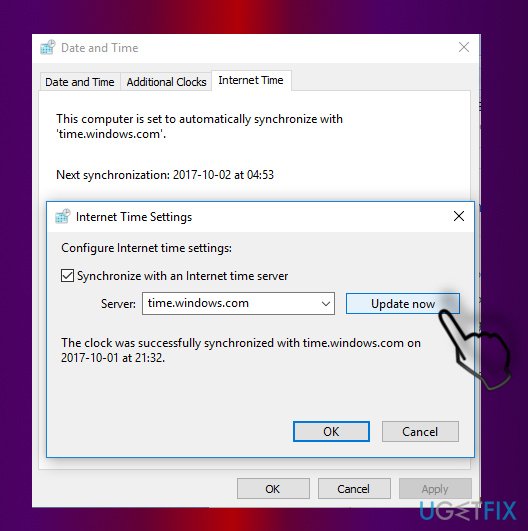
4. Click OK and close the Date & Time window.
Bottom line
To fix the error code 0x80190001, you can scan your system for malware, run the Windows Update and App Troubleshooters, disable third-party antivirus temporarily, or try a Clean Boot. If these methods do not resolve the issue, consider using the Media Creation Tool or downloading the update manually.
Frequently asked questions
The error code 0x80190001 typically occurs due to issues with Windows Update, corrupted system files, or problems with the Microsoft Store. It can also be triggered by a poor internet connection or conflicts with third-party software.
To fix the error, try running the Windows Update Troubleshooter, resetting the Windows Update components, or checking for corrupted system files using the SFC and DISM tools. Additionally, ensure your internet connection is stable.
Yes, you can resolve this error by performing troubleshooting steps such as clearing the Microsoft Store cache, updating Windows, or reinstalling problematic apps without the need for a full Windows reinstall.




Report an issue
What's wrong with this guide? We review every report and update or remove content.
Report received — thank you. We'll review and fix it.
You need a free account to submit a report.
Be the first to comment