How to fix
Microsoft Teams env_check_error
on Windows
Resolve the Microsoft Teams env_check_error on Windows 10 and 11 quickly. Get expert-tested solutions and troubleshoot like a pro in minutes.

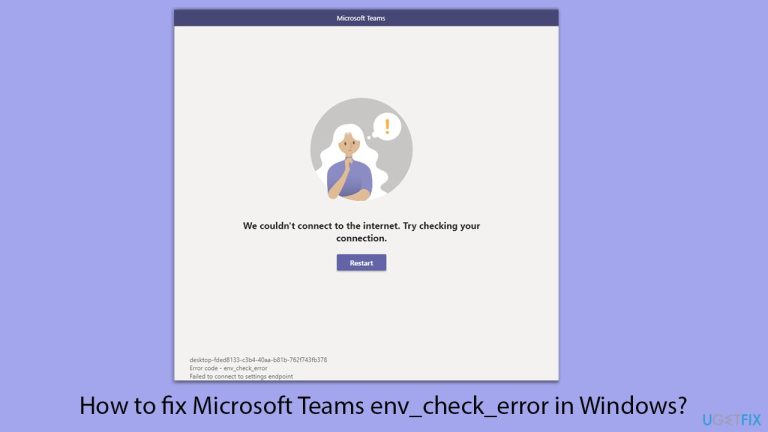
What causes How to fix Microsoft Teams env_check_error in Windows?
- Modified hosts file
- Network restrictions
- Corrupted application data
- Connectivity issues
Repairs Windows system files, removes malware, and restores a clean OS state — without reinstalling.
Hello. I can't seem to be able to log in to Microsoft Teams on the desktop app - it gives me env_check_error code. I restarted my PC several times, but that didn't help. Also, I have no problems with the browser version (I'm using Windows 11 and Chrome).
The "env_check_error" in Microsoft Teams is a login issue that prevents you from accessing the desktop application, often accompanied by a message indicating a failure to connect to the settings endpoint.
This error typically arises during the login process, where, after entering your credentials, Teams fails to establish a connection, resulting in the "env_check_error" message. Interestingly, while the desktop app encounters this issue, accessing Teams through the web interface often remains unaffected.
Upon encountering this error, the desktop application is unable to proceed beyond the login stage, effectively blocking access to its features. This disruption can hinder your ability to participate in meetings, access shared files, or collaborate with colleagues through the app.
Potential causes
- Modified hosts file. Alterations in the system's hosts file can block necessary Microsoft servers, impeding Teams' connectivity.
- Network restrictions. Firewalls or network settings may inadvertently block essential endpoints required for Teams to function properly.
- Corrupted application data. Damaged or outdated cache and configuration files within Teams can lead to this error.
To address underlying Windows issues that may contribute to the "env_check_error," consider using [d1] repair, which can automatically detect and resolve system-related problems.
For a step-by-step guide on resolving the "env_check_error" in Microsoft Teams, you may find the following instructions helpful.

Fix 1. Clear Microsoft Teams cache
Corrupted cache files can prevent Teams from functioning correctly, leading to the "env_check_error." Clearing the cache can reset Teams' temporary files and often resolves connectivity issues.
- Press Win + E to open File Explorer.
- Ensure Hidden files are visible.
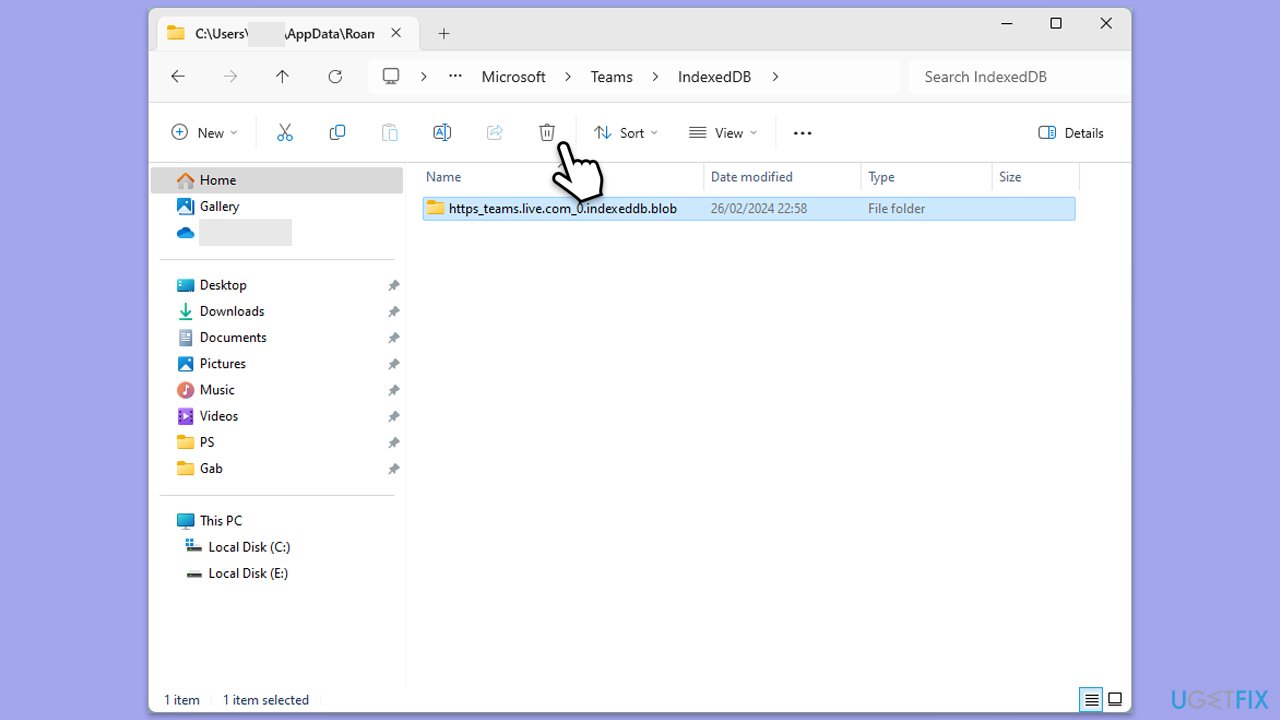
- In the address bar, type in %appdata%\Microsoft\teams and press Enter.
- Delete the contents of the following folders:
%appdata%\Microsoft\teams\application cache\cache
%appdata%\Microsoft\teams\blob_storage
%appdata%\Microsoft\teams\Cache
%appdata%\Microsoft\teams\databases
%appdata%\Microsoft\teams\GPUcache
%appdata%\Microsoft\teams\IndexedDB
%appdata%\Microsoft\teams\Local Storage %appdata%\Microsoft\teams\tmp - Make sure you empty the Recycle Bin (or use Shift + Del combination to delete these files).
- Restart your device.
Fix 2. Reset the Hosts file
Incorrect modifications in the Windows Hosts file can block Microsoft Teams' access to necessary servers. Resetting it can remove these restrictions.
- Open Notepad as an administrator.
- Open File Explorer (Win + E) and go to the following location:
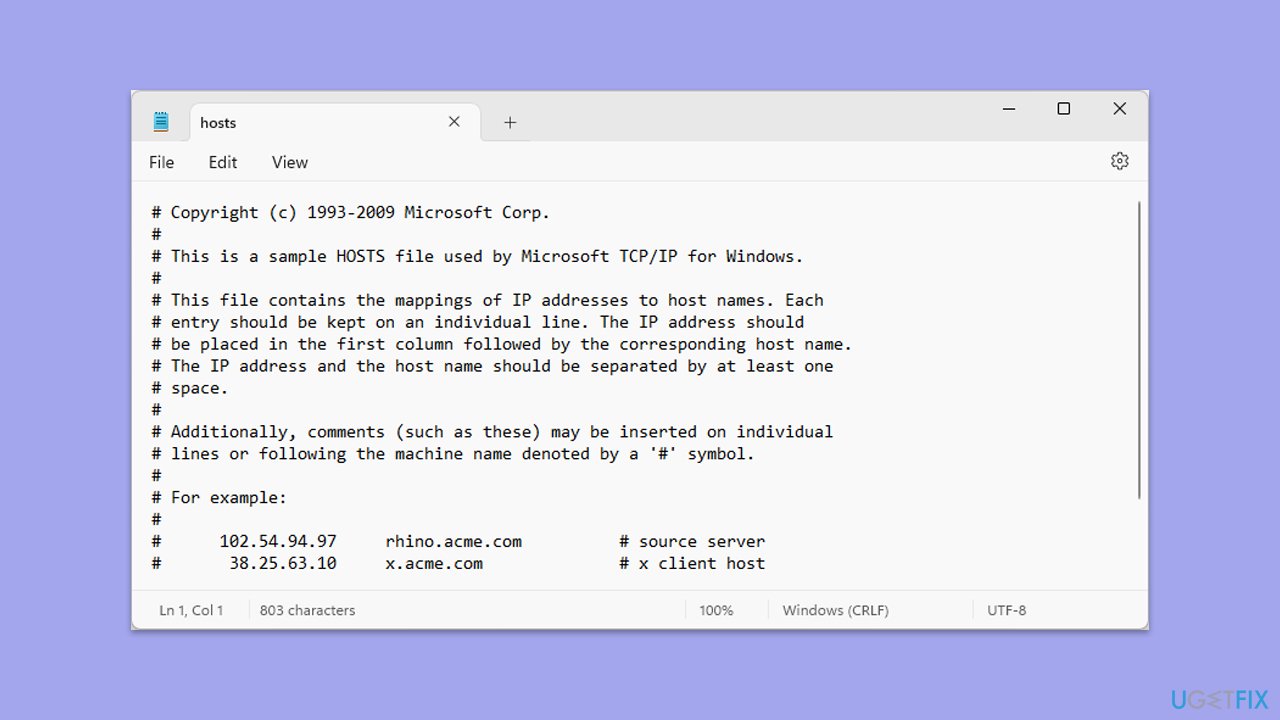
C:\Windows\System32\drivers\etc - Open the hosts file.
- Remove any lines referencing Microsoft services.
- Save the file and restart your computer.
Fix 3. Verify internet connection and firewall settings
Network restrictions or firewalls can block Teams from connecting to necessary endpoints.
- Temporarily disable your third-party security software.
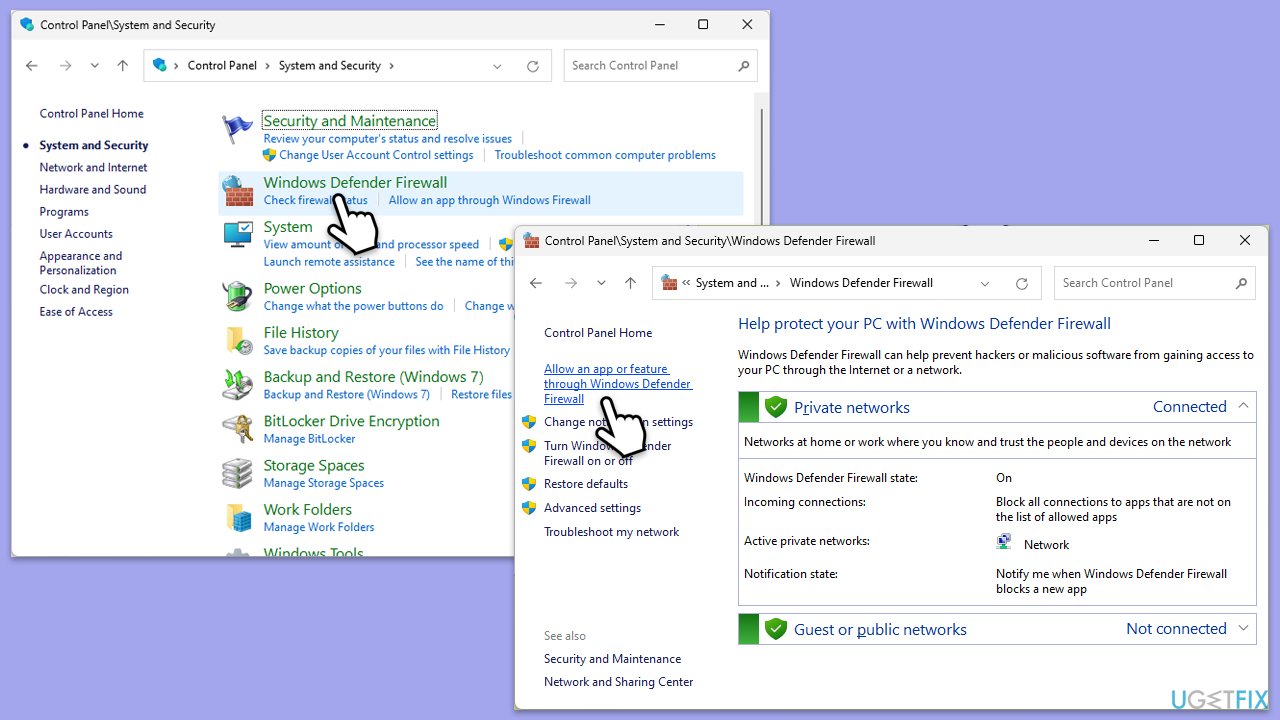
- Open the Control Panel and navigate to System and Security > Windows Defender Firewall.
- Select Allow an app or feature through Windows Defender Firewall.
- Click Change settings and enter your administrator password if prompted.
- Find Microsoft Teams in the list and check both the Private and Public boxes.
- Click OK to save your changes.
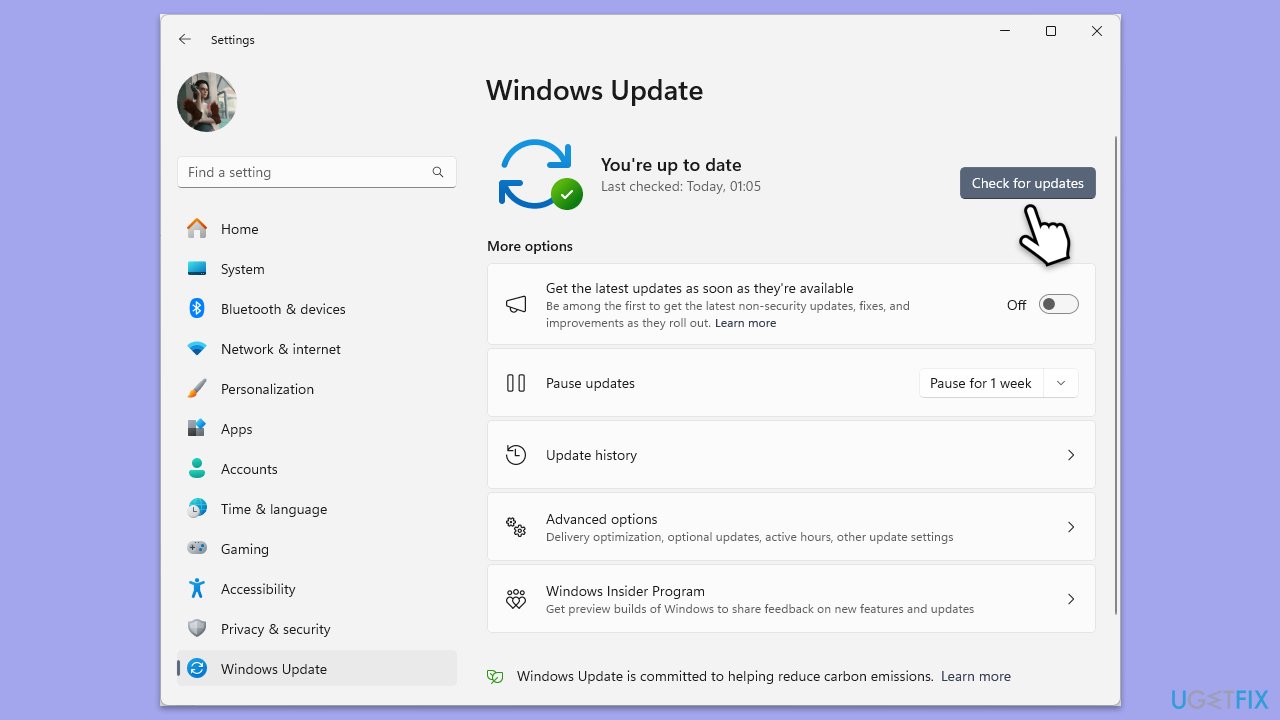
Fix 4. Check Windows updates
Outdated system files may cause compatibility issues with Microsoft Teams.
- Type Updates in Windows search and press Enter.
- Here, click Check for updates or Install updates (if available).
- Wait till Windows downloads and installs all the nescessary files.
- If optional updates are available, install them as well.
- Reboot your system.
Fix 5. Reinstall Microsoft Teams
A corrupted installation can cause persistent errors. Reinstalling the application often resolves such issues.
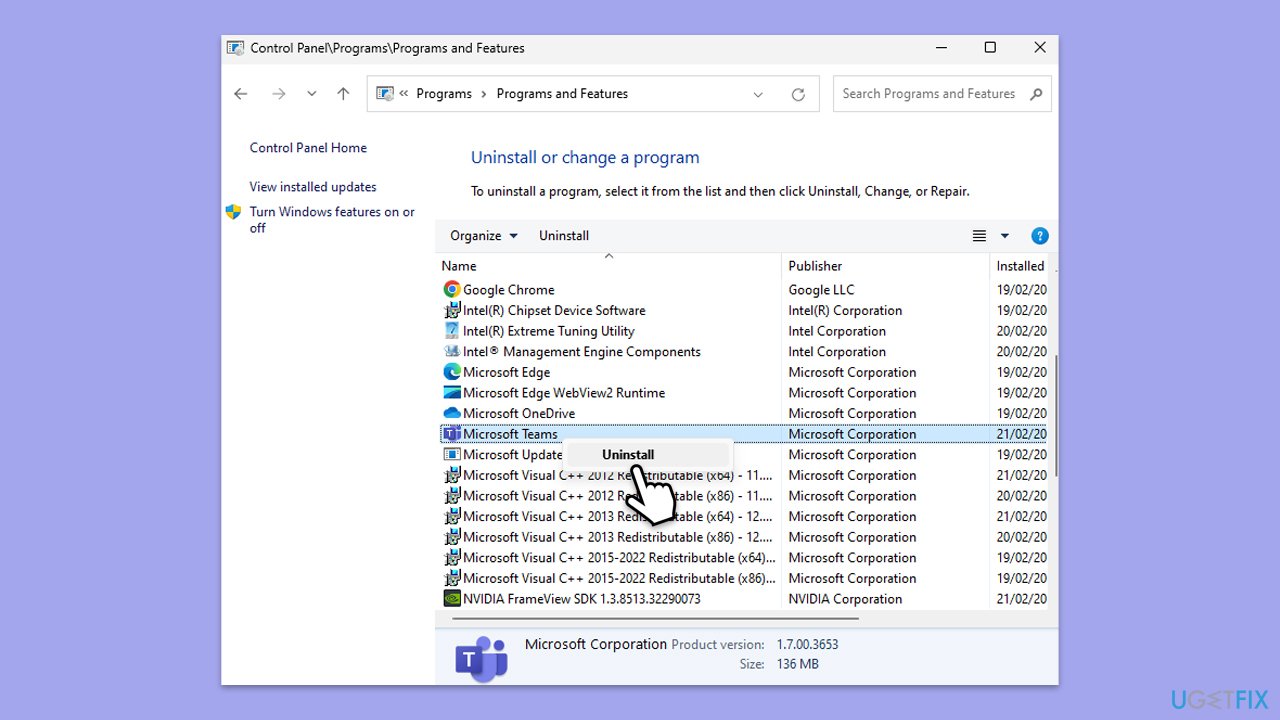
- Type Control Panel in Windows search and press Enter.
- Go to Programs > Uninstall a program.
- Find Microsoft Teams, right-click, and select Uninstall.
- Follow the prompts to remove the app.
- Once done, press Win + E to open File Explorer.
- In the View tab at the top of the window, enable Hidden Files.
- Go to C:\Program Files\WindowsApps location.
- Scroll down to find the Microsoft Teams folder and delete it (alternatively, you can rename it).
- Now type %AppData% in Windows search and press Enter.
- Delete the Teams folder here.
- Finally, restart your system and reinstall the app.
Fix 6. Run Teams in compatibility mode
Running Teams in compatibility mode can resolve issues related to system compatibility.
- Right-click the Teams shortcut or executable file.
- Select Properties.
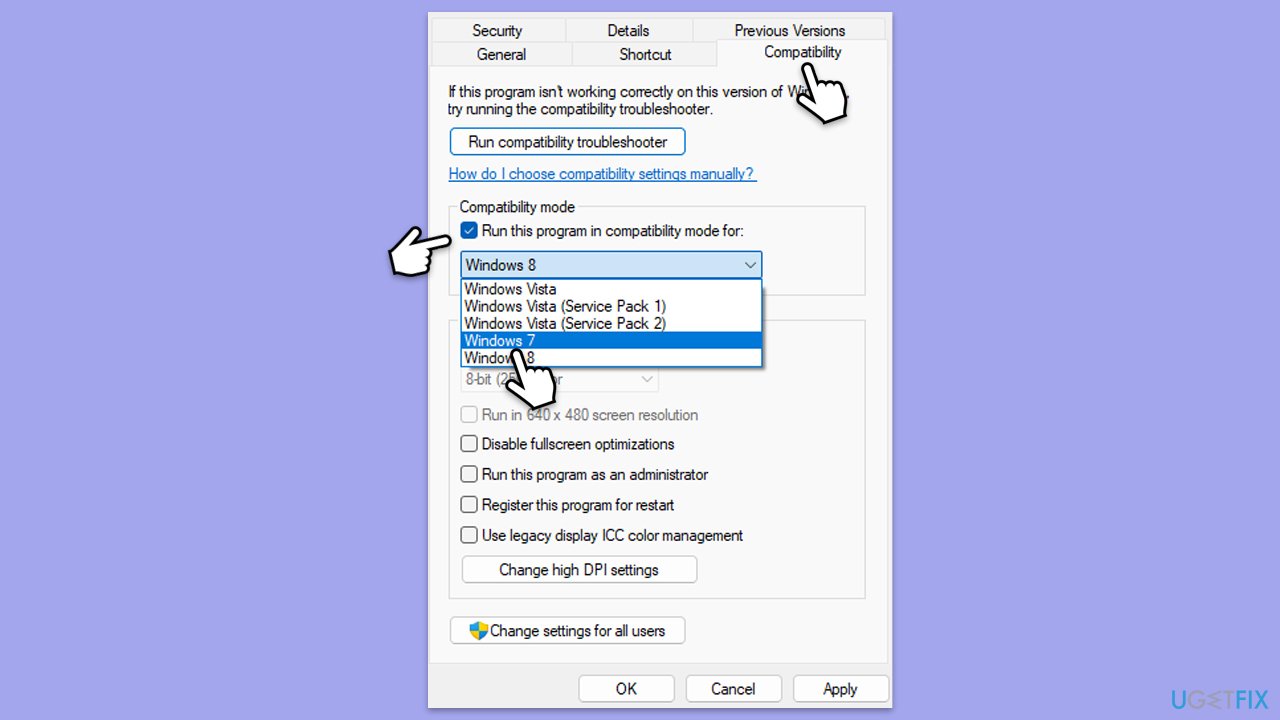
- Go to the Compatibility tab.
- Check the box for Run this program in compatibility mode for.
- Choose another Windows version from the dropdown menu.
- Click Apply, then OK.
Bottom line
To fix the env_check_error in Microsoft Teams, you can clear the Microsoft Teams cache, which often resolves connectivity issues. If the problem persists after trying this fix, consider using a repair tool to address any underlying Windows issues.
Frequently asked questions
The env_check_error typically occurs due to corrupted installation files or conflicts with other applications on your system. Ensuring that Microsoft Teams is properly installed and updated can help resolve this issue.
To fix the env_check_error, try clearing the Teams cache by deleting the contents of the %appdata%/Microsoft/Teams folder, then restart the application. If the problem persists, consider reinstalling Microsoft Teams.
To prevent the env_check_error in Windows 10, regularly update your Microsoft Teams application and Windows operating system to the latest versions. Additionally, ensure that your system meets the minimum requirements for running Teams.




Report an issue
What's wrong with this guide? We review every report and update or remove content.
Report received — thank you. We'll review and fix it.
You need a free account to submit a report.
Be the first to comment