How to fix
Error Code -50
on Windows
Resolve Error Code -50 on Windows 10 or 11 effortlessly with our expert-tested solutions. Quick fixes that work every time, fixed in minutes!


What causes How to Fix Error Code -50 on Mac?
- Corrupted programs or system files
- Outdated software or system
- Misconfigured system settings
- Hardware-related problems
- Problems with cache or junk files
Repairs Windows system files, removes malware, and restores a clean OS state — without reinstalling.
I faced some problems when copying a picture from one external drive to another. The process took ages, and not all of my files were copied successfully. So, I tried to move them to trash and repeat the procedure. But I received the error message saying: “The operation can't be completed. An unexpected error occurred (error code 50)”. What should I do?
Fix Error Code -50 is an error that might occur when Mac users copy files to one folder to another or from one drive to another. It doesn’t matter if you copy a single document or picture or a whole folder, the same error message might appear saying:
The operation can't be completed. An unexpected error occurred (error code 50)
The problem might occur due to:
- corrupted programs or system files;
- outdated software or system;
- misconfigured system settings;
- hardware-related problems;
- problems with cache or junk files.
However, error 50 on Mac might occur because of malware attack. Thus, if you noticed other suspicious activities on your Macintosh, such as the appearance of unknown programs, errors or questionable ads, you should check your computer’s state. For that, you will need to run a system scan with reputable security software, such as [rev id=”MacCleanse”].
If virus attack was not the case, you should try other methods to fix error code 50 on Mac.
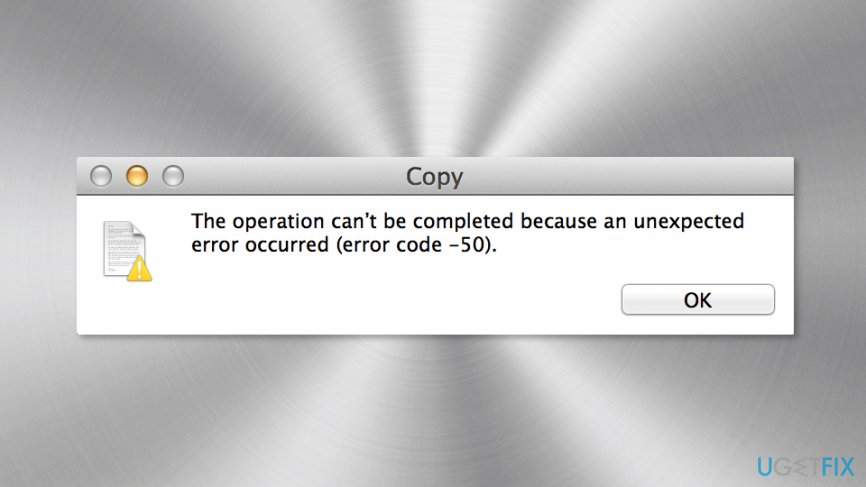
Solutions for fixing Error Code -50 on Mac
Below you can find five methods to solve the problem. Please follow them in the same order as given.
Method 1. Install available updates
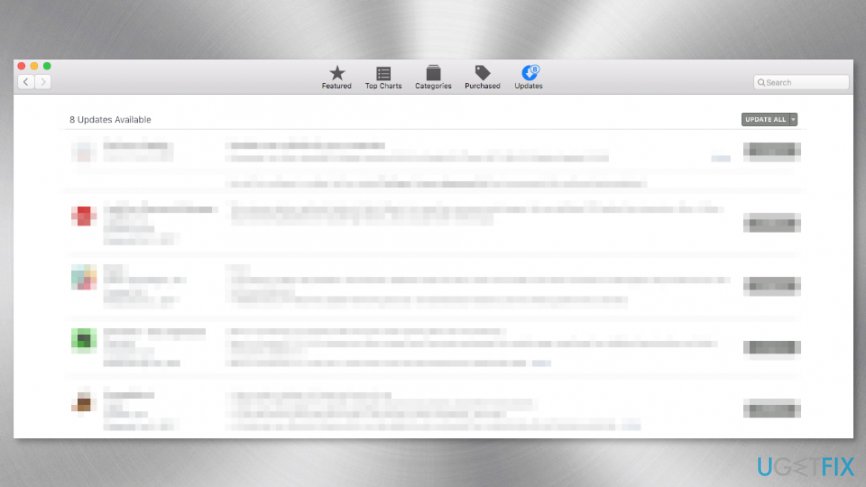
Sometimes outdated software prevents from using computer smoothly. Therefore, the error 50, as well as other errors might occur, due to the outdated software or system. For this reason, you should check available updates and install them:
- Go to App Store.
- Click Update icon.
- If there are any available updates, click Update All button.
Method 2. Check login items
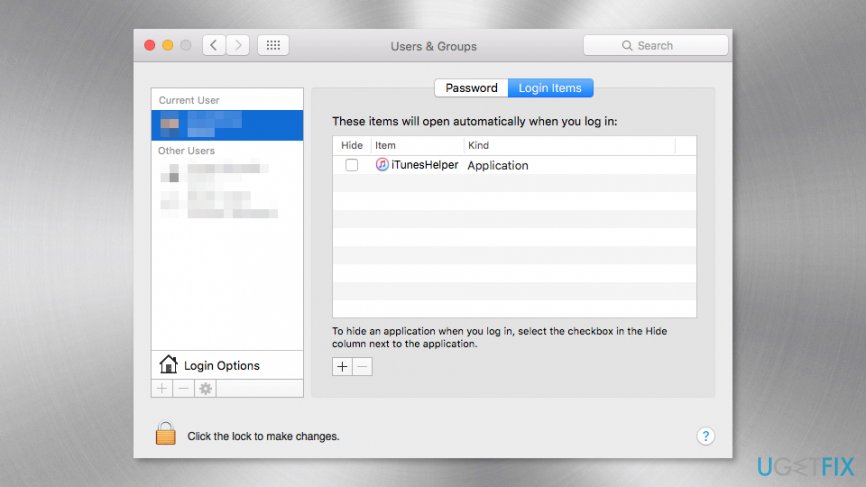
Reboot the computer to the Safe Mode to see if the error shows up. If it happens, the source of the problem might be some startup or login items or kext file. In order to clean login items follow these steps:
- Open System System Preferences.
- Go to Users & Groups.
- Click on your account icon on the left and choose Login Items tab that is on the right.
- Choose items from the appeared list.
- Click minus sight to clear them.
- Restart Mac.
The error code -50 should be solved. If not, try the third method.
Method 3. Clean cache, junk, and temporary files
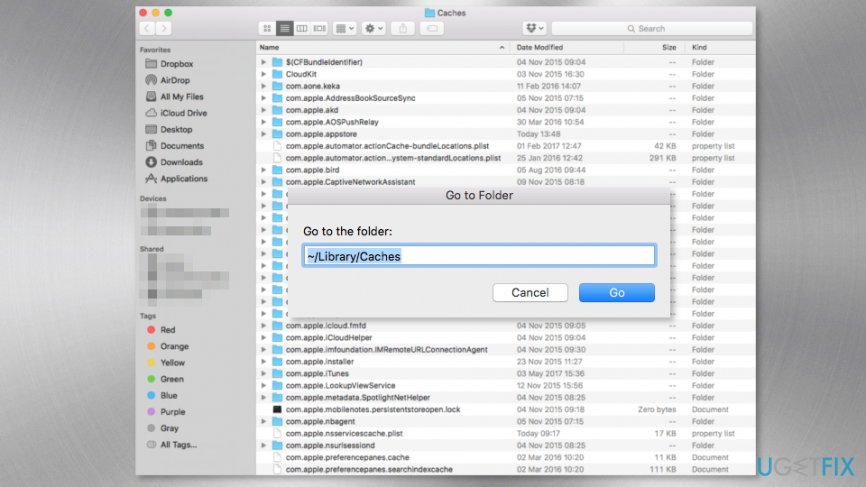
Operating system and programs leave footprints in the Mac. If some of these files are corrupted, they might interfere with computer’s work and trigger various errors. Therefore, you should clean junk files to check if it was the problem.
To clean cache follow these steps:
- In the Finder Menu access Go tab and choose Go to Folder… option from the drop-down menu.
- In the dialog box enter: ~/Library/Caches and click Go.
Tip: You should create a backup copy of the files you are going to delete in case something goes wrong. - Select all the files and folders in the Cache folder by clicking CMD + A keys.
- Move selected files to the Trash folder.
- Empty the Trash folder.
Method 4. Run Disk Utility
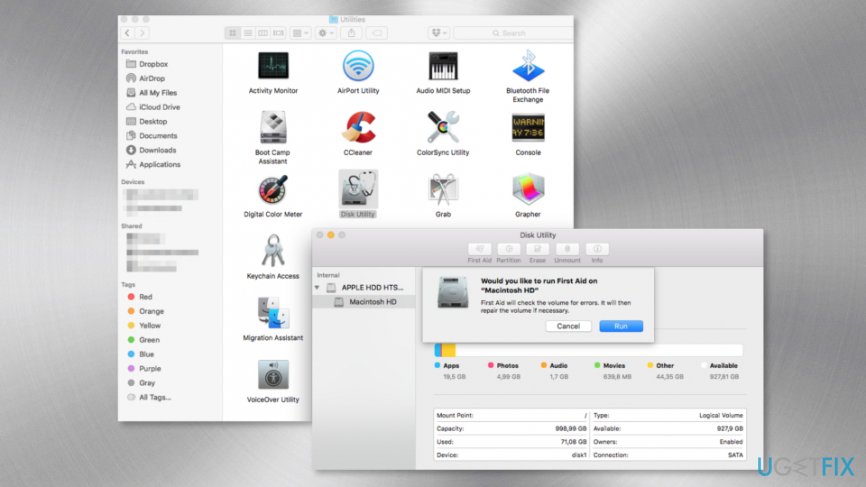
Disk Utility is an built-in Mac tool that can help to find and fix various problems related to files and programs. Sometimes error code -50 is triggered by improper permissions, so you should use this tool to check if it was the case.
- Access Applications folder and open Utilities folder.
- Open Disk Utility.
- Go to First Aid tab.
- In the appeared pop-up window click Run.
Method 5. Fix hardware problems
Error code 50 on Mac might be related to hardware issues. Therefore, you may need to reset the Parameter RAM (PRAM) or/and system management controller (SMC). However, you should opt for this option only if none of the above methods have worked for you.
Before following the instructions below, you should backup your system or important data only in order to avoid possible information loss.
Follow these steps to reset PRAM:
- Turn of your Mac.
- Press the power button.
- Immediately hold down the Command + Option + P + R keys until your computer reboots, and you hear the startup sound TWICE.
- Once you hear the sound, you can release the keys. The PRAM has been reset.
Follow these steps to reset SMC on Mac notebook computers with removable battery:
- Shut down your Mac.
- Remove the battery.
- Press and hold the power button for about 5 seconds.
- Turn on your Mac.
Reset SMC on MacBooks without removable battery:
- Turn off your Mac.
- Click Shift + Control + Option on the left side of the keyboard and press the power button at the same time.
- Hold these keys and power button for 10 seconds.
- Release the keys and turn on the machine.
Reset the SMC on Mac desktop computers:
- Turn off the computer.
- Unplug it from the power source.
- Wait 15 seconds.
- Plug in the device to the power cord back.
- Wait 3 seconds.
- Press the power button and turn on Mac.
Bottom line
To fix Error Code -50 on Mac, you can install available updates, check login items, and reboot the computer in Safe Mode. If these methods do not resolve the issue, consider running a system scan with reputable security software to check for malware.
Frequently asked questions
Error Code -50 is specific to macOS, and you won't encounter it on Windows 10 or Windows 11. However, similar issues may arise on Windows systems that you can troubleshoot.
To troubleshoot similar errors on Windows 10, try running the built-in Troubleshooter or checking for system updates that might resolve compatibility issues.
To prevent similar errors on Windows 11, ensure that your system is regularly updated and that you maintain compatible software and drivers.




Report an issue
What's wrong with this guide? We review every report and update or remove content.
Report received — thank you. We'll review and fix it.
You need a free account to submit a report.
Be the first to comment