How to fix
Windows update error 0x800f0982
on Windows
Resolve Windows update error 0x800f0982 quickly with our expert-tested solutions. Get back to smooth updates in no time, with zero traces left.

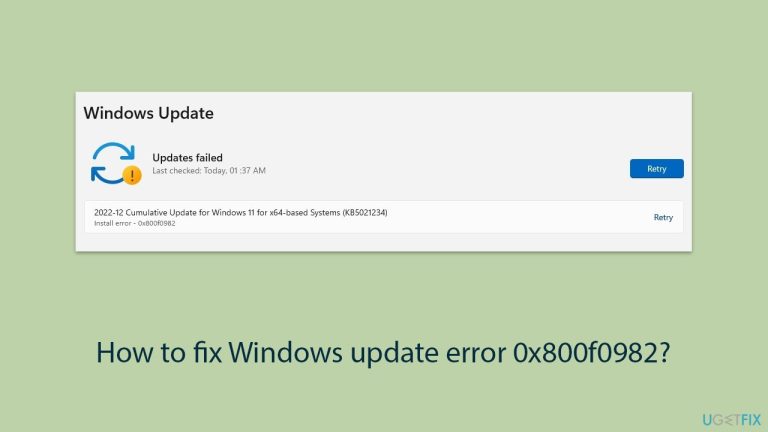
What causes How to fix Windows update error 0x800f0982?
- Corrupted system files
- Conflicts with existing language packs
- Outdated language packs
- Damaged update components
- Temporary glitches in the update process
Repairs Windows system files, removes malware, and restores a clean OS state — without reinstalling.
For a while now, I keep getting 0x800f0982 error when trying to install the latest Windows updates. It stops during the installation process every time. Please help me fix it.
Windows update error 0x800f0982 is one of the common issues that happen during the installation of cumulative updates on Windows systems. This error usually occurs when the update process encounters corrupted system files or conflicts with existing language packs, which results in the failure to apply the update. Users who have been facing the 0x800f0982 error may notice that their system repeatedly attempts to install the same update without success, resulting in a cycle of failed installations.
Some of the most prevalent causes of error code 0x800f0982 involve corruption in either an outdated or corrupted language pack. The language packs are responsible for localized user interfaces, and any problem with these packs will definitely interfere with the update process. Furthermore, it could be caused by corrupted system files that might have damaged some update components, which in turn are preventing the installation of updates.
Users have reported this 0x800f0982 error on different editions of Windows, including Windows 10 and Windows Server. The situations usually occur while trying to install a cumulative update that fixes various problems and enhances the security features. When it fails, the system may not receive the important security updates and improvements it needs.
One of such methods to remedy the error 0x800f0982 may be using [d1] PC Repair. This tool works out automatic detection and repairs underlying Windows issues, which can be causing a faulty update. This way, it repairs corrupted system files and configuration problems that can impede successfully installing Windows Updates meant for your system to remain updated in regards to security and performance.

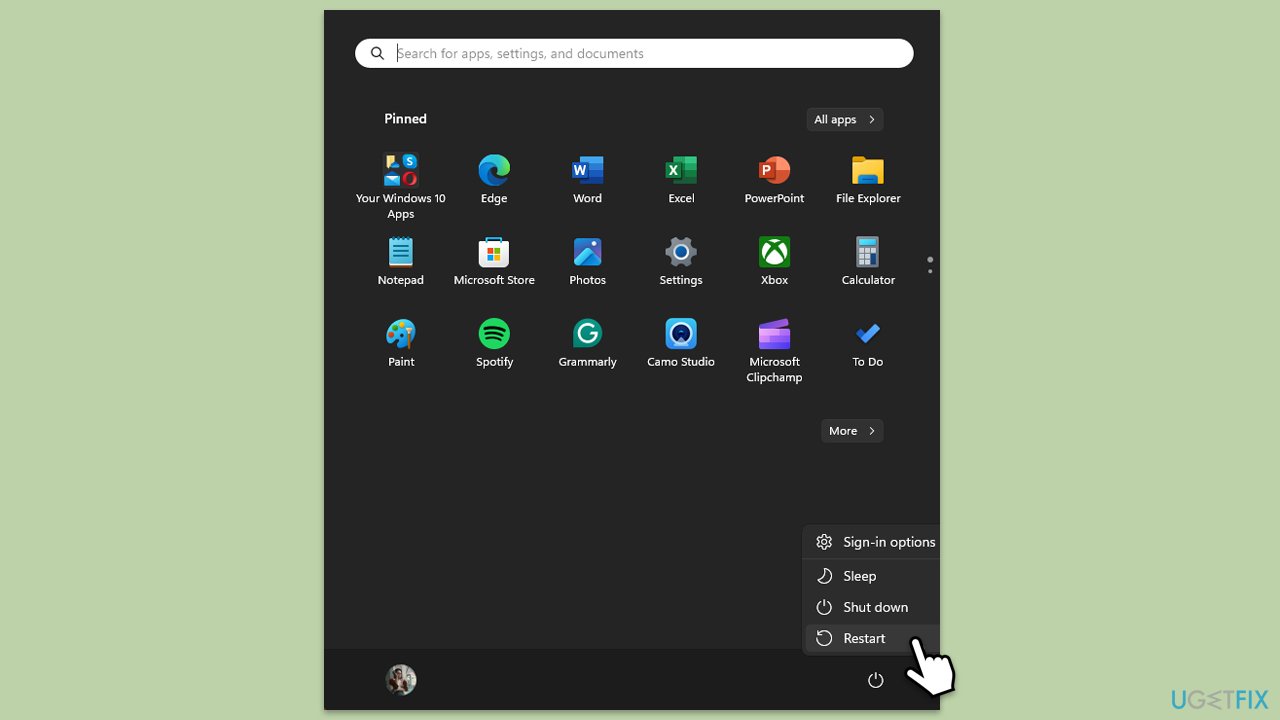
Fix 1. Restart your PC
Restarting can clear temporary glitches in the update process, including any lingering processes or locked files causing the error.
- Close all applications.
- Click on the Start menu.
- Select Restart.
- After rebooting, try running Windows Update again.
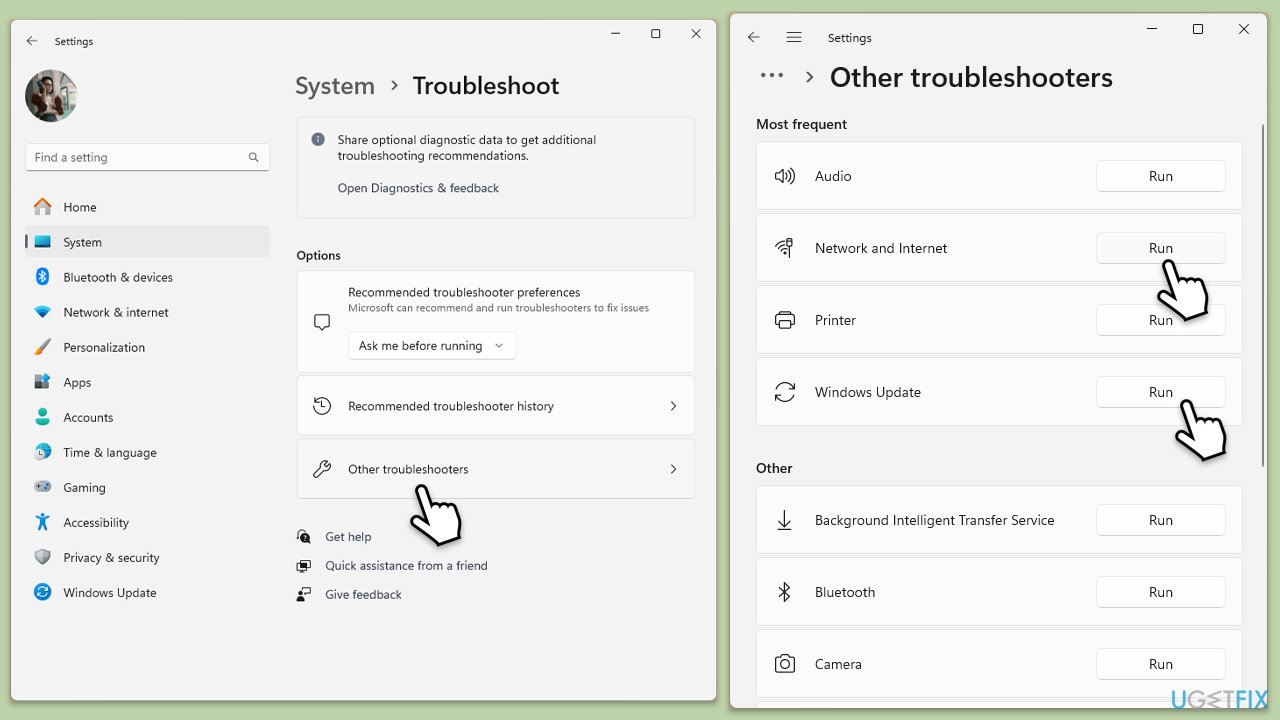
Fix 2. Run the Windows Update and Network troubleshooters
The built-in troubleshooters identifies and resolves common update issues automatically.
- Type Troubleshoot in Windows search and hit Enter.
- Select Additional troubleshooters/Other troubleshooters.
- Find Windows Update from the list and select Run the troubleshooter/Run.
- Wait till the scan is finished - you will be provided with potential causes so you can proceed with fixes.
- Repeat this process with Network troubleshooter.
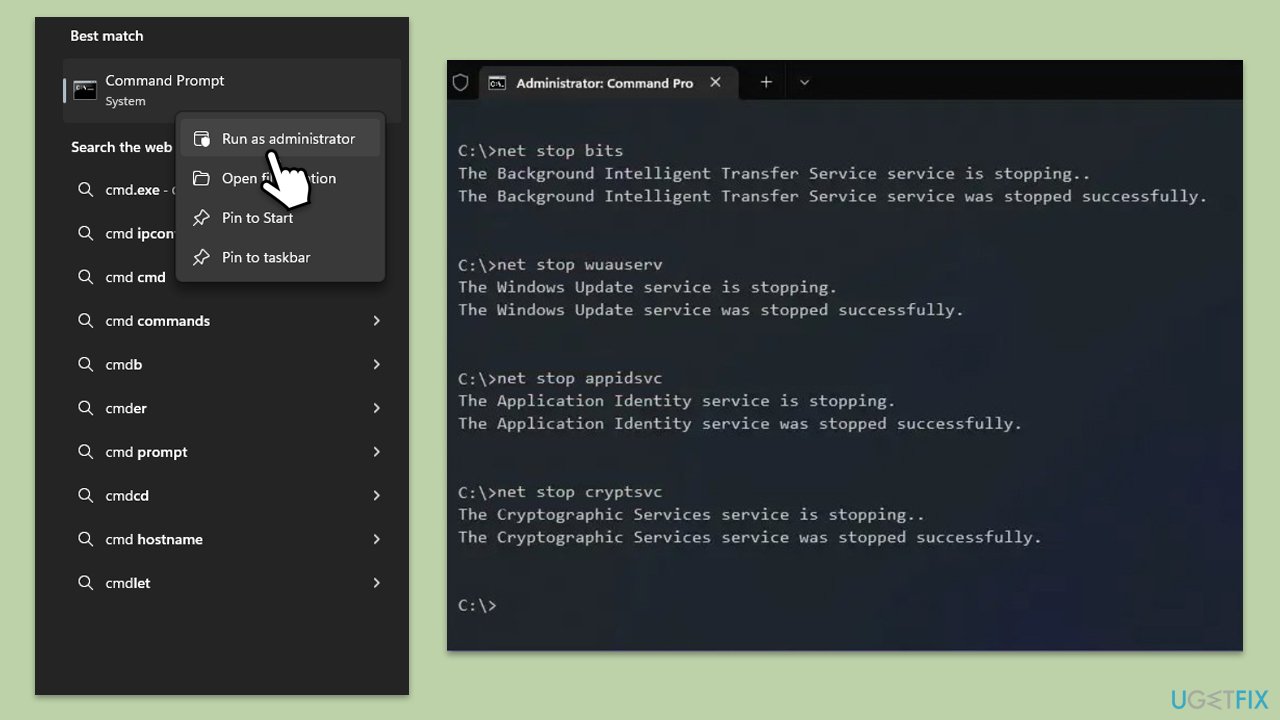
Fix 3. Reset Windows update components
Corrupted or incomplete update files in this folder can cause errors.
- Type cmd in Windows search.
- Right-click on Command Prompt and select Run as administrator.
- When User Account Control shows up, click Yes.
- Stop the Windows Update-related services by running the following commands one at a time, pressing Enter after each one:
net stop wuauserv
net stop cryptSvc
net stop bits
net stop msiserver - Rename the SoftwareDistribution and Catroot2 folders by running the following commands:
ren C:\Windows\SoftwareDistribution SoftwareDistribution.old
ren C:\Windows\System32\catroot2 Catroot2.old
Note: If your Windows installation is not on the C drive, replace "C" with the appropriate drive letter.
regsvr32.exe /s atl.dll
regsvr32.exe /s urlmon.dll
regsvr32.exe /s mshtml.dll
netsh winsock reset
netsh winsock reset proxy - Restart the Windows Update-related services by running the following commands:
net start wuauserv
net start cryptSvc
net start bits
net start msiserver - Restart the computer.
Fix 4. Remove unnecessary language packs
Conflicting or unused language packs can interfere with updates.
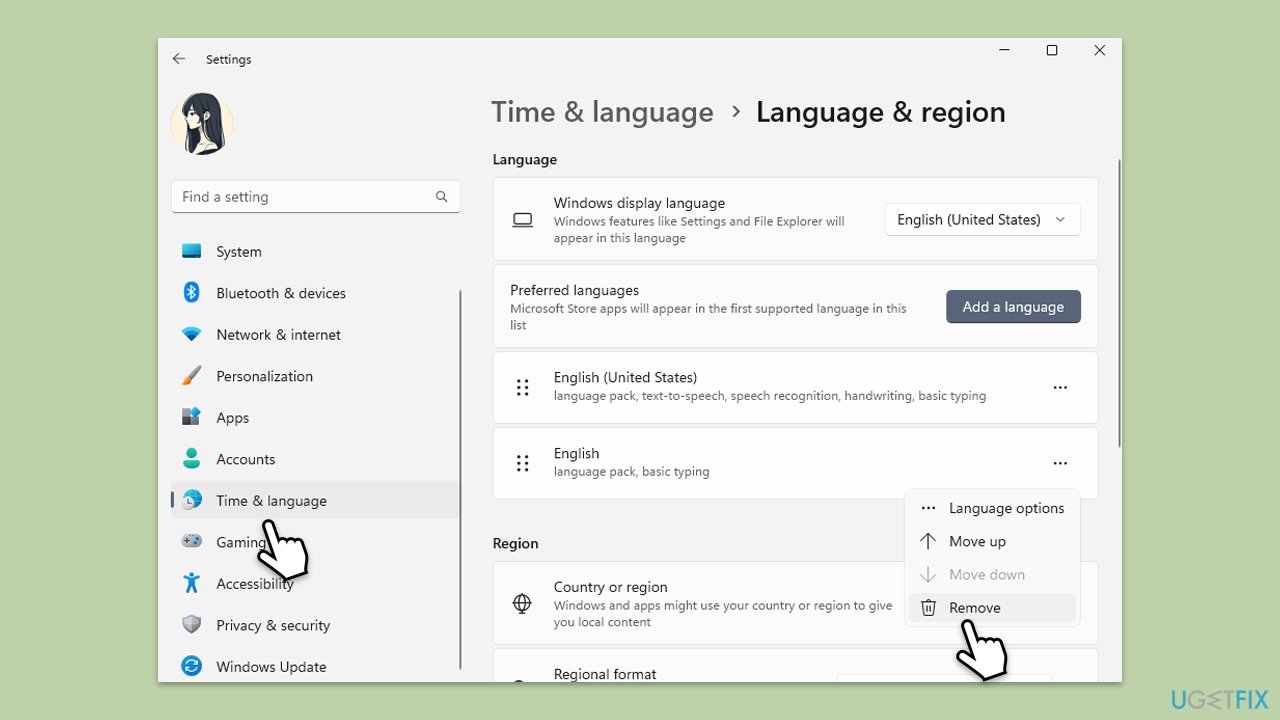
- Right-click on Start and select Settings.
- Go to Time & Language > Language & region.
- Check the list of installed language packs.
- Remove any that are not actively used by selecting them and clicking Remove.
Fix 5. Repair corrupted system files
Corrupted system files can hinder update installations, but this method verifies and repairs them.
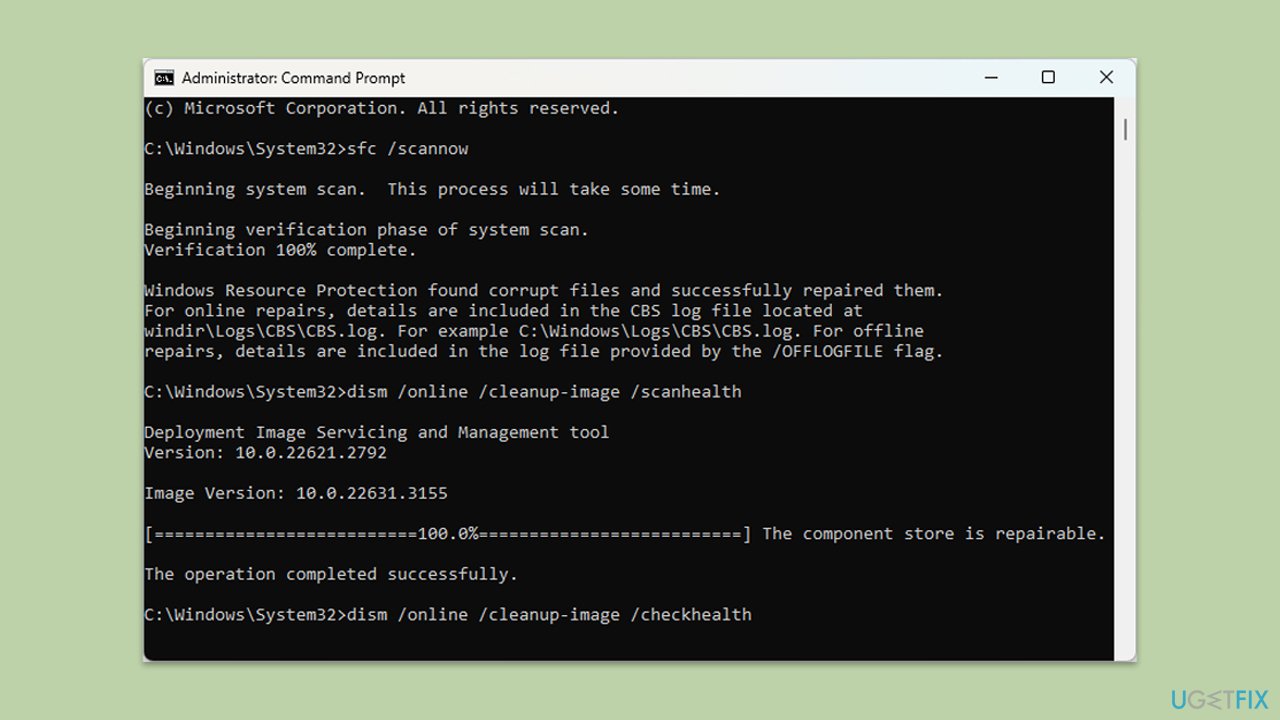
- Open Command Prompt as administrator.
- Copy and paste the following command, pressing Enter after:
sfc /scannow - Wait till the scan is finished. If Windows finds system file integrity violations, it will attempt to fix them. After this, use the set of the following commands, pressing Enter each time:
DISM /Online /Cleanup-Image /CheckHealth
DISM /Online /Cleanup-Image /ScanHealth
DISM /Online /Cleanup-Image /RestoreHealth - (Note: if you get an error executing this last command, add /Source:C:\RepairSource\Windows /LimitAccess to it and try again).
- Restart your device.
Fix 6. Run Disk Cleanup
The Deployment Image Servicing and Management tool repairs Windows image issues.
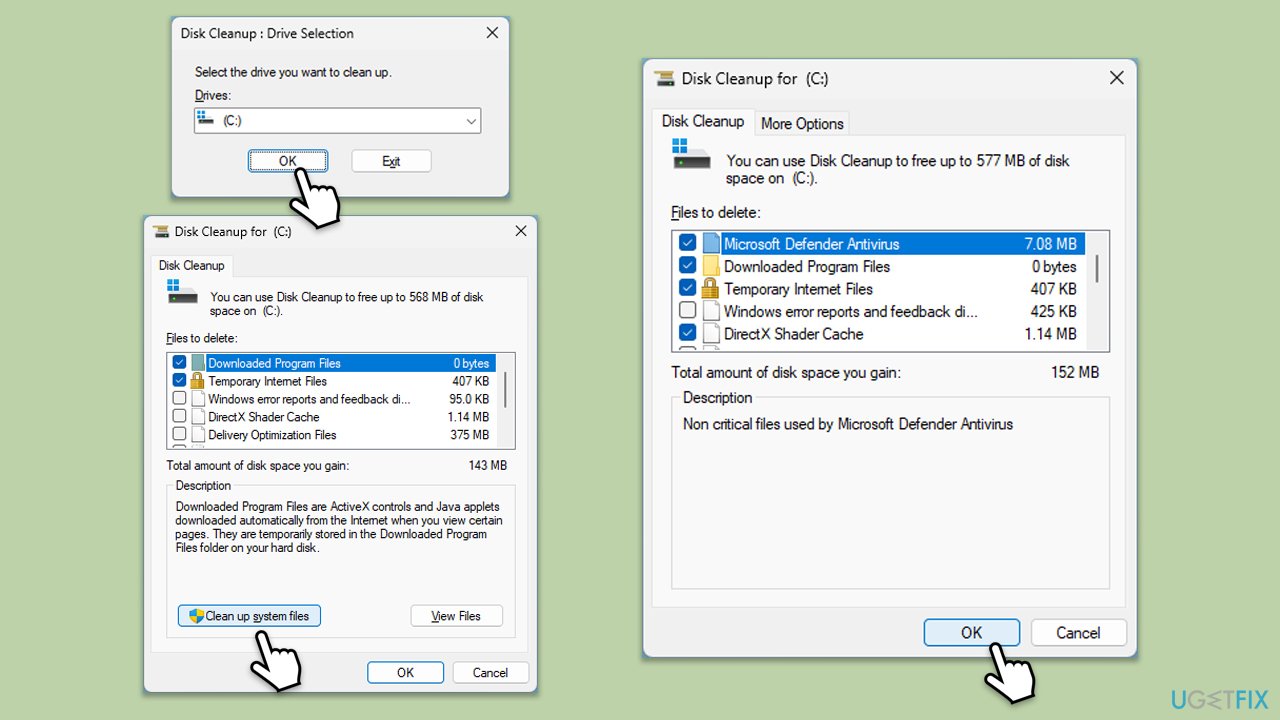
- Type Disk Cleanup in Windows search and hit Enter.
- If your Windows is installed on drive C, pick it from the list (it should be by default) and press OK.
- Click Clean up system files.
- Select your main disk again and click OK.
- Here, select the largest portions of the data used - these typically include Temporary Internet Files, Windows Update, Temporary Files, Recycle Bin, Delivery Optimization Files, and others.
- Click OK - the process should be finished shortly.
Fix 7. Install the update manually
Manual installation bypasses automatic processes that might fail.
- Type in Updates in Windows search and press Enter.
- Select View update history.
- Find the update that failed with the 0x800f0982 error and copy its KB number.
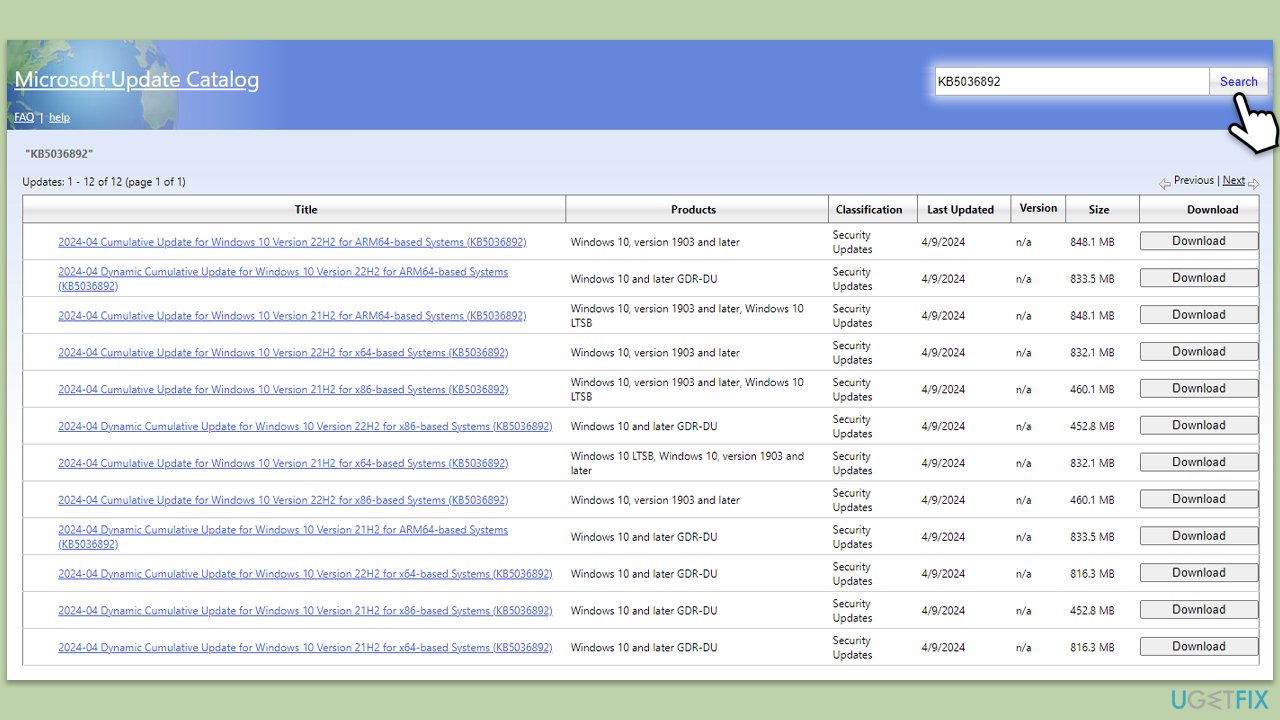
- Open your browser and go to Microsoft Update Catalog.
- Within the search bar, type in the KB number and click Search.
- Find the correct version of the update for your operating system (to check this, right-click on Start and pick System. Under Device specifications and check the System type) and click Download.
- Use on-screen guidelines to finish the installation process and restart your computer.
Fix 8. Perform an in-place upgrade
This method reinstalls Windows while keeping your files and apps intact, resolving deeper system issues.
- Visit the official Microsoft website and download Windows 10 installation media (Windows 11 version).
- Double-click the installer and select Yes when UAC shows up.
- Agree to terms.
- Select Upgrade this PC now and select Next.
- Windows will now download all the necessary files – it might take a while.
- Agree to terms once again and click Next.
- Before installing, make sure that you are happy with your choices (otherwise, you can click Change what to keep option).
- Click Install to begin the upgrade process.

Bottom line
To fix the Windows update error 0x800f0982, you can try restarting your PC to clear any temporary glitches, or use PC Repair to automatically detect and repair underlying issues. If these methods do not resolve the error, further troubleshooting may be necessary.
Frequently asked questions
The error code 0x800f0982 indicates that there is a problem with the Windows update process, often related to missing or corrupt files needed for the update to install properly.
To resolve this error on Windows 11, try running the Windows Update Troubleshooter and ensure your system files are intact by executing the 'sfc /scannow' command in the Command Prompt.
Yes, you can fix error 0x800f0982 on Windows 10 by using the built-in DISM tool with the command 'DISM /Online /Cleanup-Image /RestoreHealth' to repair any damaged system components.




Report an issue
What's wrong with this guide? We review every report and update or remove content.
Report received — thank you. We'll review and fix it.
You need a free account to submit a report.
Be the first to comment