How to fix
Scanner error WA003-0100
on Windows
Resolve the WA003-0100 scanner error on Windows 10 and 11 quickly. Our expert-tested guide ensures a smooth setup, with screenshots for clarity.


What causes How to fix scanner error WA003-0100 in Windows?
- Outdated or corrupted drivers
- Connectivity issues
- Incorrect scanner settings
- Faulty USB cable or port
- Conflicting software
Repairs Windows system files, removes malware, and restores a clean OS state — without reinstalling.
Hello, I am unable to scan anything using my Brother DCP-L2541DW. Printing works fine. I think this happened after Windows update since it was automatically installed recently but I am not sure.
The WA003-0100 scanner error is an uncommon problem that some users encounter when trying to scan documents using Brother brand scanners, such as the Brother DCP-L2540DW. It usually indicates a failure in communication between the scanner and the computer or may refer to some underlying problem within the scanner's hardware or software.
It can occur at any time during scanning and interrupt the workflow, causing frustration. This issue appears to be most associated with the Brother brand; although it is not necessarily exclusive to this brand.
The possible causes of the WA003-0100 error can vary; still, they often include such factors as outdated or corrupted drivers, connectivity issues, or incorrect scanner settings. In addition, a faulty USB cable or port, as well as conflicting software or inappropriate scanner configurations, can also lead to the occurrence of this error. Additionally, some users have reported experiencing this issue after system updates, which sometimes change the way the scanner communicates with the computer.
To troubleshoot the WA003-0100 error, several solutions have been suggested. One of the most commonly suggested solutions is to uninstall and then reinstall the scanner drivers, ensuring they are updated and properly installed. Another fix that has worked for some users is to check and reset the scanner's settings or to perform a system restart to clear any temporary faults. In case the problem persists, users have suggested unplugging and then plugging back the scanner, or trying another USB port or cable to rule out any hardware issues.
If the above suggested solutions do not resolve the problem, further troubleshooting may require running the diagnostic utilities inbuilt into the printer or scanner to check for hardware malfunction. The final step would be resetting the printer to its original factory settings, which hopefully can resolve the issue.
To automatically tackle any underlying issues with Windows, one can make use of the [d1] PC repair tool, which helps to get rid of many system-related issues, such as those involving hardware communication.

Fix 1. Perform a system restart
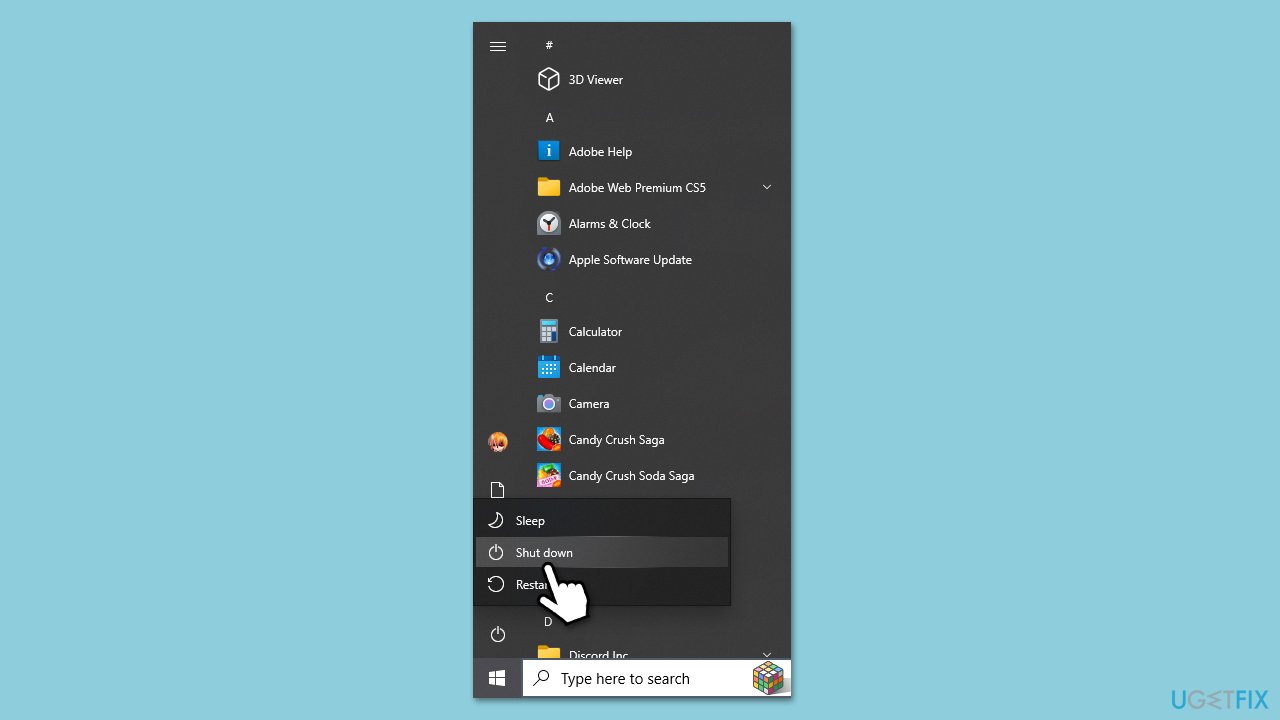
A simple restart of both your computer and scanner can resolve temporary communication issues that might be causing the WA003-0100 error.
- Turn off both your computer and scanner.
- Wait for a few seconds and then turn them back on.
- Test the scanner.
- If the issue persists, proceed with other troubleshooting methods.
Fix 2. Reinstall scanner drivers
Outdated or corrupted drivers can cause communication problems between your scanner and the computer, leading to the WA003-0100 error. Reinstalling the drivers ensures that the software used by your system is up to date and compatible with your scanner.
- Right-click on Start and pick Device Manager.
- Locate Imaging Devices section and locate your scanner.
- Right-click on the scanner and select Uninstall device.
- Confirm any prompts.
- Restart your computer.
- From here, you can either download the latest drivers from the official Brother website or employ automatic tools like [rev id="DriverFix"].
- Install the new drivers and restart your computer again.

Fix 3. Reset the scanner settings
If you haven't done so yet, try resetting the settings of your scanner - the option exists on your device itself.
- On the scanner’s control panel, press the Menu button.
- Navigate to the Reset option and select it.
- Choose Restore Default Settings or similar option based on your scanner model.
- Confirm the reset and wait for the process to complete.
Fix 4. Check the USB connection
A loose or malfunctioning USB connection interferes with the communication between your scanner and computer. Ensuring a secure and functioning connection can resolve the error.
- Disconnect the USB cable from both the scanner and your computer.
- Inspect the cable for any visible damage or wear.
- Try using a different USB port on your computer (for example, if you used 2.0 USB slot, try using 3.0 and vice versa).
- Reconnect the cable and try using the scanner.
Fix 5. Run the Windows troubleshooter
Windows also has integrated troubleshooters to identify and solve many problems. Among these are troubles related to the use of a scanner. Run the troubleshooter-it may automatically check for and fix problems involving your scanner.
- Type troubleshoot in Windows search and hit Enter.
- Select Other troubleshooters or Additional troubleshooters, depending on your Windows version.
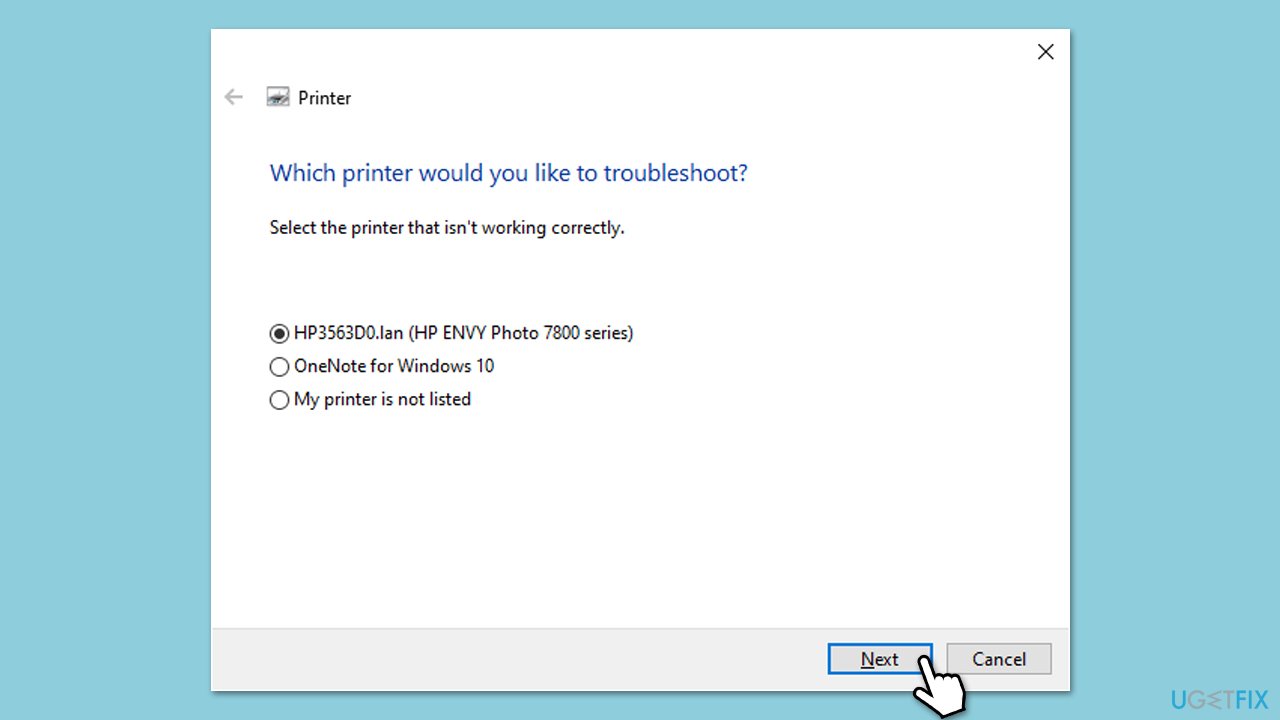
- Choose Printer and select Run or Run the troubleshooter.
- Select the scanner you are having problems with and click Next.
- Follow the steps and apply the recommended changes.
- Restart your computer.
Fix 6. Disable firewall or security software temporarily
Sometimes, security software or firewalls may block scanner communication, leading to errors like WA003-0100. Temporarily disabling these programs can help identify if they are causing the issue.
- Open your firewall or security software settings.
- Look for an option to disable the firewall protection.
- If the error is resolved, try adjusting the firewall or other software settings to allow the scanner to connect properly.
Bottom line
To fix the WA003-0100 error, you can uninstall and reinstall the scanner drivers, check and reset the scanner's settings, or perform a system restart. If the problem persists, try unplugging and replugging the scanner or using a different USB port or cable. If none of these solutions work, consider running diagnostic utilities or resetting the printer to factory settings.
Frequently asked questions
The WA003-0100 scanner error in Windows 10 is often caused by outdated drivers or a misconfigured scanner setup. Ensuring that the scanner drivers are up-to-date can help resolve this issue.
To troubleshoot the WA003-0100 error on Windows 11, try restarting both your computer and the scanner, and check the USB connections. Additionally, running the built-in Windows troubleshooter for printers can help identify and fix the problem.
Yes, you should verify that the scanner is set as the default device in Windows 10 or Windows 11 and check the scanner's network settings if it's a wireless device. Also, ensure that any security software isn't blocking the scanner's communication.




Report an issue
What's wrong with this guide? We review every report and update or remove content.
Report received — thank you. We'll review and fix it.
You need a free account to submit a report.
Be the first to comment