How to fix
How fix too large mouse cursor after reboot
on Windows
Get your mouse cursor back to normal size on Windows 10 or 11 effortlessly. Quick solutions ensure a seamless experience, expert-tested for reliability.

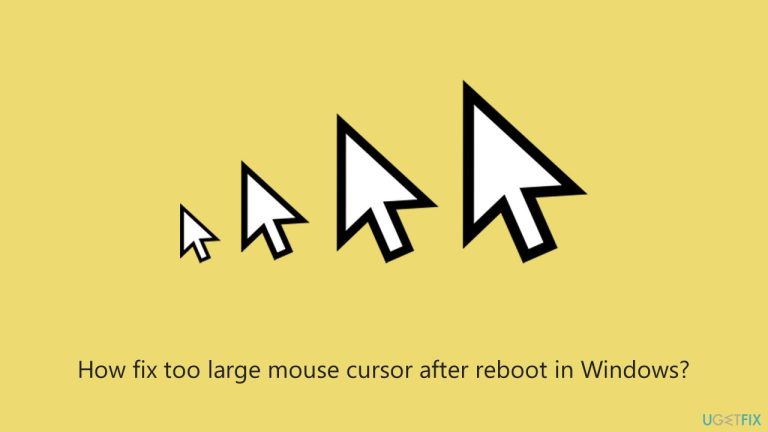
What causes How fix too large mouse cursor after reboot in Windows?
- Changes introduced during system updates
- Scaling settings reset after rebooting
- Driver conflicts
- Corrupted system files
- Third-party software modifying accessibility settings
Repairs Windows system files, removes malware, and restores a clean OS state — without reinstalling.
Every time I boot up my laptop, my mouse cursor becomes huge in the relevance to everything else on my desktop. This happened as soon as installed the latest Windows 11 update 24H2. Help.
A mouse cursor too large is an unexpected problem some users have encountered in Windows 11, particularly after installing major updates like version 24H2. This anomaly causes the mouse pointer to appear significantly larger than normal, creating a frustrating experience for many. Reports indicate that this mouse cursor size issue after reboot is especially common on devices such as the HP Spectre x360 and HP OMNIBOOK Ultra Flip 14.
This problem seems to stem from changes introduced during system updates. Some users have observed that scaling settings are reset after rebooting, while others suspect that driver conflicts or corrupted system files might be contributing to the issue. Regardless of the cause, the mouse pointer size keeps changing upon restart, making it a persistent inconvenience for those affected.
Windows updates aim to improve system performance and compatibility, but they can sometimes lead to unexpected glitches. In this case, the oversized cursor issue might result from improper synchronization between updated system parameters and display hardware. Additionally, third-party software or tweaks that modify accessibility settings could potentially exacerbate the problem.
Although this phenomenon does not impact all users, it has generated enough concern to warrant further investigation. If you are experiencing this mouse cursor size issue after reboot, exploring potential causes like driver conflicts, display scaling changes, or accessibility settings might help address the problem. You can try running an automatic repair tool [d1] or stay tuned for troubleshooting instructions in the following section.

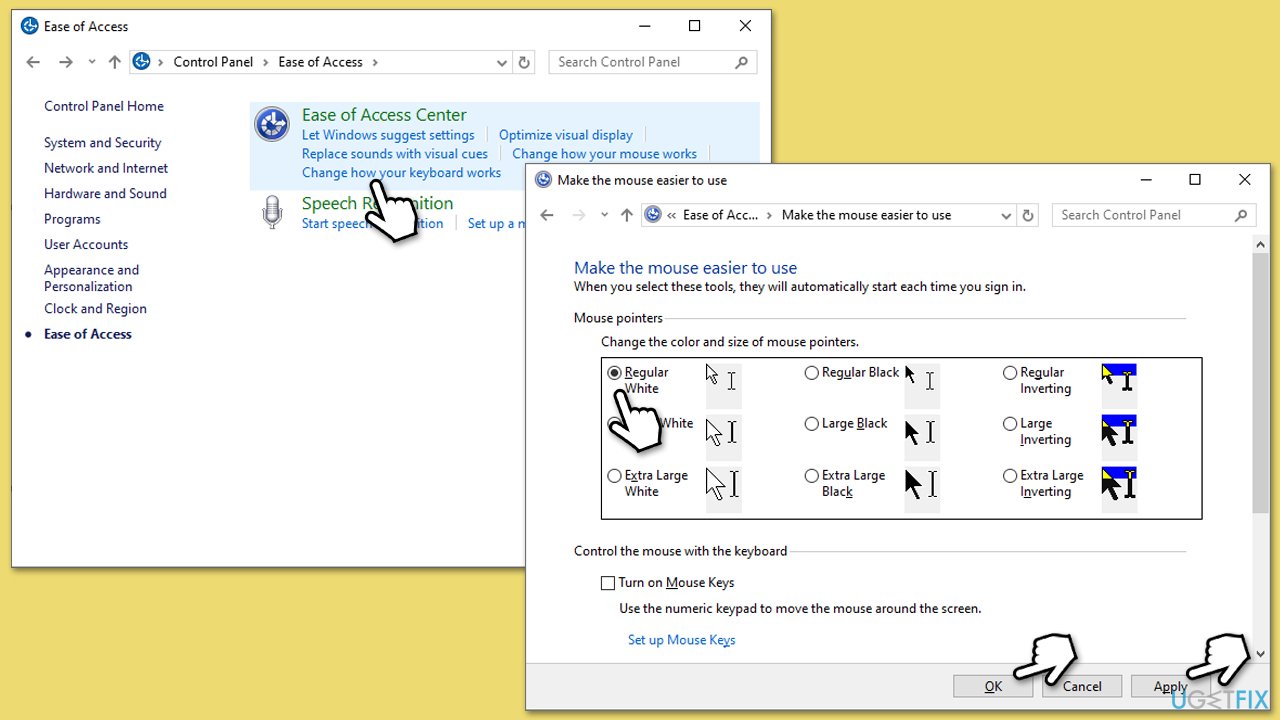
Fix 1. Adjust mouse cursor settings
Sometimes, the issue is related to incorrect cursor size settings. Verifying and adjusting these settings can resolve the problem, especially if a scaling reset occurred after the update.
- Type Control Panel in Windows search and press Enter.
- Navigate to Ease of Access.
- Click on Change how your mouse works.
- Under the Make the mouse easier to use section, select a smaller cursor option, like Regular White.
- Click Apply and then OK to save changes.
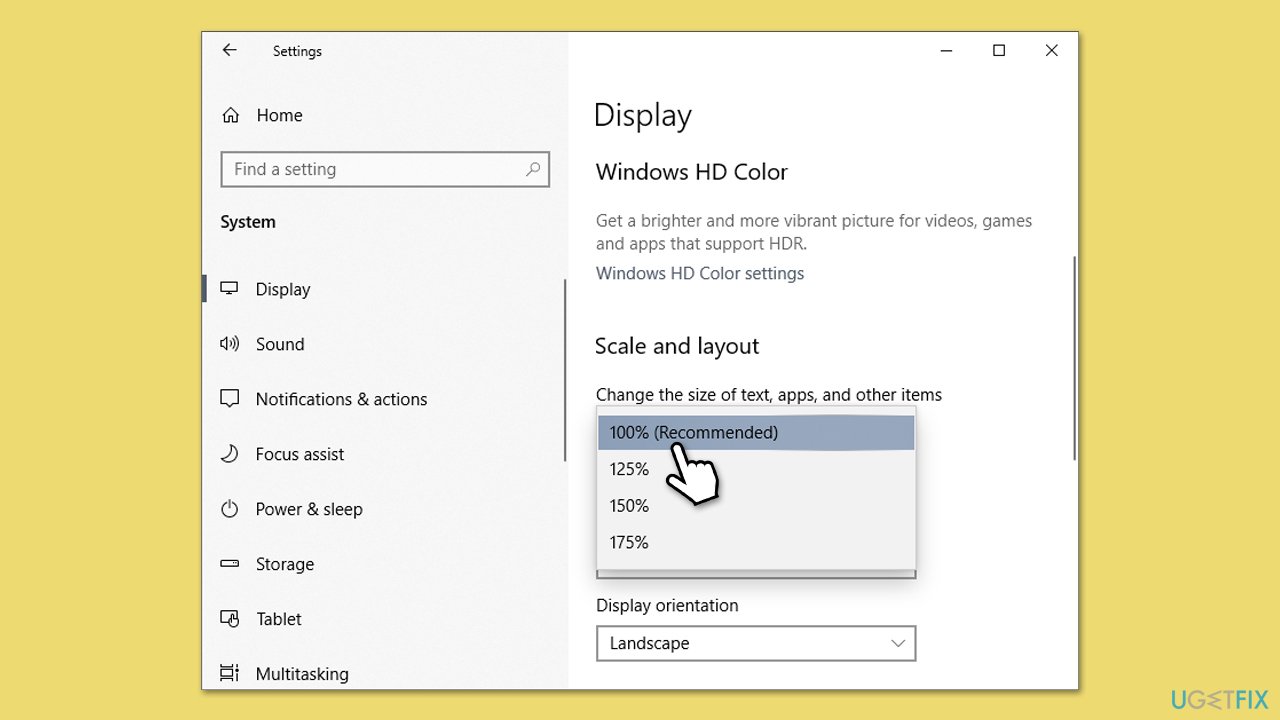
Fix 2. Reset display scaling
Improper display scaling can cause the mouse cursor size to appear larger than intended. Resetting the scaling options to the recommended value might resolve the issue.
- Right-click on Start and select Settings.
- Navigate to System and then click Display.
- Under the Scale and layout section, select the Recommended scaling option, which is usually 100% (many users said that they had it set to 200%, that's why the issue was present in the first place).
- Restart your system.
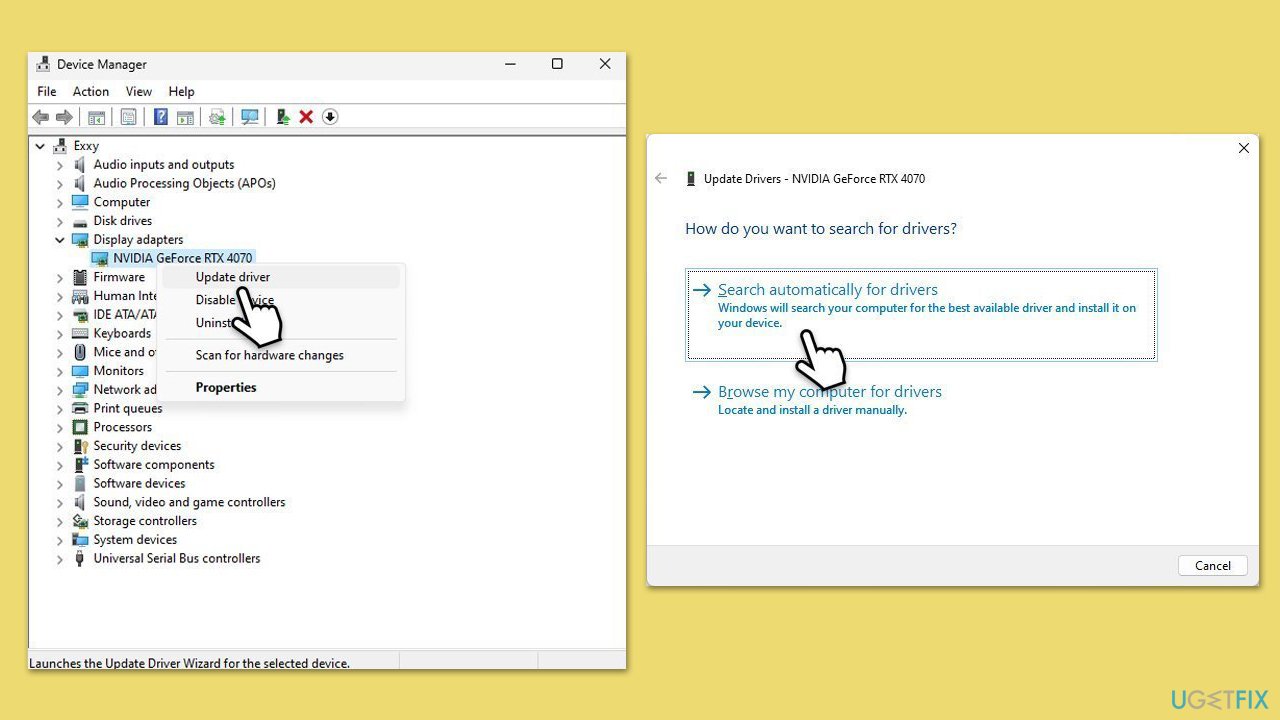
Fix 3. Update graphics drivers
Manual method below might not always be effective, so you can either download the driver from the official website or use tools such as [rev id="DriverFix"].
- Right-click on the Start button and select Device Manager from the menu.
- Expand the Display adapters section.
- Right-click on your graphics card and select Update driver.
- Pick Search automatically for drivers.
- If updates are found, allow them to install.
- Restart your computer after updating all necessary drivers.
Fix 4. Disable third-party cursor customization tools [if applicable]
Third-party tools that customize mouse pointers can sometimes conflict with Windows updates, causing size irregularities. Disabling or uninstalling these tools can help.
- Right-click on Start and select Apps & features/Installed apps.
- Locate the third-party cursor customization app in the list.
- Click on it and select Uninstall.
- Restart your computer to check if the issue is resolved.
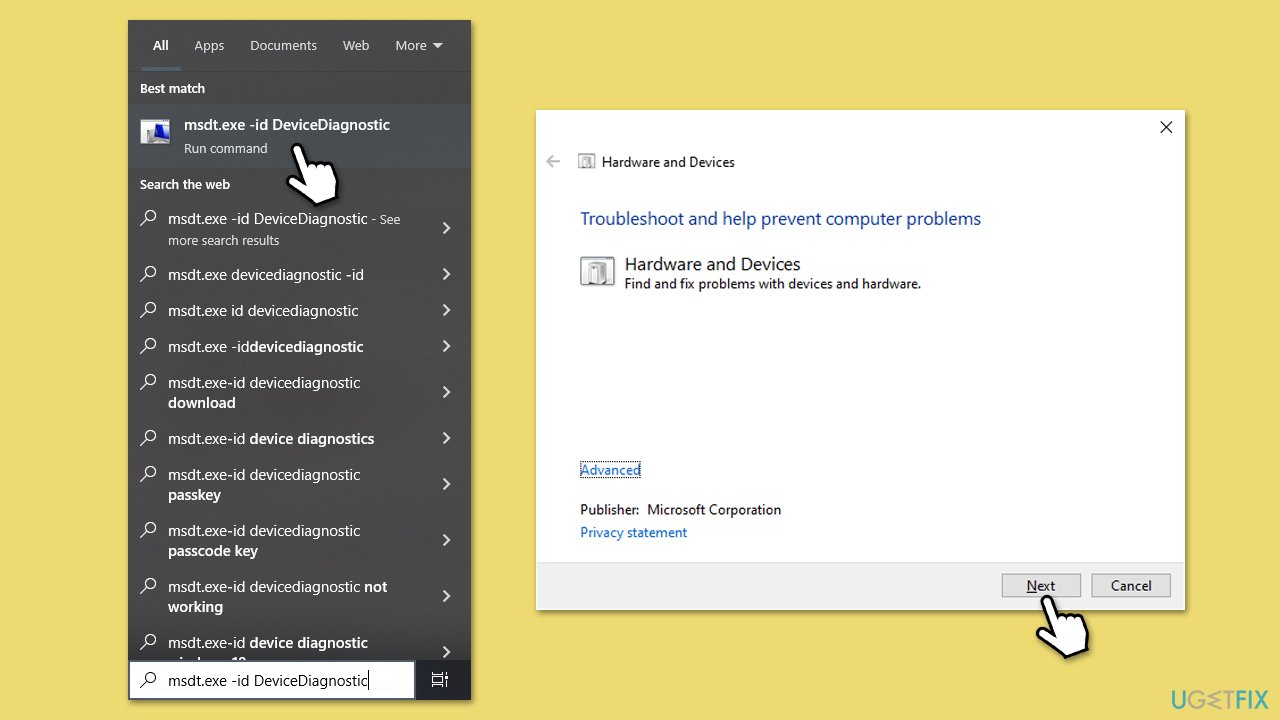
Fix 5. Run the Hardware and Devices troubleshooter
Windows includes a built in diagnostic tool that automatically finds and fixes problems with hardware, such as mouse pointer size issues.
- Open Windows search.
- Copy and paste the following command, pressing Enter after:
msdt.exe -id DeviceDiagnostic - Follow on-screen instructions to run the troubleshooter and apply the suggested fixes.
- Restart your device.
Fix 6. Check for corrupted system files
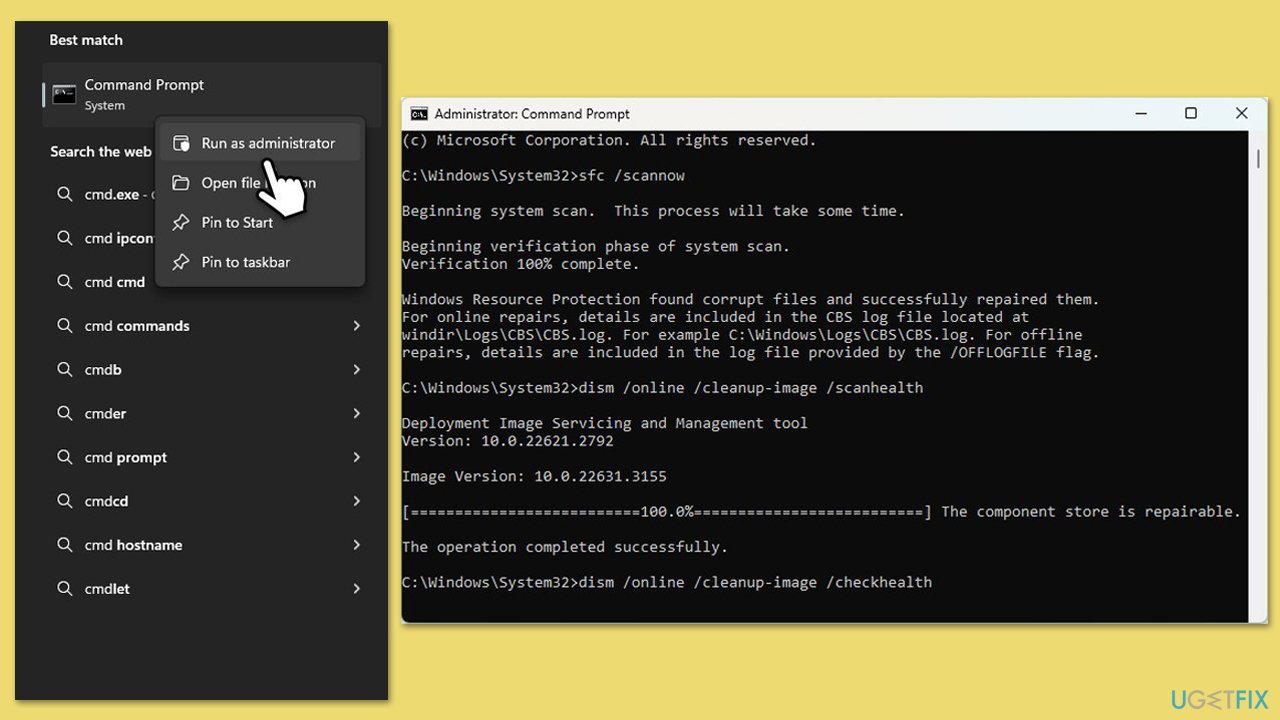
Corrupted system files might affect display elements, including the mouse cursor. Running the System File Checker (SFC) tool can detect and repair these issues.
- Type in cmd in Windows search.
- Right-click on Command Prompt and select Run as administrator.
- When User Account Control shows up, click Yes.
- In the Command Prompt window, paste the following command and hit Enter:
sfc /scannow - Next, use the following commands, pressing Enter each time:
Dism /Online /Cleanup-Image /CheckHealth
Dism /Online /Cleanup-Image /ScanHealth
Dism /Online /Cleanup-Image /RestoreHealth
(Note: if you get an error executing this last command, add /Source:C:\RepairSource\Windows /LimitAccess to it and try again). - Reboot your computer.
Fix 7. Roll back the latest Windows update
If the oversized cursor issue started after a major update, rolling back the update might temporarily fix the problem while waiting for a patch from Microsoft.
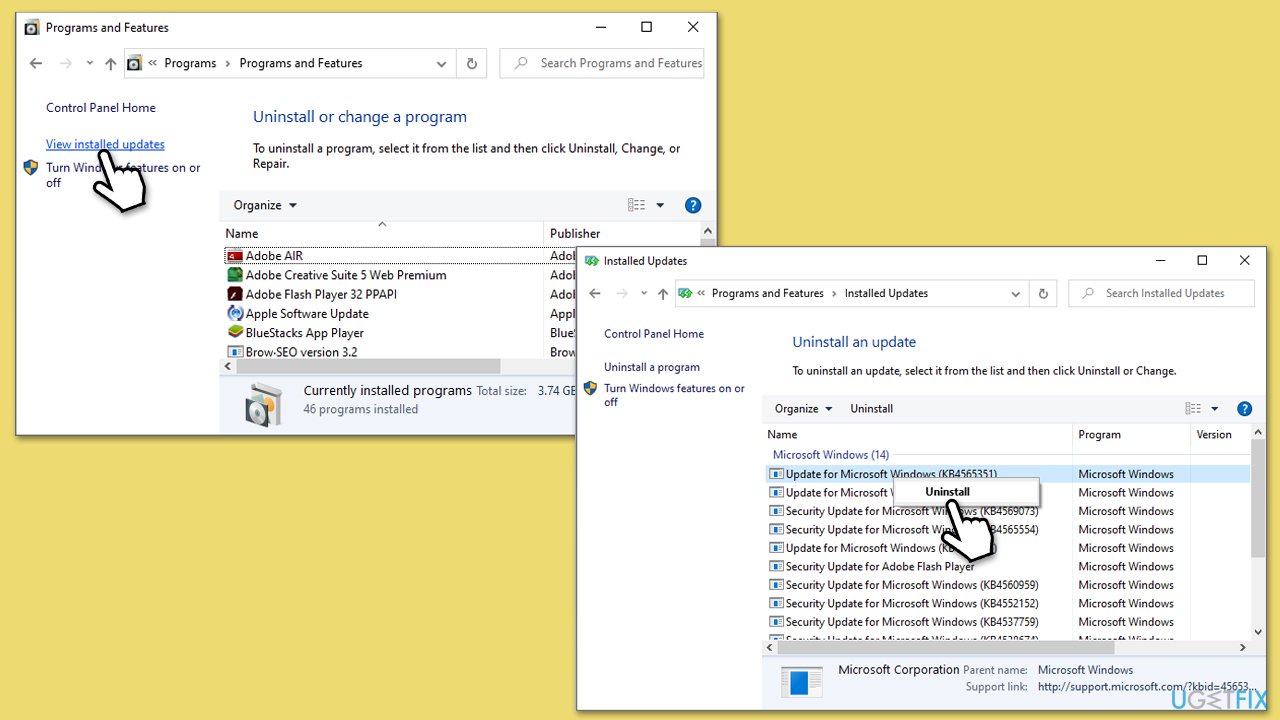
- Type Control Panel in Windows search and press Enter.
- Select Programs > Uninstall a program.
- Click on View installed updates on the left side of the window.
- Sort all the updates by date.
- Right-click on the most recent update and select Uninstall.
- Proceed with on-screen instructions.
- Then, type Updates in Windows search and press Enter.
- Click Pause the updates for 7 days (in Windows 11, you can pick a different time period).
Fix 8. Turn off Fast Startup
Fast Startup is a Windows feature that can sometimes cause system settings, including mouse cursor size, to load incorrectly after a reboot. Disabling it can resolve the issue.
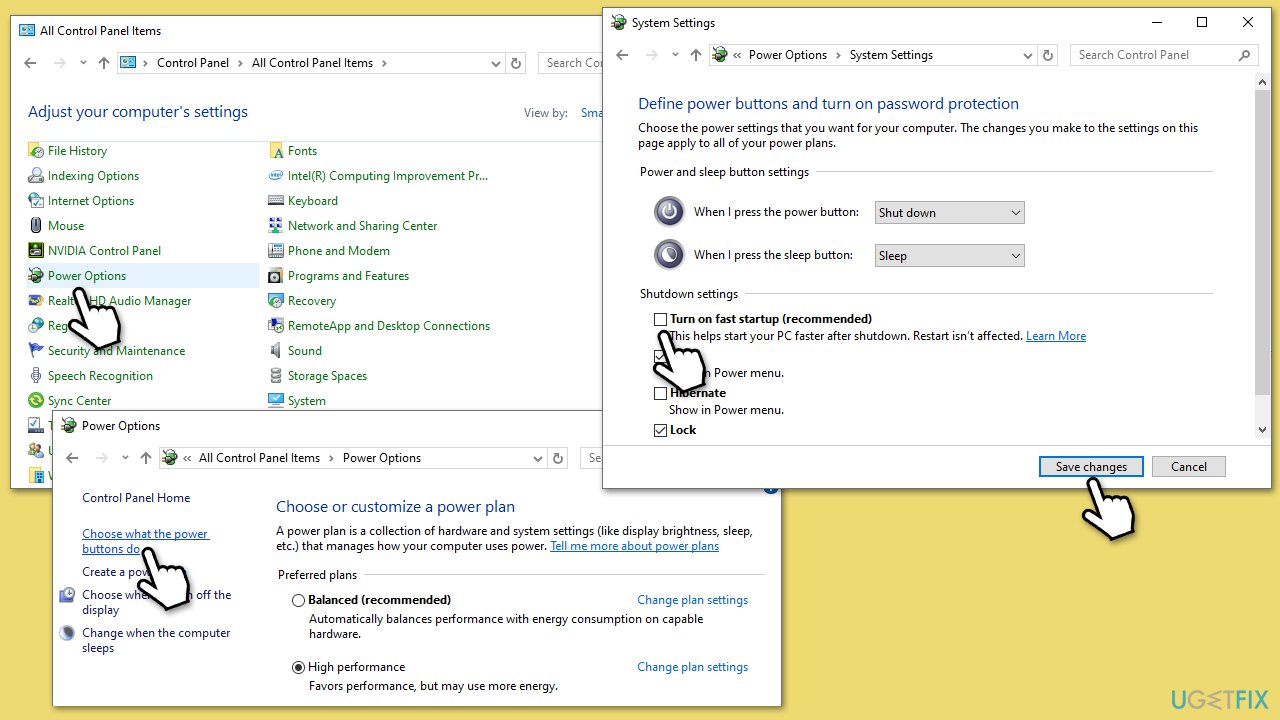
- Type Control Panel in Windows search and hit Enter.
- Select Small icons view and pick Power options.
- On the left side of the window, select Choose what the power buttons do.
- Pick the Change settings that are currently unavailable option at the top
- Remove the tick from the Turn on fast startup (recommended) option and select Save changes.
Bottom line
To address the oversized mouse cursor issue, users can adjust mouse cursor settings, verify display scaling, and check for driver conflicts. If these fixes do not resolve the problem, consider running an automatic repair tool or seeking further troubleshooting instructions.
Frequently asked questions
This issue can occur due to display scaling settings or graphics driver problems in Windows 10. Check your display settings and update your graphics drivers to resolve the issue.
You can change the cursor size by navigating to Settings > Accessibility > Mouse pointer and touch, and then adjusting the size slider. This will help you customize the cursor to a more comfortable size.
If the cursor size resets after rebooting, try disabling any third-party mouse software and ensure that your Windows updates are current, as this may fix the persistent issue.




Report an issue
What's wrong with this guide? We review every report and update or remove content.
Report received — thank you. We'll review and fix it.
You need a free account to submit a report.
Be the first to comment