How to fix
“A driver cannot load on this device” (amsdk.sys) error
on Windows
Resolve the "A driver cannot load on this device" error in Windows 10 or 11 effortlessly. Get expert-tested solutions with screenshots for quick fixes.


What causes How to fix “A driver cannot load on this device” (amsdk.sys) error in Windows?
- Installed the latest Windows updates
- Increased security measures blocking outdated drivers
- amsdk.sys flagged as incompatible or unsigned
- Memory Integrity feature preventing vulnerable drivers from loading
- Intermittent nature of the error after system reboots
Repairs Windows system files, removes malware, and restores a clean OS state — without reinstalling.
I installed the latest Windows updates a few days ago and since then I keep getting an error saying "A driver cannot load on this device. Driver: amsdk.sys. A security setting is detecting this as a vulnerable driver and blocking it form loading. You'll need to adjust your settings to load this driver." What does this mean and how can I fit it?
Windows users may encounter the message "A driver cannot load on this device" related to amsdk.sys, a driver associated with AMD software. This issue commonly arises after installing major system updates, such as Windows 11 24H2, due to increased security measures that block outdated or unauthorized drivers.
Many users report that this error appears after a system reboot, preventing certain AMD features from working correctly. Some notice that the affected driver is part of AMD's Adrenalin software or Ryzen Master, which controls performance tuning and monitoring. When the system flags amsdk.sys as incompatible or unsigned, it restricts its execution, leading to functionality issues.
For some, the problem is intermittent, with the error message occasionally disappearing on its own, while others find it persistent across multiple reboots. Attempts to reinstall AMD software do not always resolve the issue, leaving users frustrated with limited options.
This error is often tied to Windows' Memory Integrity feature, which prevents potentially vulnerable drivers from loading. If amsdk.sys does not meet the latest security standards, Windows blocks it to maintain system stability. While disabling Memory Integrity might allow the driver to function, users express concerns about lowering system security.
Given the impact on AMD software and performance tools, fixing the amsdk.sys driver error is essential for maintaining system stability and functionality. For users facing persistent problems, using the [d1] automatic Windows repair tool may help resolve the issue effectively.

Fix 1. Check for Windows and AMD software updates
Ensuring that both Windows and AMD software are up to date can resolve compatibility issues that trigger the "A driver cannot load on this device" error. Updates often include fixes for driver conflicts.
- Open Settings.
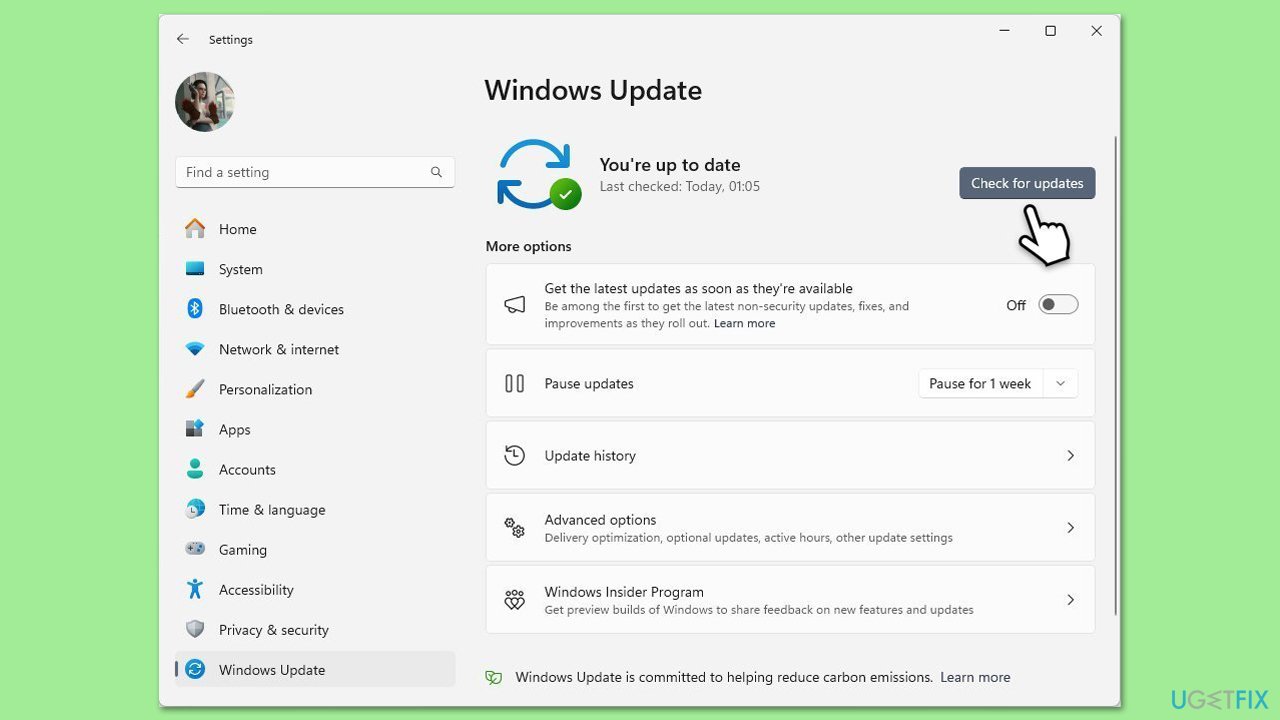
- Go to Windows Update and click Check for updates.
- If updates are available, install them and restart your PC.
- Open AMD Adrenalin or Ryzen Master and check for driver updates. Alternatively, use third-party tools like [rev id="DriverFix"].
- If updates are available, install them and restart your computer again.
Fix 2. Disable Memory Integrity (Optional)
Windows’ Memory Integrity feature enhances security by blocking drivers that fail integrity checks. If amsdk.sys is flagged, temporarily disabling this setting might allow the driver to load.
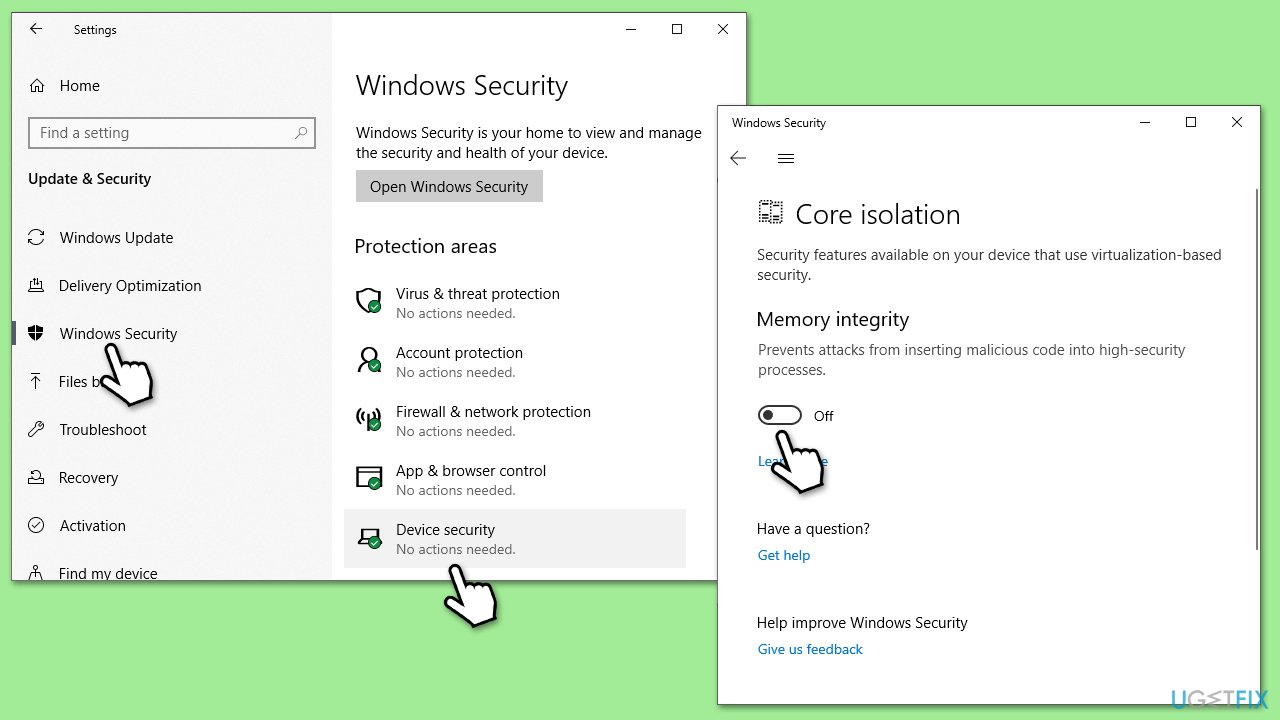
- Open Settings and go to Privacy & Security.
- Click Windows Security and open Device Security.
- Under Core Isolation, click Core isolation details.
- Toggle Memory Integrity off and restart your PC.
On Windows 10:
- Open Settings.
- Navigate to Update & Security, then to Windows Security.
- Select Device security.
- Scroll down to the Core isolation section.
- Click Core isolation details.
- Under Memory integrity, ensure the switch is set to the OFF position.
Fix 3. Reinstall AMD Software
Reinstalling AMD drivers and software can help resolve issues caused by corrupted installations or outdated driver versions.
- Right-click on Start and select Device Manager.
- Expand System Devices and locate AMD-related drivers.
- Right-click and select Uninstall device (check Delete the driver software for this device if available).
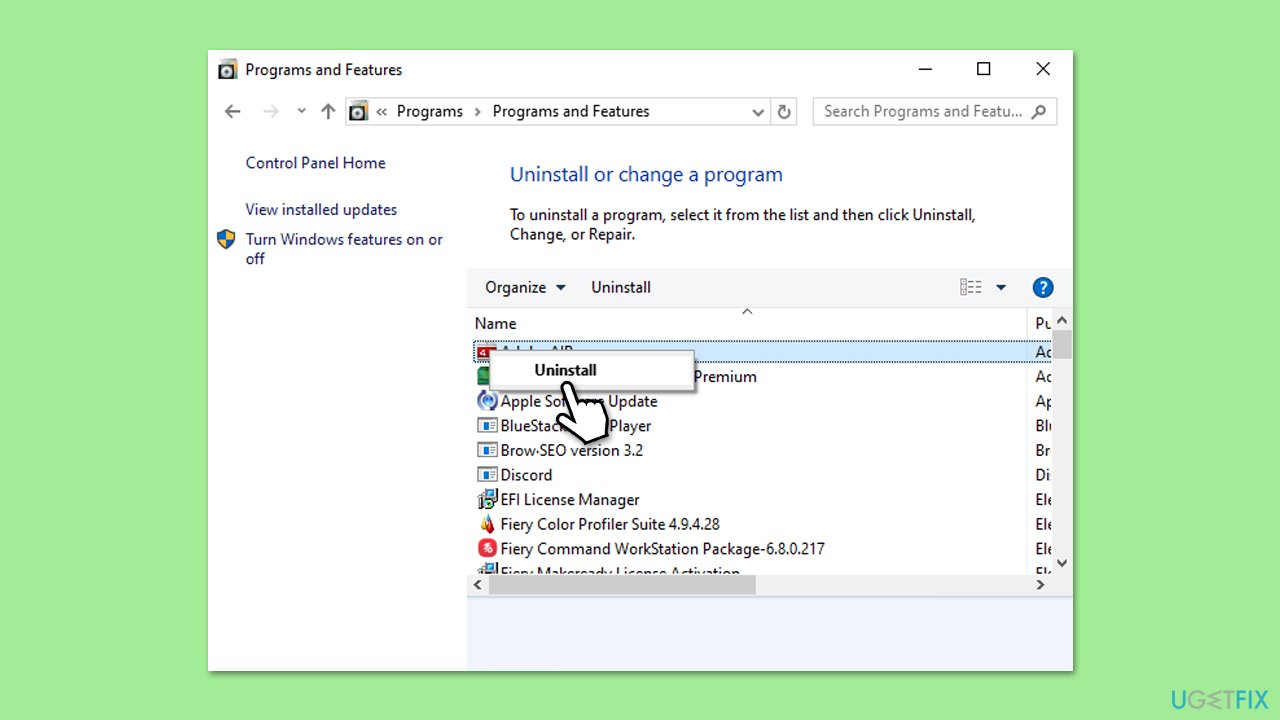
- Open Apps & Features in Settings.
- Find AMD Software, click Uninstall, and restart your PC.
- Download the latest version of AMD Adrenalin or Ryzen Master from AMD’s official website and install it.
Fix 4. Enable the affected driver manually
If the driver is blocked, manually allowing it through Windows settings might resolve the issue.
- Open Windows Security from the Start menu.
- Go to Device Security and click Core isolation details.
- Look for a warning about amsdk.sys being blocked.
- If prompted, click Allow or Enable.
- Restart your PC to apply changes.
Fix 5. Check for third-party security software conflicts
Some third-party antivirus programs may mistakenly block amsdk.sys, leading to this error.
- Open your antivirus software and check the quarantine or blocked items list.
- If amsdk.sys appears, allow it and restart your PC.
- If the issue persists, temporarily disable your antivirus and check if the error still occurs.
Fix 6. Roll back to a previous working driver
If the issue started after a recent update, rolling back to a previous driver version may resolve it.
- Right-click on Start and open Device Manager.
- Expand Processors or System Devices.
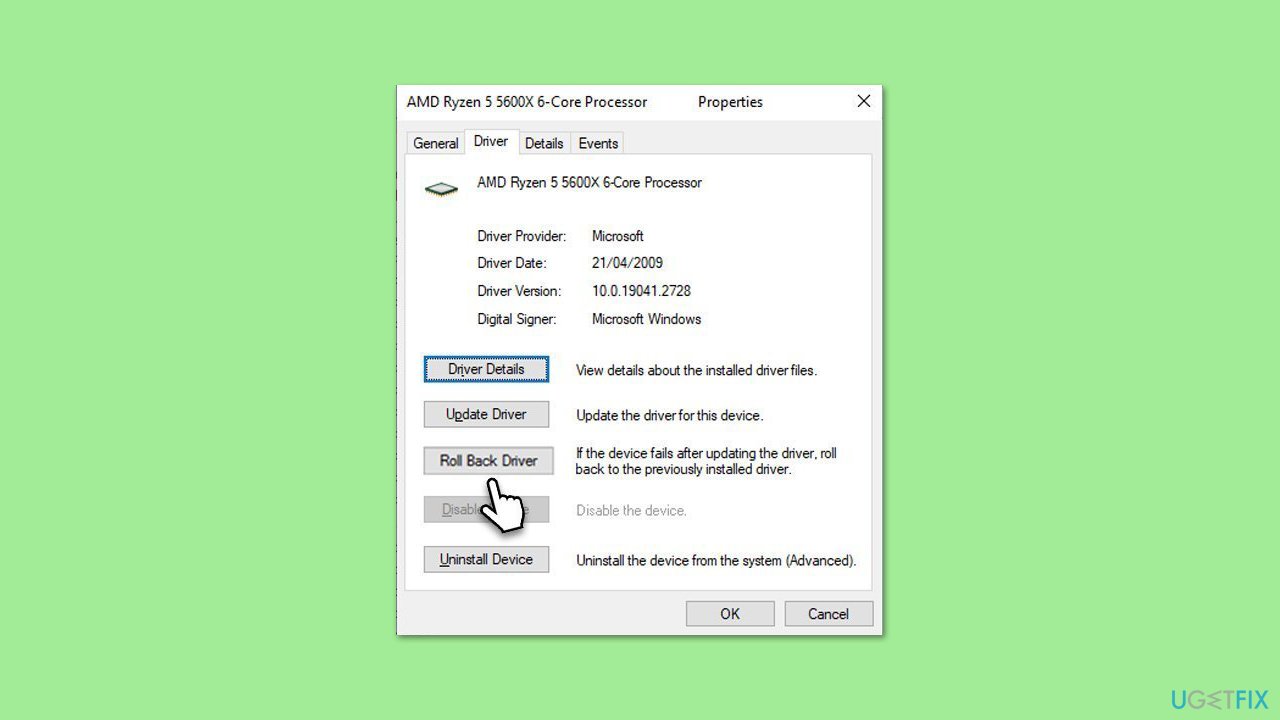
- Right-click on your AMD device and select Properties.
- Go to the Driver tab and click on Roll Back Driver.
- Follow the prompts and then restart your PC.
Fix 7. Perform a System Restore
If the issue persists, rolling back Windows to a previous state using System Restore can help.
- Type Create a restore point in the Windows search bar and open it.
- Click on System Restore.
- In the new window, click Next or Choose a different restore point.
- If available, mark the More restore points checkbox.
- Select the point in time when the issue did not exist and click Next.
- Finally, click Finish.
- After restarting, check if the driver issue is resolved.
Bottom line
To fix the 'A driver cannot load on this device' error related to amsdk.sys, users should check for updates for both Windows and AMD software. If the problem persists, consider using the automatic Windows repair tool. If none of these solutions work, further investigation into driver compatibility may be necessary.
Frequently asked questions
The 'amsdk.sys' error indicates that a driver related to the Advanced Micro Devices (AMD) software cannot load properly, often leading to system instability or crashes.
To fix this error, you can try updating the affected driver through Device Manager or uninstalling and reinstalling it to ensure compatibility with your Windows 10 system.
Yes, keeping your Windows 11 system updated with the latest patches and ensuring that all drivers are current can help prevent the 'amsdk.sys' error from reappearing.




Report an issue
What's wrong with this guide? We review every report and update or remove content.
Report received — thank you. We'll review and fix it.
You need a free account to submit a report.
Be the first to comment