How to fix
WaaSMedicSvc error “Failed to Read Description. Error Code: 2”
on Windows
Resolve the WaaSMedicSvc error "Failed to Read Description. Error Code: 2" in Windows 10/11 quickly and effectively. Expert-tested solutions included!


What causes How to fix WaaSMedicSvc error “Failed to Read Description. Error Code: 2” in Windows?
- Missing registry entries
- Corrupted registry entries
- Corrupted system files
- Temporary glitches in system services
- Registry misconfigurations
Repairs Windows system files, removes malware, and restores a clean OS state — without reinstalling.
When I check Services, WaaSMedicSvc shows an error "Failed to Read Description. Error Code: 2" in its description. It's the same for the WSearch service as well. What does this mean and how do I fix it?
Windows users may encounter the "Failed to Read Description. Error Code: 2" message in the Services panel, particularly affecting services like WaaSMedicSvc (Windows Update Medic Service) and WSearch (Windows Search). This issue indicates that the system cannot retrieve the service descriptions, often due to missing or corrupted registry entries or system files. Users have reported this problem in various forums, noting that it persists across different Windows versions.
The WaaSMedicSvc is crucial for facilitating Windows Update remediation and ensuring the smooth operation of update components. Similarly, WSearch manages indexing for efficient file searches. When these services display the "Failed to Read Description" error, it may not immediately impact system performance but could indicate underlying issues that might affect future updates or search functionalities.
Community discussions suggest that WaaSMedicSvc error "Failed to Read Description. Error Code: 2 error can stem from corrupted system files or registry misconfigurations. Some users have attempted solutions like running the System File Checker (SFC) scan or editing the registry to restore missing descriptions. However, these methods have yielded mixed results, and caution is advised when modifying system settings.
If you're experiencing this issue, it's recommended to use the automatic Windows repair tool [d1] to diagnose and resolve potential system file corruptions or registry errors that could be causing the "Failed to Read Description. Error Code: 2" message.

Fix 1. Restart Windows Services
Temporary glitches in system services can sometimes cause the "Failed to Read Description. Error Code: 2" message. Restarting the affected services might refresh their configurations.
- Type Services in Windows search and press Enter.
- Locate WaaSMedicSvc or WSearch in the list.
- Right-click on the service and select Restart.
- If the Restart option is unavailable, select Stop, then right-click again and choose Start.
- Close the Services window and check if the error persists.
Fix 2. Join the Insider program
If the error is related to a bug in the current Windows build, joining the Windows Insider Program and updating to a newer preview version might resolve the issue. Microsoft often releases early fixes for known problems through Insider updates.
- Right-click on Start and pick Settings.
- Navigate to Update & Security > Windows Insider Program.
- Click Get started and sign in with your Microsoft account.
- Choose the Beta Channel or Release Preview Channel for more stable builds.
- Follow the on-screen instructions to complete enrollment.
- Once enrolled, go to Windows Update and check for available updates.
- Install the latest preview update and restart your PC.
- Open Services again to check if the WaaSMedicSvc error is resolved.

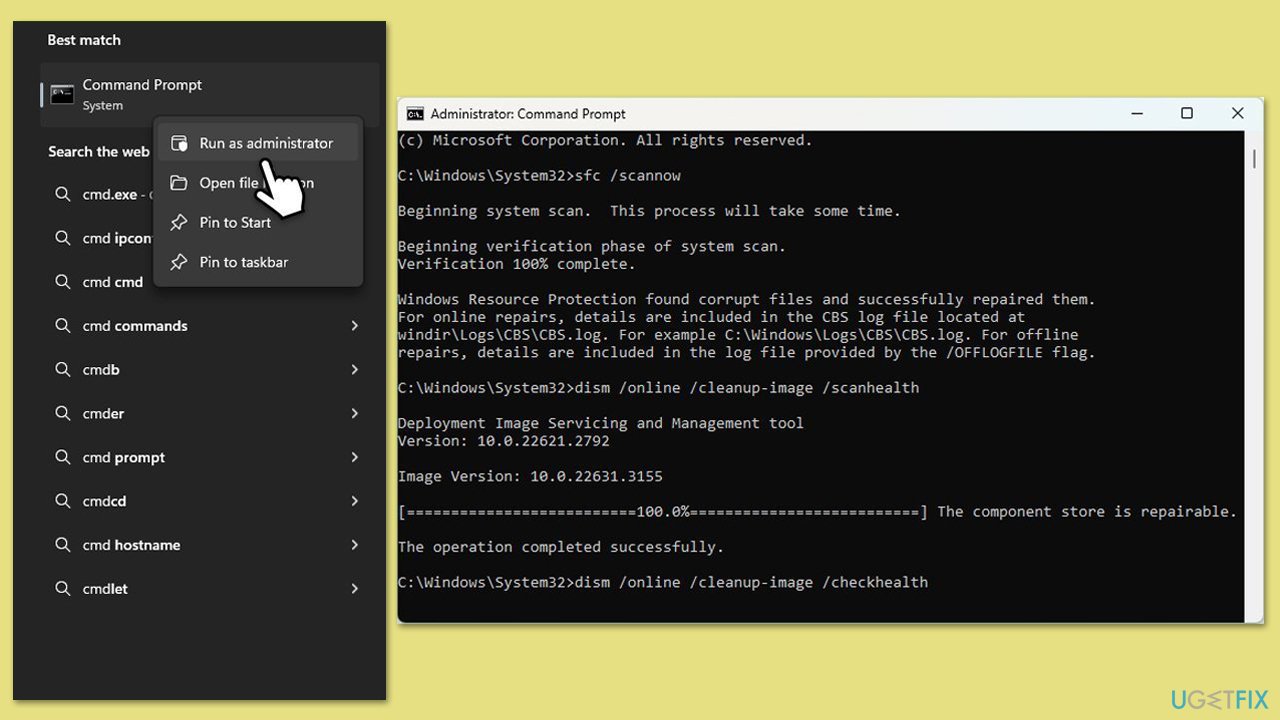
Fix 3. Run SFC and DISM
Corrupt system files can prevent Windows from retrieving service descriptions. Running SFC and DISM can help repair them.
- Type cmd in Windows search.
- Right-click on Command Prompt and selecy the Run as administrator option.
- When User Account Control shows up - click Yes.
- Then, copy and paste the following command, pressing Enter after:
sfc /scannow - Wait till the scan is finished. If Windows finds system file integrity violations, it will attempt to fix them. After this, use the set of the following commands, pressing Enter each time:
DISM /Online /Cleanup-Image /CheckHealth
DISM /Online /Cleanup-Image /ScanHealth
DISM /Online /Cleanup-Image /RestoreHealth
Note: if you get an error executing this last command, add /Source:C:\RepairSource\Windows /LimitAccess to it and try again. - Close down the Command Prompt and restart your system.
Fix 4. Check Windows Registry for missing entries
If registry values related to WaaSMedicSvc or WSearch are missing or incorrect, restoring them can fix the issue.
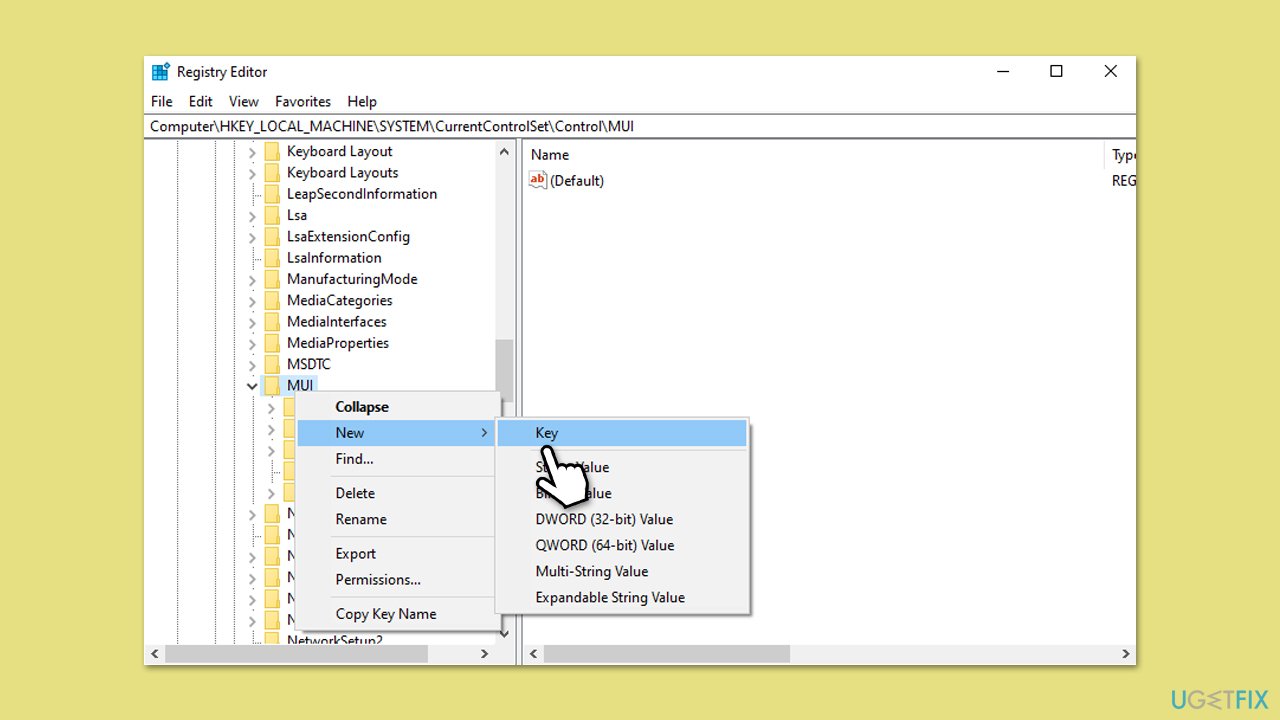
- Type regedit in Windows search and press Enter.
- In the Registry Editor, navigate to the following path:
HKEY_LOCAL_MACHINE\SYSTEM\CurrentControlSet\Control\MUI - Right-click on the MUI key and select New > Key. Name the new key StringCacheSettings.
- Inside the StringCacheSettings key, right-click in the right pane and select New > DWORD (32-bit) Value. Name this DWORD StringCacheGeneration.
- Double-click on the StringCacheGeneration DWORD to modify its Value data.
- Set the Value data to 38b and ensure that Hexadecimal is selected.
- Click OK to confirm your changes.
- Close the Registry Editor and reboot your PC to apply the changes.
Fix 5. Ensure required system files are present
If Windows cannot locate required DLL files for services, the description may not load correctly.
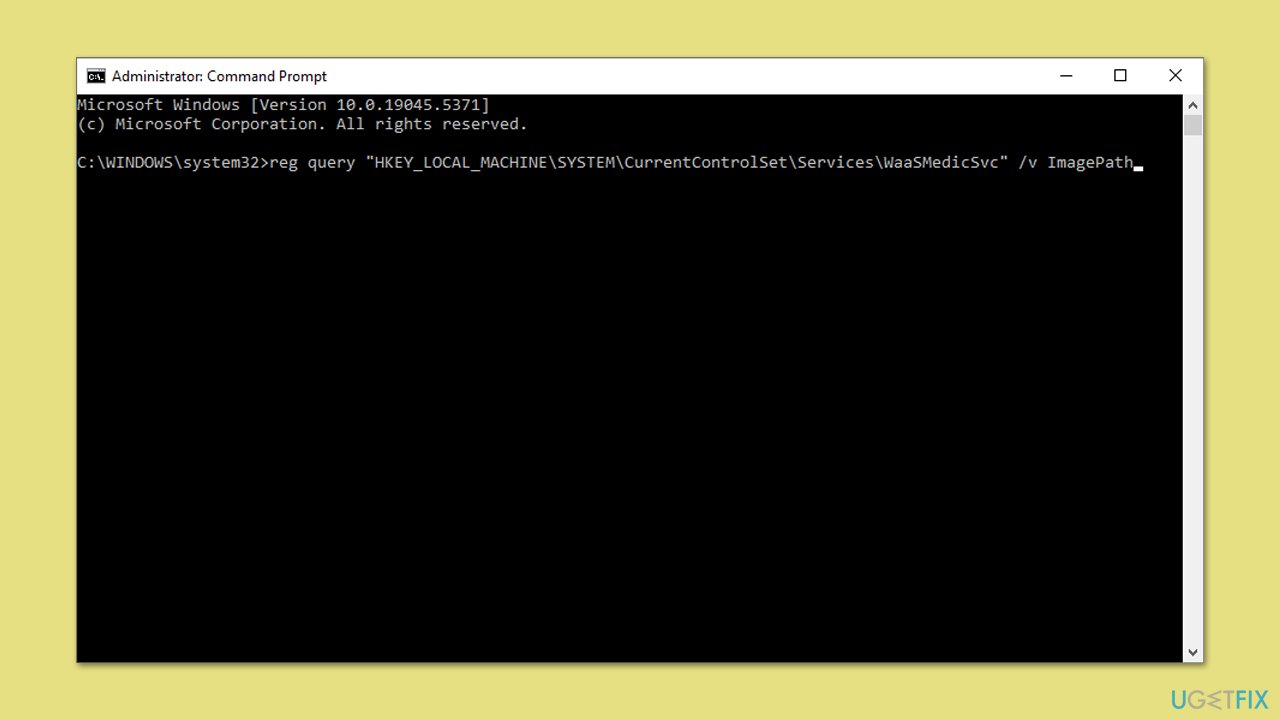
- Open Command Prompt as administrator.
- Run the following command:
reg query "HKEY_LOCAL_MACHINE\SYSTEM\CurrentControlSet\Services\WaaSMedicSvc" /v ImagePath - If the output is incorrect or missing, repair Windows using the Repair Install method.
Fix 6. Repair-install Windows
If built-in tools like SFC/DISM didn't manage to fix the problem, you can repair-install Windows using dedicated installation media.
Create Windows ISO
- Download Windows 11 Installation media from the official Microsoft website. [Windows 10 version]
- Double-click the MediaCreationTool.exe file to launch it.
- When UAC shows up, click Yes.
- Accept license terms.
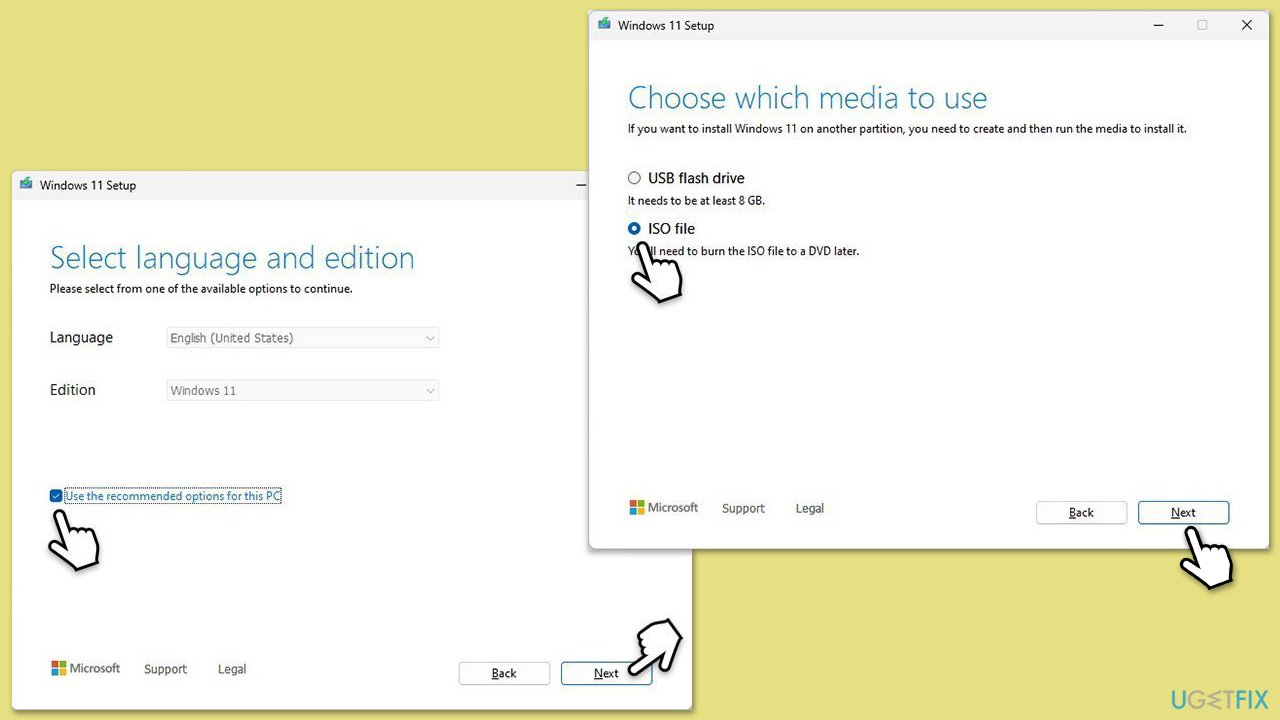
- Select Language and Edition (make sure it matches the one you have currently installed) or simply mark the Use the recommended options for this PC and click Next).
- Select the ISO file and click Next.
- Pick the location for your ISO file and wait till all the needed files are downloaded, then click Finish.
Repair-install Windows
- Mount your USB drive with Windows ISO in it.
- Boot into BIOS by pressing F2, F8, F12, Del, or another shortcut (refer to your laptop or motherboard manufacturer's website) during the Windows bootup process.
- Go to the Boot menu.
- Here, select the Boot priority option and set it to USB.
- Restart the system.
- When the system boots, you will be presented with the Install now option - click it.
- Select all the preferences and click Next.
- Skip Windows activation for now - select I don't have a product key.
- Select the correct version of the operating system (if you were using Windows 11 Home before, use the same option).
- In the next step, select Keep personal files and apps.
- Select the correct partition and click Next.
- Finalize the process - your Windows should be repaired.
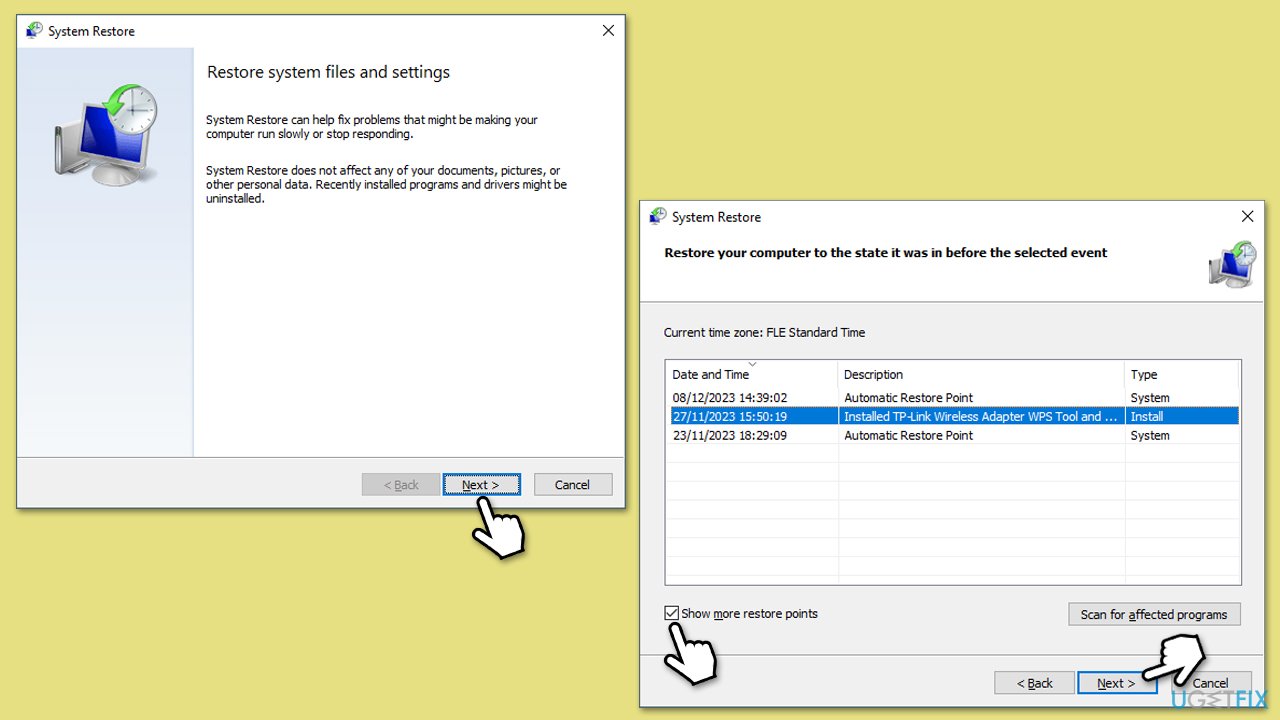
Fix 7. Perform a System Restore
Restoring your system to a previous state can undo recent changes that may have triggered the error.
- Type Create a restore point in the Windows search bar and press Enter.
- In the System Properties window, click System Restore.
- Click Next (after picking Choose a different restore point, if applicable).
- Mark the Show more restore points checkbox.
- Choose a restore point from before BSOD started occurring.
- Click Next and follow the on-screen instructions to complete the system restore.
- Restart your computer after the process is finished.
Bottom line
The WaaSMedicSvc error 'Failed to Read Description. Error Code: 2' can be addressed by restarting the affected services, running the System File Checker (SFC) scan, or editing the registry. If these methods do not resolve the issue, it is recommended to use the automatic Windows repair tool to diagnose and fix potential system file corruptions or registry errors.
Frequently asked questions
This error typically indicates that the Windows Update Medic Service is unable to access necessary files or registry entries, which can hinder Windows Update processes.
You can try resetting the Windows Update components by running commands in Command Prompt as an administrator, or use the built-in Windows Troubleshooter for updates.
Reinstalling Windows 10 or Windows 11 can resolve the issue, but it should be considered a last resort after trying simpler troubleshooting steps.




Report an issue
What's wrong with this guide? We review every report and update or remove content.
Report received — thank you. We'll review and fix it.
You need a free account to submit a report.
Be the first to comment