How to fix
“Indexing not running” error
on Windows
Resolve the "Indexing not running" error in Windows 10 or 11 effortlessly. Follow our expert-tested guide for quick fixes and regain your system's effic…


What causes How to fix “Indexing not running” error in Windows?
- Corrupt indexing database
- Misconfigured settings
- Interference from other applications or updates
- Windows Search services not running properly
- Indexing Options failing to recognize indexing after an update
Repairs Windows system files, removes malware, and restores a clean OS state — without reinstalling.
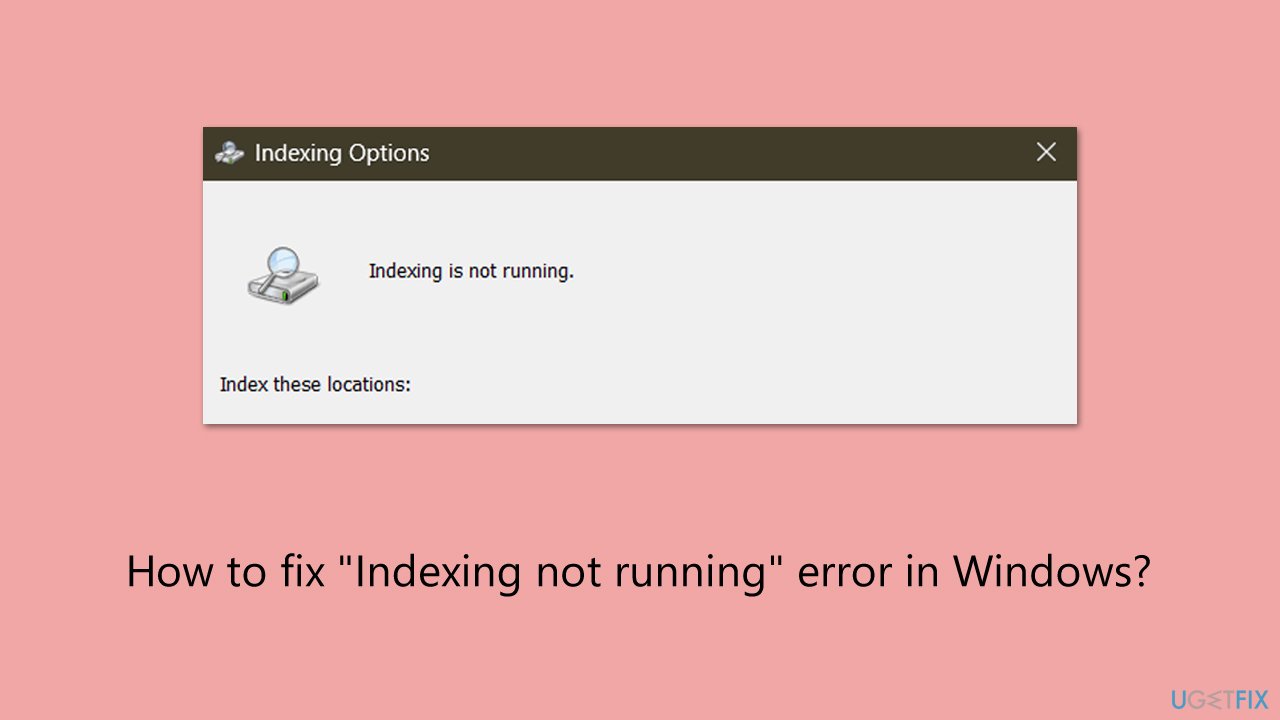
When I check Indexing Options, there is nothing in the fields and the message at the top says "Indexing not running." I also have troubles with searching for files in File Explorer, as well as in places like Outlook. Search function seems to start and pause, and often does not produce any results. How do I fix this?
The "Indexing not running" in Windows is an annoying error that greatly reduces your ability to quickly find your files or programs using the search feature. Many people have reported this error when trying to open Indexing Options in the Control Panel; instead of the usual settings, they get a message saying "Indexing not running."
When Indexing is not running, it can prevent the operating system from efficiently indexing your files, which in turn slows down search results. Users may notice that while the indexing service appears to be enabled, the system still reports that indexing isn't working properly. This can be particularly problematic when performing searches in File Explorer, as it delays finding files or folders on the computer.
There are multiple causes behind the Indexing not running issue. It could be related to a corrupt indexing database, misconfigured settings, or even interference from other applications or updates. In many cases, Windows Search services or the related components might not be running properly, preventing the system from indexing files as expected. Sometimes, after a major update, the issue may also arise, with Indexing Options failing to recognize that indexing should be in progress.
Some users have also reported that the error persists even after restarting the system or manually attempting to rebuild the index. If you’ve encountered the Indexing not running error on your computer, don’t worry - there are solutions to resolve it. Be sure to read on for detailed instructions on how to fix the problem. If you're experiencing other system issues, using the [d1] Windows repair tool can be a quick and efficient way to address the underlying causes of the Indexing not running error.
Fix 1. Restart Windows Search Service
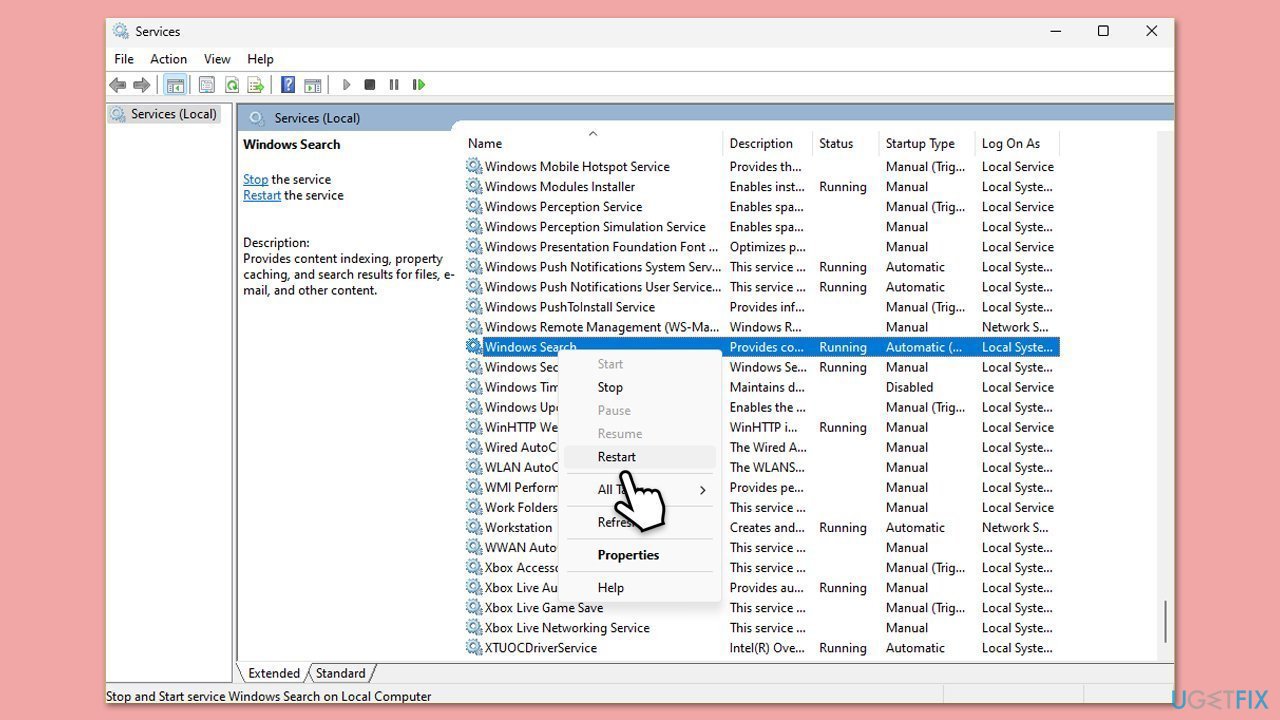
The Indexing not running issue may be caused by the Windows Search service being stopped or not running correctly. Restarting this service can often resolve the problem.
- Type Services in Windows search and press Enter.
- Locate Windows Search Service.
- If it is already running, right-click and select Restart.
- if the service is not running, double-click it, and pick Automatic under the Startup type from the drop-down menu.
- Click Start, Apply, and OK.
Fix 2. Rebuild the Index
Rebuilding the index may help if there is any corruption in the indexing database and it will ensure that all files and folders are re-indexed in the system.
- Type Indexing Options in Windows search and press Enter.
- Click on Advanced.
- Under the Index Settings tab, click Rebuild.
- Wait for the process to complete, then check if the Indexing not running issue has been resolved.

Fix 3. Check for Windows Updates
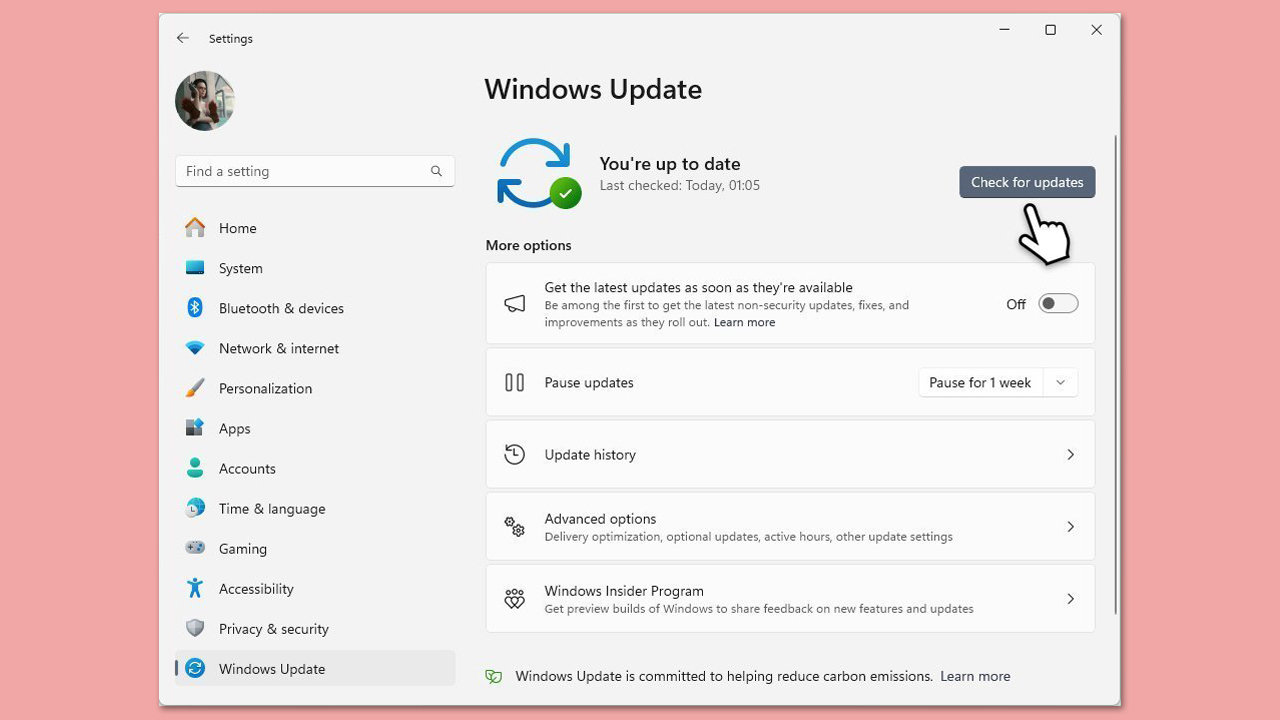
The Indexing not running error could be a bug or an issue in the current version of Windows. Ensure your system is running the latest available updates from Microsoft.
- In Windows search, type Updates and hit Enter.
- In the new window, click Check for updates and wait till everything is installed.
- Make sure you also install any available optional updates.
- When done, restart your device to implement the changes.
Fix 4. Run the Search and Indexing Troubleshooter
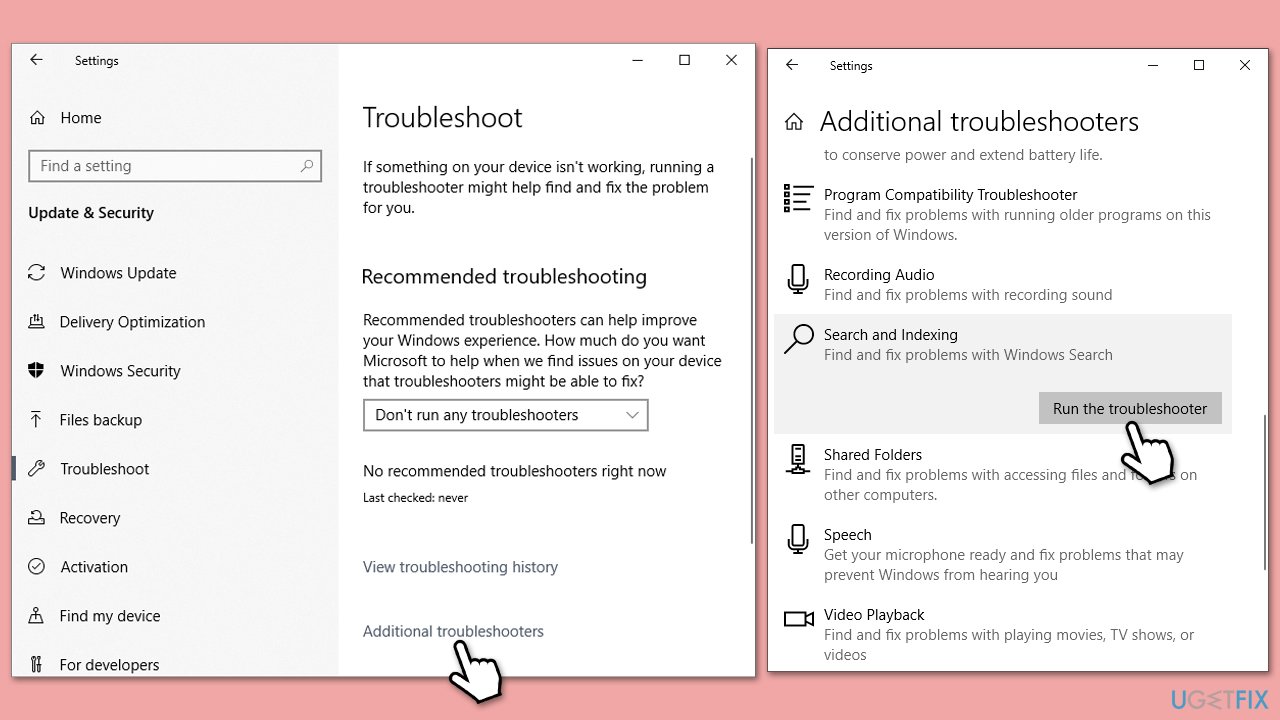
Windows has a built-in troubleshooting tool that automatically detects and corrects problems related to Search and Indexing.
- Type Troubleshoot in Windows search and press Enter.
- Choose Other troubleshooters/Additional troubleshooters.
- Find Search and Indexing and click Run the troubleshooter/Run.
- Apply the recommended changes.
Fix 5. Perform file system repair
Corrupted system files may be preventing the indexing service from working properly.
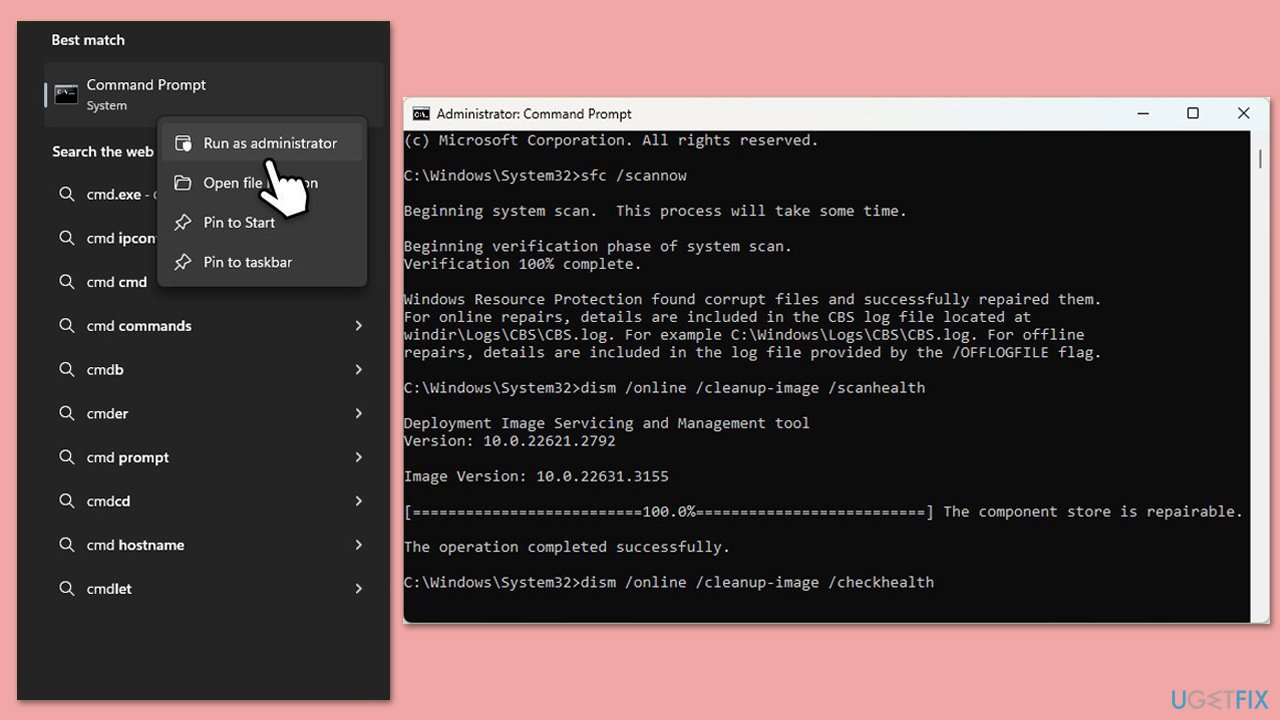
- Type cmd in Windows search.
- Right-click on the Command Prompt result and select Run as administrator.
- When the UAC window pops up, click Yes.
- In the Command Prompt window, paste the following command and press Enter:
sfc /scannow - Wait for the scan to complete.
- Once the SFC scan is finished, run the following set of DISM commands, pressing Enter after each one:
DISM /Online /Cleanup-Image /CheckHealth
DISM /Online /Cleanup-Image /ScanHealth
DISM /Online /Cleanup-Image /RestoreHealth - After completing the DISM commands, restart your computer.
Fix 6. Modify the Registry (Advanced)
In some cases, modifying the registry can help fix issues with Indexing not running. However, this solution is advanced, and it's recommended to back up your registry before making any changes.
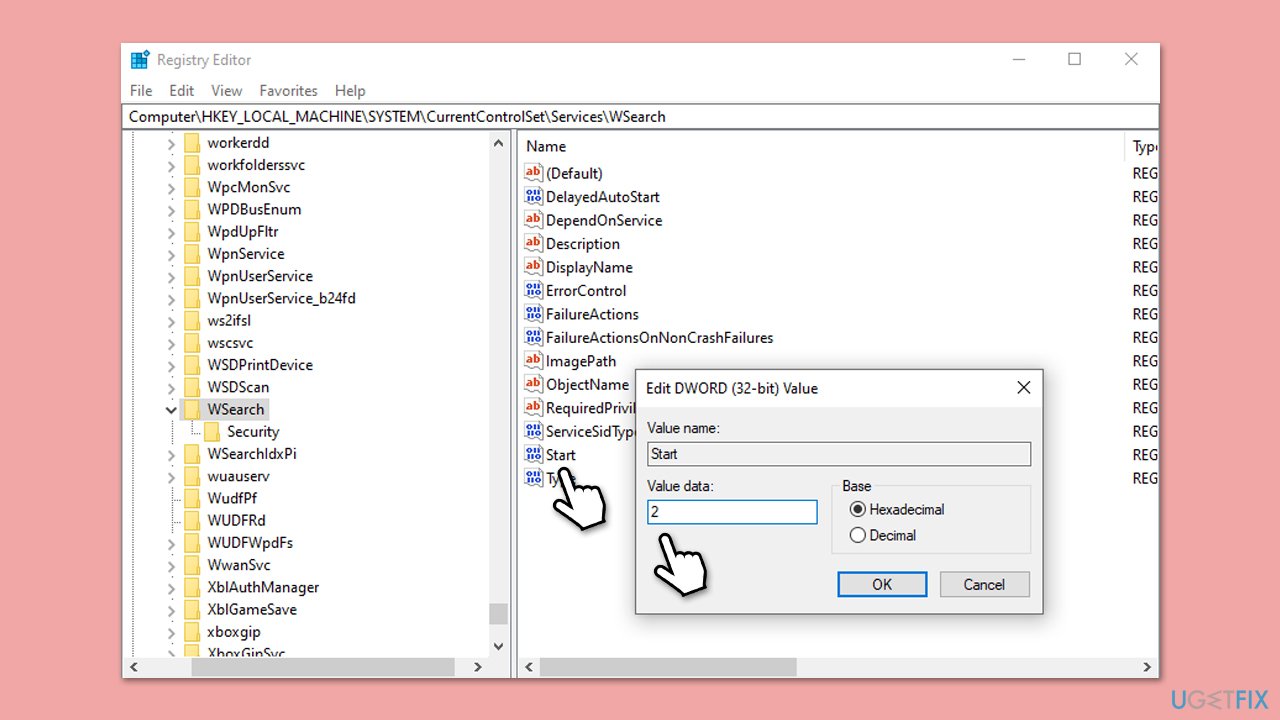
- Type regedit in Windows search and press Enter to open the Registry Editor.
- Navigate to the following path:
HKEY_LOCAL_MACHINE\SYSTEM\CurrentControlSet\Services\WSearch - In the right pane, double-click on Start and change its value to 2.
- Close the Registry Editor and restart your computer.
- Check if the issue is resolved.
Fix 7. Perform a System Restore
If none of the above fixes resolve the problem, performing a System Restore to a point where the indexing was working can restore the system to a stable state.
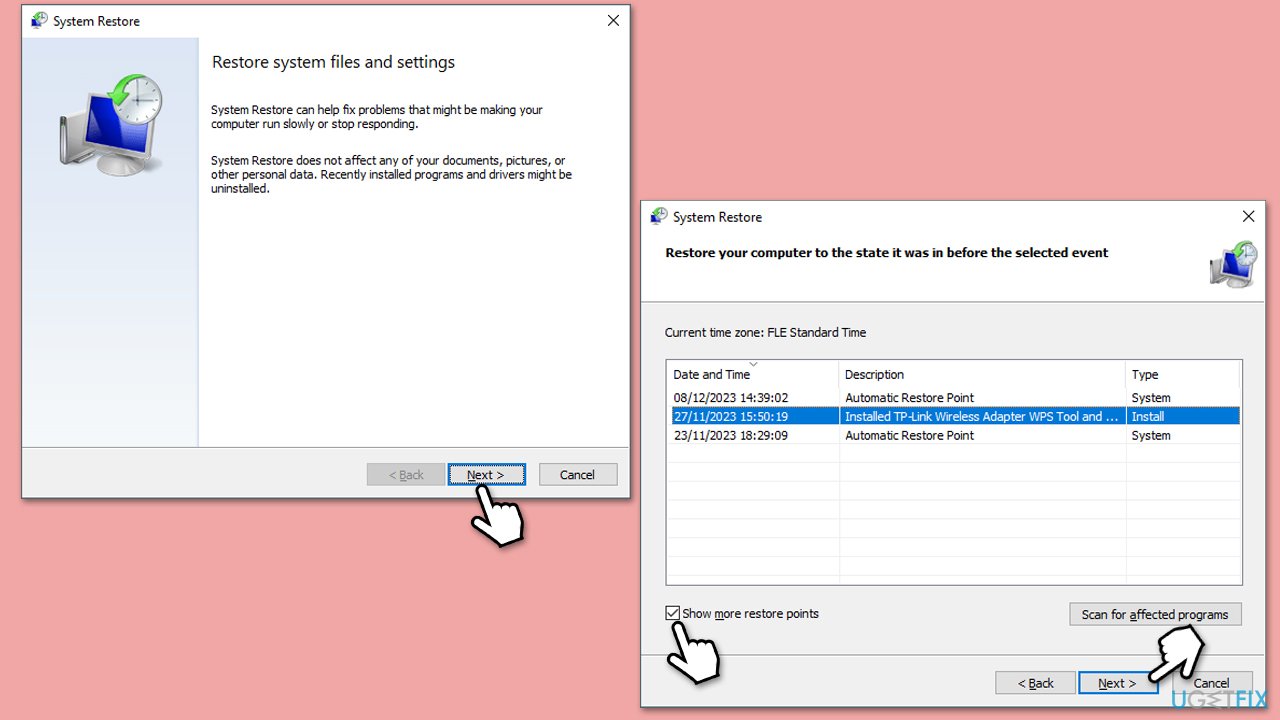
- Type Create a restore point in the Windows search bar and open it.
- Click on System Restore.
- In the new window, click Next or Choose a different restore point.
- If available, mark the More restore points checkbox.
- Select the point in time when the issue did not exist and click Next.
- Finally, click Finish.
Bottom line
To fix the 'Indexing not running' error in Windows, you can try restarting Windows, checking the Windows Search services, or rebuilding the index manually. If these solutions do not resolve the issue, consider using a Windows repair tool to address underlying problems.
Frequently asked questions
You can restart the indexing service by typing 'services.msc' in the Run dialog, locating 'Windows Search', and selecting 'Restart' from the context menu.
To rebuild the search index, go to Control Panel > Indexing Options, click on 'Advanced', and then select 'Rebuild' under the Troubleshooting section.
Yes, you can check if indexing is enabled by going to Control Panel > Indexing Options; if the status shows 'Indexing is not running', you may need to start or troubleshoot the indexing service.




Report an issue
What's wrong with this guide? We review every report and update or remove content.
Report received — thank you. We'll review and fix it.
You need a free account to submit a report.
Be the first to comment