How to fix
Windows update error 0xC80003FA
on Windows
Resolve Windows update error 0xC80003FA quickly and efficiently. Our expert-tested solutions for Windows 10 and 11 ensure your system runs smoothly.

What causes How to fix Windows update error 0xC80003FA?
- Corrupted system file issues
- Disruption in the service of Windows Update
- Interfering third-party software
- Network connectivity issues
- Left-behind update cache files
Repairs Windows system files, removes malware, and restores a clean OS state — without reinstalling.
Hey, could you help me with Windows update error 0xC80003FA? I was trying to install the latest updates on Windows 11 and it just keeps failing with this error code.
Windows Update error 0xC80003FA is a type of problem that does not let users download or install updates, thus leaving the system outdated and probably vulnerable. The most frequent causes associated with the 0xC80003FA error include corrupted system file issues, disruption in the service of Windows Update, or interfering third-party software. It sometimes relates to issues with network connectivity or left-behind update cache files.
Run the Windows Update Troubleshooter to fix the issue. The most common reason behind the error 0xC80003FA is running the troubleshooter utility that identifies and fixes the most common update problems. Sometimes, if this doesn't work, it may be required to manually restart Windows Update services, which may have stopped functioning properly and thus don't allow any update installation.
Apart from the mentioned causes, the 0xC80003FA error can be related to network issues, too. Therefore, users should check their internet connection, perform a router reboot if necessary, and troubleshoot network settings to check stability. Third-party antivirus programs, or any other security tool for that matter, might interfere with the update process; thus, temporarily disabling it may help confirm whether it is the villain.
Detailed steps to fix the 0xC80003FA error are as follows. If this doesn't work, then using the [d1] Windows repair tool will help in identifying and repairing deeper system-related issues that may be causing the problem with Windows Update.
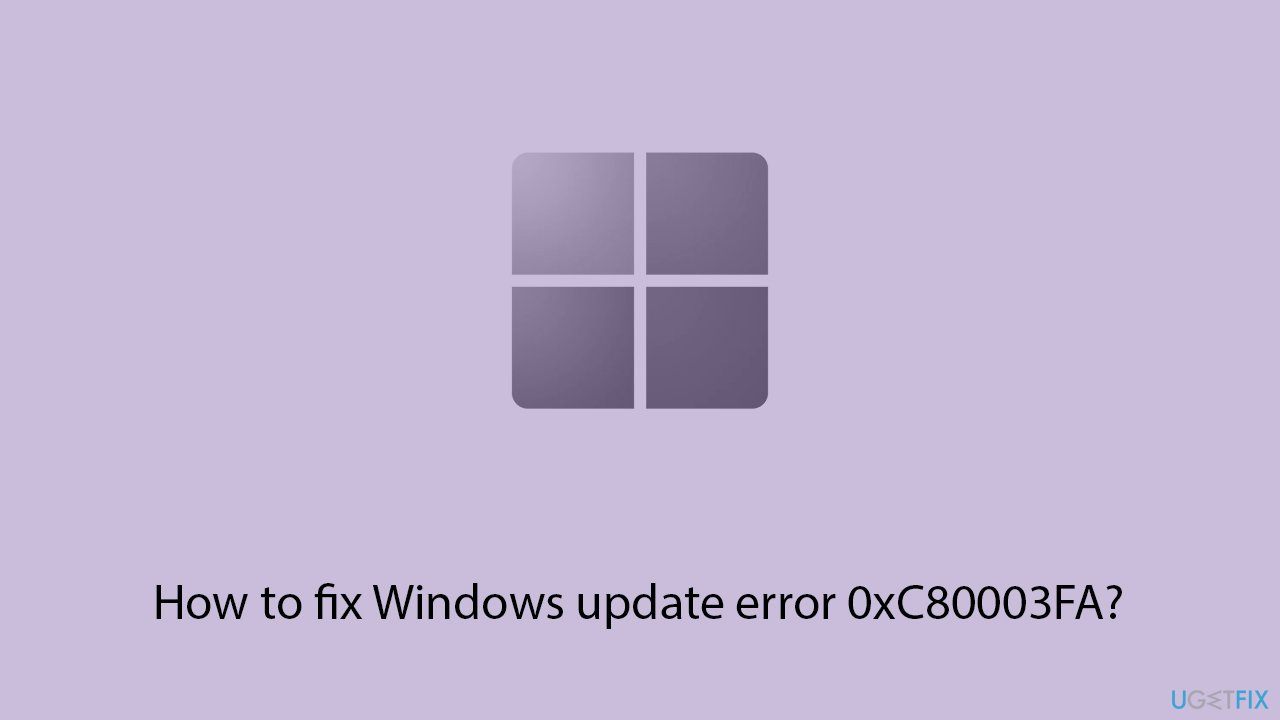
Fix 1. Check the services
- Type in Services in Windows search and press Enter.
- Locate Windows Update Service.
- If it is already running, right-click and select Restart.
- if the service is not running, double-click it to open Properties.
- Under the Startup type, select Automatic from the drop-down menu.
- Click Start, Apply, and OK.
- Locate Background Intelligent Transfer Service (BITS), Cryptographic service, and Windows Installer service, and repeat the process.
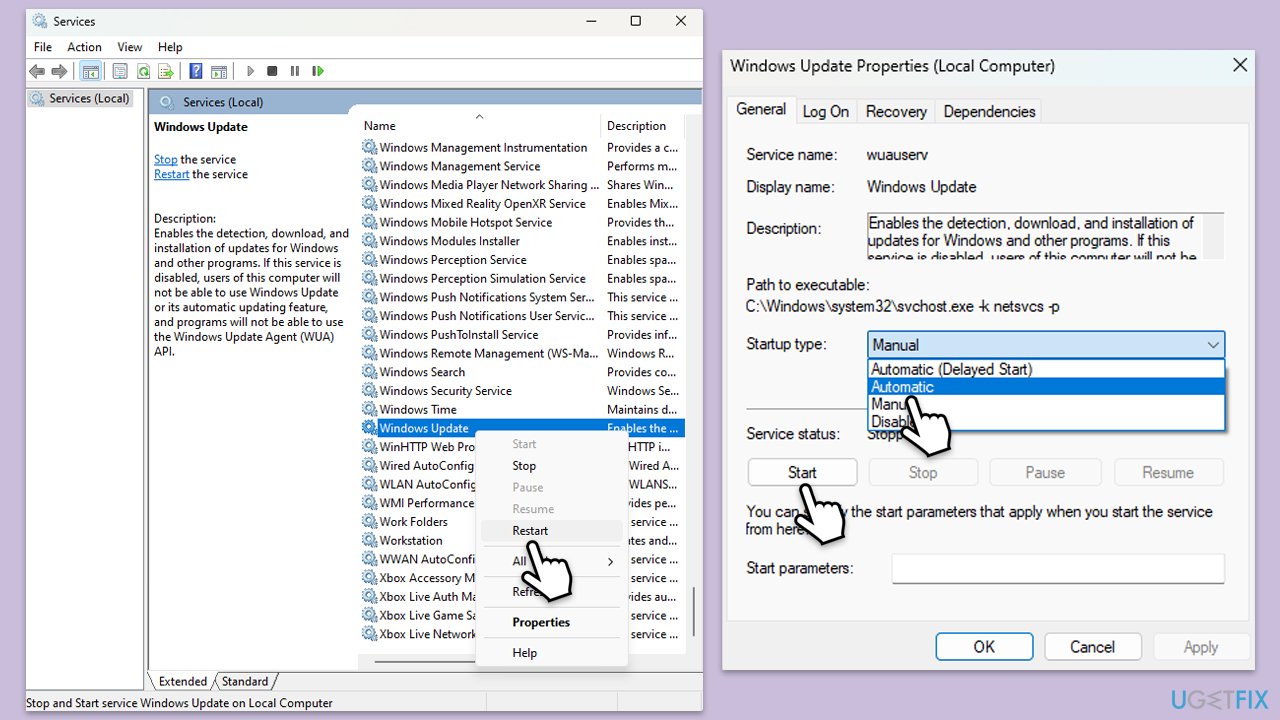
Fix 2. Run Windows update and network troubleshooters
- Type Troubleshoot in Windows search and hit Enter.
- Select Additional troubleshooters/Other troubleshooters.
- Find Windows Update from the list and click Run the troubleshooter/Run.
- The troubleshooter will automatically scan your system for potential problems and display any issues it finds.
- If the troubleshooter finds any issues, it will provide recommended solutions.
- Repeat this process with Network & internet troubleshooter.
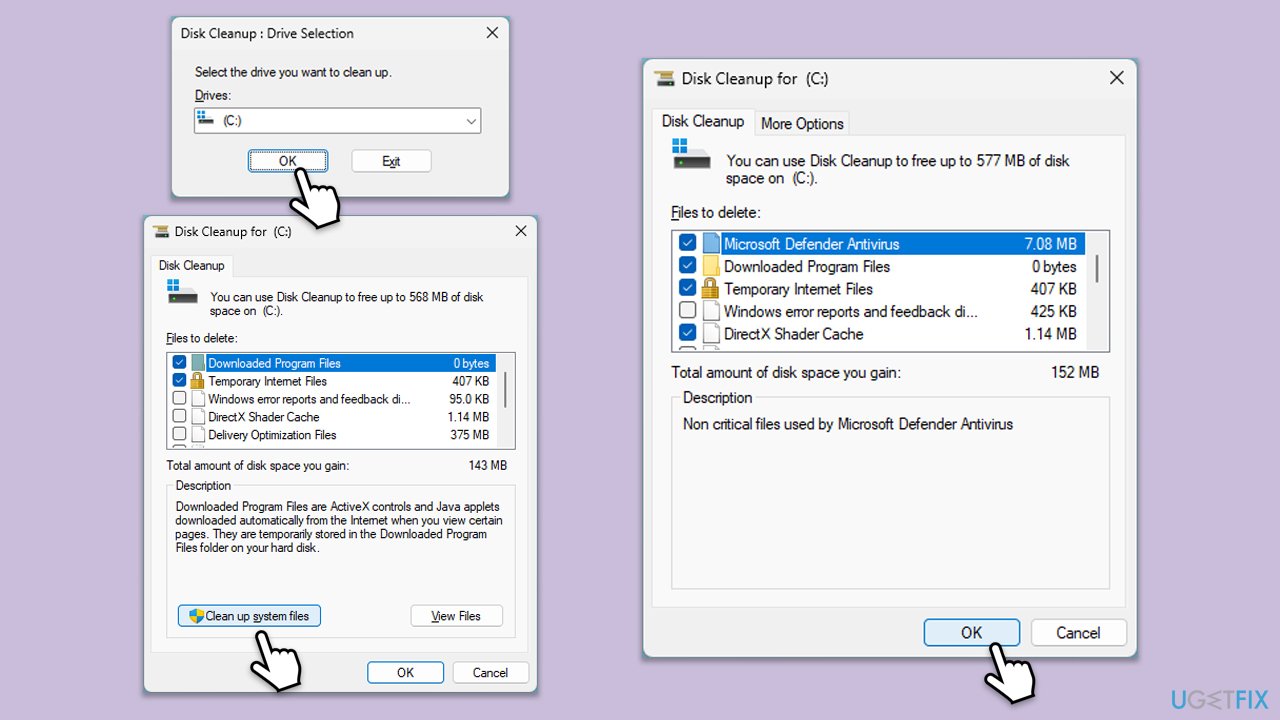
Fix 3. Perform a Disk Cleanup
- Type Disk Cleanup in Windows search and hit Enter.
- If your Windows is installed on drive C, pick it from the list (it should be by default) and press OK.
- Click Clean up system files.
- Select your main disk again and click OK.
- Here, select the largest portions of the data used - these typically include Temporary Internet Files, Windows Update, Temporary Files, Recycle Bin, Delivery Optimization Files, and others.
- Click OK - the process should be finished shortly.
Fix 4. Repair corrupted system files
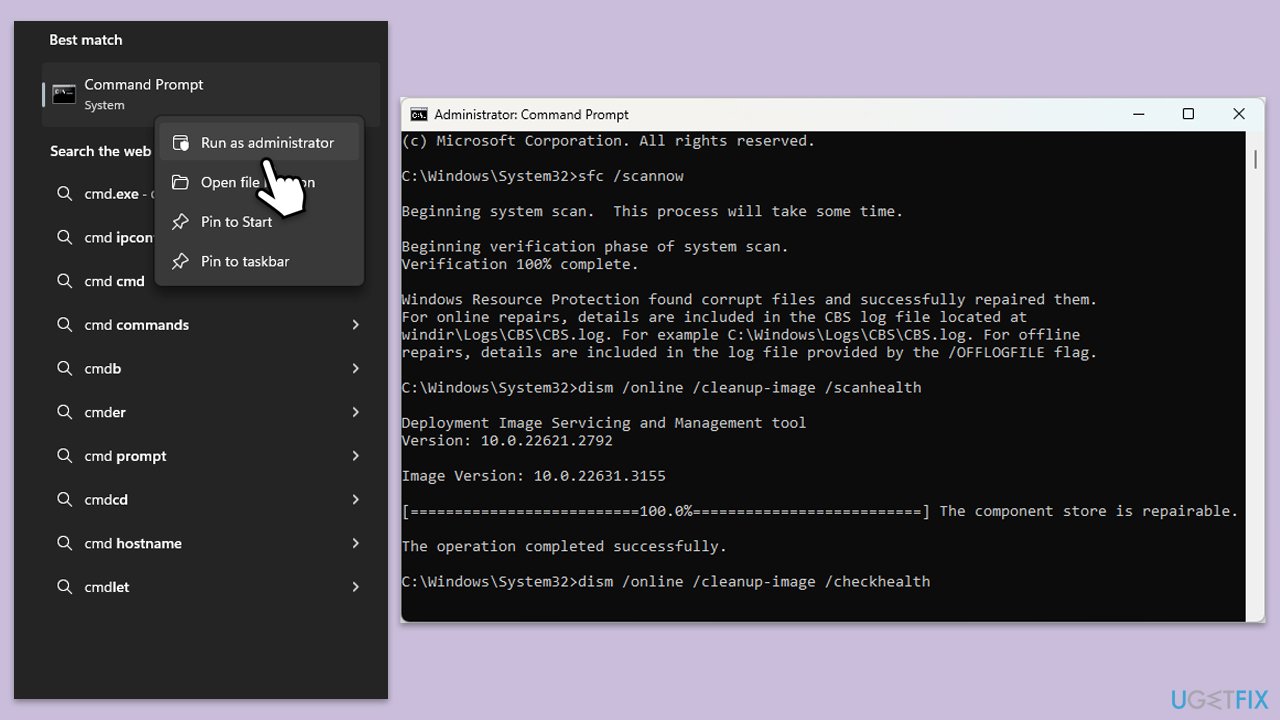
- Type cmd in the Windows search box.
- Right-click on Command Prompt and select Run as administrator.
- When UAC asks you whether you want to make changes, agree by pressing Yes.
- Next, copy and paste the following commands, pressing Enter each time:
sfc /scannow
DISM /Online /Cleanup-Image /CheckHealth
DISM /Online /Cleanup-Image /ScanHealth
DISM /Online /Cleanup-Image /RestoreHealth
(Note: if you get an error executing the last command, add /Source:C:\RepairSource\Windows /LimitAccess to it and try again.) - Restart your computer.
Fix 5. Reset Windows update components
- Open Command Prompt as administrator.
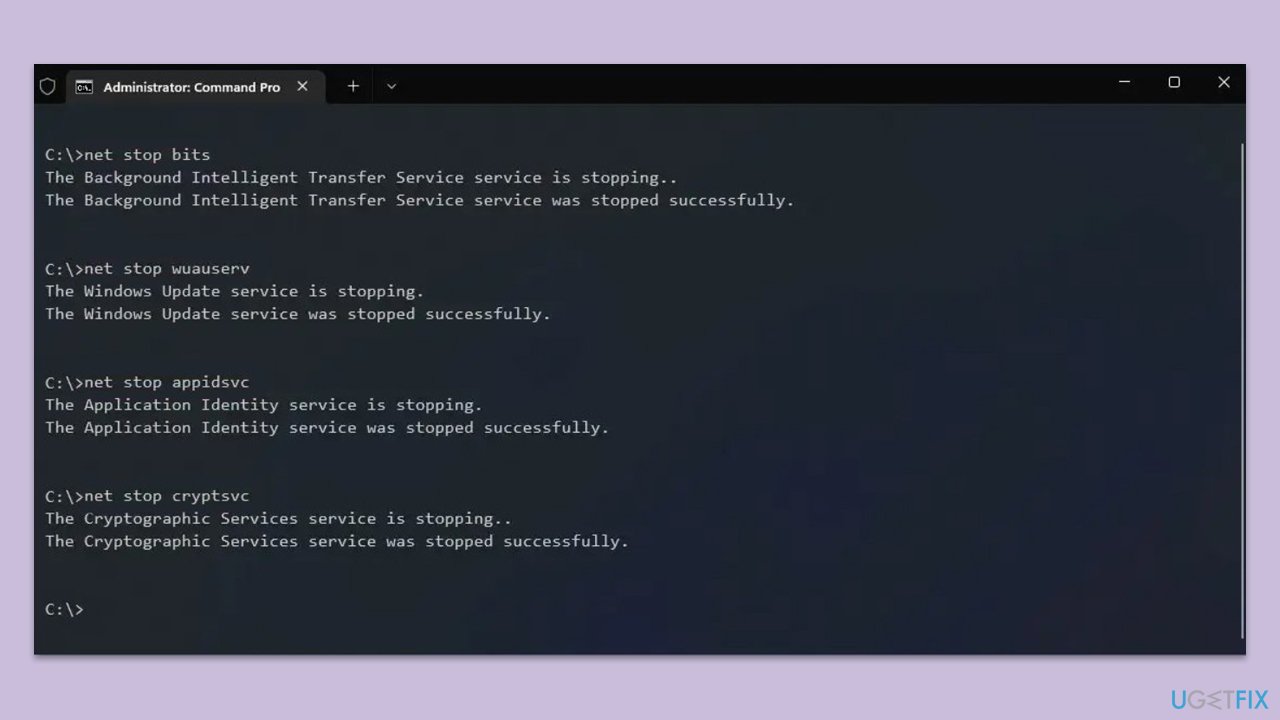
- Type each of these command lines, pressing Enter every time (wait till the command is fully executed):
net stop bits
net stop wuauserv
net stop appidsvc
net stop cryptsvc
Del "%ALLUSERSPROFILE%\Application Data\Microsoft\Network\Downloader\*.*"
rmdir %systemroot%\SoftwareDistribution /S /Q
rmdir %systemroot%\system32\catroot2 /S /Q
regsvr32.exe /s atl.dll
regsvr32.exe /s urlmon.dll
regsvr32.exe /s mshtml.dll
netsh winsock reset
netsh winsock reset proxy
net start bits
net start wuauserv
net start appidsvc
net start cryptsvc - Restart your device and attempt to download the update once more.
Fix 6. Try installing manually
- Type in Updates in Windows search and press Enter.
- Select View update history.
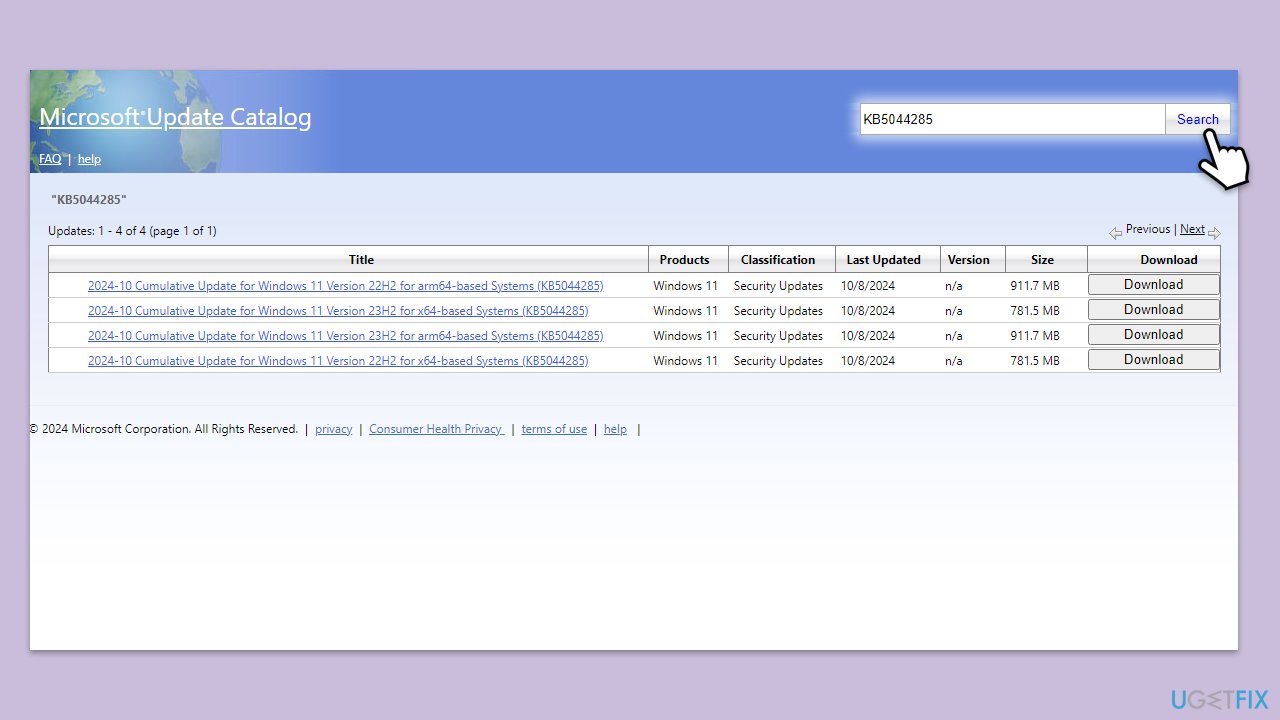
- Find the update that failed with the 0xC80003FA error and copy its KB number.
- Open your browser and go to Microsoft Update Catalog.
- Within the search bar, type in the KB number and click Search.
- Find the correct version of the update for your operating system (to check this, right-click on Start and pick System. Under Device specifications and check the System type) and click Download.
- Use on-screen guidelines to finish the installation process and restart your computer.
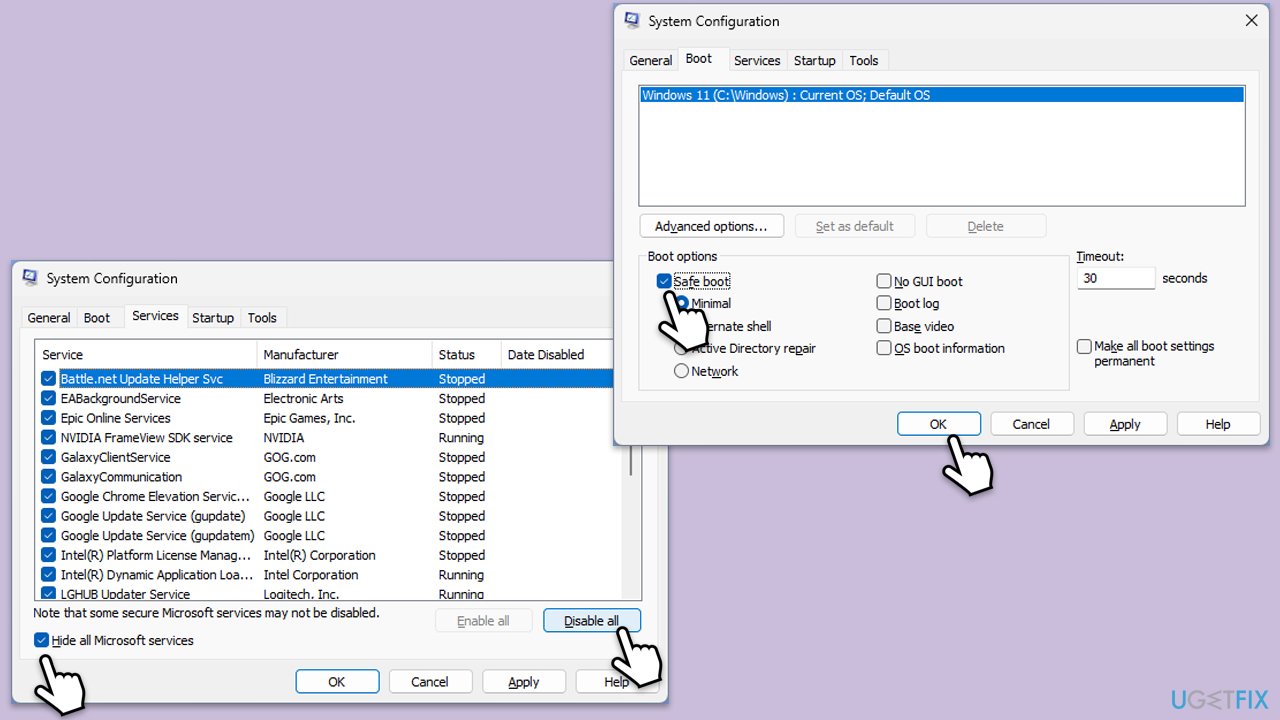
Fix 7. Run Clean Boot
- Type msconfig in Windows Search and press Enter to open the System Configuration window.
- Click on the Services tab and check the Hide all Microsoft Services box.
- Click Disable all to disable non-Microsoft services, then click the Startup tab.
- Open the Task Manager, disable all startup items, and close the Task Manager.
- Go to the Boot tab and mark the Safe boot option.
- Click OK on the System Configuration window and restart your computer.
- Try installing the update again.
Bottom line
To fix the Windows update error 0xC80003FA, users can run the Windows Update Troubleshooter, restart Windows Update services, and check their internet connection. If these steps do not resolve the issue, using the Windows repair tool may help identify and repair deeper system-related problems.
Frequently asked questions
The error 0xC80003FA typically indicates a problem with the Windows Update service on Windows 10 or Windows 11, often due to corrupted update components.
To reset Windows Update components, you can run the Command Prompt as an administrator and execute a series of commands that stop the Windows Update services, rename the SoftwareDistribution and catroot2 folders, and then restart the services.
Yes, both Windows 10 and Windows 11 have a built-in troubleshooter for Windows Update that can automatically detect and fix issues related to update errors, including 0xC80003FA.




Report an issue
What's wrong with this guide? We review every report and update or remove content.
Report received — thank you. We'll review and fix it.
You need a free account to submit a report.
Be the first to comment