How to fix
OneNote error code 0xE0001075
on Windows
Resolve OneNote error code 0xE0001075 in Windows 10 and 11 effortlessly. Follow our expert-tested solutions for a quick fix and stay productive!


What causes How to fix OneNote error code 0xE0001075 in Windows?
- Network connectivity problems
- Incorrect account settings
- Brief server outage
- Older version of OneNote
- Corrupted cache files
- Corrupted user profile settings
Repairs Windows system files, removes malware, and restores a clean OS state — without reinstalling.
I can't get into OneNote on my Windows 11 laptop. I'm receiving the error message, "Something went wrong and we can't do what you asked. We're sorry. Error 0xE0001075." What can I do to fix this?
When synchronizing notebooks, Microsoft OneNote may encounter error code 0xE0001075, which will prevent any changes from being saved or retrieved across devices. For those who utilize OneNote to organize their notes, this problem is extremely upsetting because it may make matters worse if they miss updates or are unable to access specific information. OneNote just cannot finish the synchronization process when this error occurs, and it typically shows a message indicating that there is a problem but providing no specific instructions on how to resolve it.
A few issues with synchronization between the local device and Microsoft cloud services are among the reasons that could lead to OneNote error code 0xE0001075. OneNote may not sync correctly due to network connectivity problems, incorrect account settings, or a brief server outage.
These problems can easily be related to an older version of OneNote or corrupted cache files that may obstruct proper functioning. In addition, issues pertaining to the Windows system itself, such as corrupted user profile settings or lack of updates, make this process even more complex and result in error 0xE0001075.
In order to fix error code 0xE0001075, it depends on the reason it has occurred. To rule out simple syncing problems, make sure OneNote is signed in with the correct Microsoft account and check for a steady internet connection.
Data corruption or a version issue that needs to be fixed could be the cause. In these situations, updating OneNote and clearing the application's cache might fix the problem. If this fails, OneNote will need to be reset or the damaged components of Microsoft 365 repaired in order to function properly.
The [d1] repair app automatically finds and fixes Windows problems that might be preventing OneNote from syncing for a practical fix.

1. Check your internet connection
Since syncing issues often stem from connectivity problems, ensure that your internet connection is stable:
- Type troubleshoot in Windows search and press Enter.
- Click on Troubleshoot settings from the search results.
- Go to Additional troubleshooters/Other troubleshooters.
- Scroll down and click on Network and Internet troubleshooter.
- Click on Run the troubleshooter/Run and wait for the process to complete.
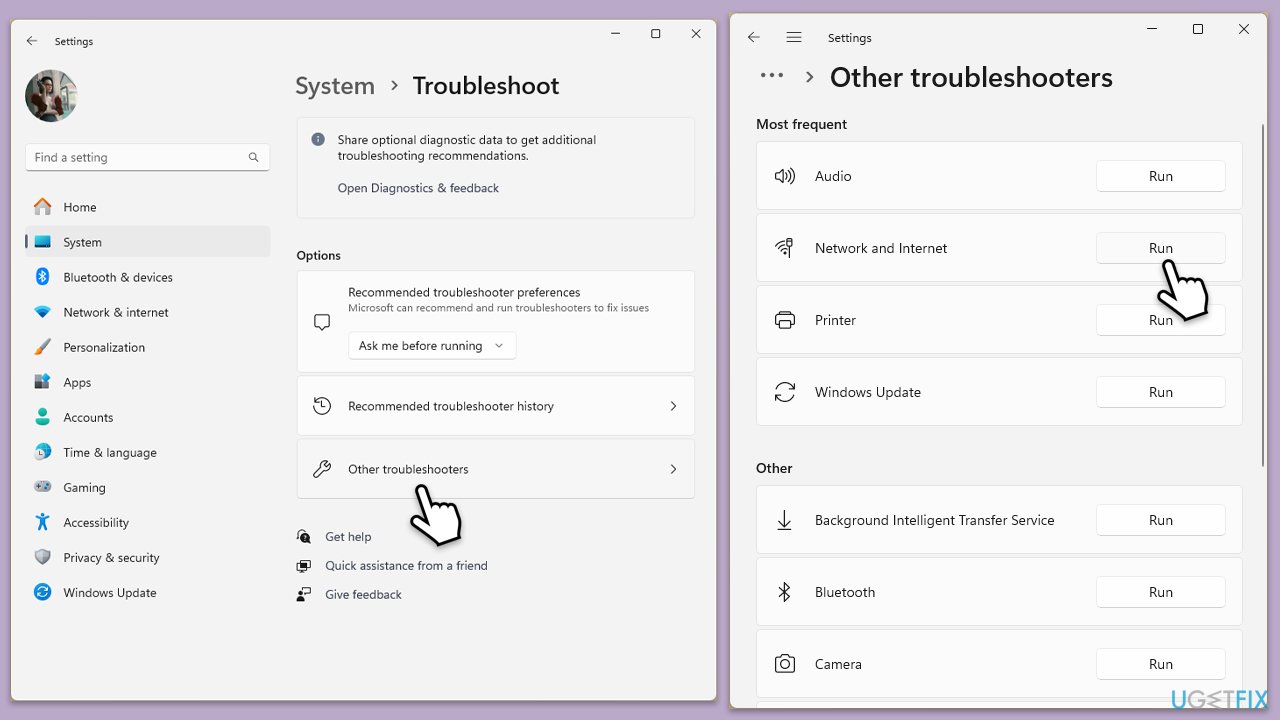
To run Network troubleshooter in Windows 10, follow these steps:
- Right-click on Start and pick Settings.
- Go to Network & Internet section.
- On the right side, find the Advanced network settings section.
- Click Network troubleshooter and wait.
- The fixes will be automatically applied.
2. Verify Your Microsoft Account
OneNote requires the correct Microsoft account to sync notebooks properly:
- Open OneNote and go to File > Account.
- Confirm that you are signed in with the correct Microsoft account.
- If needed, sign out and sign back in to refresh the connection.
3. Manually force a sync
If OneNote is stuck and not syncing automatically, try a manual sync:
- Open OneNote and click on the notebook you’re having issues with.
- Go to the File menu and select View Sync Status.
- Click Sync Now or Sync All to initiate a manual sync.

4. Clear OneNote cache
Corrupted cache files can cause error 0xE0001075:
- Close OneNote completely.
- Press Win + E to open File Explorer.
- Navigate to the following location:
C:\Users\USERNAME\AppData\Local\Microsoft\OneNote\16.0\cache (replace with your username and OneNote version). - Delete all files in this folder.
- Restart OneNote and try syncing again.
5. Update OneNote and Windows
An outdated OneNote version or missing Windows updates can cause syncing errors:
- Open Microsoft OneNote and navigate to File.
- From the file menu, select Account.
- Under Product Information, locate and click on Update Options.
- From the dropdown list, select Update Now. The program will then check for available updates and install them.

Update Windows:
- Type Updates in Windows search and press Enter.
- Here, click the Check for updates or Install all button.
- Wait till all the available updates are installed - make sure optional updates are installed as well.
- Once done, restart your system.
6. Reset OneNote
If the problem persists, resetting OneNote may resolve it:
- Right-click on Start and select Apps & Features/Installed apps.
- Scroll down to find OneNote and click Advanced options.
- Scroll down again and click Terminate and Repair.
- If that does not work, try using Reset.
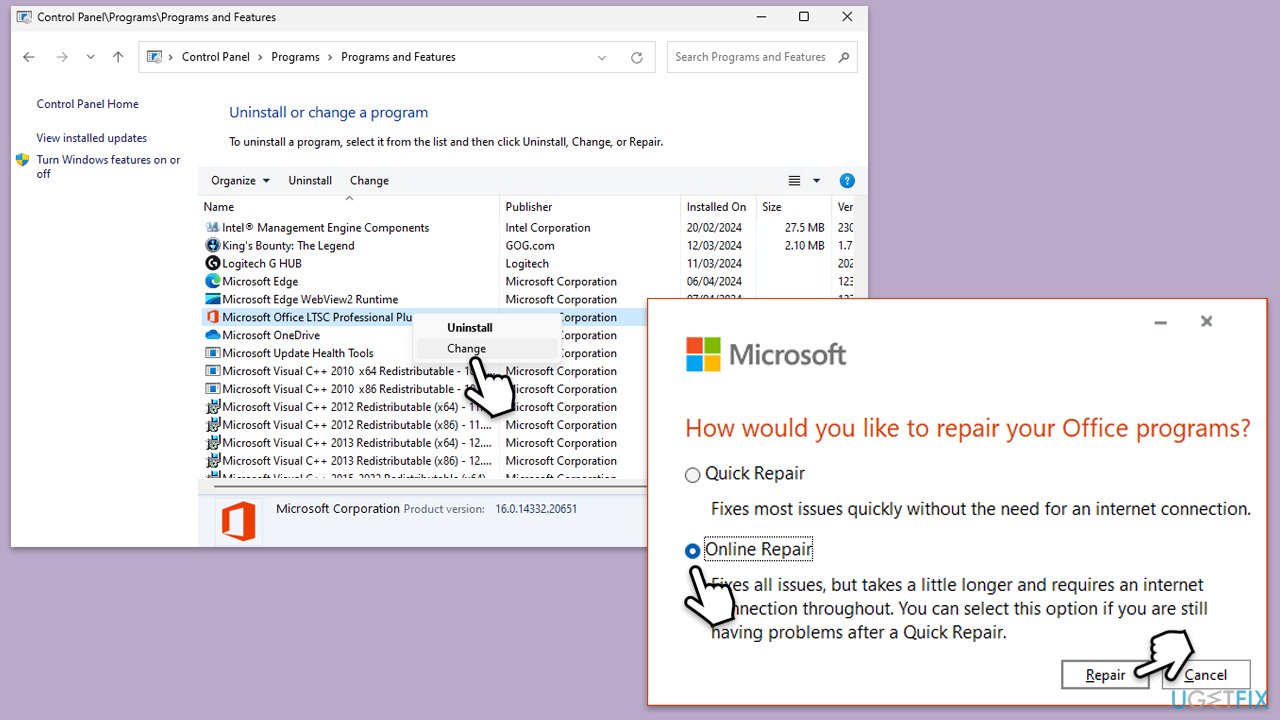
7. Repair Microsoft 365
If OneNote is part of Microsoft 365, repairing the Office suite may fix the issue:
- Type Control Panel in Windows search and press Enter.
- Select Programs and Features.
- Find Microsoft Office in the list, right-click, and choose Online repair.
- Follow the on-screen instructions to complete the repair process.
Bottom line
To fix error code 0xE0001075, ensure that OneNote is signed in with the correct Microsoft account and check your internet connection. Updating OneNote and clearing the application's cache may resolve the issue. If these steps do not work, consider resetting OneNote or repairing Microsoft 365.
Frequently asked questions
This error typically occurs due to syncing issues, corrupted files, or problems with the Microsoft account associated with OneNote.
You can try clearing the cache of OneNote, signing out and signing back into your Microsoft account, or repairing the app through the Settings menu.
Yes, reinstalling OneNote can help fix the error, as it removes any corrupted files and ensures you have the latest version of the app.




Report an issue
What's wrong with this guide? We review every report and update or remove content.
Report received — thank you. We'll review and fix it.
You need a free account to submit a report.
Be the first to comment