How to fix
Troubleshooter error “I’m sorry. I was unable to run the Windows Update diagnostic”
on Windows
Resolve the "unable to run Windows Update diagnostic" error on Windows 10 or 11 quickly and effectively. Expert-tested solutions inside for your peace o…


What causes How to fix troubleshooter error “I’m sorry. I was unable to run the Windows Update diagnostic”?
- Corrupted system files
- Disabled essential services like the Cryptographic Service
- Group Policy settings restricting troubleshooting tools
- Windows components are missing
Repairs Windows system files, removes malware, and restores a clean OS state — without reinstalling.
So I was not been able to install any updates for the past few days and I tried running the troubleshooter as I was advised to. However, even this fails - it says "I'm sorry. I was unable to run the Windows Update diagnostic. I might need to transfer you to an agent to help solve your problem." How can I solve this?
The error message "I'm sorry. I was unable to run the Windows Update diagnostic" is frustrating, particularly when the Update troubleshooter should resolve update issues. Several users have reported that the Update troubleshooter is not functional or will not complete its operation, thereby preventing them from troubleshooting update issues related to Windows Update.
This issue typically presents itself when the Windows Update troubleshooter fails to start or stops unexpectedly. Instead of identifying or fixing update errors, it simply displays a message saying that it was unable to run the Windows Update diagnostic. This can leave users without a clear path to resolving their update problems.
There are several potential reasons for this issue. One of the most frequent causes is the presence of corrupted system files, which conflict with the functionality capacity of the troubleshooter. When essential Windows components are corrupted or missing, the troubleshooter is unable to function properly.
Another possible reason is that certain essential services, such as the Cryptographic Service, are disabled. Since these services play a role in system diagnostics, their absence can prevent the Update troubleshooter from functioning. Additionally, Group Policy settings may restrict the use of certain troubleshooting tools, especially in managed environments like work or school networks.
To resolve this issue, ensuring that essential services like the Cryptographic Service are running might help restore the troubleshooter’s functionality. Additionally, performing a System File Checker (SFC) scan could identify and repair any corrupted system files that may be causing the problem.
If none of these solutions work, using the automatic Windows repair app [d1] may help fix deeper system issues that are preventing the Update troubleshooter from working properly.

Fix 1. Check Windows update services
If services related to Windows Updates are not functioning correctly, it may prevent the troubleshooter from running.
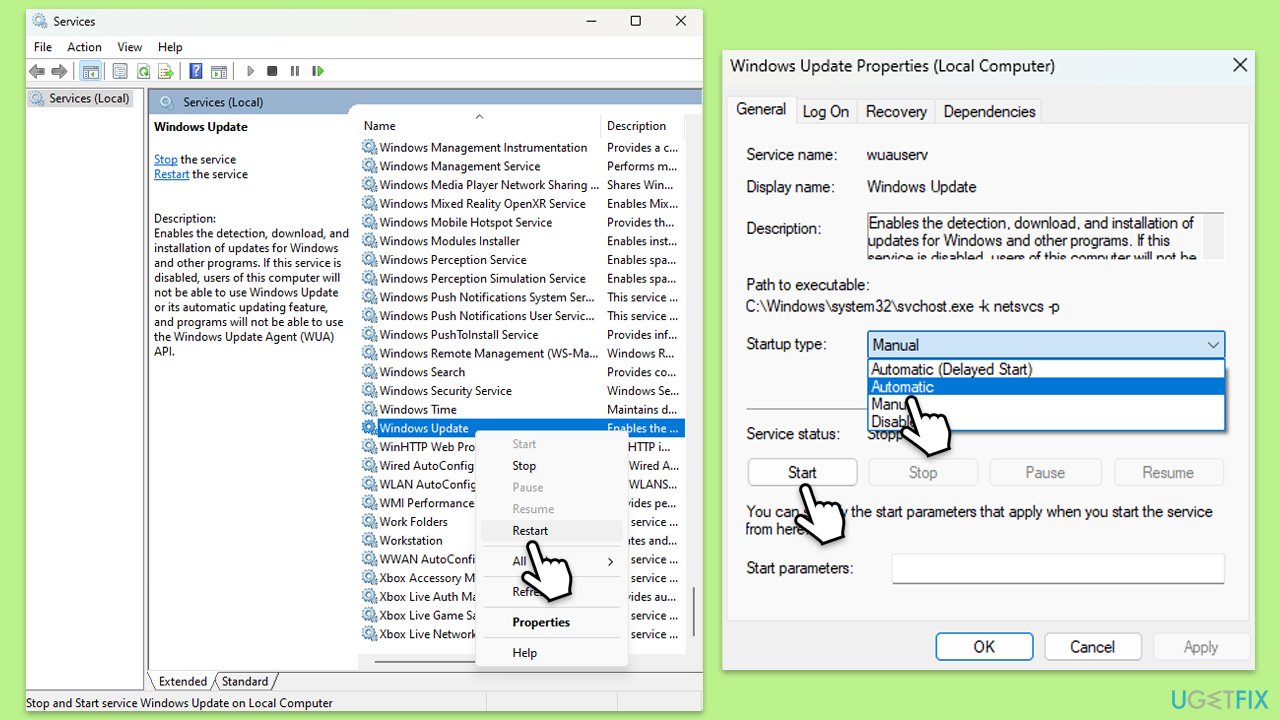
- Type in Services in Windows search and press Enter.
- Locate Windows Update service service.
- If it is already running, right-click and select Restart.
- if the service is not running, double-click it, select Automatic under the Startup type from the drop-down menu
- Click Start, Apply, and OK.
- Repeat the process with the Background Intelligent Transfer Service (BITS), Cryptographic, and Windows Installer services.
Fix 2. Run SFC and DISM
Corrupted system files can interfere with Windows functions, including the troubleshooter.
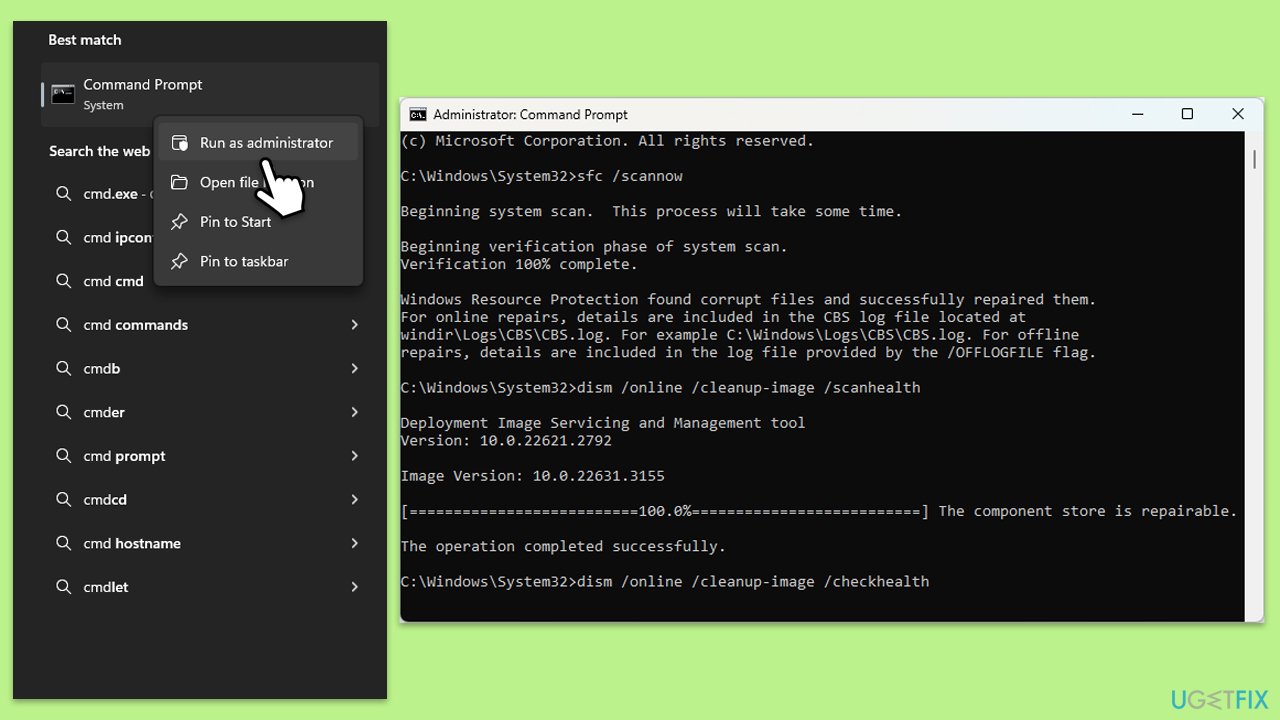
- Type cmd in Windows search.
- Right-click on Command Prompt and pick Run as administrator.
- User Account Control will ask whether you want to allow changes – click Yes.
- In the Command Prompt window, paste the following command and hit Enter:
sfc /scannow - Next, use the following commands, pressing Enter each time:
Dism /Online /Cleanup-Image /CheckHealth
Dism /Online /Cleanup-Image /ScanHealth
Dism /Online /Cleanup-Image /RestoreHealth
(Note: if you get an error executing this last command, add /Source:C:\RepairSource\Windows /LimitAccess to it and try again). - Reboot your computer.
Fix 3. Perform a Clean Boot
Background applications and services can sometimes interfere with system tools, including the Windows Update troubleshooter. A Clean Boot starts Windows with only essential services running, which can help determine if a third-party application is causing the issue.
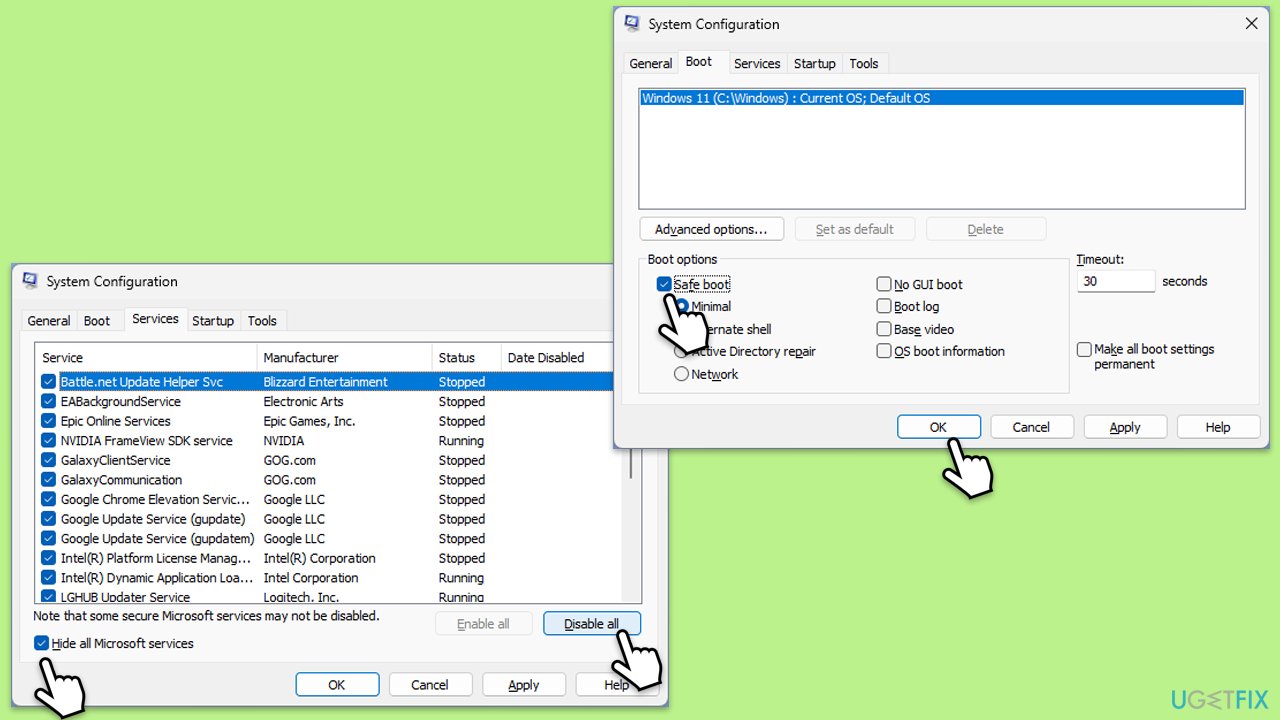
- Type msconfig in the Windows search box and press Enter.
- Pick the Services tab.
- Mark Hide all Microsoft services and select Disable all.
- Select the Startup tab and click Open Task Manager.
- In the Task Manager, right-click on each of the items and select Disable, then close the Task Manager.
- Go to the Boot tab, mark the Safe Boot option, then click Apply and OK.
- On the System Configuration window, click OK.
- Restart your computer and try running the update or troubleshooter again.
Fix 4. Reset Windows update components
- Open Command Prompt as administrator.
- Type each of these command lines, pressing Enter every time (wait till the command is fully executed):
net stop bits
net stop wuauserv
net stop appidsvc
net stop cryptsvc
Del "%ALLUSERSPROFILE%\Application Data\Microsoft\Network\Downloader\*.*"
rmdir %systemroot%\SoftwareDistribution /S /Q
rmdir %systemroot%\system32\catroot2 /S /Q
regsvr32.exe /s atl.dll
regsvr32.exe /s urlmon.dll
regsvr32.exe /s mshtml.dll
netsh winsock reset
netsh winsock reset proxy
net start bits
net start wuauserv
net start appidsvc
net start cryptsvc - Restart your device and attempt to download the update once more.

Fix 5. Create a new user account
Corrupted user profiles can sometimes prevent Windows tools from working correctly. Creating a new account may resolve the issue.
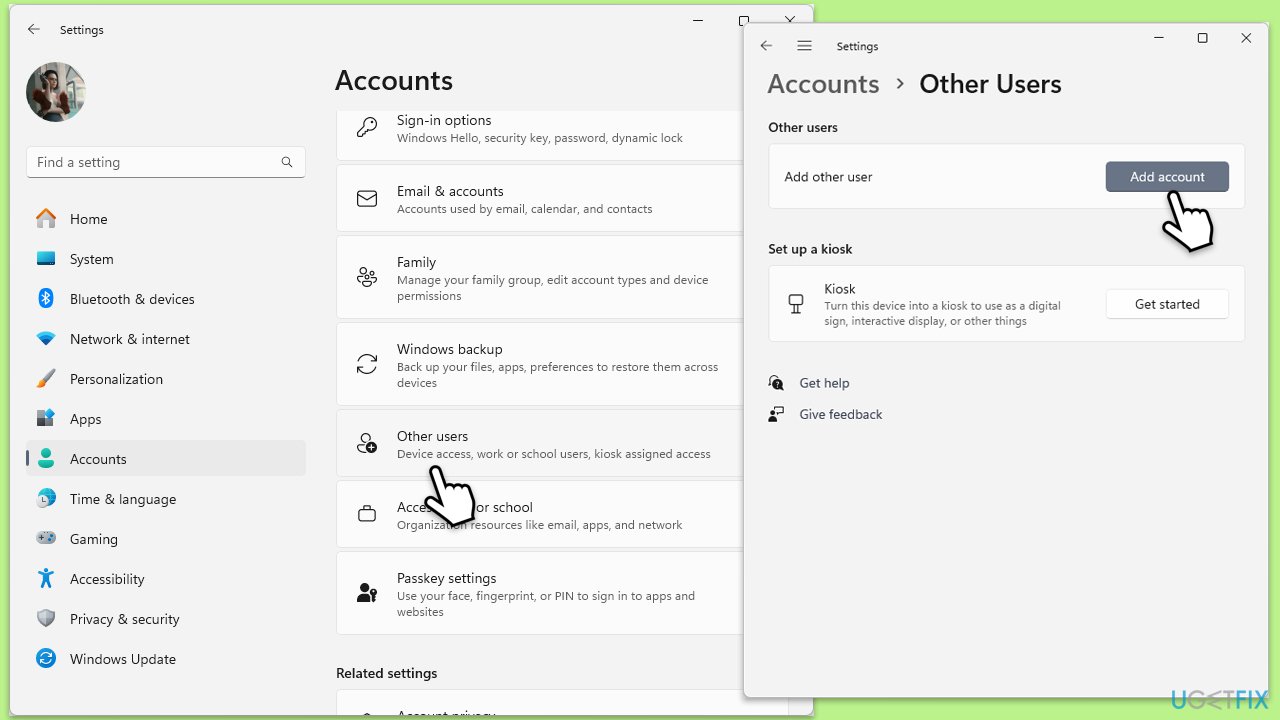
- Right-click on Start and pick Settings.
- Go to Accounts then Family/Family & other users.
- Under Other users, click Add account/Add someone else to this PC.
- Follow the prompts to create a new user account. If you don't have Microsoft account details, you can choose I don't have this person's sign-in information followed by Add a user without a Microsoft account.
- Assign a username and password for the new account and complete the setup.
- Then go back to the Accounts section. Under Family/Family & other users, select the newly created account and click Change account type.
- Under Account type, pick Administrator and click OK.
Fix 6. Perform an in-place upgrade
You can always try
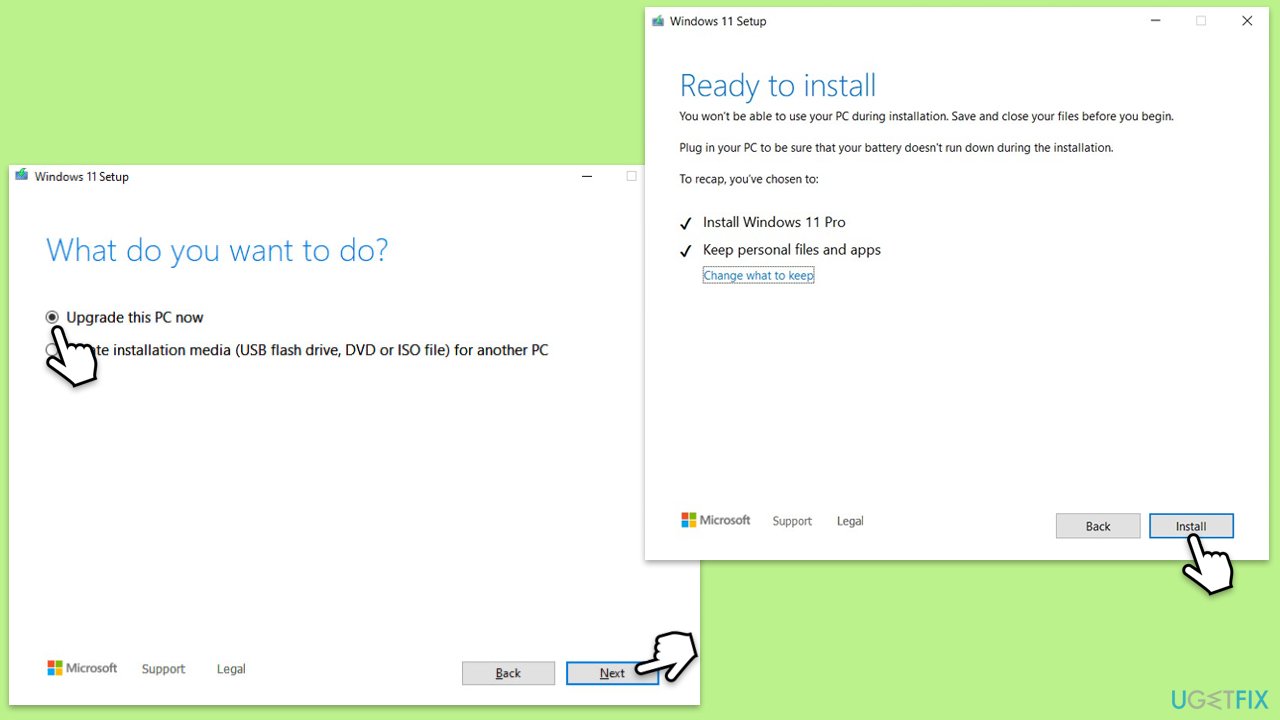
- Visit the official Microsoft website and download Windows 10 installation media (Windows 11 version).
- Double-click the installer, select Yes when UAC shows up, and agree to the terms.
- Select Upgrade this PC now and click Next.
- Windows will start downloading the needed files.
- Agree to the terms once again and click Next.
- Before installing, make sure that you are happy with your choices (otherwise, you can click Change what to keep option).
- Finally, click Install to begin the upgrade process.
Bottom line
To resolve the issue, ensure that essential services like the Cryptographic Service are running and perform a System File Checker (SFC) scan to repair any corrupted system files. If these solutions do not work, consider using the automatic Windows repair app to address deeper system issues.
Frequently asked questions
Try running the troubleshooter as an administrator by right-clicking on it and selecting 'Run as administrator.' If that doesn't work, reset the Windows Update components manually.
Ensure that your system is fully updated by checking for updates in Settings, then restart your PC and try running the troubleshooter again.
Yes, you can perform a System File Check (SFC) scan using the Command Prompt to repair any corrupted files that may be causing the troubleshooter error.




Report an issue
What's wrong with this guide? We review every report and update or remove content.
Report received — thank you. We'll review and fix it.
You need a free account to submit a report.
Be the first to comment