How to fix
Microsoft Store error 0x8A150003
on Windows
Resolve Microsoft Store error 0x8A150003 on Windows 10 or 11 effortlessly. Get quick fixes and expert tips for a seamless experience, fixed in minutes.


What causes How to fix Microsoft Store error 0x8A150003?
- Problems at the server-side
- Connecting issues of the Microsoft Store with Windows services
- Corrupted store cache
- Outdated system components
- Incorrect account settings
Repairs Windows system files, removes malware, and restores a clean OS state — without reinstalling.
Hey, I sometimes got issues when trying to update some apps via Microsoft Store on Windows 11. The error I'm getting is 0x8A150003. What is causing it and how do I fix it?
The Microsoft Store is the center for downloading applications, games, and other digital content on Windows. While it is designed to operate fluently, many face unexpected errors that hinder the application installation and/or update process.
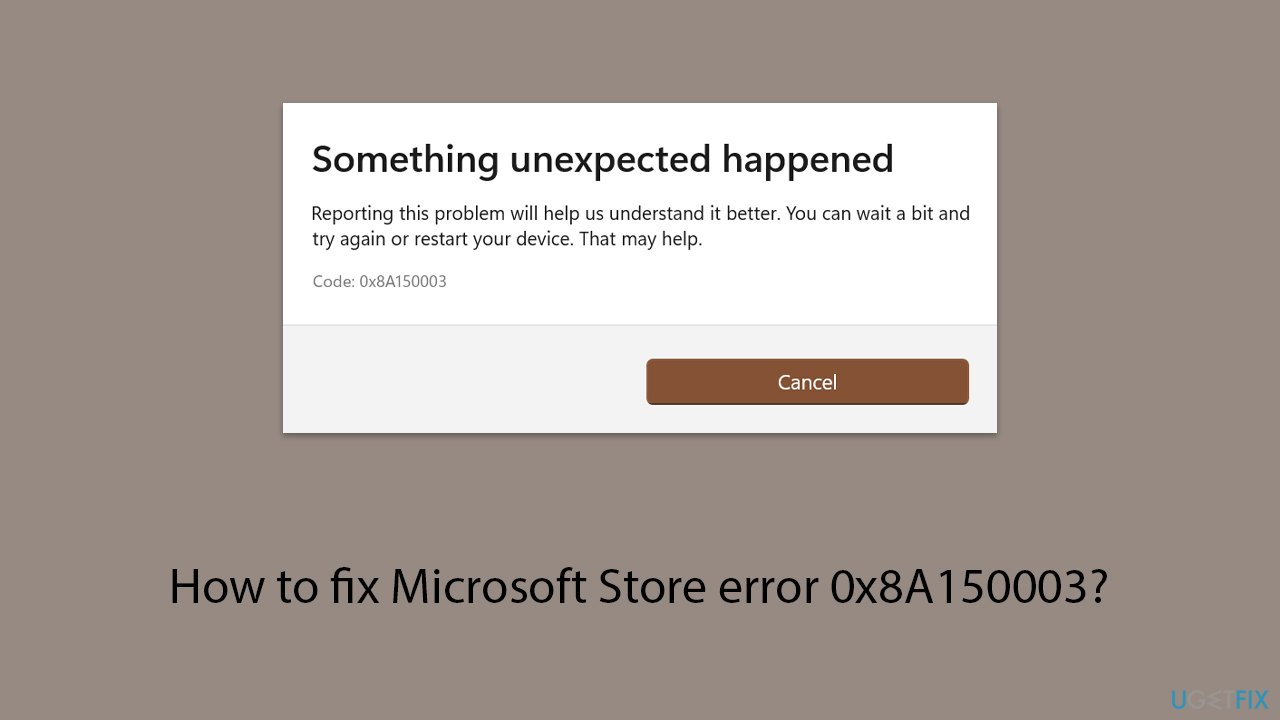
One of the issues is error code 0x8A150003, which comes along when the user is trying to download or update any application from the store. This error has disrupted the process and does not let the users install the software needed by them.
The error code 0x8A150003 generally occurs due to problems at the server-side or connecting issues of the Microsoft Store with Windows services. Sometimes, users face this problem due to momentary interruptions in the back end of the Microsoft Store, which always does not lie on the user's side.
However, a few system-related reasons such as corrupted store cache, outdated system components, or mallet account settings can also be a pivotal point that contributes to the problem.
One common cause behind this error is an issue with the Microsoft Store cache, which stores temporary data to improve performance. If this cache becomes corrupted, the store may fail to process requests correctly, leading to download failures. Additionally, Windows Update services play a role in maintaining the Microsoft Store’s functionality. If these services are disabled or not working properly, users may encounter this error when trying to install or update apps.
For users facing error 0x8A150003, troubleshooting requires identifying whether the problem is related to the system, the Microsoft Store, or an external server issue. Since multiple factors could be responsible, a step-by-step approach is necessary to resolve the problem.
If you're experiencing this error while using the Microsoft Store, a potential fix may be available below. Before proceeding, consider using an all-in-one PC repair tool [d1] to automatically detect and resolve any underlying Windows issues.
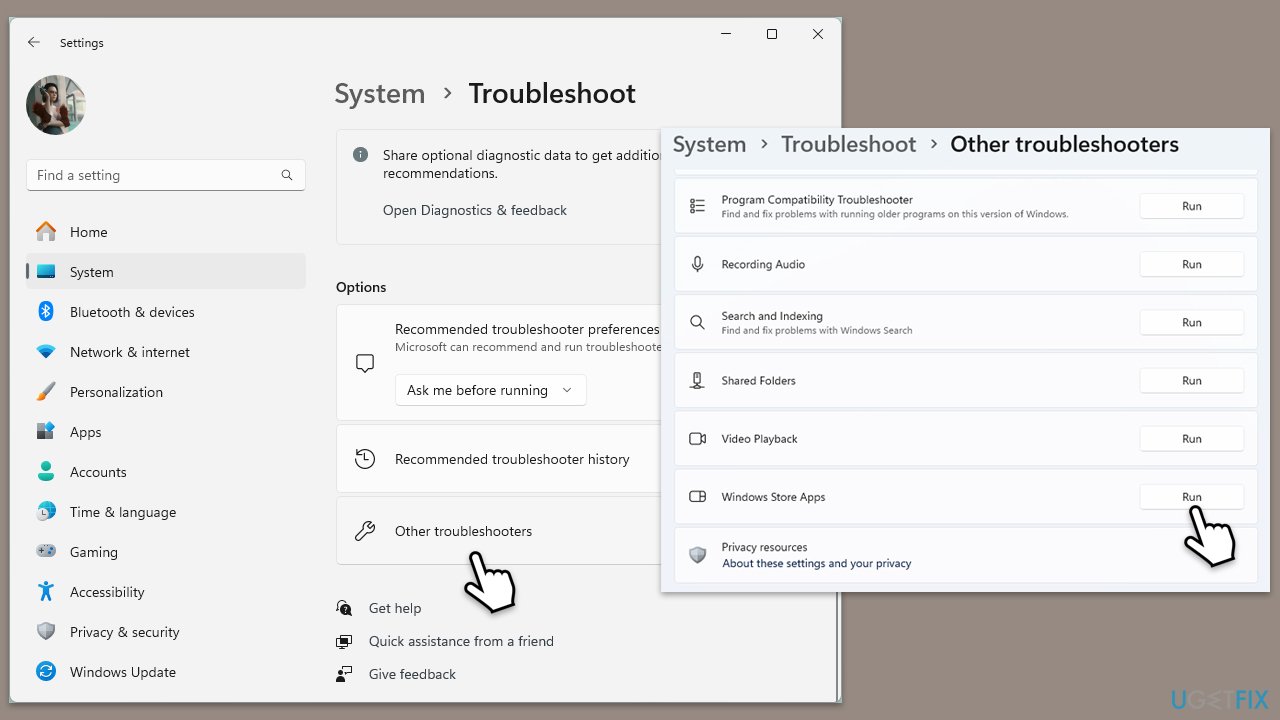
Fix 1. Run Windows Store apps troubleshooter
Start with the more simple method - run the built-in troubleshooter.
- Type troubleshoot in Windows search and hit Enter.
- Click Additional troubleshooters/Other troubleshooters.
- Find Windows Store Apps.
- Click on it, and select Run the troubleshooter/Run.
- Wait for the scan to be completed and apply the suggested fixes.
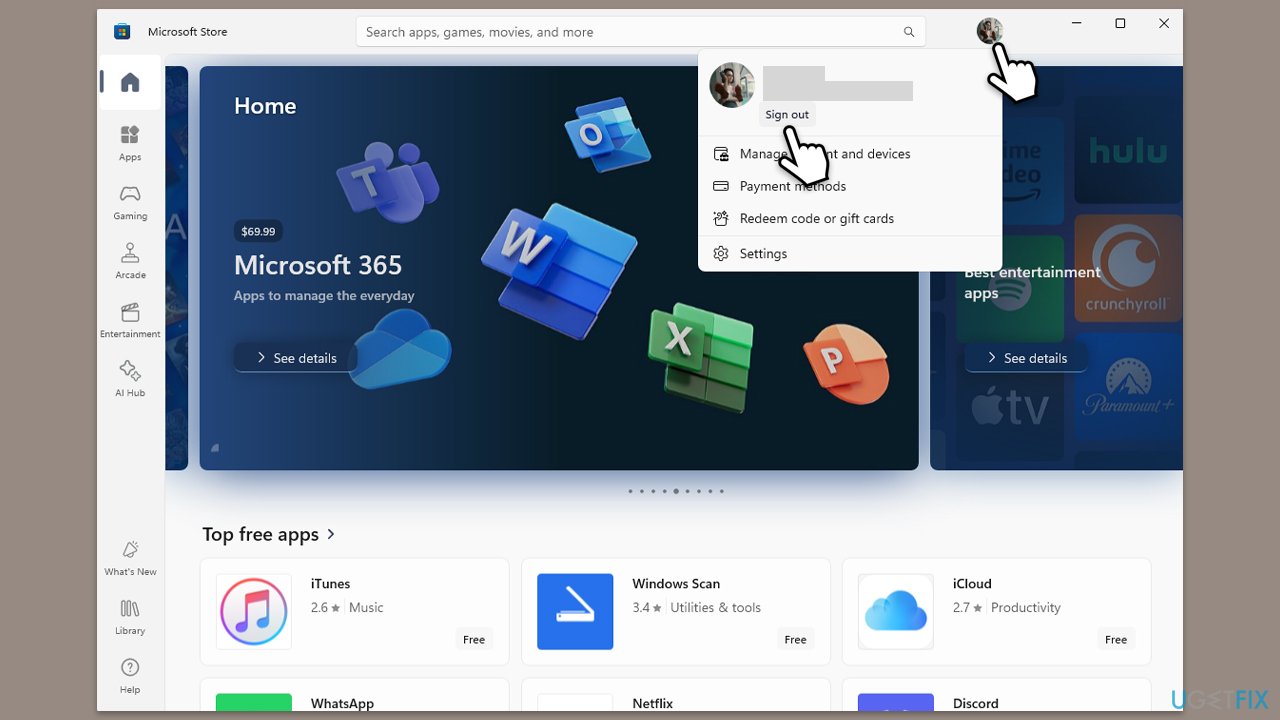
Fix 2. Sign out and sign back into your Microsoft account
Account-related issues may prevent the Microsoft Store from processing downloads. Refreshing the login session can help restore normal functionality.
- Launch Microsoft Store.
- Click on your Profile picture and click Sign out.
- Restart your computer.
- Sign back in again with your account credentials.
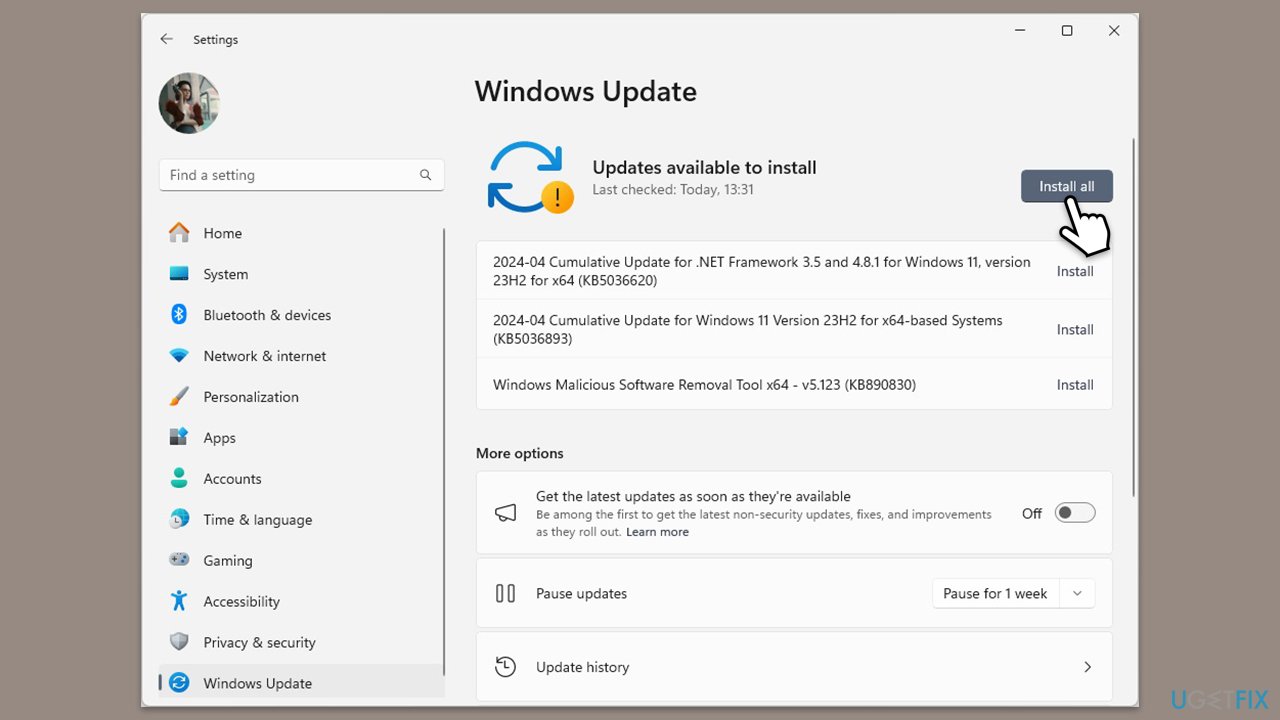
Fix 3. Check for Windows updates
Outdated system components can lead to compatibility issues with the Microsoft Store. Keeping Windows updated ensures that all necessary dependencies are installed.
- Type Updates and press Enter.
- In the new window, click Install all (if pending) or Check for updates.
- Wait till all the files are downloaded and installed.
- If optional updates are available, install them as well.
- Restart your device when done.
Fix 4. Reset the Microsoft Store cache
Corrupted cache files can prevent the store from functioning properly. Resetting the cache forces the Microsoft Store to rebuild these files.
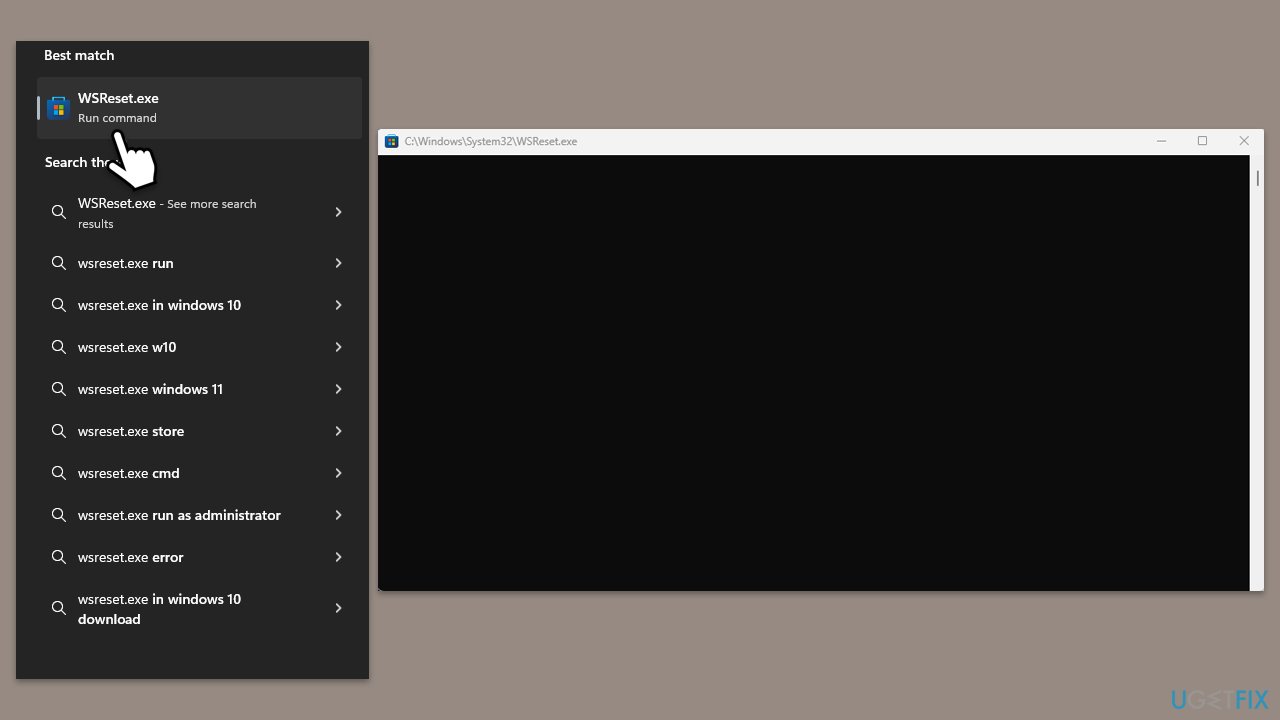
- In Windows search, type wsreset.exe and press Enter.
- Wait till a black window shows up – do not close it.
- Once it's gone, Microsoft Store should restart
- Try using the Store again.
Fix 5. Re-register the Microsoft Store
If the Microsoft Store is not functioning correctly, re-registering it using PowerShell can restore its default settings.
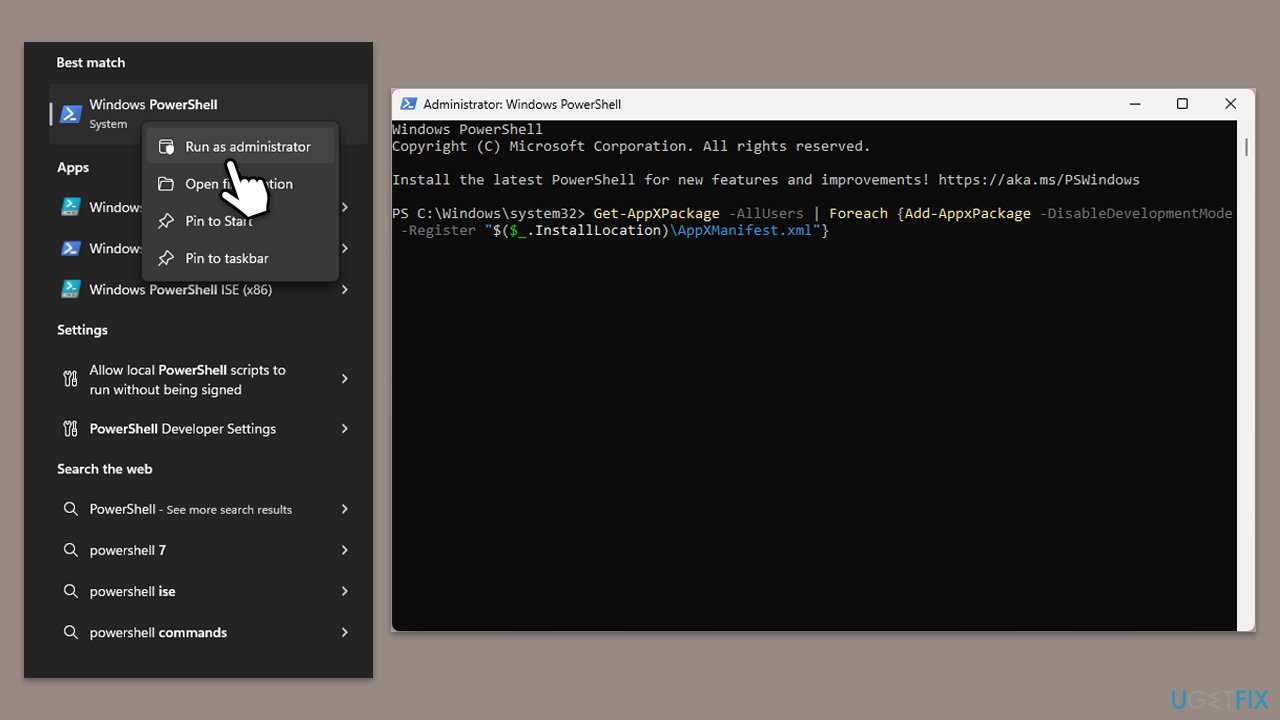
- Type PowerShell in Windows search.
- Right-click on the result and select Run as administrator.
- When UAC shows up, click Yes.
- Copy and paste the following command and press Enter:
Get-AppXPackage | Foreach {Add-AppxPackage -DisableDevelopmentMode -Register "$($_.InstallLocation)\AppXManifest.xml"} - Close down PowerShell and restart your system.
Fix 6. Restart Windows Update and background services
The Microsoft Store relies on Windows services to function properly. If these services are stopped or misconfigured, error 0x8A150003 may occur.
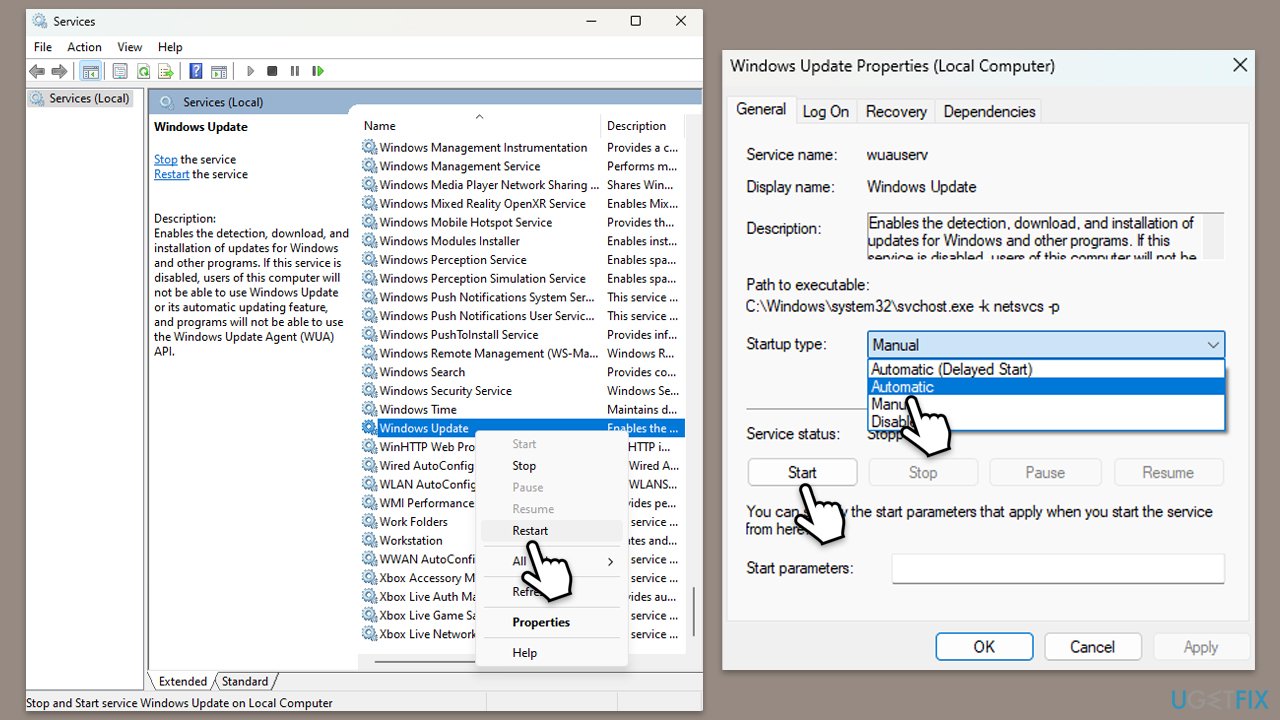
- Type Services in Windows search and press Enter.
- Scroll down and find the following services:
- Windows Update
- Microsoft Store Install Service
- Background Intelligent Transfer Service (BITS)
- Right-click each service and select Restart if they are already running.
- If any service is not running, right-click and select Start.
- Set the Startup type to Automatic - select it from the drop-down menu.
- Close the services window and try using the Microsoft Store again.
Fix 7. Reset or reinstall the Microsoft Store
If none of the previous methods work, resetting or reinstalling the Microsoft Store may resolve the issue by restoring it to its default state.
- Right-click on Start and select Apps & Features/Installed apps.
- Scroll down to find Microsoft Store and click Advanced options or go to Settings > System > System Components > Advanced options.
- Scroll down again and click Terminate and Repair.
- If that does not work, try using Reset.
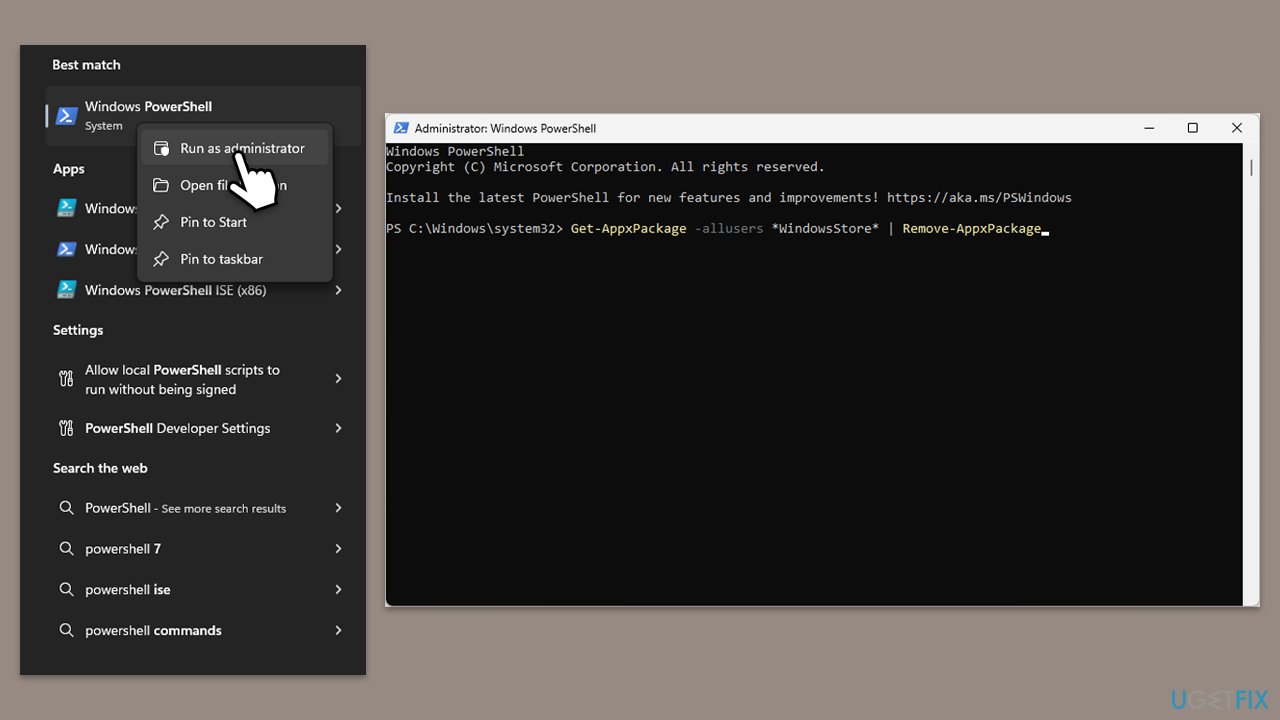
- If resetting does not work, open PowerShell as administrator and run the following command:
Get-AppxPackage Microsoft.WindowsStore | Remove-AppxPackage - Restart the computer and reinstall the Microsoft Store from the Microsoft website.
- Open the store and check if the error is resolved.
Bottom line
To fix Microsoft Store error 0x8A150003, you can run the Windows Store apps troubleshooter, clear the store cache, and ensure that Windows Update services are functioning properly. If these steps do not resolve the issue, consider using an all-in-one PC repair tool to detect and fix underlying Windows problems.
Frequently asked questions
This error typically signifies that there is a problem with the Microsoft Store app's ability to connect to the server or access the necessary files. It may arise due to network issues or corrupted app data.
To reset the Microsoft Store, go to Settings > Apps > Apps & features, find Microsoft Store, click on it, and select Advanced options. From there, you can click on the Reset button to clear any corrupted data.
Yes, you can run the command 'wsreset.exe' in Command Prompt to reset the Microsoft Store cache, which often resolves this error. Additionally, you can use 'sfc /scannow' to repair any corrupted system files that may be affecting the Store.




Report an issue
What's wrong with this guide? We review every report and update or remove content.
Report received — thank you. We'll review and fix it.
You need a free account to submit a report.
Be the first to comment