How to fix
System Restore error 0x80042308
on Windows
Resolve System Restore error 0x80042308 in Windows 10 and 11 effortlessly. Follow proven methods for a quick fix, expert-tested for reliability.


What causes How to fix System Restore error 0x80042308 in Windows?
- System file corruption
- Inadequate System Volume Information folder permissions
- Disruptions from third-party security software
- Disk integrity problems
- Driver conflicts
Repairs Windows system files, removes malware, and restores a clean OS state — without reinstalling.
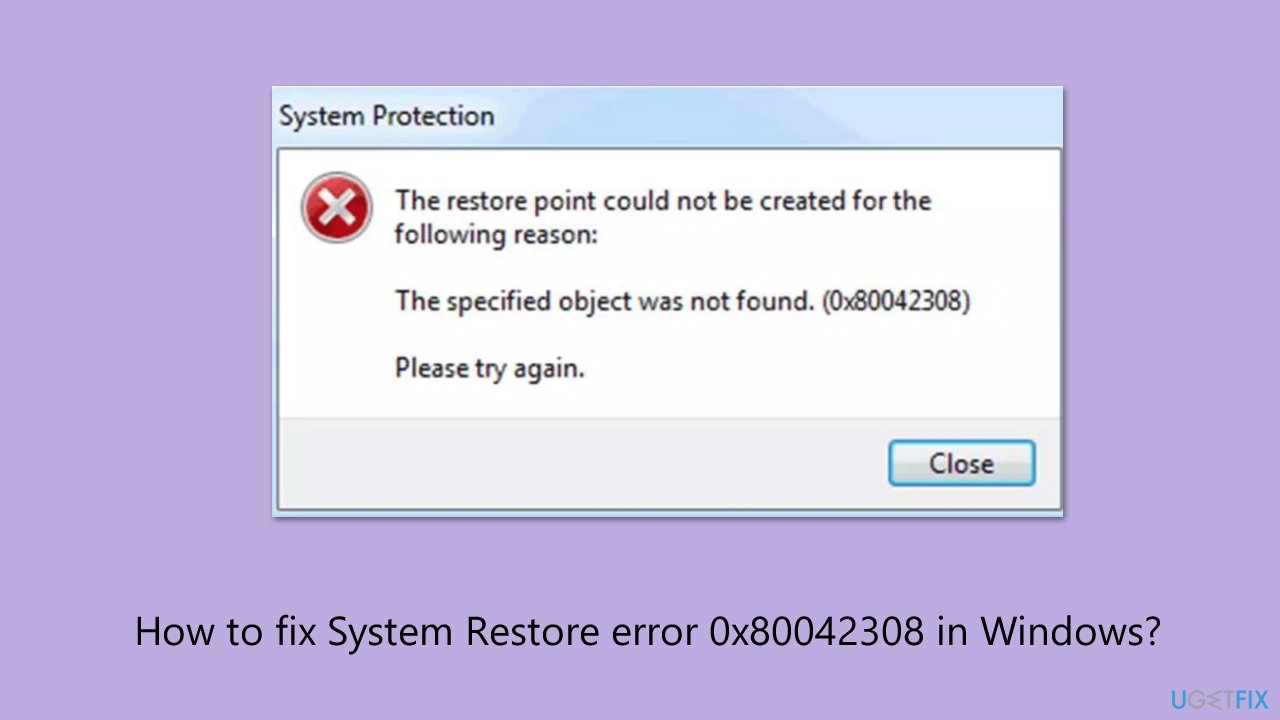
After a really unfortunate turn of events I've lost many of important files. So I am now trying to set up a System Restore point to avoid this in the future. Unfortunately, I can't do even that now because of the error I am receiving: 0x80042308. Could you maybe help me with this?
The 0x80042308 System Restore error prevents Windows users from restoring their system data through previous states. It arises from problems within the Volume Shadow Copy Service (VSS) since it handles restore point creation and maintenance. The 0x80042308 error indicates that the VSS encounters misconfiguration or conflict issues which block System Restore from functioning.
According to discussions on multiple online forums, this error usually appears due to three main factors such as system file corruption, inadequate System Volume Information folder permissions or disruptions from third-party security software. The error shows itself repeatedly despite users making multiple efforts to create new restore points which points to serious underlying system problems.
In many cases, error 0x80042308 may also be compounded by disk integrity problems or driver conflicts, adding further complexity to the troubleshooting process. The experiences shared by users vary, with some encountering the error sporadically while others face it consistently during critical recovery operations. Since System Restore is designed to safeguard the system by reverting to a stable configuration, the inability to perform this function due to error 0x80042308 can leave the system in an uncertain state.
For users encountering persistent instances of System Restore error 0x80042308, utilizing an automatic Windows repair tool like [d1] can help diagnose and resolve the underlying issues, ensuring that System Restore functions correctly and that your system remains secure.
Fix 1. Restart the Volume Shadow Copy Service (VSS)
Restarting VSS can clear temporary issues and refresh its operation.
- Type Services in Windows search and press Enter.
- Locate Volume Shadow Copy in the list.
- Right-click it and select Restart.
- Next, double-click on the Volume Shadow Copy service to open Properties.
- In the Startup area, select Automatic from the drop-down menu.
- Click Apply and OK.
- Repeat this process with Microsoft Software Shadow Copy Provider and Windows Management Instrumentation.
- Restart your computer and attempt System Restore again.

Fix 2. Run SFC and DISM Scans
Corrupted system files can interfere with System Restore. Running SFC and DISM scans can repair these files.
- Type cmd in Windows search.
- Right-click on Command Prompt and pick Run as administrator.
- User Account Control window will show up - click Yes when prompted.
- Then, copy and paste the following command, pressing Enter after:
sfc /scannow - Wait till the scan is finished. If Windows finds system file integrity violations, it will attempt to fix them. After this, use the set of the following commands, pressing Enter each time:
DISM /Online /Cleanup-Image /CheckHealth
DISM /Online /Cleanup-Image /ScanHealth
DISM /Online /Cleanup-Image /RestoreHealth - Close everything down and restart your computer.

Fix 3. Check permissions on the System Volume Information folder
Incorrect permissions on the System Volume Information folder can block the creation of restore points.
- Open File Explorer and navigate to the root of your system drive (usually C:).
- Right-click the System Volume Information folder, then select Properties.
- Under the Security tab, ensure that the SYSTEM account has full control.
- Adjust permissions if necessary and click Apply.
Note: if you can't see the System Volume Information folder even with Hidden items enabled, you should run the following command in the elevated Command Prompt to make it visible: cacls "C:\System Volume Information" /E /G Administrator:F and press Enter.
Fix 4. Disable third-party antivirus or backup software
Security or backup applications may interfere with VSS and System Restore.
- Temporarily disable your antivirus or any third-party backup software.
- Attempt to run System Restore again.
- If successful, disable or uninstall the conflicting app(s).
Fix 5. Run a Disk Check
File system errors can disrupt System Restore operations. Running a disk check can help identify and fix these errors.
- Open Command Prompt as administrator.
- In the new window, type in the following command and press Enter after:
chkdsk c: /f
(Note: use chkdsk c: /f /r /x command if you are using SSD as your primary partition. Also, replace c: with another drive letter if you are not using default) - If you receive an error, type in Y, close down Command Prompt, and restart your system.
- Wait till the scan is finished.

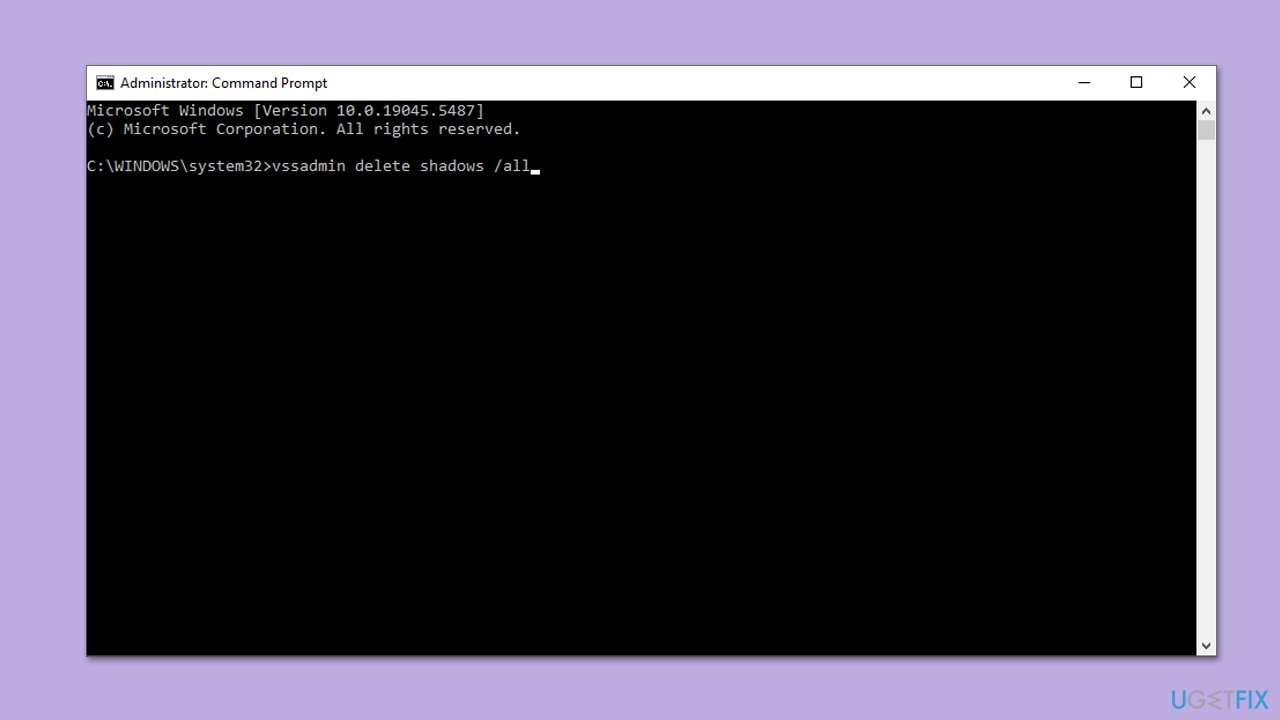
Fix 6. Delete old Shadow Copies
Clearing outdated shadow copies can free up space and resolve conflicts.
- Open Command Prompt as an administrator.
- Type the following command and press Enter:
vssadmin delete shadows /all - Restart your system and create a new restore point.
Fix 7. Recreate System Restore points
If existing restore points are corrupted, deleting and recreating them may resolve the error.
- Type Create a restore point in Windows search and select the matching result.
- Under the System Protection tab, click Configure.
- Ensure that, under Restore Settings, Turn on system protection option is enabled.
- Then, under Delete all restore points for this drive, click Delete.
- Create a new restore point and try running System Restore again.

Bottom line
To fix System Restore error 0x80042308, you can restart the Volume Shadow Copy Service and ensure it is set to Automatic. If the issue persists, consider using an automatic Windows repair tool to diagnose and resolve underlying problems.
Frequently asked questions
The error 0x80042308 is often caused by issues with the Volume Shadow Copy Service (VSS) or conflicts with third-party backup software. This can prevent System Restore from creating a restore point properly.
To troubleshoot this error, try running the VSS diagnostic tool and ensure that the Volume Shadow Copy service is enabled and running. Additionally, disabling any third-party backup programs temporarily might also resolve the issue.
Yes, you can fix this error by restoring the VSS service to its default settings and ensuring that your system files are intact using the System File Checker tool. This method does not affect your personal data.




Report an issue
What's wrong with this guide? We review every report and update or remove content.
Report received — thank you. We'll review and fix it.
You need a free account to submit a report.
Be the first to comment