How to fix
App is opening as background processes
on Windows
Resolve issues with apps running as background processes in Windows 10 or 11. Quick fixes and expert tips ensure smooth performance—zero traces left!


What causes How to fix app is opening as background processes in Windows?
- Unstable application files
- Improper startup settings
- Incompatible software programs
- Outdated drivers or program components
- Issues after applying a Windows update
- Problems after installing fresh software
Repairs Windows system files, removes malware, and restores a clean OS state — without reinstalling.
I have a problem with one of my app - it just keeps opening in the background as a process but I can't use it otherwise. In other words, I can't see any UI elements or access its functions, even though I do see it being active in the Task Manager.
Users sometimes encounter Windows background process problems because applications appear in Task Manager but do not open their interface for use. This situation becomes frustrating because the active process indicator is present even when the application cannot be used at all, potentially wasting system resources.
In Windows, the background applications process occurs when an application appears in Task Manager despite never having opened its window or become active. It can be extremely frustrating because it consumes system resources such as CPU and memory without providing anything to the user.
The problem usually occurs when an application is opened but fails to launch its interface. Instead of displaying the expected window, the application sits idle in the background. Users have noticed that, while they can see the process listed in Task Manager, no indication of the application's status is visible. This slows down the system and causes confusion because the application appears to be open but cannot be used.
There are several explanations for such a problem. Unstable application files, improper startup settings, or incompatible software programs can all be the cause that prevents an application from opening. In some other instances, issues begin after applying a Windows update or installing fresh software, most probably changing applications' normal workings. Outdated drivers or program components may be the problem too, making it even more mysterious.
To address this problem, various troubleshooting steps can be undertaken, ranging from reinstalling or updating the affected application to setting system preferences such that applications will not unnecessarily run in the background. For those who like things automated, the [d1] repair and maintenance software is a reliable software program that can identify and fix root causes such that apps start normally when needed instead of persisting as background processes.

Fix 1. End the Process and Restart the App
Sometimes an app hangs in the background; ending its process and restarting it can restore normal behavior.
- Open Task Manager by pressing Ctrl + Shift + Esc.
- In the Processes tab, locate the app running as a background process.
- Right-click the app and select End Task.
- Wait a few seconds, then launch the app again.
- Check if the app opens normally.

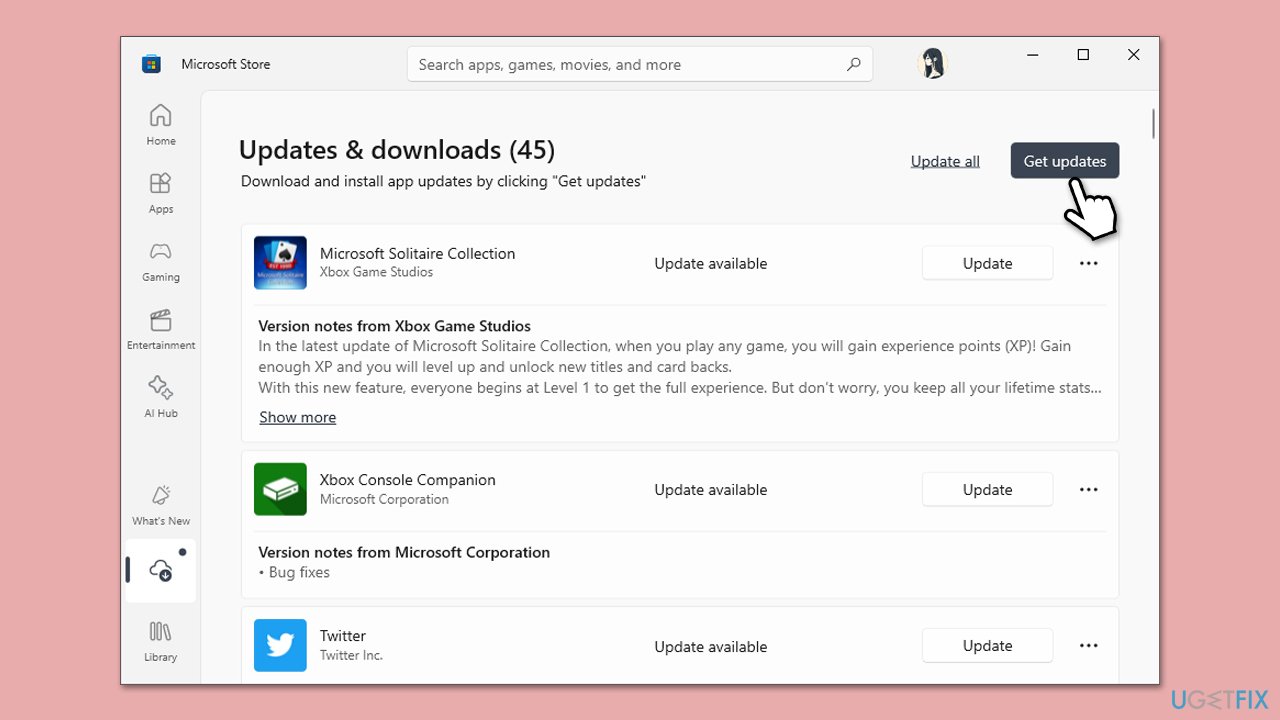
Fix 2. Check for app updates
It's worth noting that the app's update process depends on which app you are having problem with. If it's a native app such as Photos, you can update it via Microsoft Store. Otherwise, you can look for in-app options or visit the official website of the developer.
- Open the Microsoft Store or the app's update interface.
- Navigate to the Updates section.
- Check for available updates.
- Install any updates and restart the app.
- Check if the app now opens properly.
Fix 3. Reinstall the app
Reinstalling can fix issues caused by corrupted application files that prevent the app from displaying its interface.
- Type Control Panel in Windows search and press Enter.
- Go to Programs > Uninstall a program.
- Find the problematic app and select Uninstall.
- Restart your computer.
- Reinstall the app from the Microsoft Store or the official website.
- Launch the app and check for operation.

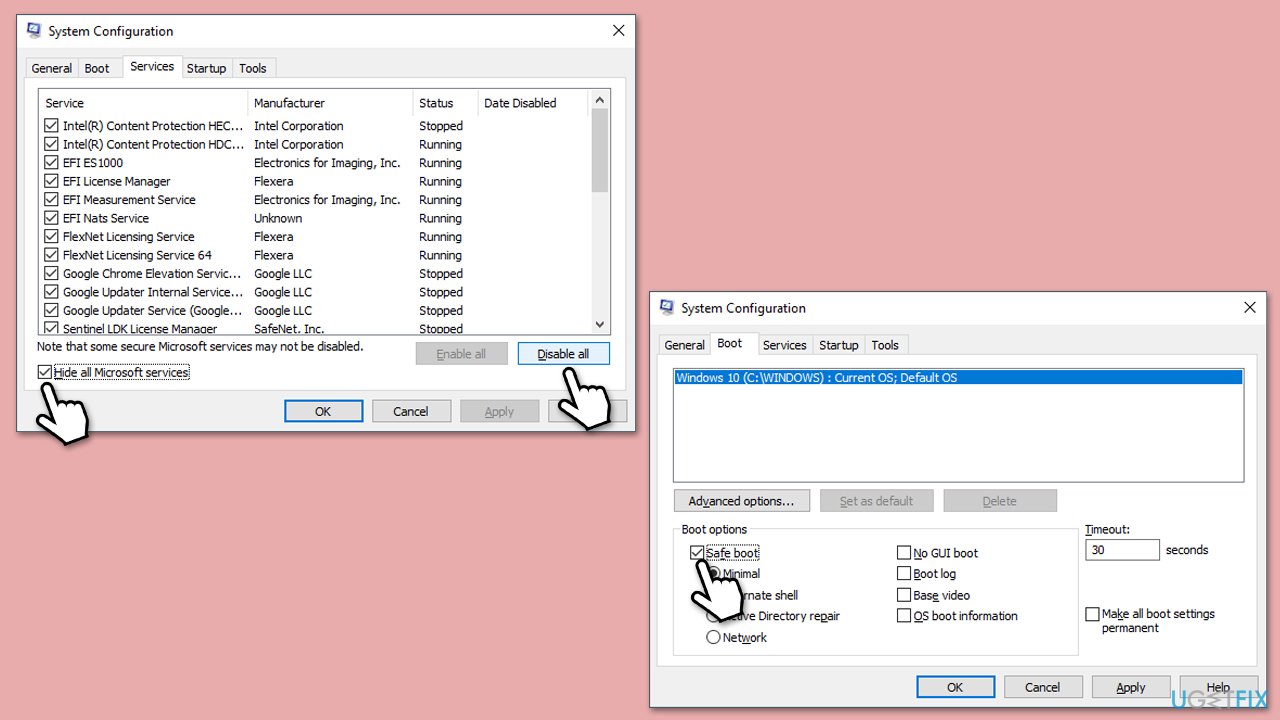
Fix 4. Perform a Clean Boot
A clean boot minimizes conflicts by starting Windows with only essential services running, which can help determine if background processes are interfering.
- Type msconfig inWindows Search and press Enter to open the System Configuration window.
- Click on the Services tab and check the Hide all Microsoft Services box.
- Click Disable all to disable non-Microsoft services, then click the Startup tab.
- Open the Task Manager, disable all startup items, and close the Task Manager.
- Go to the Boot tab and mark the Safe boot option.
- Click OK on the System Configuration window and restart your computer.
- If the problem does not exist, third-party software is at fault. To determine which app is causing it try enabling half of the available programs, restarting, and checking if the the problem is still absent. Continue till you find the offending software and either update or uninstall it.
Fix 5. Update Windows and drivers
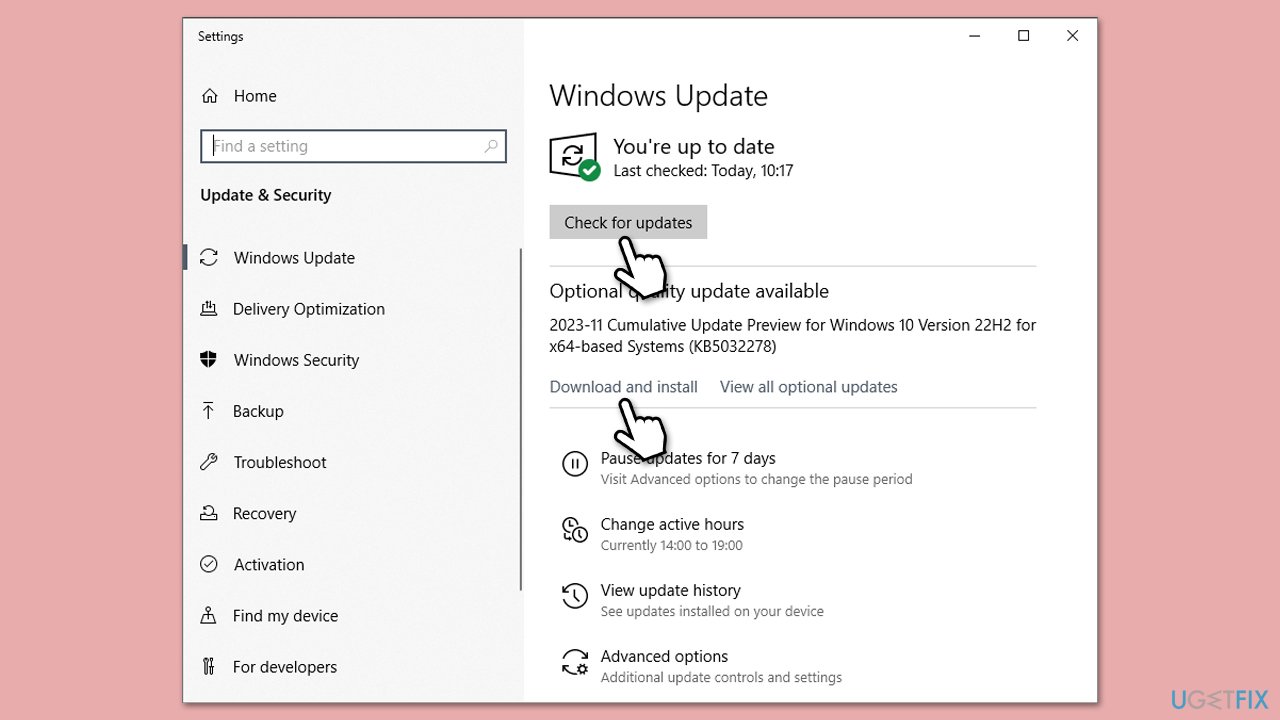
Make sure that your system has the latest updates installed, including those for drivers. It is recommended to download drivers from their official websites or employing tools like [rev id="DriverFix"].
- Type Updates in Windows search and hit Enter.
- If updates are available, click Install updates.
- Otherwise, click Check for updates.
- If optional updates are available, install them as well.
- When all the update processes are complete, restart your system.
Fix 6. Create a new user profile
A corrupted user profile may cause apps to malfunction and run in the background only. Creating a new profile can help determine if this is the case.
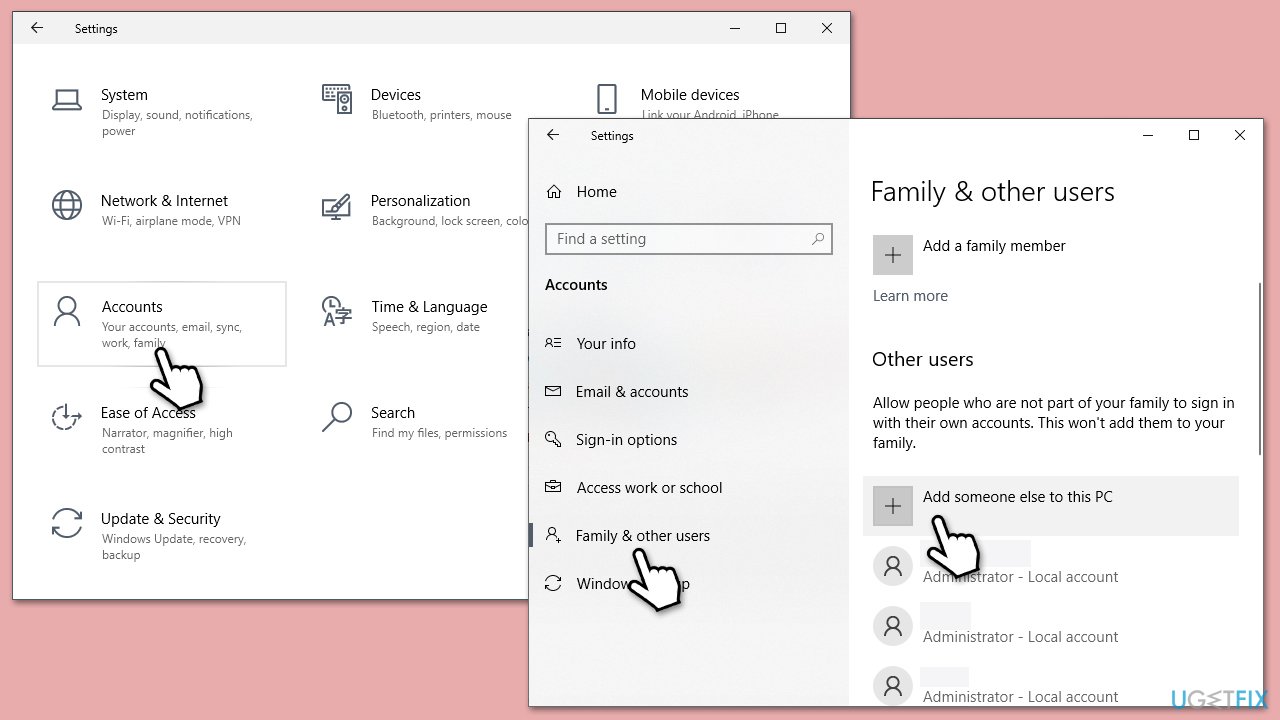
- Right-click on Start and pick Settings.
- Go to Accounts then Family/Family & other users.
- Under Other users, click Add account/Add someone else to this PC.
- Follow the prompts to create a new user account. If you don't have Microsoft account details, you can choose I don't have this person's sign-in information followed by Add a user without a Microsoft account.
- Assign a username and password for the new account and complete the setup.
- Then go back to the Accounts section. Under Family/Family & other users, select the newly created account and click Change account type.
- Under Account type, pick Administrator and click OK.
Fix 7. Repair system files with SFC and DISM
To repair system file corruption, follow these steps:
- Type cmd in Windows search.
- Right-click on Command Prompt and pick Run as administrator.
- User Account Control pop-up will ask to confirm, click Yes.
- Type in the following command and press Enter:
sfc /scannow - When done, run the following commands as well:
dism /online /cleanup-image /scanhealth
dism /online /cleanup-image /checkhealth
dism /online /cleanup-image /restorehealth
(Note: if you get an error executing this last command, add /Source:C:\RepairSource\Windows /LimitAccess to it and try again). - Restart your computer.

Bottom line
To fix the issue of an app opening as a background process, you can try reinstalling or updating the affected application, adjusting system preferences to prevent unnecessary background processes, or using repair and maintenance software. If these solutions do not work, further investigation may be needed to identify the root cause.
Frequently asked questions
You can open Task Manager, find the app under the 'Processes' tab, right-click it, and select 'End Task' to stop it. Then, restart the app to see if it opens properly.
You can adjust your app settings by going to Settings > Privacy > Background apps and toggling off the apps you don't want running in the background.
Yes, you can go to Settings > Apps > Apps & features, select the problematic app, click on 'Advanced options', and then select 'Reset' to restore default settings.




Report an issue
What's wrong with this guide? We review every report and update or remove content.
Report received — thank you. We'll review and fix it.
You need a free account to submit a report.
Be the first to comment