How to fix
Run.vbs error
on Windows
Resolve the Run.vbs error in Windows 10 or 11 effortlessly. Follow our expert-tested solutions for quick fixes and smooth performance. Fixed in minutes!


What causes How to fix Run.vbs error in Windows?
- Corrupt script files
- Malware infections
- Third-party software conflicts
- Incorrectly altered system files
- Permission issues
Repairs Windows system files, removes malware, and restores a clean OS state — without reinstalling.
For some time now, I am experiencing a strange pop-up when I launch Windows. The title of the window is Windows Script host, the code is 80070002 and it references Run.vbs file. What does that mean and how can I remove it? I am not sure where this is coming from. By the way, I am using Windows 11 Home edition.
The Run.vbs error in Windows is a problem that certain users experience when a script fails to run successfully through Windows Script Host. The error usually appears as an unwanted popup box that reports the failure of run.vbs, causing normal system operation to stop. Many users have reported that the error appears sporadically, sometimes even when no action is taken, which is confusing and annoying.
The run.vbs errors are typically caused by issues such as corrupt script files, malware infections that alter or delete critical system scripts, or third-party software conflicts. Some users have reported receiving the error message after installing new software or updating the system, indicating that system configuration changes may cause the error. In some cases, incorrectly altered system files or permission issues also cause the run.vbs error on Windows.
Symptoms of the run.vbs error include unexpected error messages appearing at startup or during routine tasks, and in some cases, the error may cause certain applications to crash or not run at all. Users often report that the error message seems to pop up without any clear trigger, making it difficult to pinpoint the underlying cause.
To address this issue, several potential solutions are typically proposed. These may include performing a thorough malware scan, replacing or repairing corrupted system files, and ensuring that your Windows Script Host is properly configured. Users should scan their systems for integrity and update all drivers and software components involved.
For those who prefer an automated solution, the [d1] repair and maintenance application can help diagnose and repair the root causes of the run.vbs error in Windows, returning your system to normal without the need for manual troubleshooting.

Fix 1. Run a full malware scan
You can use a trusted third-party security software, although Microsoft Safety Scanner or the built-in Windows Defender can do the job just as well:
- Type Windows Security in the Windows search bar and hit Enter.
- Select Virus & threat protection.
- Pick Scan options.
- Choose Microsoft Defender Offline scan and click Scan now.
- Your computer will immediately restart and begin a deep scan.

Fix 2. Check Windows Script Host settings
Incorrect configuration of Windows Script Host can lead to run.vbs error issues. It is also recommended to make a backup of the Registry database before making any changes.
- Type regedit in Windows search and press Enter.
- When User account control windows shows up, click Yes.
- Navigate to the following location:
HKEY_LOCAL_MACHINE\Software\Microsoft\Windows Script Host\Settings - Look for a DWORD value named Enabled.
- If the Enabled value exists and is set to 0, double-click it and change the value data to 1.
- Close Registry Editor and restart your computer.
- Close the Registry Editor and restart your computer.
Fix 3. Repair system files
Corrupted system files can cause script errors such as run.vbs error. Running system file repairs helps restore missing or damaged files.
- Type cmd in Windows search.
- Right-click on Command Prompt and selecy the Run as administrator option.
- When User Account Control shows up - click Yes.
- Then, copy and paste the following command, pressing Enter after:
sfc /scannow - Wait till the scan is finished. If Windows finds system file integrity violations, it will attempt to fix them. After this, use the set of the following commands, pressing Enter each time:
DISM /Online /Cleanup-Image /CheckHealth
DISM /Online /Cleanup-Image /ScanHealth
DISM /Online /Cleanup-Image /RestoreHealth
Note: if you get an error executing this last command, add /Source:C:\RepairSource\Windows /LimitAccess to it and try again. - Close down the Command Prompt and restart your computer.

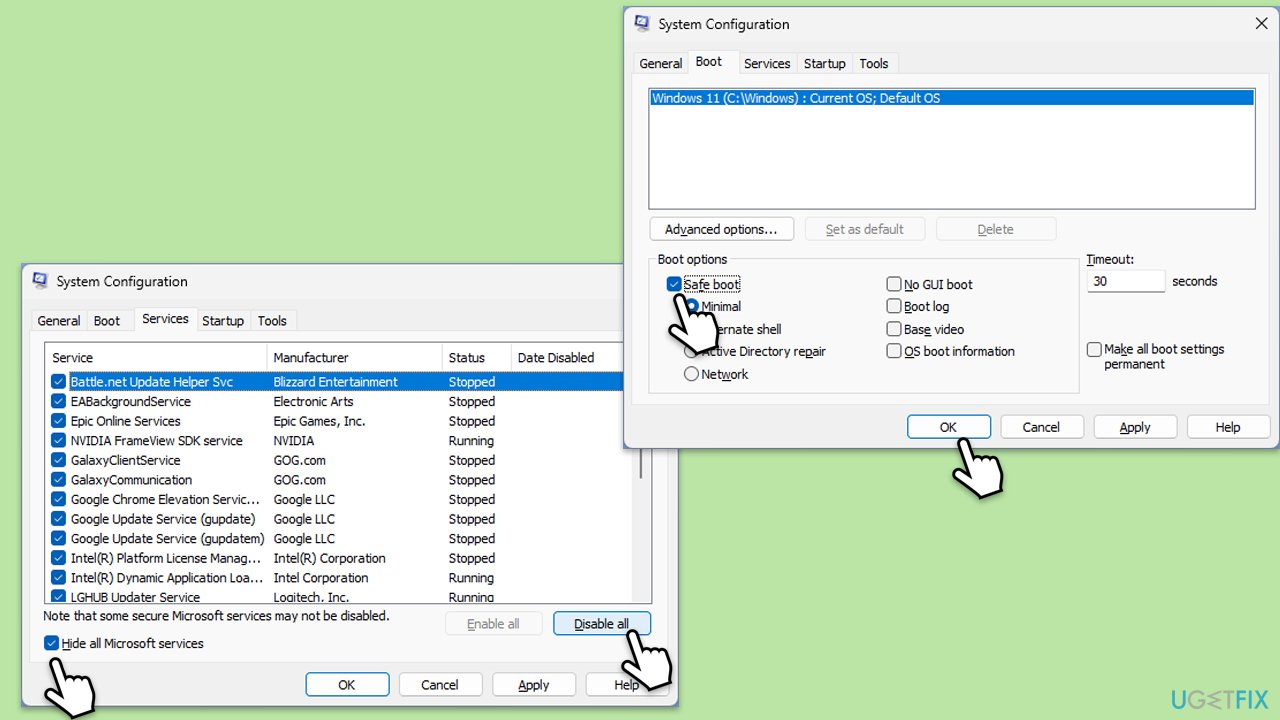
Fix 4. Use a Clean Boot
A clean boot minimizes conflicts by starting Windows with only essential services running, which can help determine if third-party software is interfering with script execution.
- Type msconfig in Windows search and press Enter.
- Pick the Services tab.
- Mark Hide all Microsoft services and select Disable all.
- Select the Startup tab and click Open Task Manager.
- In the Task Manager, right-click on each of the items and select Disable, then close the Task Manager.
- Go to the Boot tab, mark the Safe Boot option, then click Apply and OK.
- Restart your PC.
- To find out which app(s) is causing conflicts, enable each of the processes (or you can do it in groups), restart, and see if the problem persists. Repeat until you find the faulty app, then either update or uninstall it.
Fix 5. Update Windows
Outdated system components or missing updates can lead to errors with script execution.
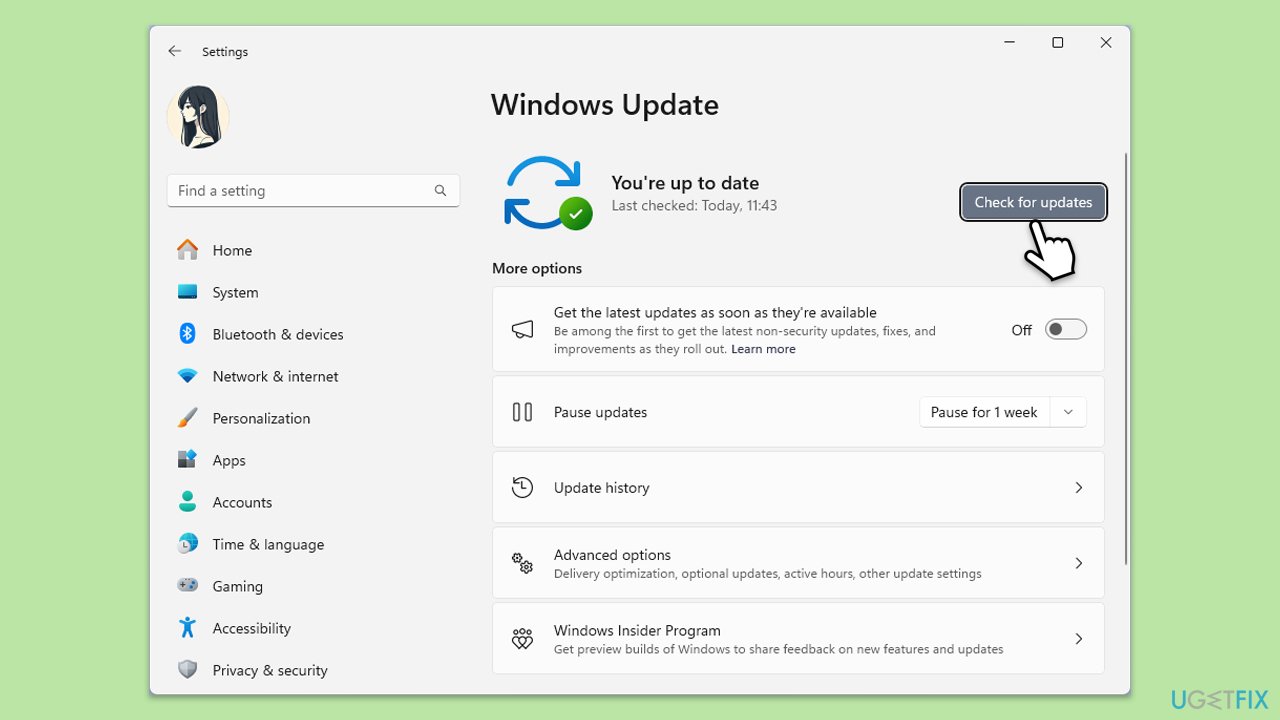
- Type Updates in Windows search and press Enter.
- In the new window, click Check for updates.
- Wait till all the necessary files are downloaded and installed.
- If optional updates are available, install them as well.
- When done, reboot your system to apply updates.
Fix 6. Re-register Windows Script Host
If Windows Script Host is corrupted, reinstalling or repairing it can fix run.vbs error issues.
- Open Command Prompt as administrator.
- Re-register the Windows Script Host by running the following command:
regsvr32 %systemroot%\system32\wscript.exe - Restart your computer and verify if the error has been resolved.
Fix 7. Reset system settings using System Restore
A recent change in system settings might have caused the error. Using System Restore to revert to an earlier state can resolve the issue.
- Type System Restore in the search box and click Create a restore point.
- In the System Properties window, click System Restore.
- Click Next, choose a restore point from before the issues began, and click Next again.
- Follow the on-screen instructions to complete the restoration.
- Restart your computer after the process is completed.

Bottom line
To fix the Run.vbs error in Windows, users can perform a thorough malware scan, replace or repair corrupted system files, and ensure that Windows Script Host is properly configured. Additionally, updating all drivers and software components may help. If these solutions do not resolve the issue, consider using a repair and maintenance application for automated troubleshooting.
Frequently asked questions
The Run.vbs error can be caused by corrupted system files, malware infections, or issues with the Windows Script Host settings.
You can repair the Run.vbs error by running the System File Checker tool (sfc /scannow) in Command Prompt as an administrator to fix any corrupted files.
Yes, you can often fix the Run.vbs error in Windows 11 by restoring the system to a previous point or using the DISM tool to repair the Windows image.




Report an issue
What's wrong with this guide? We review every report and update or remove content.
Report received — thank you. We'll review and fix it.
You need a free account to submit a report.
Be the first to comment