How to fix
“Microsoft Windows App Runtime DynamicDependency LifetimeManager” error
on Windows
Resolve the "Microsoft Windows App Runtime DynamicDependency LifetimeManager" error in Windows 10 and 11 with our expert-tested solutions. Fixed in minu…


What causes How to fix “Microsoft Windows App Runtime DynamicDependency LifetimeManager” error in Windows?
- System file corruption
- Incorrect Windows App SDK installations
- Windows update-related incompatibilities
- Registry errors
- Damaged Windows Update components
Repairs Windows system files, removes malware, and restores a clean OS state — without reinstalling.
I am getting the following error when trying to open some apps in Windows 11: "There’s a problem with Microsoft Windows App Runtime DynamicDependency LifetimeManager. Reinstall the application from its original install location or contact your administrator." Could somebody help me with this?
The Microsoft Windows App Runtime DynamicDependency LifetimeManager functions as an essential system element that manages dependencies within modern Windows applications. It manages dependencies between apps to prevent conflicts which results in more stable and compatible system operations. Third-party programs particularly benefit from this feature which ensures their shared libraries load properly without disrupting other applications.
However, some users have reported encountering an error message stating, "There’s a problem with Microsoft Windows App Runtime DynamicDependency LifetimeManager. Reinstall the application from its original install location or contact your administrator."
Users experience this problem while they attempt to start third-party software applications including WhatsApp, Spotify and certain productivity tools. Multiple users report the error appearing following recent Windows updates indicating possible interruptions to the application dependency management capabilities.
Multiple underlying factors can trigger this type of issue. System file corruption and incorrect Windows App SDK installations and Windows update-related incompatibilities could be responsible for this issue. This problem can also occur when registry errors or damaged Windows Update components interfere with the proper functioning of the LifetimeManager application.
In order to fix the Runtime DynamicDependency LifetimeManager error, you can remediate faulty system files, uninstall recent updates that triggered the issue, or restore Windows Update components.
You can also try reinstalling or repairing the new version of the Windows App SDK and performing System Restore to revert your system to a state before the error occurred. As a last resort, restoring the Windows installation with the Media Creation Tool could fix underlying system problems.
For a quick and automated solution, you can also use the [d1] PC repair tool, which can identify and fix underlying Windows problems efficiently.

Fix 1. Repair corrupted system files
Corrupted system files can interfere with the proper functioning of the Runtime DynamicDependency LifetimeManager, leading to the error. Running built-in tools can identify and repair these damaged files.
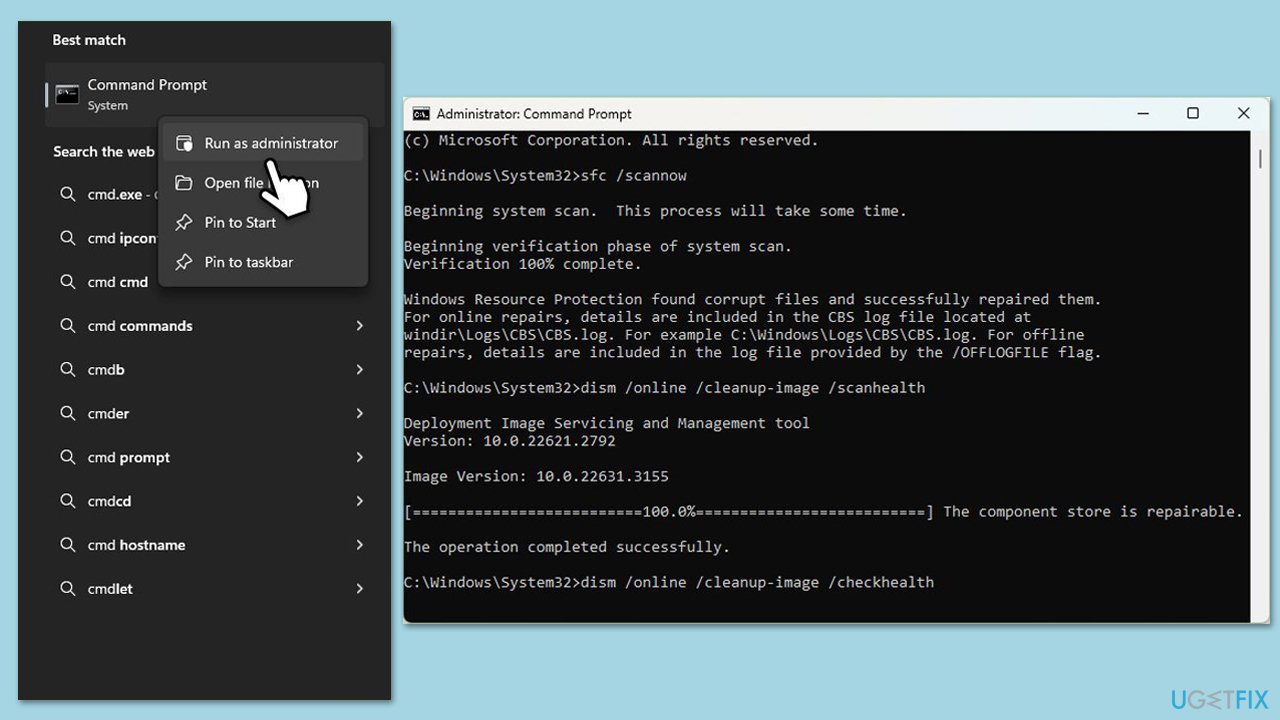
- Type cmd in the Windows search box.
- Right-click on Command Prompt and select Run as administrator.
- When UAC asks you whether you want to make changes, agree by pressing Yes.
- Next, copy and paste the following commands, pressing Enter each time:
sfc /scannow
DISM /Online /Cleanup-Image /CheckHealth
DISM /Online /Cleanup-Image /ScanHealth
DISM /Online /Cleanup-Image /RestoreHealth
(Note: if you get an error executing the last command, add /Source:C:\RepairSource\Windows /LimitAccess to it and try again.) - Restart your computer.
Fix 2. Uninstall recent updates
Sometimes, new Windows updates can cause compatibility issues, resulting in the error. Removing the most recent updates might help restore normal functionality.
- Type Control Panel in Windows search and press Enter.
- Select Programs > Uninstall a program.
- Click on View installed updates on the left side of the window.
- Sort all the updates by date.
- Right-click on the most recent update and select Uninstall.
- Proceed with on-screen instructions.
- Then, type Updates in Windows search and press Enter.
- Click Pause the updates for 7 days (in Windows 11, you can pick a different time period).

Fix 3. Reset Windows update components
Resetting Windows update components can resolve issues related to incomplete or corrupted updates that might be causing the error.
- Open Command Prompt as administrator.
- Paste each of these commands, pressing Enter after each:
net stop bits
net stop wuauserv
net stop appidsvc
net stop cryptsvc
Del “%ALLUSERSPROFILE%\Application Data\Microsoft\Network\Downloader\*.*”
rmdir %systemroot%\SoftwareDistribution /S /Q
rmdir %systemroot%\system32\catroot2 /S /Q
regsvr32.exe /s atl.dll
regsvr32.exe /s urlmon.dll
regsvr32.exe /s mshtml.dll
netsh winsock reset
netsh winsock reset proxy
net start bits
net start wuauserv
net start appidsvc
net start cryptsvc - Restart your device.

Fix 4. Install or repair the latest Windows App SDK
If the Windows App SDK is outdated or damaged, applications relying on the LifetimeManager may fail to launch properly. Reinstalling or repairing the SDK can resolve the issue.
- Visit the official Microsoft Windows App SDK page.
- Click Download the latest x64 stable installer (X.X.X) button and download.
- If you have it installed on your system, select the Repair option if available. Otherwise, proceed with the installation steps.
- Restart your computer after the installation completes.

Fix 5. Run System Restore
If the error started appearing recently, rolling back your system to a point before the issue occurred can often resolve it.
- Type Create a restore point in the Windows search bar and open it.
- Click on System Restore.
- In the new window, click Next or Choose a different restore point.
- If available, mark the More restore points checkbox.
- Select the point in time when the issue did not exist and click Next.
- Finally, click Finish.

Fix 6. Repair Windows installation
If none of the previous solutions work, repairing the Windows installation using the Media Creation Tool can fix deeper system issues without deleting your files.
Create Windows ISO
- Download Windows 11 Installation media from the official Microsoft website. [Windows 10 version]
- Double-click the MediaCreationTool.exe file to launch it.
- When UAC shows up, click Yes.
- Accept license terms.
- Select Language and Edition (make sure it matches the one you have currently installed) or simply mark the Use the recommended options for this PC and click Next).
- Select the ISO file and click Next.
- Pick the location for your ISO file and wait till all the needed files are downloaded, then click Finish.

Repair-install Windows
- Mount your USB drive with Windows ISO in it.
- Boot into BIOS by pressing F2, F8, F12, Del, or another shortcut (refer to your laptop or motherboard manufacturer's website) during the Windows bootup process.
- Go to the Boot menu.
- Here, select the Boot priority option and set it to USB.
- Restart the system.
- When the system boots, you will be presented with the Install now option - click it.
- Select all the preferences and click Next.
- Skip Windows activation for now - select I don't have a product key.
- Select the correct version of the operating system (if you were using Windows 11 Home before, use the same option).
- In the next step, select Keep personal files and apps.
- Select the correct partition and click Next.
- Finalize the process - your Windows should be repaired.
Bottom line
To fix the Runtime DynamicDependency LifetimeManager error, you can repair corrupted system files, uninstall recent updates, restore Windows Update components, or reinstall the Windows App SDK. Performing a System Restore to revert your system to a previous state may also help. If none of these solutions work, consider restoring your Windows installation with the Media Creation Tool.
Frequently asked questions
This error usually occurs due to issues with the Microsoft Windows App Runtime or corrupted app files. Ensuring that your Windows 10 is up-to-date can often resolve this problem.
You can fix this error by resetting the affected app via Settings > Apps, or by reinstalling the Microsoft Windows App Runtime through the Microsoft Store.
Yes, using the built-in Windows Troubleshooter can help identify and resolve issues related to app functionality in both Windows 10 and Windows 11.




Report an issue
What's wrong with this guide? We review every report and update or remove content.
Report received — thank you. We'll review and fix it.
You need a free account to submit a report.
Be the first to comment