How to fix
Windows Store Error 0x8004804E
on Windows
Resolve Windows Store Error 0x8004804E effortlessly with our expert-tested solutions. Get your apps running smoothly again—fixed in minutes!

What causes How to Fix Windows Store Error 0x8004804E?
- Windows Store cache issues
- Corrupted Windows Store components
- Missing Windows Updates
- Proxy server settings
- Windows Store configuration problems
Repairs Windows system files, removes malware, and restores a clean OS state — without reinstalling.
Can someone please tell me how could I fix Windows Store error 0x8004804E? I can open the store, but the download/install of apps keep failing.
Windows Store is definitely one of the most important default Windows 10 apps. It supplies thousands of free and paid apps, as well as provide the system with the latest updates. Thus, if Windows Store stops functioning, Windows my eventually get outdated and missing for important apps.
Currently, there are approximately near hundred of diverse Windows 10 Store errors, which either prevent Windows Store from opening or freeze app/update download/install process. One of the curent bugs is labeled with a hexademical code 0x8004804E.
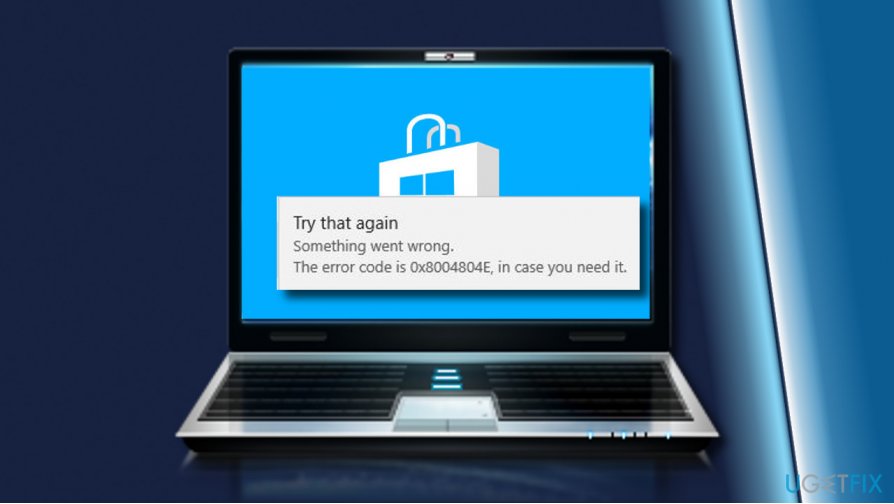
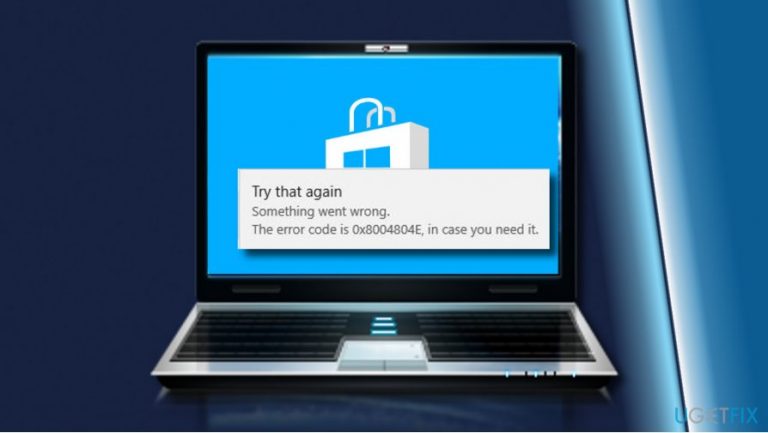
Error Code 0x8004804E allows accessing Windows Store, but none of the apps can be downloaded. The error pop-up says „Try that again. Something went wrong.The error code is 0x8004804E in case you need it.“ Luckily, the range of issues that trigger Windows Store errors is not very wide. Usually, the culprit is related to Windows Store cache, corrupted Windows Store components, missing Windows Updates and similar.
Before you get started with the elaborate fixes that requires accessing Command Prompt or elevated Powershell environments, we would recommend trying the following methods to fix 0x8004804E error:
- Run an inbuilt Windows Store Apps Troubleshooter. Press Windows key + I -> Update & Security -> Troubleshoot -> Windows Store Apps -> Run the troubleshooter.
- Install Windows Updates. Press Windows key + I -> Update & Security -> Check for Updates -> Install updates.
- Run a scan with anti-malware tool. We recommend using [d1].
- Reset Windows Store Cache. Press Windows key, type wsreset, and press Enter.
Only if none of these fixes helped, switch to the following methods:
Solution 1. Enable Proxy Server
- Right-click on Windows key and select Command Prompt (admin).
- Copy netsh winhttp import proxy source=ie and paste it to the Command Prompt window.
- Press Enter to execute the command.
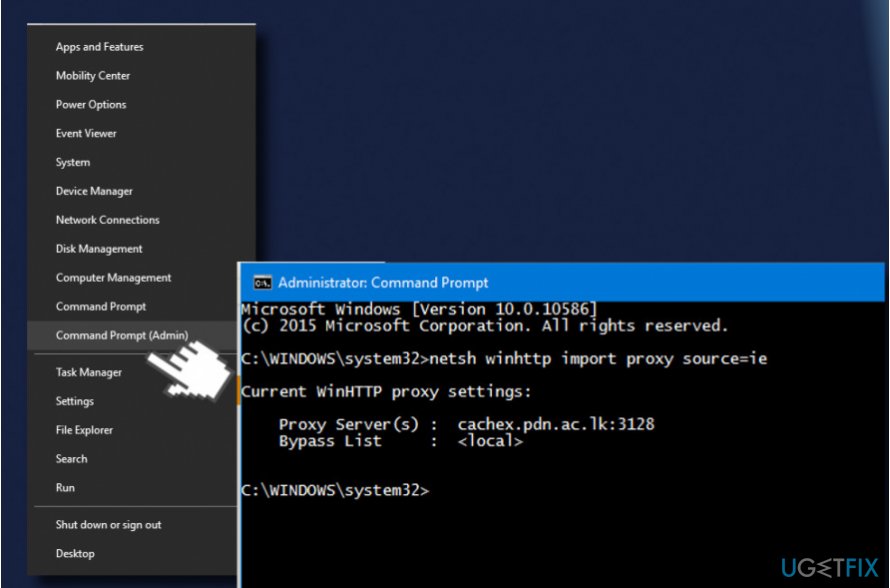
- Close Command Prompt and check if Windows Store works.
Solution 2. Modify Windows Store Cache Folder
- Press Windows key + R to open run.
- Copy %localappdata%\\Packages\\Microsoft.WindowsStore_8wekyb3d8bbwe\\LocalState command and paste it in the run.
- Click OK to open the directory.
- Find the Cache folder and right-click on it.
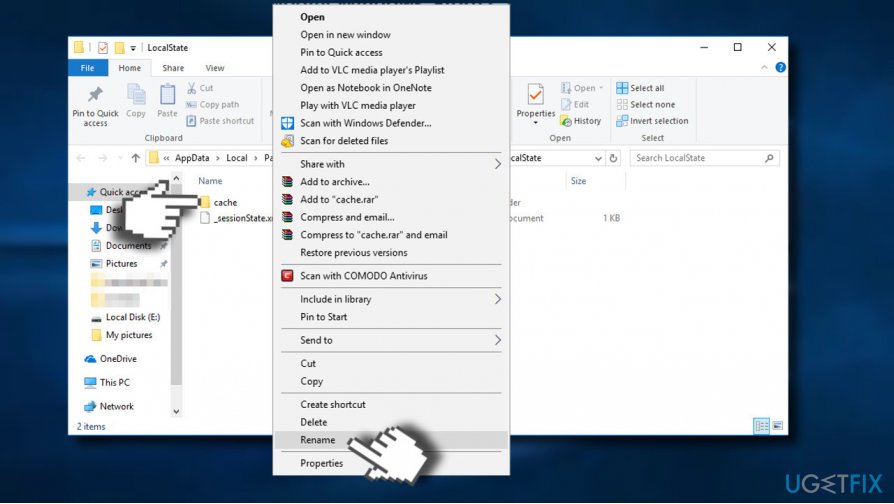
- Select Rename and name it as Cache.old.
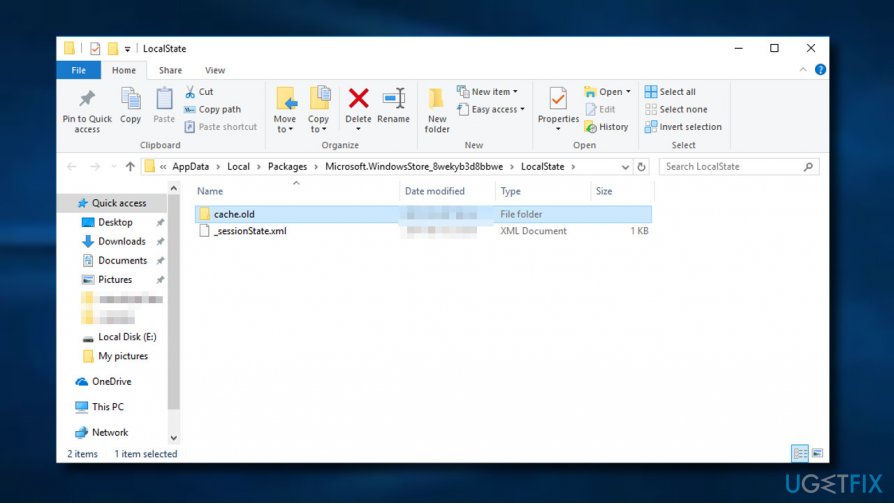
- If Cache folder is missing, create it. Right-click on an empty space and select New -> Folder.
- Name it Cache and close File Explorer.
- Now press Windows key + I and open Updates & Security.
- Select Troubleshoot from the left pane and find the Windows Store App.
- Click it and run a scan.
Solution 3. Reinstall Windows Store App
- Click Windows key, type powershell, and press Enter.
- Right-click on PowerShell option and select Run as Administrator.
- Type Get-Appxpackage –Allusers and press Enter.
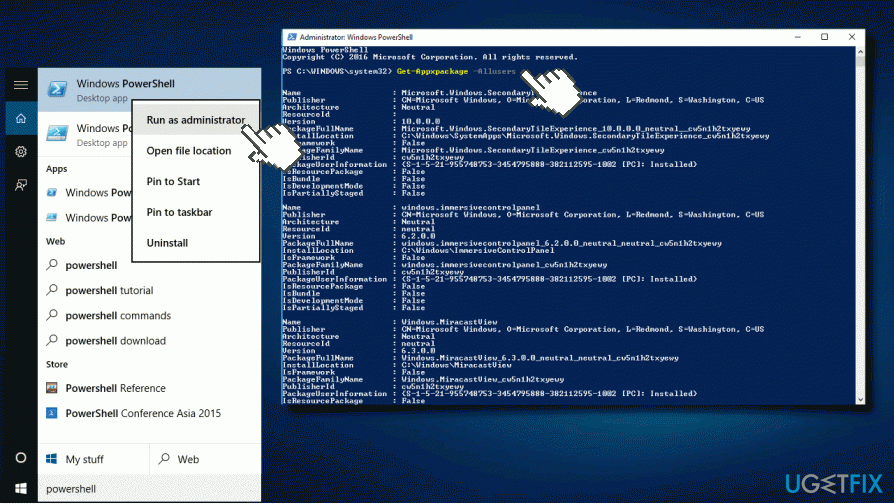
- Look for Windows Store entry and copy its packagefullname.
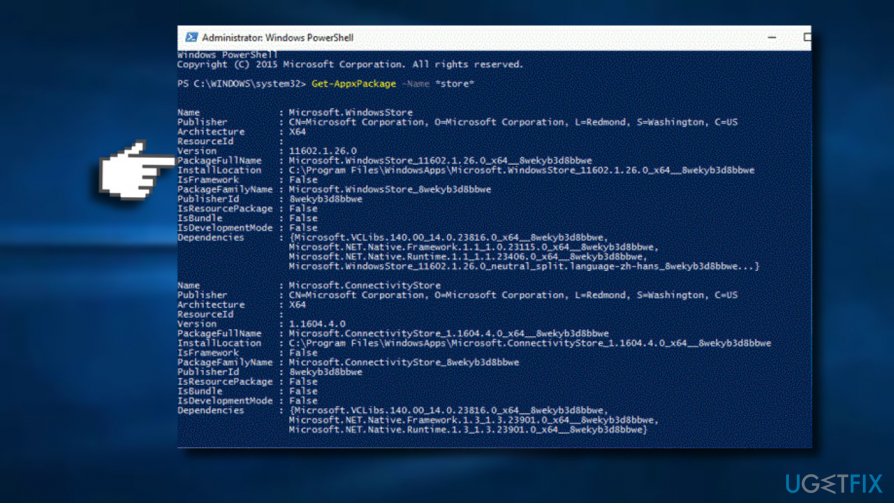
- Now copy and paste the Add-AppxPackage -register "C:\\Program Files\\WindowsApps\\" –DisableDevelopmentMode command.
IMPORTANT: replace "PackageFullName" with the Windows Store packagefullname. Besides, replace C: drive with the root driver of your system if needed. - After that, close PowerShell and reopen it with administrative privileges as explained in 1-2 steps.
- Copy and paste the Add-AppxPackage -register "C:\\Program Files\\WindowsApps\\" –DisableDevelopmentMode.
- Press Enter to execute it.
- Finally, reboot the system to execute all changes.
Bottom line
To fix the Windows Store error 0x8004804E, you can try running the Windows Store Apps Troubleshooter, installing any pending Windows Updates, or resetting the Windows Store cache. If these methods do not resolve the issue, consider enabling the proxy server or modifying the Windows Store cache folder.
Frequently asked questions
The error 0x8004804E typically occurs due to network connectivity issues, corrupted system files, or problems with Windows Store settings.
To reset the Windows Store, open the Run dialog by pressing Win + R, type 'wsreset.exe', and hit Enter. This will clear the cache and can resolve the error.
Yes, you can run the System File Checker tool by opening Command Prompt as an administrator and typing 'sfc /scannow' to repair any corrupted files.




Report an issue
What's wrong with this guide? We review every report and update or remove content.
Report received — thank you. We'll review and fix it.
You need a free account to submit a report.
Be the first to comment