How to fix
“Your Nvidia graphics card drivers have crashed Wallpaper Engine” error
on Windows
Resolve the "Nvidia graphics card drivers have crashed Wallpaper Engine" error in Windows 10/11 with expert-tested solutions for quick fixes. Fixed in m…


What causes How to fix “Your Nvidia graphics card drivers have crashed Wallpaper Engine” error in Windows?
- Outdated Nvidia drivers
- Corrupted Nvidia drivers
- Incompatible new drivers
- Multiple monitors with varying resolutions or refresh rates
- Third-party software interaction
- Corrupt system files
Repairs Windows system files, removes malware, and restores a clean OS state — without reinstalling.
So I keep getting "Your Nvidia graphics card drivers have crashed Wallpaper Engine" error. If you don't know, it's an app I launch through Steam, which allows to put on some nice "live" wallpapers on my desktop. Anything I can do to fix this?
The "Your Nvidia graphics card drivers have crashed Wallpaper Engine" error message in Windows can be frustrating to users of dynamic wallpapers. The issue disrupts the flawless experience of Wallpaper Engine, causing crashes or erratic behavior.
Users report that Wallpaper Engine crashes immediately or shortly after launch, with an error about failed Nvidia graphics card drivers. The issue can occur after Nvidia driver updates or without any recent system changes. The bug may cause system instability, including temporary black screens or the application not starting.
Nvidia drivers that are corrupted or out of date are typically responsible for compatibility issues with programs like Wallpaper Engine.
New drivers can conflict if they aren't completely compatible. Multiple monitors with varying resolutions or refresh rates can exacerbate this issue even further. A few other causes could be third-party software interaction, i.e., antivirus software, or corrupt system files conflicting with the graphics driver and Wallpaper Engine.
To fix the "Your Nvidia graphics card drivers have crashed Wallpaper Engine" error, update or reinstall Nvidia drivers for stability. If issues continue, roll back to a previous working version.
Verifying Wallpaper Engine files on platforms like Steam can fix corrupted files. Adjusting display settings in multi-monitor setups can ensure consistent resolution and refresh rates, which may alleviate issues. Disabling third-party applications can also aid in identifying the causes of crashes.
Users who seek a solution to system issues that lead to this error can take advantage of the [d1] repair tool. It corrects a number of problems like corrupted files and registry issues, stabilizing the system and preventing it from crashing.

Fix 1. Update NVIDIA graphics drivers
Outdated or corrupted Nvidia drivers are one of the most common causes behind the "Your Nvidia graphics card drivers have crashed Wallpaper Engine" error. Keeping the drivers up to date ensures compatibility with both Windows and Wallpaper Engine.
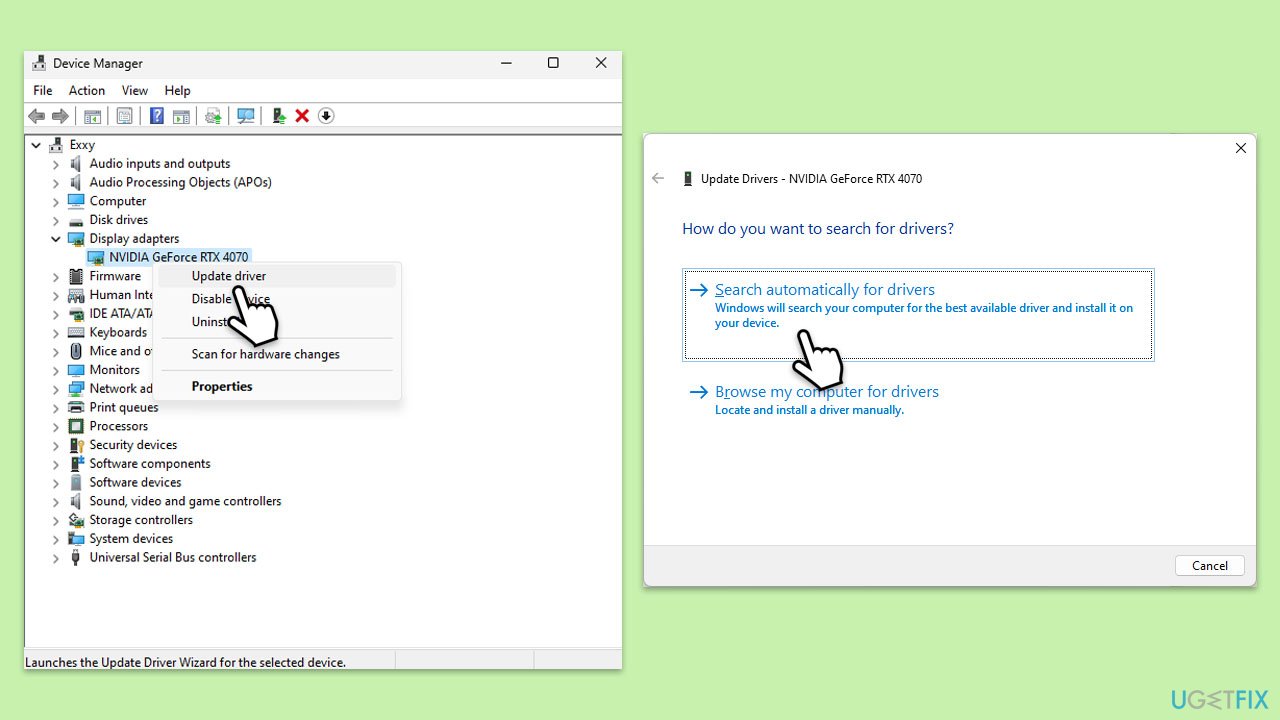
- Open Device Manager by right-clicking the Start button and selecting Device Manager.
- Expand the Display adapters category.
- Right-click your graphics card and select Update driver.
- Choose Search automatically drivers.
- Follow the on-screen instructions to complete the update.
- Restart your system.
- For a quicker way of installing the latest drivers, you can use automatic software such as [ref id="DriverFix"].
Fix 2. Roll back NVIDIA drivers
Sometimes, the latest Nvidia drivers can introduce compatibility issues with certain apps, including Wallpaper Engine. Rolling back to a previous driver version that worked correctly can often resolve the problem.
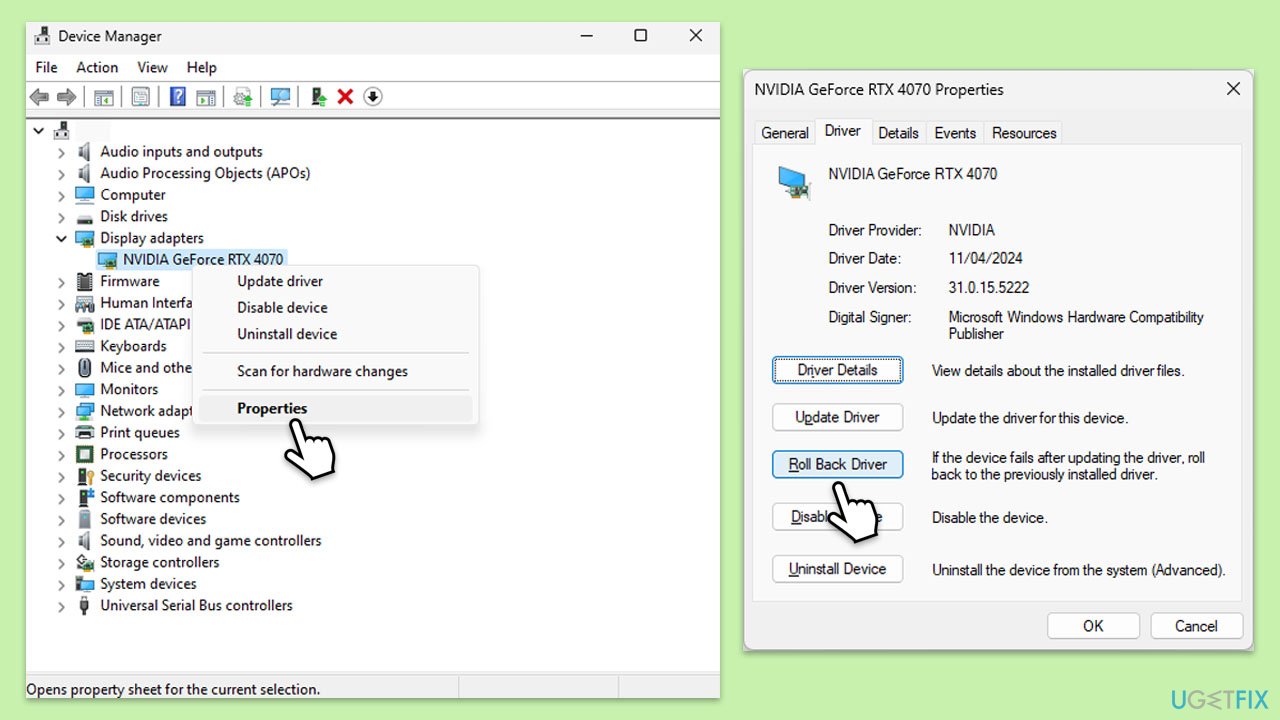
- Right-click on the Start button and select Device Manager from the menu.
- Expand the Display adapters section.
- Right-click on your graphics card and select Properties.
- Go to the Driver tab at the top.
- Here, you will see an option to Roll Back Driver.
- Click it and follow the on-screen instructions to finish the process.
Fix 3. Verify Wallpaper Engine files
Corrupted or missing files within Wallpaper Engine can lead to crashes. Verifying the integrity of the app's files ensures that any damaged components are replaced.
- Open Steam and go to your Library.
- Right-click Wallpaper Engine and select Properties.
- Go to the Installed Files tab.
- Click Verify integrity of game files.
- Wait for the process to complete and relaunch Wallpaper Engine.

Fix 4. Adjust Wallpaper Engine settings
Incompatible settings within Wallpaper Engine can overload the GPU, leading to driver crashes. Lowering the app's performance settings can help prevent the issue.
- Open Wallpaper Engine and go to Settings.
- Under the Performance tab, reduce the Quality setting to Medium or Low.
- Enable Safe Mode if available.
- Disable Start with Windows to prevent background crashes.
- Restart the app and check for improvements.

Fix 5. Disable Hardware Acceleration
Hardware acceleration can sometimes conflict with Nvidia drivers, especially if the GPU is under heavy load. Turning it off reduces the risk of driver crashes.
- Open Wallpaper Engine.
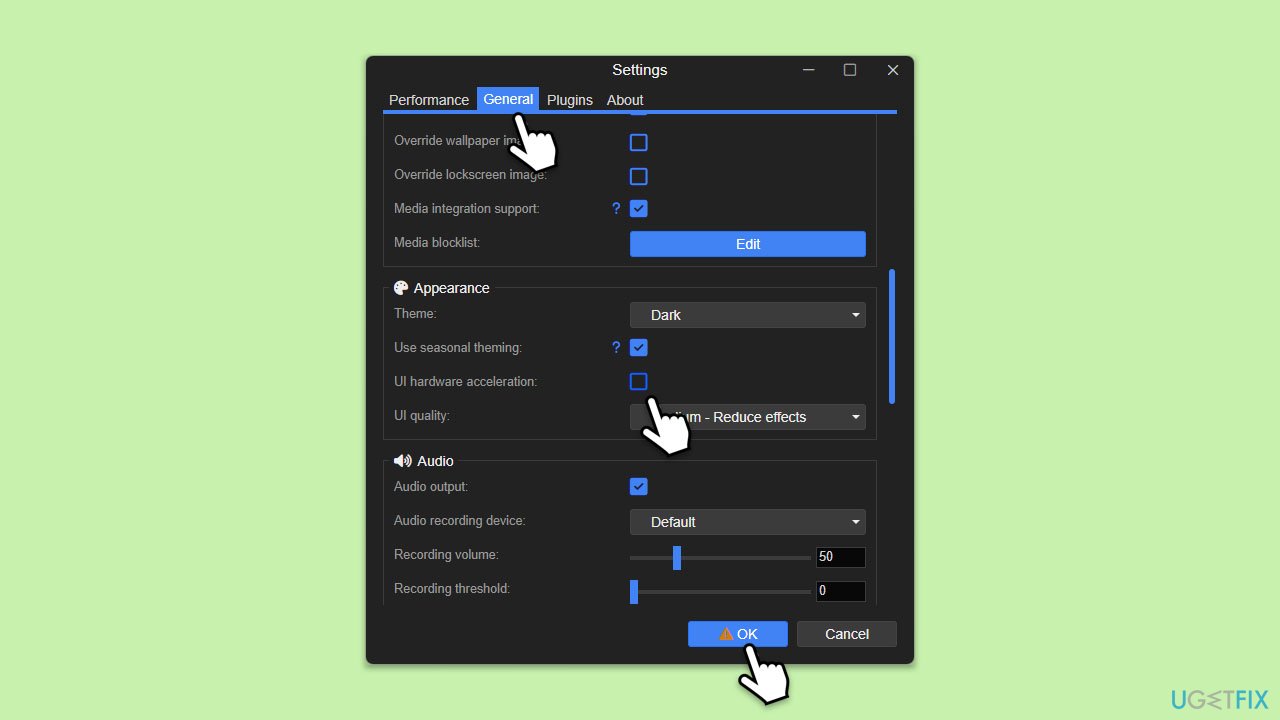
- Go to Settings and find the General tab.
- Locate the Hardware Acceleration option and toggle it off.
- Restart Wallpaper Engine and check if the error reappears.
Fix 6. Check for Windows updates
Windows updates often include patches for driver compatibility issues. Installing the latest updates ensures that your system can work seamlessly with Nvidia drivers and Wallpaper Engine.
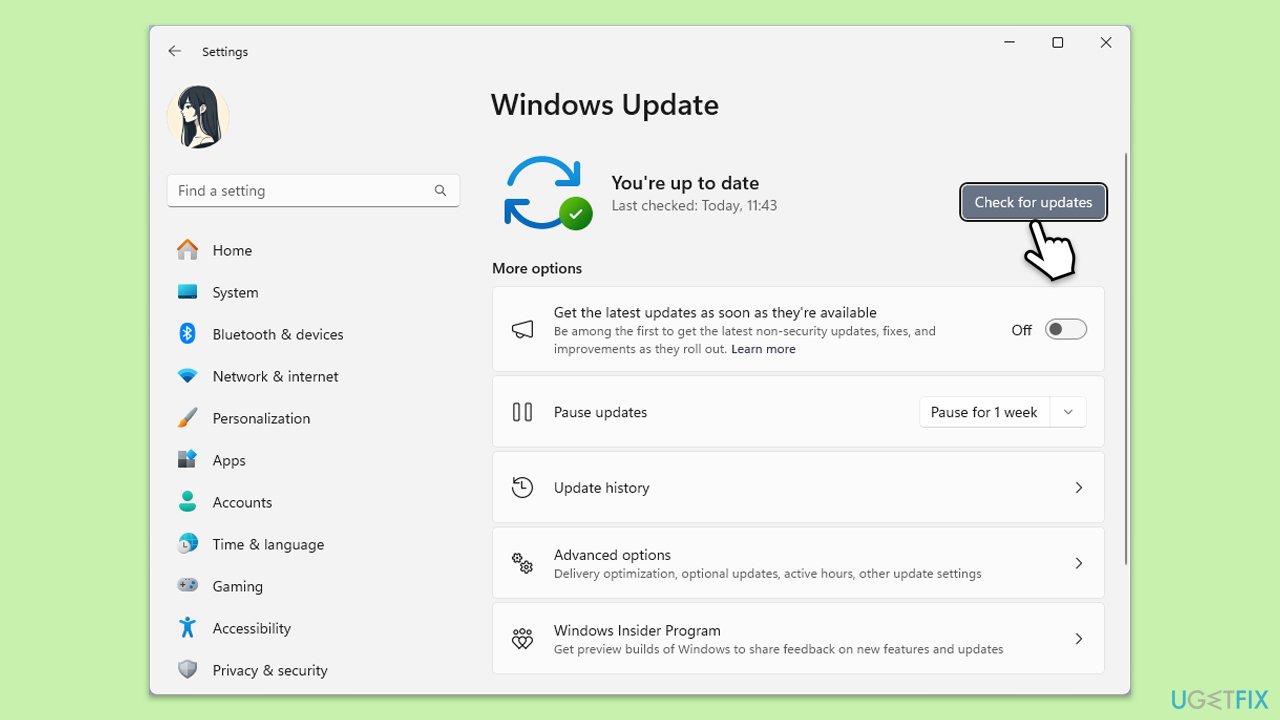
- Type Updates in Windows search and hit Enter.
- If updates are available, click Install updates.
- Otherwise, click Check for updates.
- If optional updates are available, install them as well.
- When all the update processes are complete, restart your system.
Fix 7. Adjust display settings for multiple monitors
Running multiple monitors with different resolutions or refresh rates can strain the Nvidia graphics driver, causing crashes. Standardizing display settings helps maintain stability.
- Right-click the desktop and select Display settings.
- Ensure both monitors use the same resolution and refresh rate.
- Disable one monitor temporarily to see if the error persists.
- Re-enable the second monitor and restart Wallpaper Engine.
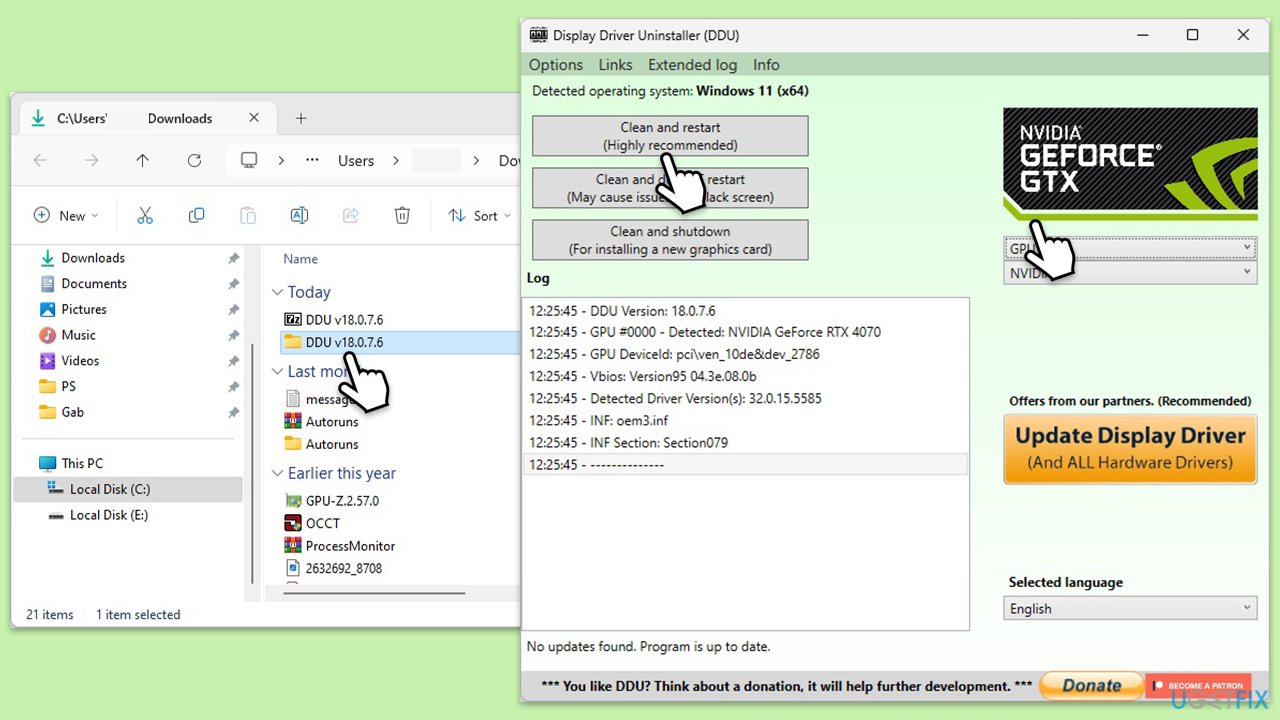
Fix 8. Perform a clean installation of NVIDIA drivers
If driver corruption is causing the crash, a clean installation ensures that all old driver files are removed before the new ones are installed.
- Download DDU from the official website.
- Extract the compressed file, you should find the installer inside.
- Next, while holding the Shift button, click on Start > Restart.
- After a reboot, go to Troubleshooter > Advanced options > Startup settings > Restart.
- Press 4 or F4 to access Safe Mode.
- After a restart, go to the location where you downloaded DDU.
- Click on Display Driver Uninstaller.exe to open the program.
- Close the Options window.
- Under Device type, pick GPU from the drop-down menu.
- Click Clean and restart.
- Your PC will reboot.
- Once done, use one of the methods described above to install the newest GPU drivers.
Fix 9. Disable third-party software
Background applications, such as antivirus programs, can interfere with Nvidia drivers and Wallpaper Engine. Temporarily disabling them can help identify the cause of the crash.
- Open Task Manager by pressing Ctrl + Shift + Esc.
- Go to the Startup tab and disable non-essential programs.
- Turn off any active antivirus or performance-monitoring software.
- Restart Wallpaper Engine and check if the issue is resolved.
Bottom line
To fix the error, update or reinstall Nvidia drivers, roll back to a previous version if issues persist, and verify Wallpaper Engine files on Steam. Adjusting display settings and disabling third-party applications may also help. If none of these solutions work, consider using a repair tool to address system issues.
Frequently asked questions
This error typically arises due to outdated or corrupted Nvidia graphics drivers or conflicts with the Wallpaper Engine application. Ensuring that your drivers are up to date can often resolve this issue.
You can update your Nvidia drivers by visiting the Nvidia website, downloading the latest drivers for your graphics card model, and installing them. Alternatively, you can use the Device Manager in Windows 11 to search for and install driver updates automatically.
If updating the drivers doesn't help, try reinstalling Wallpaper Engine or resetting its settings to default. Additionally, checking for Windows updates and ensuring your system is fully updated can also help address compatibility issues.




Report an issue
What's wrong with this guide? We review every report and update or remove content.
Report received — thank you. We'll review and fix it.
You need a free account to submit a report.
Be the first to comment