How to fix
“Could not call proc” error
on Windows
Resolve the "Could not call proc" error on Windows 10 or 11 effortlessly. Get expert-tested solutions and fix your issues in minutes!


What causes How to fix “Could not call proc” error in Windows?
- Damaged or missing program files
- Registry issues
- Outdated system components
- Incompatibility between system processes
- Missing runtime libraries
- Interference from antivirus software
Repairs Windows system files, removes malware, and restores a clean OS state — without reinstalling.
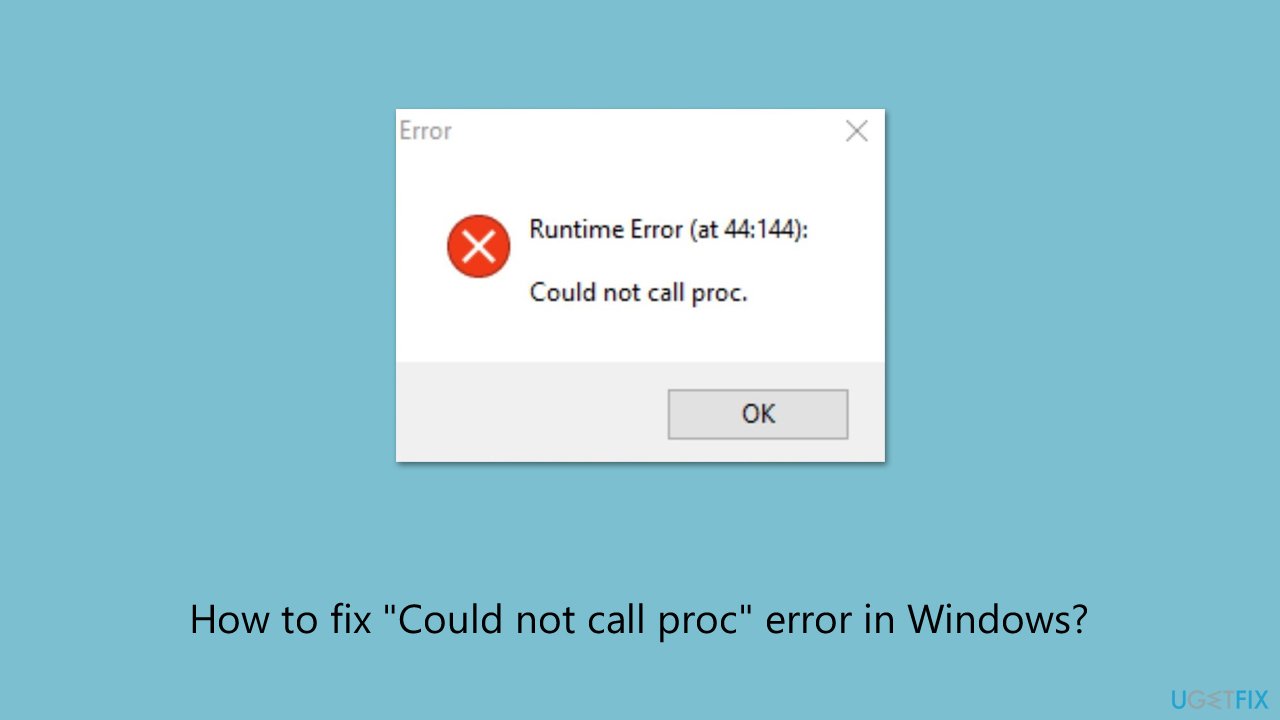
Hi. I was trying to install a game on my Windows 11 and, to my surprise, I wasn't able to do that. The installation begins and after selecting language, I get Runtime Error "Could not call proc." What does this mean?
The "Could not call proc" error is a Windows runtime issue that usually appears when launching certain programs (commonly, video games) or performing system operations. The error message indicates that Windows has not been able to perform a particular procedure call within a program or script, making the software crash.
Users who report this error usually state that it appears at random, sometimes while installing software, launching programs, or trying to access certain system features.
The "Could not call proc" error is brought about by several factors. Damaged or missing program files are among the most common causes, as they may prevent programs from carrying out their required operations. Registry issues, outdated system components, or incompatibility between system processes are other factors.
Users have also reported that they encounter this error when their system does not have necessary runtime libraries, such as Microsoft Visual C++ Redistributables, or when antivirus software prevents necessary system functions unintentionally.
In most situations, the error message will be followed by a runtime error code, which further complicates debugging. A few users encounter the "Could not call proc" error following software updates or system changes in Windows, indicating system changes or incompatibility issues might also play a role. Misconfigured program settings, stale drivers, or interference from unrelated third-party software are also probable causes.
Solving this issue typically involves making missing dependencies available, fixing system files, and making Windows components correctly installed. Some users may need to reinstall or install newer corresponding runtime libraries, adjust security options, or eliminate software program conflicts to repair the issue.
For users in need of an automated remedy, the [d1] fix and upkeep tool can diagnose and correct root causes of system-related problems that precipitate the "Could not call proc" fault on Windows to ensure smoother functioning of affected processes and programs involved.
Fix 1. Run the program as administrator
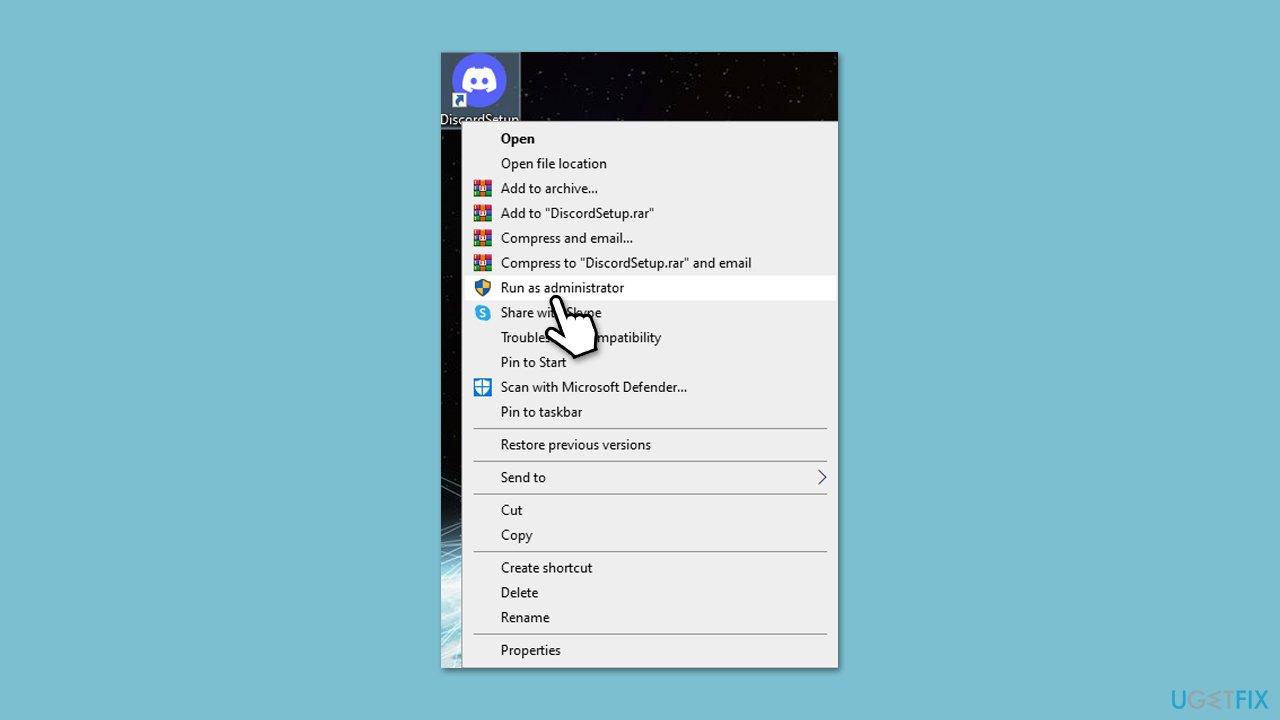
Some applications require elevated permissions to execute certain procedures correctly. Running the program as an administrator may resolve the "Could not call proc" error.
- Right-click on the program (EXE file) that is showing the error.
- Select Run as administrator from the context menu.
- If the program opens without errors, right-click it again, go to Properties > Compatibility, and check Run this program as an administrator to make this change permanent.
Fix 2. Check for missing or corrupt Runtime Libraries
Many applications rely on Microsoft Visual C++ Redistributables, and missing or damaged libraries can trigger procedure call errors.
- Launch the Control Panel and open Programs > Uninstall a program.
Here, scroll down and check the list of installed versions of Visual C++.
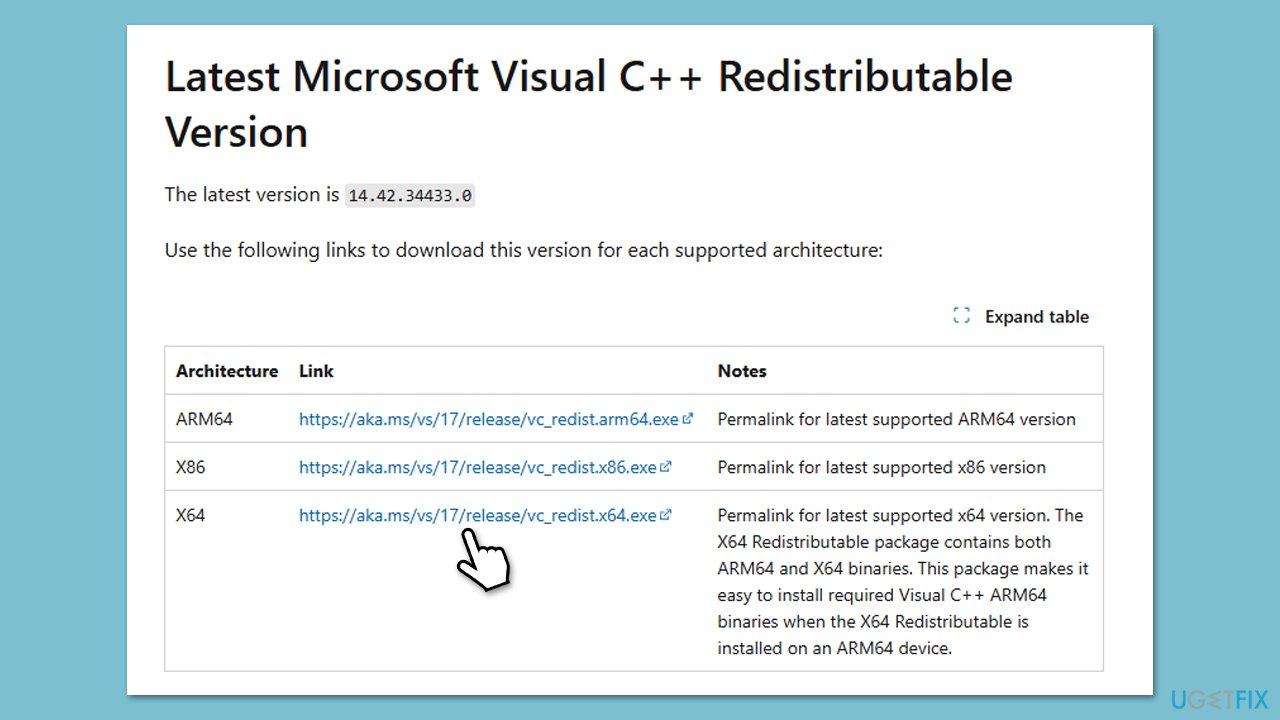
Open any browser and head over to the official Microsoft Visual C++ download page. - Download and install all the missing versions of Visual Studio (note: if you are using a 64-bit system, install both x86.exe and x64.exe files)
- Restart your PC and check whether the problem is resolved.
- If not, try reinstalling each of the following components:
Microsoft Visual C++ 2010 Redistributable Package (x86)
Visual C++ Redistributable for Visual Studio 2012
Visual C++ Redistributable Packages for Visual Studio 2013
Visual C++ Redistributable Packages for Visual Studio 2015, 2017, 2019, and 2022. - Restart the PC and check if the error persists.
Fix 3. Run the application in compatibility mode
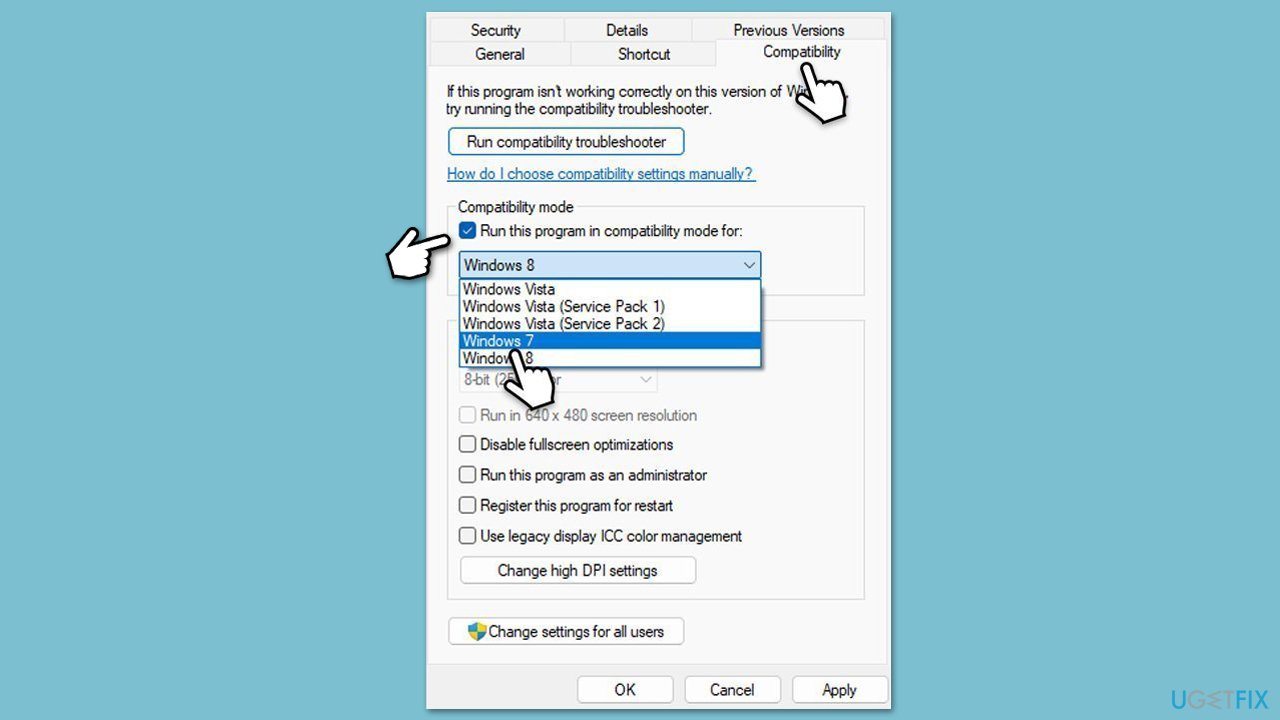
If the error appears after a Windows update or when running older software, forcing compatibility mode may help.
- Right-click the app's shortcut or EXE file and choose Properties.
- Go to the Compatibility tab.
- Check Run this program in compatibility mode for and select an earlier version of Windows.
- Click Apply and then OK.
Fix 4. Disable third-party antivirus software
Overprotective antivirus software can block applications from executing certain functions, leading to "Could not call proc" error.
- Open your antivirus software and navigate to its settings.
- Temporarily disable real-time protection or application blocking features.
- Try launching the affected application again.
- If the error is resolved, add the program to your antivirus whitelist/exclusions and re-enabling protection.
Fix 5. Reinstall the affected application
If the error is linked to a specific program, reinstalling it may help resolve file corruption or misconfigurations.
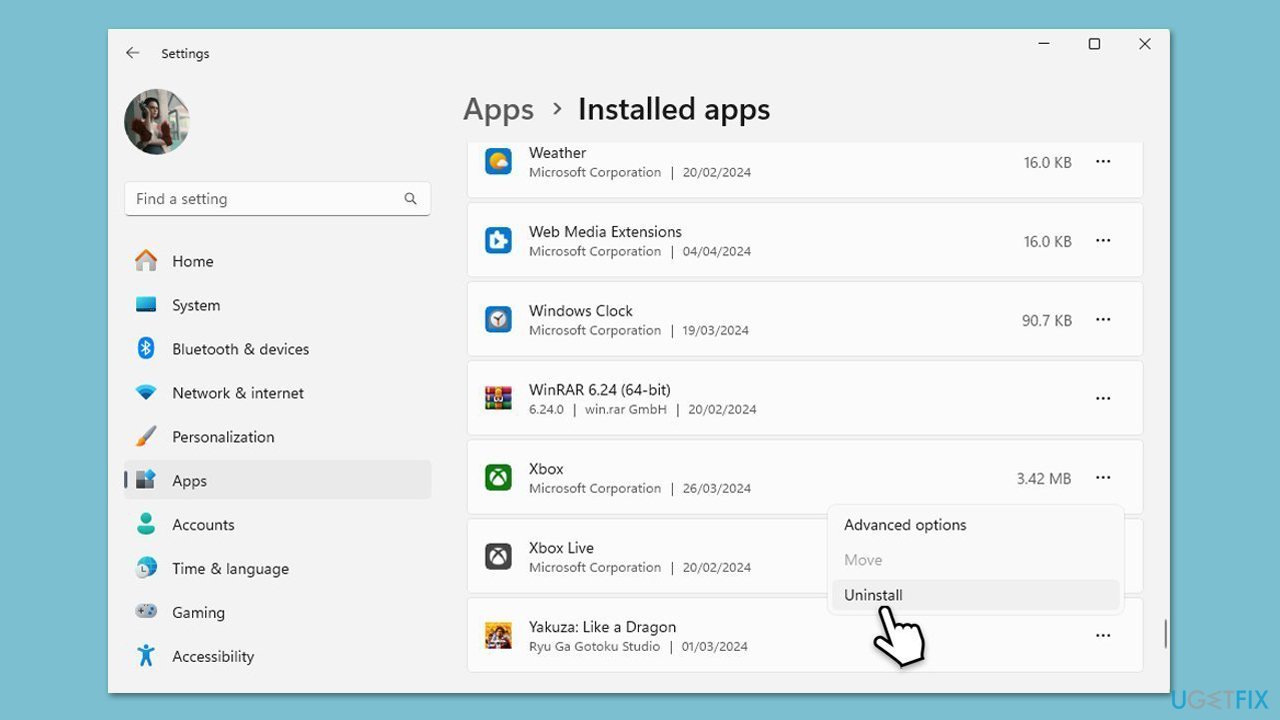
- Right-click on Start and pick Installed apps/Apps and Features.
- Locate the problematic application, click Uninstall, and follow the on-screen instructions.
- Restart your computer and download the latest version of the software from the official website.
- Install the program and check if the error is resolved.
Fix 6. Run System File Checker (SFC) and DISM
Corrupted system files can interfere with applications and cause runtime errors like "Could not call proc". Running a system scan can help repair missing or damaged files.
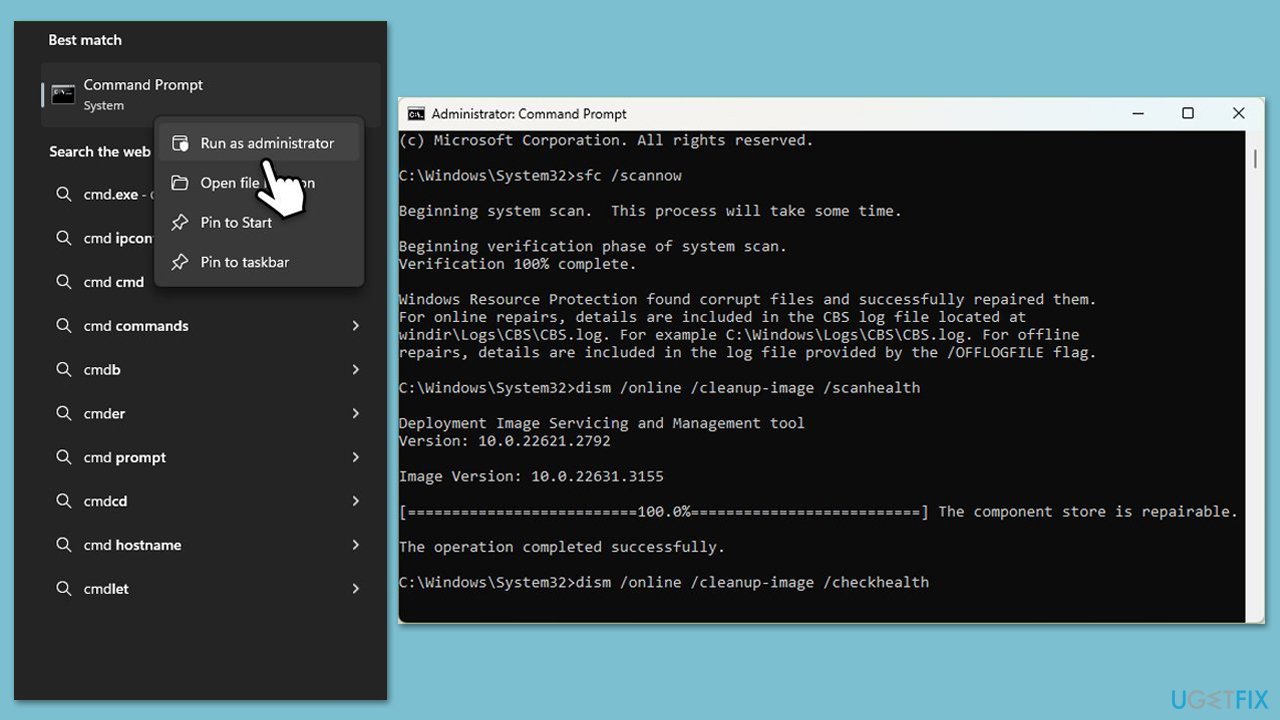
- Type cmd in Windows search.
- Right-click on the Command Prompt result and select Run as administrator.
- User Account Control will ask whether you want to allow changes - click Yes.
- Copy and paste the following commands, pressing Enter after each:
- sfc /scannow
DISM /Online /Cleanup-Image /CheckHealth
DISM /Online /Cleanup-Image /ScanHealth
DISM /Online /Cleanup-Image /RestoreHealth
(Note: if you get an error executing the last command, add /Source:C:\RepairSource\Windows /LimitAccess to it and try again.) - Restart your system.
Fix 7. Perform a Clean Boot
If background applications or conflicting services are interfering with the procedure call, a clean boot can help isolate the issue.
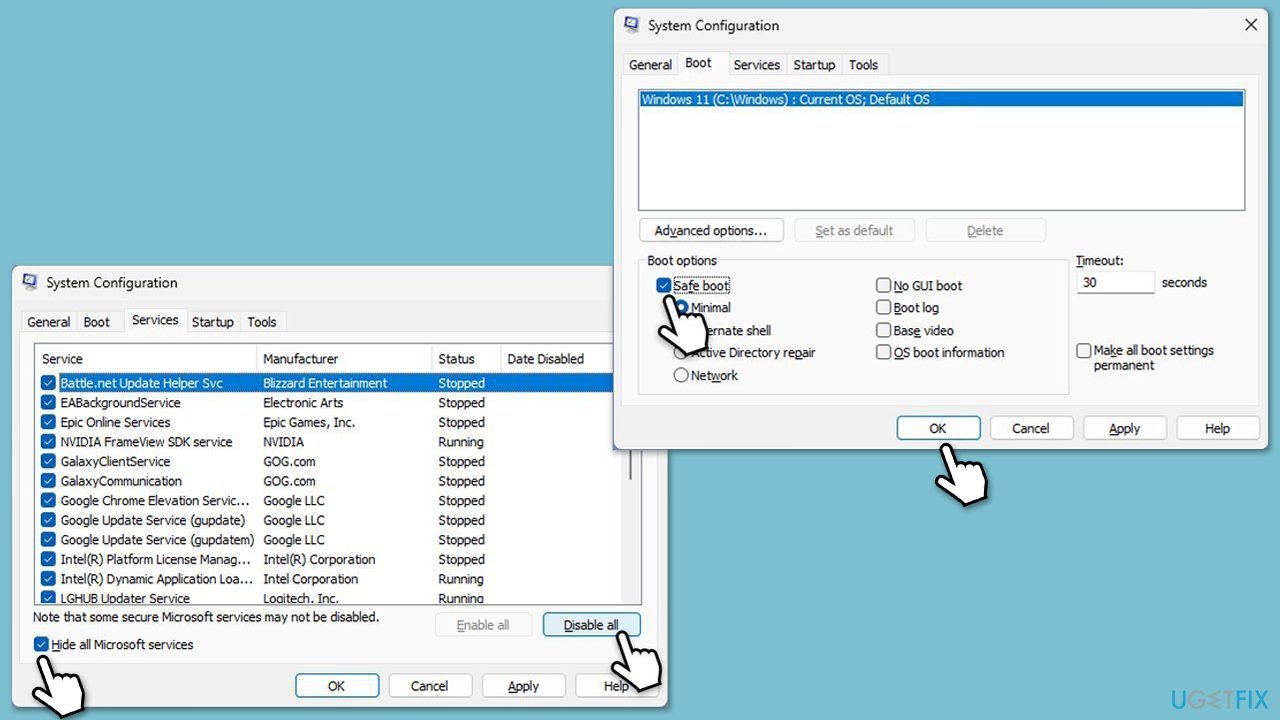
- Type msconfig in Windows search, then press Enter.
- Select the Services tab and tick the Hide all Microsoft services checkbox.
- Pick Disable all.
- Go to the Startup tab and click Open Task Manager.
- Here, right-click on each of the non-Windows entries and select Disable.
- Close down the Task Manager.
- Go to the Boot tab and tick the Safe boot option.
- Restart your computer and check if the error still appears.
Bottom line
To fix the 'Could not call proc' error, users should make missing dependencies available, repair system files, and ensure Windows components are correctly installed. Additionally, reinstalling or updating runtime libraries, adjusting security options, and resolving software conflicts may help. If these solutions do not work, consider using a fix and upkeep tool to diagnose and correct underlying system issues.
Frequently asked questions
This error typically occurs due to issues with third-party applications or corrupted system files affecting the execution of certain functions in Windows.
You can try running the built-in Windows Troubleshooter, repairing the affected application, or performing a system file check using the command 'sfc /scannow' in Command Prompt.
Yes, keeping your software updated and regularly running system maintenance tasks like disk cleanup can help prevent this error from recurring.




Report an issue
What's wrong with this guide? We review every report and update or remove content.
Report received — thank you. We'll review and fix it.
You need a free account to submit a report.
Be the first to comment