How to fix
Windows update error 0x8024000e
on Windows
Resolve Windows update error 0x8024000e quickly and easily. Get your system running smoothly again with expert-tested solutions and clear guidance.

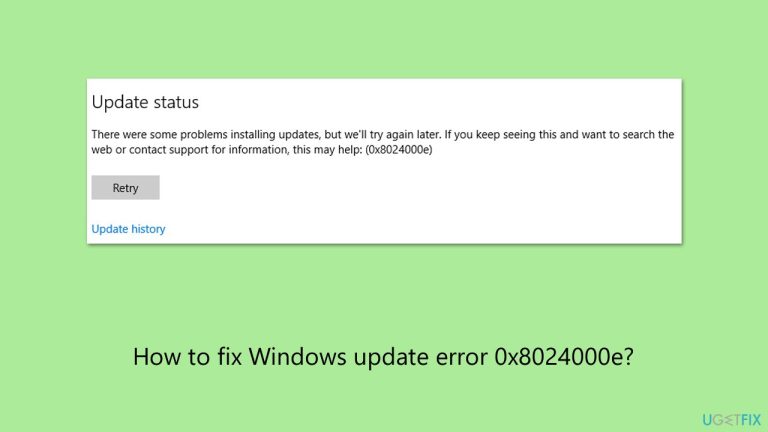
What causes How to fix Windows update error 0x8024000e?
- Corruption within the Windows Update components
- Corrupted or conflicted update database
- Network setup issues
- Conflicts with third-party software
- Issues during the installation process
Repairs Windows system files, removes malware, and restores a clean OS state — without reinstalling.
Hello, maybe you could help me resolve an issue I have with Windows update? I keep getting error code 0x8024000e whenever I try to install it. I never had problems with this sort of thing before.
Microsoft releases operating system updates through its structured system for delivering performance enhancements and security updates which benefit Windows functionality.
These updates are typically identified by Knowledge Base (KB) numbers that provide additional details for each respective update. Updates exist in various forms, including security updates to patch vulnerabilities, cumulative updates that roll multiple enhancements into one, and feature updates that introduce new functionality.
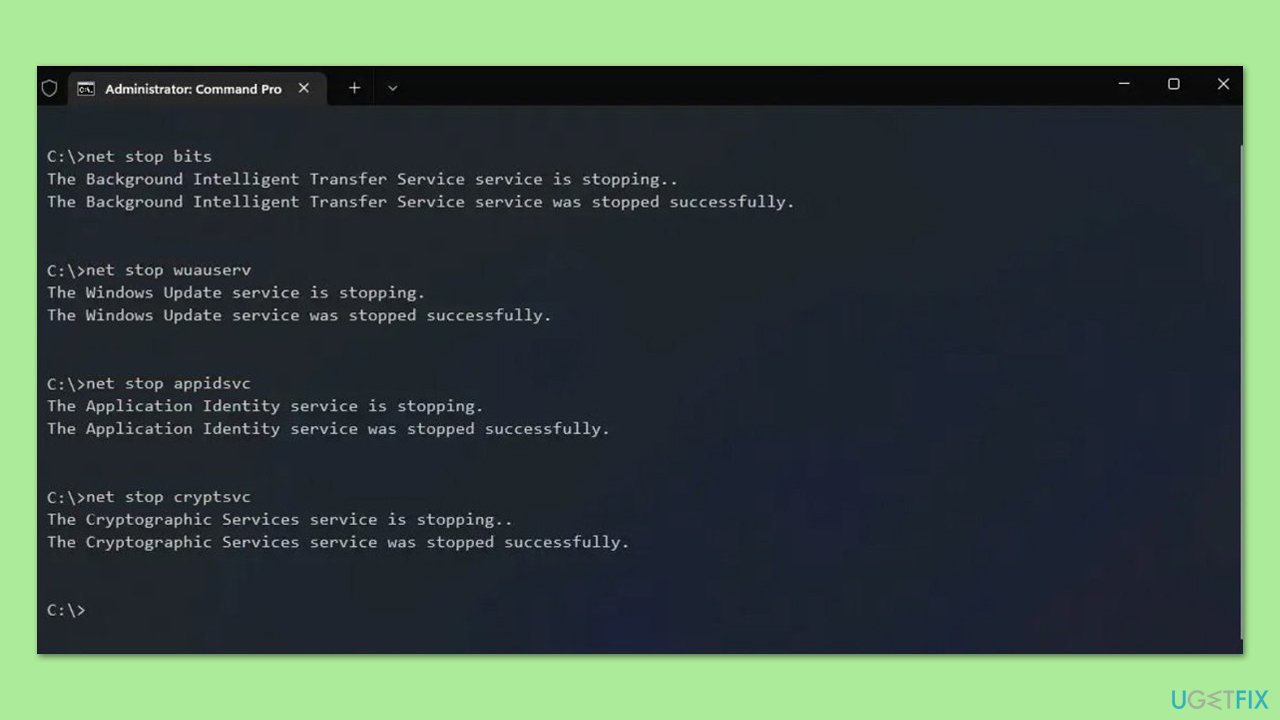
Despite the streamlined delivery mechanism, you might occasionally run into issues in the updating process, such as the error code 0x8024000e.
The Windows Update error 0x8024000e emerges when issues develop within either update components or update database structures. Your system displays two symptoms upon error occurrence: Windows Update fails to install updates and the installation process stops in mid-cycle. Your system fails to get important updates because of this, which makes it potentially weak to attacks and without access to new features.
It is not a secret that the same error codes can have different causes, which sometimes makes the remediation process a more difficult task than it should be. One of the more common reasons for errors such as 0x8024000e is corruption within the Windows Update components, which can disrupt the normal update process.
Additionally, there can be issues with corrupted or conflicted update database, network setup, conflicts with third-party software (especially security software), etc.
To fix error 0x8024000e, you might need to try a number of methods before one works for you - here are some examples:
- Running Windows update troubleshooter
- Resetting the Windows Update components
- Checking your internet connection
- Cleaning corrupted caches
- Repairing corrupted system files, etc.
Using a methodical approach to fix potential Windows Update issues will improve its operational status and maintain your system updates. For a comprehensive solution, consider using [d1] PC repair tool, which can automatically fix underlying Windows issues.
Fix 1. Run Windows update troubleshooter
Whenever one has problems with Windows updates, employing the troubleshooter(s) is a good start.
- Type Troubleshoot into the Windows search bar and press Enter.
- Next, on the right side of the window, select Additional troubleshooters/Other troubleshooters.
- Scroll down to locate the Windows update option and click on it.
- Click on Run the troubleshooter/Run and allow the process to complete.
- Once it is finished, repeat this process with Network troubleshooter.
- Restart your system.

To run Network troubleshooter in Windows 10, follow these steps:
- Right-click on Start and select Settings.
- Go to the Network & Internet section.
- On the right side, locate the Advanced network settings section.
- Click Network troubleshooter.
- Wait till the troubleshooter finishes the scan.
- The fixes should be applied automatically.
Fix 2. Temporarily disable antivirus software
As mentioned, conflicting third-party software, such as anti-malware, could prevent the updates to install.
- Open your antivirus software.
- Navigate to the settings and temporarily disable real-time protection or shields.
- Try updating Windows again.
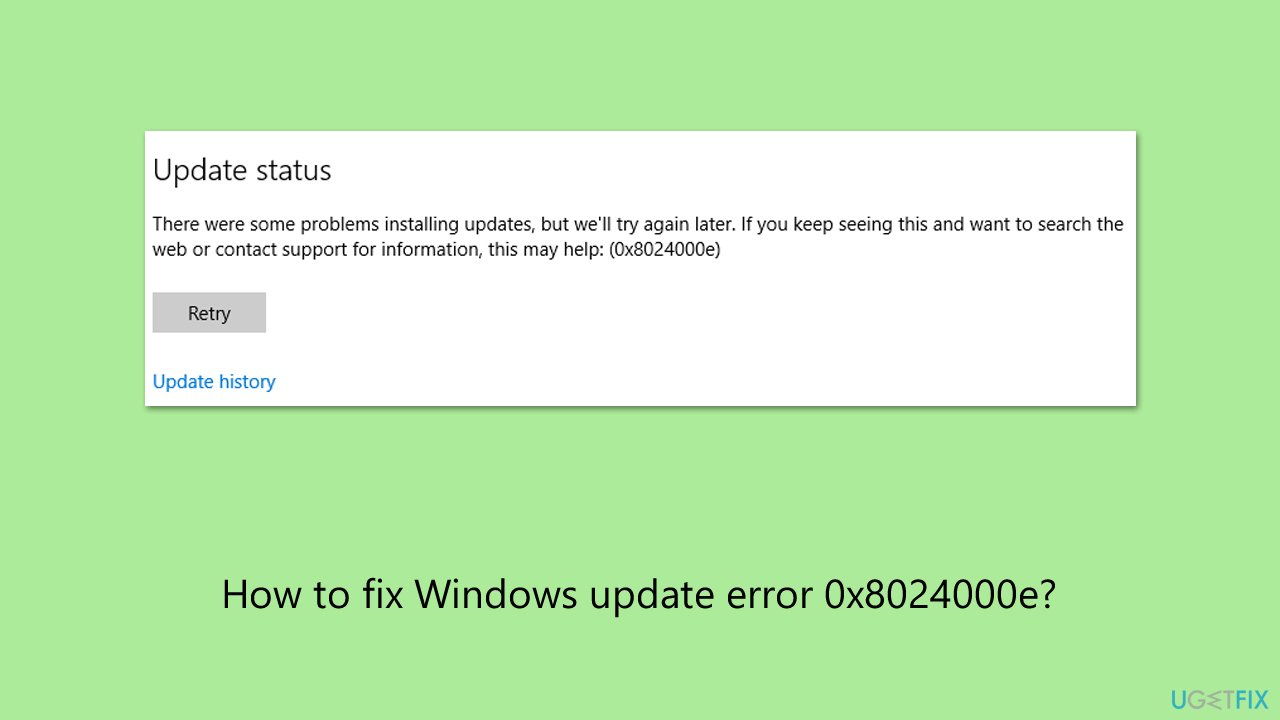
Fix 3. Repair system file corruption
- Type cmd in Windows search.
- Right-click on Command Prompt and pick Run as administrator.
- User Account Control will ask whether you want to allow changes – click Yes.
- Copy and paste this command and hit Enter:
sfc /scannow - Wait for the scan to finish.
- As soon as it finishes, Windows will report whether integrity violations were found and if they could be fixed. Regardless of the outcome, use these commands next, pressing Enter after each:
Dism /Online /Cleanup-Image /CheckHealth
Dism /Online /Cleanup-Image /ScanHealth
Dism /Online /Cleanup-Image /RestoreHealth - Close down the Command Prompt and restart your computer.
Fix 4. Reset Windows update components
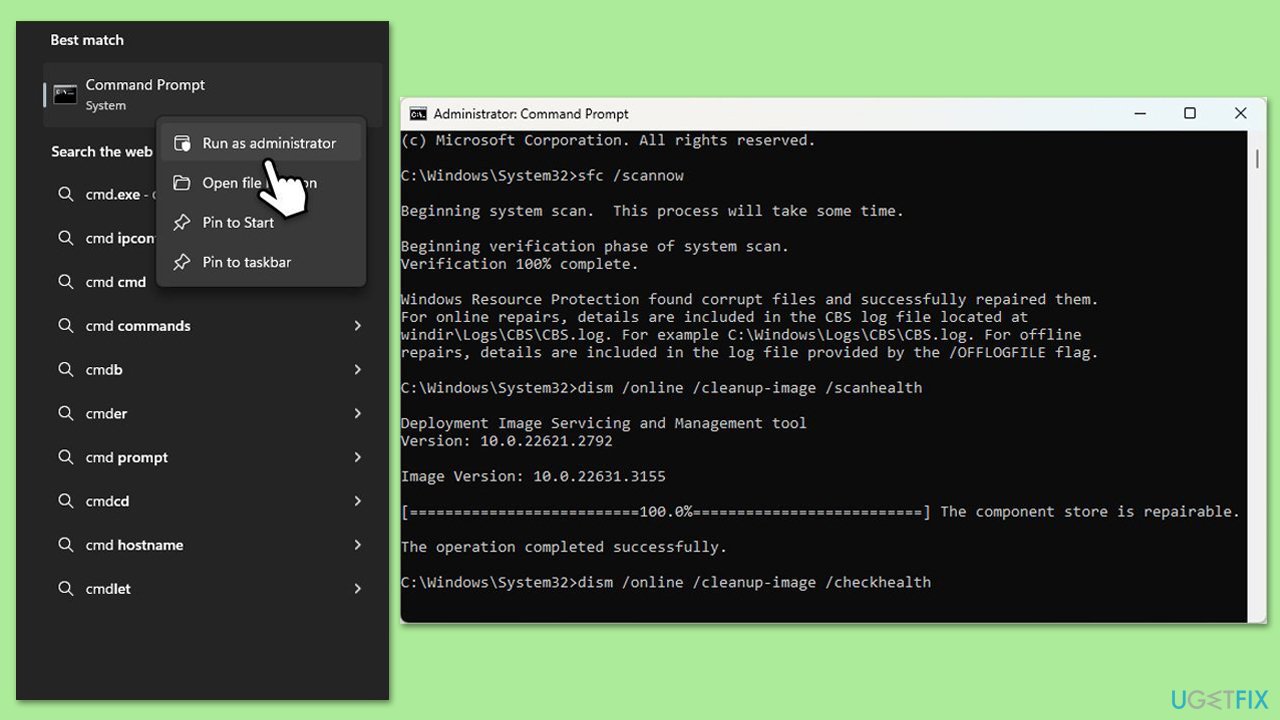
Resetting Windows update components will clear out SoftwareDistribution folder.
- Open Command Prompt as administrator.
- Stop the Windows Update-related services by running the following commands one at a time, pressing Enter after each one:
net stop wuauserv
net stop cryptSvc
net stop bits
net stop msiserver - Rename the SoftwareDistribution and Catroot2 folders by running the following commands:
ren C:\Windows\SoftwareDistribution SoftwareDistribution.old
ren C:\Windows\System32\catroot2 Catroot2.old
Note: If your Windows installation is not on the C drive, replace "C" with the appropriate drive letter.
regsvr32.exe /s atl.dll
regsvr32.exe /s urlmon.dll
regsvr32.exe /s mshtml.dll
netsh winsock reset
netsh winsock reset proxy - Restart the Windows Update-related services by running the following commands:
net start wuauserv
net start cryptSvc
net start bits
net start msiserver - Restart the computer.
Fix 5. Perform Disk Cleanup
Ensure that there's enough space on your drive:
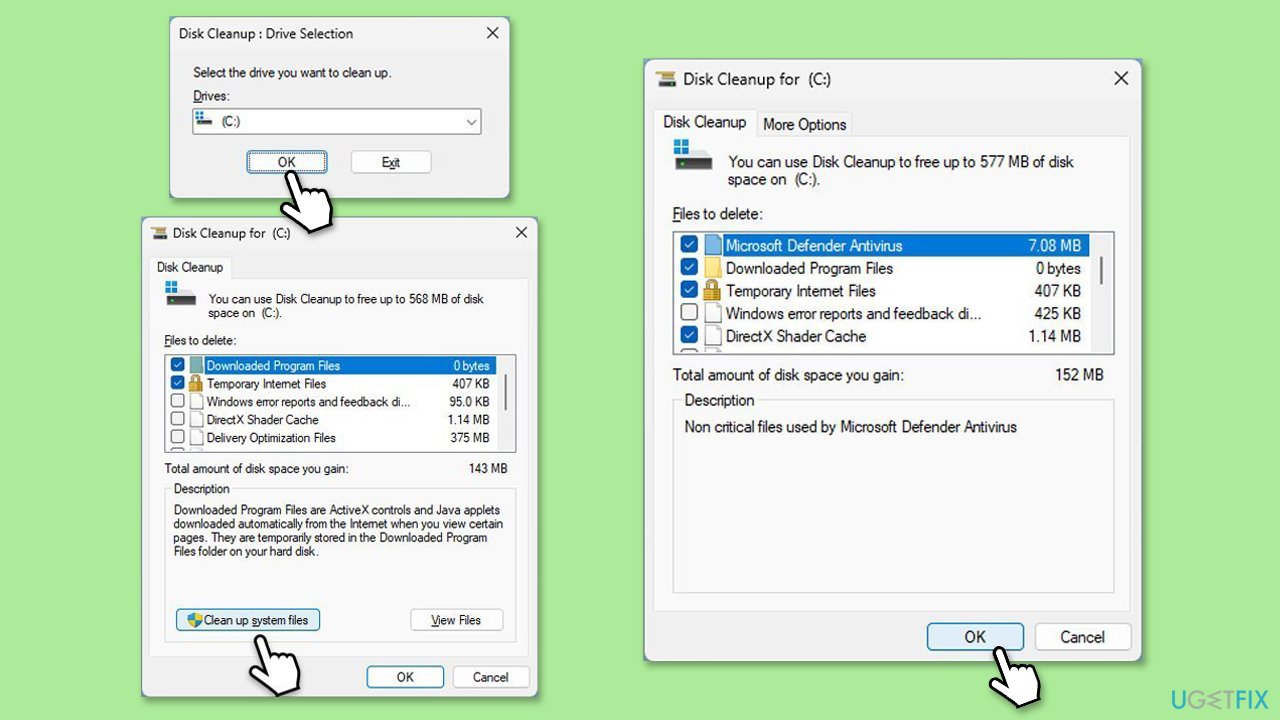
- Type Disk Cleanup in Windows search and press Enter to open the Disk Cleanup utility.
- In the Disk Cleanup window, click Clean up system files.
- Select the drive (usually, C:) again and click OK.
- It is important to clear up sections related to Windows updates (Windows Update Cleanup, Windows upgrade log files, Delivery optimization files), as well as other temp files - Temporary Internet Files, Temporary Files, etc.
- Click OK to begin the cleanup process.
Fix 6. Install manually
If all automatic methods do not work, you can always install the update manually through the Microsoft Update Catalog.
- Type in Updates in Windows search and press Enter.
- Select View update history.
- Find the update that failed with the 0x8024000e error and copy its KB number.
- Open your browser and go to Microsoft Update Catalog.
- Within the search bar, type in the KB number and click Search.
- Find the correct version of the update for your operating system (to check this, right-click on Start and pick System. Under Device specifications and check the System type) and click Download.
- Use on-screen guidelines to finish the installation process and restart your system.

Bottom line
To fix the Windows update error 0x8024000e, you can try running the Windows update troubleshooter, resetting the Windows Update components, checking your internet connection, cleaning corrupted caches, and repairing corrupted system files. If none of these methods work, consider using a PC repair tool for a comprehensive solution.
Frequently asked questions
The error 0x8024000e typically indicates that Windows Update encountered an issue due to insufficient storage space on your device. This can happen on both Windows 10 and Windows 11 when there isn't enough space to download and install updates.
To fix error 0x8024000e on Windows 10, try freeing up space by deleting unnecessary files or using the Disk Cleanup tool. Additionally, ensure that your Windows Update service is running and restart your PC after making changes.
Yes, on Windows 11, you can use the built-in Windows Update Troubleshooter found in Settings under Update & Security. Running this tool can help identify and resolve issues causing the error 0x8024000e.




Report an issue
What's wrong with this guide? We review every report and update or remove content.
Report received — thank you. We'll review and fix it.
You need a free account to submit a report.
Be the first to comment