How to fix
Microsoft Store error 0x80073CFF
on Windows
Resolve Microsoft Store error 0x80073CFF easily on Windows 10 and Windows 11. Get expert-tested solutions that fix issues in minutes!

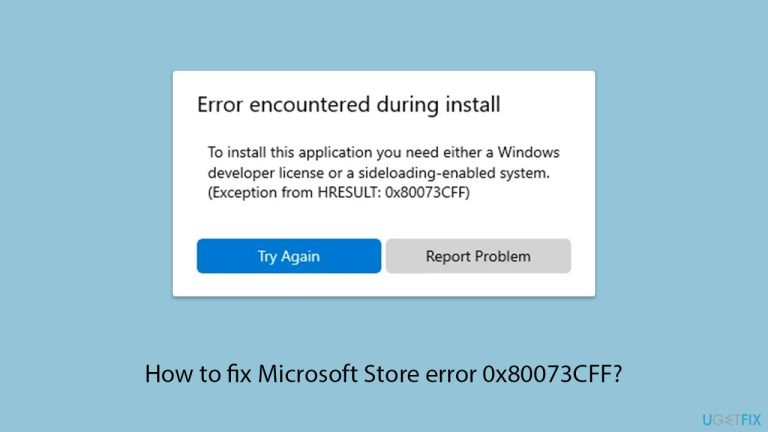
What causes How to fix Microsoft Store error 0x80073CFF?
- Sideloading restrictions in Windows
- Corrupted Store files
- Outdated system components
- Misconfigured group policy
- Windows expecting an app to be sideloaded
Repairs Windows system files, removes malware, and restores a clean OS state — without reinstalling.
Hi, I've been having difficulty installing an application from the Microsoft Store onto my Windows computer, but every time I get error 0x80073CFF. It keeps it from downloading, and I don't understand why. I have tried restarting my computer, but this is still not working. Why is this, and how can I fix it?
What causes Microsoft Store to display error 0x80073CFF? When you encounter this code you see a popup message that states "You need to have a sideloading-enabled system in order to install this app." It confuses users who are simply trying to download standard apps - it stops program downloads and installation processes from completing. Do not panic because there exists a solution for error 0x80073CFF, which we discuss below.
The Microsoft Store is your go-to spot for apps, games, and updates on Windows, designed to make adding software a breeze. But when error 0x80073CFF strikes, that smooth process grinds to a halt. Often, it’s tied to sideloading restrictions - Windows might think the app needs special permissions to install outside the usual Store rules.
Other times, it could stem from corrupted Store files, outdated system components, or even a misconfigured group policy blocking the install. Whatever the root, seeing 0x80073CFF flash on your screen is a clear sign something needs tweaking.
There are several paths to tackle this. You might enable sideloading in Windows settings to loosen those restrictions, or reset the Store cache to clear out any glitches. Checking for Windows updates could sync things back up, while adjusting group policies might be the key for some systems.
For trickier cases where error 0x80073CFF persists due to deeper system hiccups, a repair and maintenance app like [d1] could step in to smooth out underlying Windows issues, getting your Microsoft Store back to downloading without a fuss.

Fix 1. Enable sideloading
Error 0x80073CFF often signals that Windows expects an app to be sideloaded, which is blocked by default. Enabling this setting allows installations outside strict Store policies.
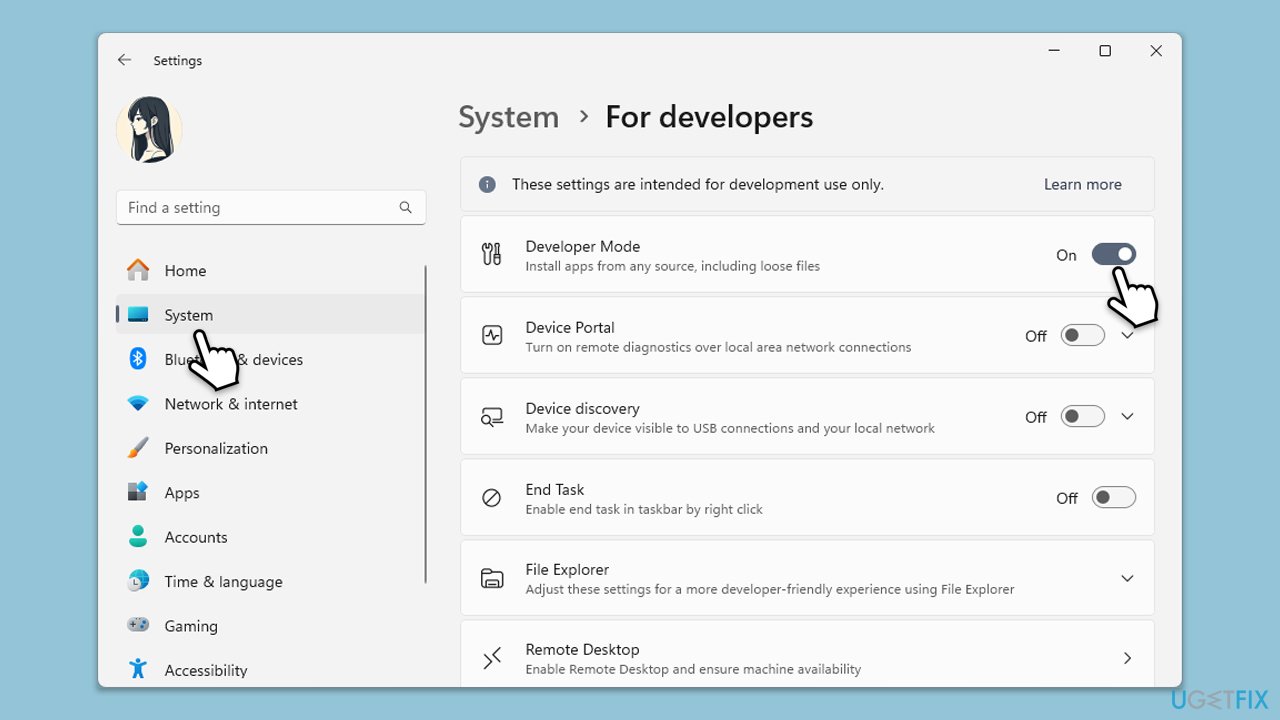
- Right-click and select Settings.
- Go to Update & Security, then select For developers. In Windows 11, go to System > For developers.
- Find the Sideloading apps option and toggle it to On. On Windows 11, enabling the Developer mode is enough.
- Confirm any prompts that appear.
- Restart your computer and try the Microsoft Store again.
Fix 2. Reset Store cache
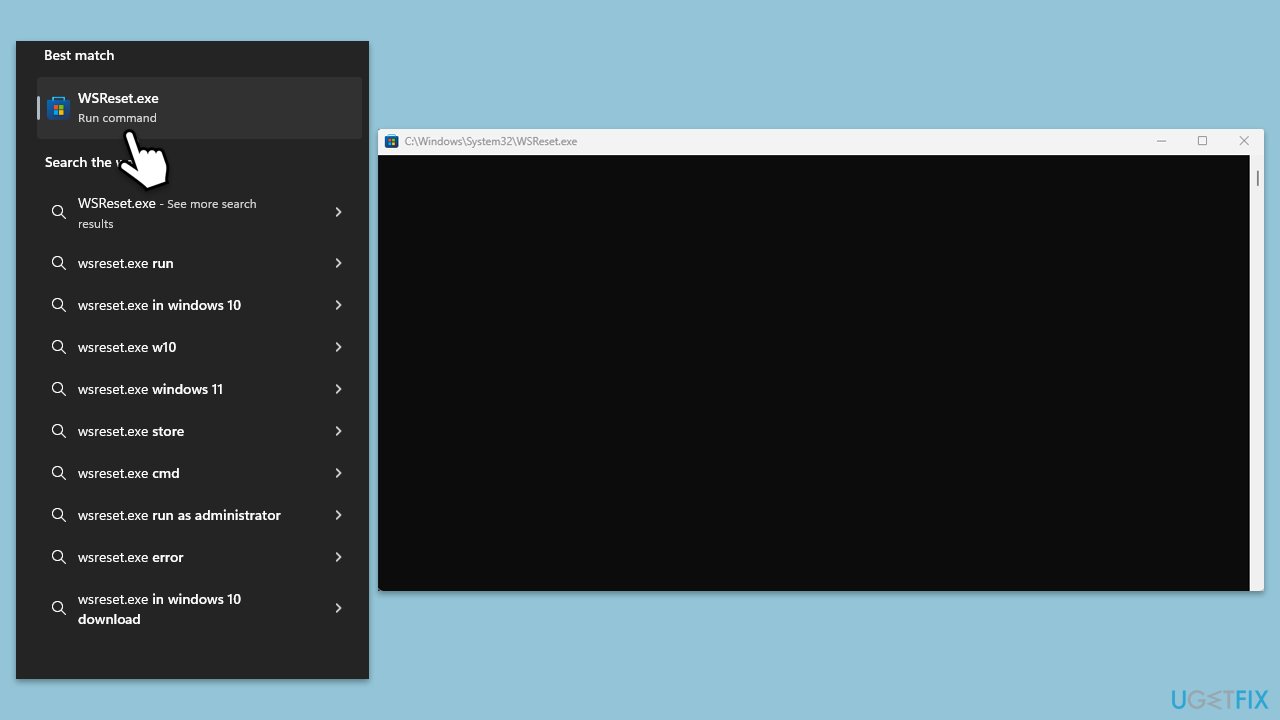
Corrupted cache files can confuse the Microsoft Store, leading to the error. Resetting clears out this mess and refreshes the app’s operation.
- In Windows search, type wsreset.exe and press Enter.
- Wait till a black window shows up – do not close it.
- Once it's gone, Microsoft Store should restart
- Try using the Store again.
Fix 3. Update Windows
Ensure that Windows has the latest updates installed.
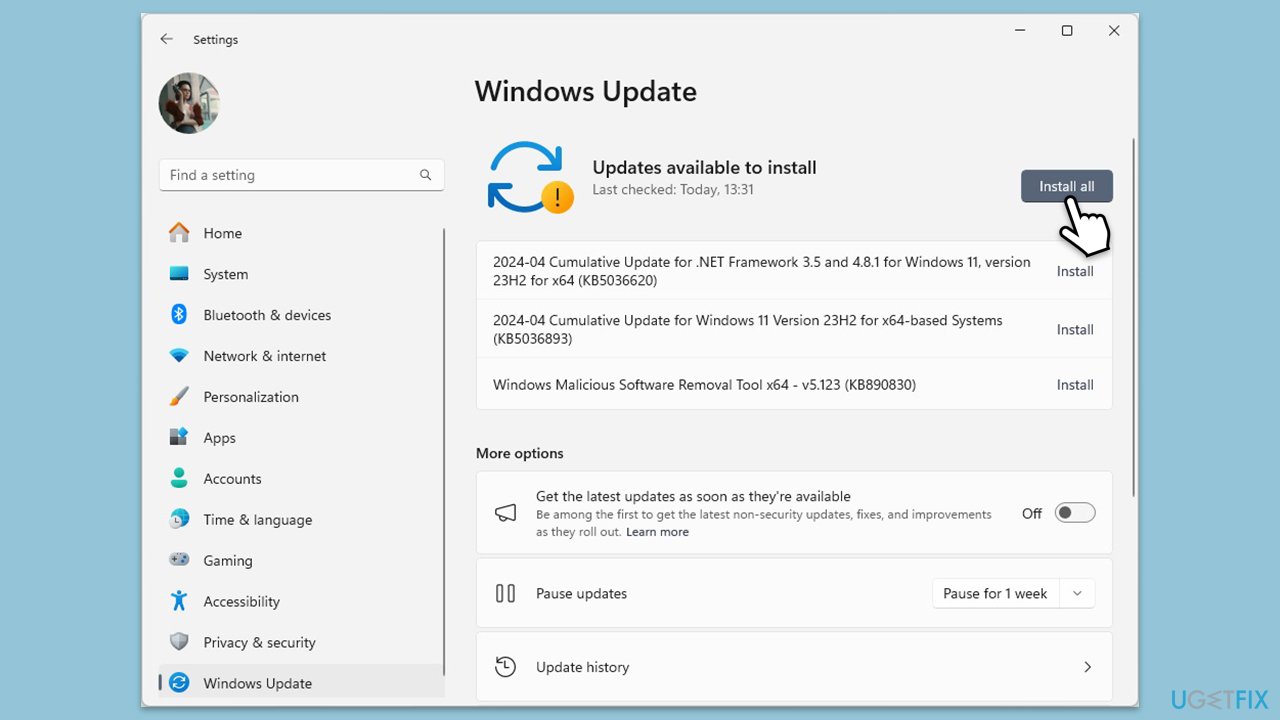
- Type Updates and press Enter.
- In the new window, click Install all (if pending) or Check for updates.
- Wait till all the files are downloaded and installed.
- If optional updates are available, install them as well.
- Restart your device when done.
Fix 4. Run Windows Store apps troubleshooter
This built-in tool targets Store-specific issues, repairing broken processes or settings that might be at fault.
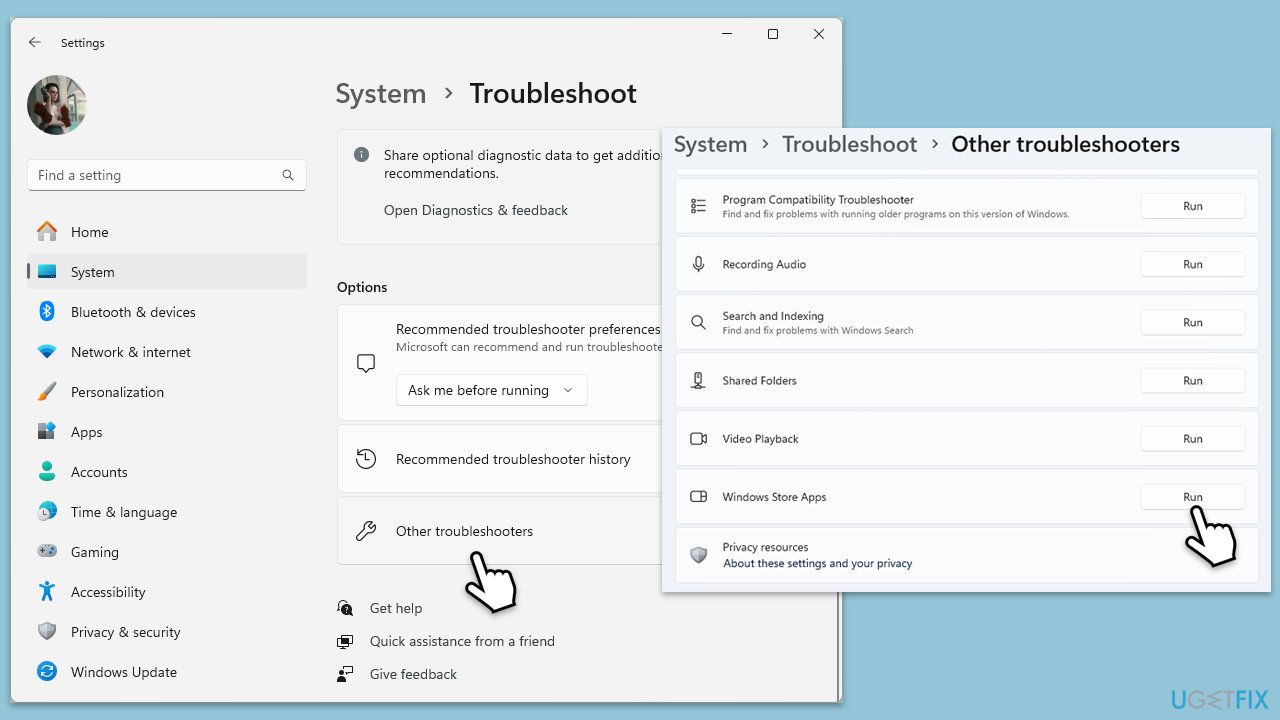
- Type troubleshoot in Windows search and hit Enter.
- Click Additional troubleshooters/Other troubleshooters.
- Find Windows Store Apps.
- Click on it, and select Run the troubleshooter/Run.
- Wait for the scan to be completed and apply the suggested fixes.
Fix 5. Adjust group policy settings
Group policies might restrict app installations, so adjusting its settings may resolve the problem.
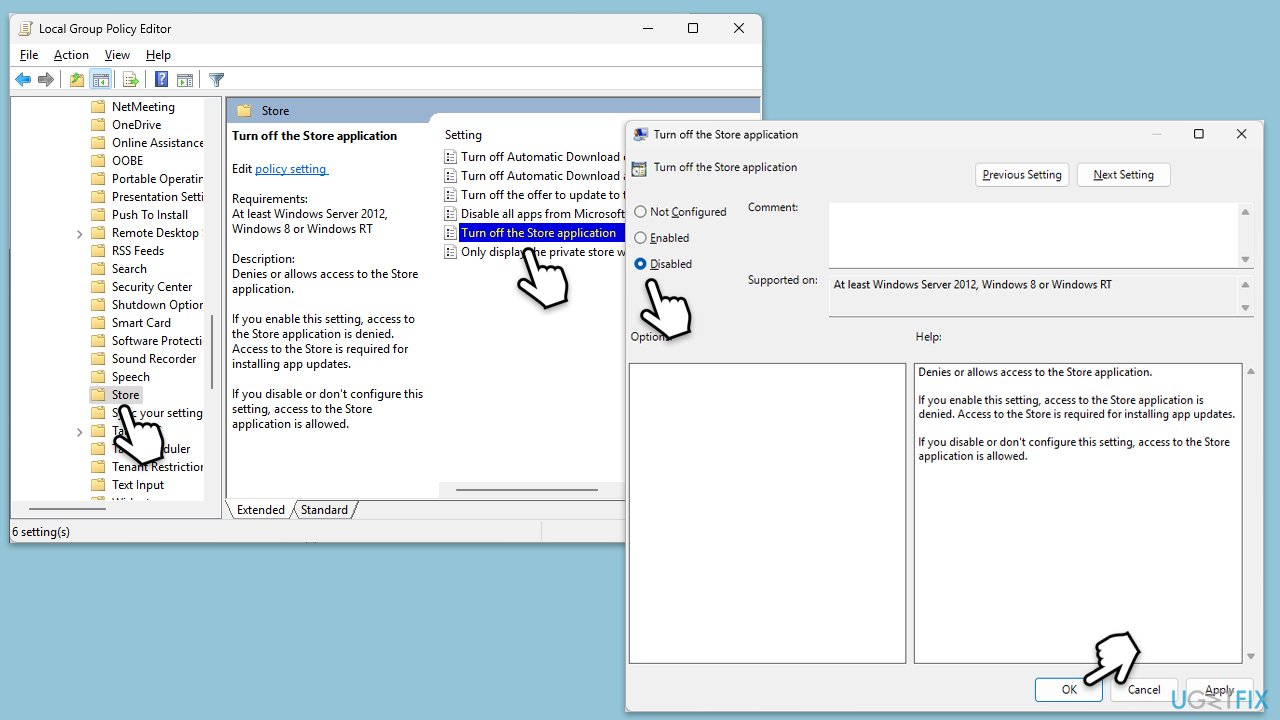
- Type gpedit.msc and press Enter to open Group Policy Editor.
- Navigate to the following location:
Computer Configuration > Administrative Templates > Windows Components > Store. - Double-click Turn off the Store application, set it to Not Configured or Disabled.
- Click Apply, then OK, and restart your computer.
Fix 6. Re-register Microsoft Store
If Store files are misaligned with the system, error 0x80073CFF can emerge. Re-registering refreshes its integration with Windows.
- Type PowerShell in Windows search.
- Right-click on the result and select Run as administrator.
- When UAC shows up, click Yes.
- Copy and paste the following command and press Enter:
Get-AppXPackage | Foreach {Add-AppxPackage -DisableDevelopmentMode -Register "$($_.InstallLocation)\AppXManifest.xml"} - Close down PowerShell and restart your system.

Fix 7. Check for corrupted system files
Corrupted system files can cause all sorts of issues, including those related to Microsfot Store.
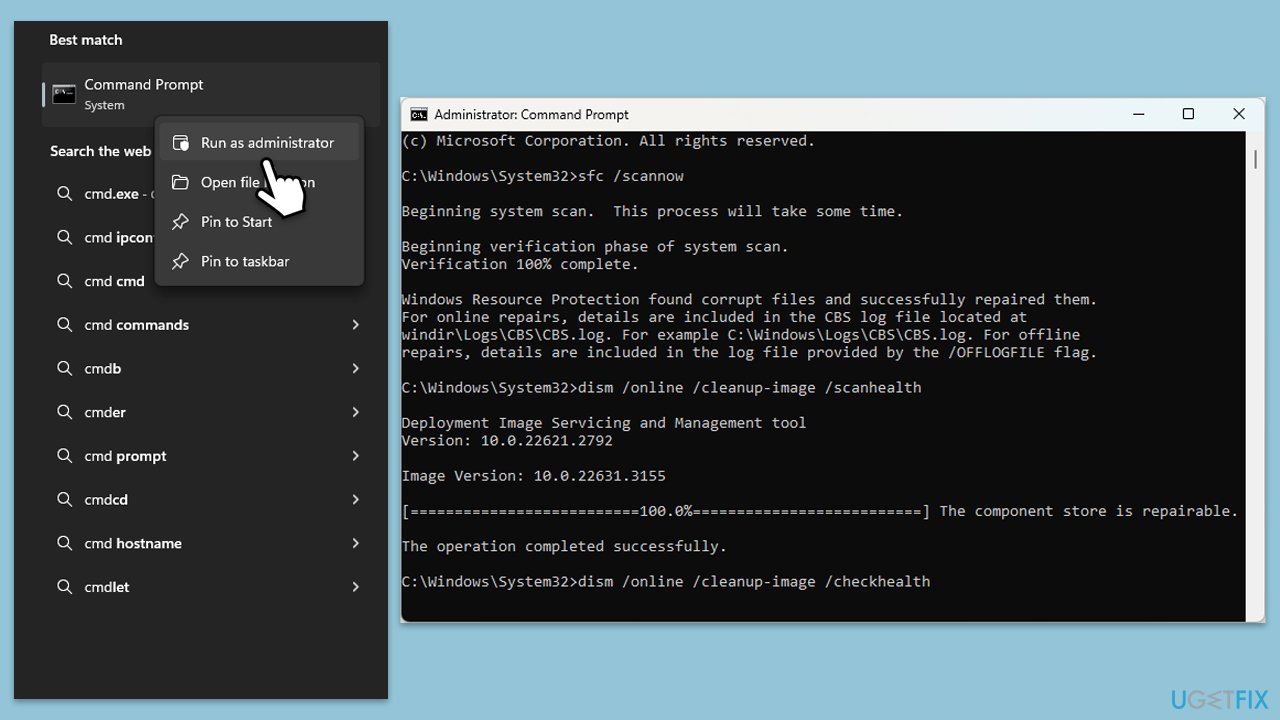
- Type cmd in Windows search.
- Right-click on Command Prompt and pick Run as administrator.
- User Account Control will ask you whether you want to allow changes – click Yes.
- Copy and paste this command and hit Enter:
sfc /scannow - Wait for the scan to finish.
- As soon as it finishes, Windows will report whether integrity violations were found and if they could be fixed. Regardless of the outcome, use these commands next, pressing Enter after each:
Dism /Online /Cleanup-Image /CheckHealth
Dism /Online /Cleanup-Image /ScanHealth
Dism /Online /Cleanup-Image /RestoreHealth - Close down the Command Prompt.
- Restart your computer and test the Microsoft Store.
Bottom line
To fix error 0x80073CFF, you can enable sideloading in Windows settings, reset the Store cache, check for Windows updates, or adjust group policies. If these solutions do not resolve the issue, consider using a repair and maintenance app to address deeper system problems.
Frequently asked questions
The error 0x80073CFF typically indicates a problem with the app installation or update process in the Microsoft Store, often due to corrupted files or settings.
To reset the Microsoft Store, open the Run dialog by pressing Win + R, type 'wsreset.exe', and hit Enter; this will clear the cache and can resolve the error.
Yes, you can open Command Prompt as an administrator and run 'sfc /scannow' followed by 'DISM /Online /Cleanup-Image /RestoreHealth' to repair system files and fix the issue.




Report an issue
What's wrong with this guide? We review every report and update or remove content.
Report received — thank you. We'll review and fix it.
You need a free account to submit a report.
Be the first to comment