How to fix
“Couldn’t Unmount Disk” Error
on Windows
Discover effective methods to resolve the "Couldn't Unmount Disk" error on Windows 10 and 11. Expert-tested solutions for hassle-free troubleshooting.


What causes How to fix “Couldn’t Unmount Disk” Error on Mac?
- Boot drive is modified or corrupted
- Drive is being used by other apps or processes
- Internal drive issues
- Potential malware infection
- Disk Utility unable to repair permissions or directories
Repairs Windows system files, removes malware, and restores a clean OS state — without reinstalling.
I was trying to erase my drive on MacBook, but I received an error message saying "Disk Erase failed with the error: Couldn't unmount disk.” What does it mean? Is there something that I can do about it?
"Couldn’t Unmount Disk” is the error that, in most cases, appear when users try to format internal disk by Disk Utility or repair it on the Mac device. Disk Utility is an important feature that helps to solve problems on the system. However, it can still fail to fix some of them or even deliver error messages like "Couldn’t Unmount Disk” error.
Due to the "Couldn’t Unmount Disk” error users might encounter these problems as well:
- Inability to partition Mac HFS;
- Inability to open particular files or programs;
- Lost or corrupted data on the hard drive;
- Sudden elimination of the running application.
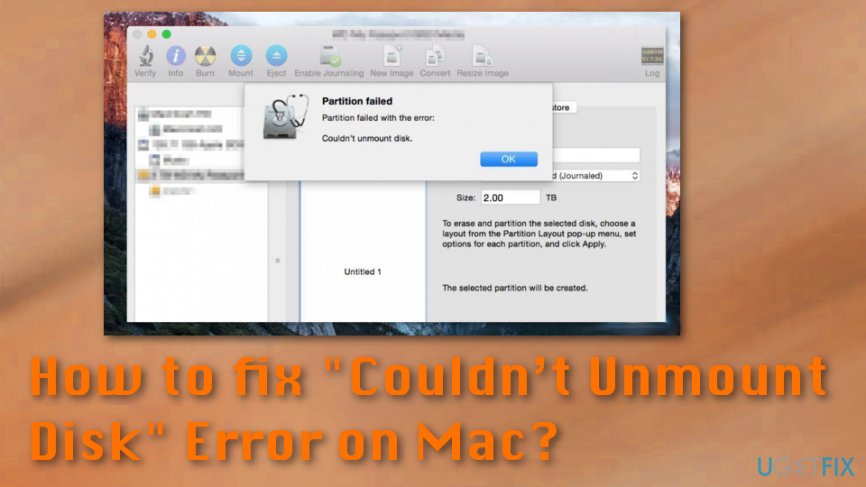
"Couldn’t Unmount Disk” error is an error message that might pop up on your Mac’s screen when the device is not allowed to repair particular permissions or directories in Disk Utility,[ref en-1] for instance when trying to repair a hard drive. When a device cannot erase or partition the drive, users are delivered one of these error messages:
Disc erase failed couldn’t unmount disc.
or
Disk Erase failed with the error: Couldn’t unmount disk.
There are several reasons why users cannot complete the necessary tasks because of this error. Usually, the source of the error is a particular boot drive[ref en-3] which is modified or corrupted. The alert might also pop up when the driver is being used by other apps or processes. Sometimes, the issue is an internal drive.
However, the error might be triggered by malware as well. Nevertheless, Mac OS X is pretty resistant to various cyber threats;[ref en-4] security experts warn about an increase of Mac malware[ref en-2] that might sneak inside the device and might trigger various errors and problems.
How to deal with "Couldn’t Unmount Disk” error
If you ever noticed other symptoms besides the error or the ones that resemble the virus attack, you should obtain a professional security software, such as [rev id=”Reimage”], and scan the system with an updated tool.
If virus attack was not the problem, try the methods below that will help to fix "Couldn’t Unmount Disk” error. There are a few solutions for the issue, but users should try all of them of one of them doesn't work at first.
Check USB Boot Drive
- Make sure that USB boot drive is attached to the device.
- Reboot the system. When rebooting hold the Option key. From the appeared menu select the attached boot drive.
- Access Disk Utility from the appeared Boot menu (however, if you use Installer disk, go to Utilities menu and click Disk Utility option).
- Go to First aid. Verify the disk and repair it if it’s necessary.
Once it’s done, try to complete the same task again. If the "Couldn’t Unmount Disk” error shows up again, try the second method.
Use Recovery Partition
This method should help if the "Couldn’t Unmount Disk” error occurred when formatting a non-boot partition or caused by first aid. The Recovery partition is included in all new OS X versions. Therefore, follow these steps:
- Reboot Mac. When rebooting hold down the Option key.
- From the appeared menu choose Recovery partition option.
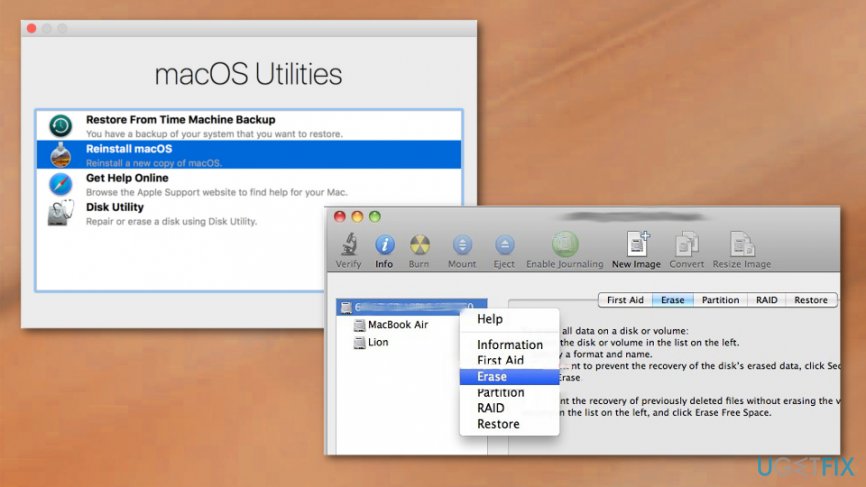
How to fix couldnt unmount disk error on mac disk utility - In the appeared boot menu choose Disk Utility.
- Go to First Aid if you want to verify and repair the disk.
- Go to Erase if you want to format the disk.
Use the command line to fix "Couldn’t Unmount Disk” error
- Access Terminal application.
- Input diskutil list line.
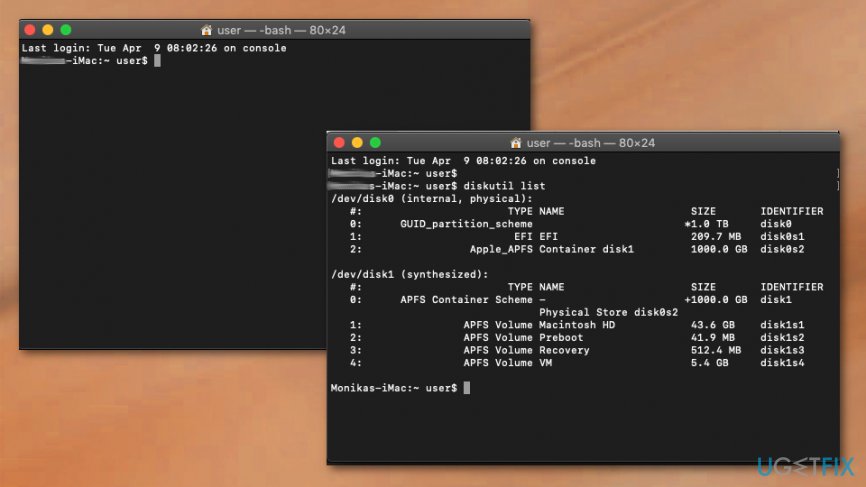
How to fix couldnt unmount disk error on mac terminal - When the list of all disks appears you need to found the disk that you want to force unmount.
- Type sudo diskutil unmountDisk force /dev/diskx line.
- Replace /dev/diskx with correct disk number.
- Follow with steps further to forcibly unmount the disk from your Mac.
Bottom line
To deal with the 'Couldn’t Unmount Disk' error, users can try closing any applications that may be using the drive, running Disk Utility in Recovery Mode, or using professional security software to check for malware. If none of these solutions work, seeking professional help may be necessary.
Frequently asked questions
No, this error specifically pertains to macOS systems; however, Windows 10 and Windows 11 users may encounter similar disk management issues.
You can use Windows' built-in Disk Management tool or Command Prompt to safely dismount a disk or troubleshoot disk-related issues.
Yes, there are various third-party applications available for Windows 10 and Windows 11 that can help manage disks and resolve issues.




Report an issue
What's wrong with this guide? We review every report and update or remove content.
Report received — thank you. We'll review and fix it.
You need a free account to submit a report.
Be the first to comment