How to fix
“Your’e up to date – Your device is missing important security updates”
on Windows
Resolve the "You're up to date - Your device is missing important security updates" error in Windows 10 or 11 quickly and effectively. Expert-tested sol…


What causes How to fix “Your’e up to date – Your device is missing important security updates” in Windows?
- An update got stuck halfway - downloaded but not installed
- A glitch in communication with Microsoft’s update servers
- Windows misjudging its update status
- Lingering update files causing confusion
Repairs Windows system files, removes malware, and restores a clean OS state — without reinstalling.
Hello. I was checking for updates on my Windows 10 PC last night because I read there’s a new security patch out, but it’s saying "You're up to date - Your device is missing important security updates" at the same time. It’s been like this for a couple of days, and I’m worried my system’s exposed. Could you help?
Seeing the message "You're up to date - Your device is missing important security updates" in Windows Update can feel like a contradiction in terms. You’re told everything’s current, yet there’s a nagging alert about missing security patches - it’s enough to leave anyone a bit perplexed. This isn’t an isolated issue, though, and plenty of users have encountered this odd pairing of statements. Let’s unpack why this happens and how you can set it right.
What’s behind the "You're up to date - Your device is missing important security updates" puzzle? It could be that an update got stuck halfway - downloaded but not installed - leaving your system vulnerable despite the "up to date" claim. Another possibility is a glitch in the communication with Microsoft’s update servers, where Windows thinks it’s current but hasn’t grabbed everything it needs. Sometimes, it’s just a matter of Windows misjudging its update status, flagging gaps that don’t align with the cheerful “you’re good” notice.
Thankfully, there are practical steps to resolve the "You're up to date - Your device is missing important security updates" conundrum. You might prompt Windows to double-check its update list, sweep away any lingering update files causing confusion, or pull down those missing patches directly. If the problem digs deeper into system quirks, a repair tool like [d1] can help iron out the inconsistencies, ensuring your PC aligns with both messages - fully updated and fully secure.

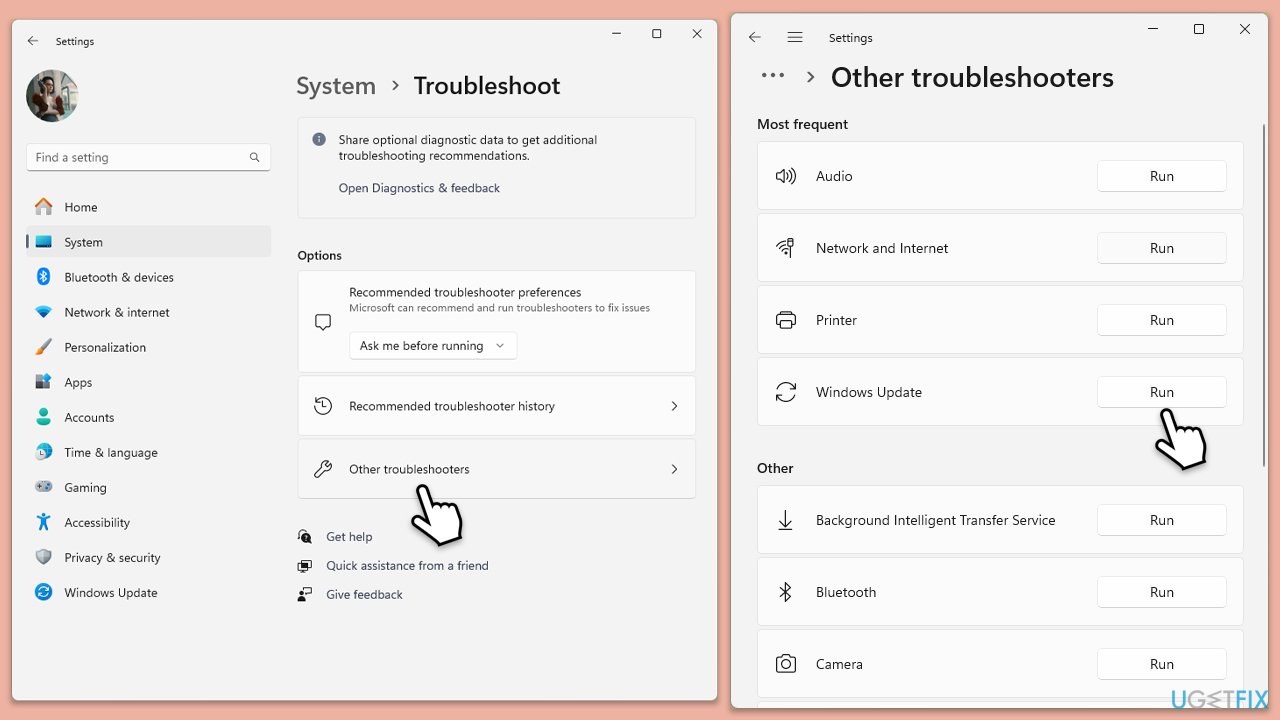
Fix 1. Run Windows Update Troubleshooter
This built-in tool can detect and resolve common update issues, potentially fixing the mismatch between the "up to date" message and missing security updates.
- Type Troubleshoot into the Windows search bar and press Enter.
- Next, on the right side of the window, select Additional troubleshooters/Other troubleshooters.
- Scroll down to locate the Windows update option and click on it.
- Click on Run the troubleshooter/Run and allow the process to complete.
- Apply any suggested fixes and check Windows Update again.
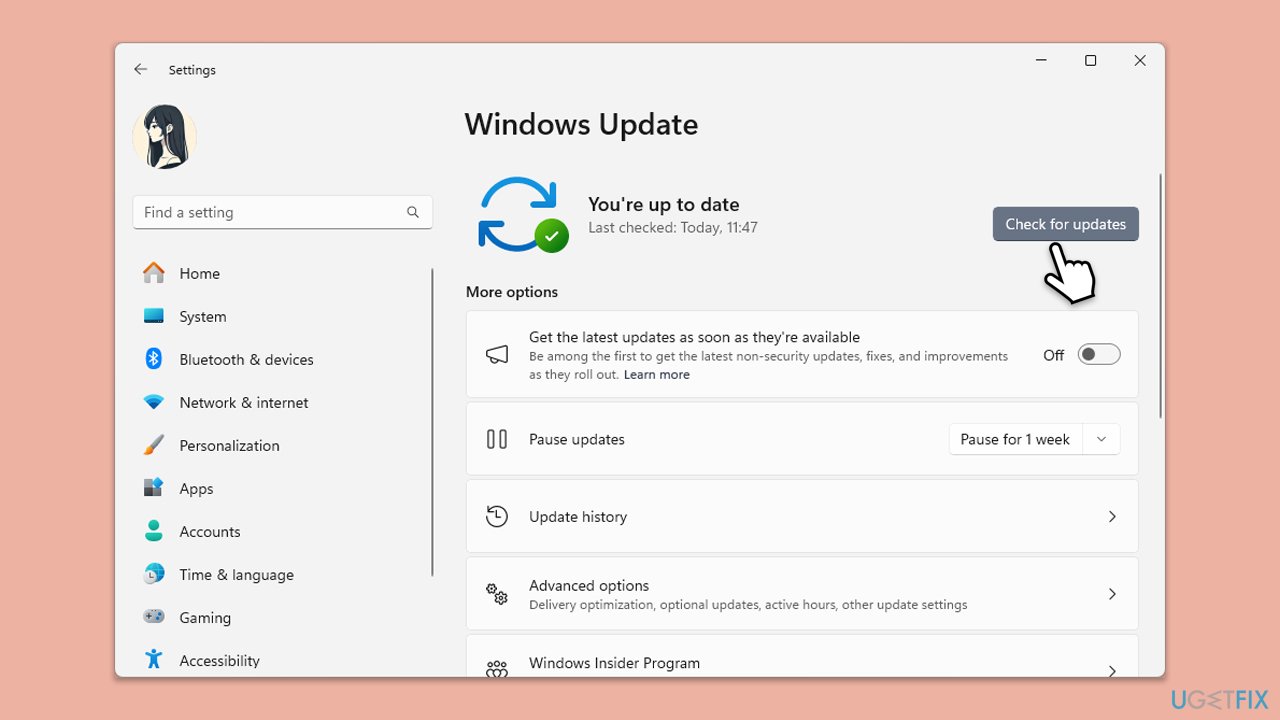
Fix 2. Check for updates manually
Sometimes Windows Update needs a nudge to refresh its status and fetch missing patches, bypassing the conflicting messages.
- Type Updates in windows search and press Enter.
- Click Check for updates even if it says "You're up to date."
- Wait for it to scan and install any available updates.
- Restart your PC and verify if the missing updates warning disappears.
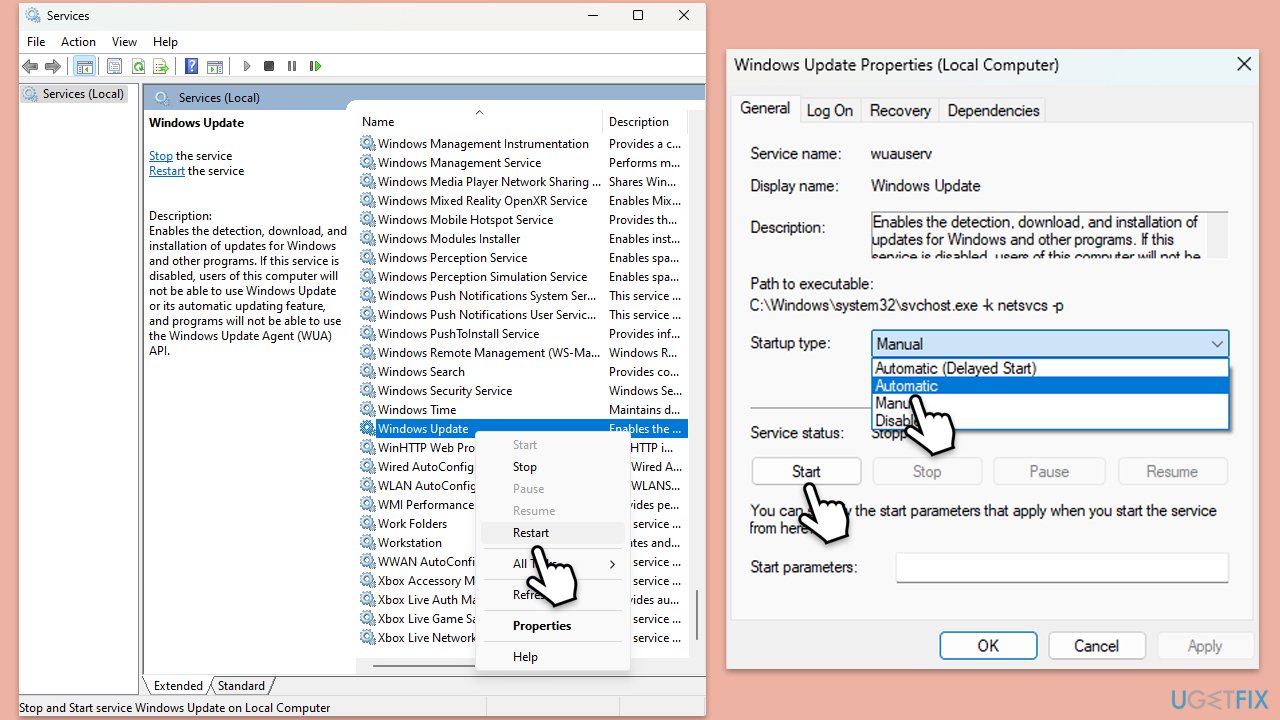
Fix 3. Check the services
Some services, such as Windows update and BITS, could prevent the update if they are not in a working order.
- Type in Services in Windows search and press Enter.
- Locate Windows Update Service.
- If it is already running, right-click and select Restart.
- if the service is not running, double-click it to open Properties.
- Under the Startup type, select Automatic from the drop-down menu.
- Click Start, Apply, and OK.
- Locate Background Intelligent Transfer Service (BITS), Cryptographic service, and Windows Installer service, and repeat the process.
Fix 4. Download updates from Microsoft Update Catalog
If automatic updates aren’t applying, manually downloading specific security patches can resolve the missing updates issue.
- Open a browser and visit the Microsoft Update Catalog.
- Search for recent security updates by entering your Windows version (e.g., "Windows 10 22H2 security update").
- Download the latest .msu file matching your system (32-bit or 64-bit).
- Double-click the file to install it and follow the prompts.
- Restart your system.
- Check for Windows Update again.
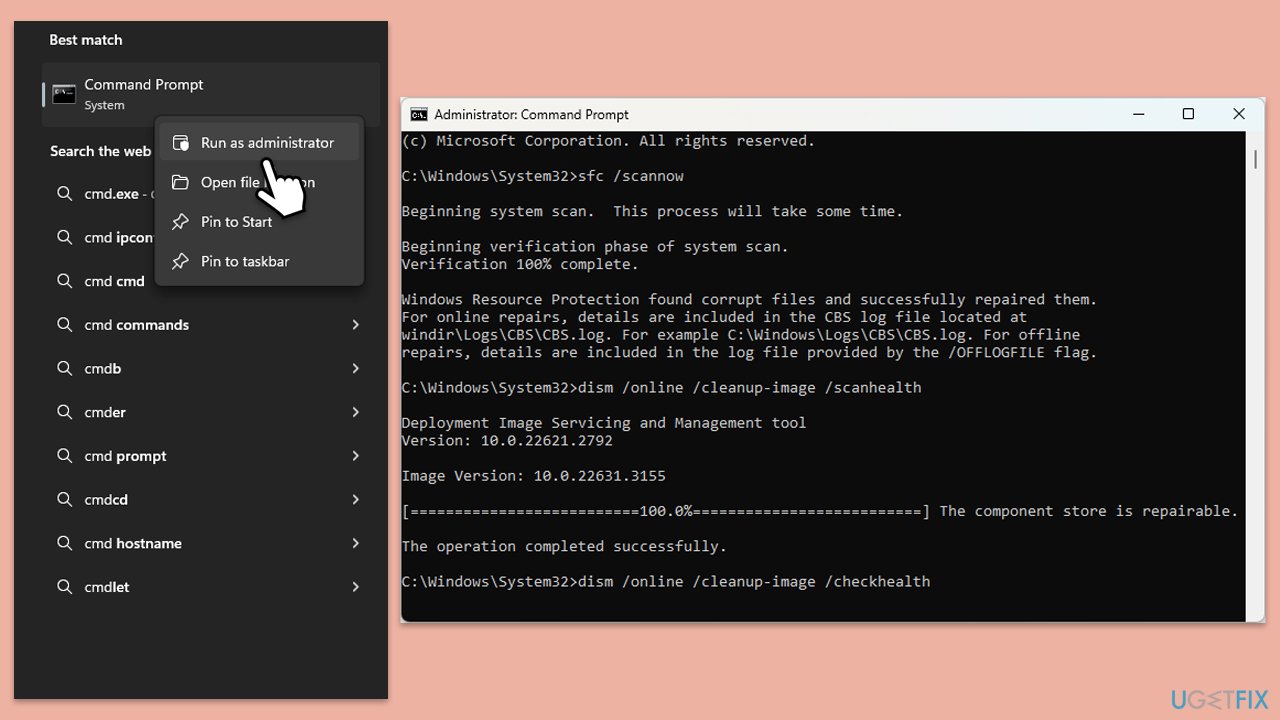
Fix 5. Run SFC and DISM
Corrupted system files might prevent updates from registering properly, causing the mixed messages.
- Type cmd in Windows search.
- Right-click on Command Prompt and pick Run as administrator.
- User Account Control will ask whether you want to allow changes – click Yes.
- Copy and paste this command and hit Enter:
sfc /scannow - Wait for the scan to finish.
- As soon as it finishes, Windows will report whether integrity violations were found and if they could be fixed. Regardless of the outcome, use these commands next, pressing Enter after each:
Dism /Online /Cleanup-Image /CheckHealth
Dism /Online /Cleanup-Image /ScanHealth
Dism /Online /Cleanup-Image /RestoreHealth - Close down the Command Prompt and restart your system.
Fix 6. Reset Windows Update components
A deeper reset of update services can fix persistent issues by clearing all related processes and starting anew.
- Open Command Prompt as administrator.
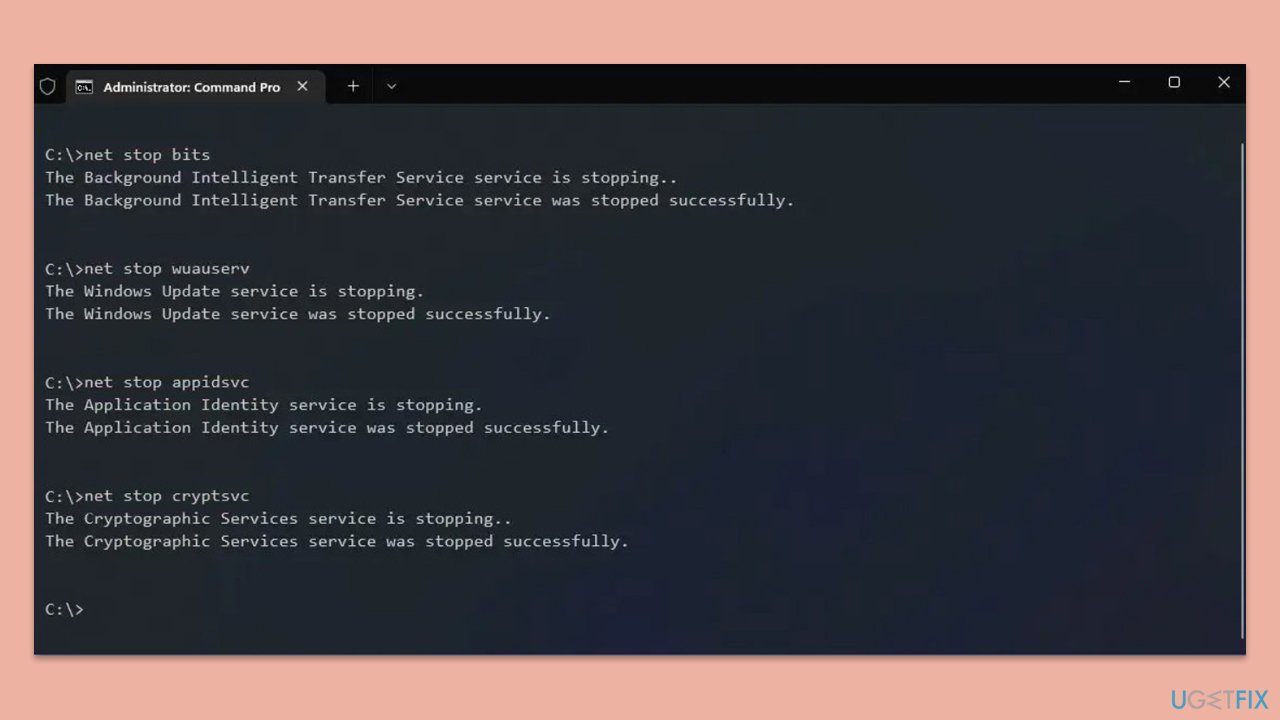
- Paste in each of these commands, pressing Enter every time:
net stop bits
net stop wuauserv
net stop appidsvc
net stop cryptsvc
Del “%ALLUSERSPROFILE%\Application Data\Microsoft\Network\Downloader\*.*”
rmdir %systemroot%\SoftwareDistribution /S /Q
rmdir %systemroot%\system32\catroot2 /S /Q
regsvr32.exe /s atl.dll
regsvr32.exe /s urlmon.dll
regsvr32.exe /s mshtml.dll
netsh winsock reset
netsh winsock reset proxy
net start bits
net start wuauserv
net start appidsvc
net start cryptsvc - Reboot your computer.
Fix 7. Check disk space
Low storage can block update installations, leaving security patches unapplied despite the "up to date" claim. Freeing space can help.
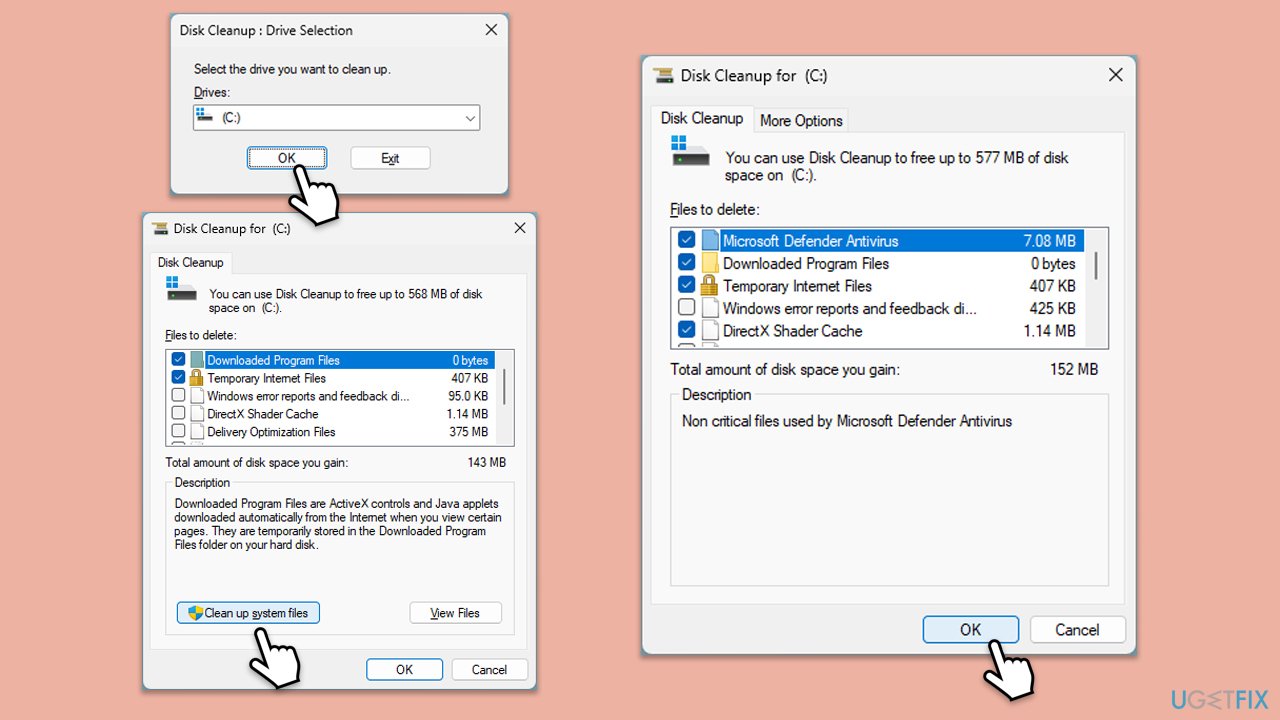
- Type Disk Cleanup in Windows search and press Enter.
- If your Windows is installed on drive C, pick it from the list (it should be by default) and press OK.
- Click Clean up system files.
- Select your main disk again and click OK.
- Here, select the largest portions of the data used - these typically include Temporary Internet Files, Windows Update (important!), Temporary Files, Recycle Bin, Delivery Optimization Files, and others.
- Click OK and wait for the cleanup to finish.
Bottom line
To resolve the issue, you can run the Windows Update Troubleshooter to detect and fix common update problems. Additionally, you may need to manually check for updates or use a repair tool to address deeper system quirks. If none of these steps work, consider seeking further assistance or support.
Frequently asked questions
Try running the Windows Update Troubleshooter by going to Settings > Update & Security > Troubleshoot. This tool can help identify and fix issues related to Windows updates.
Go to Settings > Windows Update and click on 'Check for updates' to force Windows to search for and install any available security updates.
This message may appear due to corrupted update files, misconfigured settings, or network connectivity issues preventing your device from downloading necessary updates.




Report an issue
What's wrong with this guide? We review every report and update or remove content.
Report received — thank you. We'll review and fix it.
You need a free account to submit a report.
Be the first to comment