How to fix
Microsoft Teams error 0xcaa80000
on Windows
Resolve the Microsoft Teams error 0xcaa80000 on Windows 10 and 11 with our expert-tested solutions. Get back to seamless communication in minutes!


What causes How to fix Microsoft Teams error 0xcaa80000 in Windows?
- Shaky internet connection
- Outdated TLS protocols
- Corrupted app files
- Mismatch in date and time settings
Repairs Windows system files, removes malware, and restores a clean OS state — without reinstalling.
I’ve been trying to log into Microsoft Teams on my Windows PC for the past hour, but I keep getting hit with error 0xcaa80000. It says it can’t connect to services and just tells me to try later. How can I fix this?
Microsoft Teams is a go-to for staying connected, whether you’re juggling work meetings or catching up with colleagues from your Windows PC. It’s usually a dependable tool, humming along without a hitch. But then there’s the Microsoft Teams error 0xcaa80000, a pesky issue that can throw a wrench into your day. If you’ve seen this Teams error 0xcaa80000 pop up, you’re likely facing a login roadblock with a message about connection troubles - and it’s not fun when deadlines loom.
So, what happens when 0xcaa80000 occurs? Imagine this: you launch Teams, enter your credentials, and instead of your chat list, you get a note saying, “We can’t connect you” followed by that cryptic code. It’s a sign that Teams can’t reach Microsoft’s servers, locking you out of your account. This tends to hit the desktop app specifically, leaving the web version unscathed, which hints at something off with your local setup.
Why does the Microsoft Teams error 0xcaa80000 strike? It could be a shaky internet connection throwing things off, or maybe your system’s security settings - like outdated TLS protocols - aren’t playing nice with Teams. Corrupted app files or a mismatch in your date and time settings might also be culprits, tripping up the connection process. Whatever’s behind it, the result is the same: you’re stuck on the outside looking in.
There’s hope, though. You can tackle this Teams error 0xcaa80000 by checking your network, tweaking a few settings, or clearing out app clutter that’s gumming up the works. If it’s a deeper system snag, a tool like [d1] might step in to iron out the wrinkles, getting Teams back on track so you can dive into your workday without delay.

Fix 1. Check internet connection
Teams relies on a solid network to function, and a spotty connection can easily trip it up, preventing login or app access.
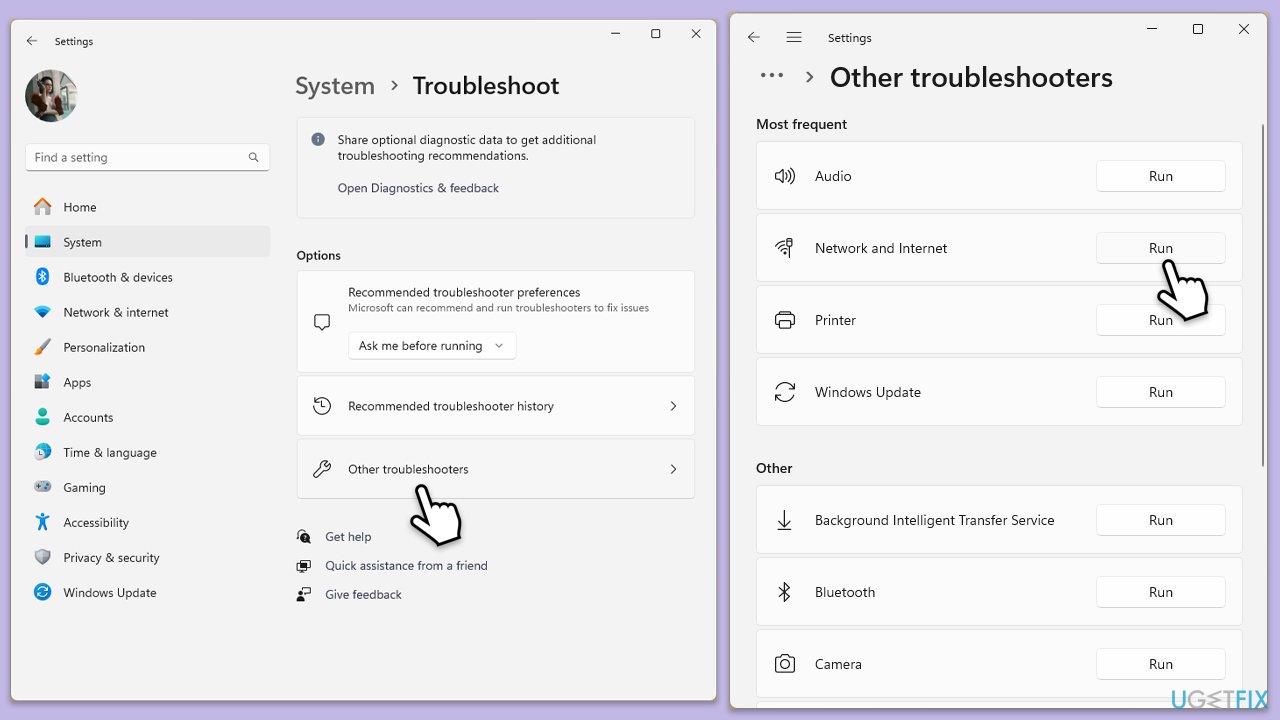
Windows 11
- Type Troubleshoot in Windows search and hit Enter.
- Select Other troubleshooters.
- Locate Network & Internet troubleshooter from the list and click Run.
- Wait till the process is finished and apply the recommended fixes.
- Reboot your computer.
Windows 10
- Right-click on Start and pick Settings.
- Go to the Network & Internet section.
- On the right side, find the Advanced network settings section.
- Click Network troubleshooter and wait.
- The fixes will be automatically applied.
Fix 2. Verify date and time settings
If your PC’s clock is out of sync, Teams might struggle to authenticate your account, blocking access unexpectedly.
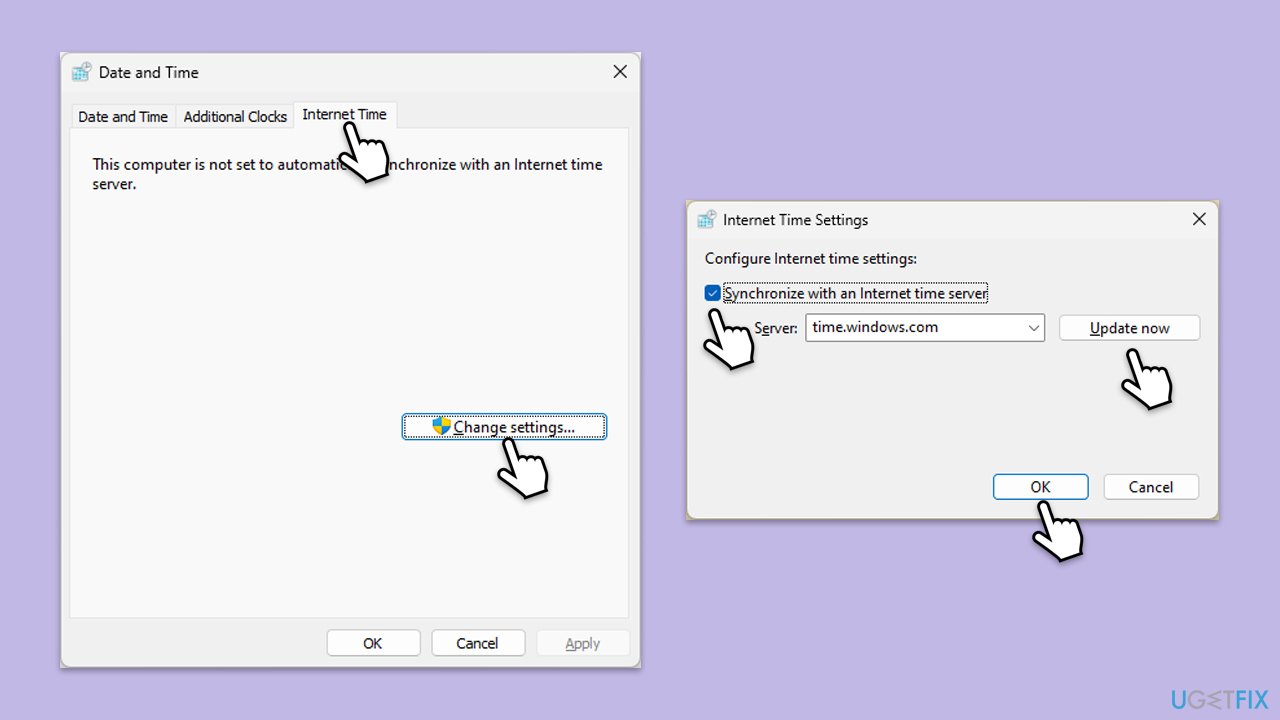
- Type in Control Panel in Windows search and press Enter.
- Go to Clock and Region and click on Date and Time.
- Pick the Internet Time tab and select Change Settings.
- Make sure that the Synchronize with an Internet time server box is ticked.
- Click Update now and OK.
Fix 3. Sign out and sign back in
A quick refresh of your login session can clear up temporary hiccups that keep Teams from connecting smoothly.
- Open Microsoft Teams.
- Click on your profile icon and select Sign out.
- Close the application.
- Reopen Microsoft Teams and sign in with your credentials.

Fix 4. Clear Teams cache
Old or corrupted data stored by Teams can clog things up, making it hard for the app to reach Microsoft’s servers.
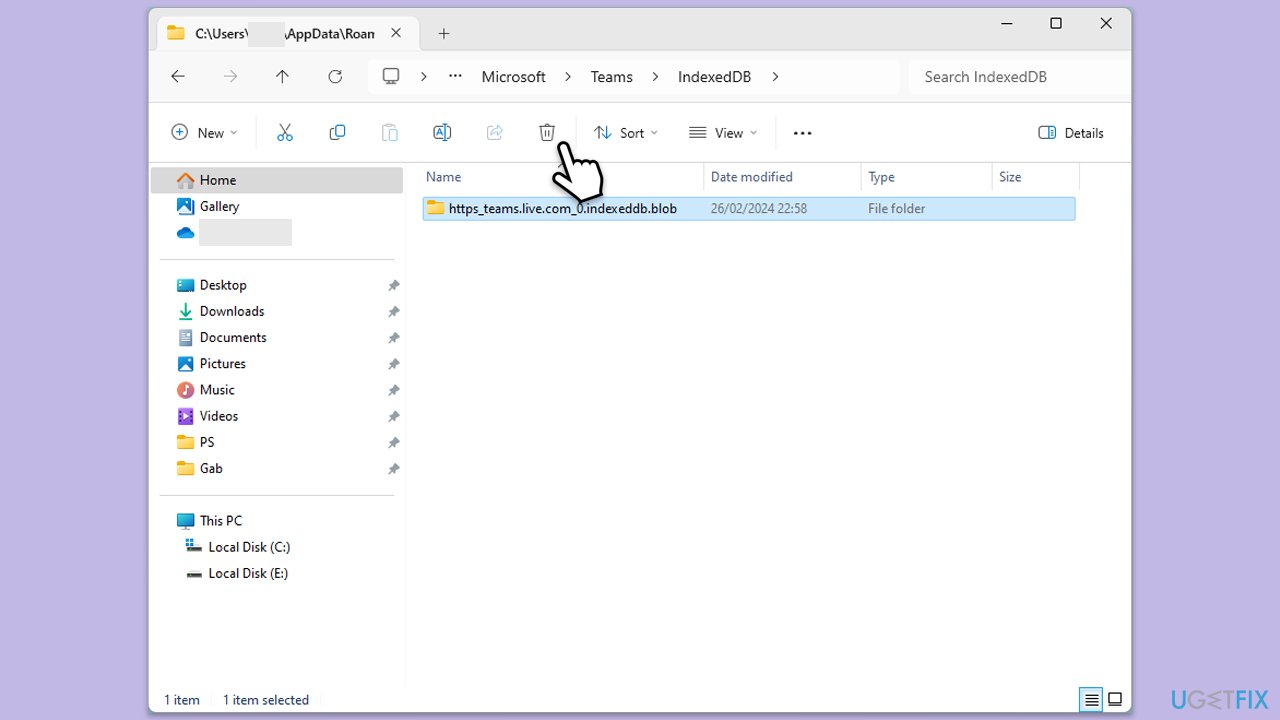
- Close down Microsoft Teams.
- Press Win + E to open File Explorer.
- Ensure Hidden files are visible.
- In the address bar, type in %appdata%\Microsoft\teams and press Enter.
- Delete the contents of the following folders:
%appdata%\Microsoft\teams\application cache\cache
%appdata%\Microsoft\teams\blob_storage
%appdata%\Microsoft\teams\Cache
%appdata%\Microsoft\teams\databases
%appdata%\Microsoft\teams\GPUcache
%appdata%\Microsoft\teams\IndexedDB
%appdata%\Microsoft\teams\Local Storage %appdata%\Microsoft\teams\tmp - Make sure you empty the Recycle Bin (or use Shift + Del combination to delete these files).
- Restart your computer.
Fix 5. Update Microsoft Teams
Running an older version of the app might mean you’re missing fixes for connectivity issues that Teams has already patched.
- Open Microsoft Teams.
- Click on the Settings and more button at the top-right corner.
- Select Check for updates.
- Teams will automatically download and install any available updates.
- Restart Teams after the update is completed.

Fix 6. Enable TLS protocols
Modern security standards are a must for Teams, and outdated protocols on your system could quietly derail its ability to connect.
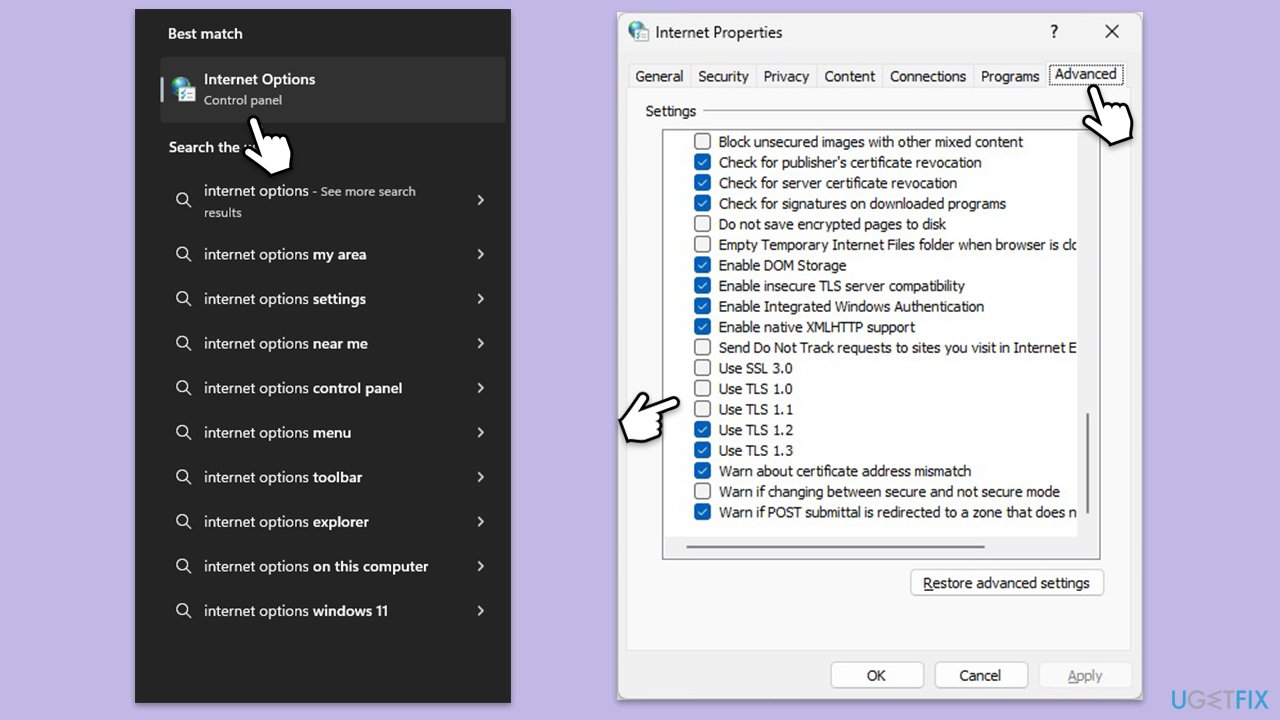
- Type Internet Options in Windows search and press Enter.
- Go to the Advanced tab.
- Scroll down to the Security section.
- Ensure the following settings are applied:
- SSL 3.1, TLS 1.0, and TLS 1.1 are disabled.
- TLS 1.2 and TLS 1.3 are enabled.
- Click Apply and then OK.
- Restart your PC and try using the Microsoft Teams again.
Fix 7. Reinstall Microsoft Teams
If the app’s files have gone haywire, a full reinstall can wipe out the problem and set you up with a clean slate.
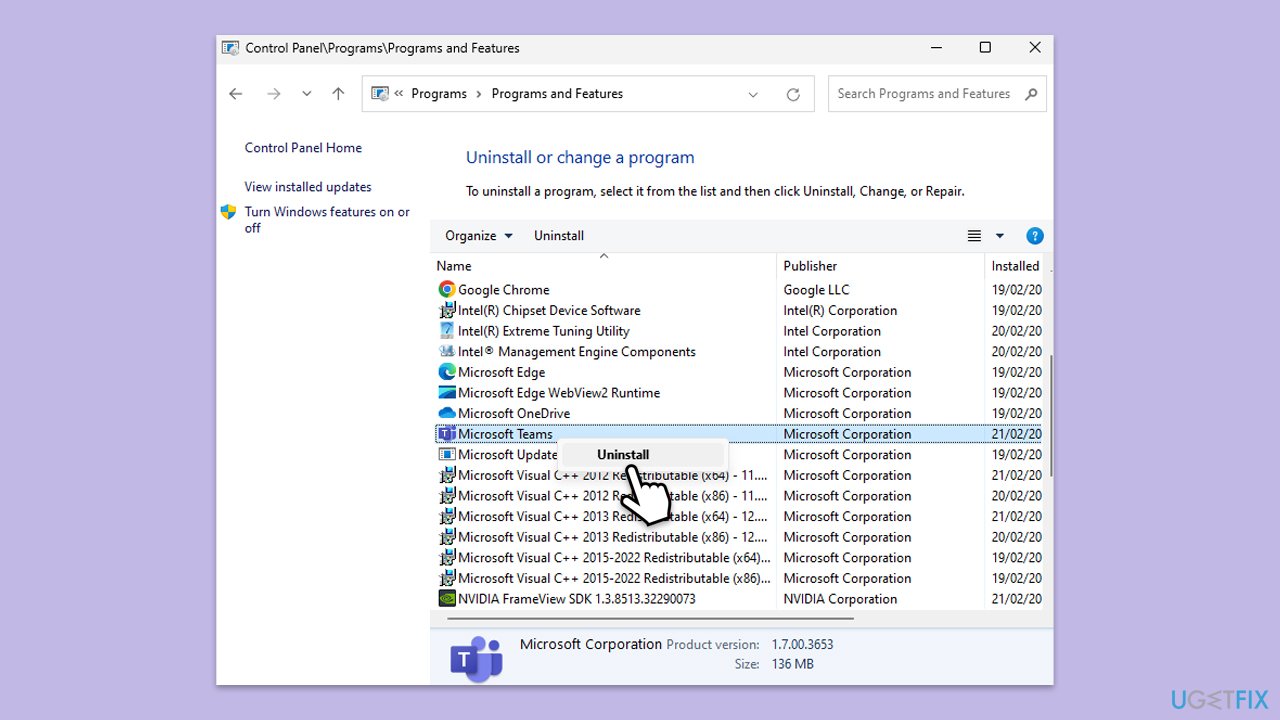
- Type Control Panel in Windows search and press Enter.
- Go to Programs > Uninstall a program.
- Find Microsoft Teams, right-click, and select Uninstall.
- Follow the prompts to remove the app.
- Once done, press Win + E to open File Explorer.
- In the View tab at the top of the window, enable Hidden Files.
- Go to C:\Program Files\WindowsApps location.
- Scroll down to find the Microsoft Teams folder and delete it (alternatively, you can rename it).
- Now type %AppData% in Windows search and press Enter.
- Delete the Teams folder here.
- Finally, restart your system and reinstall the app.
Fix 8. Repair corrupted system files
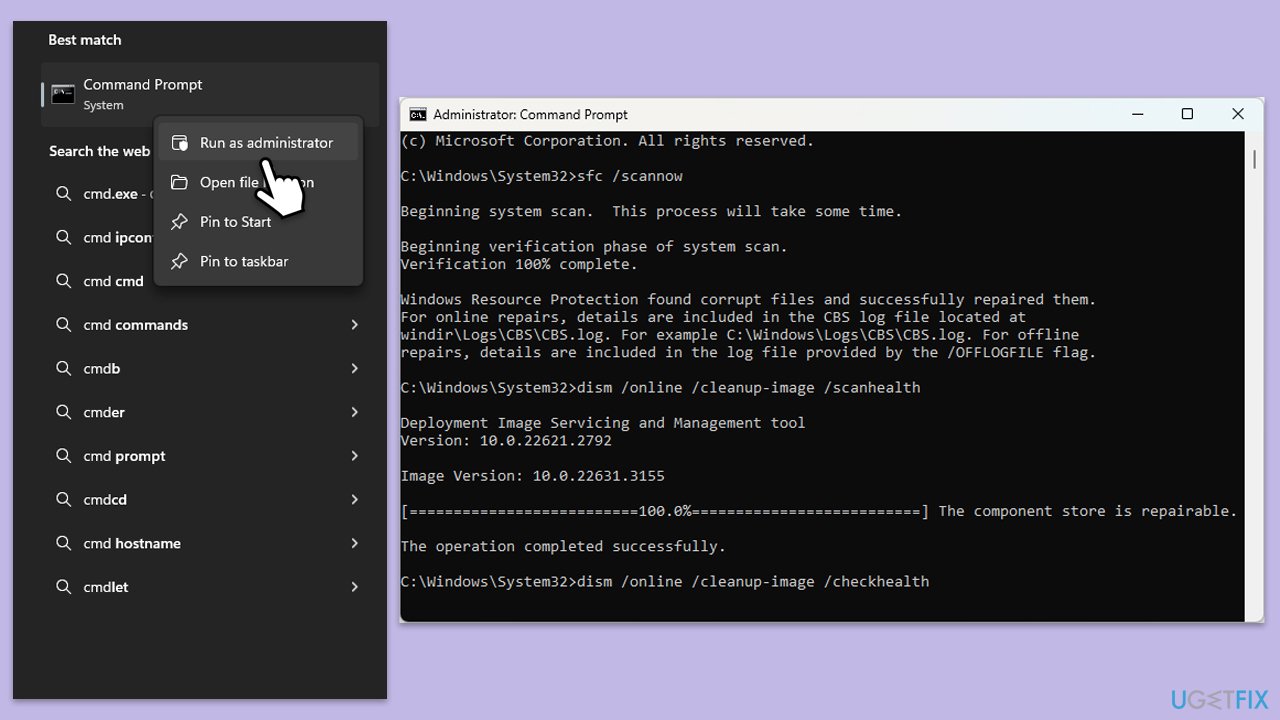
- Type cmd in Windows search.
- Right-click on Command Prompt and select Run as administrator.
- When User Account Control shows up, click Yes.
- In the Command Prompt window, paste the following command and press Enter:
sfc /scannow - Wait for the scan to complete.
- Once the SFC scan is finished, run the following set of DISM commands, pressing Enter after each one:
DISM /Online /Cleanup-Image /CheckHealth
DISM /Online /Cleanup-Image /ScanHealth
DISM /Online /Cleanup-Image /RestoreHealth
(Note: if you get an error executing this last command, add /Source:C:\RepairSource\Windows /LimitAccess to it and try again). - After completing the DISM commands, restart your computer.
Bottom line
To fix the Microsoft Teams error 0xcaa80000, check your internet connection, update your security settings, and clear any corrupted app files. If these solutions do not resolve the issue, consider using a system tool to help troubleshoot further.
Frequently asked questions
The error code 0xcaa80000 typically indicates a problem with authentication, which may prevent Microsoft Teams from connecting properly. This can be caused by network issues or incorrect account settings.
To fix the 0xcaa80000 error, try signing out of your Teams account and signing back in, or clearing the Teams cache by deleting the contents of the %appdata%\Microsoft\Teams folder.
Yes, ensure that your network connection is stable and check if any firewall or proxy settings are blocking Teams; you may need to adjust these settings to allow proper access.




Report an issue
What's wrong with this guide? We review every report and update or remove content.
Report received — thank you. We'll review and fix it.
You need a free account to submit a report.
Be the first to comment