How to fix
Windows update error 0x80244011
on Windows
Resolve Windows update error 0x80244011 with our expert-tested solutions. Quick fixes for Windows 10 and 11 ensure smooth updates, zero traces left.


What causes How to fix Windows update error 0x80244011?
- Difficulties connecting to Microsoft’s update servers
- Network constraints
- Service interruptions
- Corrupted data
- Misconfigured components
Repairs Windows system files, removes malware, and restores a clean OS state — without reinstalling.
I received error 0x80244011 when trying to apply the most recent Windows updates. Never had to deal with something like this before so I am not sure what to do.
Windows Update failures are a recurring thorn in the side of individuals who try to maintain the Windows operating system as fast and secure as possible. These happen when the operating system fails to receive or install updates and halts the deployment of patches intended to enhance functionality and protect against potential future threats.
Included among these failures is error 0x80244011 as a specific roadblock, typically causing updates to hang. Users typically initiate an update check through Settings, only to find that the system initiates its processes but soon after stops, displaying the error code 0x80244011 in the update log or as a notification.
This error often reflects issues such as difficulties connecting to Microsoft’s update servers, possibly due to network constraints or service interruptions. Alternatively, it may signal problems within the update mechanism itself, where corrupted data or misconfigured components prevent successful execution.
The lack of an immediately apparent cause complicates diagnosis, requiring users to explore various solutions systematically. When updates cannot be installed due to error 0x80244011, the consequences extend beyond mere inconvenience. The system remains exposed to unpatched vulnerabilities, risking security breaches that could compromise data integrity.
Additionally, users miss out on performance optimizations and compatibility fixes, potentially leading to software conflicts or degraded functionality over time. To address this, multiple approaches are available below, and [d1] can assist in resolving underlying Windows issues that might contribute, ensuring the system regains its ability to stay current and secure.

Fix 1. Enable or restart relevant services
Updating your system requires certain Windows services. If these are turned off, you can run into problems.
- Type in Services in Windows search and press Enter.
- Find Windows Update service.
- If it is already running, right-click and pick Restart.
- If the service is not running, double-click it, and select Automatic under the Startup type from the drop-down menu.
- Click Start, Apply, and OK.
- Repeat this process for Background Intelligent Transfer Service (BITS) and Cryptographic services.

Fix 2. Run Windows update troubleshooter
The Windows update troubleshooter can automatically identify and resolve common problems that may be impeding the proper installation of updates.
- Type Troubleshoot in Windows search and press Enter.
- Select Additional troubleshooters/Other troubleshooters.
- Find Windows Update from the list.
- Click it and select Run the troubleshooter/Run.
- Restart your PC when the update process finishes.

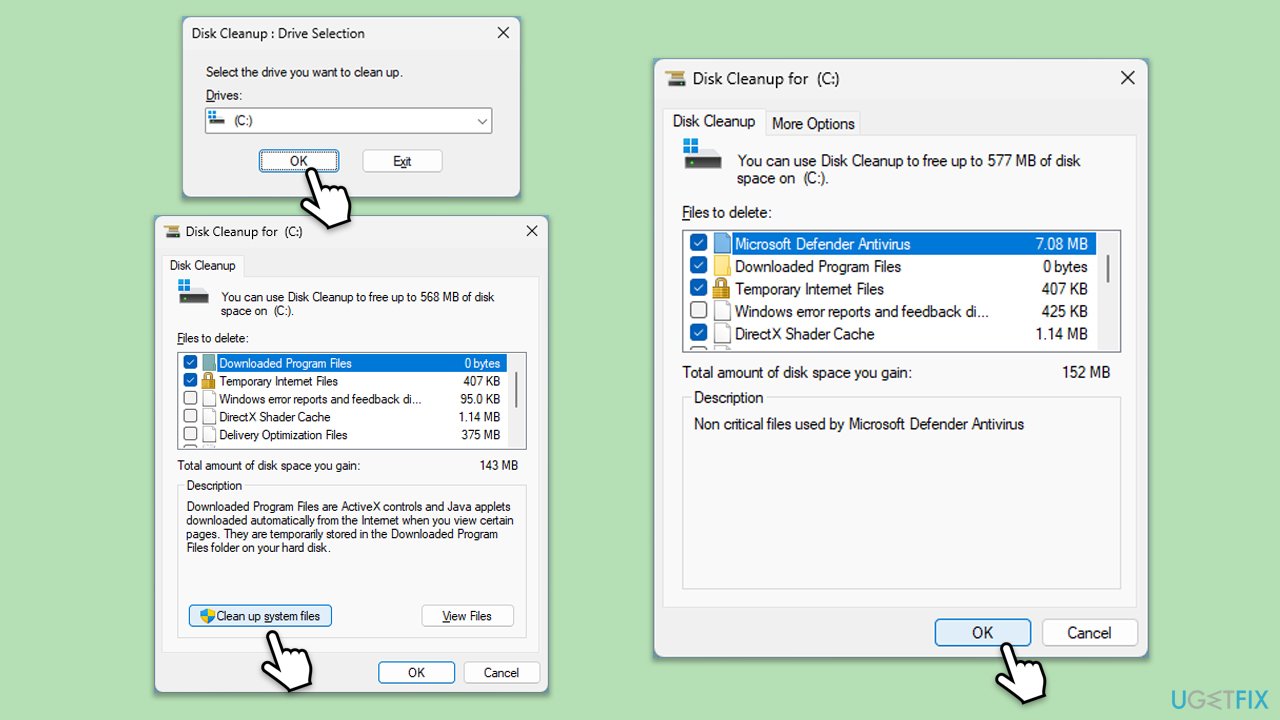
Fix 3. Perform Disk Cleanup
Issues can be present in the Windows update cache, so make sure you clean it as follows:
- Type Disk Cleanup in Windows search and hit Enter.
- If your Windows is installed on drive C, pick it from the list (it should be by default) and press OK.
- Click Clean up system files.
- Select your main disk again and click OK.
- Here, select the largest portions of the data used - these typically include Temporary Internet Files, Windows Update, Temporary Files, Recycle Bin, Delivery Optimization Files, and others.
- Click OK - the process should be finished shortly.
Fix 4. Perform a Clean Boot
A clean boot helps you identify any third-party apps that may conflict with updates.
- Type msconfig in Windows Search and press Enter to open the System Configuration window.
- Click on the Services tab and check the Hide all Microsoft Services box.
- Click Disable all to disable non-Microsoft services, then click the Startup tab.
- Open the Task Manager, disable all startup items, and close the Task Manager.
- Go to the Boot tab and mark the Safe boot option.
- Click OK on the System Configuration window and restart your computer.
- If "Show taskbar buttons on all taskbars" setting works correctly, it means that third-party software is causing the problem. To determine which app it is, enable half of the services and reboot your PC, checking if the problem is still there. Repeat the process until you find the culprit.

Fix 5. Install the update manually
You can always try to install the updates manually instead.
- Type in Updates in Windows search and press Enter.
- Select View update history.
- Find the update that failed with the 0x80244011 error and copy its KB number.
- Open your browser and go to Microsoft Update Catalog.
- Within the search bar, type in the KB number and clicks Search.
- Find the correct version of the update for your operating system (to check this, right-click on Start and pick System. Under Device specifications and check the System type) and click Download.
- Use on-screen guidelines to finish the installation process and restart your PC.

Fix 6. Reset Windows update components
Resetting Windows Update components entails restarting the BITS, Cryptographic, MSI Installer, and Windows Update Services. This can alleviate problems by emptying the update cache and restarting update services from scratch.
- Open Command Prompt as administrator.
- Stop the Windows Update-related services by running the following commands one at a time, pressing Enter after each one:
net stop wuauserv
net stop cryptSvc
net stop bits
net stop msiserver - Rename the SoftwareDistribution and Catroot2 folders by running the following commands:
ren C:\Windows\SoftwareDistribution SoftwareDistribution.old
ren C:\Windows\System32\catroot2 Catroot2.old
Note: If your Windows installation is not on the C drive, replace "C" with the appropriate drive letter. - Restart the Windows Update-related services by running the following commands:
net start wuauserv
net start cryptSvc
net start bits
net start msiserver - Reboot your computer.

Fix 7. Use Media Creation Tool
If you tried all the methods above and nothing worked, you can employ the official tool from Microsoft to repair Windows installation and update it to the latest version.
- Visit the official Microsoft website and download Windows 10 installation media (Windows 11 version).
- Double-click the installer and select Yes when UAC shows up.
- Agree to terms.
- Select Upgrade this PC now and click Next.
- Windows will start downloading the needed files.
- Agree to the terms once again and click Next.
- Before installing, make sure that you are happy with your choices (otherwise, you can click Change what to keep option).
- Finally, click Install to begin the upgrade process.

Bottom line
To fix error 0x80244011, you can enable or restart relevant services such as Windows Update and Background Intelligent Transfer Service (BITS). If these solutions do not resolve the issue, further troubleshooting may be necessary to identify underlying problems.
Frequently asked questions
The error 0x80244011 typically indicates that your Windows 10 or Windows 11 system is having trouble connecting to the Windows Update servers, often due to network issues or misconfigured settings.
To fix error 0x80244011 on Windows 10, try resetting your network settings and ensuring that your firewall or antivirus is not blocking Windows Update.
Yes, you can attempt basic troubleshooting steps such as running the Windows Update Troubleshooter and checking your internet connection on Windows 11.




Report an issue
What's wrong with this guide? We review every report and update or remove content.
Report received — thank you. We'll review and fix it.
You need a free account to submit a report.
Be the first to comment