How to fix
Xbox app error code 0x87e00004
on Windows
Resolve Xbox app error code 0x87e00004 on Windows 10 and 11 easily with our expert-tested solutions, ensuring smooth gameplay in minutes.


What causes How to fix Xbox app error code 0x87e00004 in Windows?
- Shaky network connection
- Corrupted app data
- Outdated Windows setup
- Server connection issues
- Installation or update disruptions
Repairs Windows system files, removes malware, and restores a clean OS state — without reinstalling.
Why does my Xbox app on Windows keep showing error 0x87e00004 when I try to launch a game? It won’t let me play, and rebooting doesn’t do anything. Anyone know a fix for this?
Xbox app Error 0x87e00004 on Windows 11 has a tendency to greet users when they attempt to play a game or install a title from their library. The app can start loading, but then freeze or display an error message like "Something went wrong, try again later" with the 0x87e00004 code.
Downloads may halt mid-progress, or the app might crash entirely, leaving users staring at a stalled screen. Understandably, this can be a very frustrating experience, especially when one wanted to play a game with online friends, for example.
This 0x87e00004 error can sour the gaming experience significantly. It blocks access to games, stalling playtime for those using the Xbox app or Game Pass, which is frustrating when downtime is at a premium. Beyond that, it disrupts updates or installations, potentially leaving titles outdated or unplayable, while repeated failures waste time and bandwidth.
The annoyance piles up for anyone eager to dive into their library without delay. The error’s origins vary: a shaky network might choke the app’s server connection, corrupted app data could clog the process, or an outdated Windows setup might clash with requirements.
Effective solutions hinge on the cause - if network woes are behind the 0x87e00004 error, stabilizing it helps; if it’s app corruption, a reset does the trick; if system files are off, repairs are key. Pinpointing the exact trigger takes trial and error, but the fixes below guide the way, with [d1] available to tackle underlying Windows issues that might fuel the problem.

Fix 1. Run Windows Store apps and Network troubleshooters
- Type Troubleshoot in Windows search and hit Enter.
- Select Additional troubleshooters/Other troubleshooters.
- Find Windows Update from the list and click Run the troubleshooter/Run.
- The troubleshooter will automatically scan your system for potential problems and display any issues it finds.
- If the troubleshooter finds any issues, it will provide recommended solutions - apply them.
- Repeat this with Network & Internet troubleshooter.
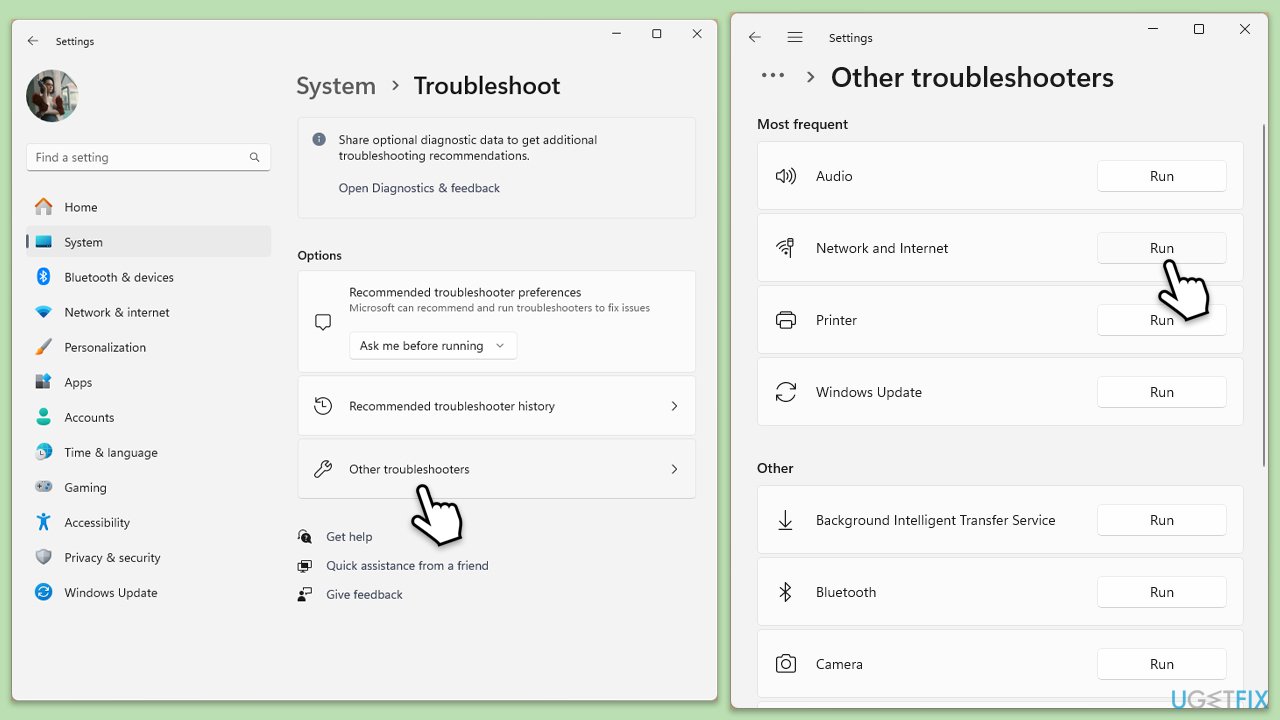
Fix 2. Update the Xbox app
Many of the compatibility problems that could be creating error 0x87e50029 can be resolved by keeping the Xbox app updated.
- Open Microsoft Store.
- Click on Library.
- If updates are pending, click Update all.
- Otherwise, click Get updates.
- You can also update the app individually.
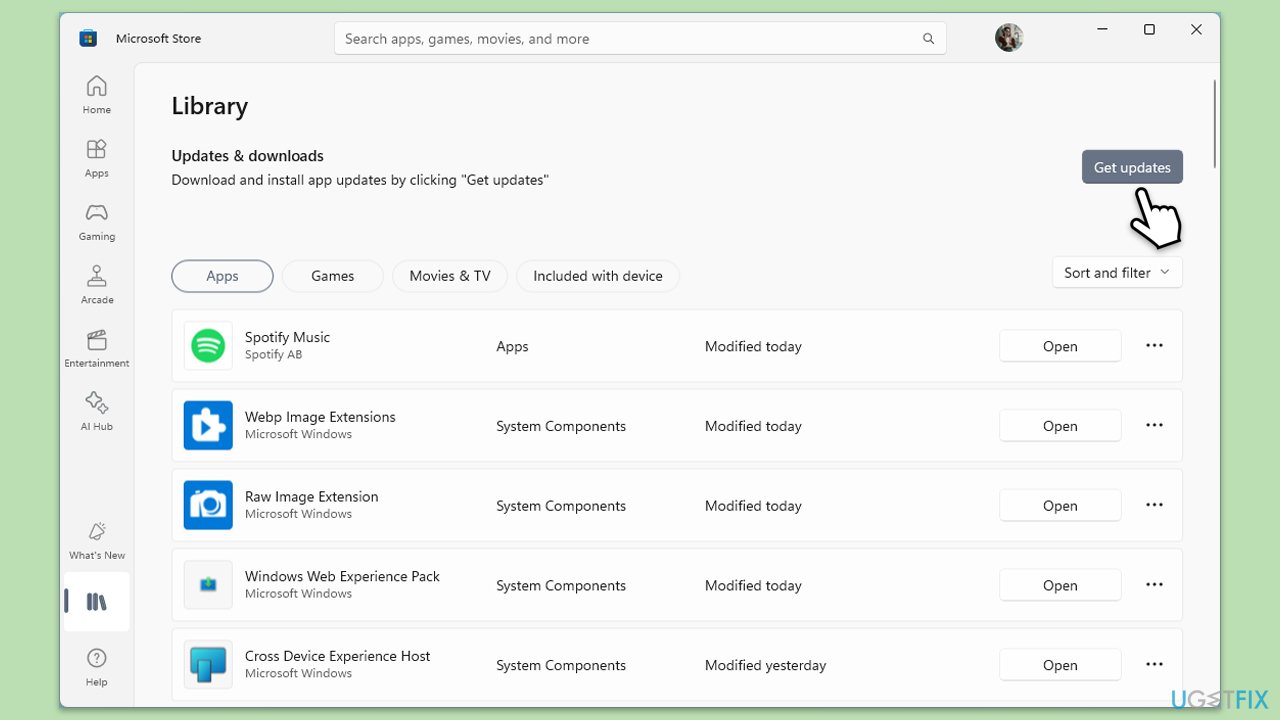
Fix 3. Update Windows
- Type Updates in Windows search and press Enter.
- When the new window opens, click Check for updates (or Install all if pending) and wait.
- If there are optional updates available, install them as well.
- After updating, restart your computer.
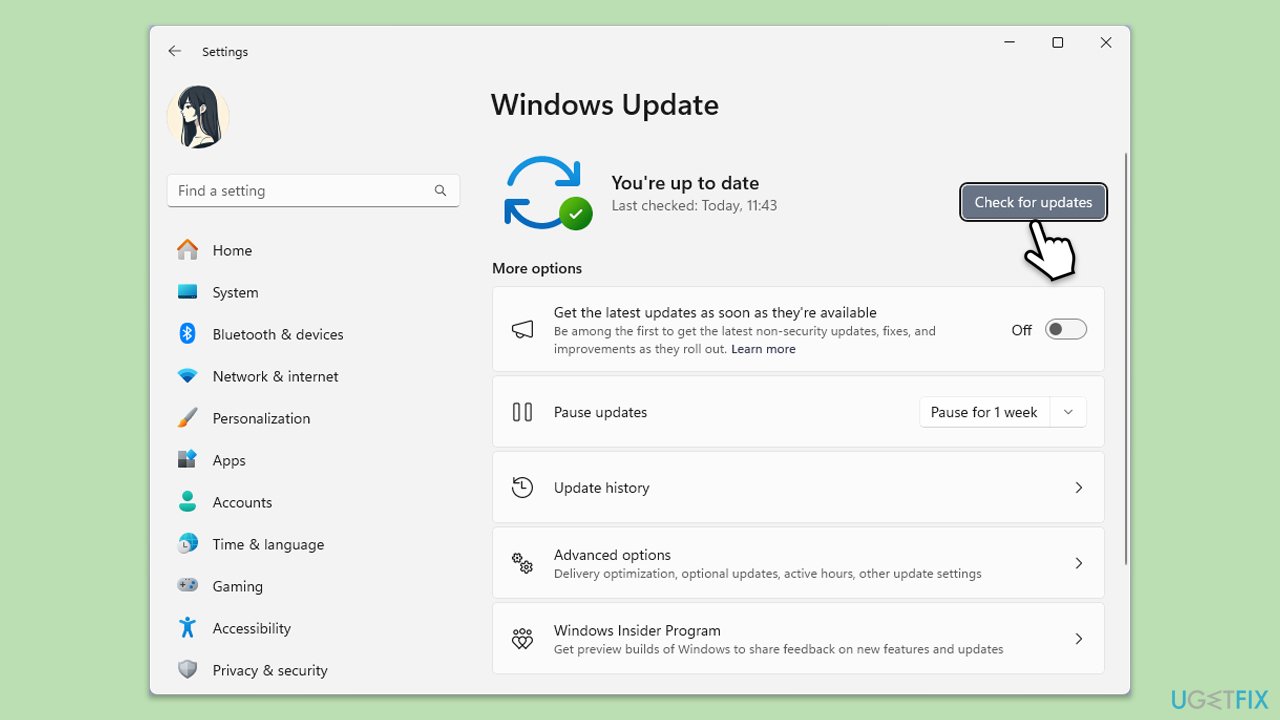
Fix 4. Clear Microsoft Store cache
If faulty data is affecting the Xbox app's functionality, problems can be fixed by clearing the Microsoft Store cache.
- Type wsreset.exe in the Windows search box and press Enter.
- Wait till a black window shows up – do not close it.
- Once it's gone, Microsoft Store should restart.
- Try using the Store again.
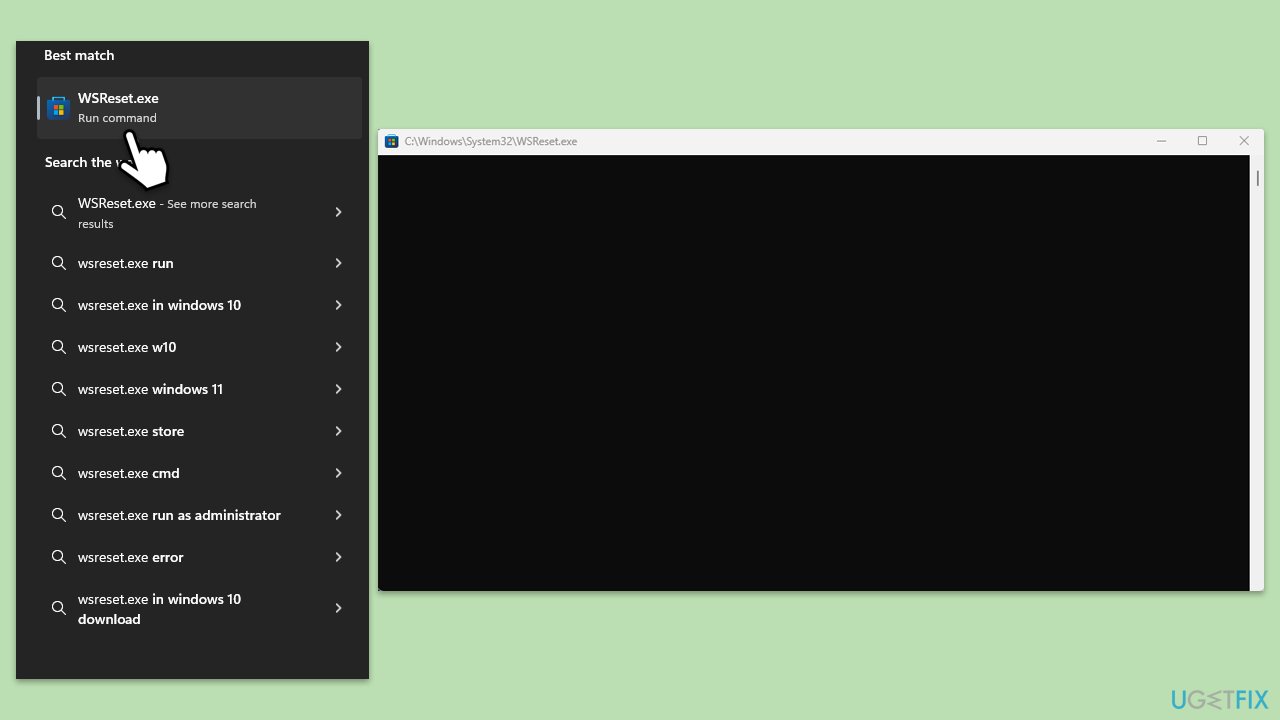
Fix 5. Repair or reset Xbox app, Microsoft Store, and Gaming services
Issues brought on by corrupt or incorrectly configured app data can be fixed by repairing or resetting the Xbox app and other associated components.
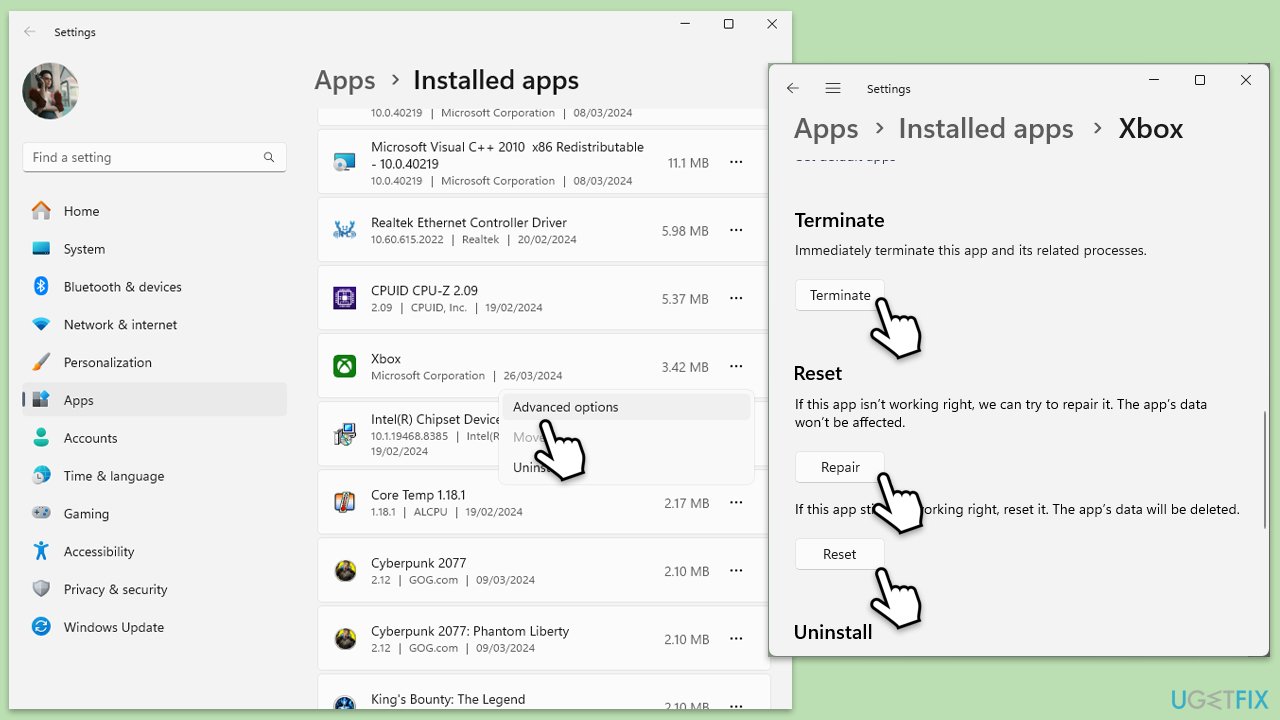
- Right-click on Start and select Apps & Features/Installed apps.
- Scroll down to find Xbox app and click Advanced options.
- Scroll down again and click Terminate and Repair.
- If that does not work, try using Reset.
- Repeat this process with Microsoft Store and Gaming Services.
Fix 6. Check services
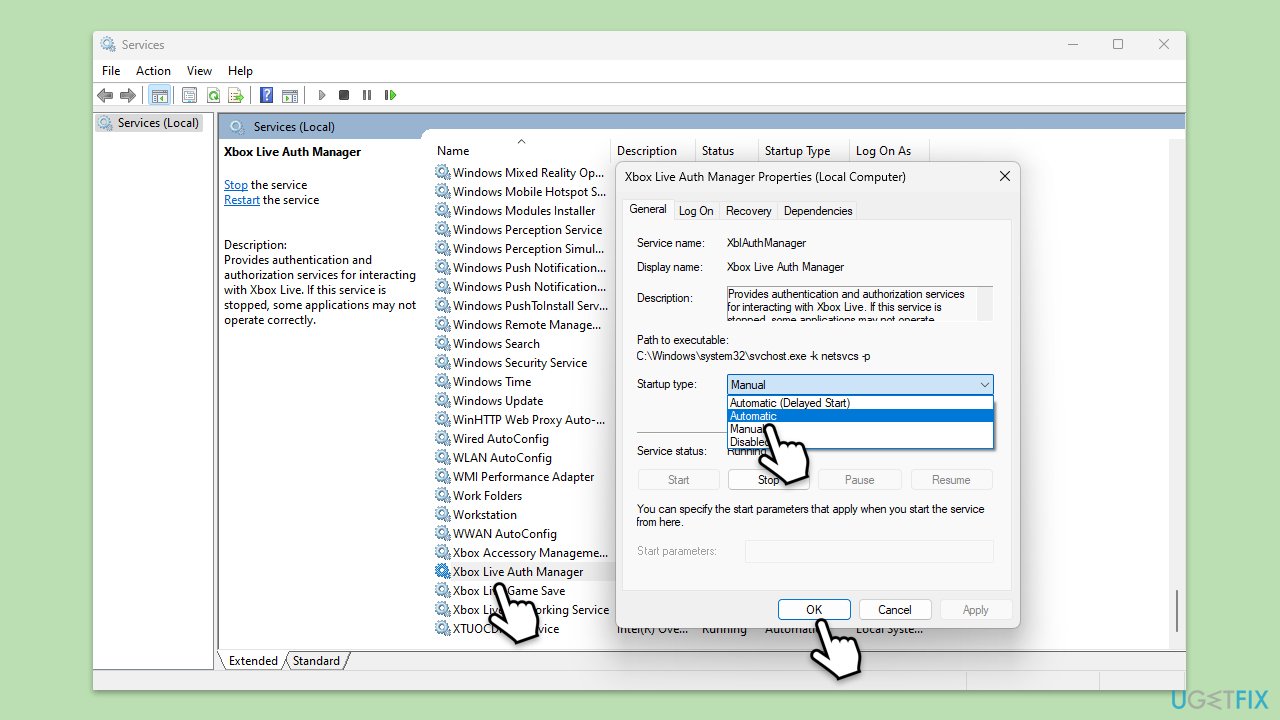
- Type Services in Windows search and press Enter.
- Scroll through the list and ensure the following services are running: Windows Update, Xbox Live Auth Manager, Xbox Live Game Save, and Xbox Live Networking Service. If any are not running, right-click on the service, select Properties, set the Startup type to Automatic, and click Start if the service is stopped.
- Click OK and close the Services window.
- Restart your device and check if the issue with the Xbox app persists.
Fix 7. Repair/verify game files
Errors like 0x87e00004 might occur when game files are corrupted, preventing games from starting.
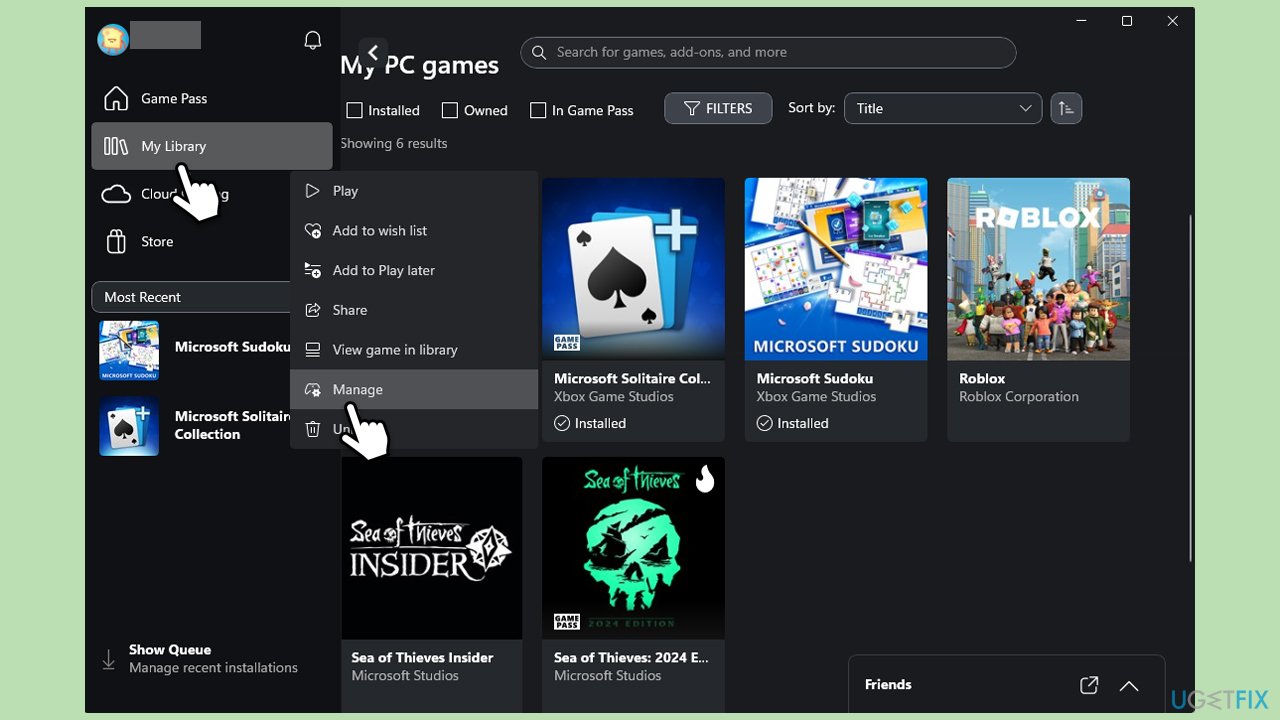
- Open the Xbox app and go to My Library.
- Right-click on the game and select Manage.
- Go to the Files section.
- Choose Verify files to scan for corrupted files and wait for the scan to complete.
Fix 8. Reinstall the Xbox app
Issues like corrupted app files can be resolved by reinstalling the Xbox app.
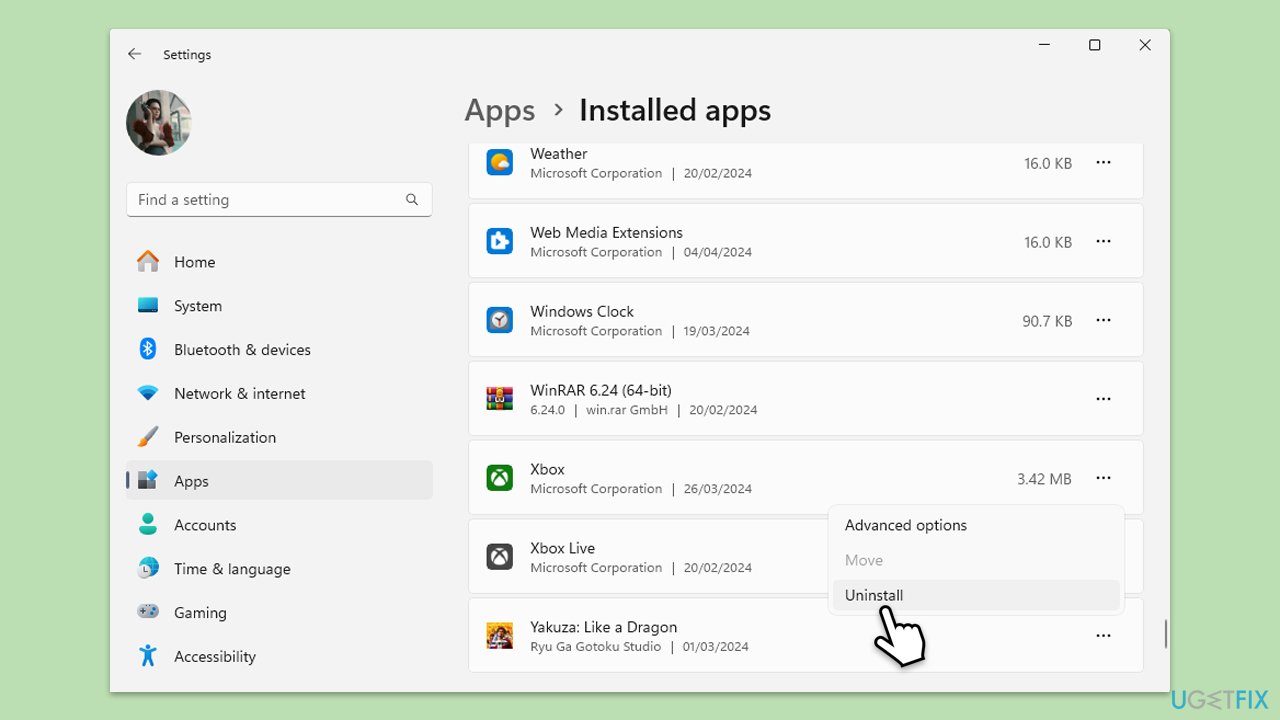
- Right-click on Start and pick Apps & Features/Installed apps.
- Scroll down to the Xbox app, select it (or click three vertical dots), and click Uninstall.
- Confirm any prompts and follow on-screen instructions.
- Restart your system.
- Reinstall the app from the Microsoft Store.
Bottom line
To fix the Xbox app error code 0x87e00004, users can run the Windows Store apps and Network troubleshooters, stabilize their network, reset the app, or repair system files. If these solutions do not resolve the issue, further investigation into the specific cause may be necessary.
Frequently asked questions
The error code 0x87e00004 typically indicates that the Xbox app is unable to connect to the Xbox services, often due to network issues or corrupted app data.
To fix this error, try resetting the Xbox app via Settings > Apps > Apps & features, then select Xbox and choose 'Advanced options' to reset it.
Yes, ensuring that your Windows 10 or Windows 11 is up to date can help resolve compatibility issues that might contribute to the error code 0x87e00004.




Report an issue
What's wrong with this guide? We review every report and update or remove content.
Report received — thank you. We'll review and fix it.
You need a free account to submit a report.
Be the first to comment