How to fix
“Application was unable to start correctly (0xc00004ac)” error
on Windows
Resolve the "Application was unable to start correctly (0xc00004ac)" error in Windows 10 and 11 effortlessly with expert-tested solutions. Fixed in minu…


What causes How to fix “Application was unable to start correctly (0xc00004ac)” error in Windows?
- Security or system integrity concerns
- Compromised system files
- Missing or corrupted application pieces
- Conflicts from recent Windows updates or third-party programs
- Old drivers, especially graphics or system drivers
Repairs Windows system files, removes malware, and restores a clean OS state — without reinstalling.
Each time when I boot my PC, I keep seeing the following error message: "Application was unable to start correctly (0xc00004ac). Click OK to close the application." I tried to search online but I couldn't find anything. Any advice?
The "Application was unable to start correctly (0xc00004ac)" error in Windows is a frustrating issue that usually occurs when the operating system doesn't allow an application to run due to security or system integrity concerns. The error code is typically linked with Windows security functions like Memory Integrity (a part of Core Isolation), which rigorously implements code-signing rules to prevent malicious or unsigned applications from launching.
When an application lacks a valid digital signature or is in opposition to such security settings, Windows halts its execution and the 0xc00004ac error takes place.
Aside from security options, other potential culprits could be compromised system files, missing or corrupted application pieces, or conflicts resulting from recent Windows updates or third-party programs. For some users, this issue occurs randomly among various programs, but for others, it's a recurring hurdle to opening specific applications. Fortunately, there are a number of troubleshooting measures that can address the problem, based on its cause.
A common perpetrator is the Memory Integrity feature that uses Virtualization-Based Security (VBS) to protect the system. Disable it, and programs might get to run around these tight security checks, losing a little security in the process. Or system files that get corrupted as the result of a failed update, malware, or disk issues can prevent apps from initializing correctly and require tools like SFC or DISM to repair them.
Old drivers, especially graphics or system drivers, can also be the culprit, so an update of drivers is another solution. In more stubborn cases, reinstalling the offending application or even a Windows reset might be needed to get things back online.
Here, you will find step-by-step guidance to repair this error. Before you go ahead with manual repairs, we recommend that you try [d1], an all-in-one PC repair tool, which can automatically detect and repair system file corruption, DLL problems, and other Windows issues, which may be causing the 0xc00004ac error.

Fix 1. Disable Memory Integrity
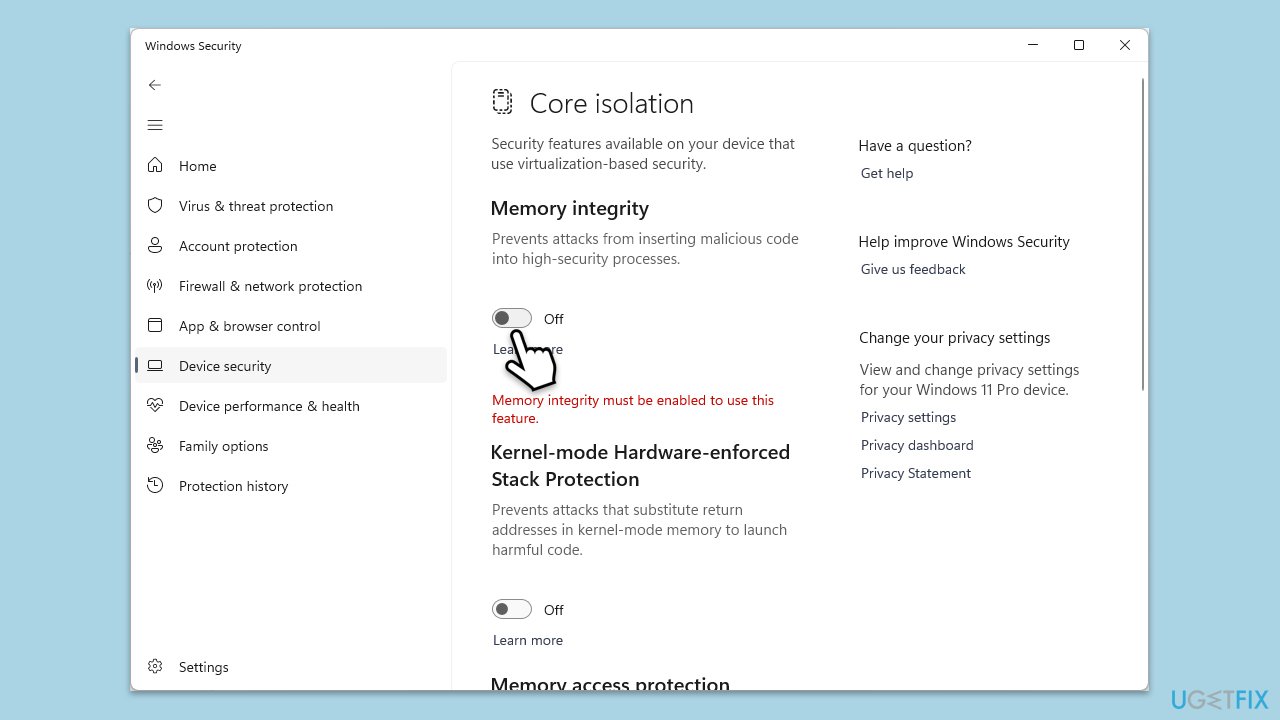
Windows security features like Memory Integrity can block applications that don’t meet strict code-signing standards, leading to launch failures. Turning this off relaxes those restrictions and may allow the problematic app to run.
Windows 11:
- Right-click on Start and pick Settings.
- Go to Privacy & Security.
- Click Windows Security and open Device Security.
- Under Core Isolation, click Core isolation details.
- Toggle Memory Integrity off and restart your PC.
Windows 10:
- Open Settings.
- Navigate to Update & Security, then to Windows Security.
- Select Device security.
- Scroll down to the Core isolation section.
- Click Core isolation details.
- Under Memory integrity, ensure the switch is set to the OFF position.
Fix 2. Run SFC and DISM scans
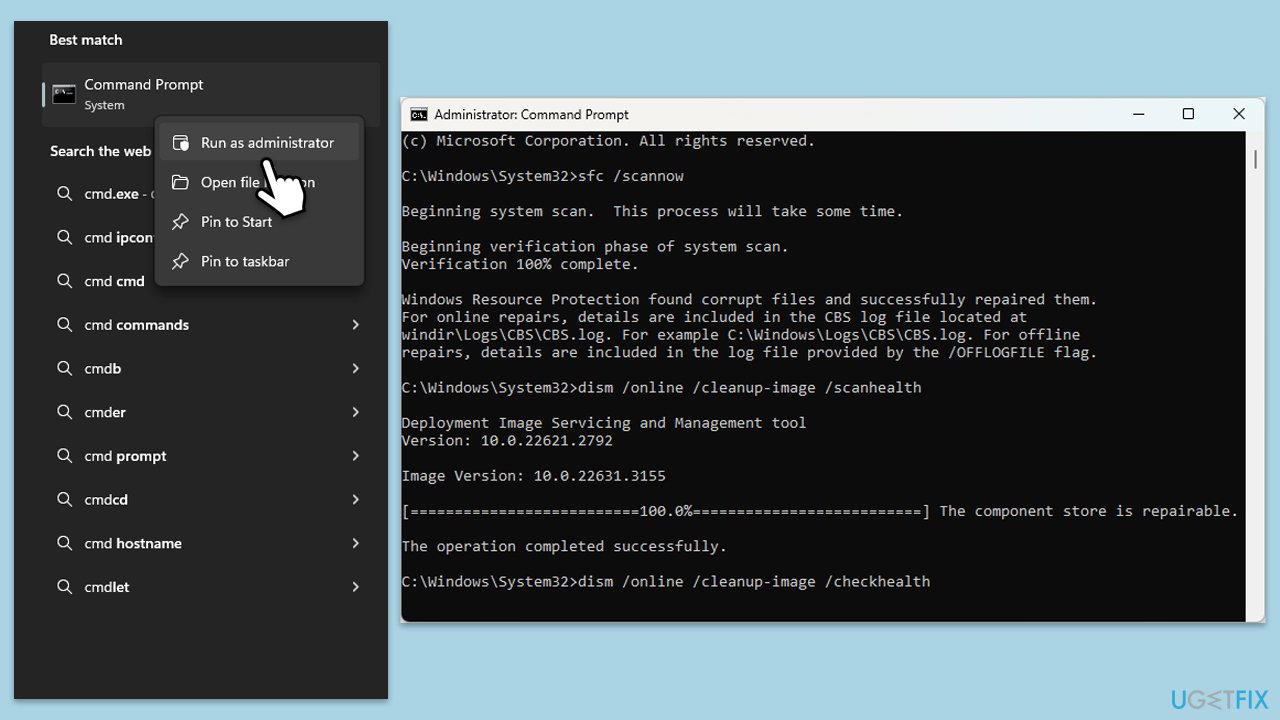
Damaged or missing system files can prevent applications from starting correctly, triggering errors. Running System File Checker and DISM can repair these files and restore system stability.
- Type in cmd in Windows search.
- Right-click on Command Prompt and select Run as administrator.
- In the User Account Control window, click Yes.
- In the Command Prompt window, paste the following command and hit Enter:
sfc /scannow - Next, use the following commands, pressing Enter each time:
Dism /Online /Cleanup-Image /CheckHealth
Dism /Online /Cleanup-Image /ScanHealth
Dism /Online /Cleanup-Image /RestoreHealth
(Note: if you get an error executing this last command, add /Source:C:\RepairSource\Windows /LimitAccess to it and try again). - Wait for the DISM scan to complete, then restart your computer.
Fix 3. Update device drivers
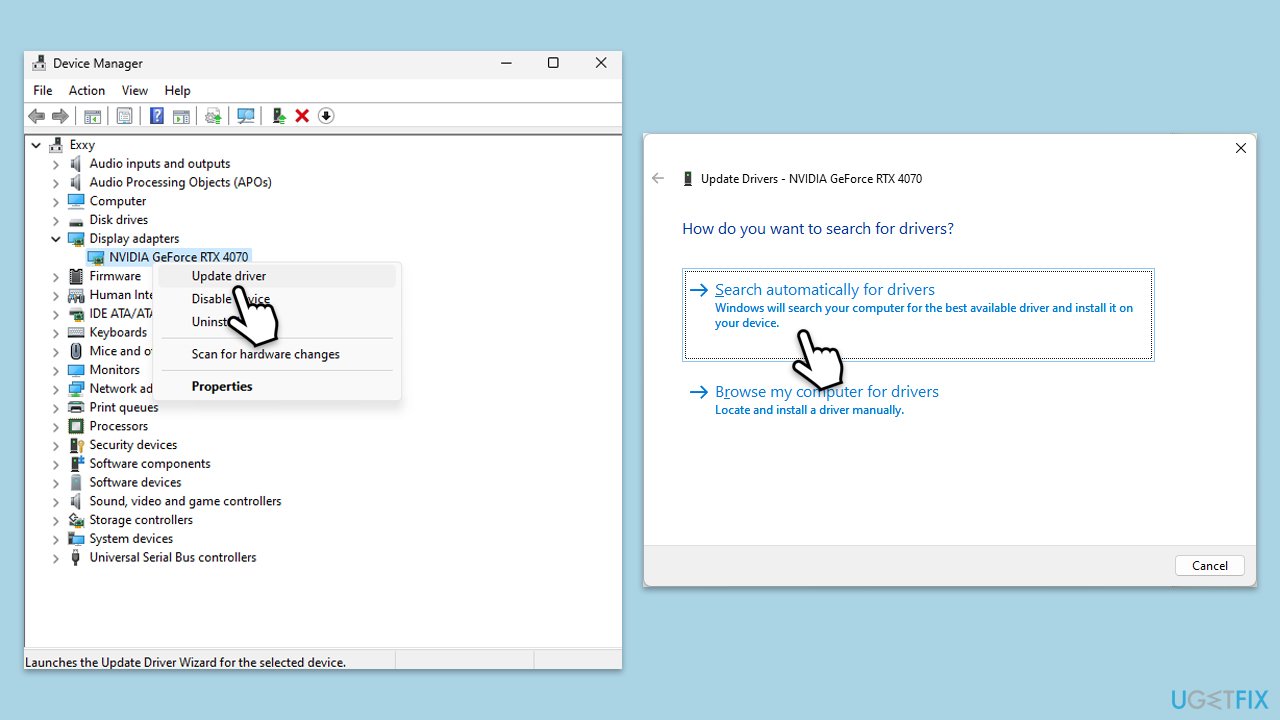
Outdated or incompatible drivers, particularly for graphics or system components, can cause conflicts that stop apps from launching. Updating them ensures compatibility with Windows and the affected applications.
- Right-click on Start and select Device Manager from the menu.
- Expand categories like Display adapters or Sound, video and game controllers.
- Right-click each device and select Update driver.
- Choose Search automatically for drivers and follow the prompts.
- Restart your computer after updating all relevant drivers.
- For a more robust and quick way to update drivers, we recommend choosing [rev id="DriverFix"].
Fix 4. Reinstall the affected application
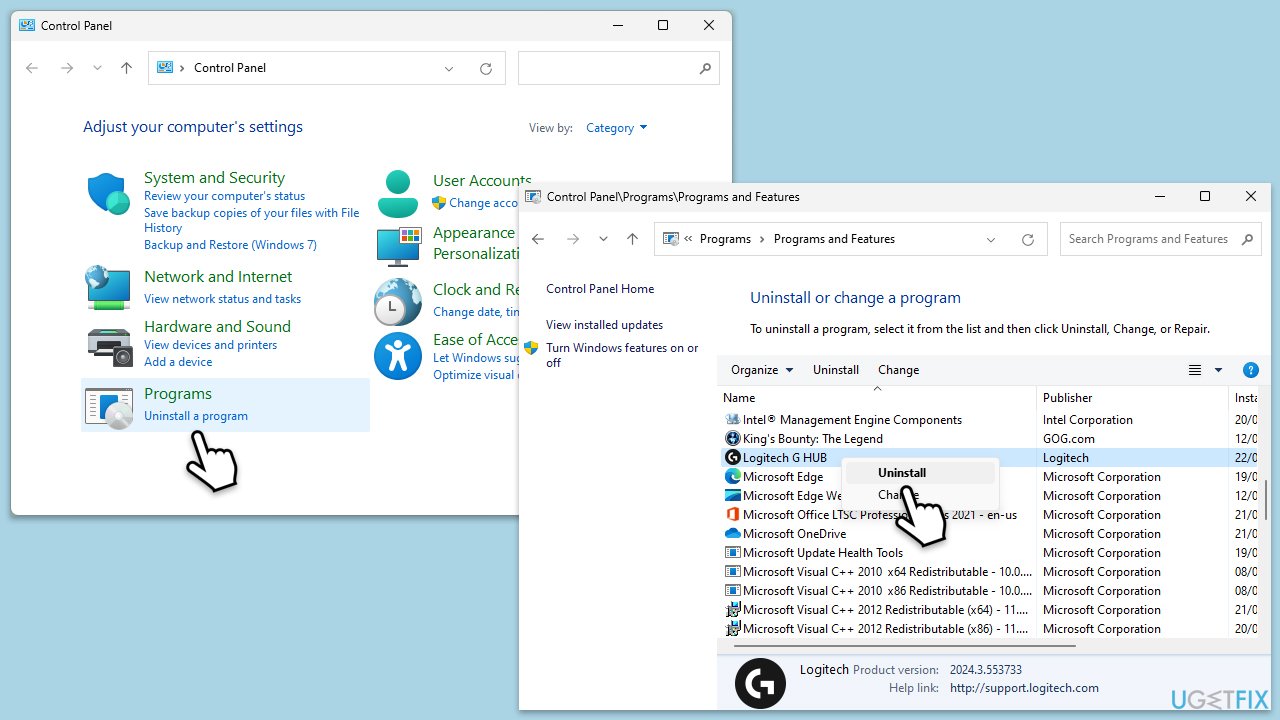
If the application’s own files are corrupted or improperly installed, it might fail to launch, resulting in this error. Reinstalling it replaces damaged components with a fresh copy.
- Type Control Panel in Windows search and press Enter.
- Select Programs > Installed programs.
- Scroll down to find the app referenced in the error message.
- Right-click on the app and select Uninstall.
- Follow on-screen instructions to finish the process.
Fix 5. Reset Windows
When all else fails, a deeper system issue might be at play, such as widespread corruption from updates or malware. Resetting Windows reinstalls the OS while keeping your files, potentially resolving the error.
- Right-click on Start and then select Settings.
- Go to Update & Security and pick Recovery on the left side of the window.
- Find Reset this PC section and click Get Started.
- Select Keep my files and Cloud download.
- Next, pick whether you want to reinstall the apps.
- Click Reset.
- Your system will restart, and the process of Windows reset will begin.

Bottom line
To fix the 'Application was unable to start correctly (0xc00004ac)' error, you can disable the Memory Integrity feature, repair system files using SFC or DISM, update drivers, or reinstall the problematic application. If these solutions do not resolve the issue, consider performing a Windows reset.
Frequently asked questions
The error code 0xc00004ac indicates that an application failed to start correctly due to various issues, such as corrupted files or incompatible software. It is commonly encountered during application launches.
To troubleshoot the 0xc00004ac error in Windows 11, you can try running the application as an administrator, checking for Windows updates, or reinstalling the problematic application. Additionally, running the System File Checker (SFC) can help repair corrupted system files.
Yes, reinstalling the application can often resolve the 0xc00004ac error in Windows 10, especially if the application files are corrupted. Make sure to restart your computer after uninstalling and before reinstalling the application.




Report an issue
What's wrong with this guide? We review every report and update or remove content.
Report received — thank you. We'll review and fix it.
You need a free account to submit a report.
Be the first to comment