How to fix
OneDrive error code 0x8004de25
on Windows
Resolve OneDrive error code 0x8004de25 effortlessly on Windows 10 or 11. Get expert solutions and troubleshoot like a pro—fixed in minutes!


What causes How to fix OneDrive error code 0x8004de25 in Windows?
- OneDrive setting corruption
- Outdated app versions
- Incompatibility with cached credentials
- Network issues such as firewall blocking or proxy settings
- File corruption or incorrectly configured services
Repairs Windows system files, removes malware, and restores a clean OS state — without reinstalling.
I’ve been trying to sign into OneDrive on my Windows 11 PC, but I keep getting an error code 0x8004de25 with a message saying There was a problem signing you in. I can’t sync my files, and sometimes OneDrive won’t even open properly. Not only that, but I’ve tried restarting my computer and signing out, but the error keeps coming back. Any ideas?
Microsoft's cloud storage service, OneDrive, is highly integrated into Windows 10 and 11, enabling users to sync files, backup data, and access documents across devices without any hassle. It's an essential tool for many, particularly those who depend on it for work or personal file management. Nevertheless, users may face problems such as the error code 0x8004de25, which hinders the process of signing in and syncing files efficiently.
This error is most often seen with the message There was a problem signing you in, which prevents OneDrive from signing your account. For others, the app will not even launch. Others may see sync operations hang indefinitely.
The 0x8004de25 error most often points to authentication issues, where OneDrive is unable to authenticate your Microsoft account credentials. Common causes of the error include OneDrive setting corruption, outdated app versions, or incompatibility with cached credentials that will not allow sign-in. Network issues, i.e., firewall blocking or proxy settings, can also stop OneDrive from connecting to Microsoft servers. System problems such as file corruption, incorrectly configured services, or disruption from third-party antivirus may be the cause of the error too.
There are certain troubleshooting methods that can remedy this state depending on its causative factor. OneDrive reset, app updating, or cache clearing of credentials generally fixes the authentication problem.
Network adjustments or system repairs might be necessary for more complex cases. The instructions below provide eight detailed fixes to get OneDrive working again. For a quicker solution, we recommend using [d1], a PC repair tool that can automatically address system file corruption, service errors, and other Windows issues potentially causing the 0x8004de25 error.

Fix 1. Sign out and sign back into OneDrive
Authentication glitches can prevent OneDrive from verifying your account, leading to sign-in errors. Signing out and back in refreshes the session and may resolve the issue.
- Right-click the OneDrive icon in the taskbar.
- Select Settings.
- Go to the Account tab.
- Click Unlink this PC.
- Sign in again with your Microsoft account.

Fix 2. Reset OneDrive
Corrupted OneDrive settings or cache can cause persistent sign-in issues, which a reset can fix by restoring the app to its default state without deleting your synced files.
- Press Win + R on your keyboard.
- When the Run window opens, copy and paste the following text into it:
%localappdata%\Microsoft\OneDrive\onedrive.exe /reset
(Note: you might get an error here. In that case, use %programfiles(x86)%\Microsoft OneDrive\onedrive.exe /reset or C:\Program Files (x86)\Microsoft OneDrive\onedrive.exe /reset instead) - Press Enter or click OK.
- After this command is executed, the app should be reset, and OneDrive should open.
- If it doesn't, wait a few minutes, then open the Run window again and use the following command:
%localappdata%\Microsoft\OneDrive\onedrive.exe - Press Enter.

Fix 3. Update OneDrive to the latest version
An outdated OneDrive app might have compatibility issues with Windows or Microsoft servers, leading to sign-in failures. Updating ensures you have the latest fixes.
- Open the OneDrive app on your PC.
- Click on the Help & Settings icon in the notification area.
- Select Settings.
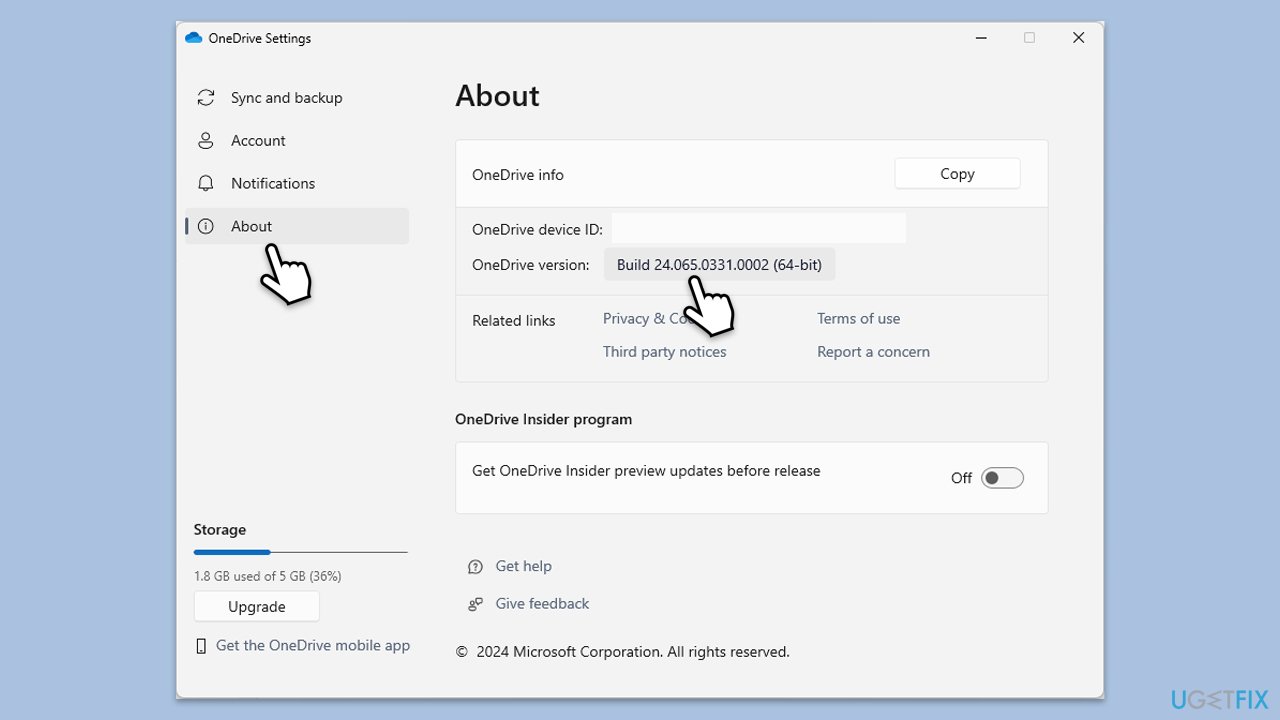
- In the settings menu, go to the About tab.
- Click on the OneDrive version - this should open the browser and the release notes from Microsoft.
- If the latest version listed there matches with the one on your app, you are up to date.
- If the version does not match, simply click on Download OneDrive for Windows, follow the installation instructions and it will install the latest version on your device.
Fix 4. Clear cached credentials
Old or corrupted credentials stored in Windows can interfere with OneDrive’s authentication process, causing the error. Clearing them removes problematic entries.
- Close OneDrive.
- Type Control Panel in Windows search and press Enter.
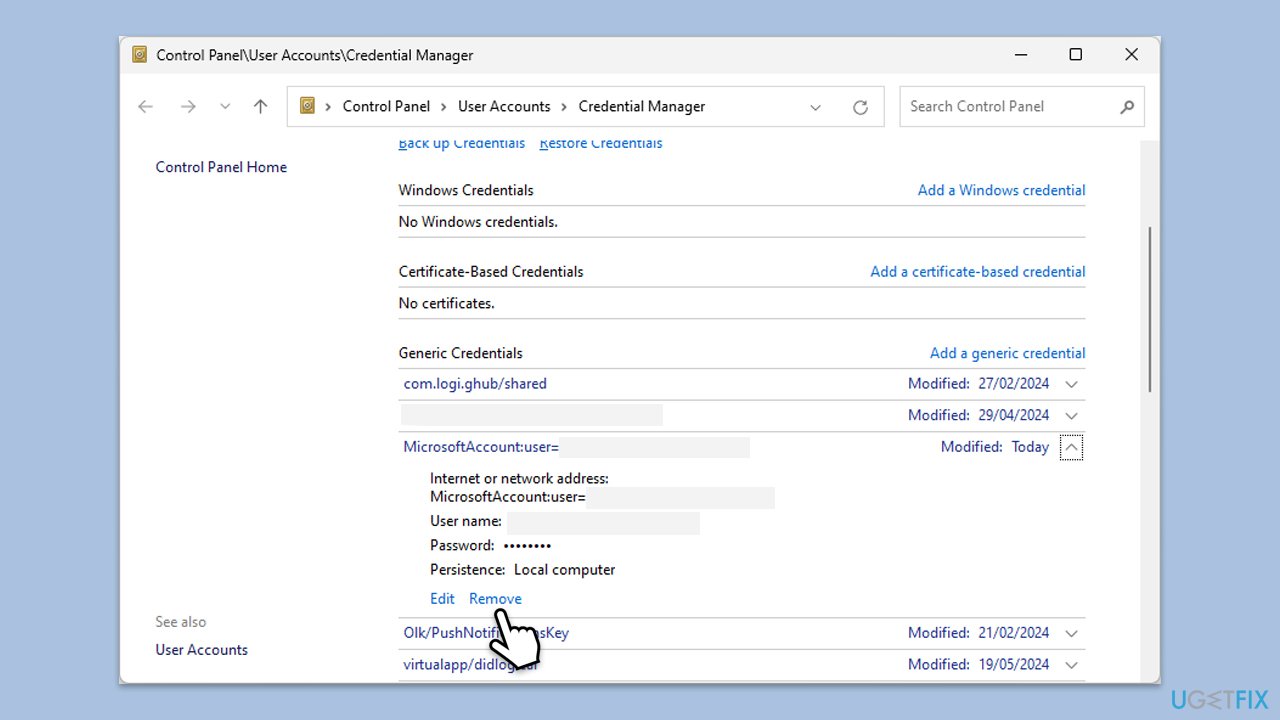
- Go to User Accounts > Credential Manager.
- Go to the Windows Credentials section.
- Scroll down to the Generic Credentials section.
- Remove all OneDrive credentials as required.
- Sign in again.
Fix 5. Check network and firewall settings
Network restrictions, such as firewalls or proxies, can block OneDrive from connecting to Microsoft servers, resulting in sign-in errors. Adjusting these settings can help.
- Right-click on Start and select Settings.
- Go to Network & internet > Proxy and ensure Use a proxy server is turned off (unless required).
- Open Windows Security by searching for it in the Start menu.
- Go to Firewall & network protection > Allow an app through firewall.
- Ensure OneDrive is listed and allowed for both private and public networks.
- Restart OneDrive and attempt to sign in.

Fix 6. Repair corrupted system files
Corrupted system files can disrupt OneDrive’s ability to authenticate, leading to errors like 0x8004de25. SFC and DISM tools can repair these files and restore functionality.
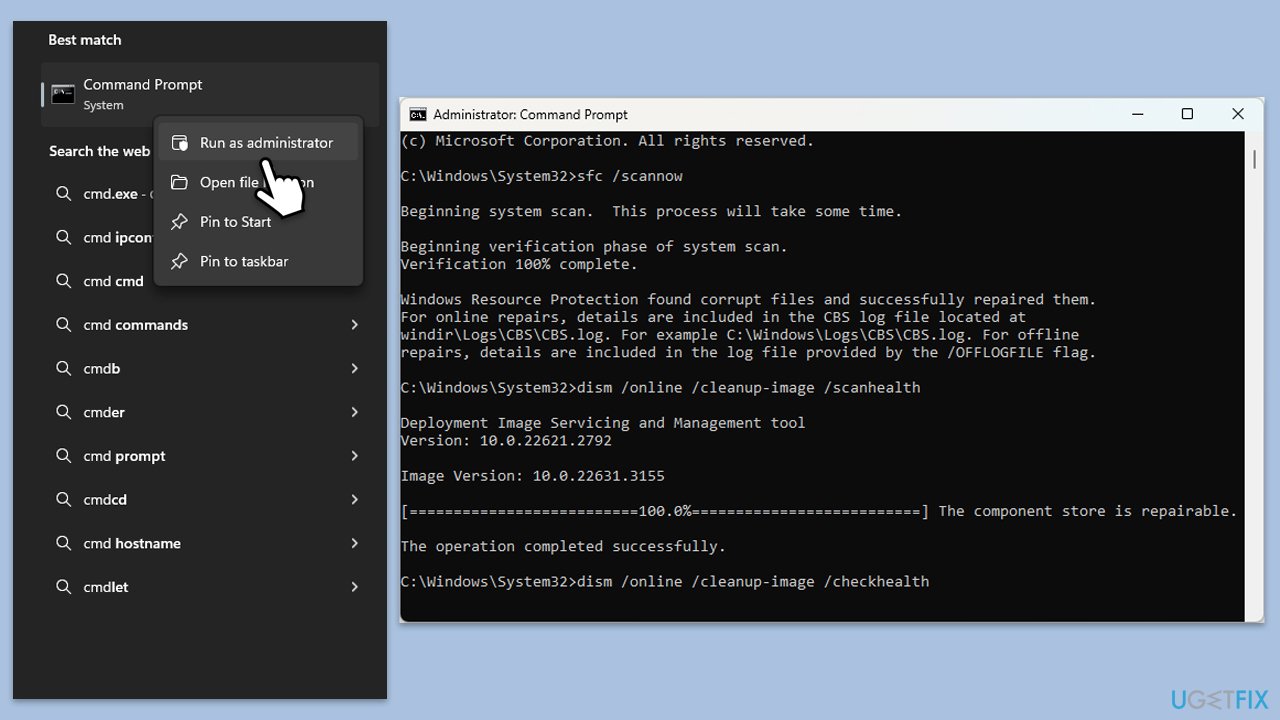
- Type cmd in Windows search.
- Right-click on Command Prompt and pick Run as administrator.
- When User Account Control shows up, click Yes.
- Use the following command lines, pressing Enter after each:
sfc /scannow - The System File Checker will now scan your system for any corrupted or missing files and try to repair them.
- After the scan is done, copy the following commands and press Enter:
DISM /Online /Cleanup-Image /CheckHealth
DISM /Online /Cleanup-Image /ScanHealth
DISM /Online /Cleanup-Image /RestoreHealth
(Note: if you get an error executing this last command, add /Source:C:\RepairSource\Windows /LimitAccess to it and try again). - Once the process completes, restart your system.
Fix 7. Reinstall OneDrive
If OneDrive’s installation is damaged, it might fail to sign in properly. Reinstalling it replaces corrupted files with a fresh copy of the app.
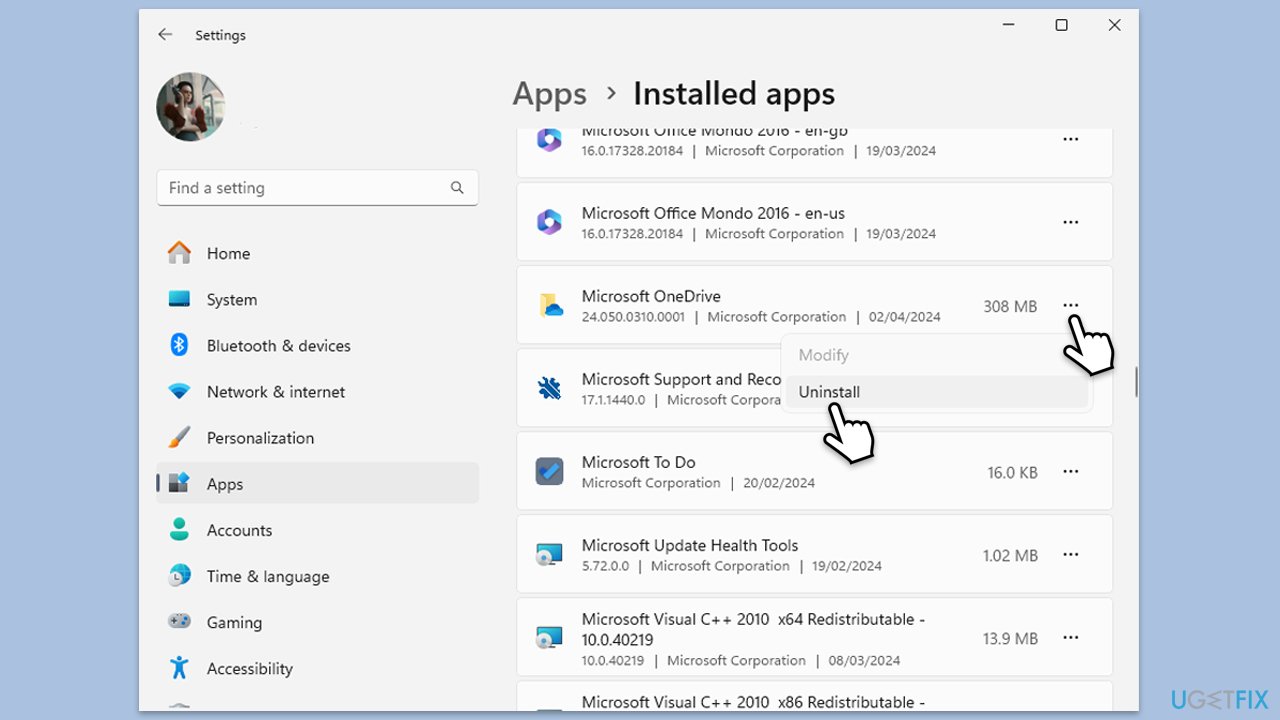
- Right-click on Start and pick Apps and Features/Installed apps.
- Scroll down and find Microsoft OneDrive.
- Click Uninstall and follow the prompts to remove the app.
- Next, open File Explorer and make sure Hidden items are visible.
- Navigate to the following locations and delete all contents from OneDrive folders located in the following directories (replace USERNAME with your username):
C:\Users\USERNAME\AppData\Local\
C:\Users\USERNAME\AppData\Local\Temp
C:\Users\USERNAME\AppData\LocalLow\Temp
C:\Windows\Temp - Restart your system.
- Once rebooted, open your browser and go to the official Microsoft site to download OneDrive.
Fix 8. Temporarily disable third-party antivirus
Third-party antivirus software can interfere with OneDrive’s connection to Microsoft servers by blocking its processes, leading to sign-in failures. Temporarily disabling it can help.
- Locate your antivirus icon in the system tray (bottom-right corner).
- Right-click the icon and look for an option like Disable or Pause protection.
- Select a temporary disable option.
- Open OneDrive and attempt to sign in while the antivirus is disabled.
Bottom line
To fix the OneDrive error code 0x8004de25, you can try signing out and signing back into OneDrive, resetting the app, updating it, or clearing cached credentials. If these methods do not resolve the issue, consider making network adjustments or performing system repairs.
Frequently asked questions
This error typically indicates that OneDrive is unable to connect to the server, often due to network issues or account problems.
You can fix this error by checking your internet connection, resetting OneDrive, or signing out and back into your OneDrive account.
To prevent this error, ensure your Windows 11 is up to date, maintain a stable internet connection, and regularly check your OneDrive settings.




Report an issue
What's wrong with this guide? We review every report and update or remove content.
Report received — thank you. We'll review and fix it.
You need a free account to submit a report.
Be the first to comment