How to fix
KB5053643 fails to install
on Windows
Fix the KB5053643 installation error in Windows 10 effortlessly with our expert-tested solutions. Get your updates back on track in minutes!

What causes How to fix KB5053643 fails to install in Windows 10?
- Corrupted Windows Update components
- Interference from third-party software
- Low disk space
- Corrupted files
- Network problems including firewalls
Repairs Windows system files, removes malware, and restores a clean OS state — without reinstalling.
I've been trying to install KB5053643 on my Windows 10 machine, but the update never completes with no type of error message. I've rebooted my PC many times and ensured I have a good internet connection, but nothing seems to make a difference. What is the cause for this, and how do you go about completing the update successfully?
The KB5053643 update fails to install for some Windows 10 users, often displaying a message like Something didn’t go as planned, followed by the system undoing changes and reverting to the previous state.
The issue can be frustrating because it prevents the update from applying critical enhancements, leaving the system vulnerable or unstable. KB5053643 not being installed leaves users out of important fixes and improvements, endangering multiple problems. Without it, systems remain at risk, especially with Windows 10 support ending in October 2025, after which there will be no further updates or security patches.
Also, existing bugs - like problems with File Explorer thumbnails, Remote Desktop troubleshooters, or printer text output - can remain, affecting productivity. This can also cause incompatibility with newer software or services, as updates tend to guarantee better integration with Microsoft's ecosystem.
KB5053643 can fail to install due to several factors. Common causes include corrupted Windows Update components like the cache or service configurations, which often lead to errors. Interference from third-party software like Citrix SRA version 2411, especially for the January 2025 updates, can impact KB5053643.
Issues like low disk space, corrupted files, or network problems, including firewalls, can also interfere with the installation. SgrmBroker.exe service may lead to Event Viewer log errors following January 2025 updates, which may lead to update failure due to system instability.
The KB5053643 update, released on March 25, 2025, is a preview to Windows 10 version 22H2 and updates the OS to build 19045.5679. It is more centered on quality improvements than security fixes. Some of the major fixes consist of thumbnail restoration in File Explorer, Remote Desktop troubleshooter breakdown repairs, correction of printers' text output, and some Asian font bug fixes.
One can enable this optional update manually in Windows Update to allow testing of fixes in the next security update. Microsoft also records known issues, such as potential conflicts with Citrix components and SgrmBroker.exe service failures that may indirectly impact installation.
To fix KB5053643 installation issues, run the Windows Update troubleshooter, ensure that services are running, and restore system files. Resetting update components or a clean boot can also resolve deeper conflicts. The following steps offer eight step-by-step fixes to guarantee the update installs properly. For a quicker solution, we suggest using [d1], a repair tool that is great at resolving underlying Windows problems, like corrupted files, service issues, or registry issues, that may be causing KB5053643 to fail to install.
Fix 1. Run the Windows Update troubleshooter
The built-in troubleshooter can detect and fix common issues that cause the update to not install, such as problems with the update service or cache.
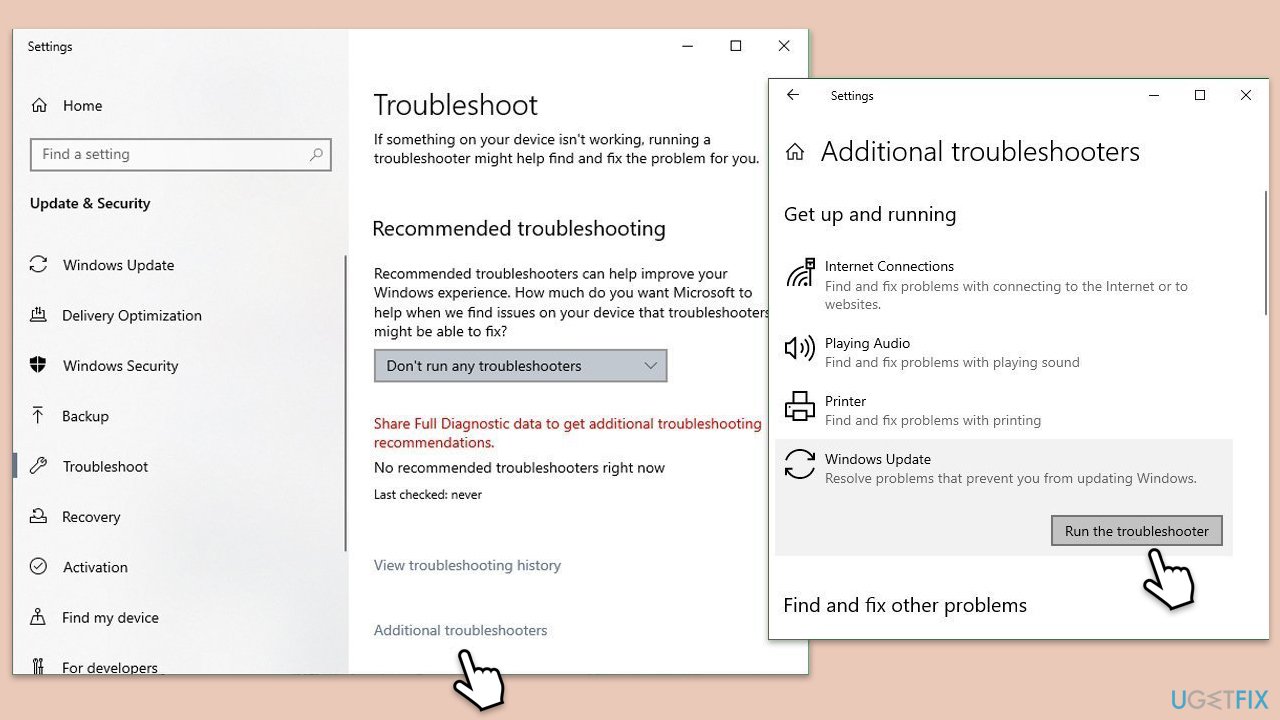
- Type Troubleshoot in Windows search and hit Enter.
- Select Other troubleshooters.
- Find Windows Update from the list and select Run.
- Wait till the scan is finished - you will be provided with potential causes so you can proceed with fixes.
- If no suggestions were given, proceed with the next solutions.
Fix 2. Ensure Windows Update services are running
If essential services are stopped or misconfigured, the update might not install correctly. Ensuring they are running can resolve this.
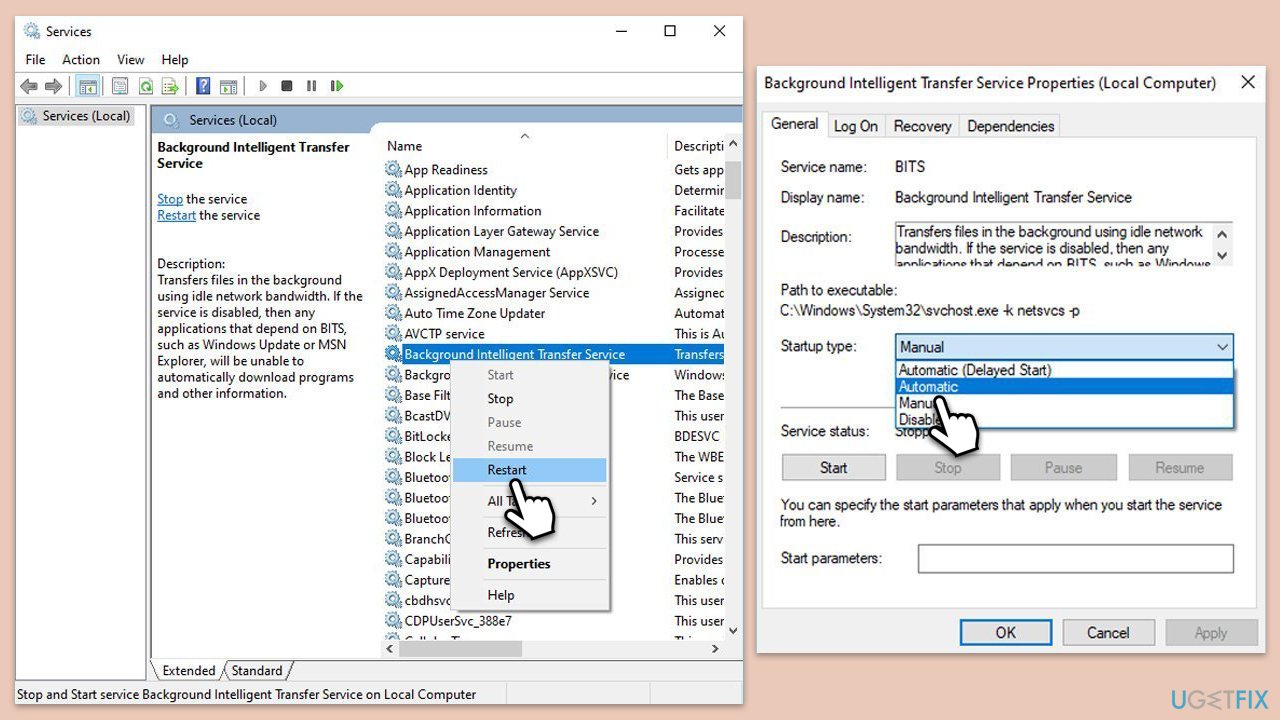
- Type in Services in Windows search and press Enter.
- Locate Background Intelligent Transfer Service (BITS).
- If it is already running, right-click and select Restart.
- If the service is not running, double-click it, and pick Automatic under the Startup type from the drop-down menu.
- Click Start, Apply, and OK.
- Repeat this process with Windows Update and Cryptographic services.
Fix 3. Run SFC and DISM scans
Corrupted system files can interfere with the update process, leading to KB5053643 not installing. SFC and DISM tools can repair these files.
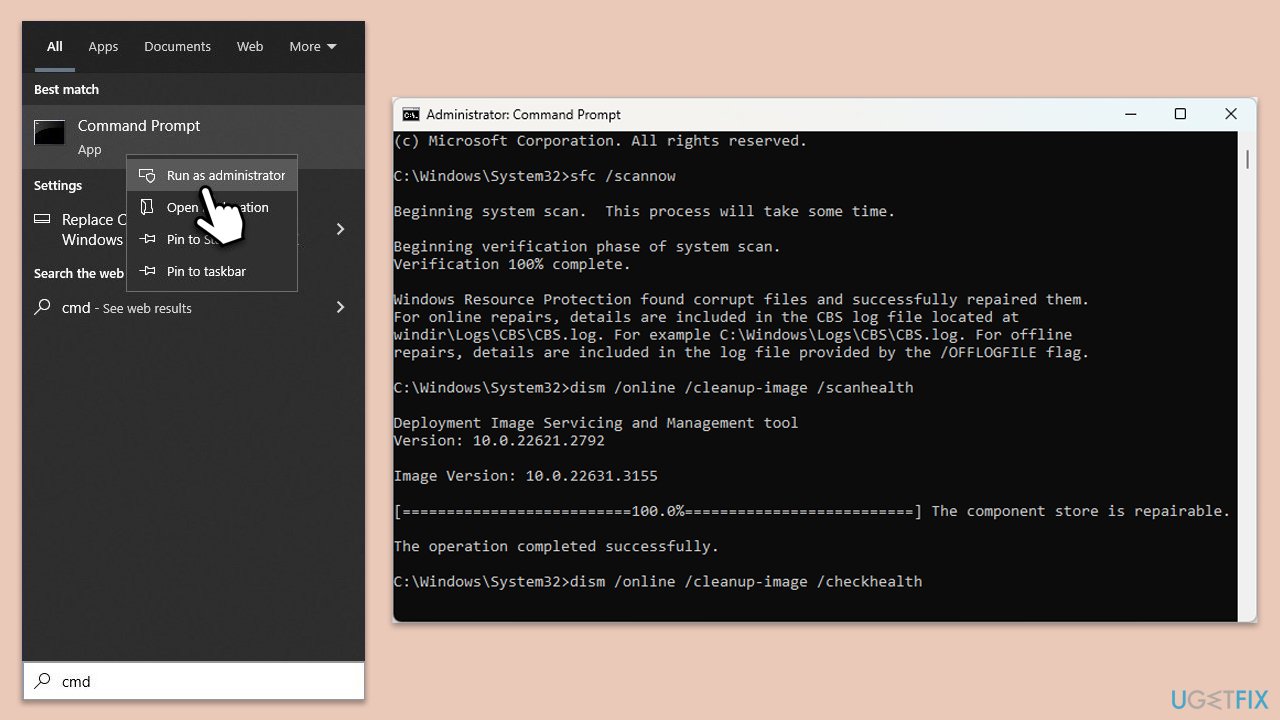
- Type cmd in Windows search, right-click on Command Prompt, and select Run as administrator.
- When UAC shows up, click Yes.
- Copy and paste the following command, pressing Enter after:
sfc /scannow - Wait till the scan is finished. If Windows finds system file integrity violations, it will attempt to fix them. After this, use the set of the following commands, pressing Enter each time:
DISM /Online /Cleanup-Image /CheckHealth
DISM /Online /Cleanup-Image /ScanHealth
DISM /Online /Cleanup-Image /RestoreHealth - Close down the Command Prompt and restart your device.
Fix 4. Reset Windows Update components
Corrupted update components can be repaired via Command Prompt commands.
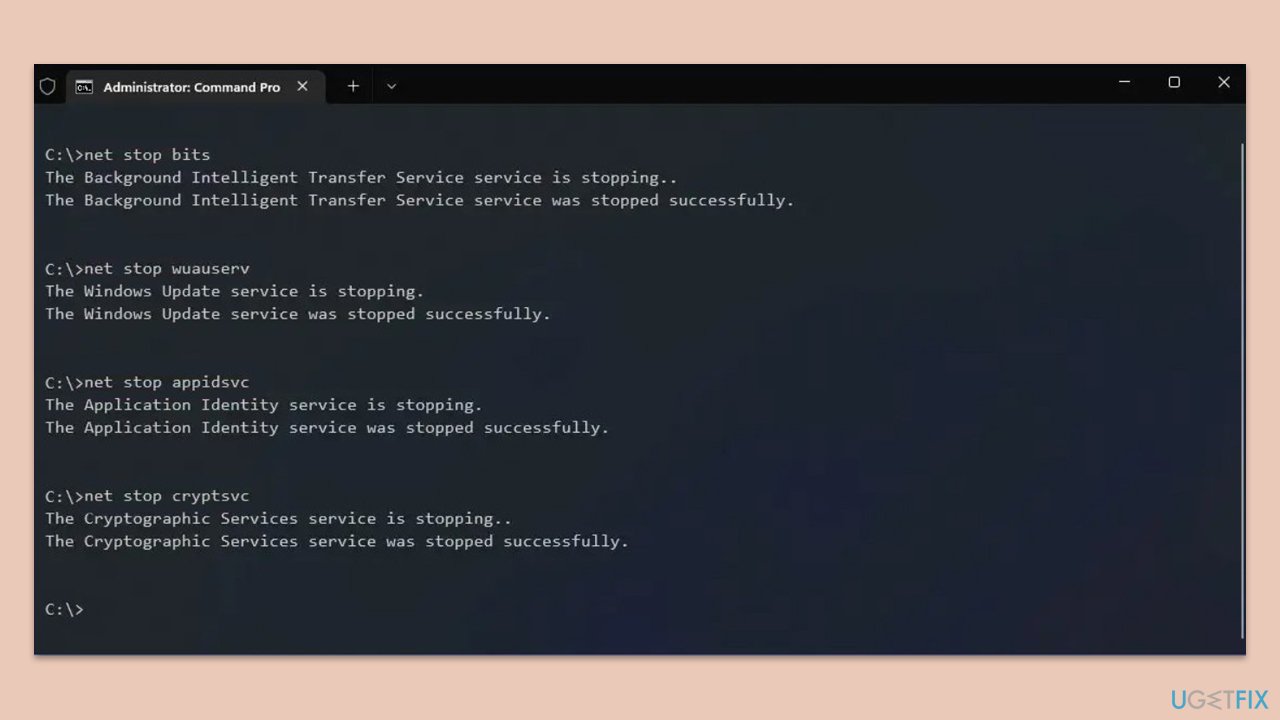
- Open Command Prompt as administrator.
- Stop the Windows Update Services by entering the following commands, one at a time, and pressing Enter after each:
net stop wuauserv
net stop cryptSvc
net stop msiserver
net stop bits - Rename the SoftwareDistribution and Catroot2 folders with the following commands:
ren C:\Windows\SoftwareDistribution SoftwareDistribution.old
ren C:\Windows\System32\catroot2 catroot2.old - Restart the services you stopped earlier with these commands:
net start wuauserv
net start cryptSvc
net start msiserver
net start bits - Close the Command Prompt window and update Windows again.
Fix 5. Free up disk space
Insufficient disk space can prevent the update from installing, as updates require space to download and apply files. Freeing up space can help.
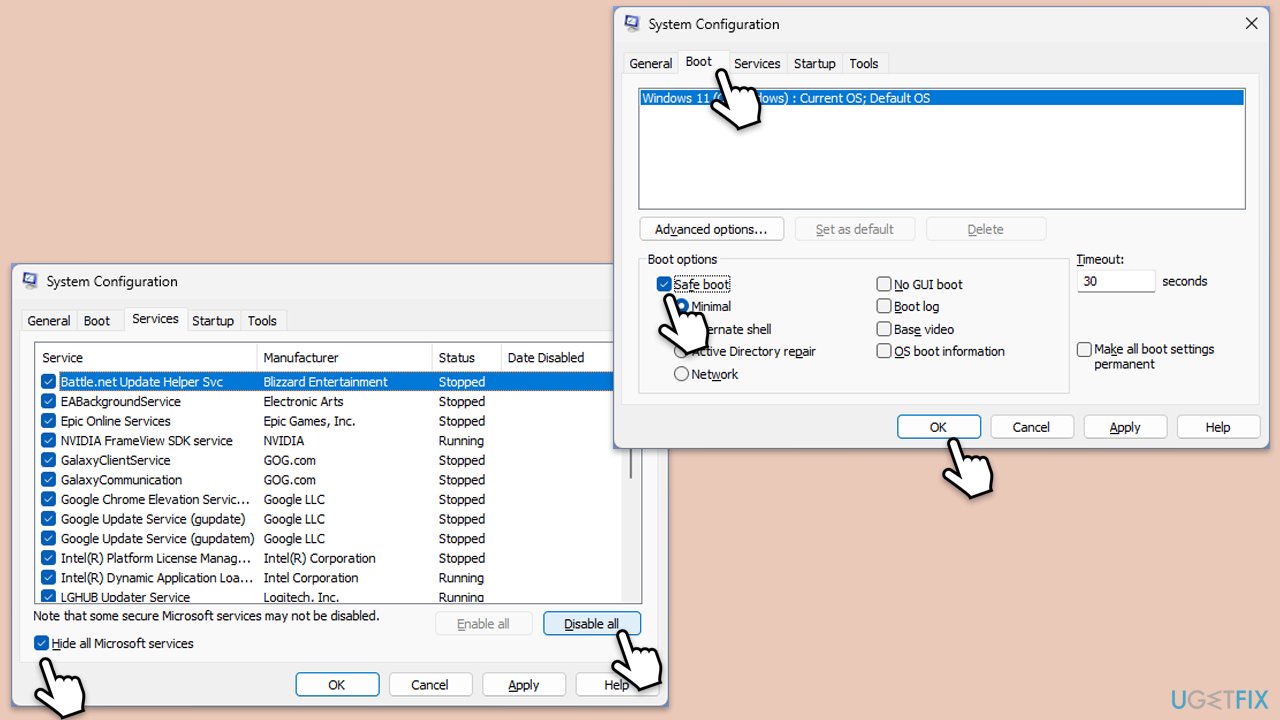
- Type Disk Cleanup in Windows search and press Enter.
- Select your main drive (C: by default).
- Select appropriate fields (Temporary files, Recycle Bin, etc.) and click OK.
- If you want a more thorough cleanup and require even more space, select Clean system files in the Disk Cleanup window.
- Select your main drive again - Windows will compute how much space can be retrieved.
- The largest data dumps are usually accumulated in Windows Update and Delivery Optimization sections, although Temp files can also take a lot if it hasn't been cleaned.
- Select appropriate fields and click OK - Windows will remove all these files from your device and free up space.
Fix 6. Perform a clean boot
Third-party software, such as antivirus programs or Citrix components, can conflict with the update process.
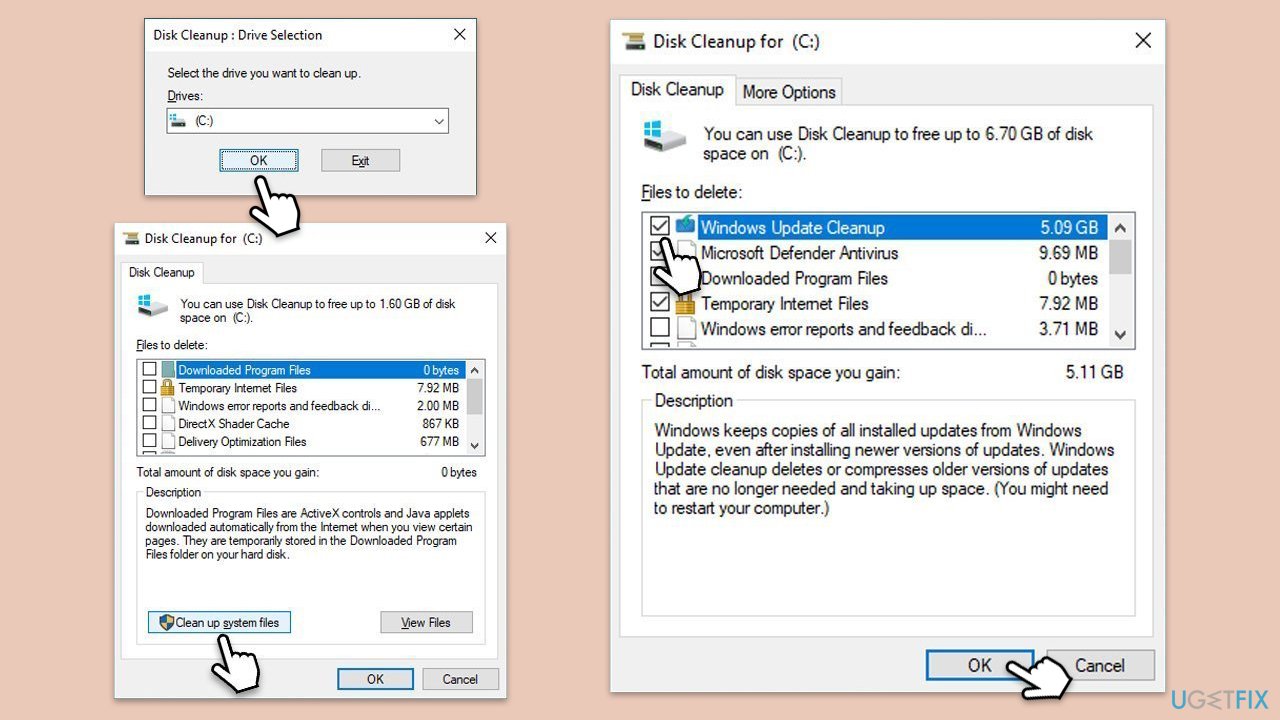
- Type msconfig in Windows search and then press Enter.
- Select the Services tab and tick the Hide all Microsoft services checkbox.
- Pick Disable all.
- Go to the Startup tab and click Open Task Manager.
- Here, right-click on each of the non-Windows entries and select Disable.
- Close down the Task Manager.
- Go to the Boot tab and tick the Safe boot option
- Reboot your system.
- Try updating Windows again.
Fix 7. Install the update manually
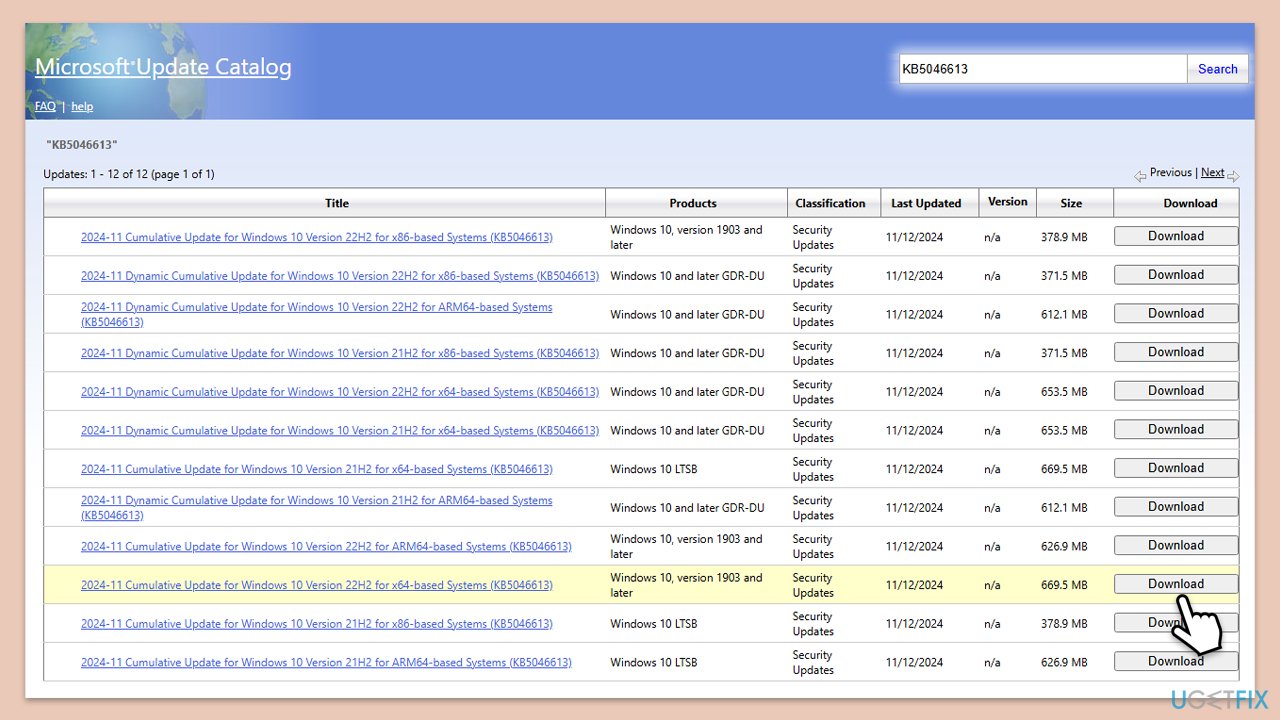
Automatic installation failures can be bypassed by manually downloading and installing the update from the Microsoft Update Catalog.
- Go to the official Microsoft Update Catalog website.
- Type the KB5053643 into the search bar, and press Enter or click Search.
- You will find many different versions on the update – you need to find the one that matches your PC specs and Windows version (as a home user, ignore Windows server versions).
- Right-click on Start and pick System.
- Under Device specifications, check the System type section: it should either be 64-bit or 32-bit.
- Scroll down to Windows specifications and check the Version section.
- Return to the Microsoft Update catalog, download the correct version, and install it.
- Restart your system.
Fix 8. Check for Citrix components
Citrix Session Recording Agent (SRA) version 2411 can interfere with Windows updates, potentially causing KB5053643 to fail to install. Addressing this conflict can help.
- Right-click on Start and select Settings.
- Go to Apps > Installed apps and search for Citrix Session Recording Agent.
- If version 2411 is installed, uninstall it or check Citrix’s documentation for a workaround.
- Restart your computer and attempt to install KB5053643 again.
- Reinstall the Citrix component after the update, if needed.
Bottom line
The KB5053643 update can fail due to several issues, including corrupted components and interference from third-party software. Major fixes in this update address problems with File Explorer thumbnails, Remote Desktop troubleshooters, and printer text output. If these solutions do not work, further troubleshooting may be necessary.
Frequently asked questions
First, try running the Windows Update Troubleshooter to identify and fix any issues. If that doesn't work, consider manually downloading the update from the Microsoft Update Catalog.
Yes, common error codes include 0x800F0922 and 0x80073712, which indicate problems with system files or internet connectivity.
Yes, resetting Windows Update components can resolve conflicts and allow the update to install successfully; you can do this through a series of command prompts.




Report an issue
What's wrong with this guide? We review every report and update or remove content.
Report received — thank you. We'll review and fix it.
You need a free account to submit a report.
Be the first to comment