How to fix
Microsoft Store error 0x80073d10
on Windows
Resolve Microsoft Store error 0x80073d10 on Windows 10 or 11 with simple fixes. Get back to seamless downloads, expert-tested solutions included.

What causes How to fix Microsoft Store error 0x80073d10?
- Corrupted Store components
- Problematic cache files
- Lack of disk space
- Third-party antivirus interference
- File system corruption
- Unstable internet connection
Repairs Windows system files, removes malware, and restores a clean OS state — without reinstalling.
I encounter "Windows cannot install package" messages when I attempt to install apps through Microsoft Store while the error code shown is 0x80073d10. How can I fix this? I need help with technical matters because my technological skills are quite limited.
Through Microsoft Store Windows 10 and 11 users access a secure platform which verifies their digital content including apps games and other digital goods. It enables them handling software installations and updates, and find new tools efficiently, which makes this feature essential for most people. Users unfortunately encounter the 0x80073d10 error that prevents this process to be successful, thus preventing them from accessing their desired content.
Users encounter the 0x80073d10 error when installing or updating applications through Microsoft Store while receiving the message that says "Something unexpected happened." At this time, their download starts before suddenly stopping at particular points during the process, or the installation fails to initiate at all.
Users on various tech forums state their annoyance about the 0x80073d10 error, while reporting that it often emerges when installing large applications or games exceeding 10 GB in size, possibly due to storage or system resource problems. This problem usually arises due to corrupted Store components, which include problematic cache files and app packages.
The problem could also occur due to some other factors such as lack of disk space, third-party antivirus or file system corruption interference. The 0x80073d10 error could also be caused by the unstable internet connection or misconfigured Windows services involved in the process.
Several troubleshooting steps can resolve this error, such as resetting the Store cache, fixing system files, or reinstalling the Store app. If you need help with these, we explain everything below in the step-by-step instructions.
For an instant solution, we recommend running [d1], a PC repair tool that can automatically fix system file corruption, service issues, and other Windows issues that could be causing the 0x80073d10 error.
Fix 1. Reset Microsoft Store cache
Corrupted cache files can prevent the Microsoft Store from installing apps, leading to errors like 0x80073d10. Resetting the cache clears out problematic data.
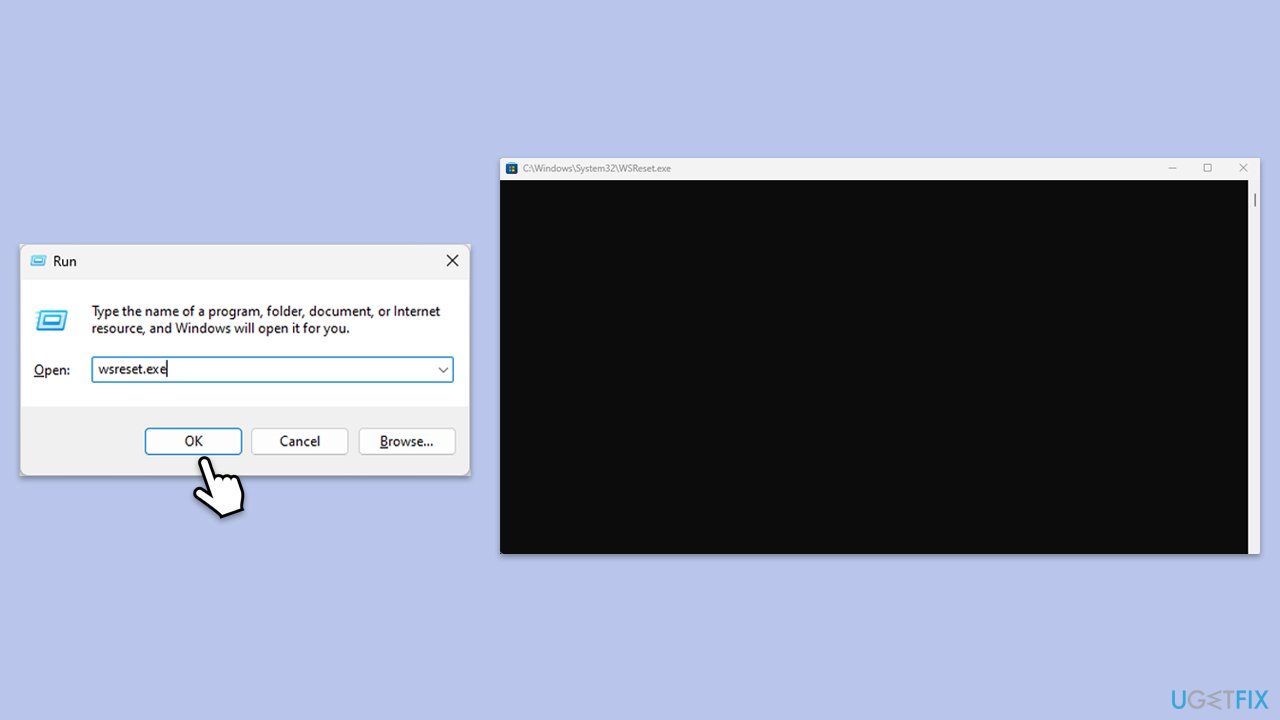
- Press Win + R, type wsreset.exe and press Enter.
- Wait till a black window shows up – do not close it.
- Once it's gone, Microsoft Store should restart.
- Open the Microsoft Store and try installing the app again.
Fix 2. Free up disk space
Insufficient disk space can cause app installations to fail, especially for larger apps or games. Ensuring enough free space on your system drive can prevent this error.
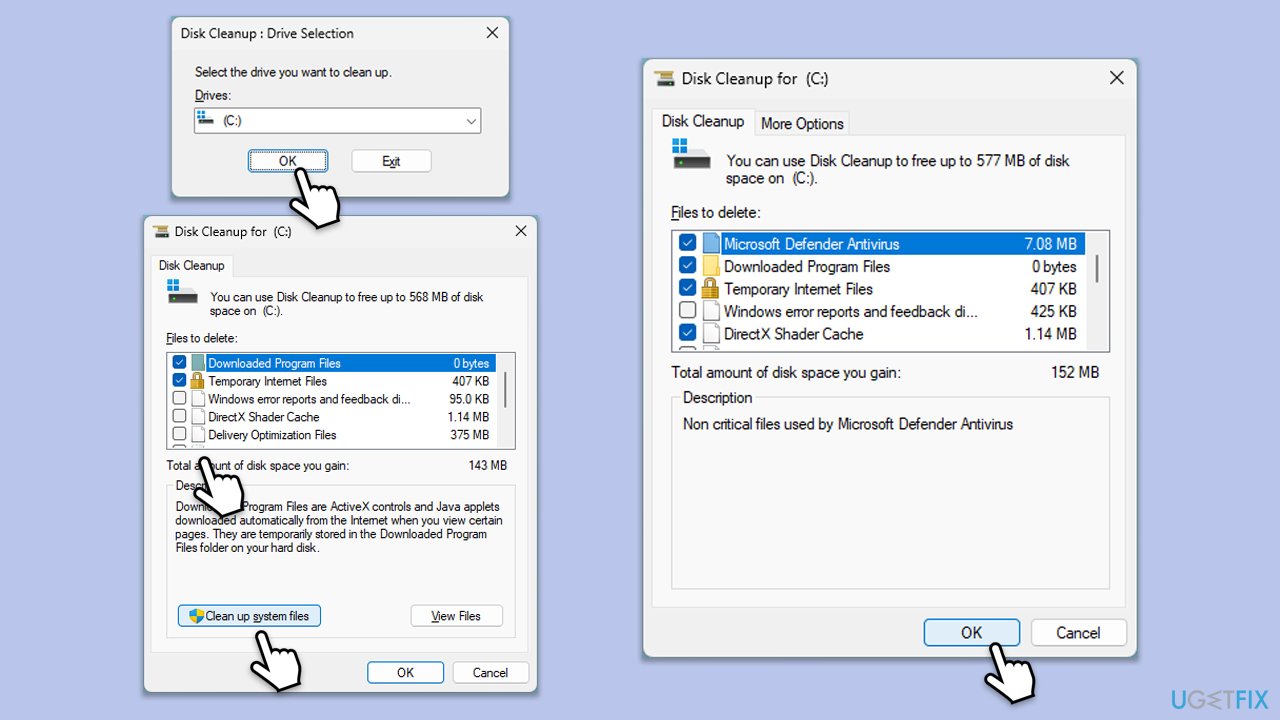
- Type Disk Cleanup in Windows search and press Enter.
- If your Windows is installed on drive C, pick it from the list (it should be by default) and press OK. If you only use one drive, this step will be skipped.
- At the bottom of the window, click on Clean up system files.
- Select the main drive again if required and wait.
- Here, select the largest portions of the data used - these typically include Temporary Internet Files, Windows Update, Temporary Files, Recycle Bin, Delivery Optimization Files, and others.
- Click OK - the process should be finished shortly.
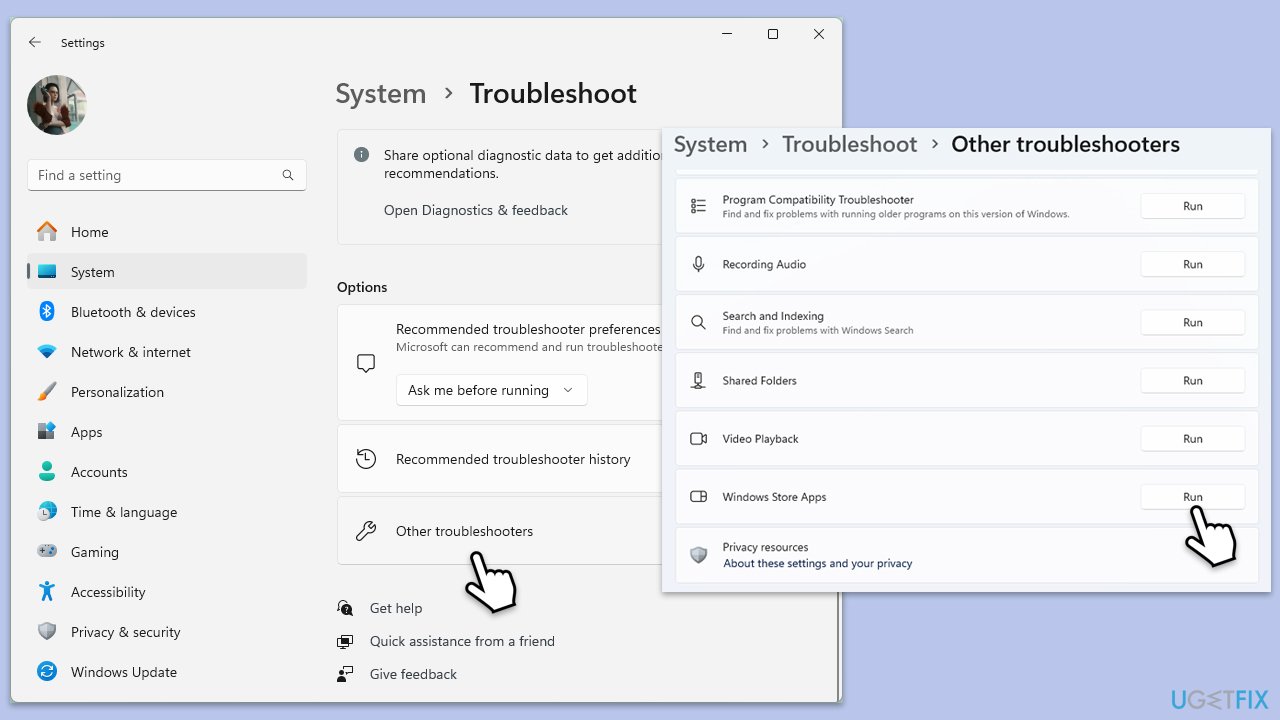
Fix 3. Run the Windows Store Apps troubleshooter
Built-in troubleshooters can detect and fix common issues with the Microsoft Store, such as service errors or corrupted app packages, that might cause installation failures.
- Type Troubleshoot in Windows search and press Enter.
- On the right side of the window, click Additional troubleshooters/Other troubleshooters.
- Scroll down and select Windows update.
- Click Run the troubleshooter/Run.
- Wait for the troubleshooter to finish.
- Restart your computer.
Fix 4. Disable third-party antivirus temporarily
Third-party antivirus software can block the Microsoft Store from downloading or installing apps by flagging its processes, leading to errors. Temporarily disabling it can help. To do that, simply open your third-party anti-malware software, get to Settings, and find the option to disable protection temporary.
Fix 5. Re-register Microsoft Store
Corrupted Store components can cause installation errors, and re-registering the app can reset its core files to fix the issue without affecting your data.
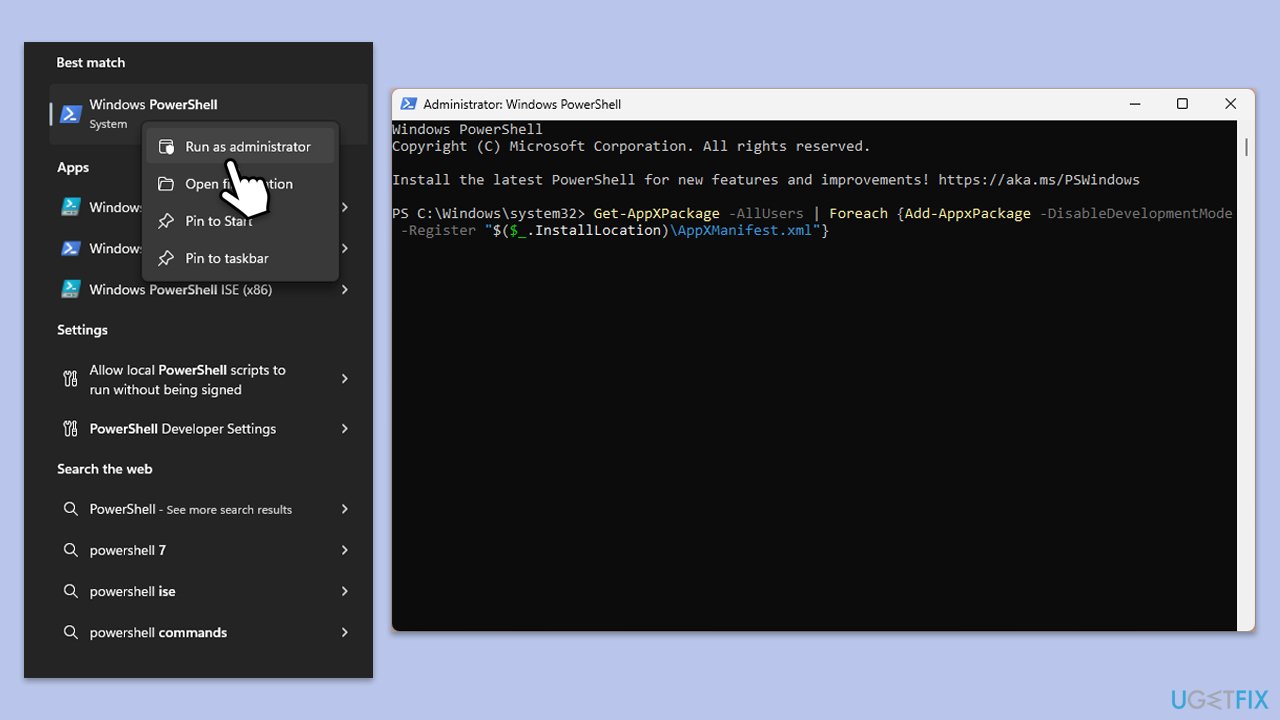
- Type PowerShell in Windows search.
- Right-click on PowerShell and select Run as administrator.
- When UAC shows up, click Yes.
- Copy and paste the following command, pressing Enter after each:
Get-AppXPackage | Foreach {Add-AppxPackage -DisableDevelopmentMode -Register "$($_.InstallLocation)\AppXManifest.xml"} - Close down PowerShell and restart your computer.
Fix 6. Run SFC and DISM scans
Corrupted system files can interfere with the Microsoft Store’s ability to install apps, leading to errors like 0x80073d10. SFC and DISM tools can repair these files.
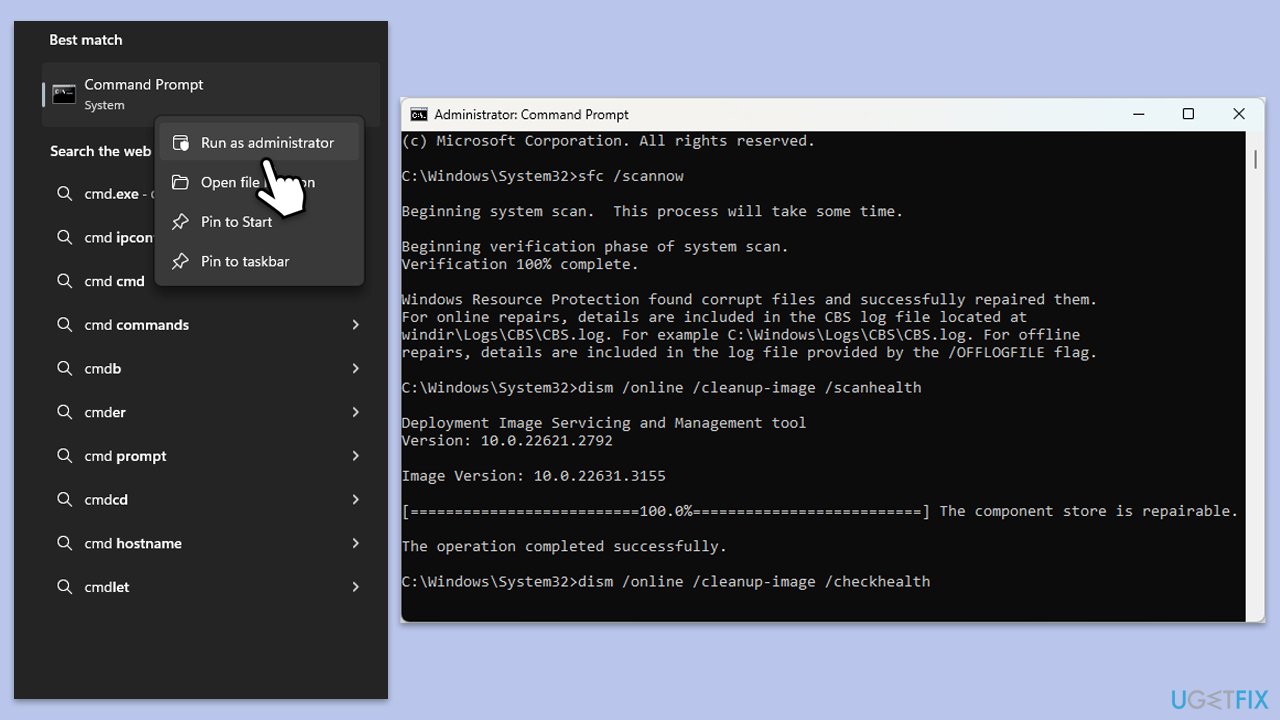
- Type cmd in Windows search box.
- Right-click on Command Prompt and select Run as administrator.
- The User Account Control window will ask whether you allow changes - click Yes.
- Copy and paste the following command, pressing Enter after:
sfc /scannow - Wait till the scan is finished. If Windows finds system file integrity violations, it will attempt to fix them. After this, use the set of the following commands, pressing Enter each time:
DISM /Online /Cleanup-Image /CheckHealth
DISM /Online /Cleanup-Image /ScanHealth
DISM /Online /Cleanup-Image /RestoreHealth - (Note: if you get an error executing this last command, add /Source:C:\RepairSource\Windows /LimitAccess to it and try again).
- Close down the Command Prompt and restart your system.
Fix 7. Check time and date
Incorrect system settings can disrupt Microsoft Store authentication, causing installation errors. Ensuring these are accurate aligns your PC with the Store’s requirements.
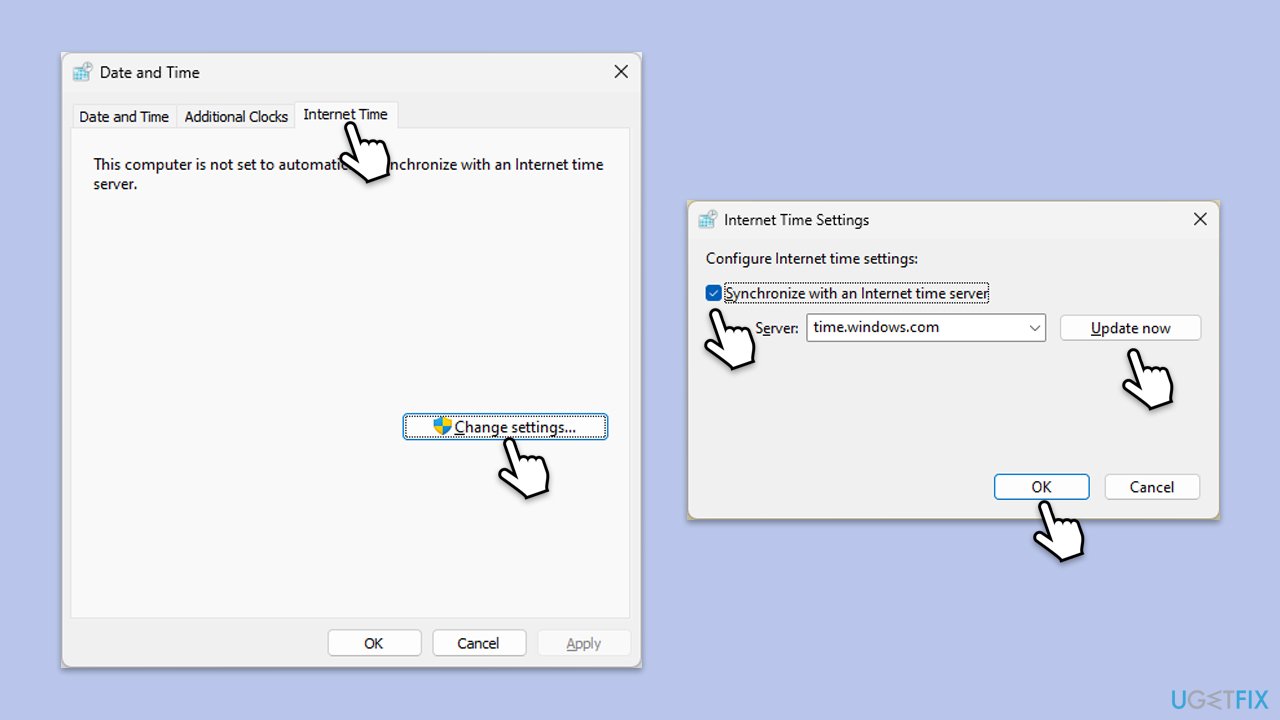
- Type in Control Panel in Windows search and press Enter.
- Go to Clock and Region and click on Date and Time.
- Pick the Internet Time tab and select Change Settings.
- Make sure that the Synchronize with an Internet time server box is ticked.
- Click Update now and OK.
Fix 8. Reinstall Microsoft Store
If the Store’s installation is corrupted, it might fail to install apps properly. Reinstalling it ensures a fresh setup of all components.
- Open PowerShell as administrator.
- Similarly, like before, confirm the UAC prompt.
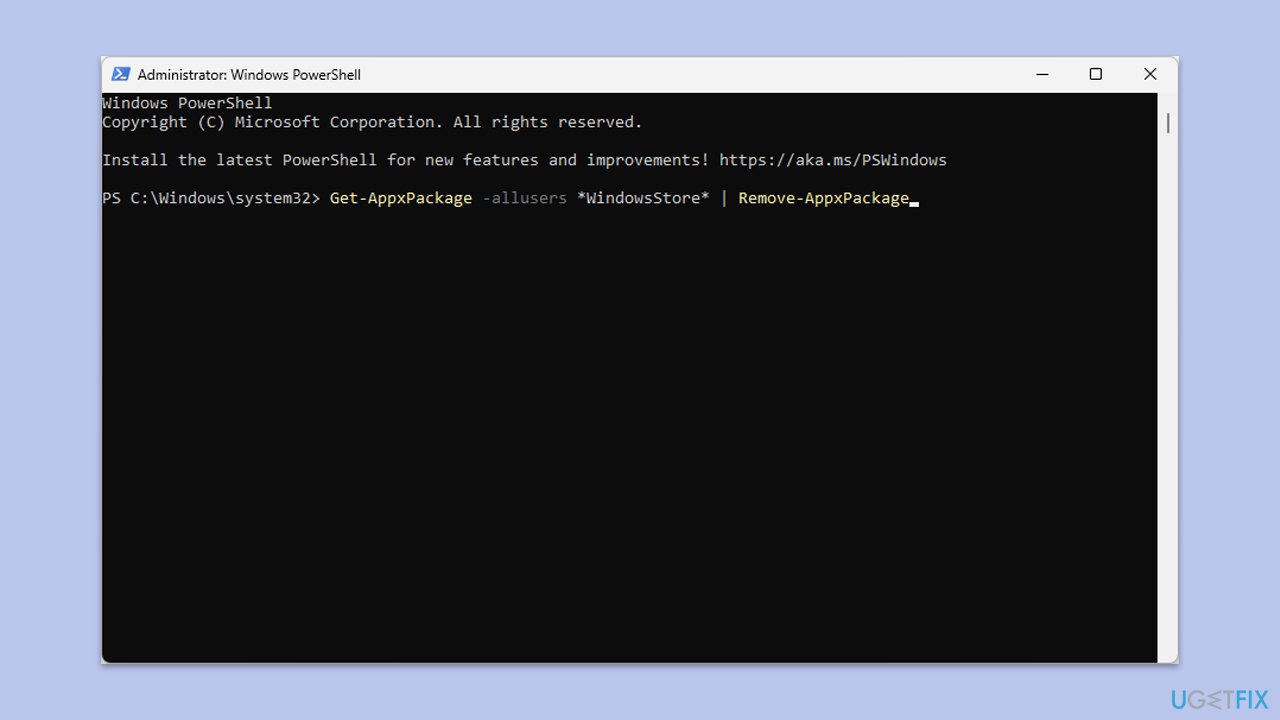
- Copy and paste the following command, pressing Enter after:
Get-AppxPackage -allusers *WindowsStore* | Remove-AppxPackage - Next, reinstall the store with the following command:
Get-AppxPackage -allusers *WindowsStore* | Foreach {Add-AppxPackage -DisableDevelopmentMode -Register “$($_.InstallLocation)\AppXManifest.xml”} - Restart your computer.
Bottom line
To fix the Microsoft Store error 0x80073d10, you can reset the Store cache, fix system files, or reinstall the Store app. If these steps do not resolve the issue, consider using a PC repair tool to automatically fix system file corruption and other related problems.
Frequently asked questions
The error 0x80073d10 typically indicates a problem with app installation or update processes in the Microsoft Store, often related to corrupted system files or settings.
You can reset the Microsoft Store by opening Windows Settings, navigating to 'Apps', selecting 'Microsoft Store', and clicking on 'Advanced options' to find the 'Reset' option.
Yes, you can open Command Prompt as an administrator and run the commands 'wsreset.exe' and 'sfc /scannow' to help repair the Microsoft Store and system files associated with the error.




Report an issue
What's wrong with this guide? We review every report and update or remove content.
Report received — thank you. We'll review and fix it.
You need a free account to submit a report.
Be the first to comment